Wiring harness design in CATIA V5 - 3D modeling Week 5 & 6 Challenge
Aim: To create two different harness bundles as per given drawings and create a final assembly of those bundles.
Objective:
- Define the given connectors as electrical components.
- Create a wire harness bundle separately as per given drawings.
- Check for bundle continuity.
- Generate CATPart from Product.
Theory: The harness drawings are shown below:
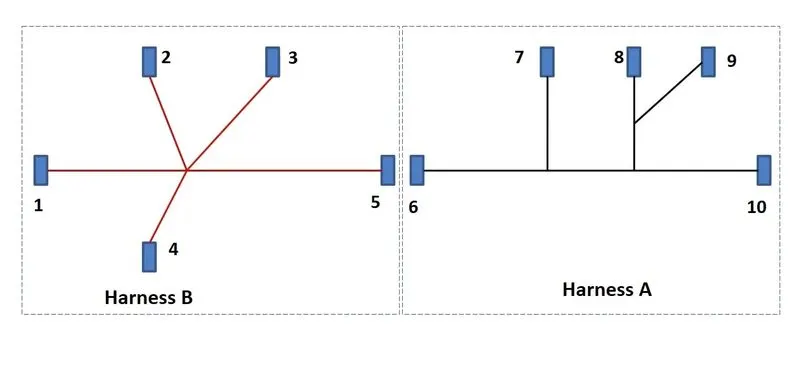
Fig. 1: Given harness drawings.
Define Electrical Components:
- There are 10 components given to be assembled as per above drawings.
- Open the part in CATIA V5. Insert Point and Axis Systems in Part Design Workbench.
- In the ‘Electrical Part Design’ Workbench, define the components as Electrical Connectors with appropriate Terminations.
- Define the Connector Connection Point.
- Define the Bundle Connection Point.
The connectors are as shown below:
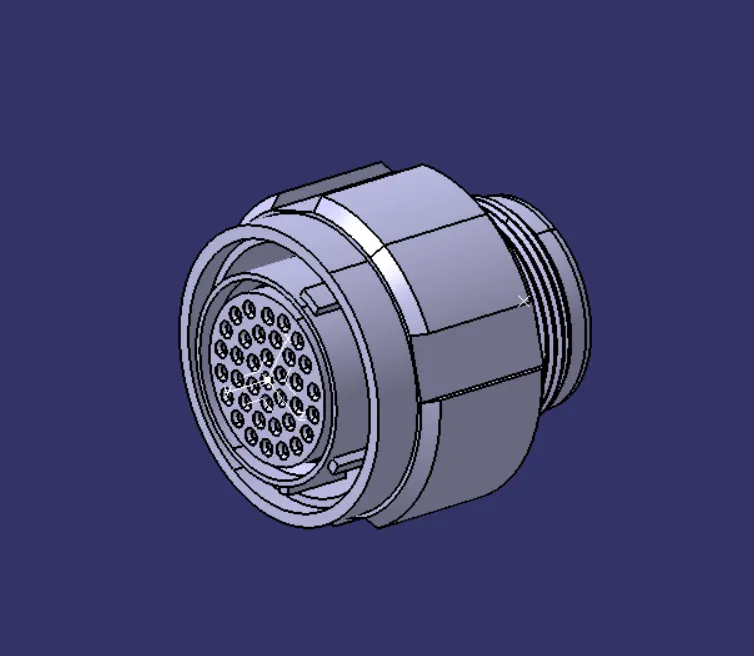
Fig. 2: Electrically Defined Connector 1
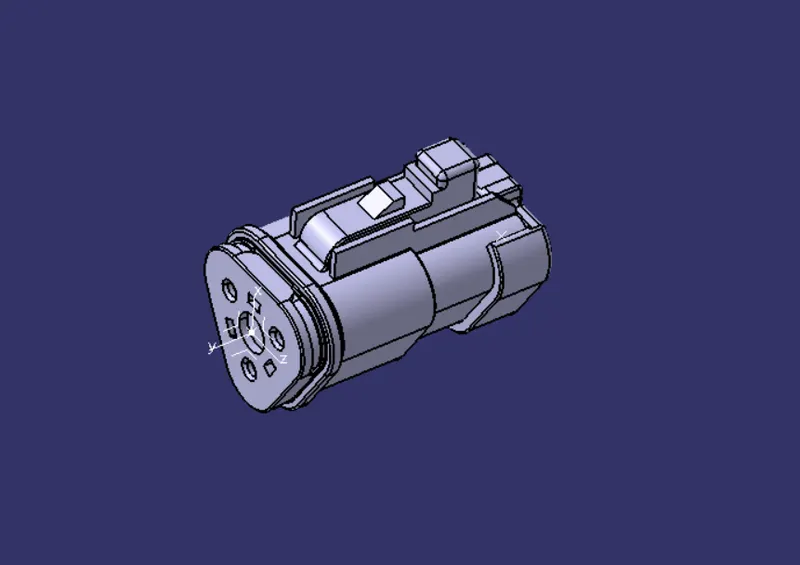
Fig. 3: Electrically Defined Connector 2
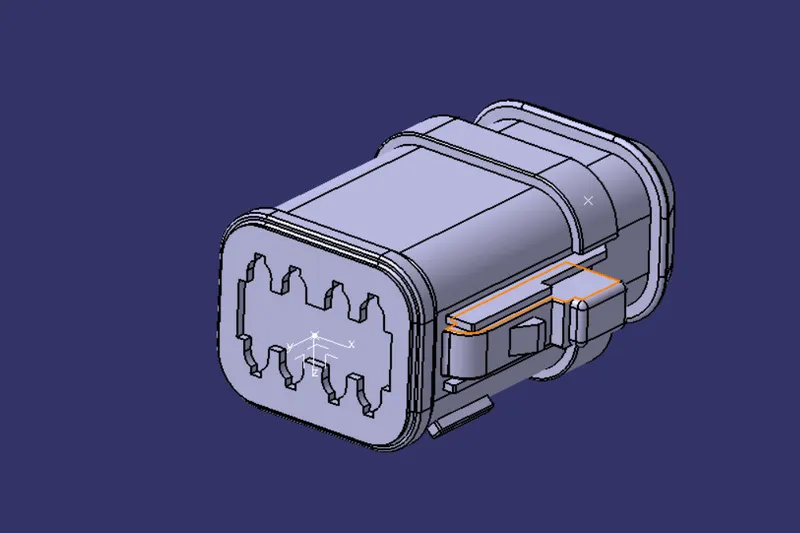
Fig. 4: Electrically Defined Connector 3
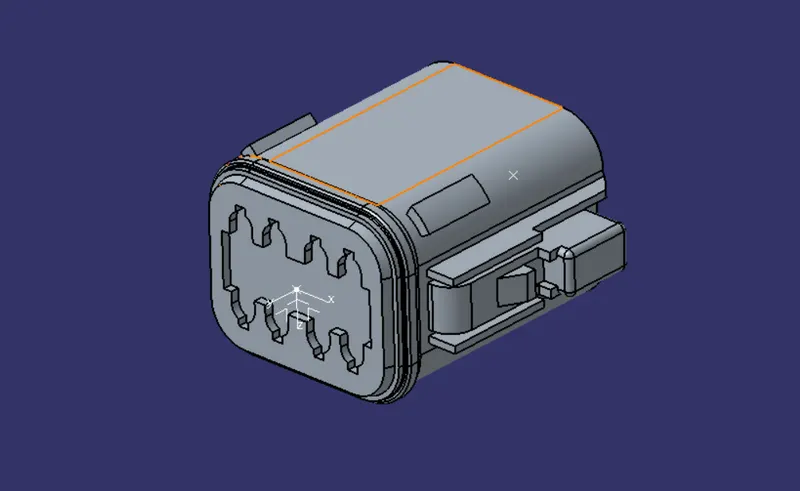
Fig. 5: Electrically Defined Connector 4
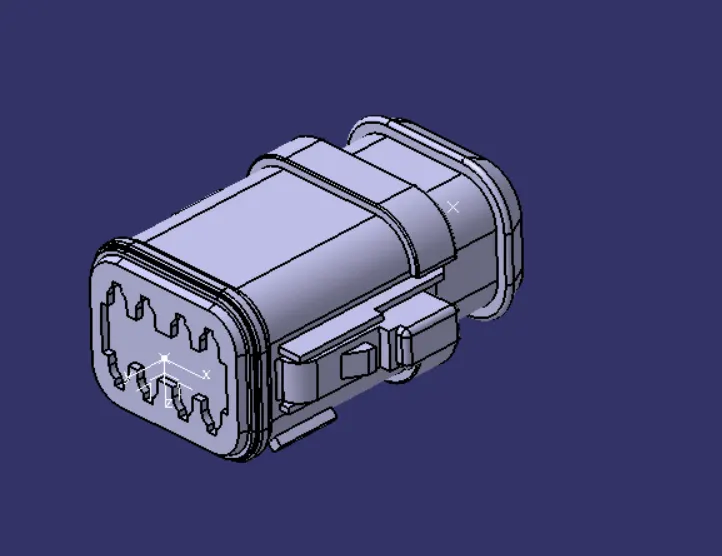
Fig. 6: Electrically Defined Connector 5
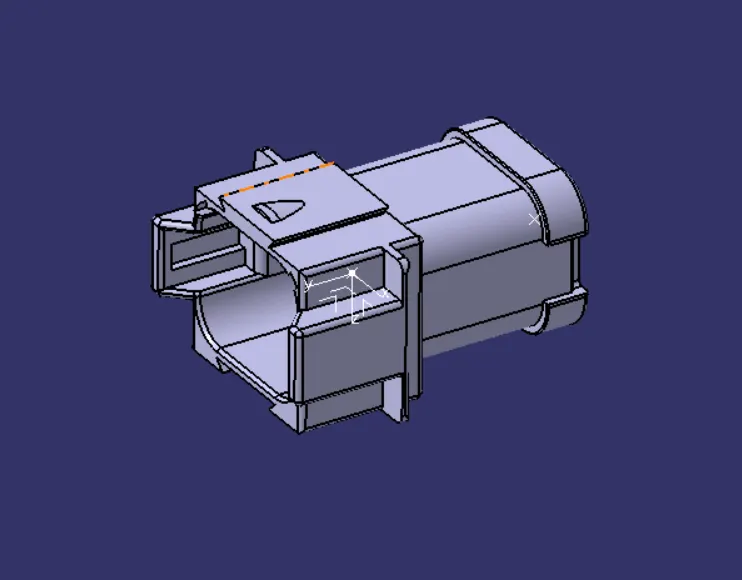
Fig. 7: Electrically Defined Connector 6
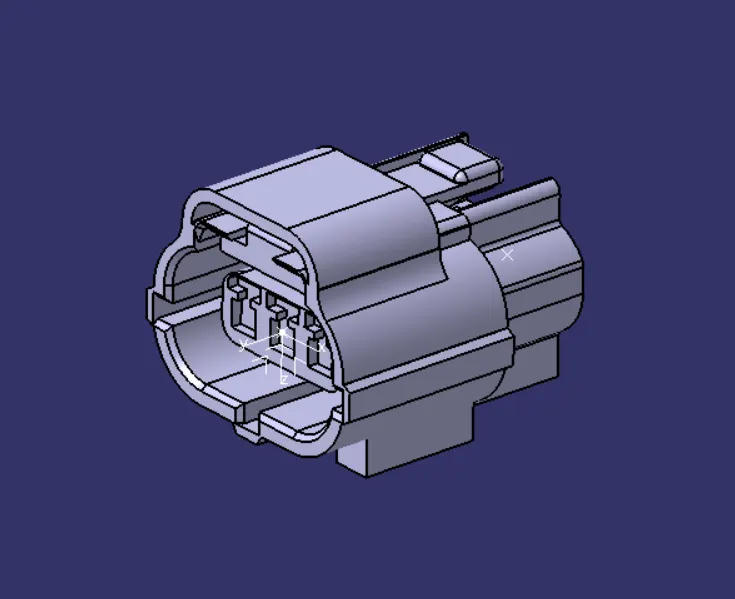
Fig. 8: Electrically Defined Connector 7
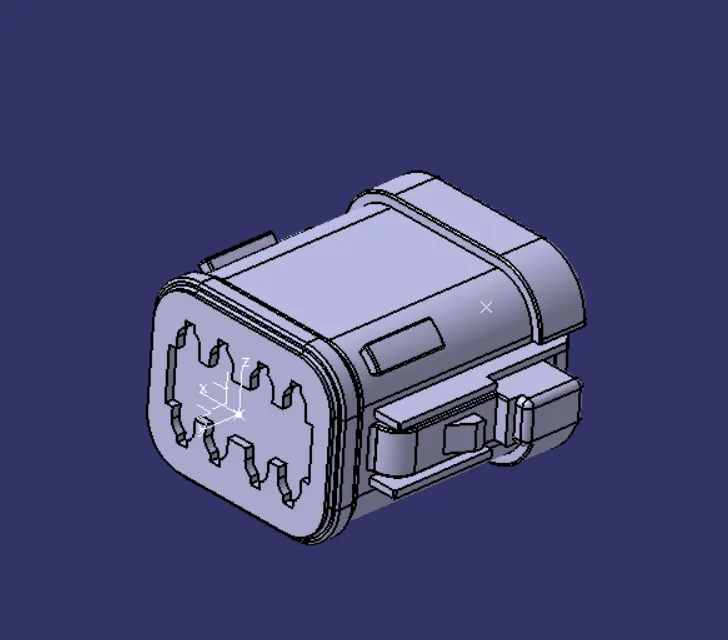
Fig. 9: Electrically Defined Connector 8
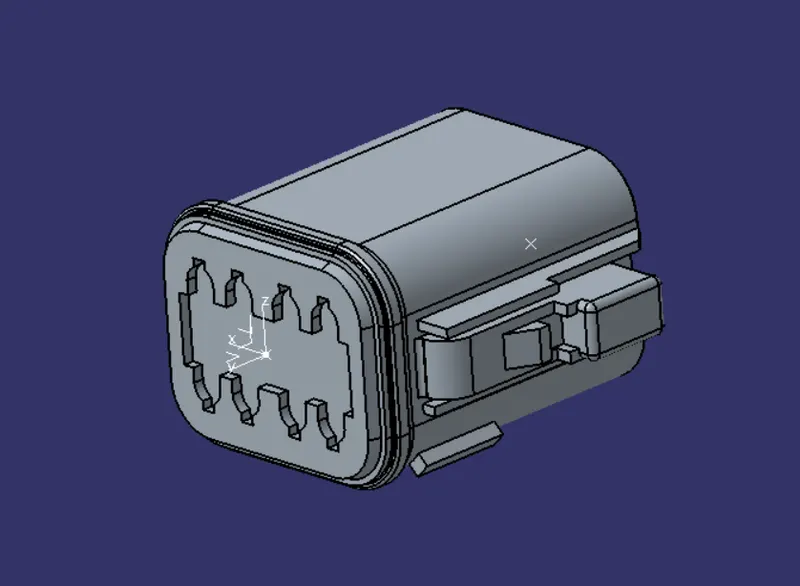
Fig. 10: Electrically Defined Connector 9
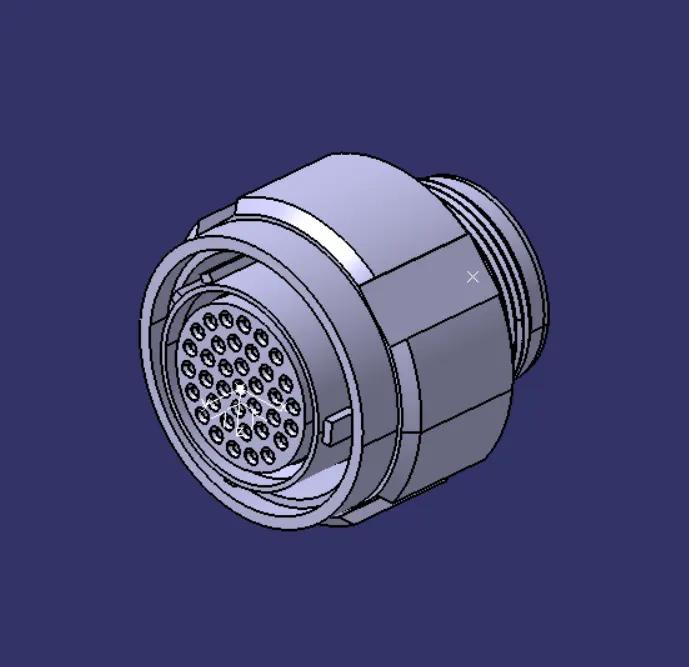
Fig. 11: Electrically Defined Connector 10
Creating the Harness Assembly:
- Open a New Product in CATIA V5.
- Import connector from 1 to 5 to create Harness B as per given drawings.
- In Assembly Design, use Manipulation tool to approximately place the connectors as per the drawing.
- In ‘Electrical Harness Assembly’, use the ‘Geometric Bundle’ command to convert into Electrical Assembly.
- Create a bundle between connector 1 and connector 5.
- Add a Branching point at some distance along this bundle.
- Create a harness bundle from the branch point to the connectors 2, 3 and 4.
- Save it as CATProduct.
- Use 3D annotations to name the corresponding connectors.
- Convert the Product file into CAT Part.
- Follow similar steps to create a wire harness bundle for Harness A.
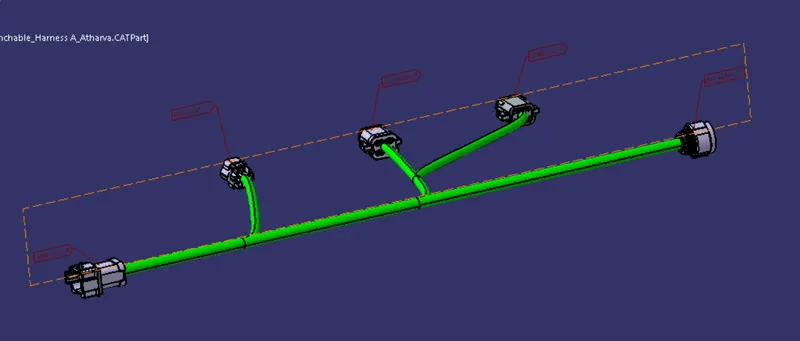
Fig. 12: Isometric view of Harness A.
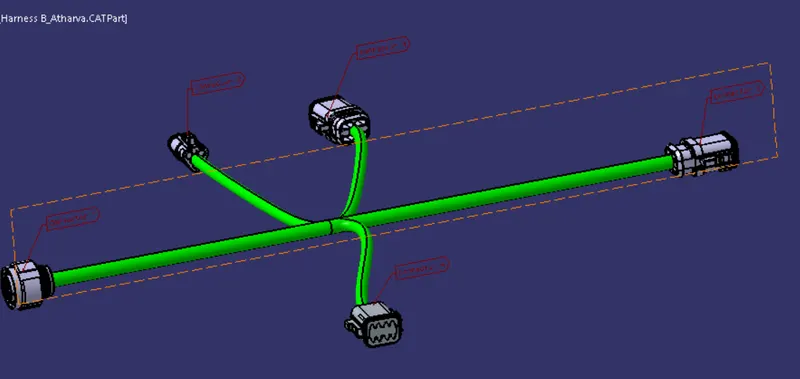
Fig. 13: Isometric view of Harness B.
Creating the main harness assembly:
- Open a new product in CATIA V5.
- Import the Harness A and Harness B assemblies.
- Use manipulation tool to approximately place the bundles according to the given drawings.
- In Electrical Assembly Design, use ‘Connect Electrical Devices’ command to connect together the connectors 5 and 6.
- Save It.
- Convert CAT Product into CAT Part.
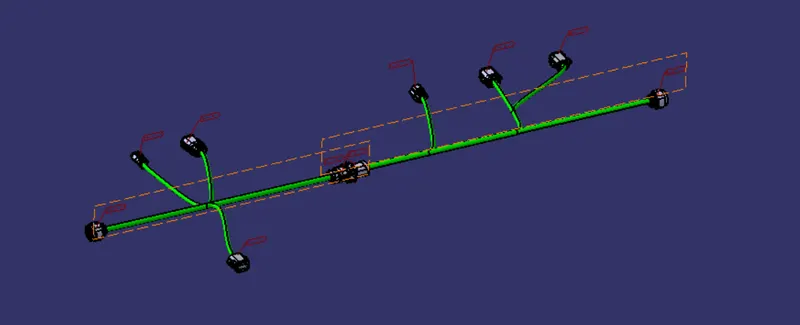
Fig. 14: Isometric view of Final Harness Assembly.
Checking Bundle Continuity:
- In the individual Harness Assemblies, go to Search command or press Ctrl+F.
- In Advanced tab, select Electrical Workbench and type as ‘Bundle Segment.
- Select ‘fully connected’ attribute and select ‘FALSE’ to view any bundle is disconnected or not.
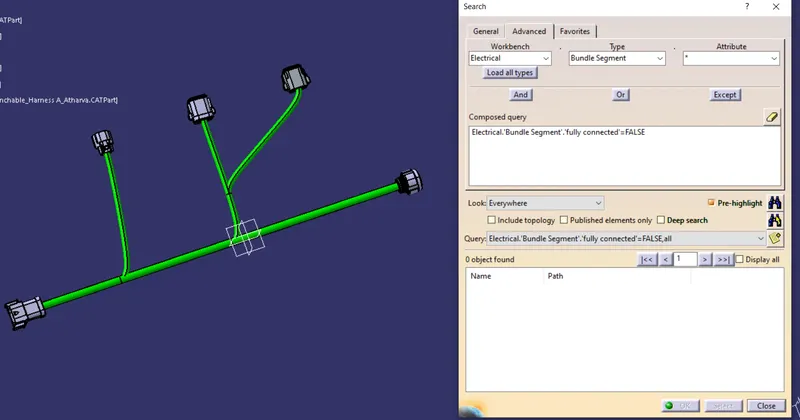
Fig. 15: Bundle Continuity of Harness A
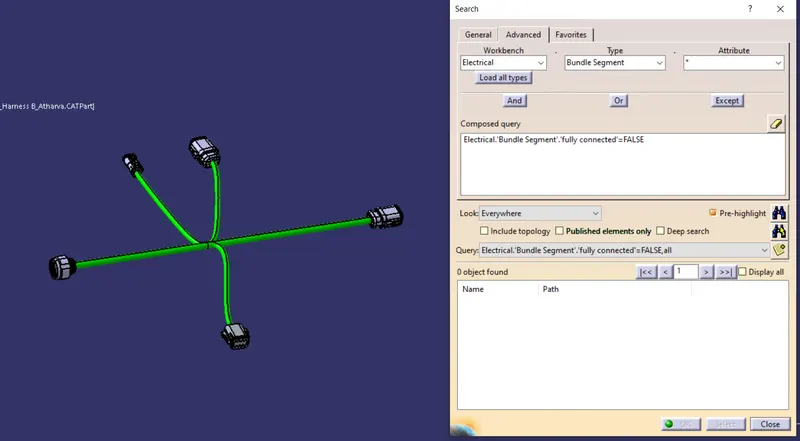
Fig. 16: Bundle Continuity of Harness B.
Conclusion: Wire harness bundles were created as per the given drawings and assembled together.