Wiring harness design in CATIA V5 - 3D modeling Week 4 Challenge
Aim: To create a wiring harness by using the required connectors and following a given harness diagram.
Theory: The given harness diagram is shown below:
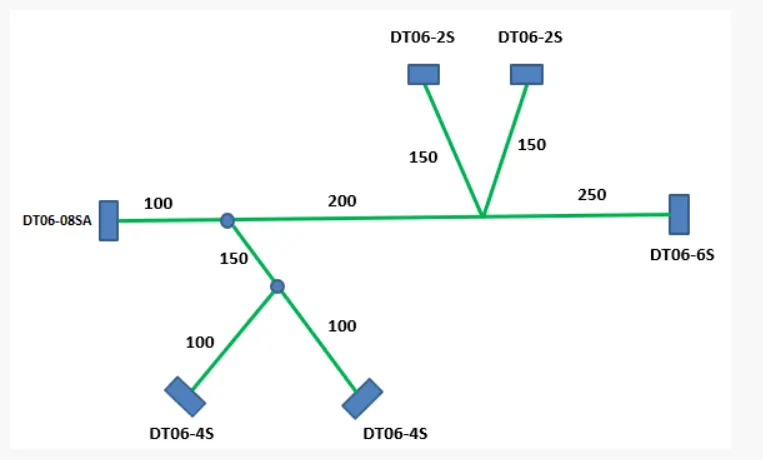
Fig. 1: The given diagram to create a wiring harness.
In the above diagram 4 different types of electrical connectors are needed to be used. These connectors can be downloaded from website of TE Connectivity (www.te.com). The part number of the connectors is given below:
- DT06-08SA: 8 Point connector.
- DT06-6S: 6 Point connector.
- DT06-4S: 4 Point Connector.
- DT06-2S: 2 Point Connector.
How to download the connectors?
- Go to the website www.te.com and type in the part number of the connector in the search box.
- Search the part number of the connector and download the ‘.stp’ file.
Define the connectors as Electrical Parts:
- Import the connector into CATIA V5 and open the Part Design
- Here, define the points and axis system as in the earlier challenge.
- Switch to the Electrical Part Design window and use ‘Define Connector’ command.
- Next, define the Connector Connection point for the connector such that Y-axis direction is coincident and X-axis direction is orientation direction.
- Define the Bundle Connection Point for the connector.
- Save the connector as CAT Part.
The connectors are shown below:
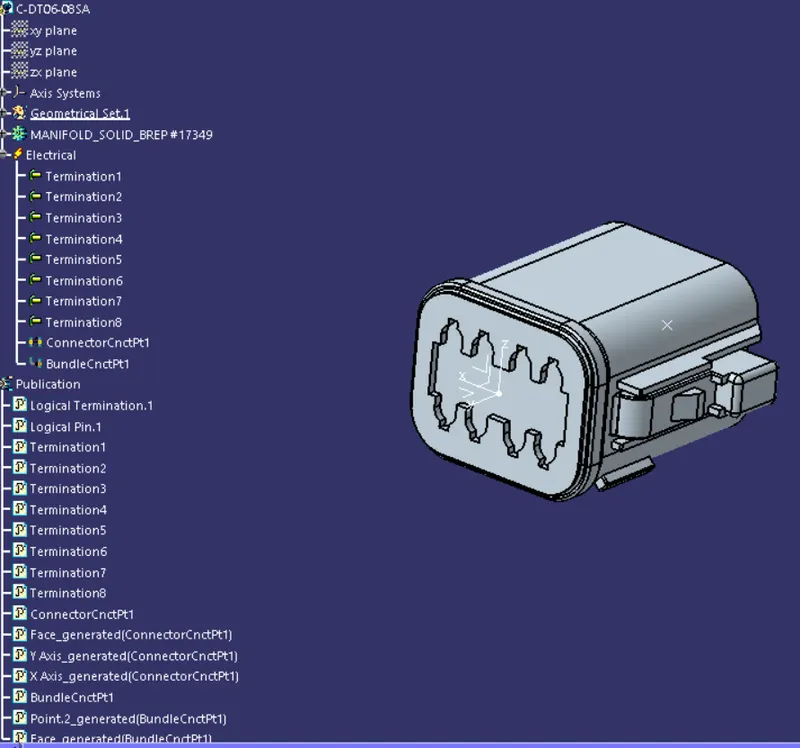
Fig. 2: Electrically defined connector DT06-08SA
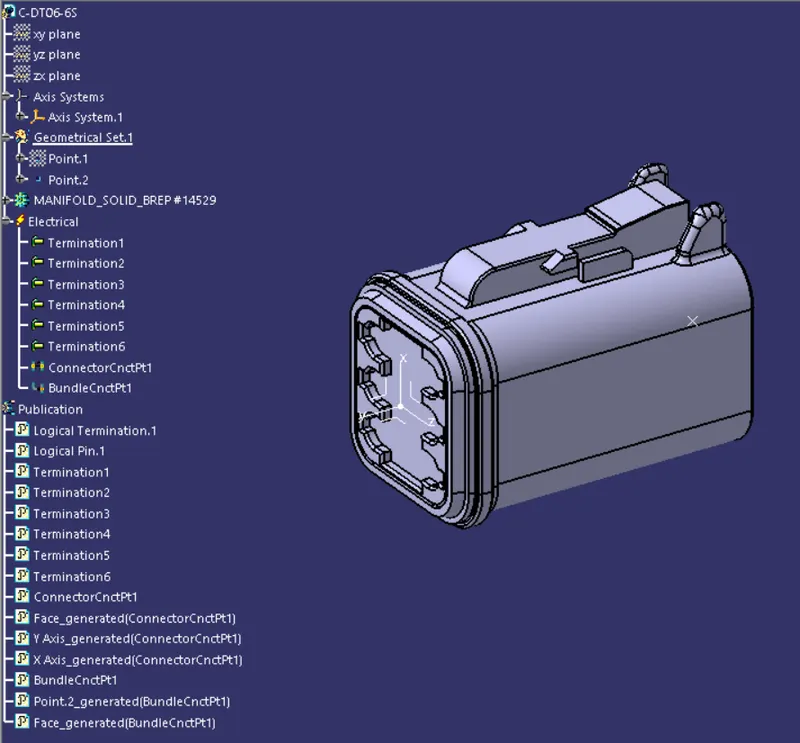
Fig. 3: Electrically defined connector DT06-6S
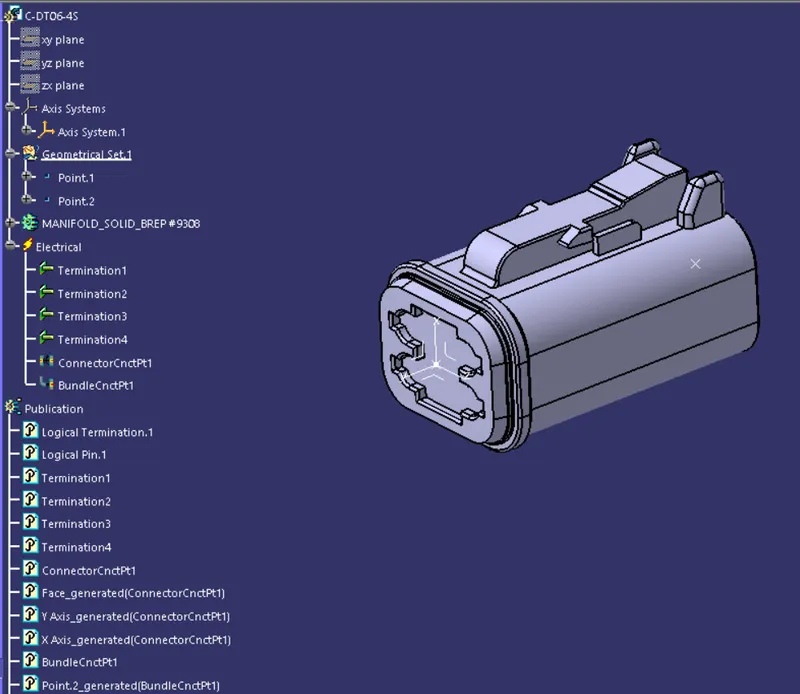
Fig. 4: Electrically defined connector DT06-4S
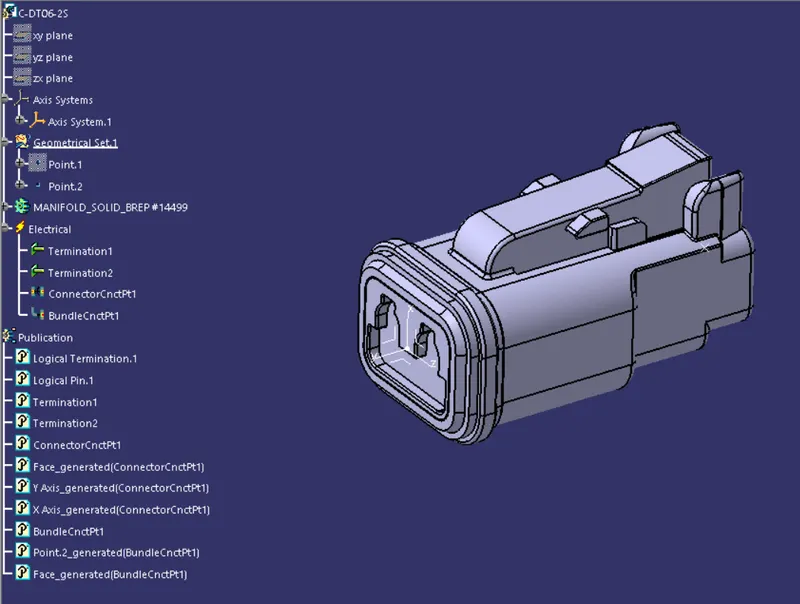
Fig. 5: Electrically defined connector DT06-2S
Creating a Dummy Part:
- Open a new part in the Part Design Window and draw a sketch of the given wire harness drawing on the horizontal plane.
- Use ‘Pad’ command and make a solid body out of the sketch.
- Save the part in the same folder as all other connectors.
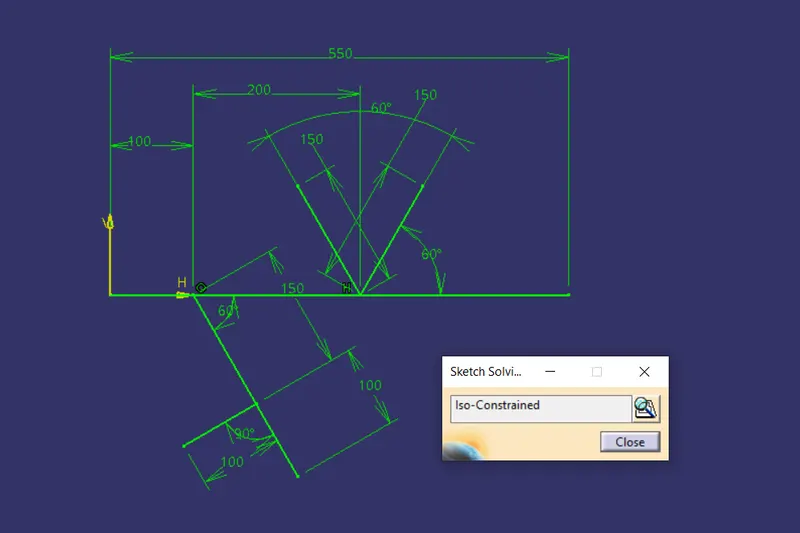
Fig. 6: Sketch for the dummy part.
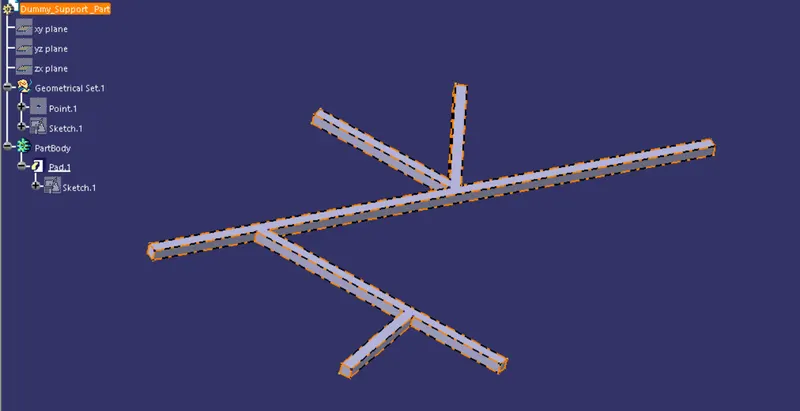
Fig. 7: Isometric view of Dummy part.
Creating the wire harness:
- Open a new Assembly design workbench and import the dummy part into it. Fix this dummy part.
- The ends of the dummy part form the reference surfaces to place the connectors as per given drawing and the top surface forms the reference to keep all the connectors in the same plane.
- Insert another ‘Product’ in this assembly and activate it.
- Import all the connectors as per required quantity and place them at appropriate places. Make sure that the bundle entry points of all the connectors are facing inside.
- To place the connectors at their position use the ‘Snap’ command in the Assembly workbench.
- Switch to the ‘Electrical Harness Assembly’ window and use the ‘Geometric Bundle Command’ to convert the mechanical assembly into an electrical assembly.
- Use ‘Multi-Branchable Document’ command to create a bundle between the connectors DT06-08SA and DT06-6S. Use bundle diameter as 10mm and slack as 0%.
- Use ‘Add Branch Point’ command to add the branch points as per the drawing.
- Create a wire harness of bundle diameter 8mm between the branch point and the DT06-4S pair of connectors.
- Create a wire harness of bundle diameter of 6mm between the branch point and DT06-2S pair of connectors.
- Use the ‘Catalog Browser’ command to import the corrugated tubes from the catalogue saved earlier and insert it on the branches leading to the DT06-2S and DT06-4S connectors. The wire harness is shown below:
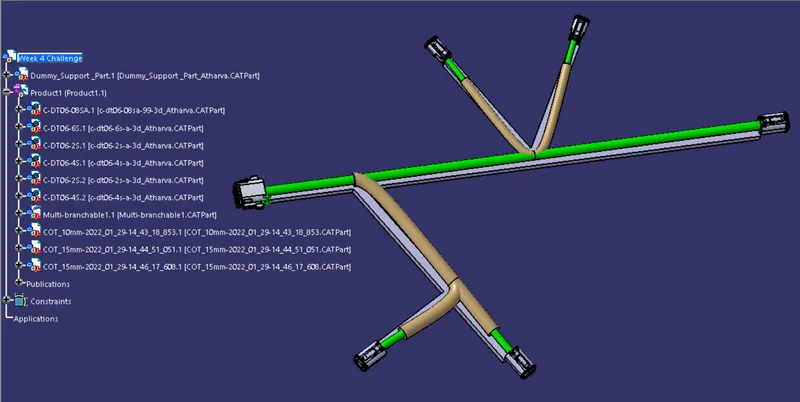
Fig. 8: Isometric view of the wiring harness bundle with protective coverings.
Conclusion: The wiring harness was created as per the given drawings along with protective coverings on the required harness.