Wiring harness design in CATIA V5 - 3D modeling Week 2 Challenge
AIM: To download the connector and connector clip from te.com website and define them as electrical connector using electrical part design workbench and define all necessary properties to connectors and clips and add the components to the catalog
INTRODUCTION: Connectors are part of the harness assembly. These are the plugs which connect 2 different harnesses or wires with a mechanical housing, so there should be a male and female connector to make a couple. In order to hold the connector to the pillar or support, there should be a clip or cavity.
So in the assignment we are are defining the mechanical parts as electrical parts and assign required properties to achieve the goal using Catia V5. we will start with a connector.
- TYCO 274357-2: It is a wire to wire connection system with 3 pin connector.
STEPS
- Download the connector in .igs format from https://www.te.com/usa-en/product-2-174357-2.html?source=header-match
- Extract the zip file and load the .igs file in Catia V5 and save the part in CATpart format.
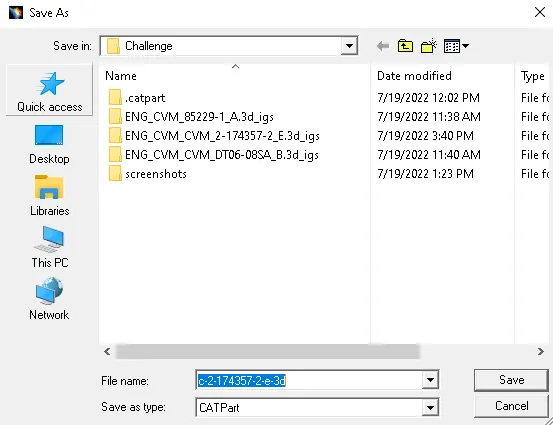
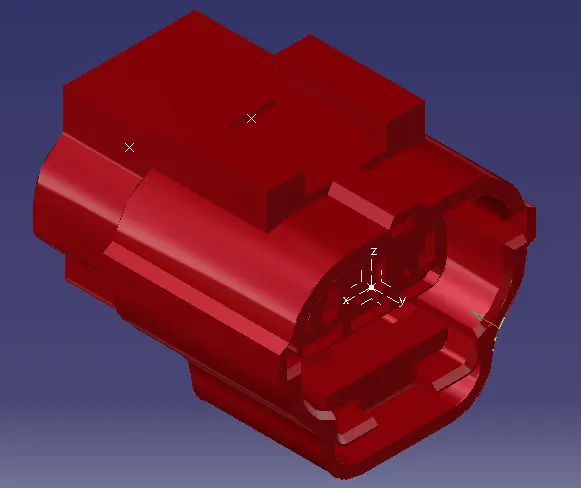
3.In Part design, Using Point desination create a mid point to the facing of the connector and open axis system definition and select the mid point that is created. align the axis in such a way that the Y-axis should be perpendicular to the face of the connector. Please refer to the images below and arrange the axis in the same way by rotating them.
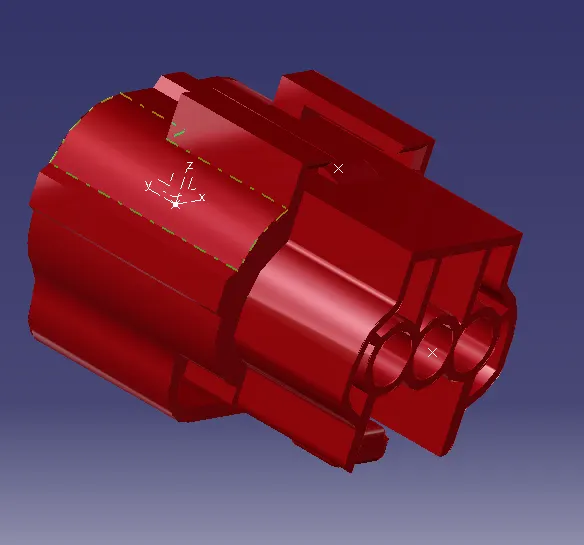
4.Using point definition, create a mid point to the back side of the connector where the bundle connecting points are present. It is a 3 point connector. Refer to the image below.
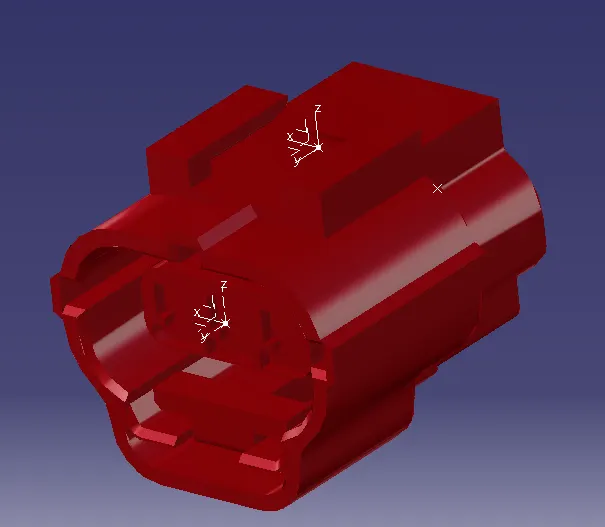
5. Now by using the Point definition create a cavity connection point where the cavity or clip meets the connector also using Axis definition system create the axis at the point created in such a way that y axis is directed to the mating definition and x axis along the face refer the image below.
6. Now save the file and switchfrom Mechanical Part workbench to Electrical part design work bench.
7. In electrical design work bench in Electrical device definitionselect "define connector" and selectthe part in design tree. now define the type of connector, name of the connector and number of terminations as 3 and click OK.
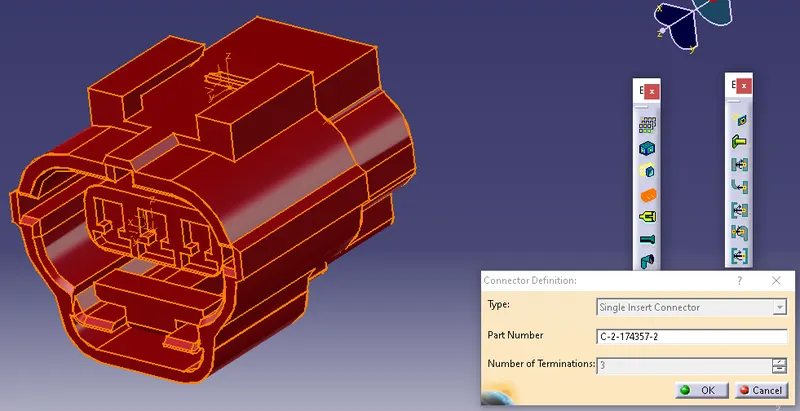
8. Now in electrical connection point defination, select define connector connecting point select the part and define the properties as following image.
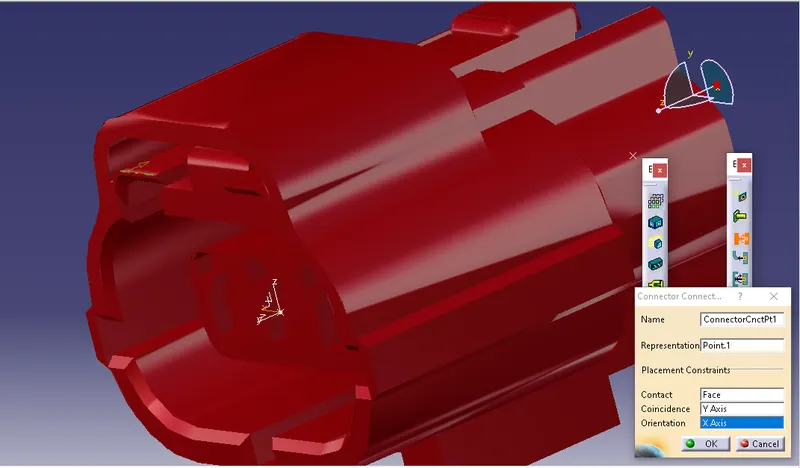
9. Now create "Bundle connection point", select the part and define the properties as following.
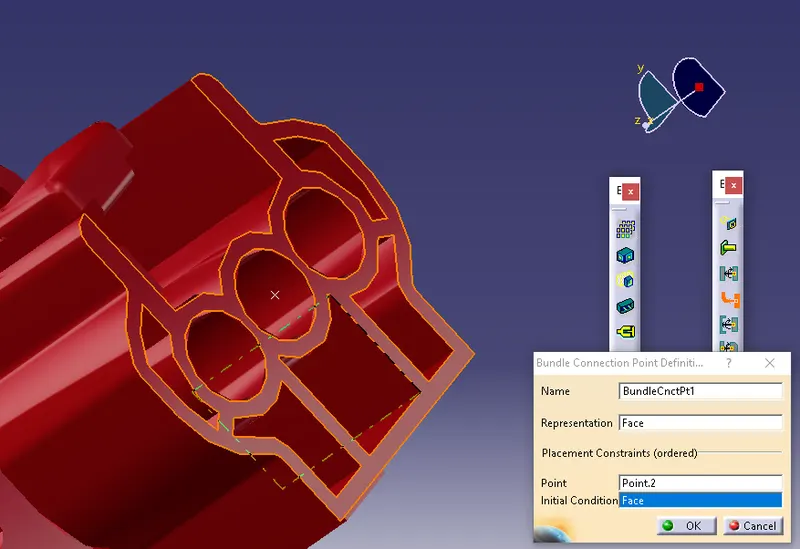
10. Now create "Cavity connection point", select the part and define the properties as following.
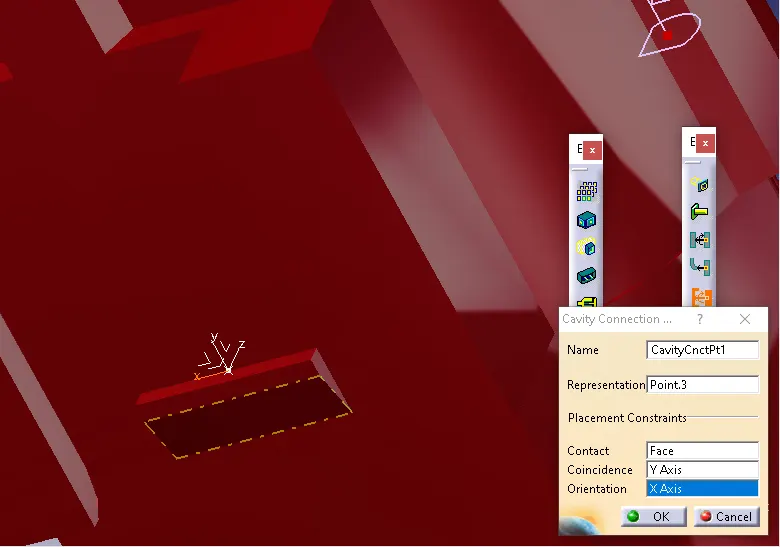
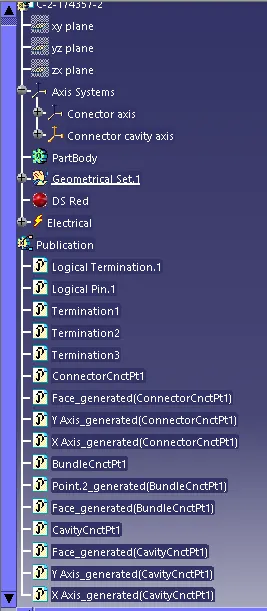
Now save the file and the electrical properties are defined. andreflected in design tree under publications.
Design tree:
- DT06-08SA: It is a wire to wire connectionsystem with 8 pin connector.
STEPS
- Download the connector in .igs format from https://www.te.com/usa-en/product-DT06-08SA.html Extract the zip file and load the .igs file in Catia V5 and save the part in CATpart format.
- Extract the zip file and load the .igs file in Catia V5 and save the part in CATpart format.
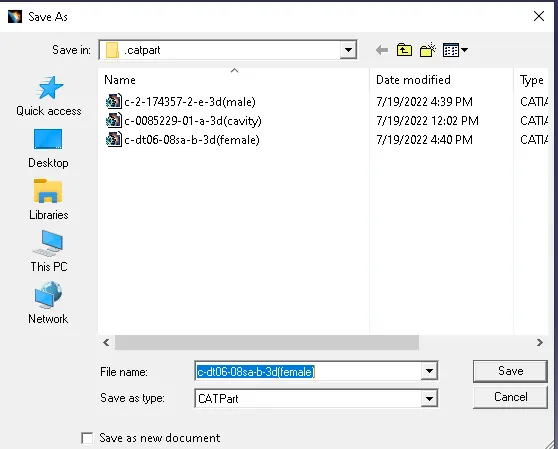
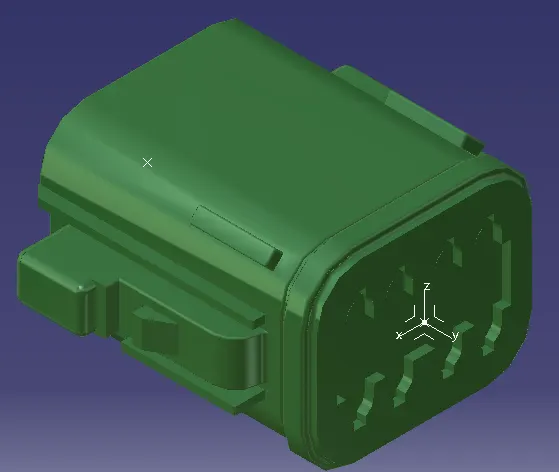
3.In Part design, Using Point desination create a mid point to the facing of the connector and open axis system definition and select the mid point that is created. align the axis in such a way that the Y-axis should be perpendicular to the face of the connector. Please refer to the images below and arrange the axis in the same way by rotating them.
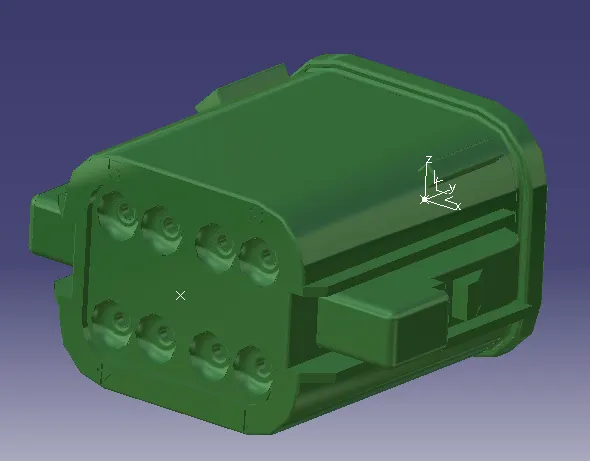
4.Using point definition, create a mid point to the back side of the connector where the bundle connecting points are present. It is a 8 point connector. Refer to the image below.
5. Now save the file and switchfrom Mechanical Part workbench to Electrical part design work bench.
6. In electrical design work bench in Electrical device definitionselect "define connector" and selectthe part in design tree. now define the type of connector, name of the connector and number of terminations as 8 and click OK.
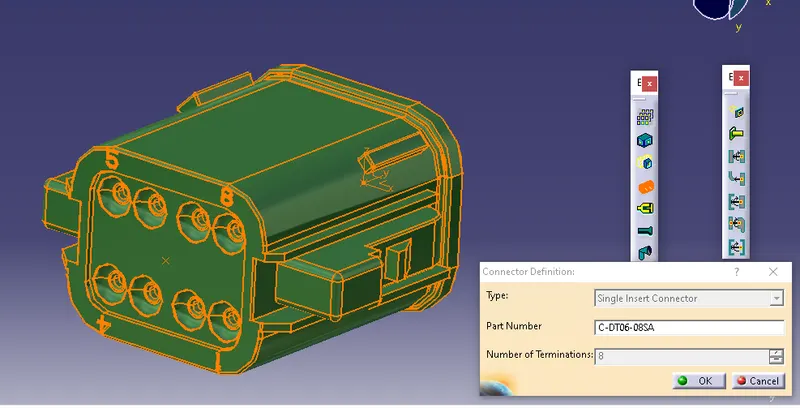
7. Now in electrical connection point defination, select "define connector connecting point" select the part and define the properties as following image.
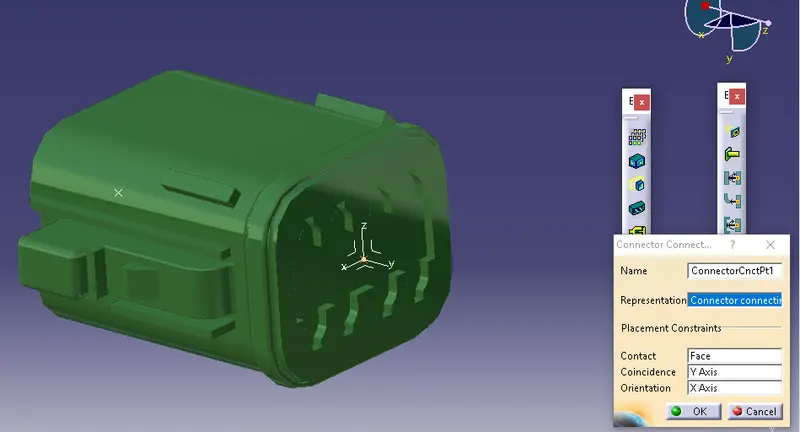
8. Now create "Bundle connection point", select the part and define the properties as following.
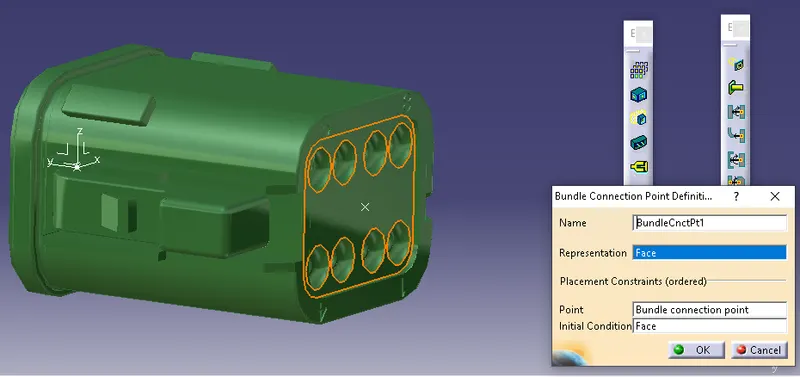
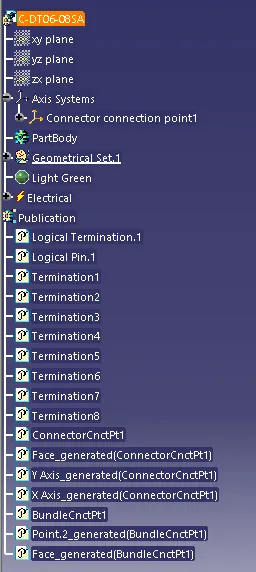
Now save the file and the electrical properties are defined. andreflected in design tree under publications.
Design tree:
- 85229-1: Mounting clip
STEPS:
-
- Download the Mounting clip in .igs format from https://www.te.com/usa-en/product-85229-1.html?q=85229&source=header .
- Extract the zip file and load the .igs file in Catia V5 and save the part in CATpart format
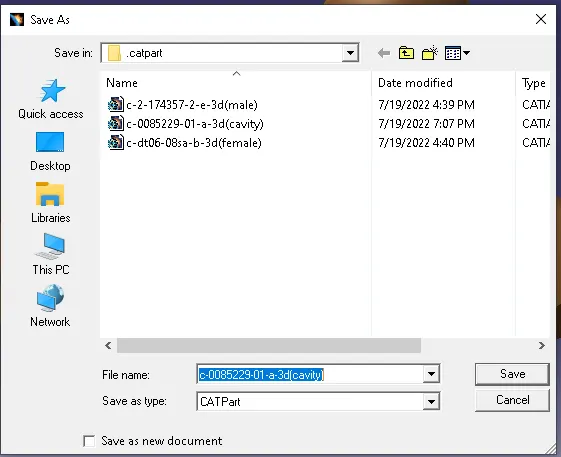
- 3. Open the file in Mechanical part design, Now by using the Point definition create a cavity connection point where the cavity or clip meets the connector also using Axis definition system create the axis at the point created in such a way that y axis is directed to the mating definition and x axis along the face refer the image below.
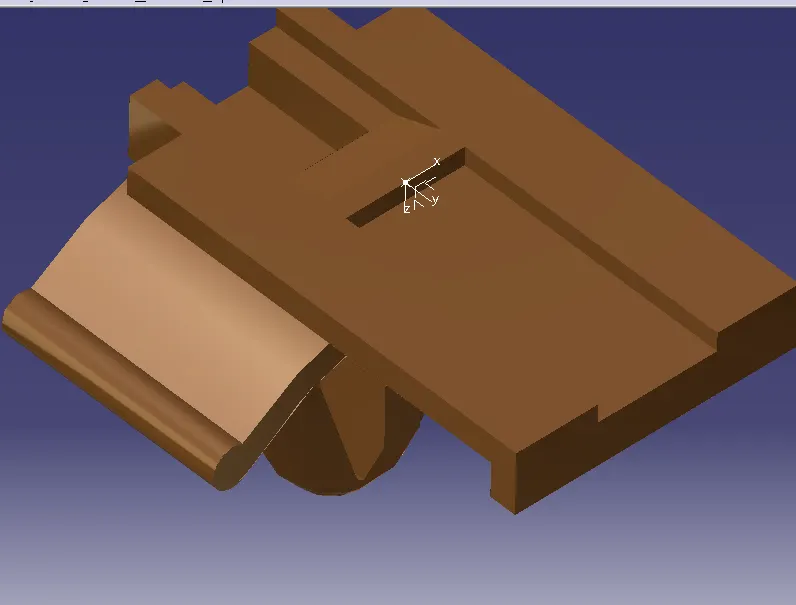
- 4. Now save the file and switch from Mechanical Part workbench to Electrical part design work bench.
- 5.In electrical design work bench in Electrical device definition select "define mounting equipment" and select the part in design tree, Change name if required, click OK.
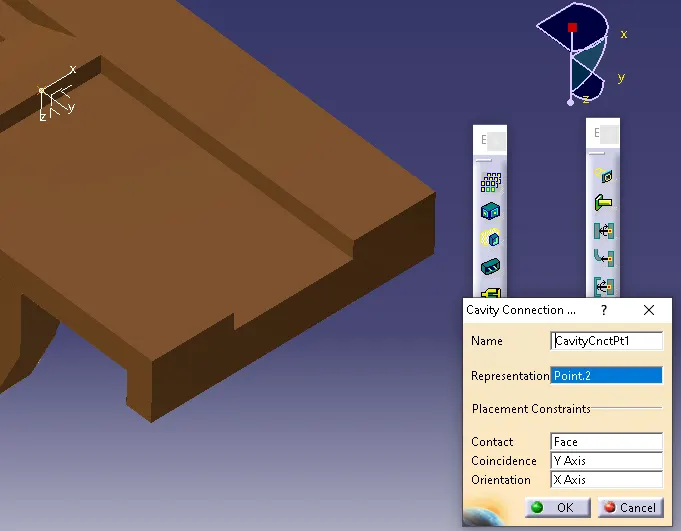
- 6.Now in electrical connection point definition, select "define Cavity connection point" select the part and define the properties as following image.
Design tree:
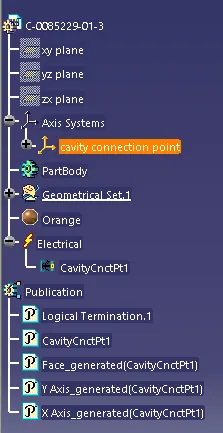
- 7.save the file.
- CATALOG PREPARATION: INTRODCUTION: A catalog is a library that we can use for the parts that are used frequently. It is used as a centralized document, so we do not need to design the components frequently. We can directly import from the library, so we can avoid mistakes and save time. Now we will see how can we create a catalog in catia V5.
STEPS:
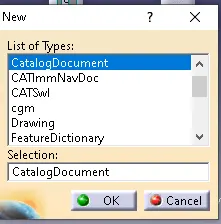
1. Open catia, go file and select new, create a catalogdocument and click OK.
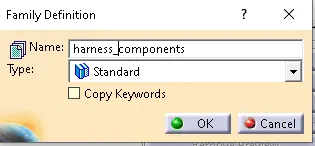
2. In "Chapter" select "ADD FAMILY", name the family and select the type and click ok.
3.Now save the file and name the catalog file.
4.Now open the component which we want to save in catalog.
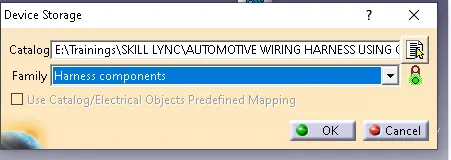
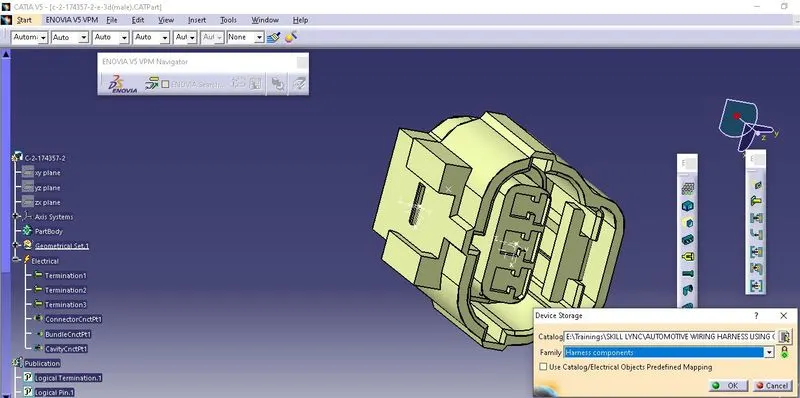
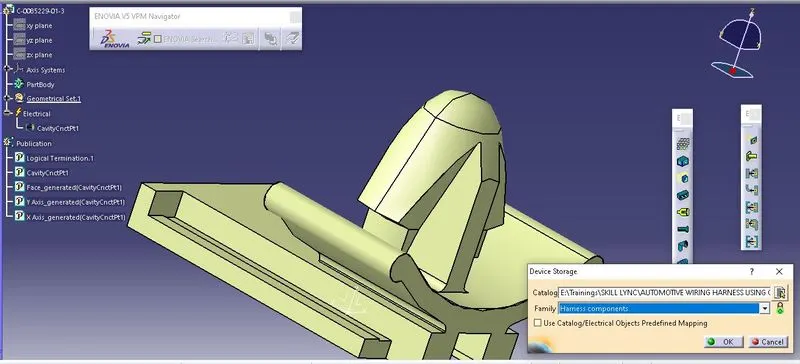
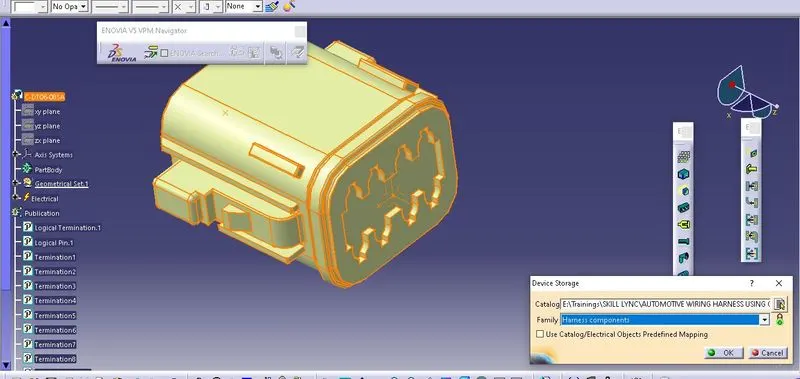
5.Now go to "Store device", browse the catalog location, select the famaily and click OK, refer the following image.
6. Now the part is added to the Catalog.
7. Following images shows the saving of above three components in harness components catalog.
CONCLUTION:
Hence we have downloaded the components and converted into electrical components and assignied the electrical properties to the components and saved them in catalog and we have achibed our goal.