Wiring harness routing & packaging Rules Week 3 Challenge
AIM: To download the P clamp and Back shell cad data from provided links and define them as electrical them as electrical support and electrical back shell using electrical part design workbench and define all necessary properties to them and add the components to the catalog.
To create Corrugated tubes with the requirements provided and add them to catalogue under Slit COT.
INTRODUCTION: Clamps, back shell and corrugated tubes are the part of harness assembly. Clamps are used to hold the harness; Back shells will be connected to the backside of the connectors and corrugated tubes are to protect the harness or wires to protect them.
So, in the assignment we are defining the mechanical parts as electrical parts and assign required properties and add them to catalogs. To achieve the goal using Catia V5. we will start with a connector.
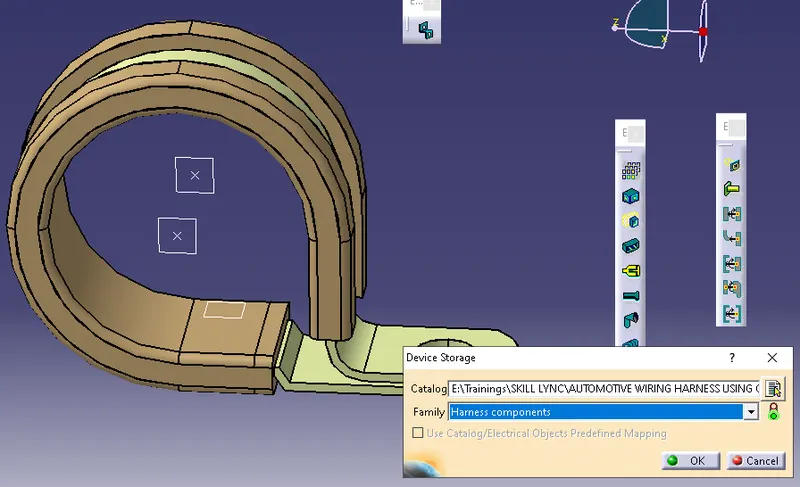
- P-Clamp: P-clamp is used in vehicles to fix the harness to the body so the harness will be stable.
There is a rubber casing inside the P-clamp which helps to protect harness from damage which may occur due to metal part of the Clamp.
Following are the steps to define P-clamp properties.
STEPS:
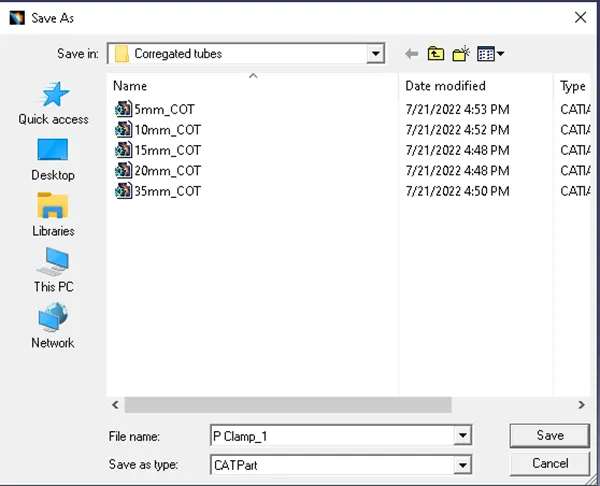
1. Download the P-clamp from the drive link provided which is. igs format. Now load the file in Catia V5 and save it as .CATPart format.
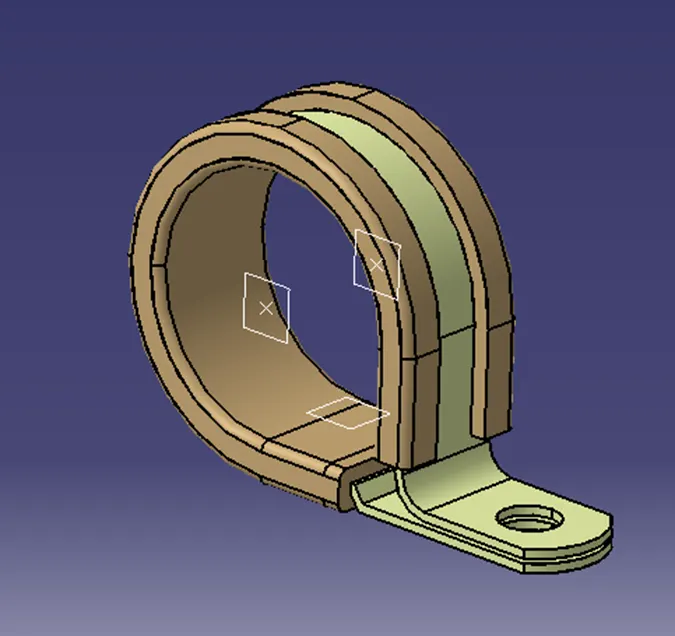
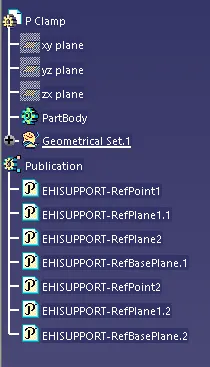
2. For P clamp using Point definition and plane defination we need to create the following points and planes using Mechanical Part design.
- Entry Point & plane
- Base Plane
- Exit plane
3. Now save the file and switch from Mechanical part design to electrical part design workbench.
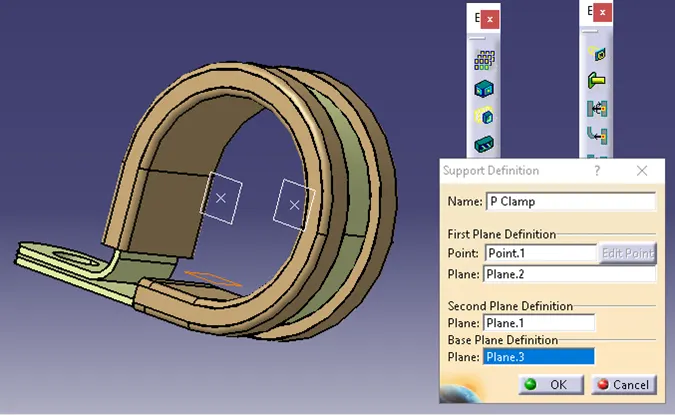
4. Now from “Electrical support definition” select “Define support part” > Select the part and define them as following selections and click ok.
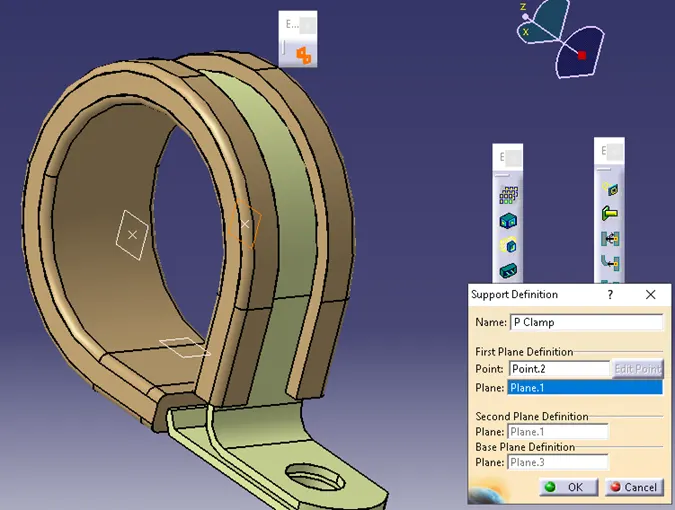
5. Again, click from “Electrical support definition” select “Define support part” > Select the part and define them as following.
6. Now we have successfully defined all the properties of the clamp. Save the file and save it to the catalogue which was created.
7. Design Tree:
- BACK SHELL: Back shell are plastic molded parts which are used to the wire entry side of the connector to protect or improve the appearance of harness.
It is not a mandatory part of harness.
Following are the steps to define the properties of Back shell and add to catalogue.
STEPS:
1. Download the Back shell from the drive link provided which is in. igs format. Now load the file in Catia V5 and save it as .CATPart format.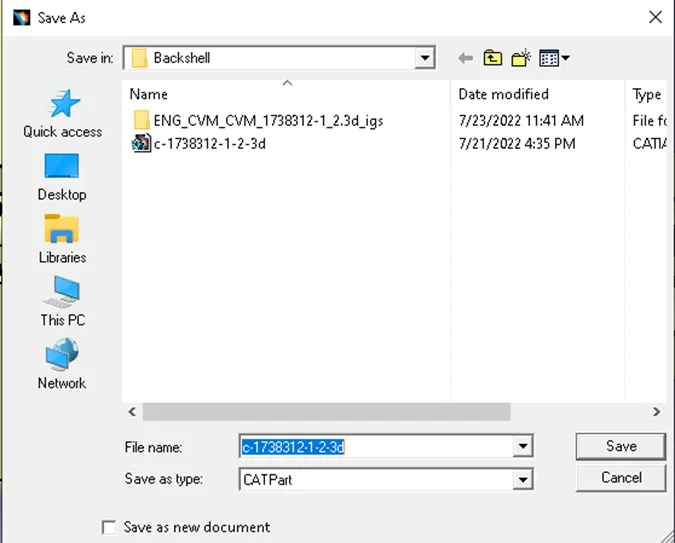
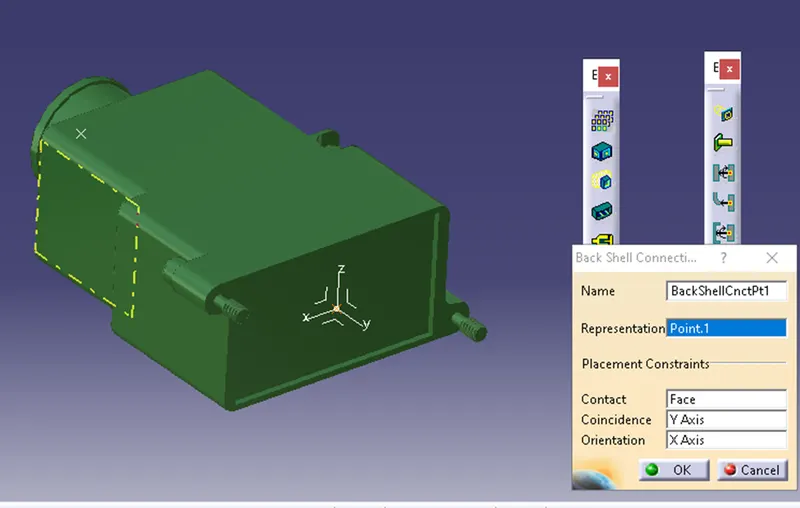
2. In Part design, Using Point definition create a mid-point to the facing of the back shell which mates with connector back and open axis system definition and select the mid-point that is created. align the axis in such a way that the Y-axis should be perpendicular to the face of the Back shell. Please refer to the images below and arrange the axis in the same way by rotating them.
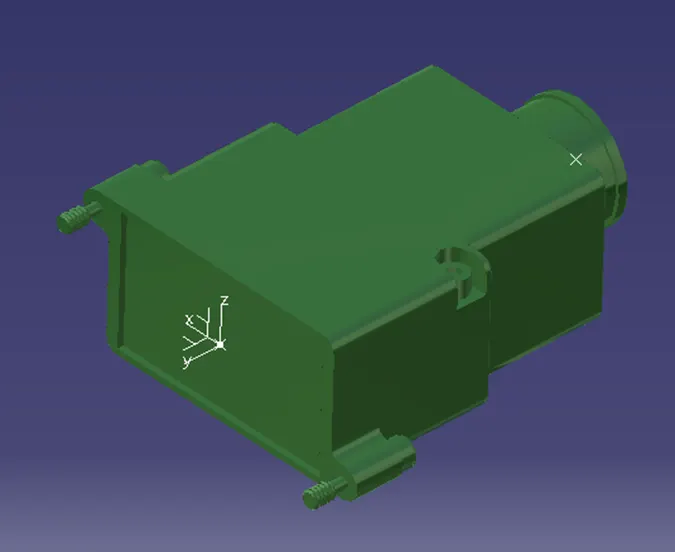
3. Using point definition, create a mid-point to the back side of the back shell where the bundle entry connecting point is created as below.
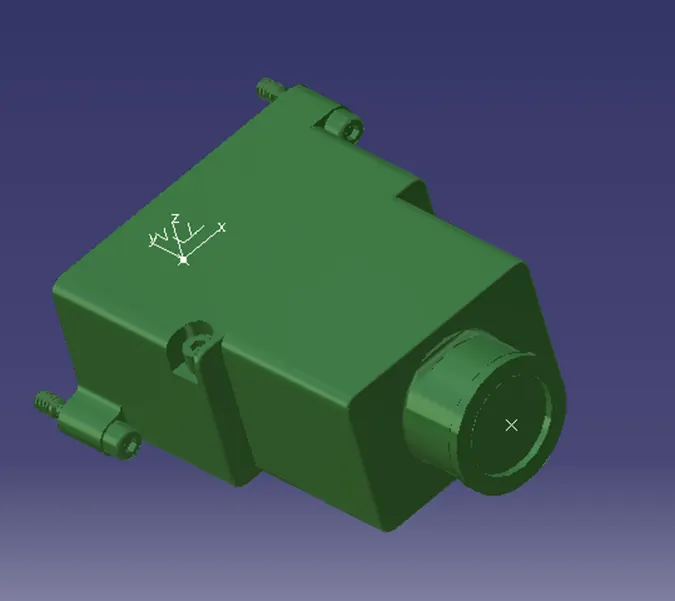
4. Now save the file and switch from Mechanical Part workbench to Electrical part design work bench.
5. In electrical design work bench in Electrical device definition select "define Back shell" and select the part in design tree. now define the part number and click OK.
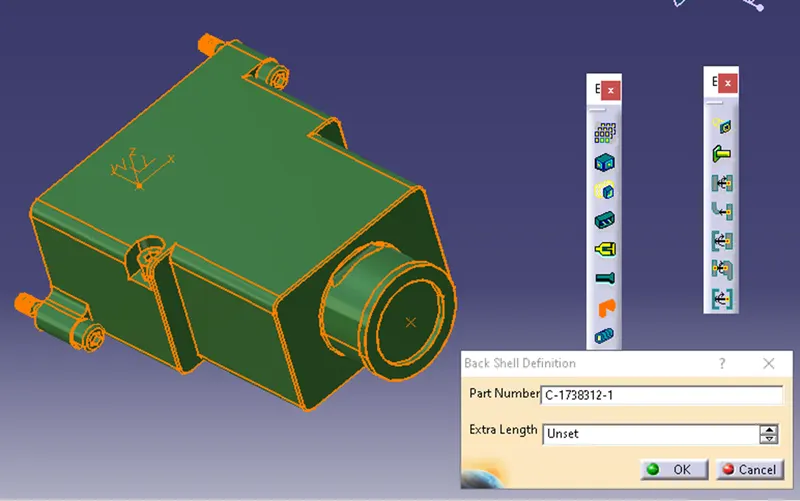
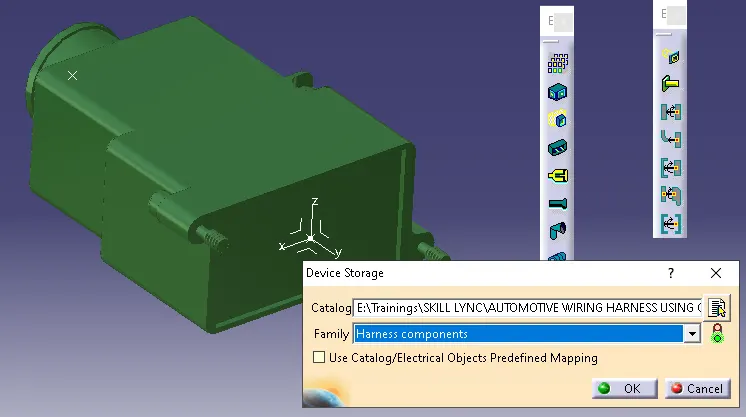
6. Now in electrical connection point definition, select define Back shell connecting point select the part and define the properties as following image.
7.Now create "Bundle connection point", select the part and define the properties as following.
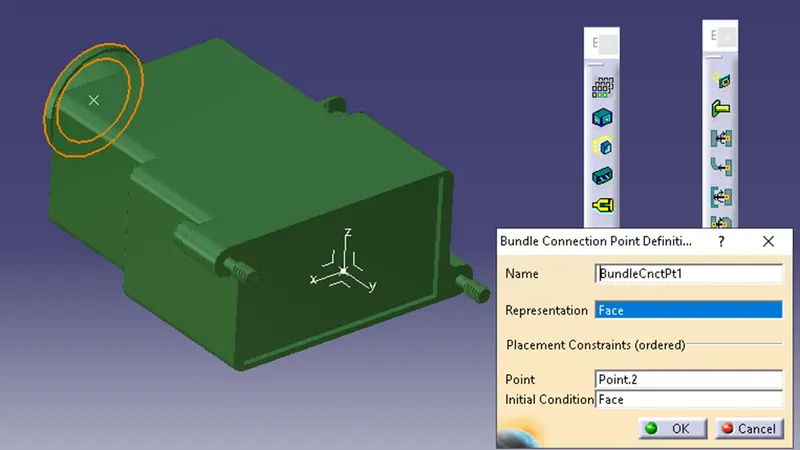
8.6. Now we have successfully defined all the properties of the Back shell. Save the file and save it to the catalogue which was created.
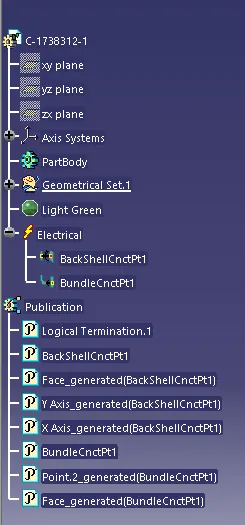
Design tree:
- CORRUGATED TUBES: These tubes are used to protect the wiring harness from damage, these are applied around bundles.
Following are the steps to create and define the corrugated tubes and add them to catalogue.
STEPS:
Following are the inputs that are provided to create the tubes.
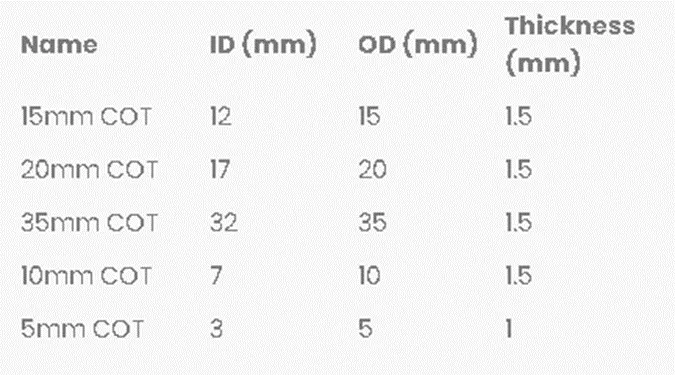
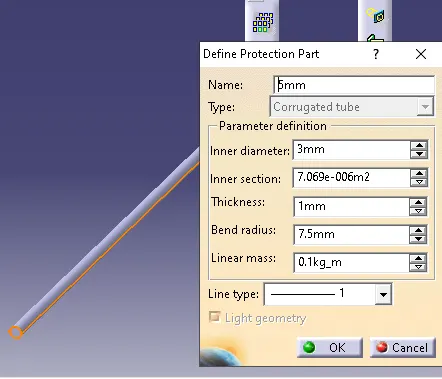
1. 15mm COT: Open electrical part design, go to “Electrical device definition”, select “Define protection part”, Select the part in the design tree and define the values for “ 15mm COT” and click OK, and the tube is generated as following.
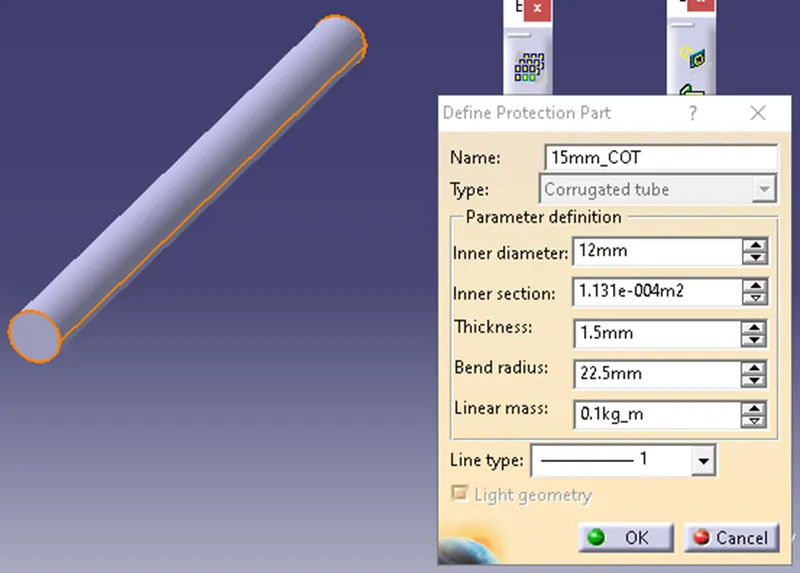
NOTE: Bending radius = Outer diameter X 1.5
= 15 X 1.5 =22.5mm
Now save the file.
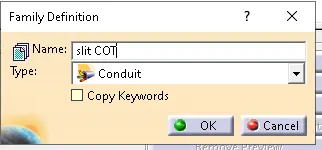
2. CATALOG creation: Now we need to add the part to catalogue for that we need open a new “Catalog Document”, Select ADD family, Name: “Slit COT” , Type: “Conduit” and click OK and save the file.
3. Adding Corrugated tube to the Slit COT catalog:
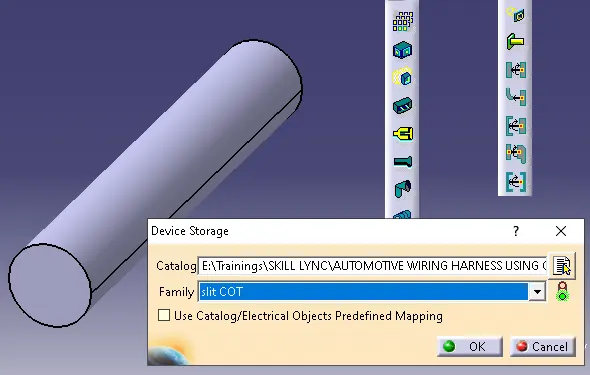
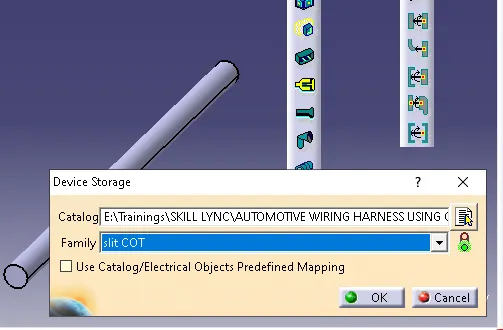
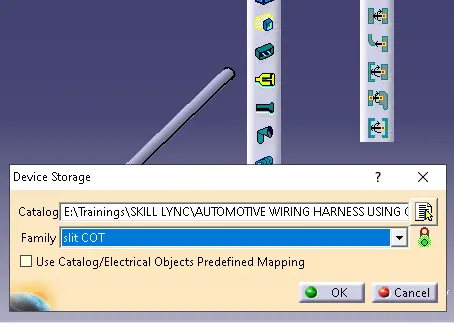
- Open 15mm_COT cad file and select “Storage device” and browse for slit COT catalog select the family as following and save to the catalog.
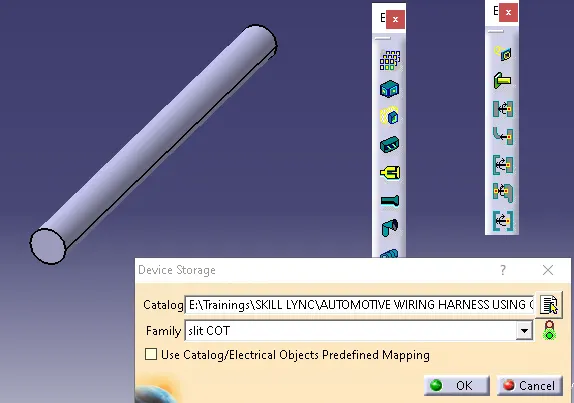
Now repeat the same steps to create other catalogs as following.
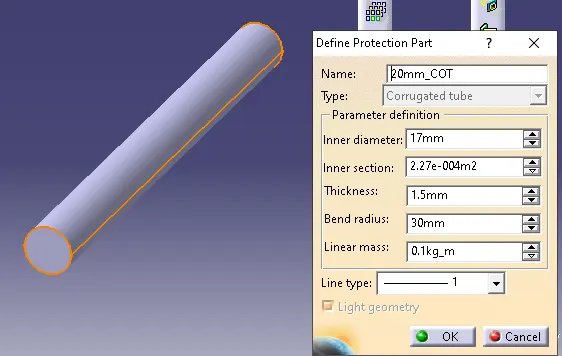
2. 20mm_COT:
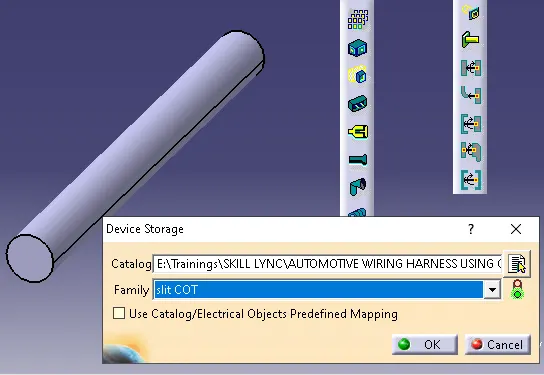
Catalog:
3. 35mm_COT:
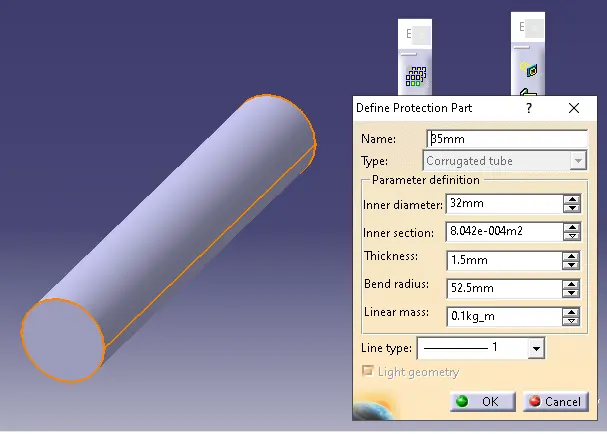
Catalog:
4. 10mm_COT:
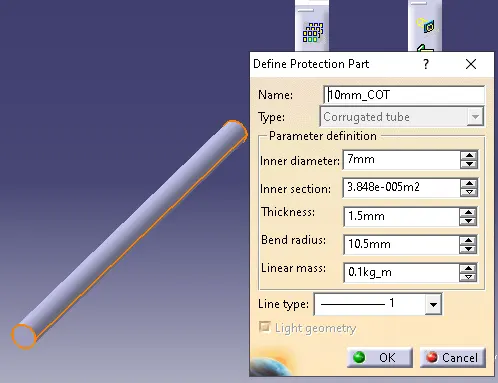
Catalog:
5. 5mm_COT:
Catalog:
CONCLUSION: Hence we have satisfied all the tasks by defining them electrically and adding their electrical properties and saving them to catalog.