Wiring harness design in CATIA V5 - 3D modeling Week 4 Challenge
AIM: To Route the harness layout which defined below by using Electrical workbench. By making assumption for harness bundle diameters by using the following connectors.
Also add protective covering on all branches connected to DT06-2S & DT06-4S connectors. Keep end extremity at 30mm (from connectors end)
INTRODUCTION: Harness acts as a medium or bus between connectors so that connector components like ECU, sensors can interact with each other through components.
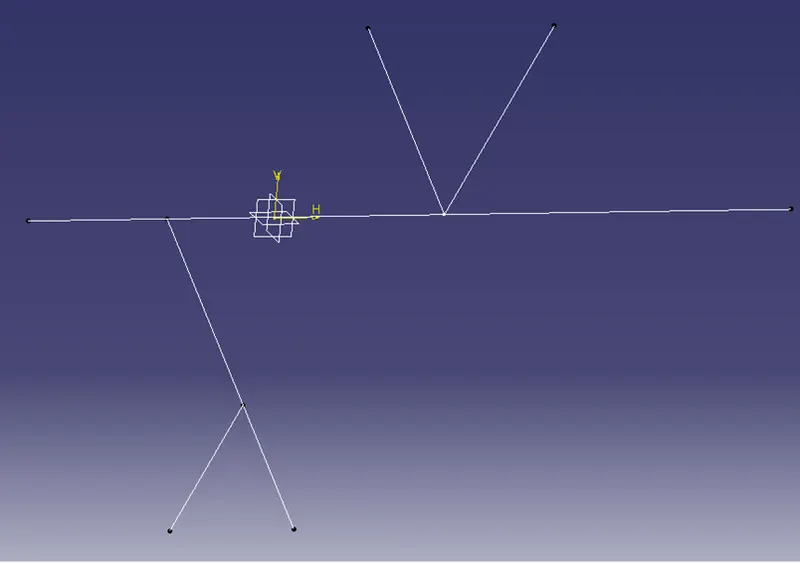
If we look at the below architecture image the straight line is called as “TRUNK” or Main branch and the points which generates subbranches are called as “BRANCH POINTS” and the diverted branches are called as “HARNESS BRANCH”.
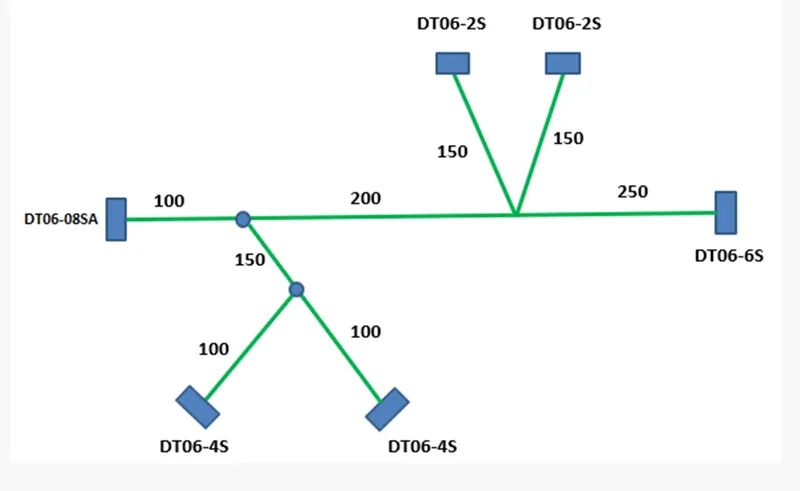
so first we satrt defining the connector electrically and we will add them to catalogue.
DT06-08SA: It is a wire to wire connectionsystem with 8 pin connector.
STEPS
- Download the connector in .igs format from https://www.te.com/usa-en/product-DT06-08SA.html Extract the zip file and load the .igs file in Catia V5 and save the part in CATpart format.
- Extract the zip file and load the .igs file in Catia V5 and save the part in CATpart format.
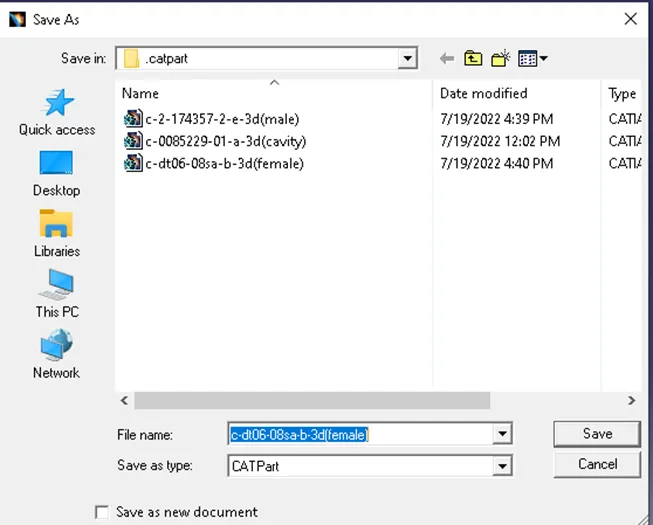
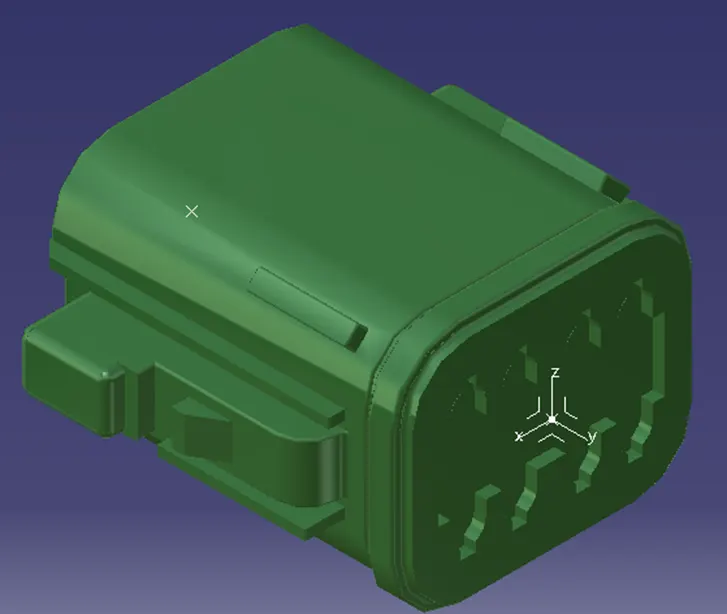
3.In Part design, Using Point definition create a mid point to the facing of the connector and open axis system definition and select the mid point that is created. align the axis in such a way that the Y-axis should be perpendicular to the face of the connector. Please refer to the images below and arrange the axis in the same way by rotating them.
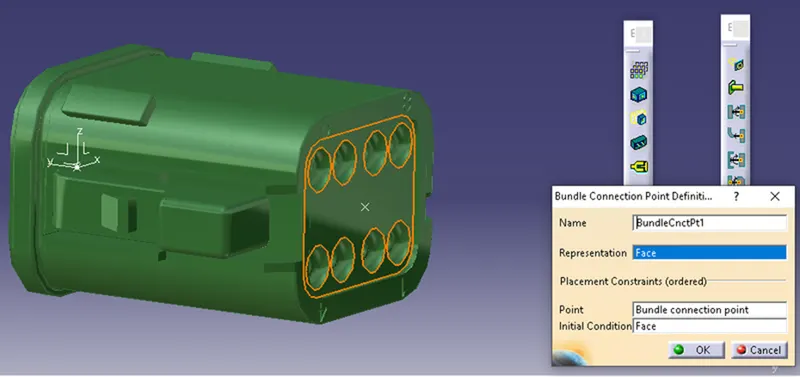
4.Using point definition, create a mid point to the back side of the connector where the bundle connecting points are present. It is a 8 point connector. Refer to the image below.
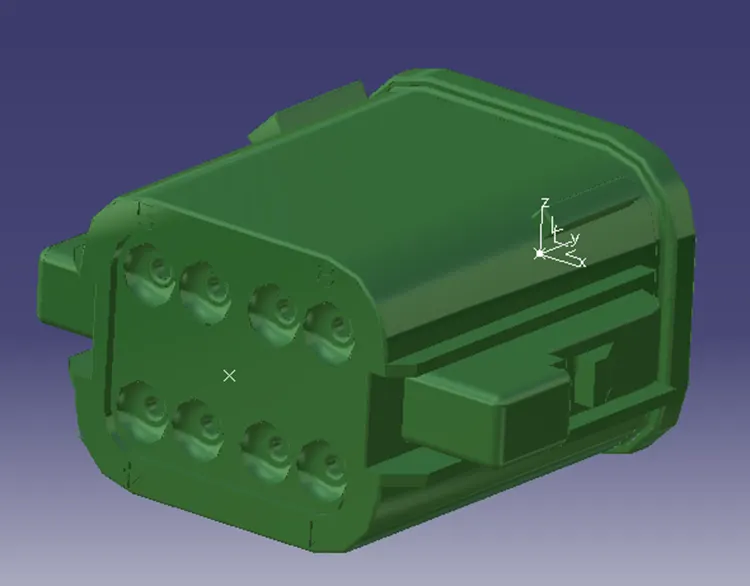
- Now save the file and switchfrom Mechanical Part workbench to Electrical part design work bench.
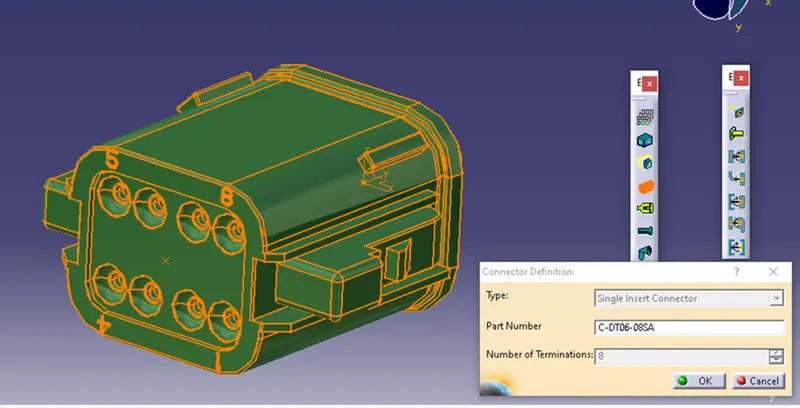
- In electrical design work bench in Electrical device definitionselect "define connector" and selectthe part in design tree. now define the type of connector, name of the connector and number of terminations as 8 and click OK.
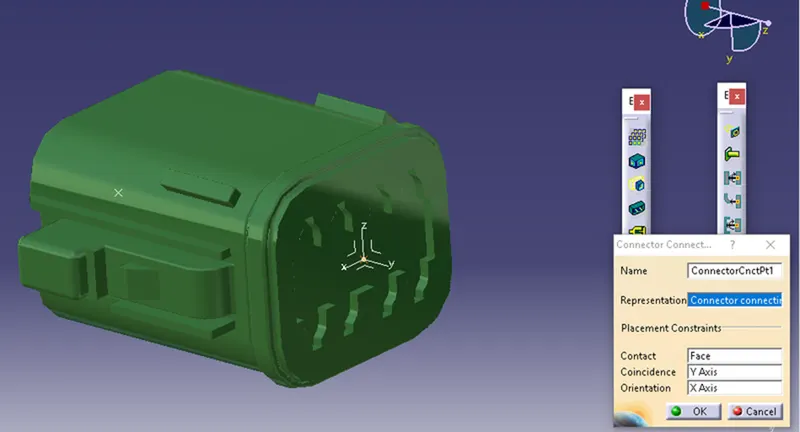
- Now in electrical connection point definition, select "define connector connecting point" select the part and define the properties as following image.
- Now create "Bundle connection point", select the part and define the properties as following.
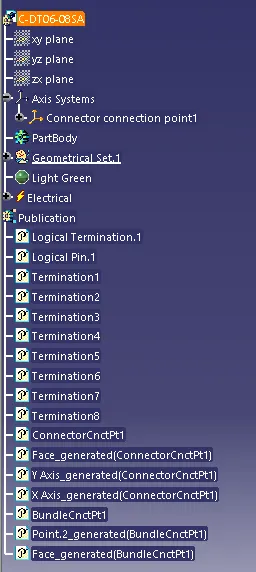
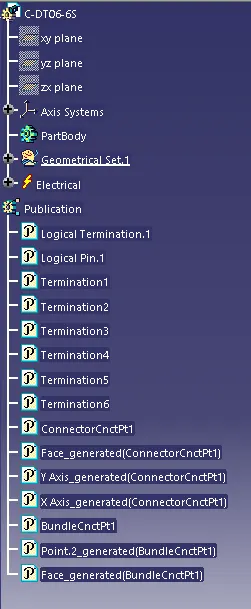
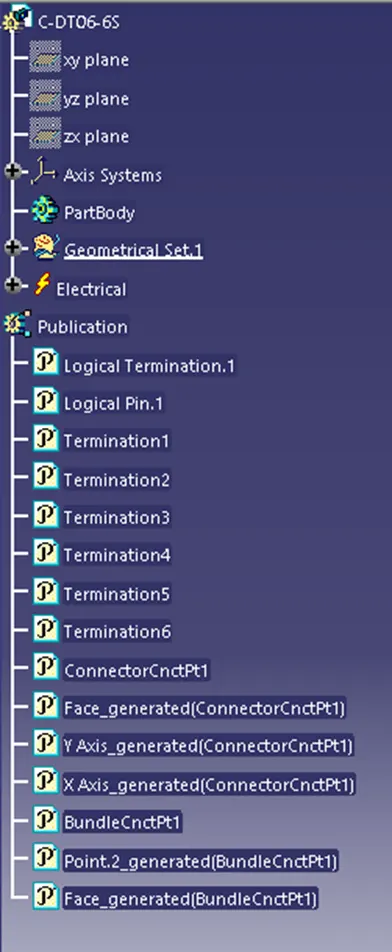
Now save the file and the electrical properties are defined. andreflected in design tree under publications.
Design tree:
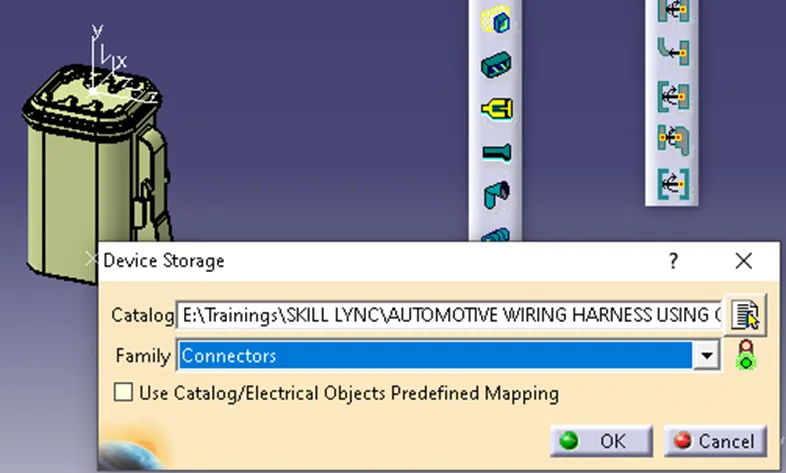
CATALOG:
Now we are adding the component to the catalog nmae:Connector.
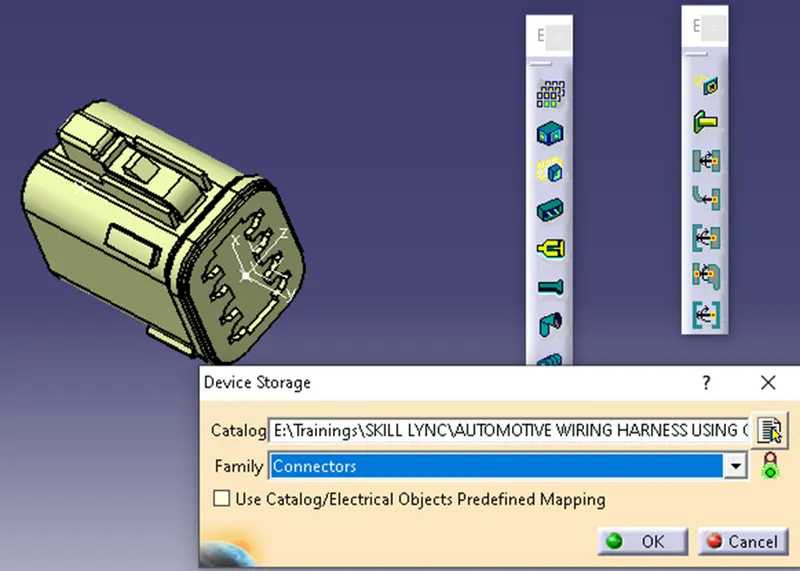
Now repeat the same steps for other connectors.
- DT06-4S:
CATALOG:
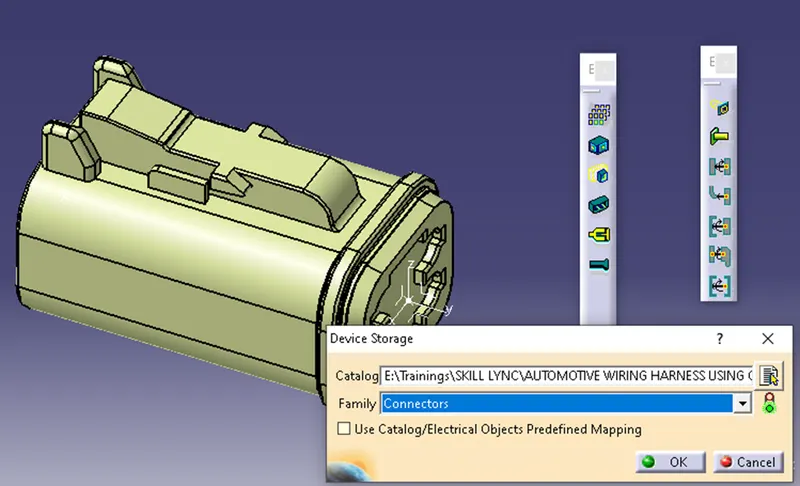
-
DESIGN TREE:
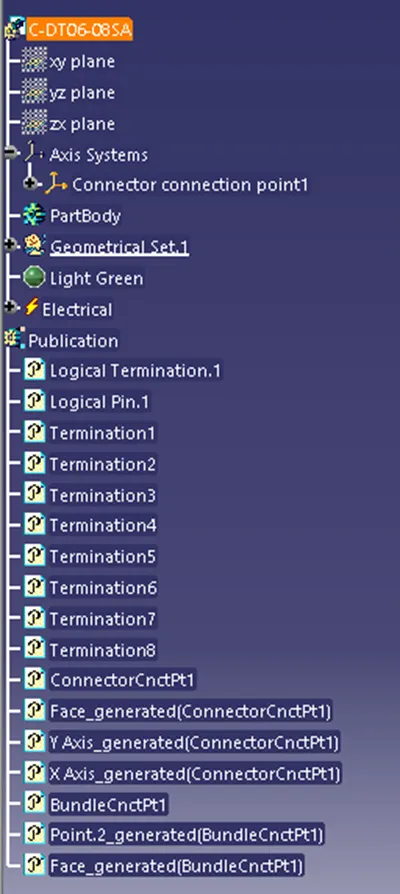
- DT06-6S
- CATALOG:
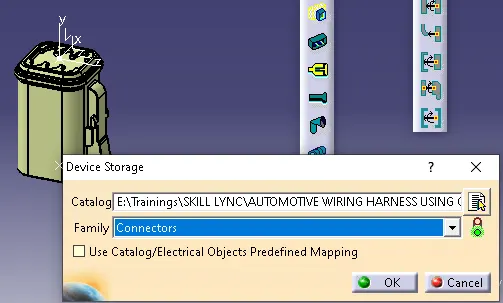
- DESIGN TREE:
- DT06-2S:
- CATALOG:
- DESIGN TREE:
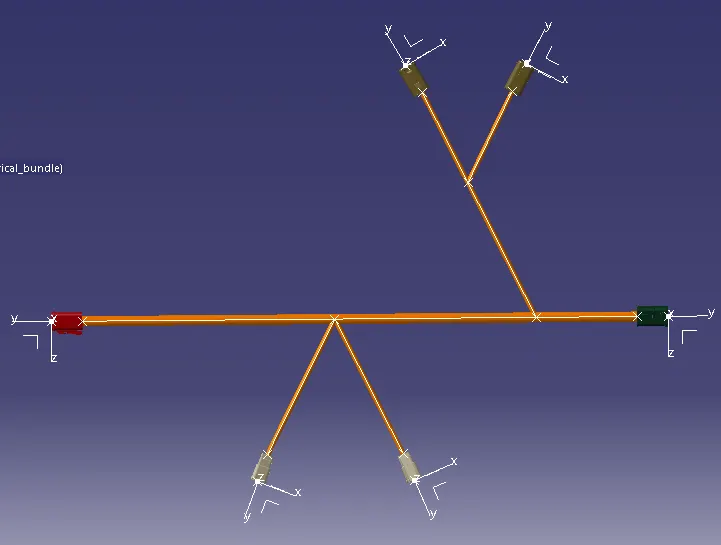
MULTI-BRANCHABLE: Now we need to connect the connector as the above architecture provided, we need to place the connectors in such a way that of the architecture position for that we need to create a layout using line command as below.
- Now we need to create a product file in Catia v5 with name ”Assembly_wiring_harness” and now we need to create a sub product with name “Assembly_geometrical_bundle”. And now we need to active the sub assembly and by using Existing Component import all the connectors required as follows.
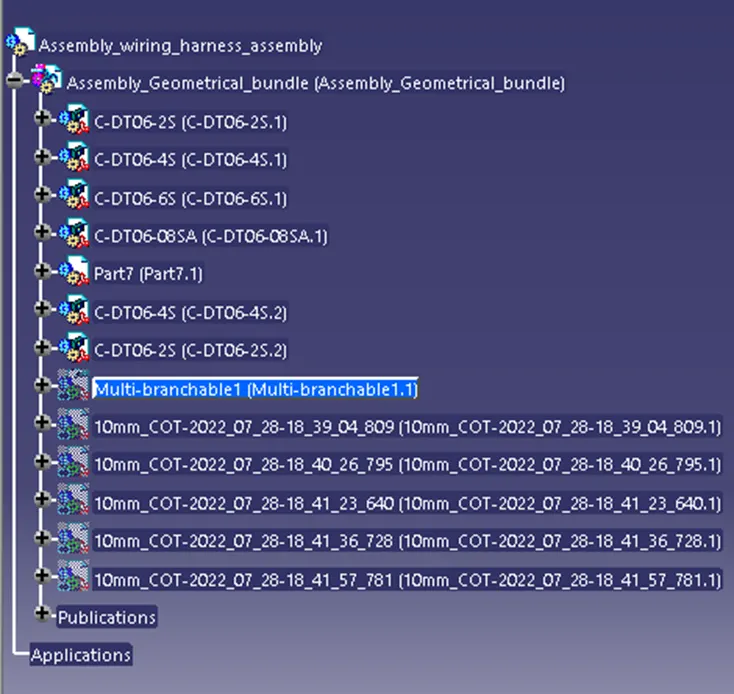
- Now using “MANIPULATION” and “Compass” we need to arrange the connectors using the architecture created in such a way that the bundle connection point should be the side where the harness is going to attach and the connector connection points to the outside as shown below.
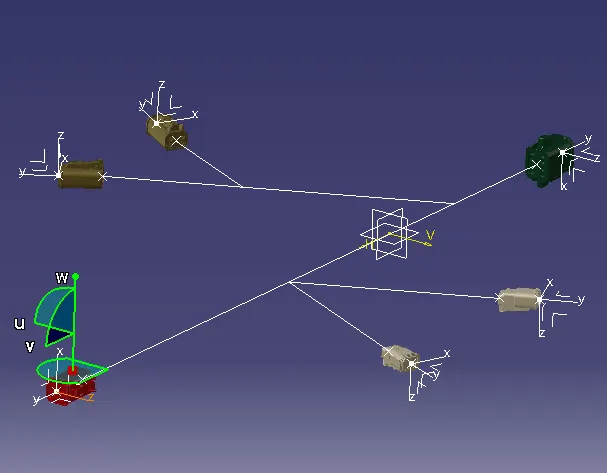
- Now using “MANIPULATION” and “Compass” we need to arrange the connectors using the architecture created in such a way that the bundle connection point should be the side where the harness is going to attach, and the connector connection points to the outside.
- Now Switch to “Electrical harness assembly” and select “Geometrical bundle” command and click on the product file.
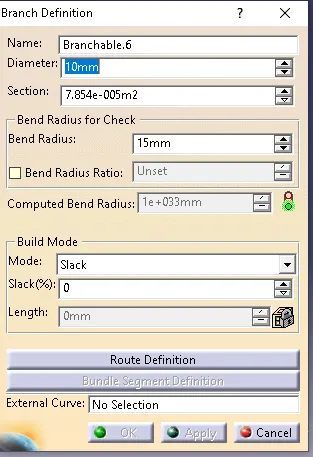
- Now click on “Multi-blanchable” document” and inside click on Branch definition and give the following inputs for main trunk like Diameter and bending radius.
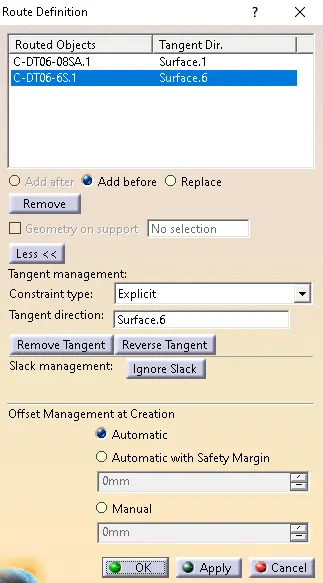
- Click on “Route Definition”. Under Route definition click select 2 main connectors and adjust the tangent direction properly.
- Now using "Branch Point" command create the points where the harness branch is started by using the branch point and connector create sub branch In the same way by giving the diameter as 5 and bent radius as 7.5. and by adjusting the tangent direction.
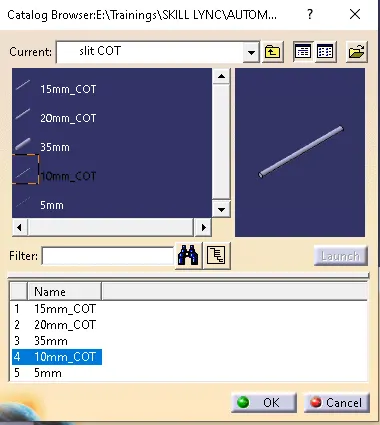
- Now by using "Protective Covering" command from catalog "Slit_catalog" and select the 10mm diameter and apply to the harness.
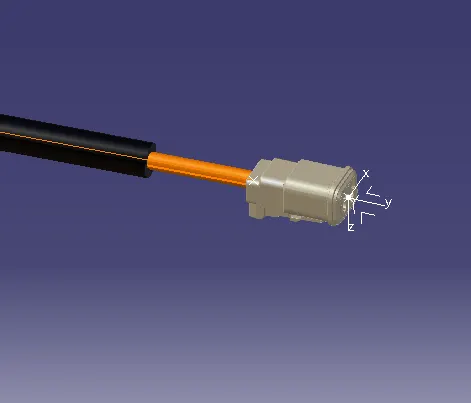
- Now keep end extrimity as 30mm from the connectror.
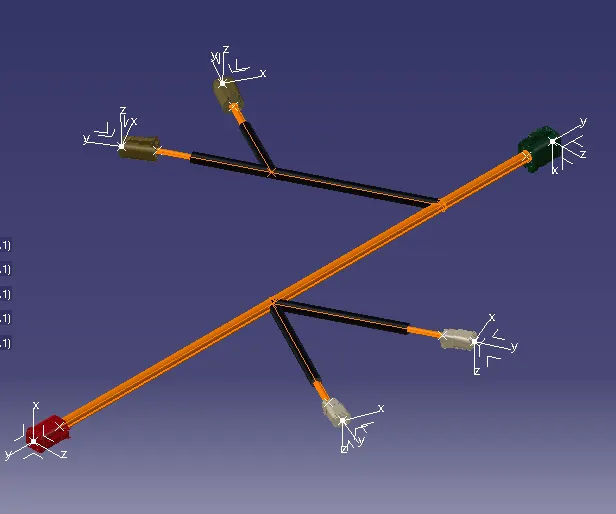
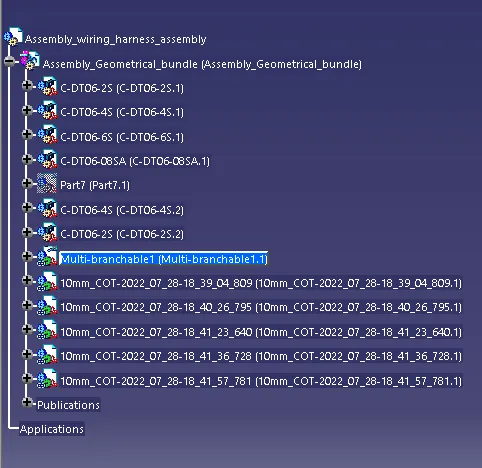
- Now we have created the the harness and added protective covering to the harness
- Design Tree:
- CONCLUSION:
Now we have definied all the connectors and created the harness and added the protectctive covering hence the task is done.