Week 9 - Challenge 2 - Switch Bezel Design
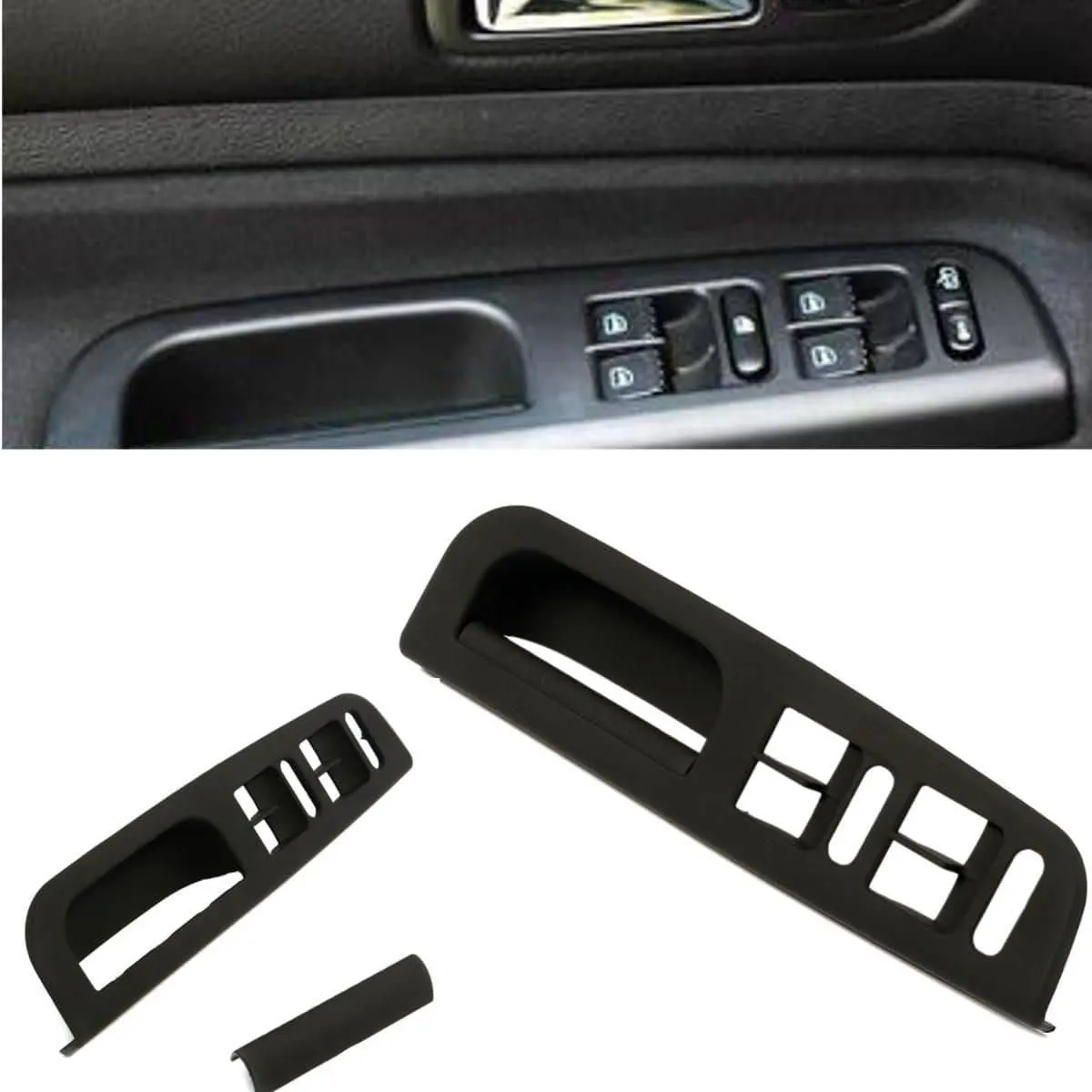
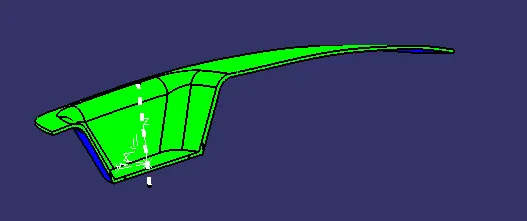
AIM: To create a Closed surface of SWITCH BEZIL with the reference to Class A(Esthetic) surface using which we create B surface(Engineering surface) and C surface using Catia V5.
STEP 1: Imporoting Class A surface
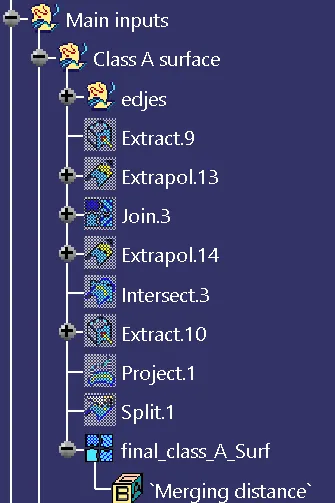
First we need to create a main geometrical set under which frst we create an other geometrical set for Class A surface like below.
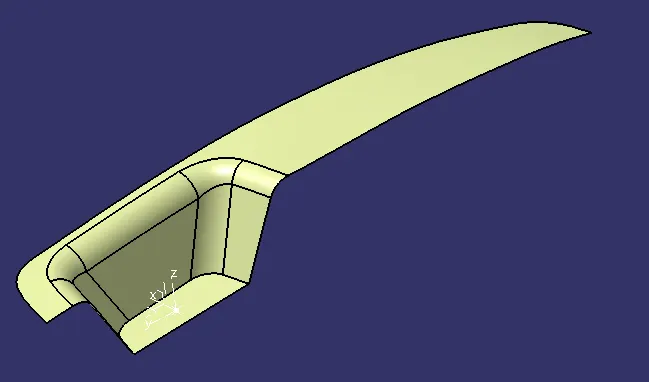
STEP 2: Creating tooling Axis
Create another geometrical set with name Tooling axis and define work object
Create a point on surface on base after extracting the base and import the axis on the point.
Now create a sketch on YZ plane and using point 3d project and create two side lines and using bisecting line create a line and other side create another sketch on ZX plane and create a line with reference to sideline with 3deg. now using bisecting line between 2 lines create tooling axis.
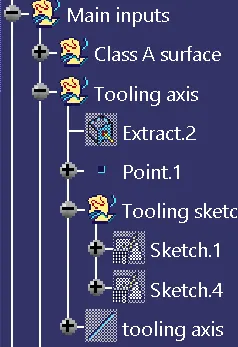
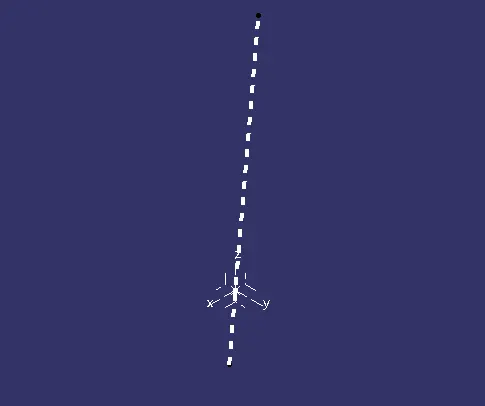
Now create a draft analysis with Tooling axis.
STEP 3: Creating B surface
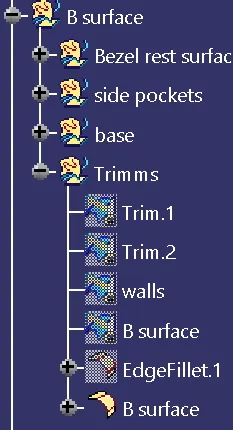
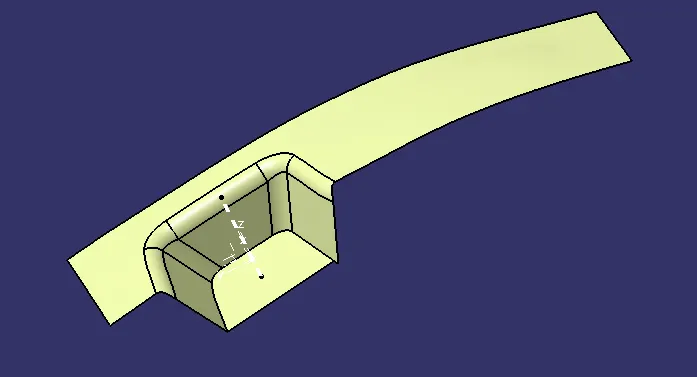
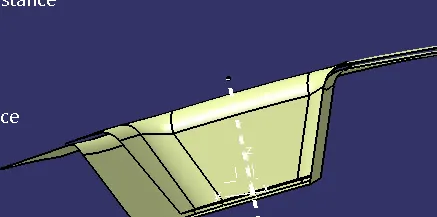
Now using Class A surface extract side by side without extracting the fillet and untrim the plane and using extrapolate the extracted planes so that they will bisect each other later offset the extracted and trimmed surface with 2.5mm distance and while giving the fillet with -2.5 to actual fillet.
STEP 4: Create C surafe
Now create another Geometrical set under main set with name Class C surface.
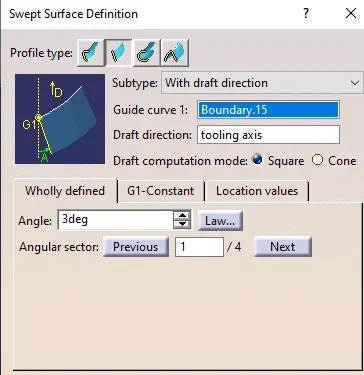
Now using boundary extract the side lines and using sweep command (with draft direction) and degress 3.
Note: The draft angle should be outside the body towards B surface which helps to maintain good esthatic surface towards A surafe due to flash at B surface.
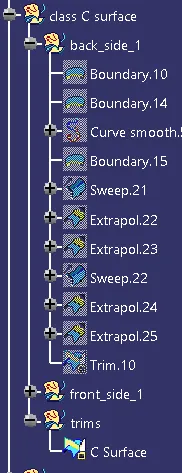
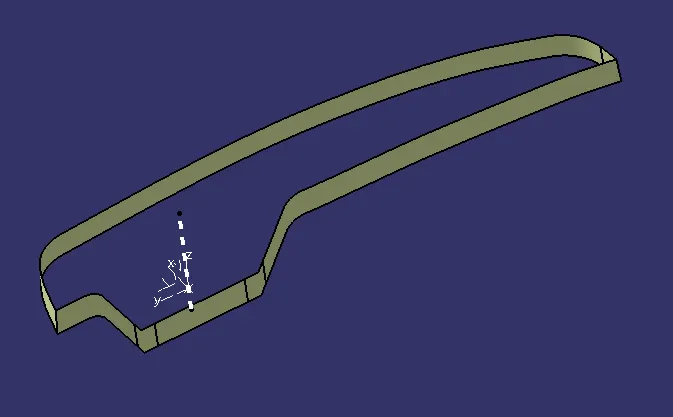
STEP 4: Trim Class C and Class B with reference to Class A.
after joing them we will form a Closed body and now we can findout the close body using boundary command which will show an error to form the boundary.
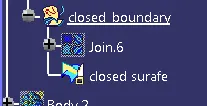
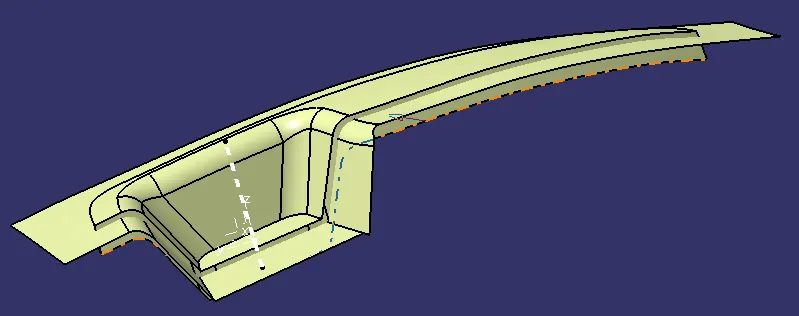
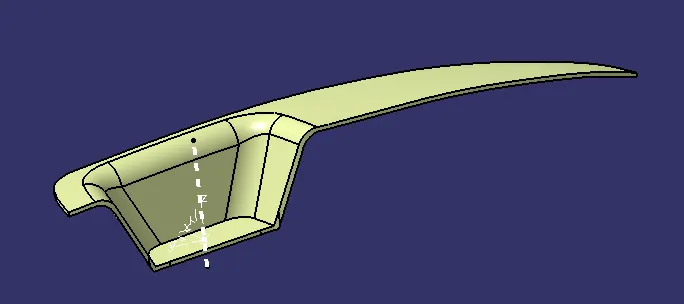
STEP 5: Create close body
Now go to part workbench and using Close surface command create a solid body.

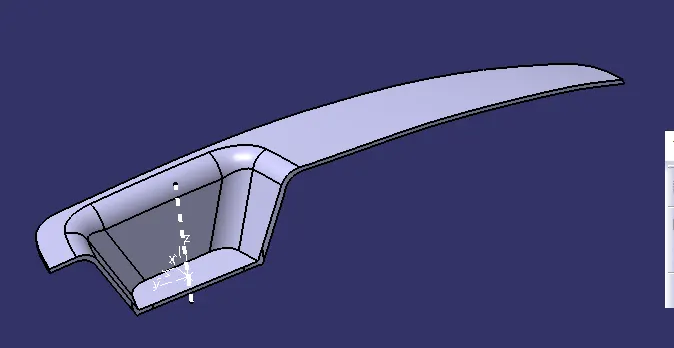
STEP 6: Draft analysis
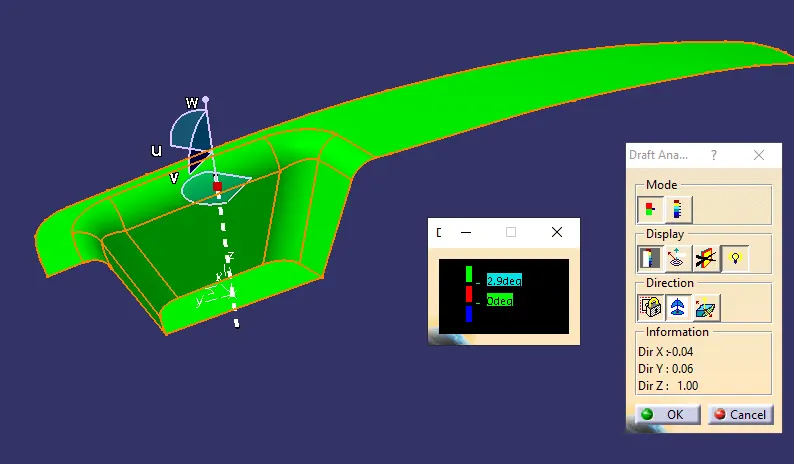
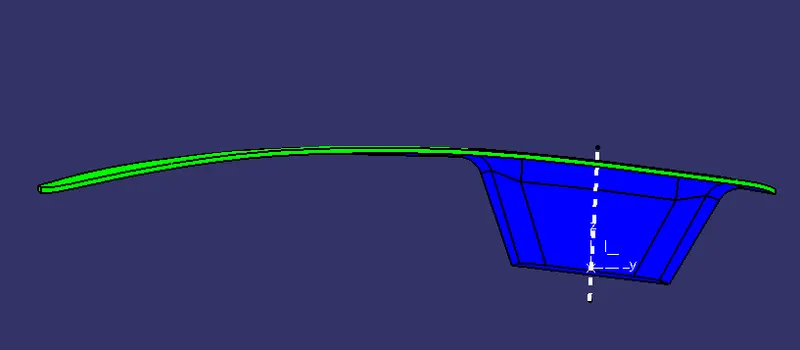
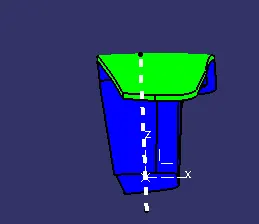
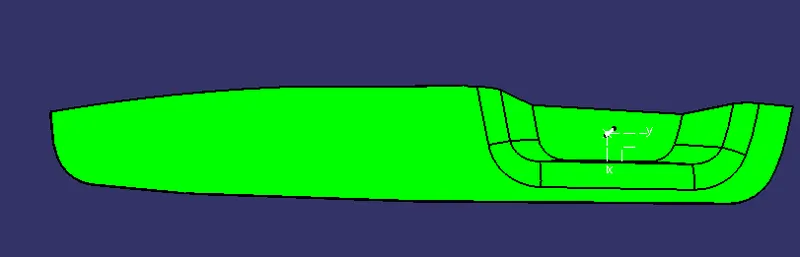
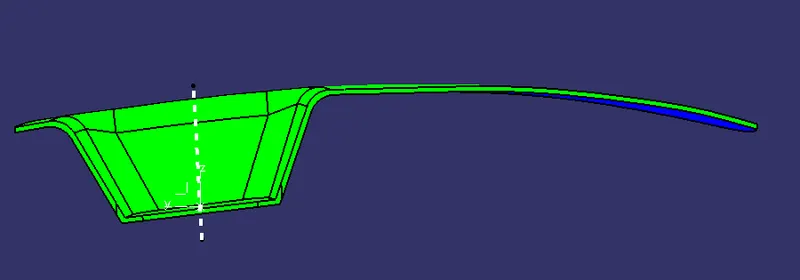
Now go to surface workbench and select Analysis to Feature Draft analysis, Note, the view mode should be in material to perform draft analysis. Now Place the axis on the tooling axis and lock the axis now select a location on surface.
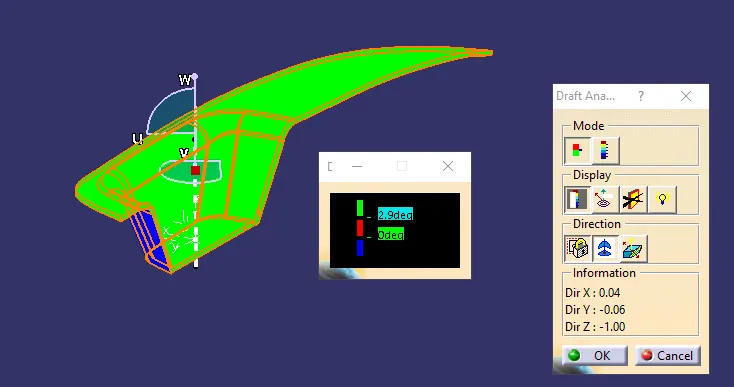
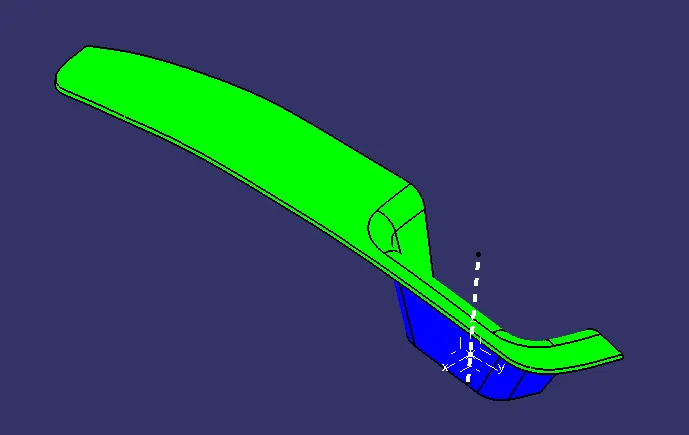
Now from above image we can see that Class A and Class C surafe has draft angle more then 2.9deg and B surafe less then 0 which is useful whie performing injection moulding and flash.
Publications:
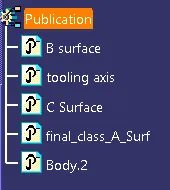
Create publicattion to access the required parts quickly.