Wiring harness design in CATIA V5 - 3D modeling Week 7 Challenge
AIM: To Flatten the harness assembly completed in “ week 4 challenge” and to place the flattened view on drawing sheet.
INTRODUCTION: Electrical flatness assembly is the workbench used to flatten the geometrical bundle in order to flat the harness from perticular plane.
So now we are using the the harness from challenge 4 and we are going to flatten and imprt it to a drawing file.
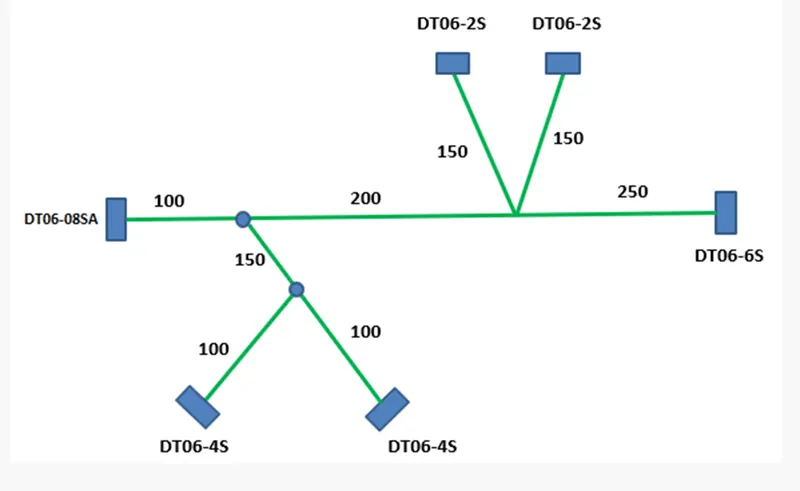
so first we satrt defining the connector electrically and we will add them to catalogue.
DT06-08SA: It is a wire to wire connectionsystem with 8 pin connector.
STEPS
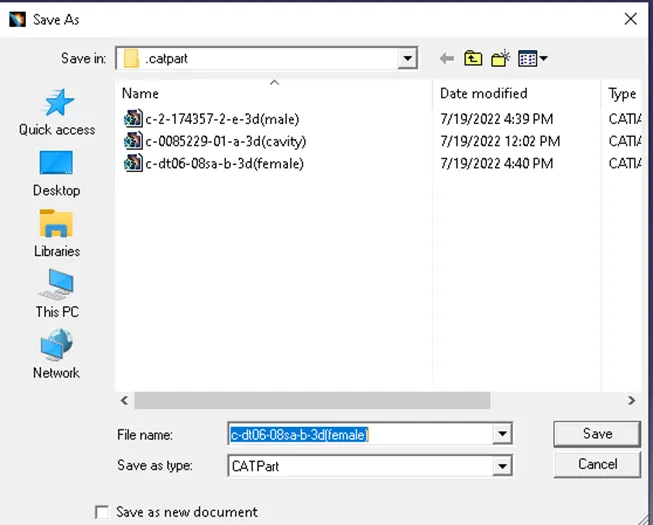
- Download the connector in .igs format from https://www.te.com/usa-en/product-DT06-08SA.html Extract the zip file and load the .igs file in Catia V5 and save the part in CATpart format.
- Extract the zip file and load the .igs file in Catia V5 and save the part in CATpart format.
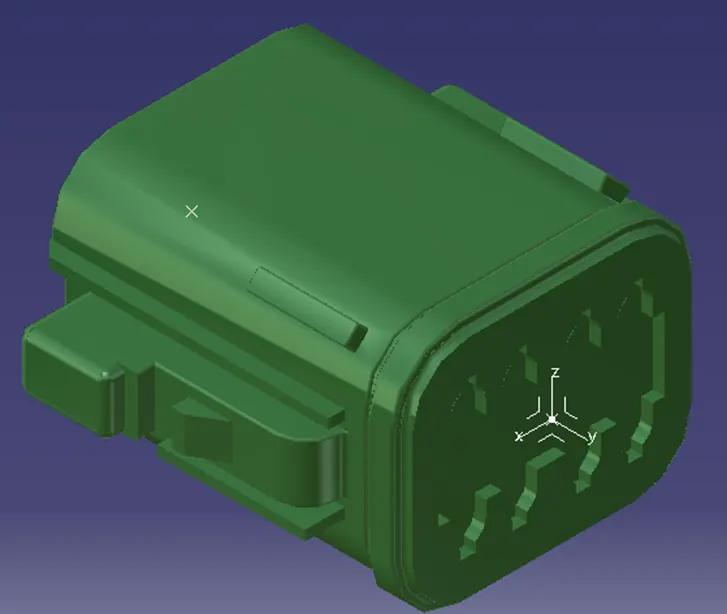
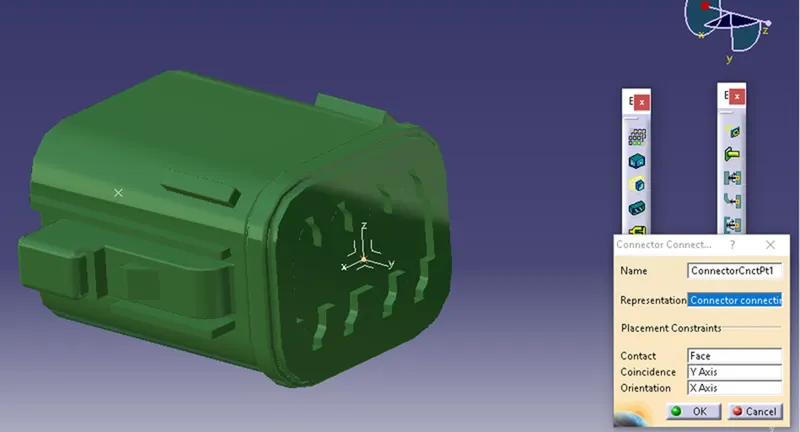
3.In Part design, Using Point definition create a mid point to the facing of the connector and open axis system definition and select the mid point that is created. align the axis in such a way that the Y-axis should be perpendicular to the face of the connector. Please refer to the images below and arrange the axis in the same way by rotating them.
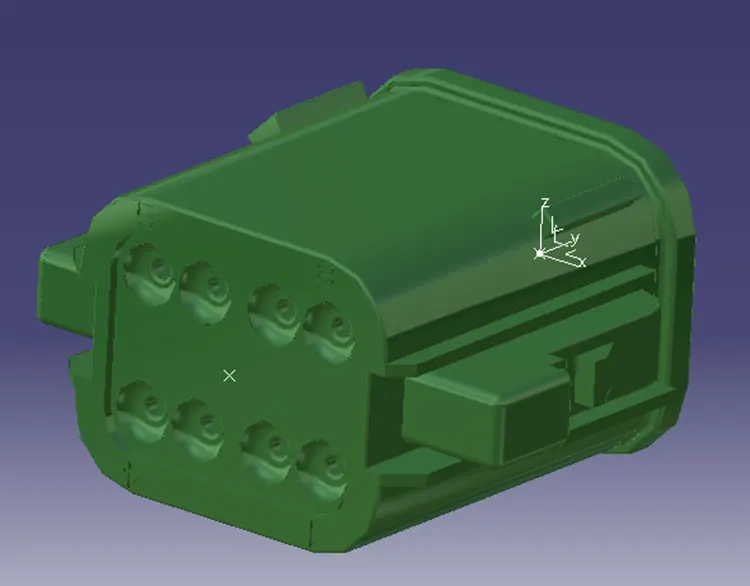
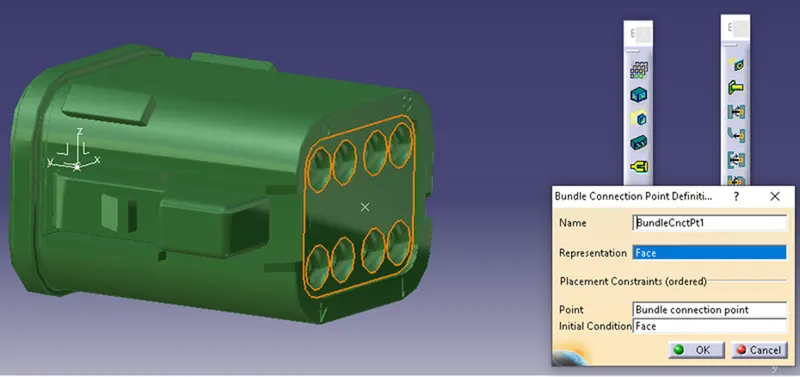
4.Using point definition, create a mid point to the back side of the connector where the bundle connecting points are present. It is a 8 point connector. Refer to the image below.
- Now save the file and switchfrom Mechanical Part workbench to Electrical part design work bench.
- In electrical design work bench in Electrical device definitionselect "define connector" and selectthe part in design tree. now define the type of connector, name of the connector and number of terminations as 8 and click OK.
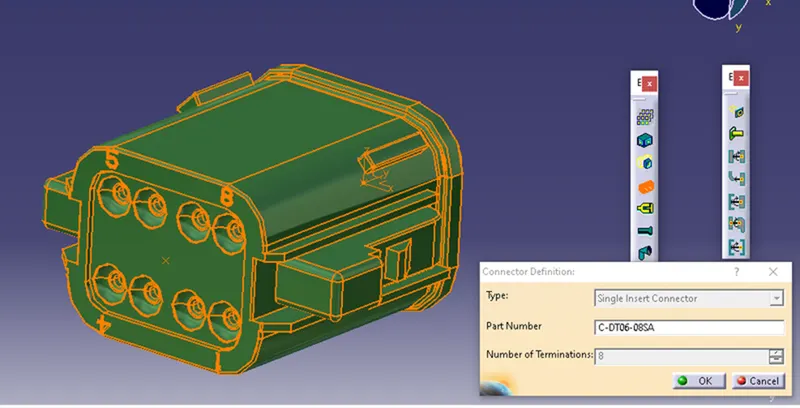
- Now in electrical connection point definition, select "define connector connecting point" select the part and define the properties as following image.
- Now create "Bundle connection point", select the part and define the properties as following.
Now save the file and the electrical properties are defined. andreflected in design tree under publications.
Design tree:
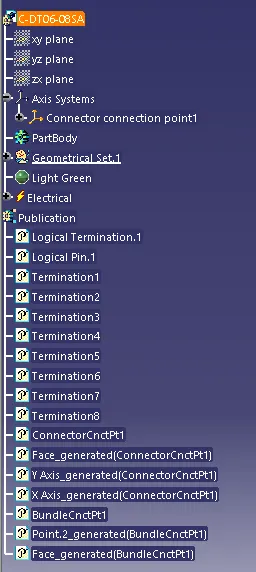
CATALOG:
Now we are adding the component to the catalog nmae:Connector.
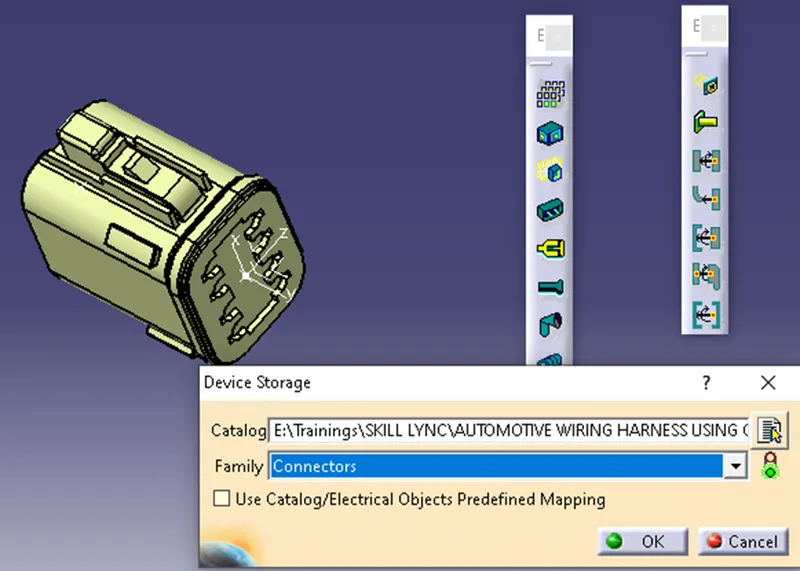
Now repeat the same steps for other connectors.
- DT06-4S:
CATALOG:
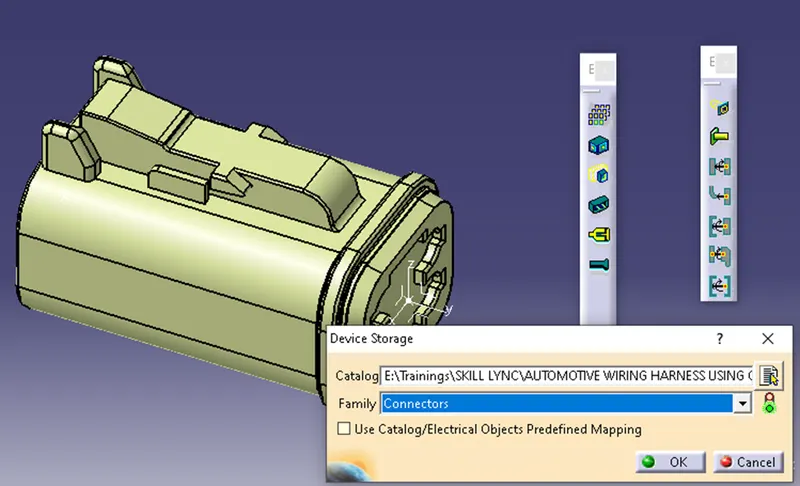
-
DESIGN TREE:
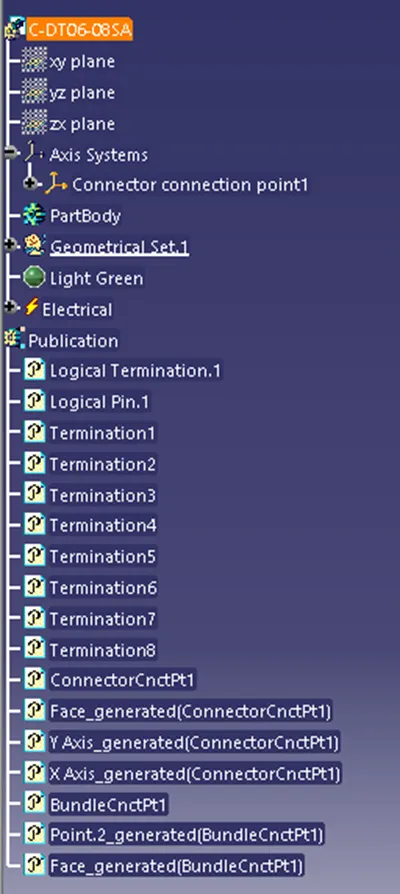
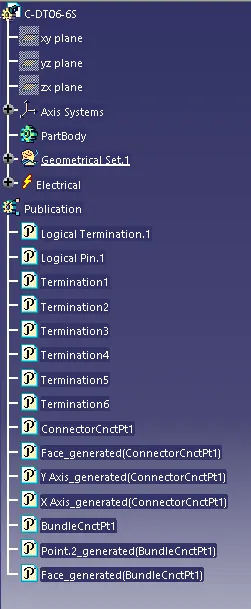
- DT06-6S
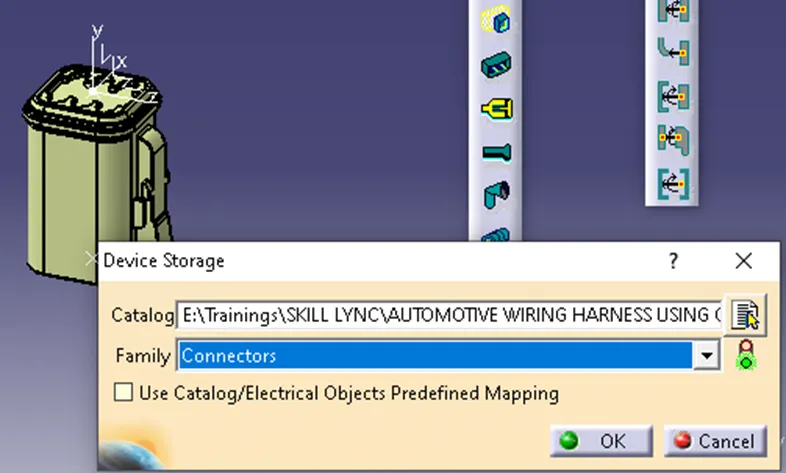
- CATALOG:
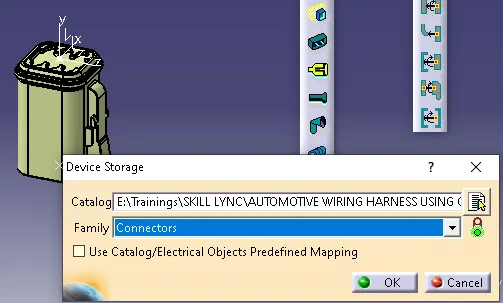
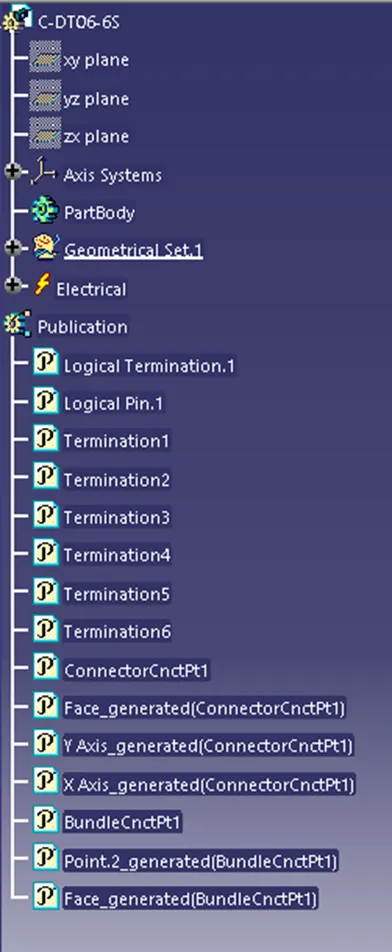
- DESIGN TREE:
- DT06-2S:
- CATALOG:
- DESIGN TREE:
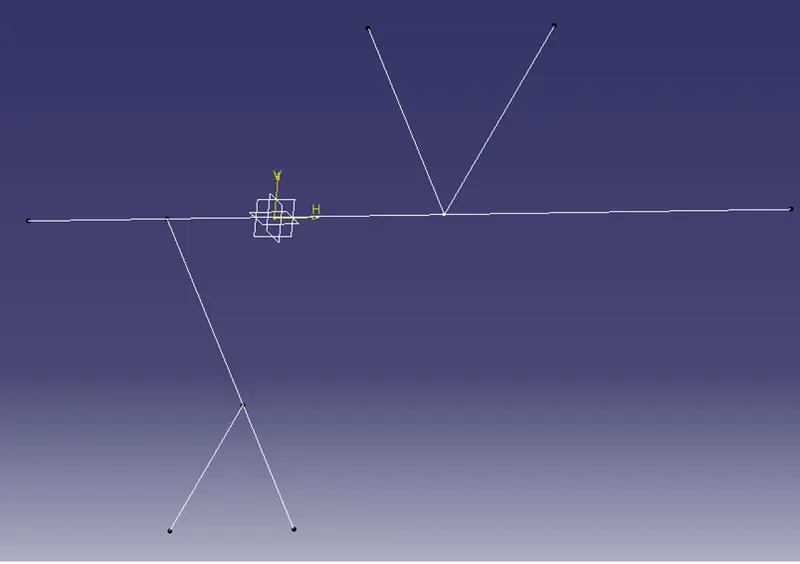
MULTI-BRANCHABLE: Now we need to connect the connector as the above architecture provided, we need to place the connectors in such a way that of the architecture position for that we need to create a layout using line command as below.
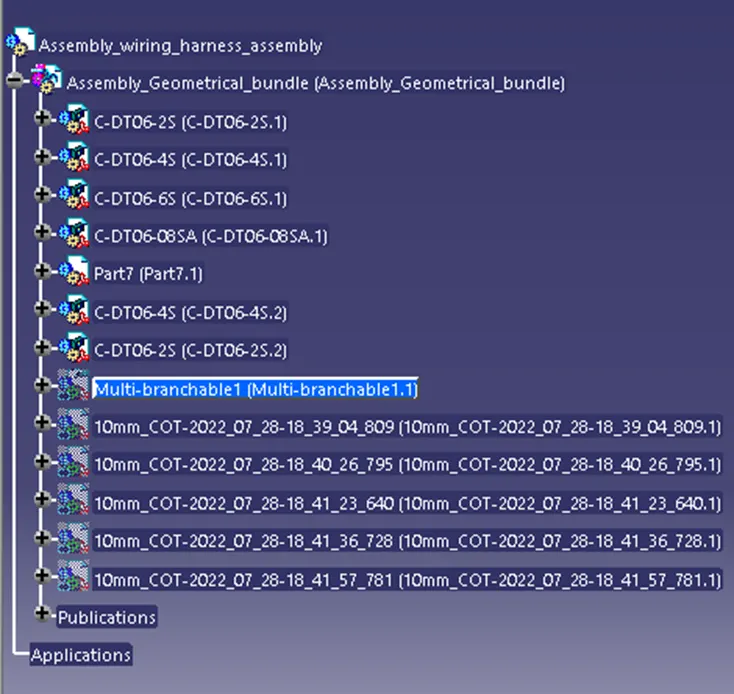
- Now we need to create a product file in Catia v5 with name ”Assembly_wiring_harness” and now we need to create a sub product with name “Assembly_geometrical_bundle”. And now we need to active the sub assembly and by using Existing Component import all the connectors required as follows.
- Now using “MANIPULATION” and “Compass” we need to arrange the connectors using the architecture created in such a way that the bundle connection point should be the side where the harness is going to attach and the connector connection points to the outside as shown below.
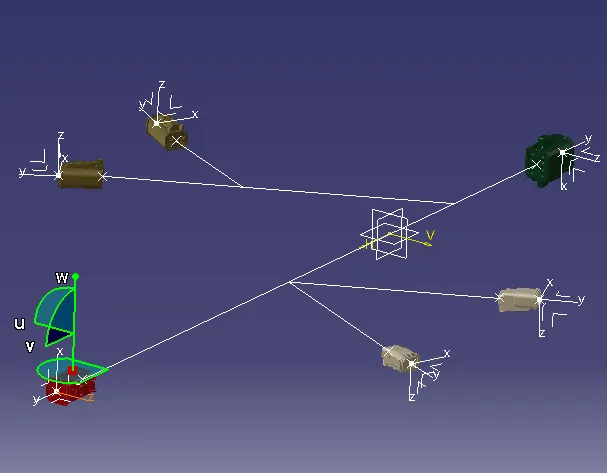
- Now using “MANIPULATION” and “Compass” we need to arrange the connectors using the architecture created in such a way that the bundle connection point should be the side where the harness is going to attach, and the connector connection points to the outside.
- Now Switch to “Electrical harness assembly” and select “Geometrical bundle” command and click on the product file.
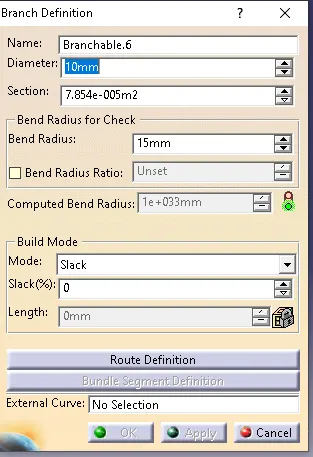
- Now click on “Multi-blanchable” document” and inside click on Branch definition and give the following inputs for main trunk like Diameter and bending radius.
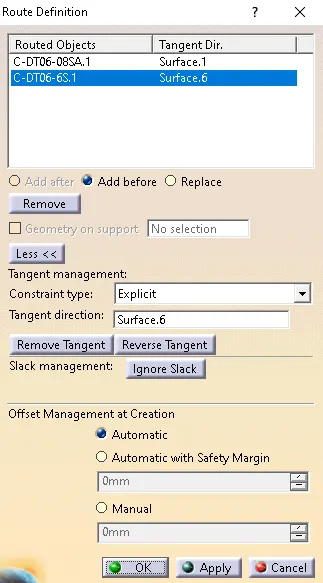
- Click on “Route Definition”. Under Route definition click select 2 main connectors and adjust the tangent direction properly.
- Now using "Branch Point" command create the points where the harness branch is started by using the branch point and connector create sub branch In the same way by giving the diameter as 5 and bent radius as 7.5. and by adjusting the tangent direction.
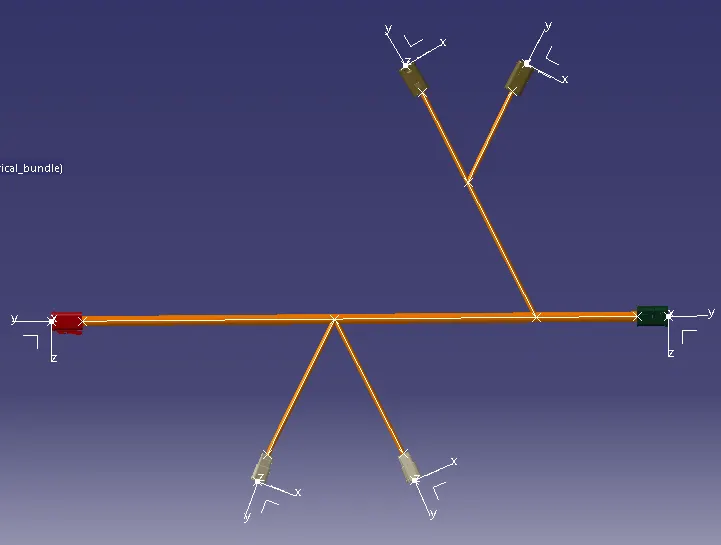
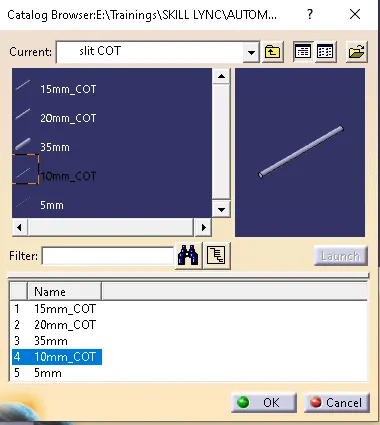
- Now by using "Protective Covering" command from catalog "Slit_catalog" and select the 10mm diameter and apply to the harness.
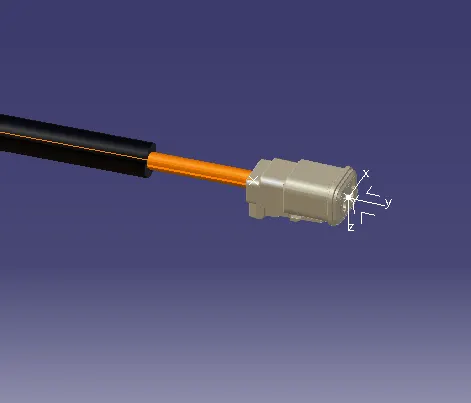
- Now keep end extrimity as 30mm from the connectror.
- Now we have created the the harness and added protective covering to the harness
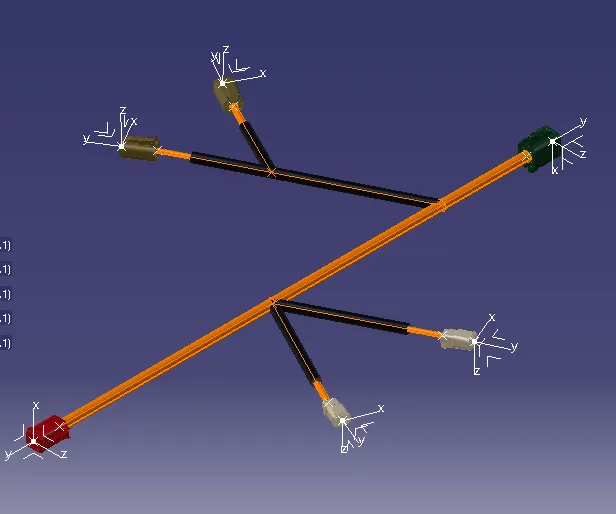
- Design Tree:
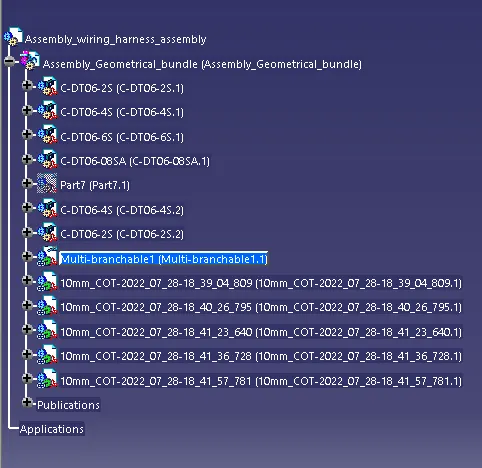
Now this is how the geometrical bundle is created now we are using it to flattern.
Electrical Harness Flattening:
1. Now select File> New> Product> Electrical harness flattening and save the product with name ex_4_flattening.
2. Now in order to use the enable the other options first we need to decide the "Harness flattening parameters" and define them as following.
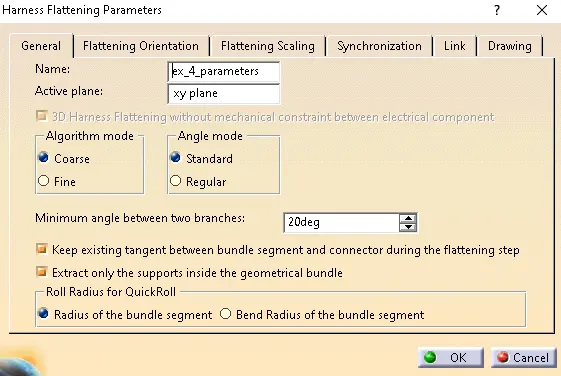
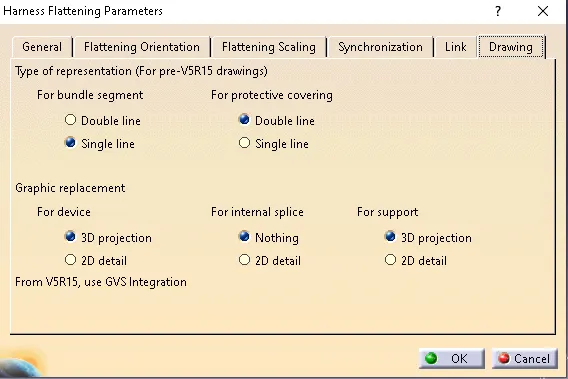
now click OK and rename the parameter in design tree.
3. Now select option "Extract" and arrange the windows vertically and select the geometrial bundle so that the component will be inserted as following.
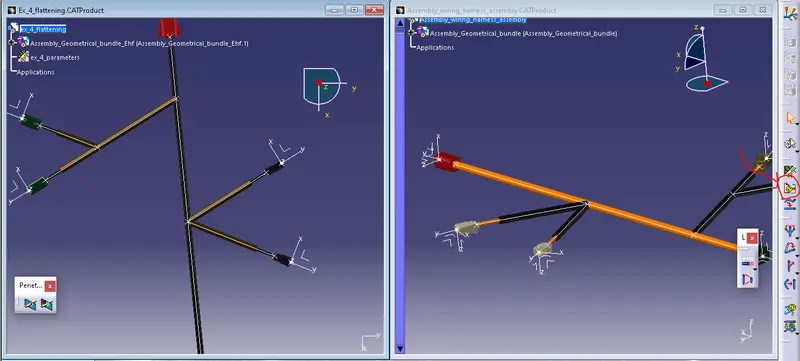
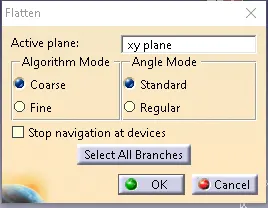
4. Now select the flatten option choose the plane and select the brances and click ok.
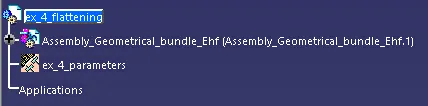
after clicking ok _Ehf(electrical harness flattening) is applied to the geometrical bundle name as follows.
Now we can manipulate the bundle by using rotate, roll, straighten, bend and arrange junction options according to our requirement.
DRAWING:
Now click File> New>Drawing and slecet format and click ok.
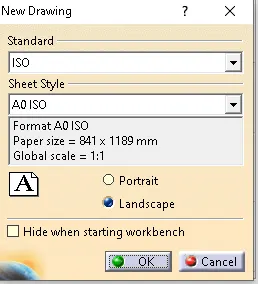
Save as ex_4_drawing and now select front view and go to the flattening and selct the top plane of the connector and the drawing file is created now arrange it with the required angle and select any where on the drawing.
Now select view right click and go to proporties and go to view and select the following properties like 3D wireframe and apply and click ok.
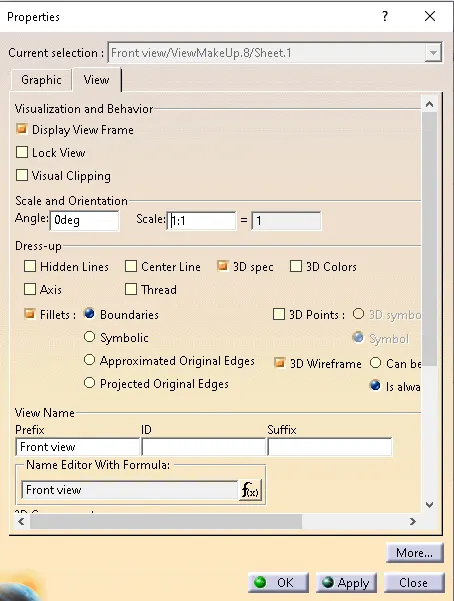
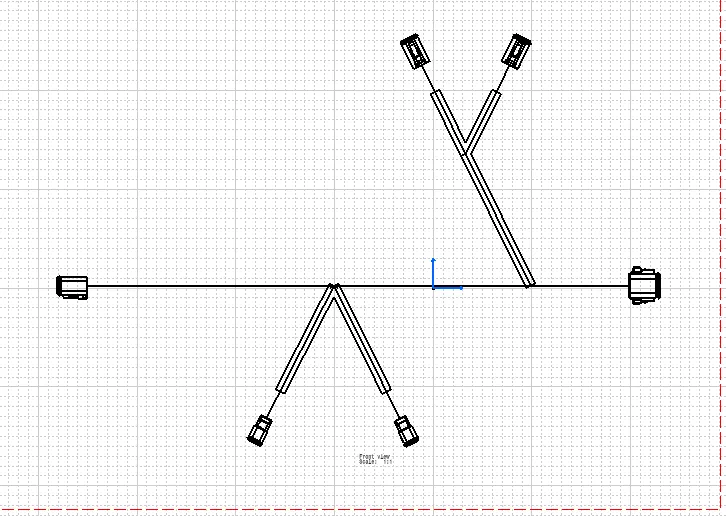
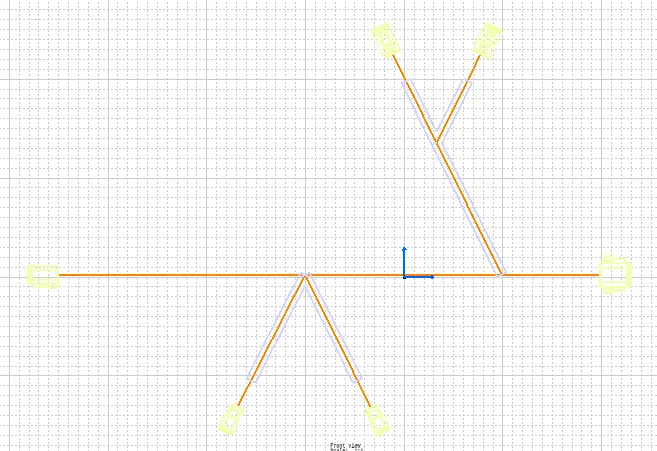
Now in order appear the wireframe in default color enable the 3D colors option in properties and click ok
 .
.
So now we have created the drawing file.
- CONCLUSION:
Now we have definied all the connectors and created the flattening file and genarated the drawing. hence our challenge is completed.