Creating a Residence Layout, Seating plan, Toilet and Utility room plan using AutoCad
Q1.
AIM - Residence Plan: Sketch the layout of a residence as shown in the Figure Consider all dimensions as reference to sketch the unit plan. Also the text in the layout are only for reference. Assume the missing dimensions. Also, refer the schedule for size of the doors.
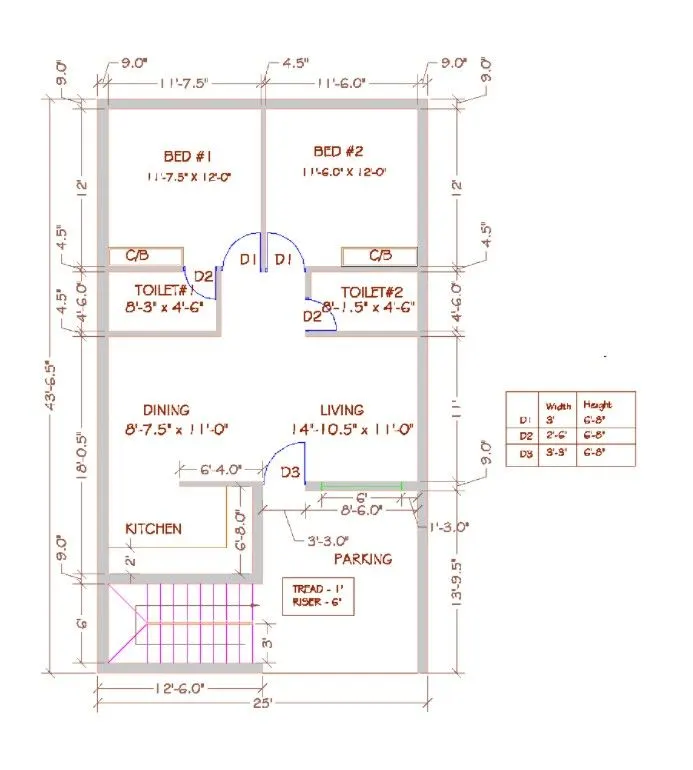
Procedure -
Type UN and press enter
Under Drawing Units, select architectural
Now the lower limit is set to 0’,0’ and upper limit to 75’, 75'
Type Z enter to zoom and A enter to all
STEP 1: Exterior walls
To create a Layer
In the Layer Properties Manager, click New Layer.
A layer name is added to the layer list.
Enter a new layer name as external wall by typing over the highlighted layer name.
Select a suitable colour for that layer
Using the construction line command XL horizontal and vertical lines was created. As the thickness of external walls is 9’, an offset of 9’ was created both vertically and horizontally. The edges and corners are trimmed off or filleted to get the following image
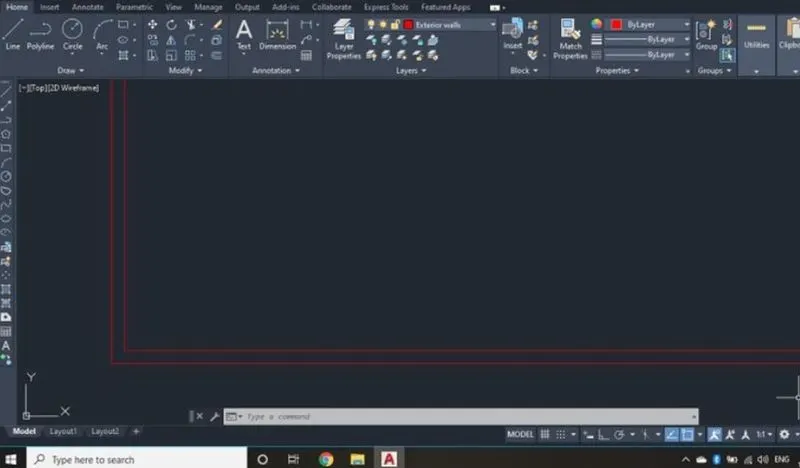
The horizontal outer line is offsetted to a distance of 43’-65”.
This line is again offsetted to a distance of 9’ that is the wall thickness
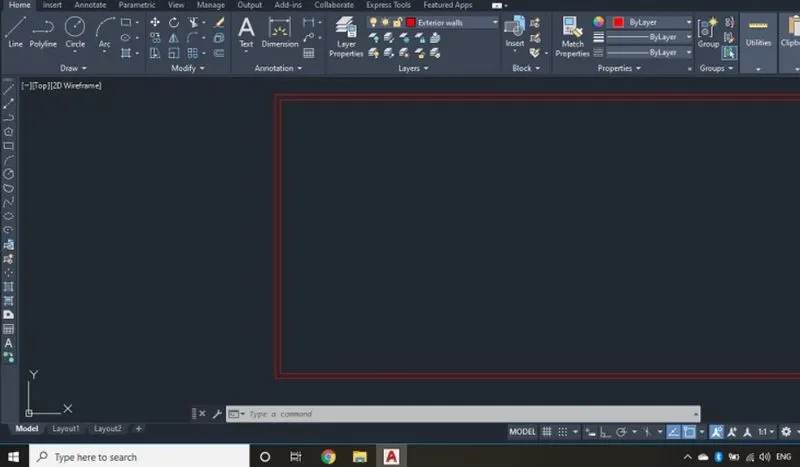
The vertical outer line is offsetted to a distance of 25’.
This line is again offsetted to a distance of 9’ that is the wall thickness
The edges and corners are trimmed off or filleted to get the following image
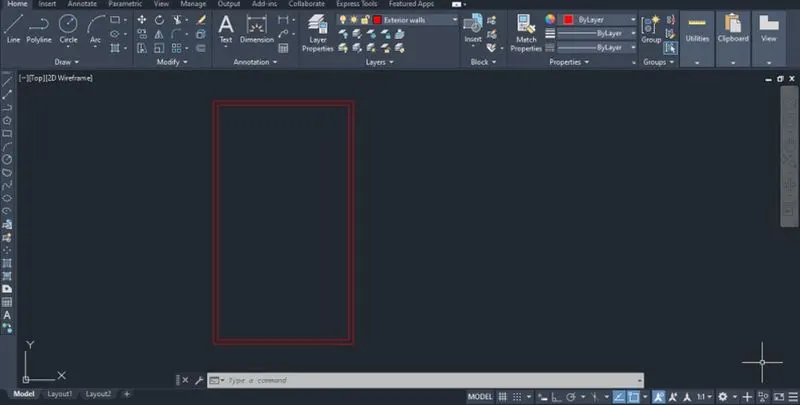
The vertical and horizontal construction lines are again offsetted, trimmed or filleted to get the external walls as per the plan and the following image was obtained.
Now all the external walls are completed.
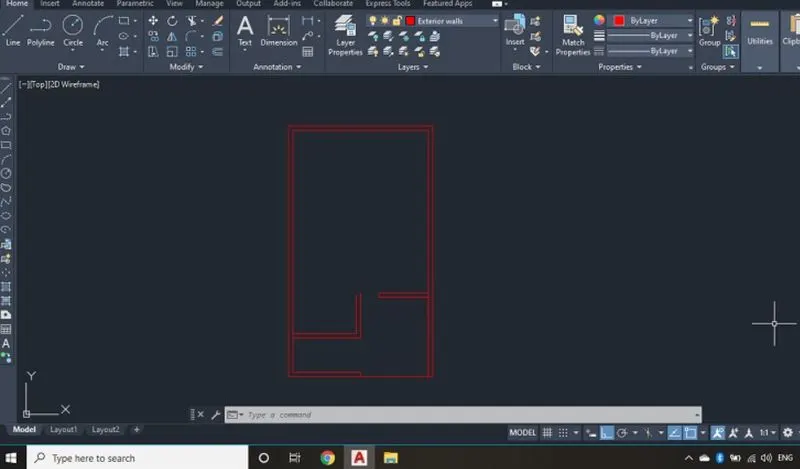
Step 2: Interior walls
A new layer is now created, named as internal walls and a suitable colour is selected and this layer is made as the default
According to the plan the internal walls are drafted and the thickness of internal walls is taken as 4.5’. The edges and corners after trimming or filleting the following image is obtained
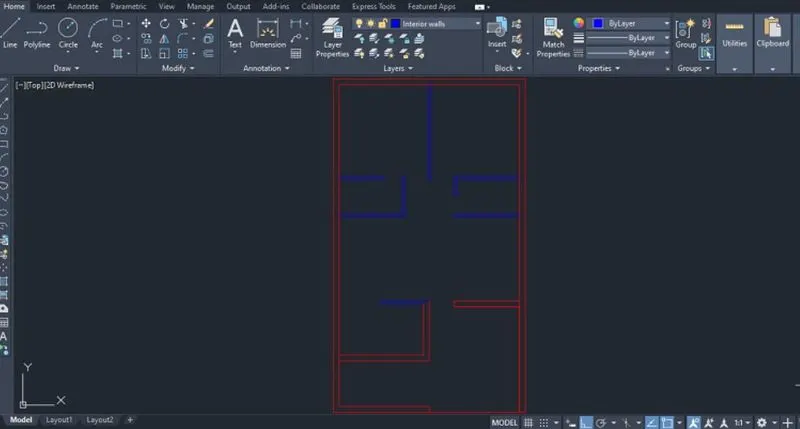
Step 3: staircase
A new layer is now created, named as staircase and a suitable colour is selected and this layer is made as the default
Now using the line and offset tool staircase was drafted and the following image is obtained
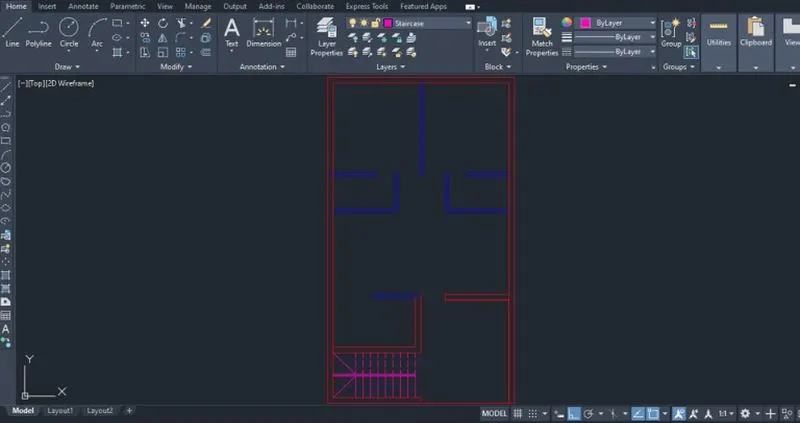
Step 4: Kitchen slab
A new layer is now created, named as kitchen slab and a suitable colour is selected and this layer is made as the default
Now using the offset tool kitchen slab was drawn and the following image is obtained
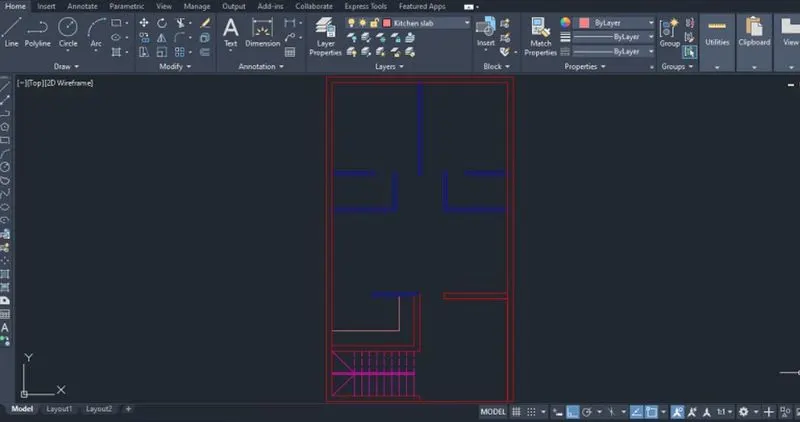
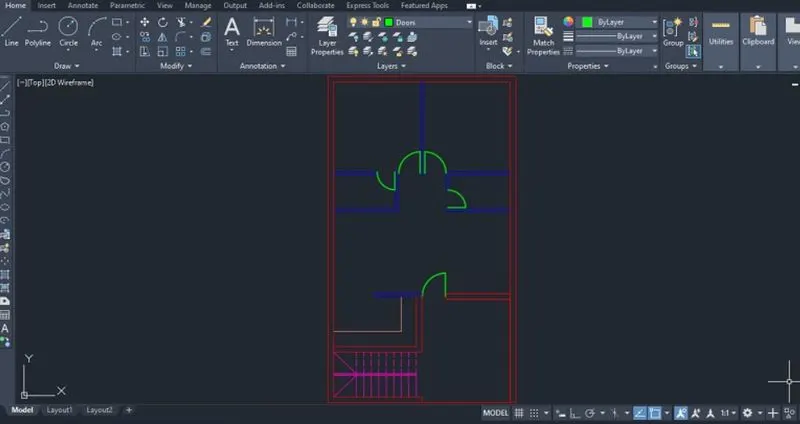
Step 5: Doors
A new layer is now created, named as doors and a suitable colour is selected and this layer is made as the default
Now using the line, circle, trim and offset tool doors of different sizes was drawn and the following image is obtained
Step 6: Windows
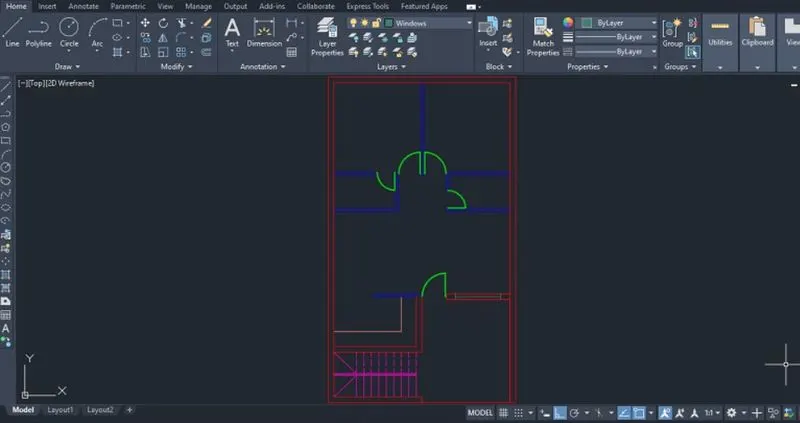
A new layer is now created, named as windows and a suitable colour is selected and this layer is made as the default
Now using the line tool and object snapping the windows was drawn and the following image is obtained
Step 7: Cupboard
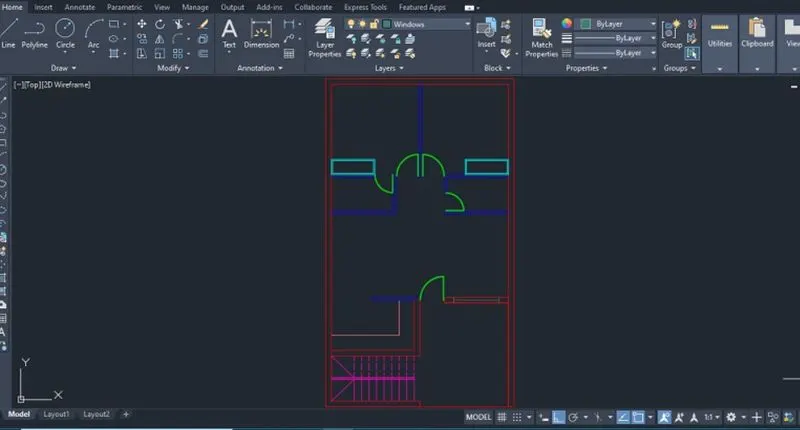
A new layer is now created, named as cupboard and a suitable colour is selected and this layer is made as the default
Now using the rectangle and offset tool the cupboard was drawn and the following image is obtained
Step 8: Dimensions
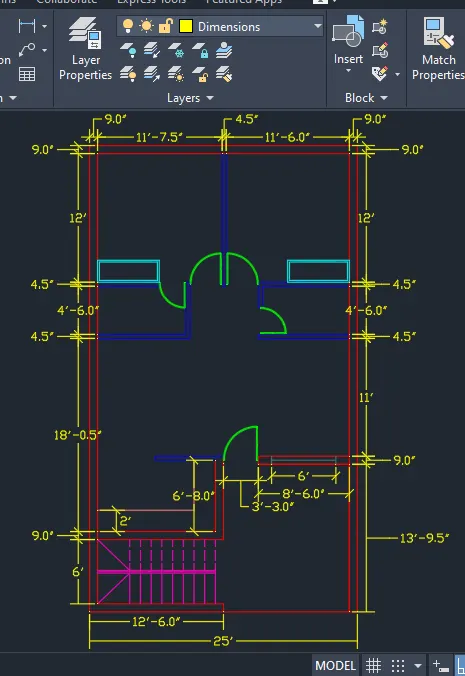
A new layer is now created, named as dimensions and a suitable colour is selected and this layer is made as the default
Now using the Dimlin the dimensions was plotted and the following image is obtained
Step 9: texts
A new layer is now created, named as texts and a suitable colour is selected and this layer is made as the default
Now using the MTEXT command the texts was made and the following image is obtained.
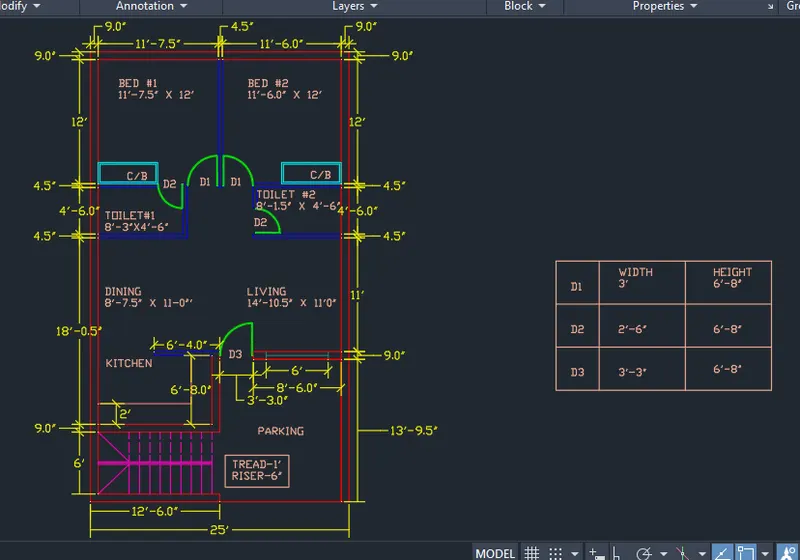
Result - Residential plan was drafted using AutoCAD
Q2.
AIM - Sketch the seating plan for an outdoor canopy. Assume the dimensions for the seating. Also, consider the dimensions in mm see in figure
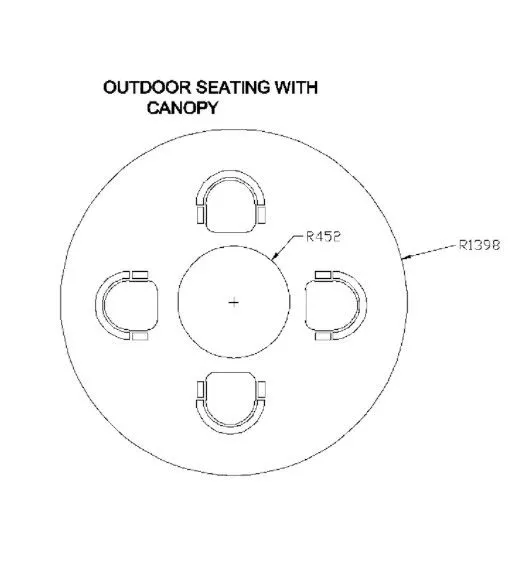
Procedure -
Under Drawing Units, select decimal
Now the lower limit is set to 0,0 and upper limit to 2500, 2500
Type Z enter to zoom and A enter to all
Draw 2 circles of radius-1398 mm and 452 mm with common radius.
Type C and press enter
Specify centre point of circle: 10,10
Specify radius of circle: 1398
Type C and press enter
Specify centre point of circle: 10,10
Specify radius of circle: 452
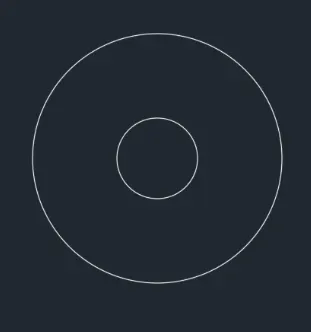
From the centre divide the circle into 4 quadrants by keeping the ortho mode on using the line command
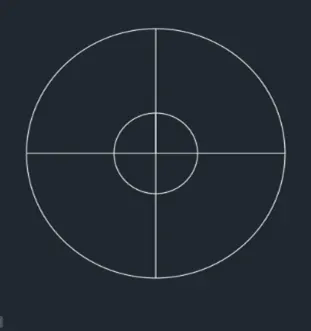
To create the chair, first draw a rectangle of size 500x200 mm
Type Rec or Rectangle in the command line and press Enter.
Specify the first corner of the rectangle.
Enter D for Dimensions.
Enter the length: 200
Enter the width: 500
Specify the other corner.
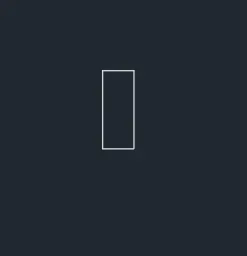
Fillet both the corners of one side of rectangle at a radius of 50mm
Type F and press enter
Select the first line
Specify radius as 50
Select the second line and press enter
Type F and press enter
Select the first line
Specify radius as 50
Select the second line and press enter
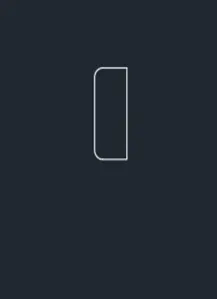
Now draw an arc using the start, end radius command
From draw panel select start end radius option from arc menu
Specify start point
Specify end point
Radius of arc as 250
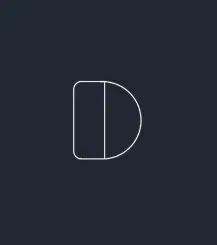
Trim of the unwanted lines and offset at a distance of 50 mm is made as the chair handle
Type O or offset on the command line and press Enter.
Specify the value of offset distance:50
Select the arc to offset and click outside the arc two times
And the end of arcs are closed using line at last

Now a rectangle is drawn at both ends of dimension 100x50 mm.
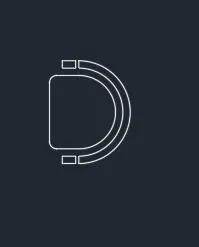
Now using the copy command the chairs was copied and placed once
Using the rotate command one chair is rotated 90 degree.
Using mirror command both the chairs were mirrored and by keeping the source object
Now these four chairs are placed in a layer and a suitable colour is allotted to them.
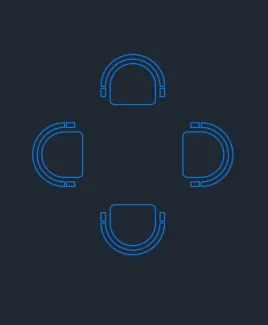
Now using the move command the chairs was placed on the quadrant lines which was made earlier centrally.
Trim off the quadrant lines after placing the chairs
Now dimensions was provided and layers was applied whenever needed.
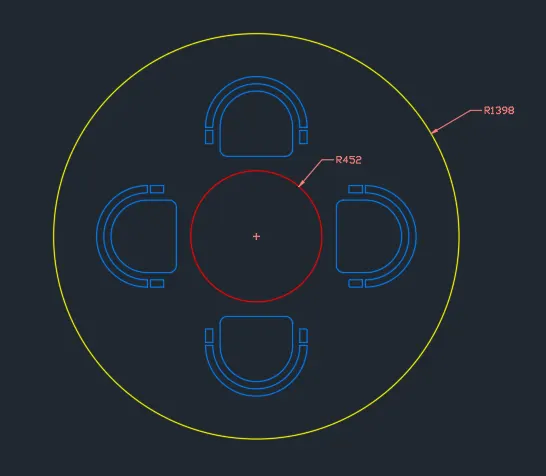
Result - The seating plan was drafted using the Autocad
Q3.
AIM - Sketch the part plan for the toilers and utilities room. Consider the outer wall thickness as 300mm and inner wall thickness as 150mm. Also, assume the missing dimension, Texts, dimensions, and hatches are only for references. Also, symbols for toilets and w/c are also for references. see in figure
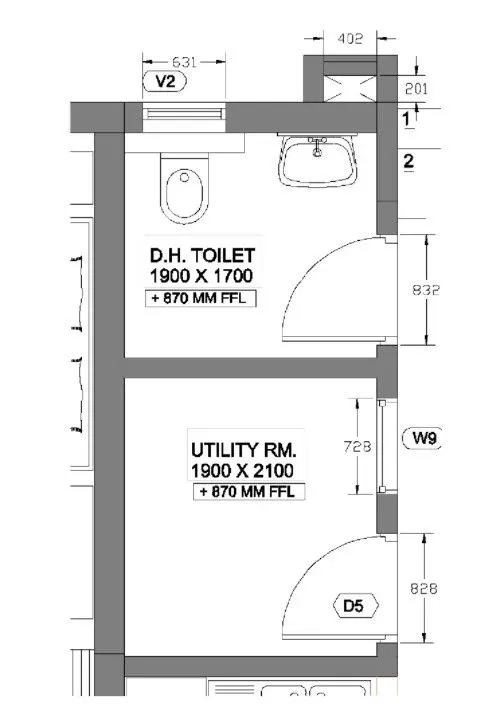
Procedure -
Under Drawing Units, select decimal
Now the lower limit is set to 0,0 and upper limit to 2500, 2500
Type Z enter to zoom and A enter to all
STEP 1: Exterior walls
To create a Layer
In the Layer Properties Manager, click New Layer.
A layer name is added to the layer list.
Enter a new layer name as external wall by typing over the highlighted layer name.
Select a suitable colour for that layer
Using the construction line, offset, trim and fillet tool the external walls was drawn as per the plan and a thickness of 300 mm was provided for these walls
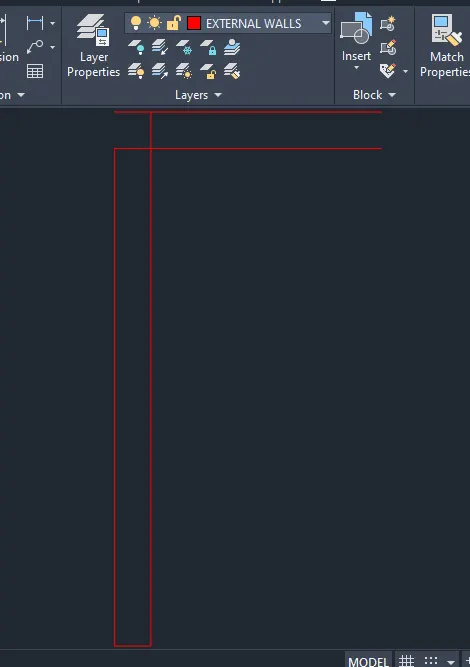
Step 2: Interior walls
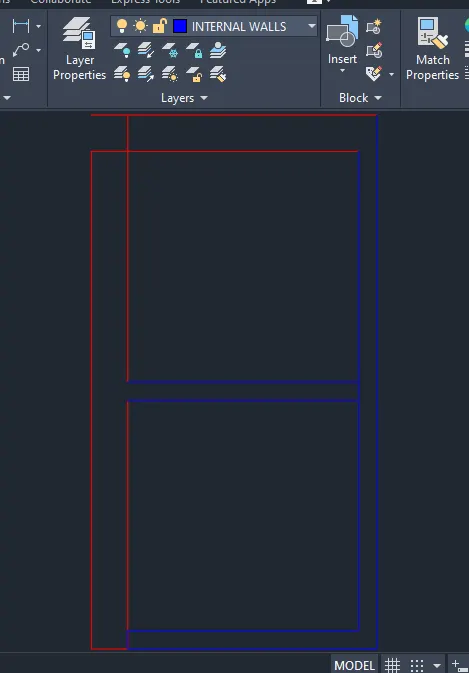
A new layer is now created, named as internal walls and a suitable colour is selected and this layer is made as the default
According to the plan the internal walls are drafted using the construction lines,offset, trim and fillet tool and the thickness of internal walls is taken as 150 mm. The edges and corners after trimming or filleting the following image is obtained
Step 3: Doors
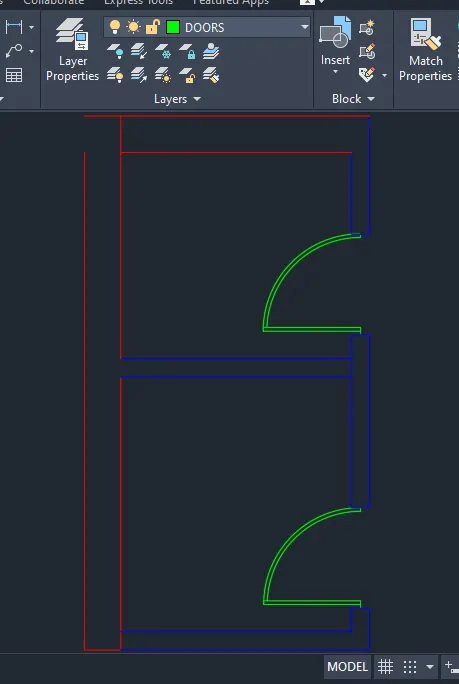
A new layer is now created, named as doors and a suitable colour is selected and this layer is made as the default
Now using the line, circle, trim and offset tool doors of different sizes was drawn and the following image is obtained
Step 4: Windows
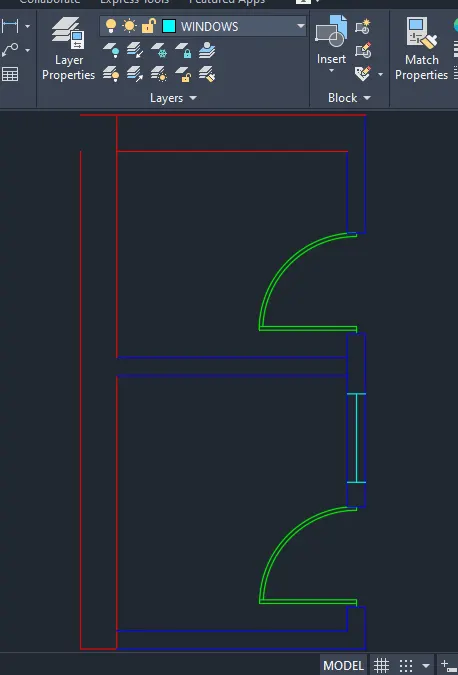
A new layer is now created, named as windows and a suitable colour is selected and this layer is made as the default
Now using the line tool and object snapping on the windows was drawn and the following image is obtained.
Step 5: ventilation
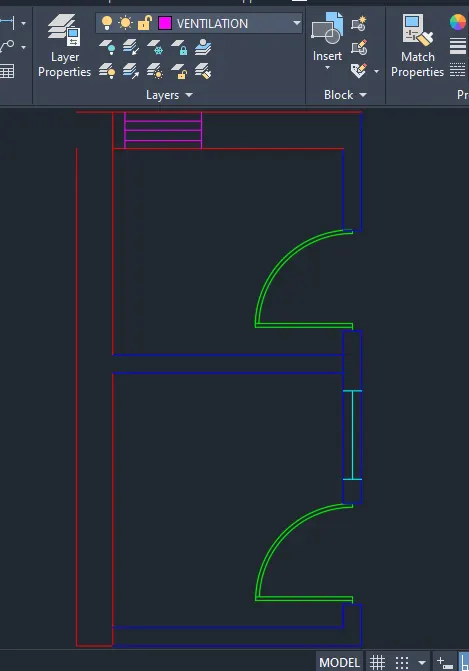
A new layer is now created, named as ventilation and a suitable colour is selected and this layer is made as the default
Now using the line tool ventilation was drawn and the following image is obtained
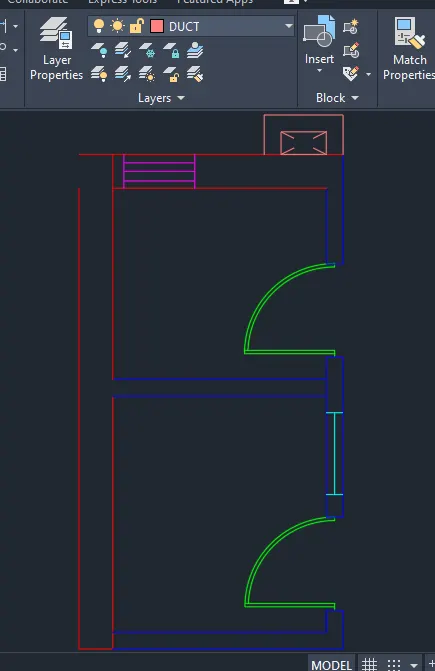
Step 6: Duct
A new layer is now created, named as duct and a suitable colour is selected and this layer is made as the default
Now using the line and rectangle tool ducts was drawn and the following image is obtained
Step 7: Blocks
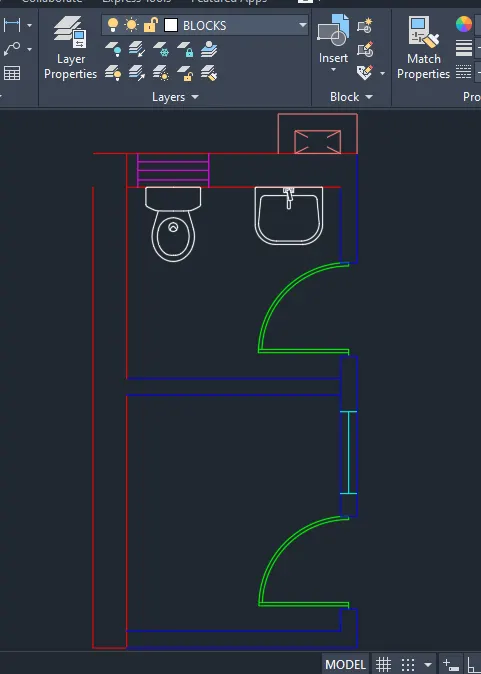
A new layer is now created, named as blocks and a suitable colour is selected and this layer is made as the default
Pre-existing block drawing of wash basin and toilet was placed at the correct places and the following image is obtained
Step 8: Dimensions
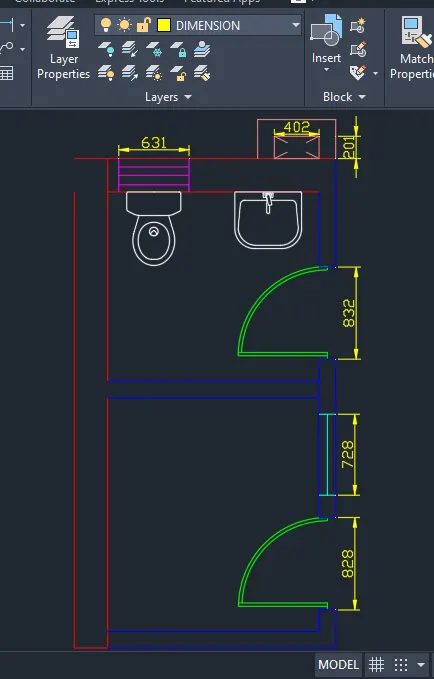
A new layer is now created, named as dimensions and a suitable colour is selected and this layer is made as the default
Now using the Dimlin the dimensions was plotted and the following image is obtained
Step 9: texts
A new layer is now created, named as texts and a suitable colour is selected and this layer is made as the default
Now using the MTEXT all the texts was made and the following image is obtained.
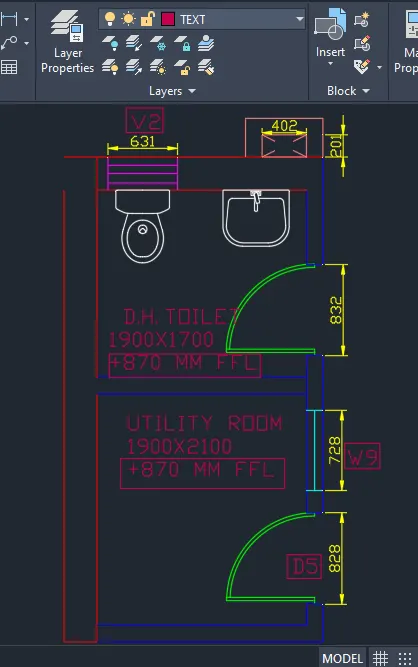
Result - The toilet and utility room was drafted in AutoCAD and the details of layers is given.