Wiring harness design in CATIA V5 - 3D modeling Week 5 & 6 Challenge
Connectors Part File downloaded from Google Drive. Each Connectors were opened with CATIA V5. At Part Design Workbench, Each Connectors were defined by Point at Backside for Bundle Connection Definition and Point with Axis at Front Side for Connector Connecction Definition. Switched to Electrical Part Design, Part Files were defined by Connectors and Points used for Bundle Connection, Axis & Point used for Connector Connecction. Catalogue created for Connectors and each Connectors were saved in Connector Catalogue.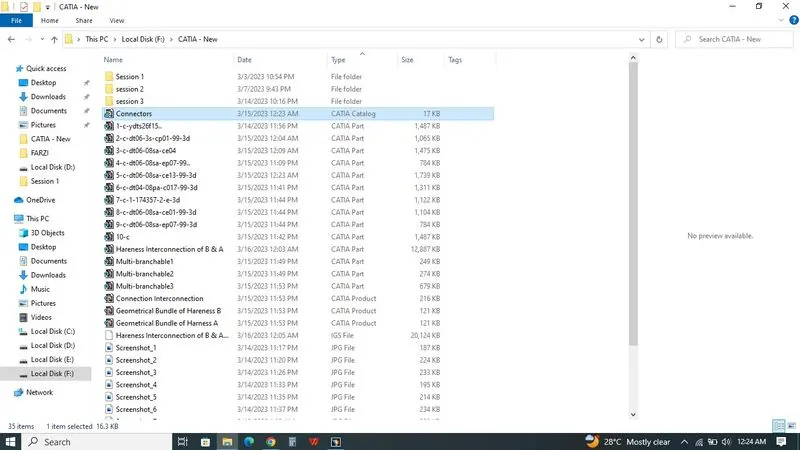
Geometrical Hareness A Created by using given Connectors. Connectors imported into Assembly workbench. Each connectors were placed in position by using Snap,Axis Rotation,etc.,as per Question. Assembly workbench switched to Electrical Hareness Assembly. Using Geometrical Bundle comment, Product converted into Electrical Workbench. Hareness bundle created by Multibranchable Segment. Main Bundle created between 6 & 10. Sub-bundle created by using Branch definition then the Bundle Warning occured as shown below.
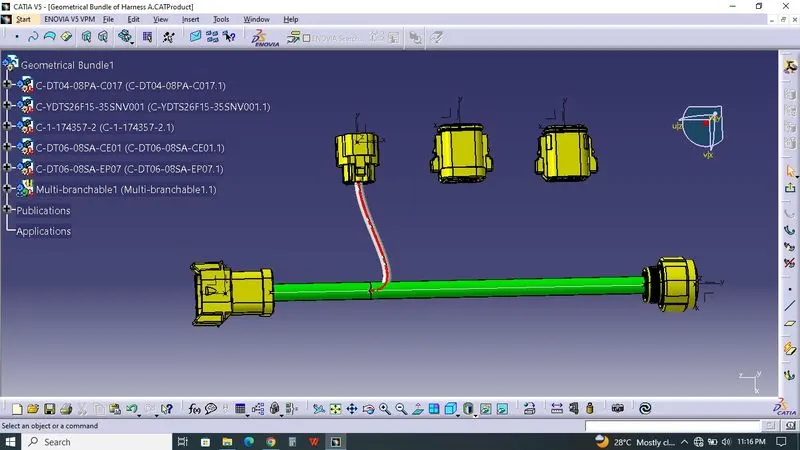
Then Error was solved by simply Reverse Tangent at Tangent Management on Route Definition.Image given below.
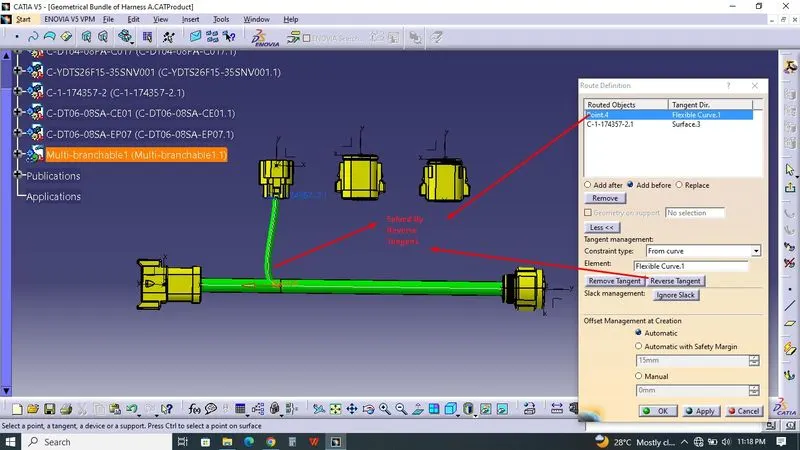
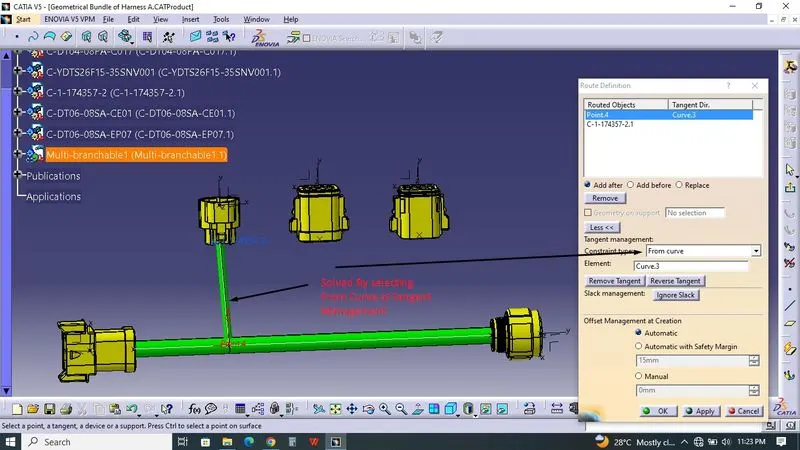
Error 1 also solved by Added the 6th Connectors Edge for Constraint type- From Curve. Image was shown below.
Using Branch definition,Bundle created between Main Bundle to No.8 Connector.And then, Bundle Error 2 Occured. Image shown below.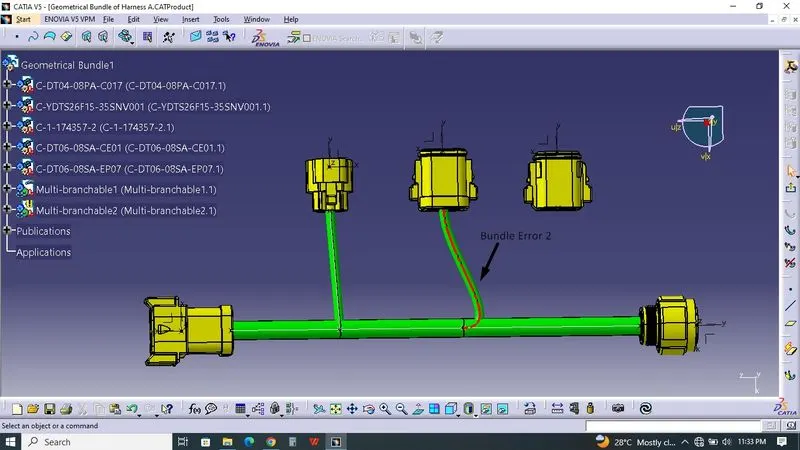
By editing & moving the Main Bundle Branch Point, Bundle Error solved which was done by moving Branch Point at Branch definition-Bundle Segment definition.
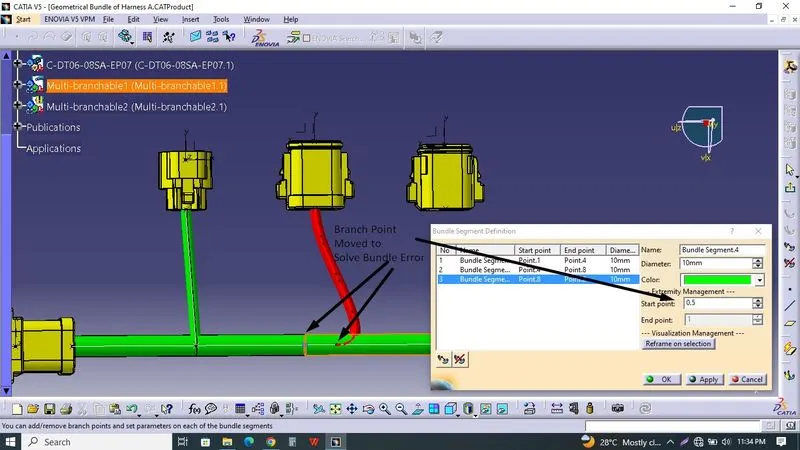
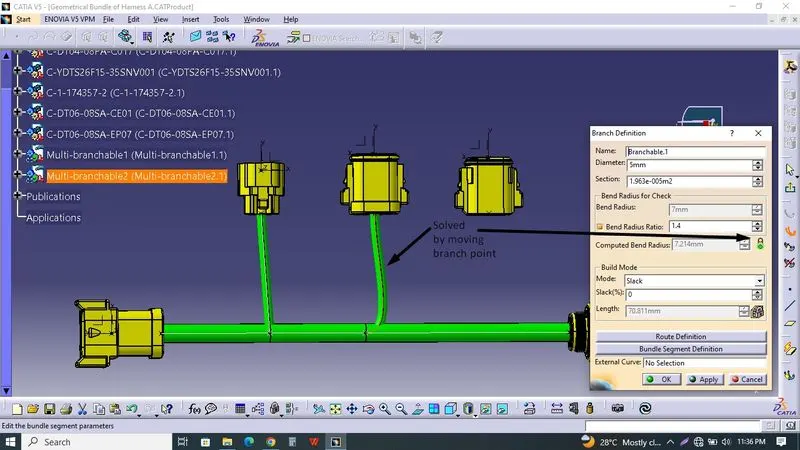
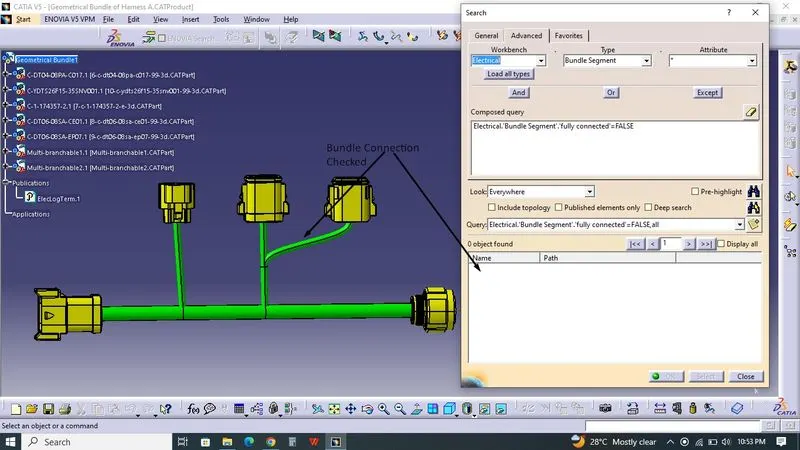
All the Bundles created between the Connectors. Then Bundle segments were checked by Edit_Search_Advanced_Workbench Selecting as Electrical_At Type selecting as Bundle Segment_At Attribute selecting Fully Connected_False_ either it was fully connected or not. No Object has Found. Hareness A was done.Image as shown below.
Geometrical Hareness B Created by using given Connectors. Connectors imported into Assembly workbench. Each connectors were placed in position by using Snap,Axis Rotation,etc.,as per Question. Assembly workbench switched to Electrical Hareness Assembly. Using Geometrical Bundle comment, Product converted into Electrical Workbench. Hareness bundle created by Multibranchable Segment. Main Bundle created between 1 & 5. Sub-bundle created by using Branch definition between Main Bundle to No.3 Connector, then the Bundle Warning occured as shown below.
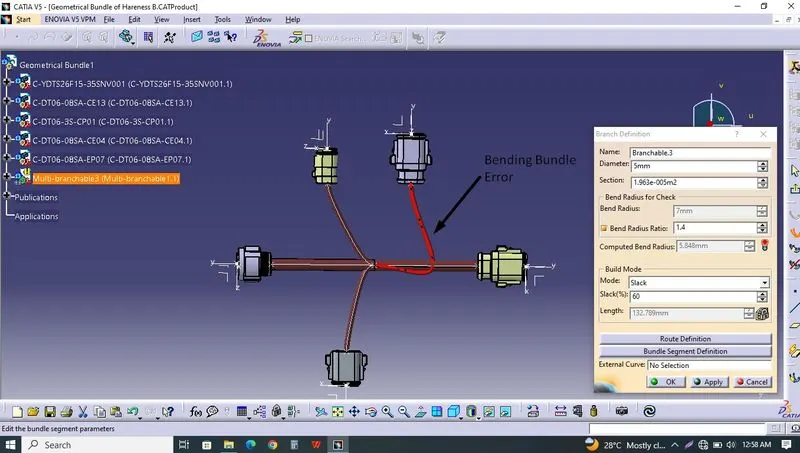
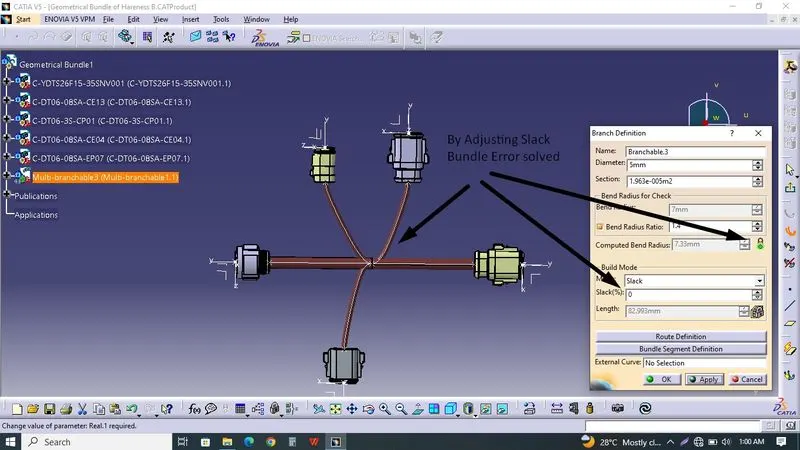
Then the Error solved by Adjusting Slack Percentage at branch definition. Solution image was shown below.
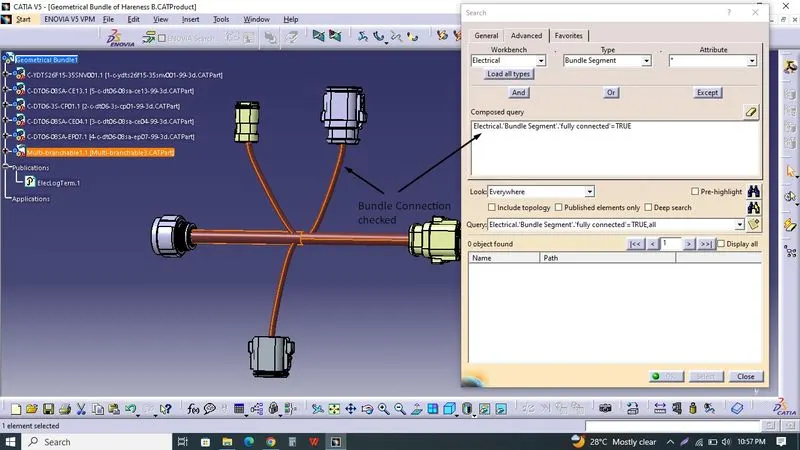
All the Bundles created between the Connectors. Then Bundle segments were checked by Edit_Search_Advanced_Workbench Selecting as Electrical_At Type selecting as Bundle Segment_At Attribute selecting Fully Connected_True_ either it was fully connected or not. No Object has Found. Hareness B was done.Image as shown below.
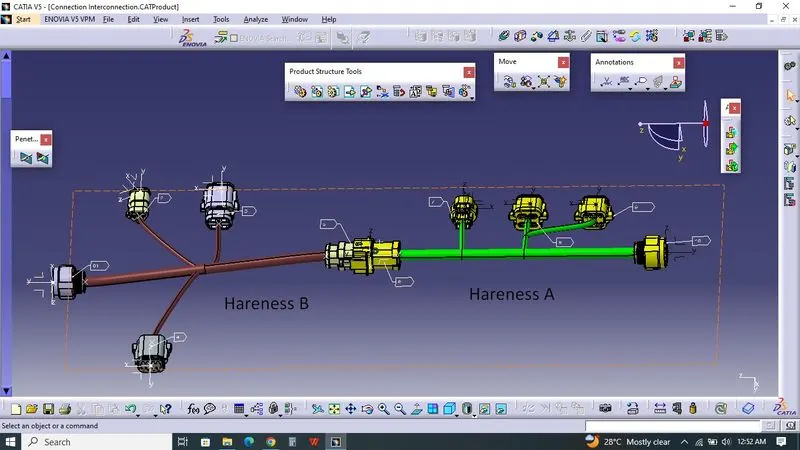
Interconnection for Hareness A & B created at New Product. At Electrical Assembly Design Workbench, Hareness A & B imported into it. Using Connect Electrical Devices command, Hareness A & B were connected where we defined Connectors as Connector Connection Definition. Annotation were added at Mechanical Assembly Workbench and the image shown below.
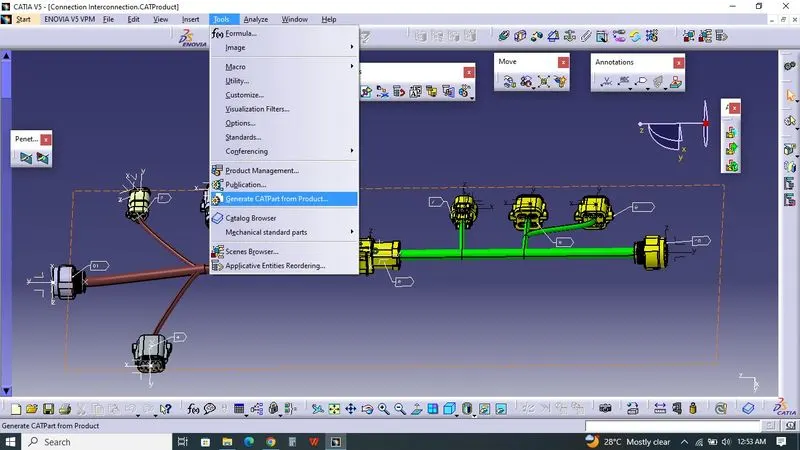
At Assembly Design Workbench, CAT_Product converted into CAT_Part by Using Tools_Generate CAT Part from Product. Finally CAT_Part Opened in New Workbench which image shown below.
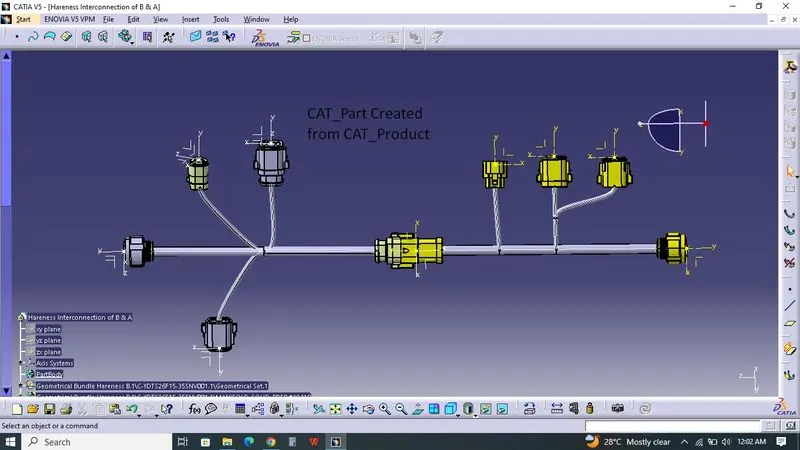
CAT_Part saved into the IGES Format. All the Files attached below.