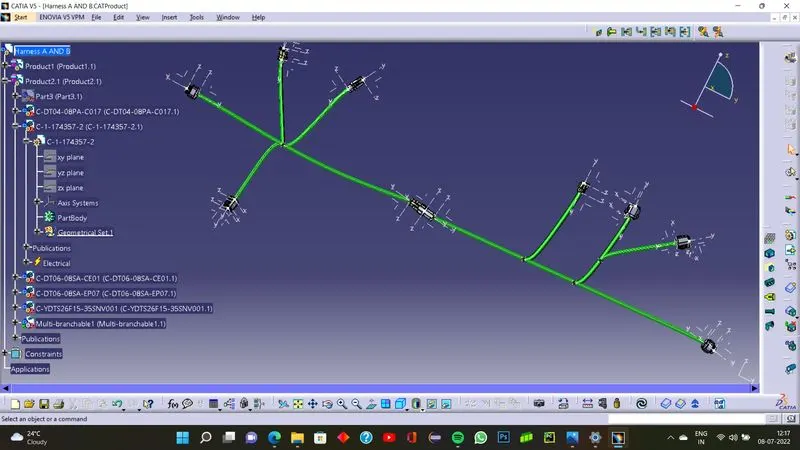
Wiring harness design in CATIA V5 - 3D modeling Week 5 & 6 Challenge
Wiring harness design in CATIA V5
This module aims to create 2 separate harnesses and then connect them in a different file. We also need to check the continuity of the harnesses separetlely and add the annotations .
Continuity Check - This process is performed on the harness to check its total electrical connectivity. In case of discontinuity it will have errors in assembly stage at later time .
Annotations - It is added to the various parts of the harness assembly mainly used for naming .
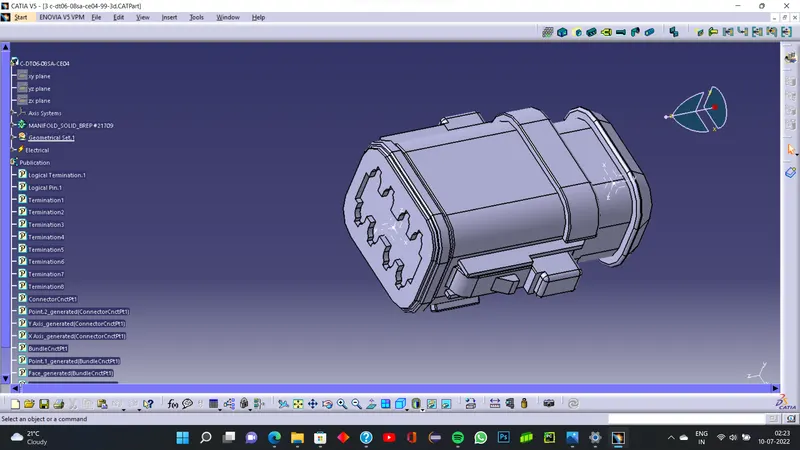
Step 1
Define the various connectors as electrical connectors with all required points and axes systems
Step 2
Create a rough base sketch based on the given requirement
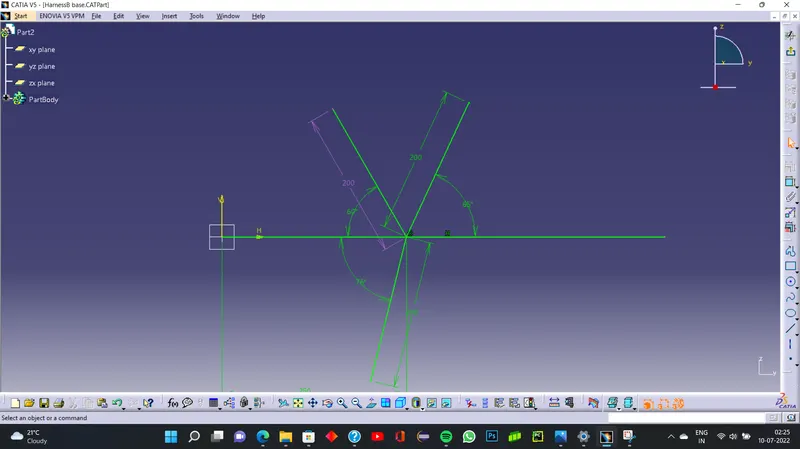
Step 3
Open the aseembly design work bench and import all the connectors and the base sketch into it
Step 4
Snap the components correctly to the points on the sketch where we need the connectors .
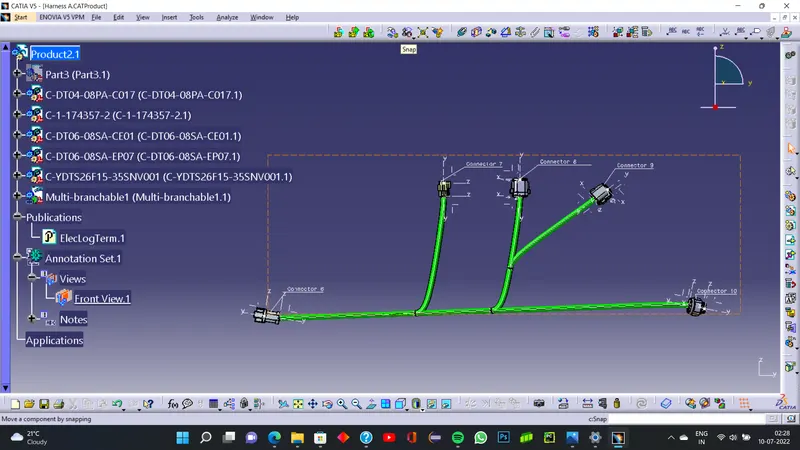
Step 5
Move to the electrical harness assembly workbench
1. Add a geometrical bundle into the product
2. Add the multibranchables and select the main route.
Step 6
After the main route add the branch points on it and connect using the branch points to other connectors
Step 7
after all the branches are added
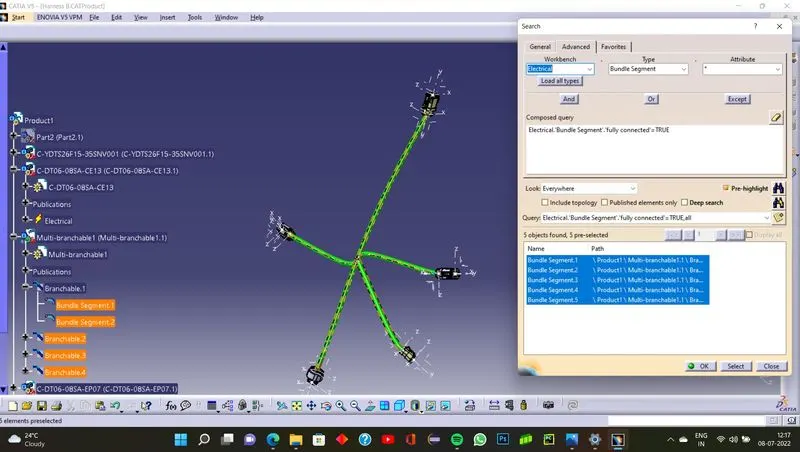
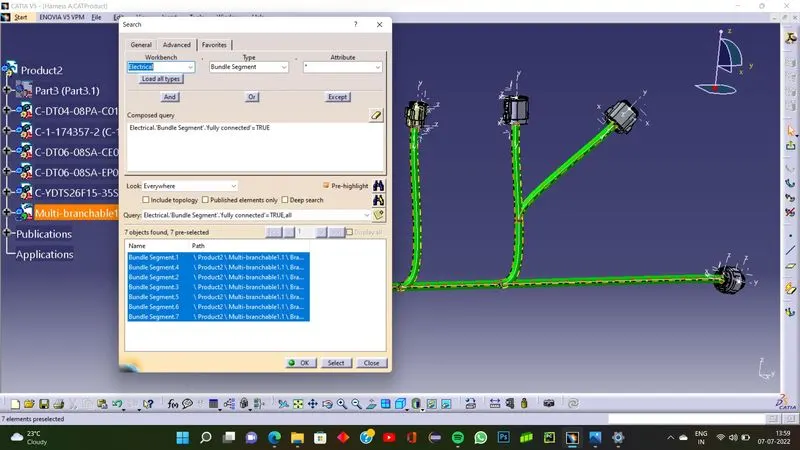
Go to Edit - Search
In advanced tab
select electrical workbench - type-Bundle sagement - Atribute- fully connected
press the pre highlight button
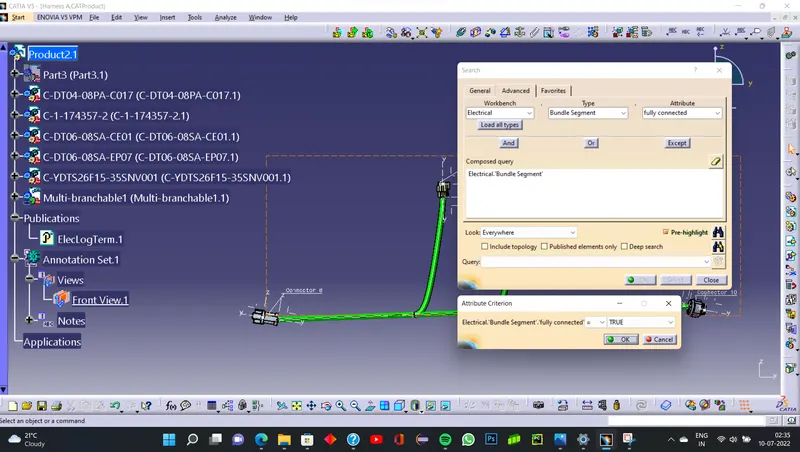
Fully Connected results
Step 8
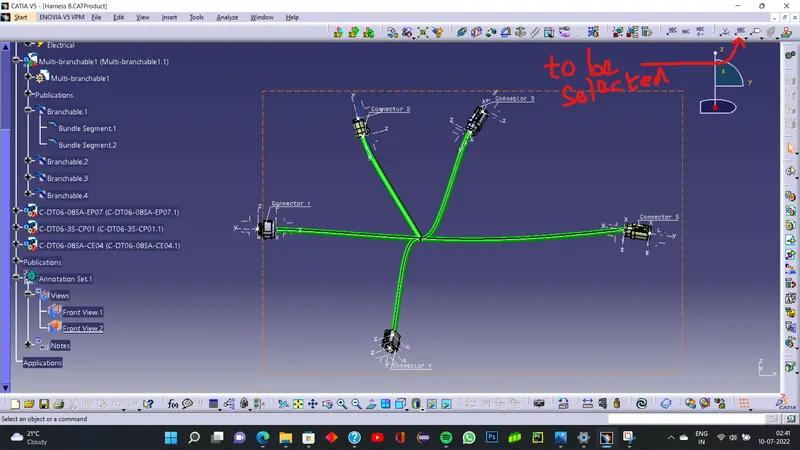
Go to assembly design workbench and add annotation button
Step 9
Select a view front view most preferably to cove all the connectors and add the annotation
Step 10
Open a new product file in assembly design workbench import both the harness assembly
use the snap tool to move the harness which are overlapping
Step 11
Open the Electrical Assembly design workbench
click on connect equipment and select the connectors which are to be connected , the connectors will get connected and the harness length will be automatic adjusted
note- harness length auto adjustment will take place only when the harnesses are fully connected.