Wiring harness design in CATIA V5 - 3D modeling Week 2 Challlenge
Aim: To define the given components as Electrical Connectors using the Electrical Design Workbench.
Objective:
- To define the given components as Electrical Connectors using the Electrical Design Workbench.
- To define the necessary properties for the given connectors.
Theory: The given components were downloaded from the given links as shown below:
https://www.te.com/usa-en/product-DT06-08SA.html
https://www.te.com/usa-en/product-2-174357-2.html?source=header-match
https://www.te.com/usa-en/product-85229-1.html?q=85229&source=header
The part number and description is as follows:
- 8 Pin Connector – DT06-08SA
- 3 Pin Connector – C-2-147357-2
- Cavity Clip – C-0085229-01-3
The connectors and the cavity clip need to be electrically defined before they can be used to define the wire harness. Follow the given steps to electrically define the connectors.
- In the Part Design Workbench, put points on the wire entry side and the connector connection side at the center of the face.
- On the connector connection side, insert an Axis System such that the movement of the connector to connect to the counterpart is in Y-axis direction and the locking of the connector is in X-axis direction. The Z-axis direction can be in the either direction when the above conditions are satisfied.
- Switch to the Electrical Part Design Workbench.
- In this workbench, the first task is to define the component as Electrical Connector using the Define Connector, so that the necessary properties can be assigned to the connector. Set the number of terminations respectively for the 8 pin connector and 3 pin connector.
- The next step is to define the wire harness bundle entry. Use the Define Bundle Connection Point command to define the wire entry into the connector. Select the representation as the outermost surface and the point of contact as the point in the center of the surface.
- Then use the Define Connector Connection Point command, to define the connector connections. Select the point in the middle of the surface as Representation and Contact surface in the Contact
- The Coincidence is the Y-axis direction and Orientation is in X-axis direction. These are the common steps for both the given connectors.
- For the 3 pin connector, an extra element Cavity needs to be defined in addition to above properties. The cavity is a cut out so that a connector can be assembled onto a clip via a cavity and the clip is then fixed to the BIW part of the automobile.
- Use Define Cavity to define a cavity face.
- Put a point in the middle of the curve where the cavities on the connector and the clip will meet and put an axis system similar to that at the connector connection point with appropriate orientation.
- On the connector clip, follow the above mentioned step and mark the point as Cavity Connection Point.
- From the given components, the 3 pin connector and the cavity clip can be assembled together. Open Electrical Assembly Design and import the parts.
- Place the compass on the parts and manually orient the parts as they are expected to be assembled.
- Use Connect Electrical Devices Command and select the Clip and then Connector respectively. They will be assembled together.
The following figures illustrate the above mentioned procedure:
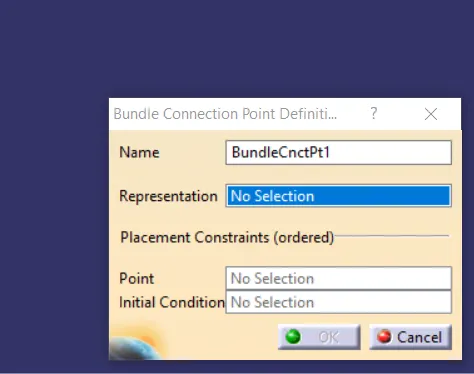
Fig. 1: Bundle Entry Dialog box
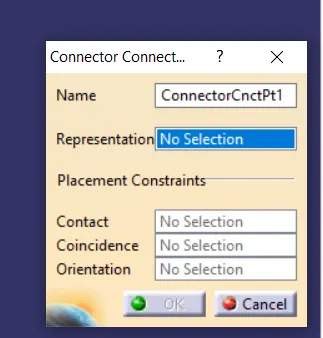
Fig. 2: Connector Entry Dialog Box
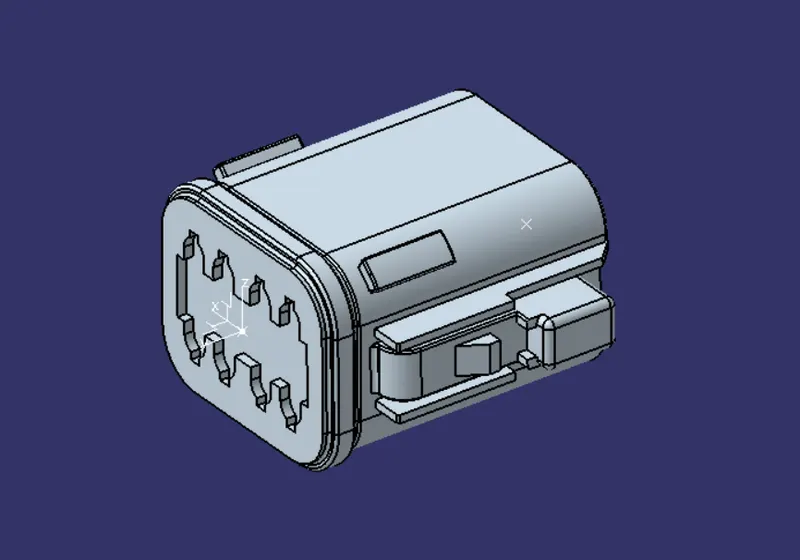
Fig. 3: 8 point connector Isometric View
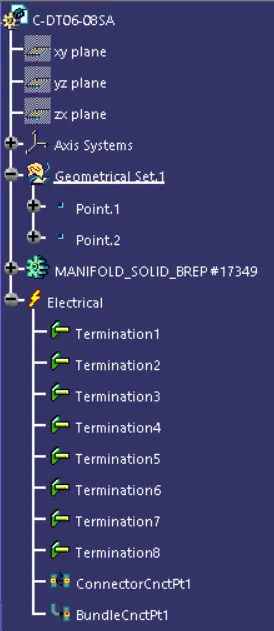
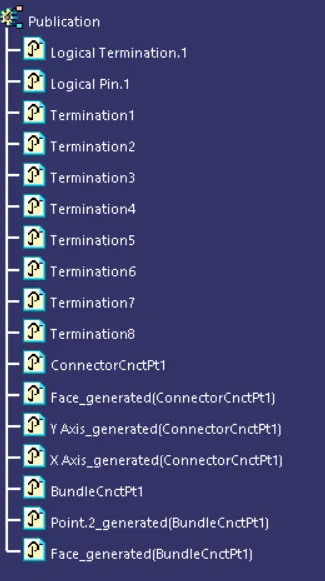
Fig. 4: 8 Point connector feature tree
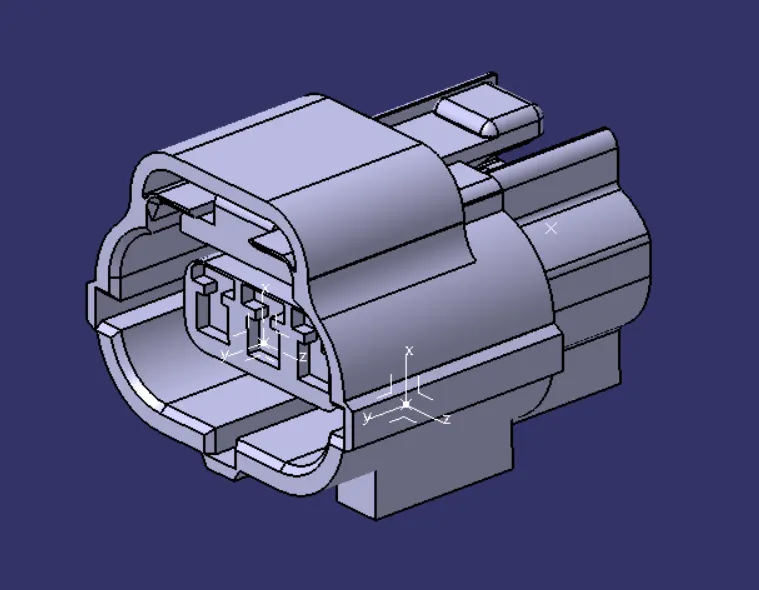
Fig. 5: 3 Point connector Isometric view
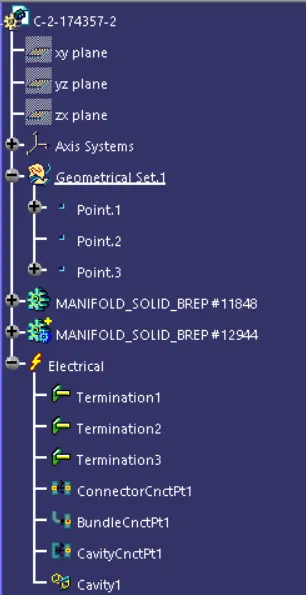
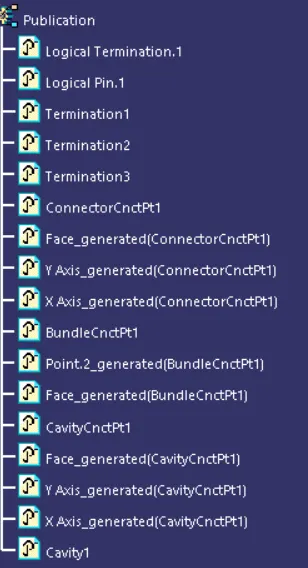
Fig. 6: 3 Point Connector feature tree.
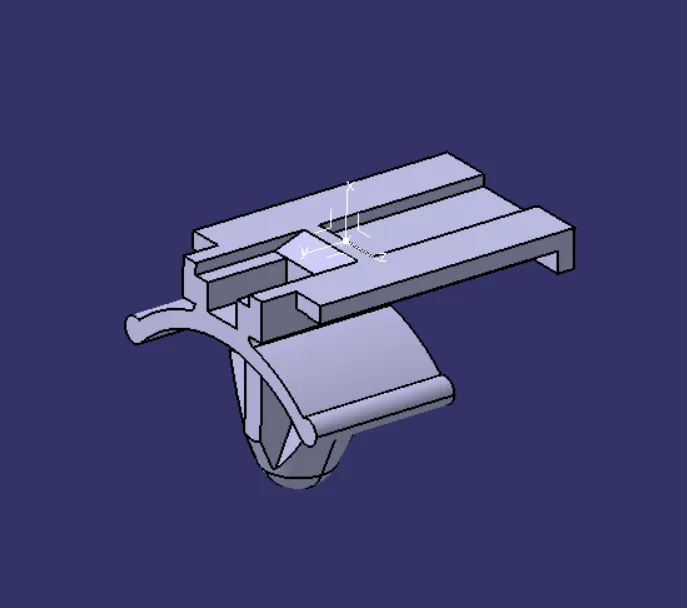
Fig. 7: Connector Clip Isometric view
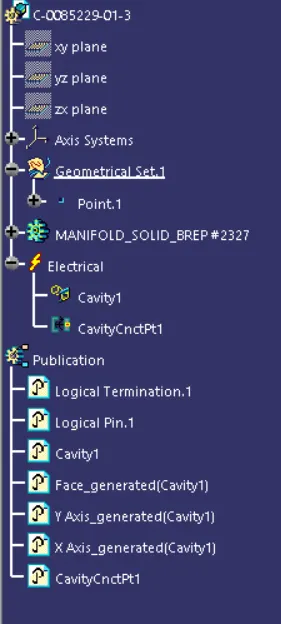
Fig. 8: Connector Clip feature tree.
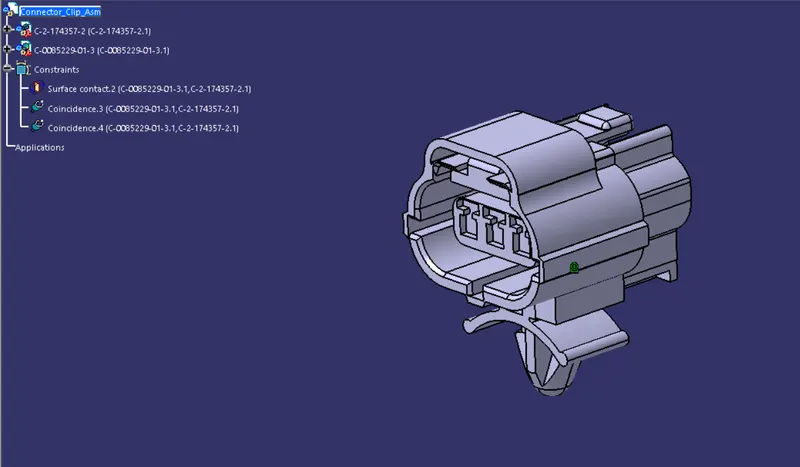
Fig. 9: 3 Point Connector and Clip assembly isometric view with feature tree.
Conclusion: The given components were assigned the appropriate electrical properties.