Week 11 - Final project
AIM:
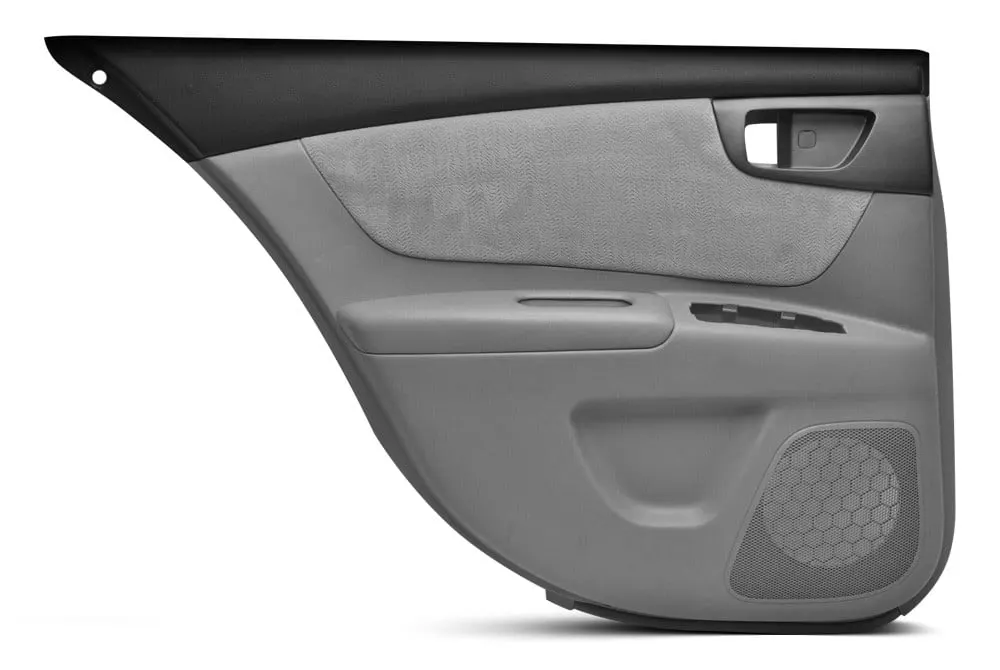
To design a Door Panel of an Automotive using CATIA V5.
OBJECTIVES:
To create an assembly and organize different surfaces of the given class A surface into different parts of the door trim panel. To create a tooling axis and perform a draft analysis on the class A surface of each part. To create class B, class C surface, and close surface for each part. To perform draft analysis on the close body of each part. To create engineering features (Heat stakes, Locators, Dog House) to join the parts of the door trim panel together. To assemble push pins to the door panel.
THEORY:
A door panel, also known as a door card, is an insert that covers the interior components of a vehicle's door. Modern cars often have door cards that are constructed of plastic and incorporate other decorative elements, with injetion molding being the most common method. Other features that add to the vehicle's aesthetic, functionality, and ergonomics are usually included in the door panel. Armrests, switches, or other controls for the windows and locking mechanism, convenience lights, speakers, storage compartments, and other features are examples of this..
PROCEDURE:
Class A surface of a door panel received from the styling team. In the automotive industry dedicated team is allocated to develop class A surface using sketches followed by ideation. Class A surface is the first input given to the plastic designer.
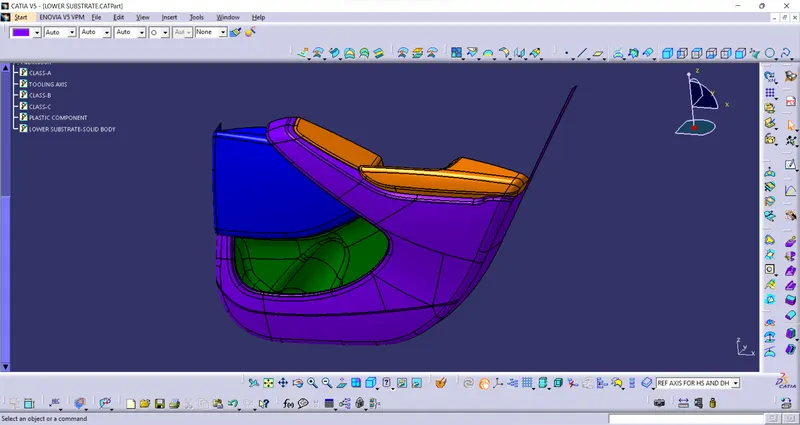
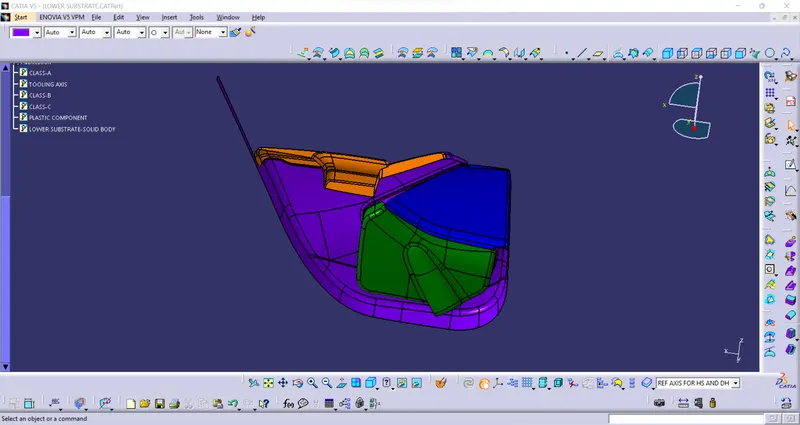
A) CLASS A SURFACE OF A DOOR PANEL
- FRONT SIDE:
- BACK SIDE:
B) CREATION OF AN ASSEMBLY:
Door Panel class A surface has the following parts -
- Door Arm Rest
- Lower Substr
- Map Pocket
- Bottle Holder
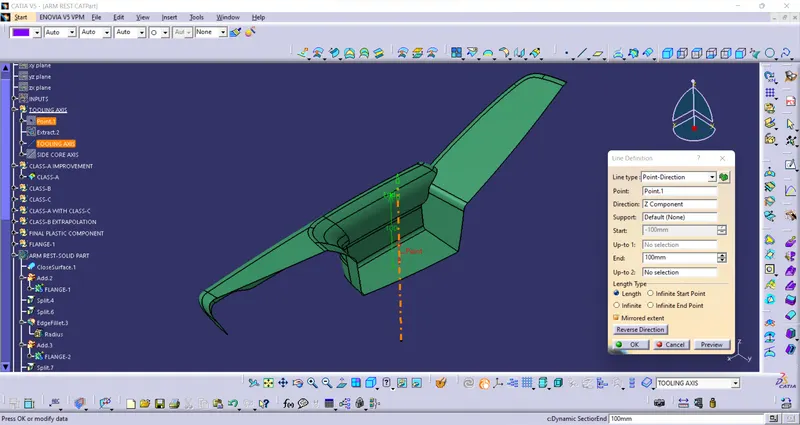
1. Door Arm Rest
• Creation of tooling axis
The line has been created using the line command. The point-direction option is used to create the main tooling axis in the z-direction.
• Draft analysis of Class-A surface on Tooling axis direction:
- Change View Mode Customization to Material mode.
- Go to INSERT--->ANALYSIS--->FEATURE DRAFT ANALYSIS and move the compass to the moving Axis.
- Change the range to 3°. Apply the settings as shown in below image.
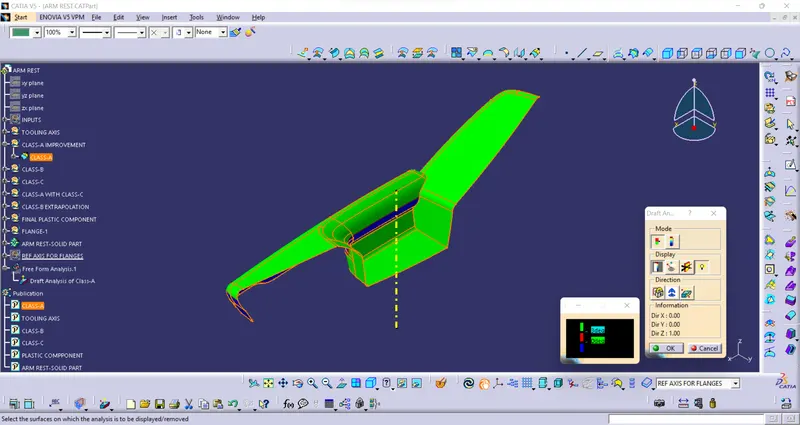
- The input Class A also has walls having negative angle to the tooling axis.
- This can be an issue while manufacturing the component as it would be very difficult to draw from the molds.
- So, this design needs to consider Various Side Tooling Options.
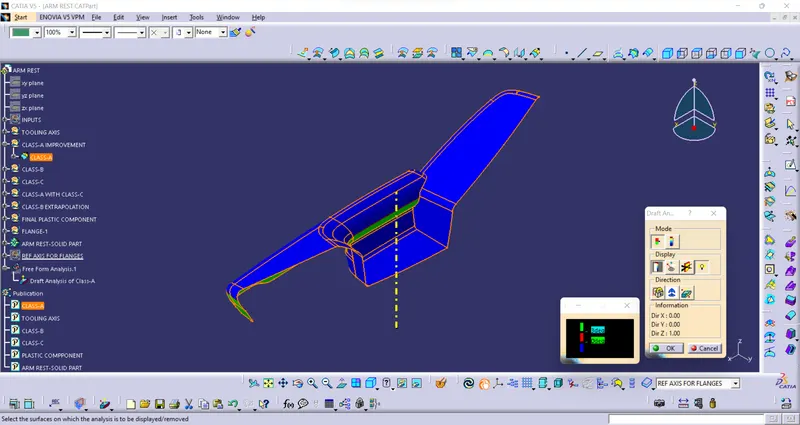
- Here also we can see that some faces are not clearing draft analysis and it is due to the improper class A surface and we have to imform our styling team to modify the class A surface.
• Creation of Class B surface
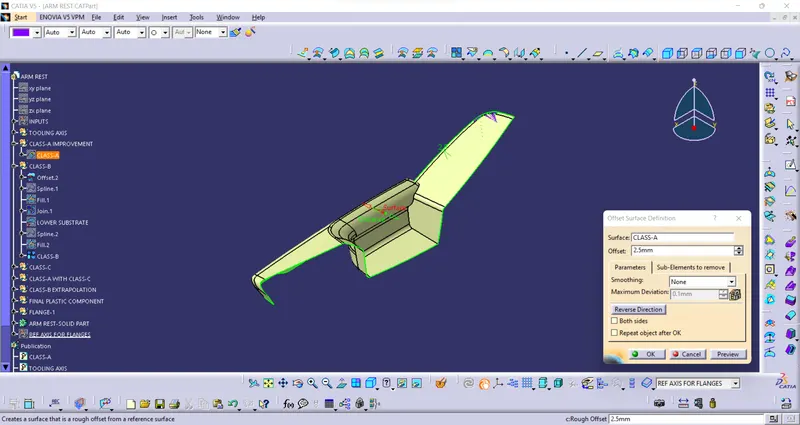
Class B surface has been created by offsetting of class A surface. Offsetting has been done using the offset command. Class A surface is offset with a 2.5 mm distance. Surfaces that were not offsetting were formed using Spline and Fill command.
• Creation of Class C surface
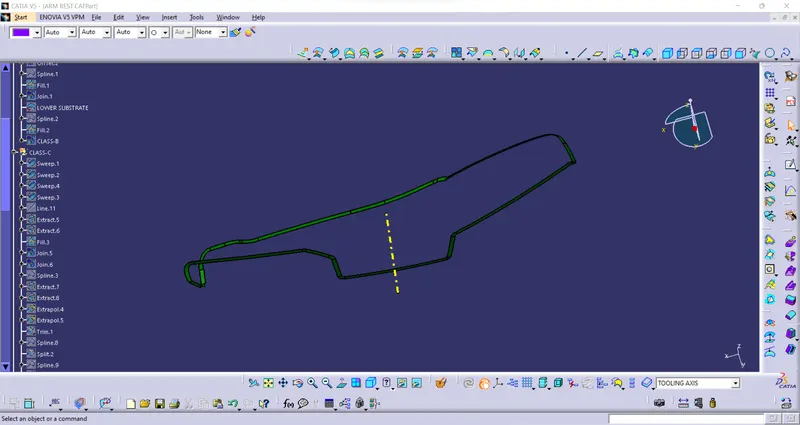
Using the Multiple extract commands, boundaries of class A surface were extracted. Class C surface joins class A and class B surfaces. It is created using the sweep command. Inputs for the sweep command were extracted boundary, class-A surface, angle value, and length of the sweep. Due to surface irregularities, it was not possible to create a single sweep. Hence, several sweeps and multisection were created, and finally, they joined together to create a class C surface.
Creation of Close Surface
Class A and Class C surfaces were joined together.
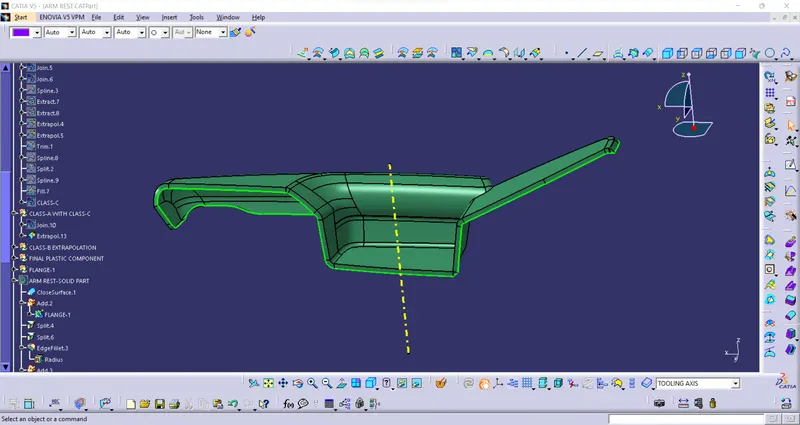
The join of Class A and Class C surface is trimmed with class B surface to create a closed surface. While performing trim operation errors were coming as a proper intersection was not happening. Hence with the help of extrapolating command class B surface was extrapolated and finally trimmed.
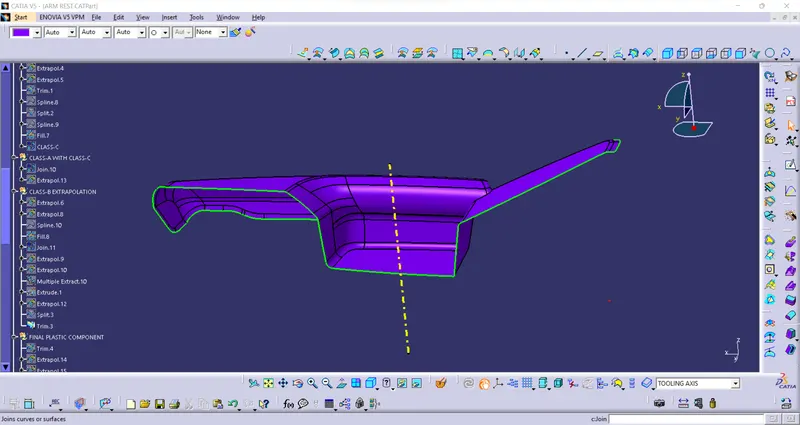
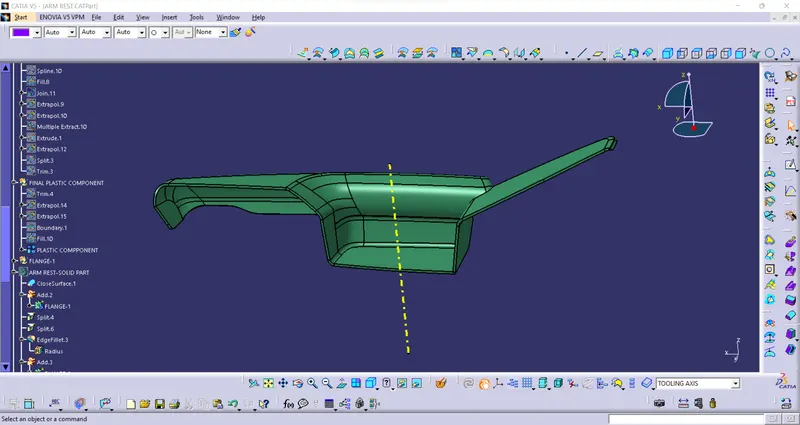
The close surface was confirmed using the boundary command. By clicking on surface warning popped up stating the surface is close and it has no boundaries. This is the trick often used to check whether the surface is close or not.
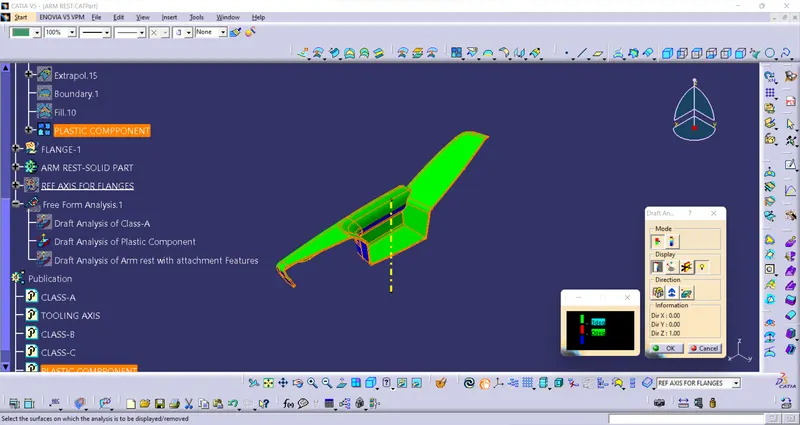
Perform Draft Analysis on Final Enclosed Surface:
- Change View Mode Customization to Material mode.
- Go to INSERT---> ANALYSIS---> FEATURE DRAFT ANALYSIS and move the compass to the Main Tooling Axis.
- Change the range to 3°. Apply the settings as shown if Figure.
2.LOWER SUBSTRATE:
CLASS A SURFACE:
Extract input surface
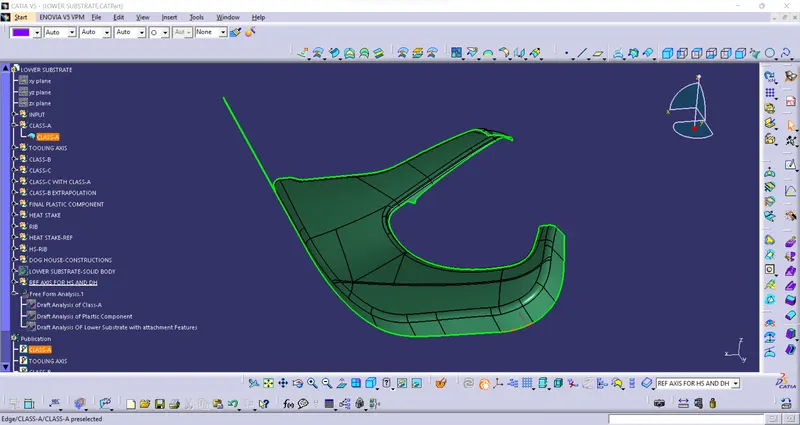
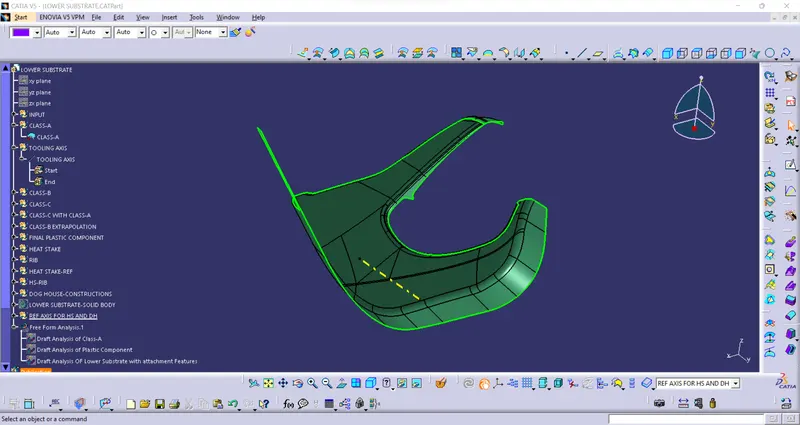
CREATION OF TOOLING AXIS:
The line has been created using the line command. The point-direction option is used to create the main tooling axis in the Y-direction.
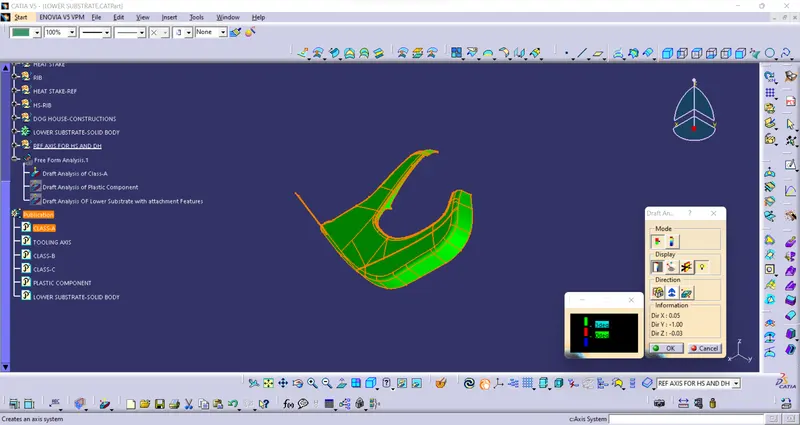
DRAFT ANALYSIS OF CLASS-A:
- Change View Mode Customization to Material mode.
- Go to INSERT--->ANALYSIS--->FEATURE DRAFT ANALYSIS and move the compass to the moving Axis.
- Change the range to 3°. Apply the settings as shown in below image.
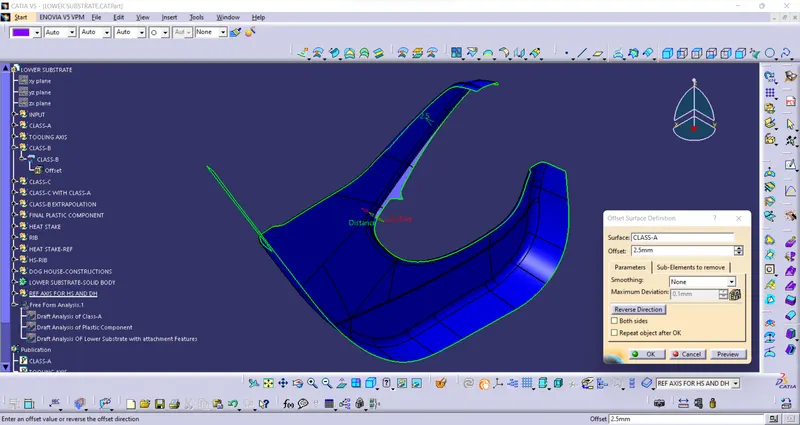
• CREATION OF CLAS-B SURFACE:
Class B surface has been created by offsetting of class A surface. Offsetting has been done using the offset command. Class A surface is offset with a 2.5 mm distance.
• CREATION OF CLAS-C SURFACE:
Using the Multiple extract commands, boundaries of class A surface were extracted. Class C surface joins class A and class B surfaces. It is created using the sweep command. Inputs for the sweep command were extracted boundary, class-A surface, angle value, and length of the sweep.
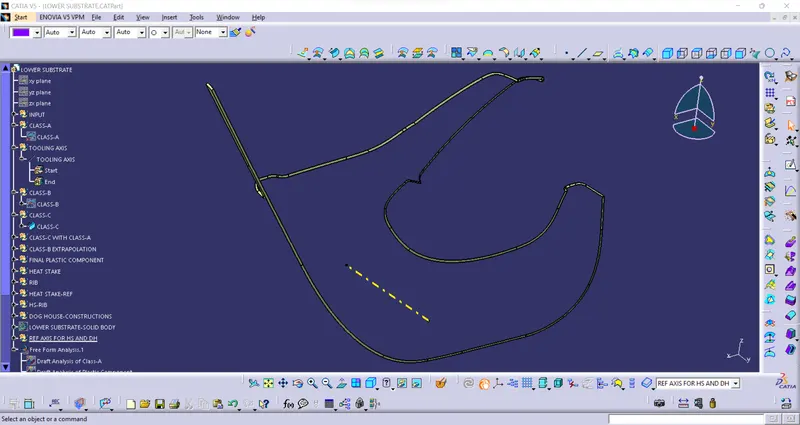
CREATION OF CLOSED SURFACE:
Class A and Class C surfaces were joined together.
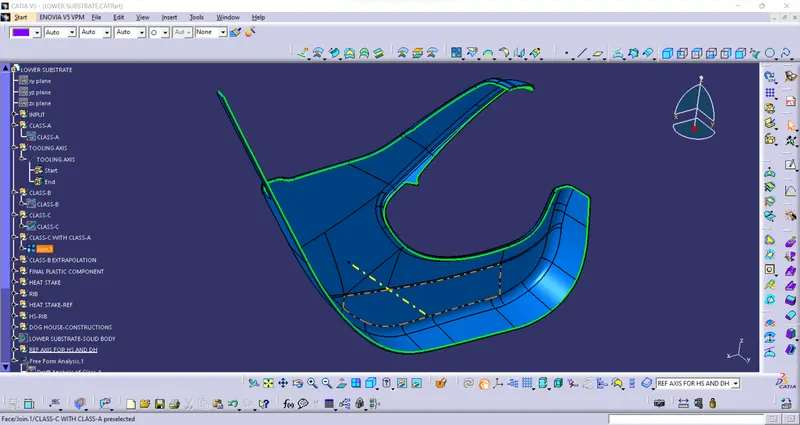
The join of Class A and Class C surface is trimmed with class B surface to create a closed surface.
Above Close surface is converted into the close body using the close surface command from the part design workbench.
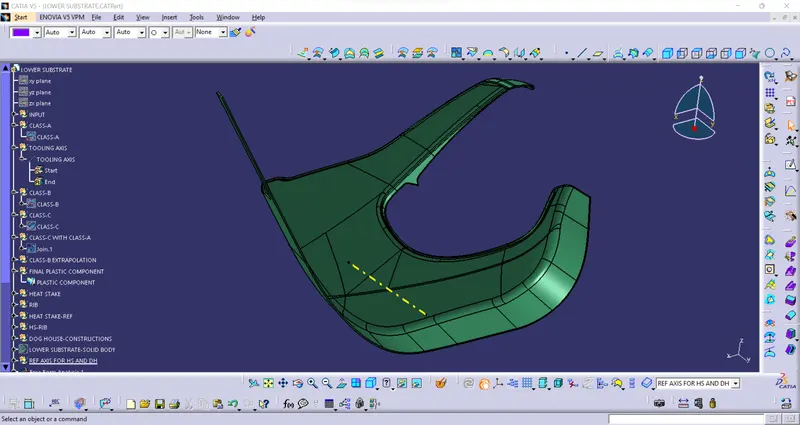
Perform Draft Analysis on Final Enclosed Surface:
- Change View Mode Customization to Material mode.
- Go to INSERT---> ANALYSIS---> FEATURE DRAFT ANALYSIS and move the compass to the Main Tooling Axis.
- Change the range to 3°. Apply the settings as shown if Figure.
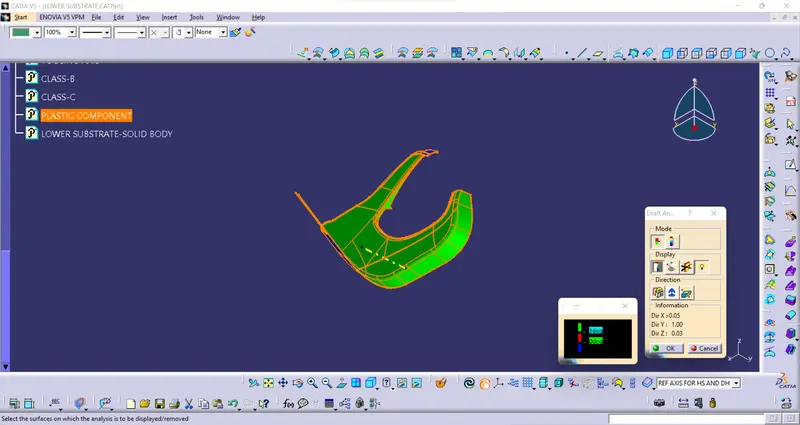
3. MAP POCKET:
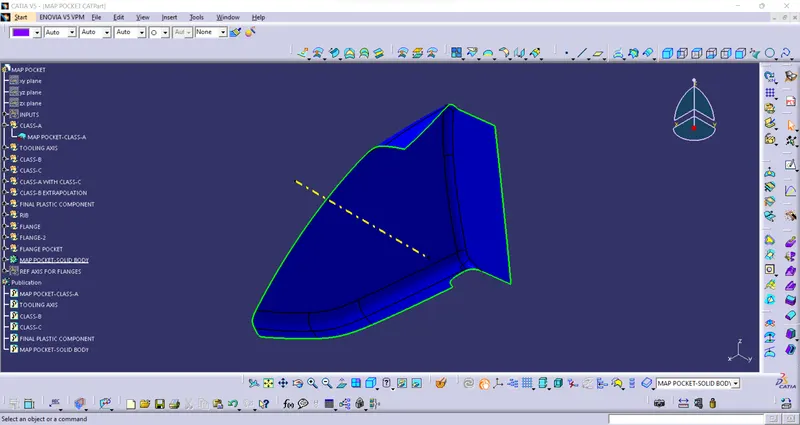
• CREATION OF CLAS-A SURFACE:
Extract input surface
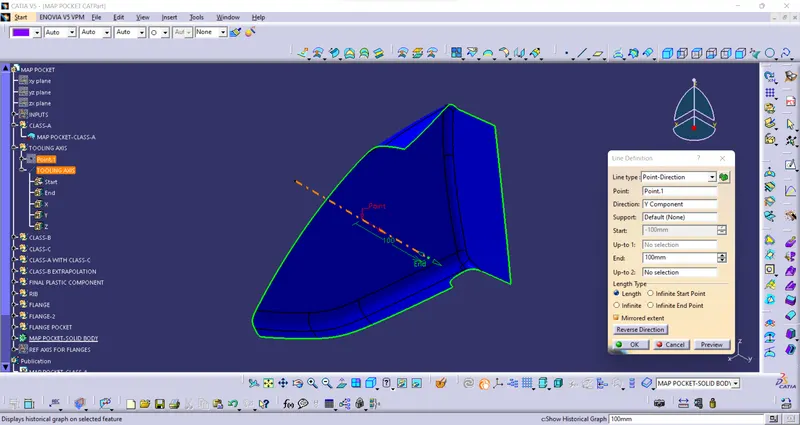
• CREATION OF TOOLING AXIS:
The line has been created using the line command. The point-direction option is used to create the main tooling axis in the Y-direction.
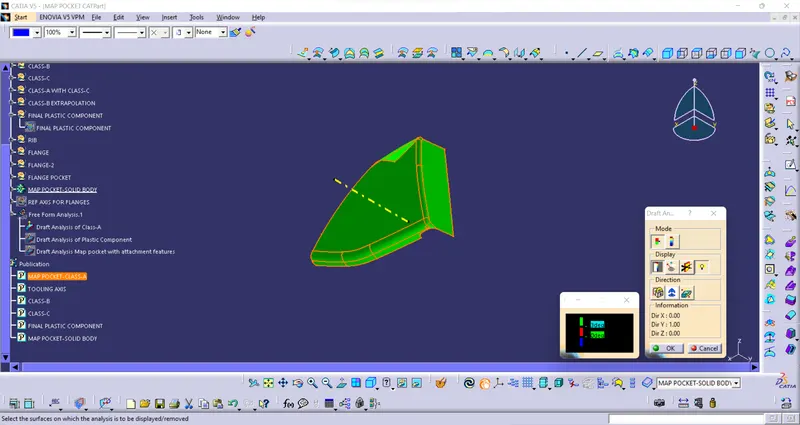
DRAFT ANANLYSIS ON CLASS-A:
- Change View Mode Customization to Material mode.
- Go to INSERT--->ANALYSIS--->FEATURE DRAFT ANALYSIS and move the compass to the moving Axis.
- Change the range to 3°. Apply the settings as shown in below image.
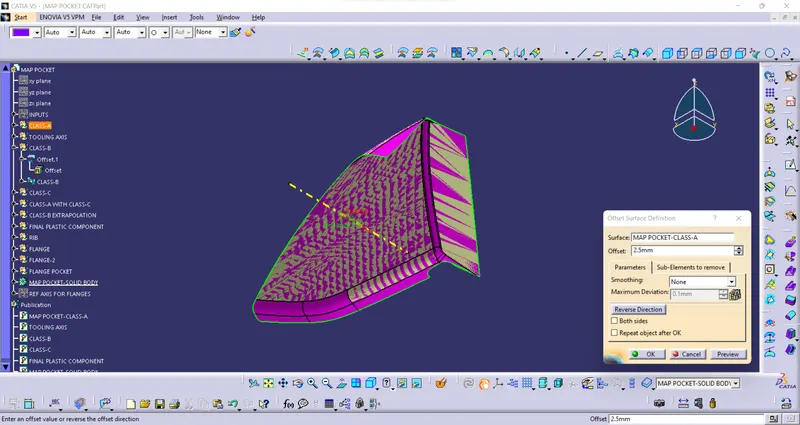
• CREATION OF CLAS-B SURFACE:
Class B surface has been created by offsetting of class A surface. Offsetting has been done using the offset command. Class A surface is offset with a 2.5 mm distance. Surfaces that were not offsetting were formed using the multisection command.
• CREATION OF CLAS-C SURFACE:
Using the Multiple extract commands, boundaries of class A surface were extracted. Class C surface joins class A and class B surfaces. It is created using the sweep command. Inputs for the sweep command were extracted boundary, class-A surface, angle value, and length of the sweep.
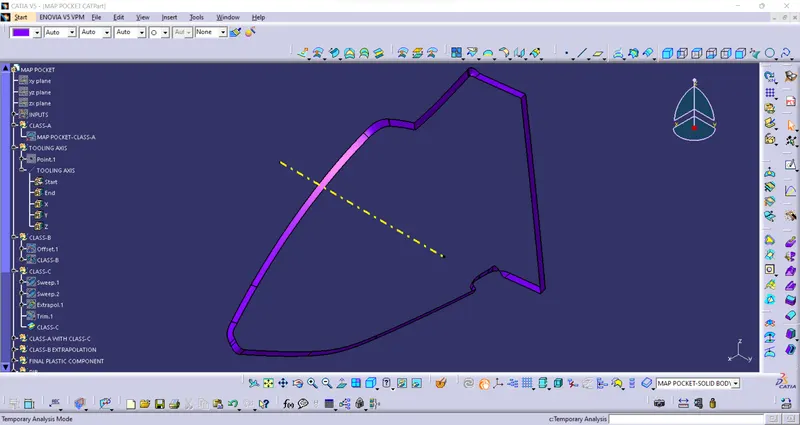
CREATION OF CLOSED SURFACE:
Class A and Class C surfaces were joined together.
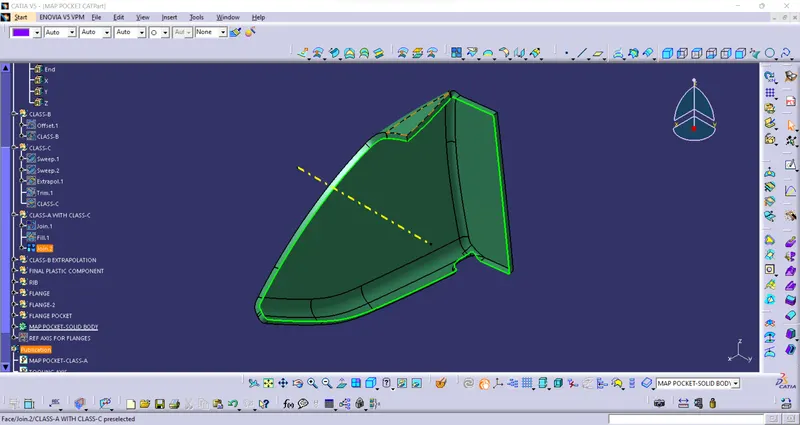
Above Close surface is converted into the close body using the close surface command from part design workbench.
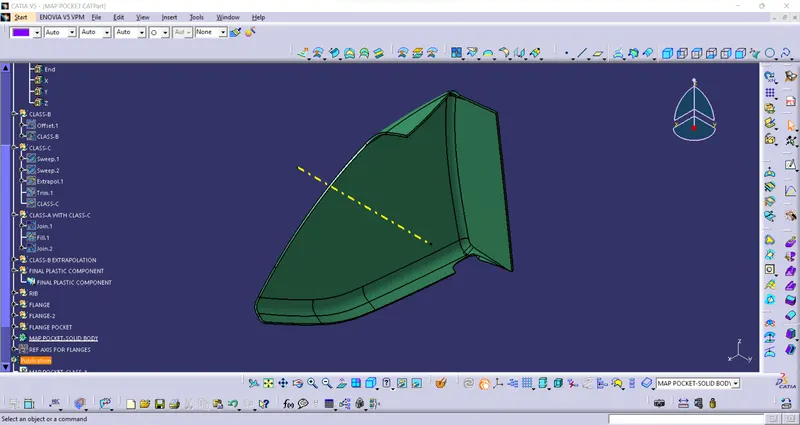
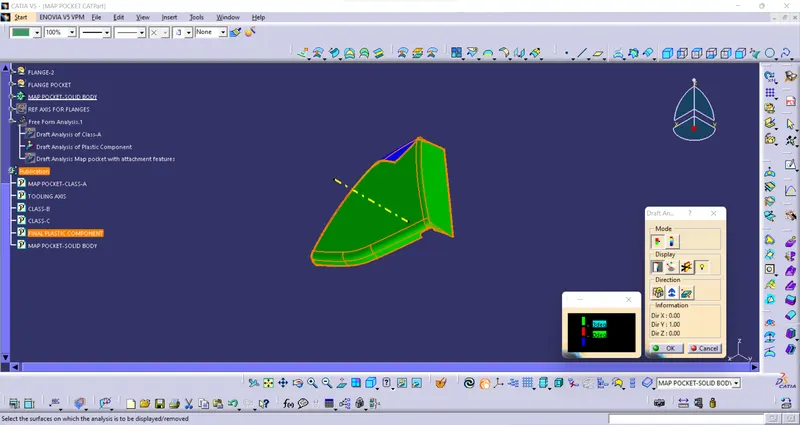
Perform Draft Analysis on Final Enclosed Surface:
- Change View Mode Customization to Material mode.
- Go to INSERT---> ANALYSIS---> FEATURE DRAFT ANALYSIS and move the compass to the Main Tooling Axis.
- Change the range to 3°. Apply the settings as shown if Figure.
BOTTLE HOLDER:
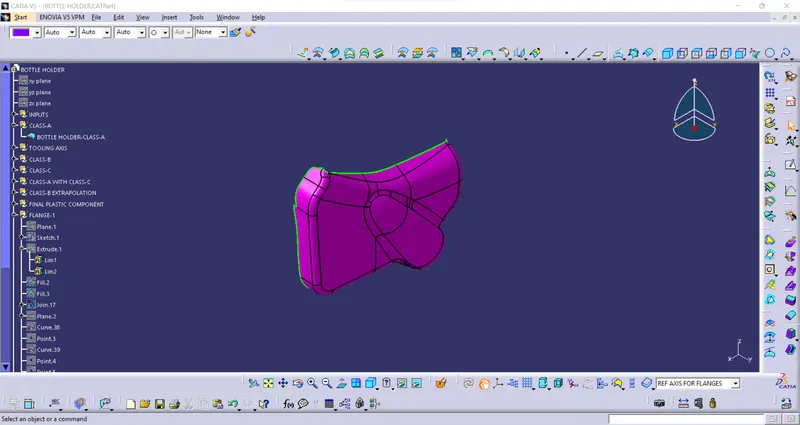
• CREATION OF CLAS-A SURFACE:
Extract input surface
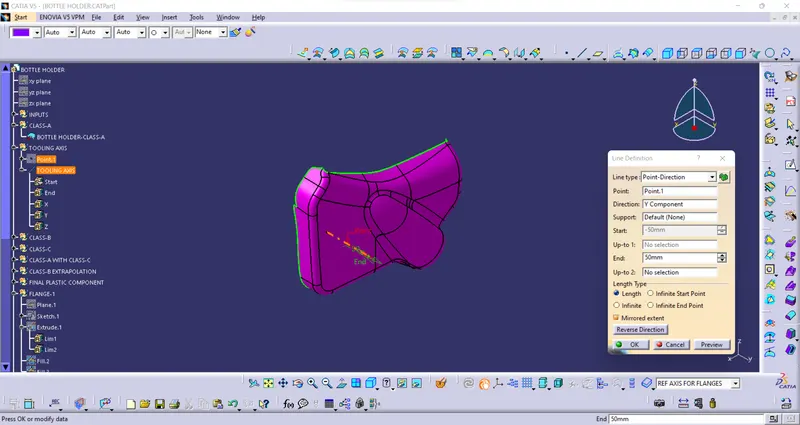
• CREATION OF TOOLING AXIS:
The line has been created using the line command. The point-direction option is used to create the main tooling axis in the Y-direction.
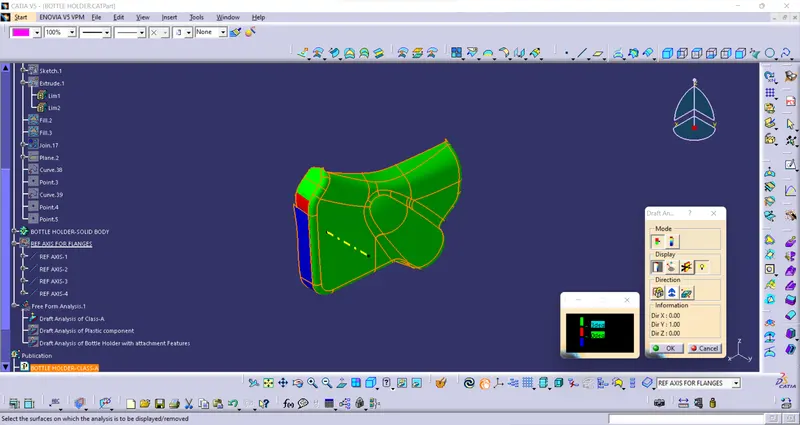
DRAFT ANALYSIS ON CLASS-A:
- Change View Mode Customization to Material mode.
- Go to INSERT--->ANALYSIS--->FEATURE DRAFT ANALYSIS and move the compass to the moving Axis.
- Change the range to 3°. Apply the settings as shown in below image.
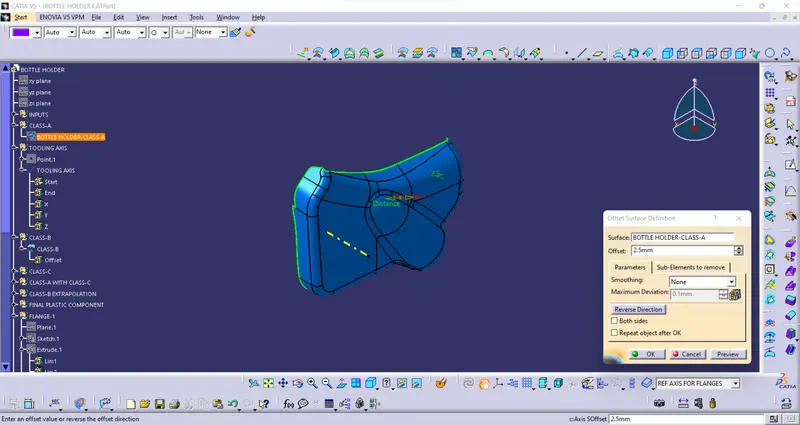
• CREATION OF CLASS-B SURFACE:
Class B surface has been created by offsetting of class A surface. Offsetting has been done using the offset command. Class A surface is offset with a 2.5 mm distance.
• CREATION OF CLASS-C SURFACE:
Using the Multiple extract commands, boundaries of class A surface were extracted. Class C surface joins class A and class B surfaces. It is created using the sweep command. Inputs for the sweep command were extracted boundary, class-A surface, angle value, and length of the sweep.
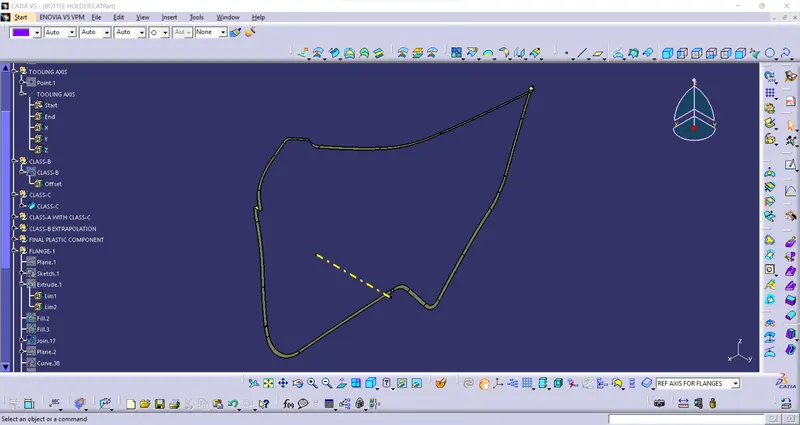
CREATION OF CLOSED SURFACE:
Class A and Class C surfaces were joined together.
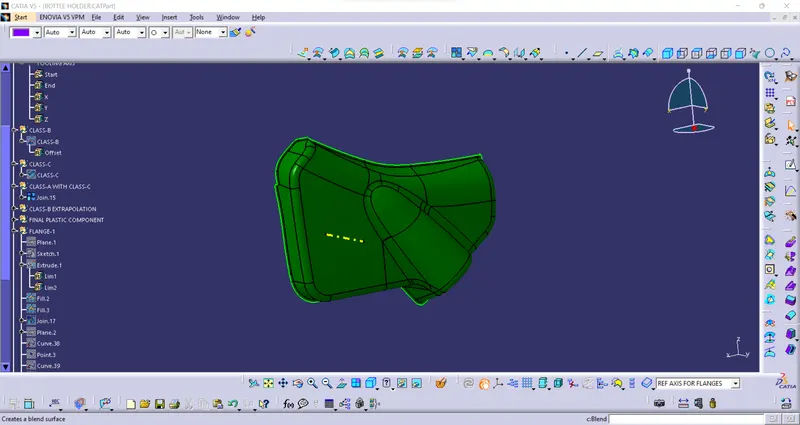
The join of Class A and Class C surface is trimmed with class B surface to create a closed surface.
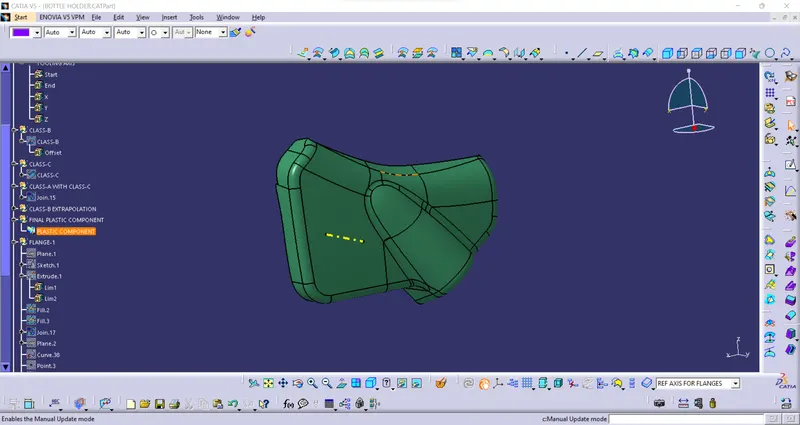
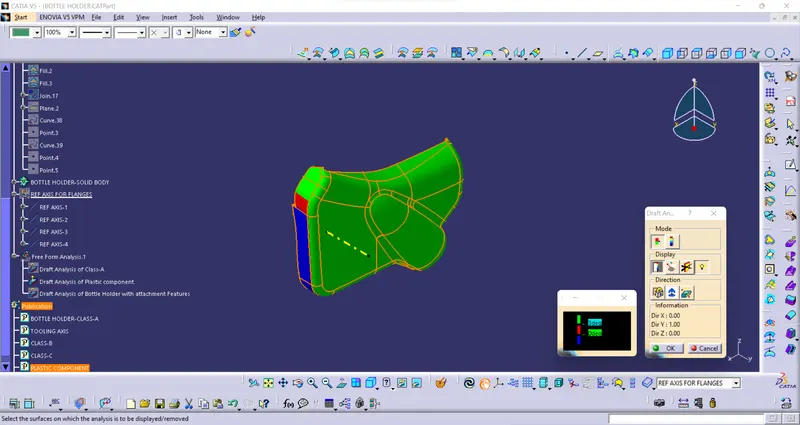
Perform Draft Analysis on Final Enclosed Surface:
- Change View Mode Customization to Material mode.
- Go to INSERT---> ANALYSIS---> FEATURE DRAFT ANALYSIS and move the compass to the Main Tooling Axis.
- Change the range to 3°. Apply the settings as shown if Figure.
B-SIDE FEATURES CREATION:
FLANGES:
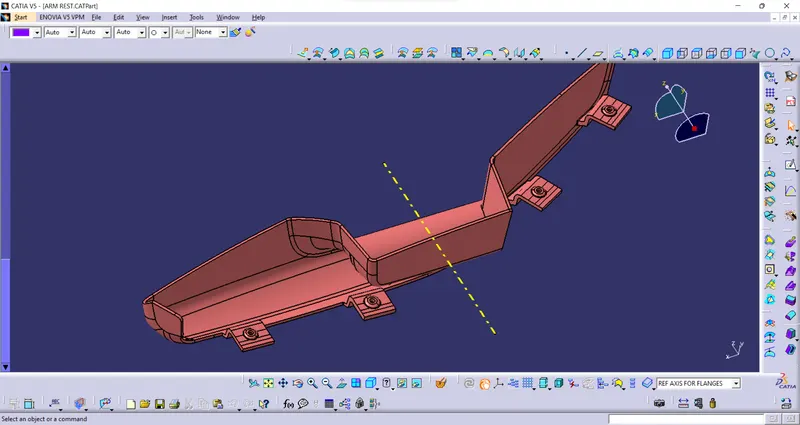
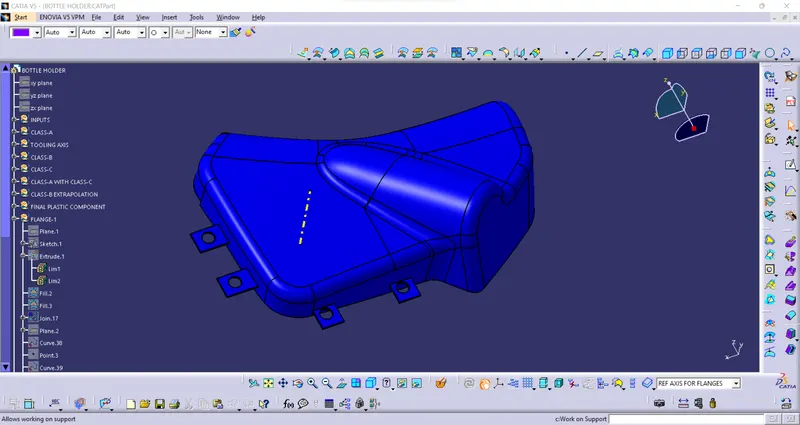
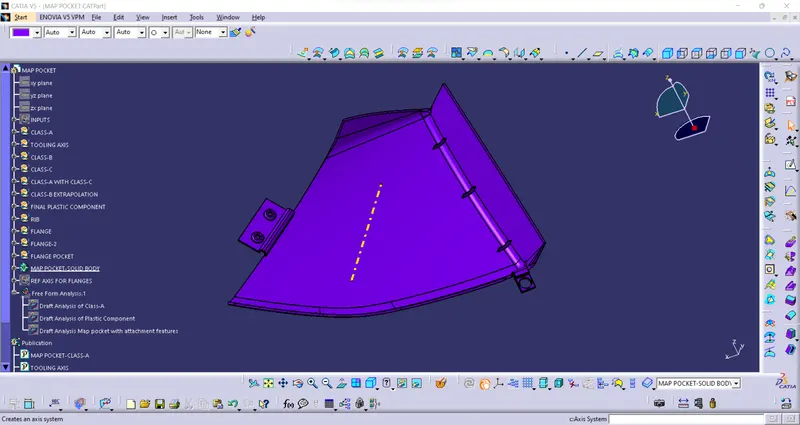
Flanges are the elements that are needed to join different components together. So here I have to make flanges on the door Armrest, Map pocket and Bottle holder. Following the master section, given as the input basically the measurements and location of the flange. I have created the flanges. First I have created the flange on the Arm rest. For creating the flanges I have taken extraction of the curve and made a point on that curve then created one plane on that point followed by creating a sketch on that plane taking the point created as the origin. The sketch is shown below:
After creating the flanges I have created the dog house.
DOG HOUSE:
Dog house is an engineering feature used in the plastic trim design. Doghouses are used as supporting features. Sometimes other engineering features like snaps; locators, etc. are mounded on them to increase their strength. Dog houses are subjected to draft analysis to prevent breakage of the component during ejection from the mold cavity. Dog house and other engineering components are built on B-surface.
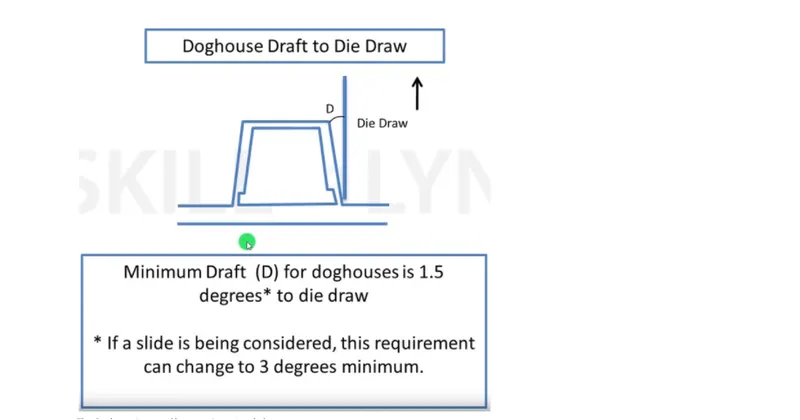
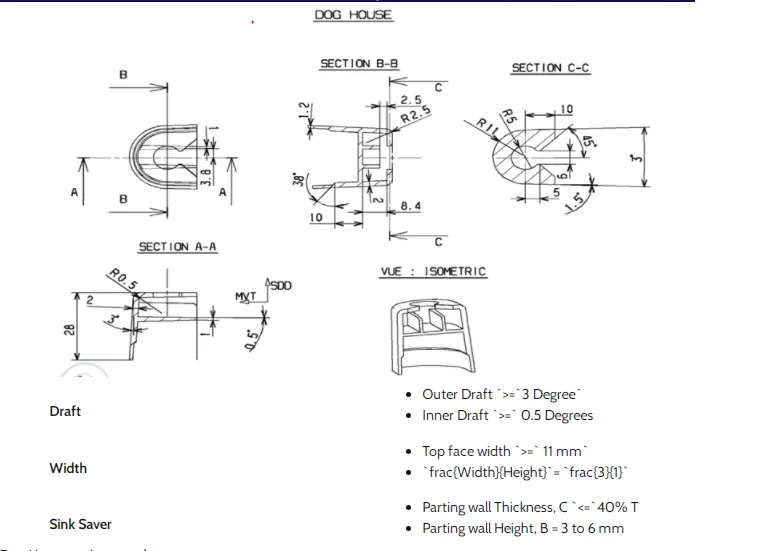
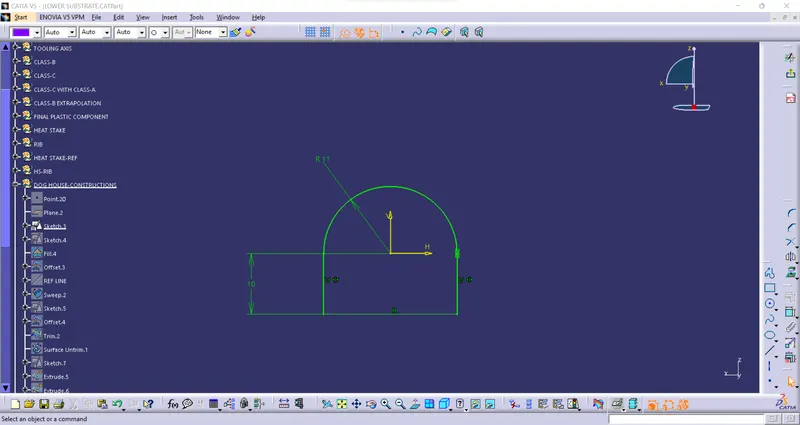
Here the dog house is required for lower substrate only. So for creating the dog house I have extracted the base surface of the lower substrate and made a point that extracted surface and sketched on it. The sketch is shown below.
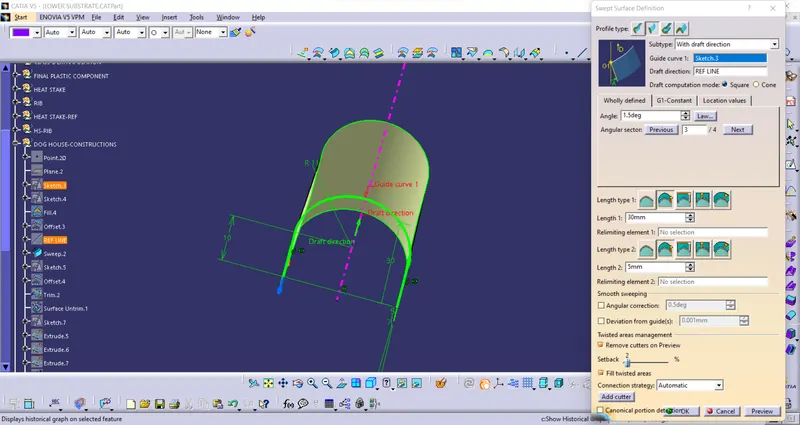
Then I have swept the above sketch along the tooling axis of the lower substrate giving 1.5 degrees of the draft. The sweep is shown below
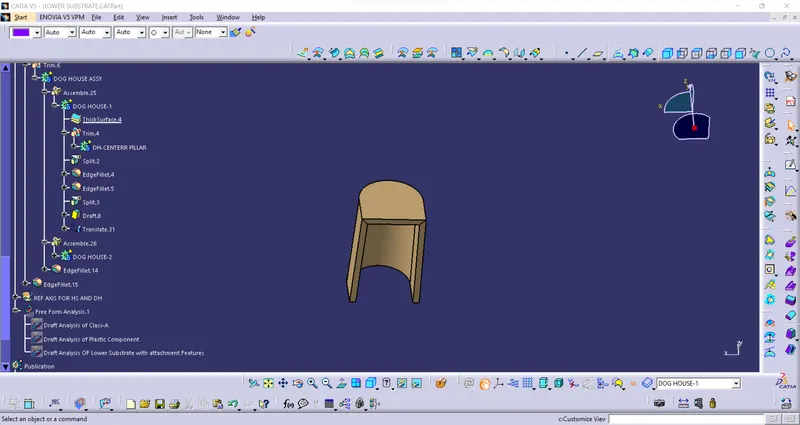
Then I have closed the surface on the top. After closing the surface I have used the thick surface command to make a solid body giving 2mm thickness. The thick surface is shown below:
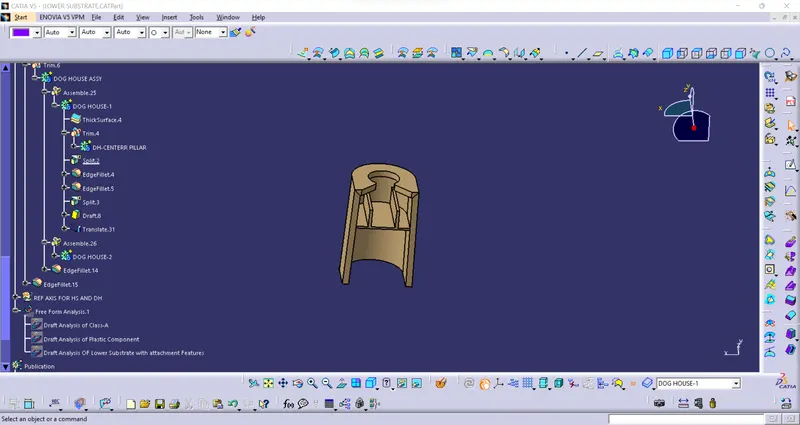
For this purpose, I have just offset the base of the lower substrate to a height of 4mm the value could be anything between 3-6mm and then I have extracted the inside portion of the dog house.
Then I have extrapolated the inside portion that extracted and trimmed it with the base.
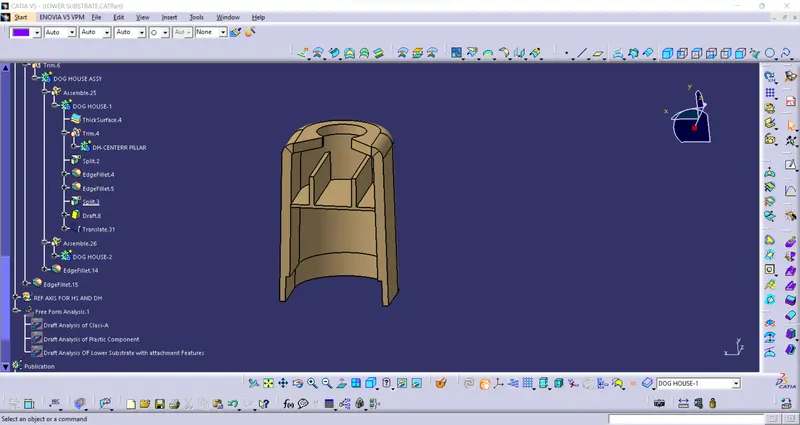
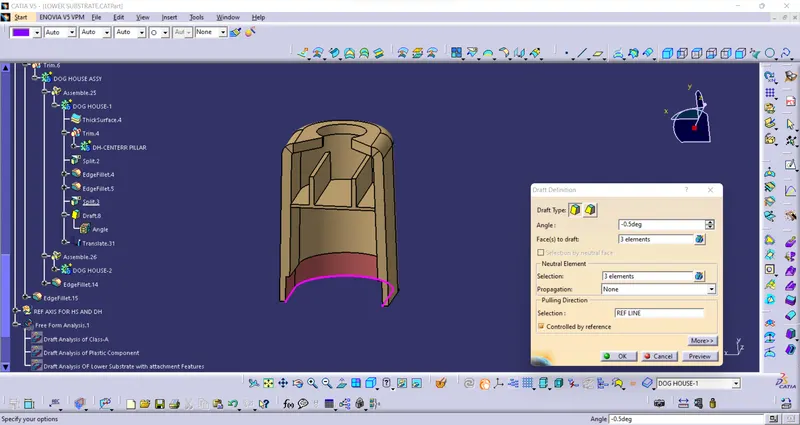
using this sketch i have creating complete dog house
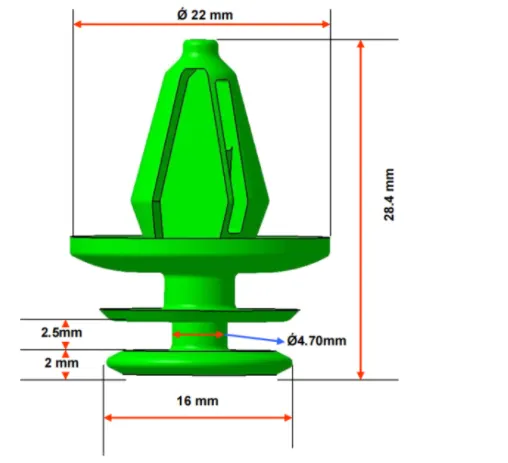
Push pins-Push pins are used for joining one component to another. These are basically attached to the dog houte For creating the push pins I have taken the following reference basically the measurements
Then I have made the cut out on the dog house for inserting the pin. For the cut out I have made one sketch on the top surface of the dog house and extruded it.
Then I have split the extrude from the dog house to get the cut-out. The cut out for the push pin is shown below.
ASSEMBLY OF PUSH PINS:
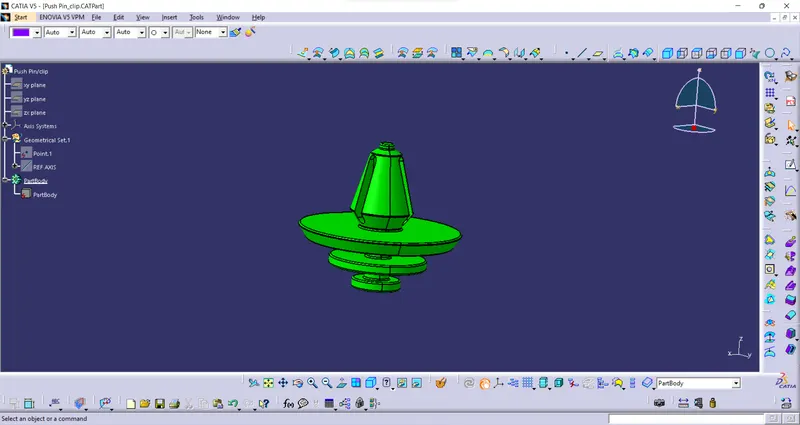
Pushpins were placed on the dog house. Total three push pins were used. Following mates are used to fixing the push pins to the dog house.
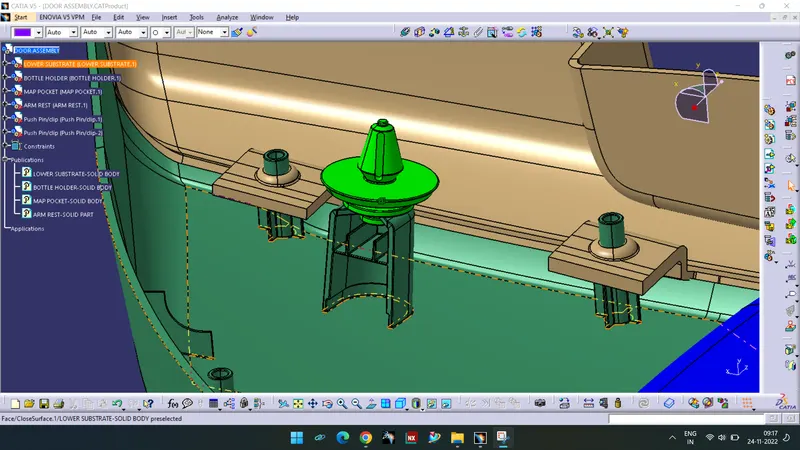
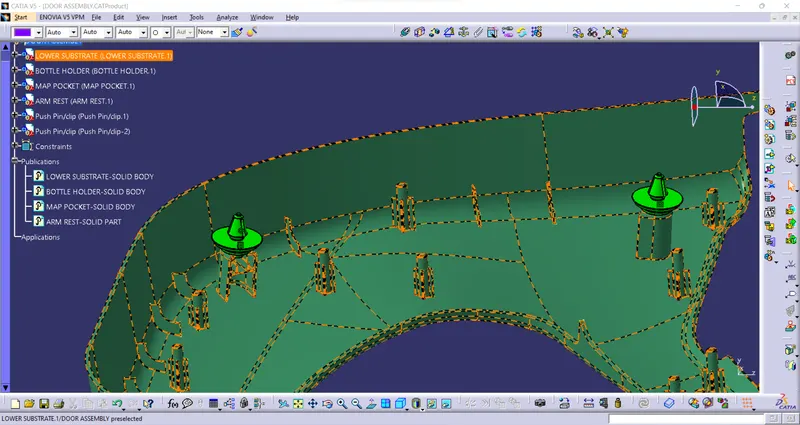
Then I have used the copy and paste special option and translated the dog house along with a push pin to different locations on the lower substrate in which I want the dog house. so basically I have created points on the lower substrate and used the point-to-point translation. After doing the translation I have just added all the dog houses to the lower substrate. The result is shown below:
Heat Stakes and Ribs:
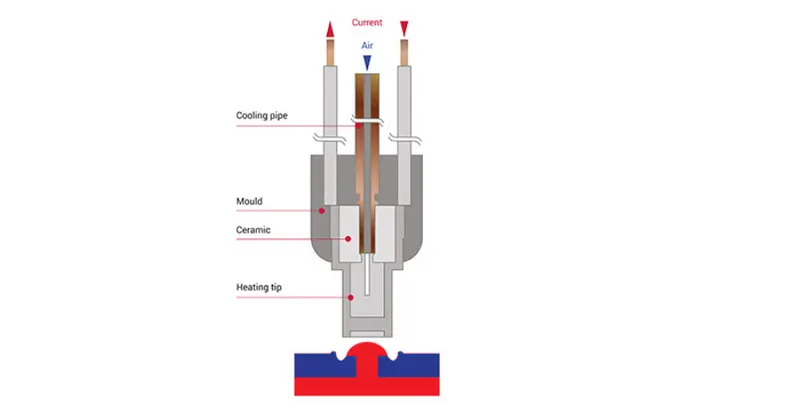
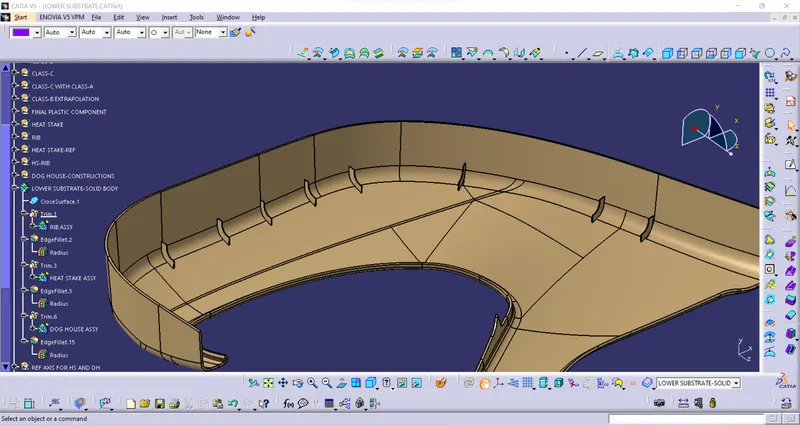
The use of heat stakes is to attach two plastic components permanently. A total of 13 heat stakes were placed at different locations on the lower substrate. One heat has been created onto the door armrest part which will be attached to the upper substrate. Following the muster section, the outer diameter of the heat stake is 7.5 mm and the inner diameter is 4.5 mm. Necessary slots are made onto other parts where heat stakes will attach together. Draft of 0.5 degrees has been given to all the heat stakes. All the heat stakes have ribs attached to them. All the ribs have 1mm thickness and 0.5 degrees of the draft. The length of the ribs is 14 x 14 mm.
Heat staking also known as thermoplastic staking is the process of joining two dissimilar materials together. In heat staking, we use local heating and cooling to raise the temperature of plastic components and allow plastic reforming to be carried out. This reforming can be used in a wide variety of applications.
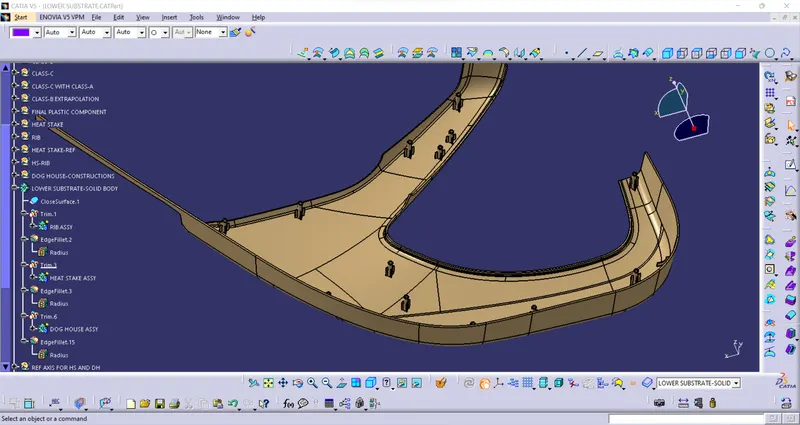
Then I creat ribs in lower substrate
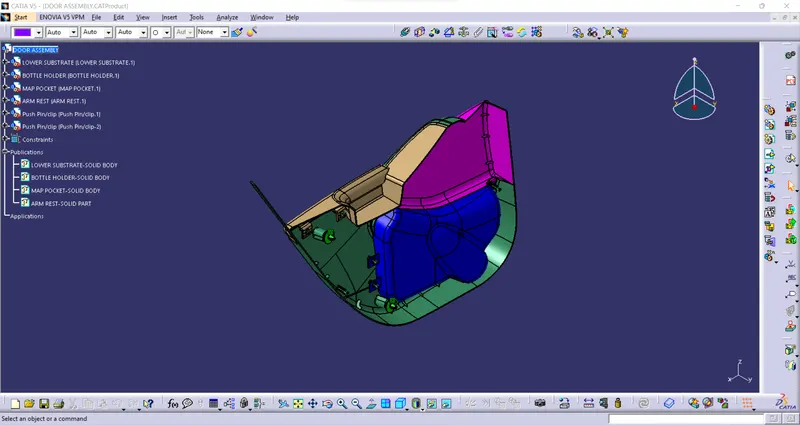
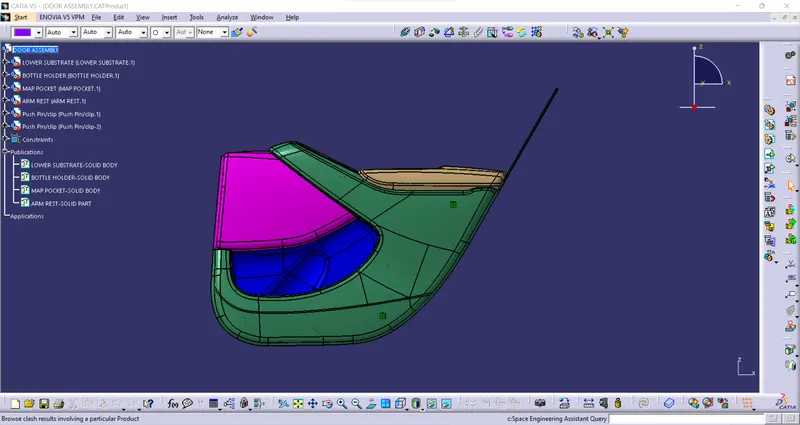
FINALY ASSEMBLY IMAGE
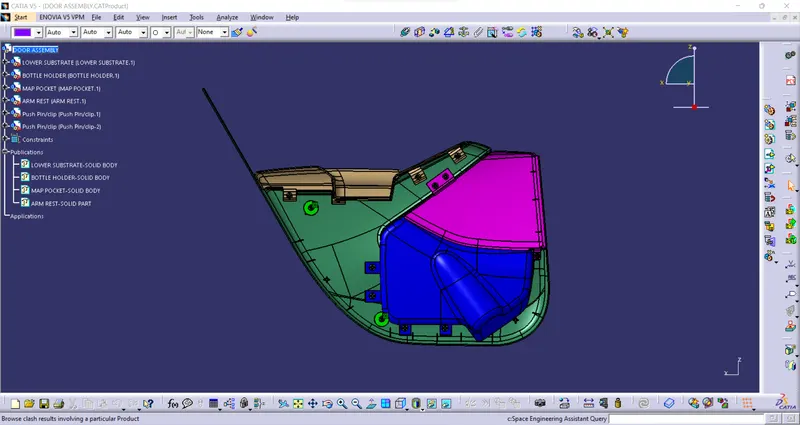
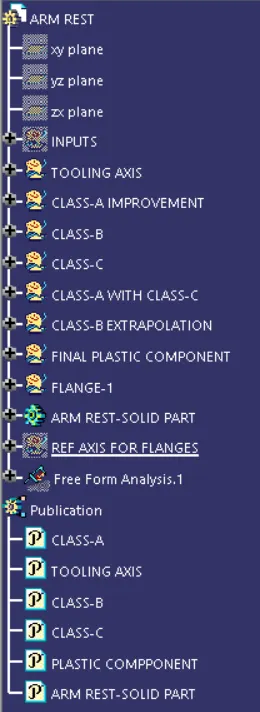
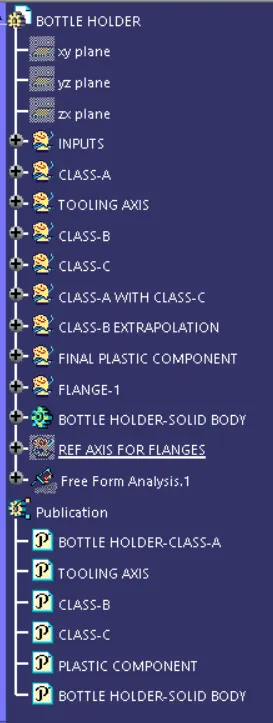
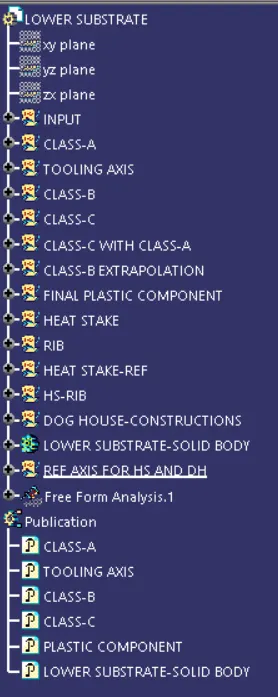
TREE STRUCTURE:
1. ARM REST:
2. BOTTLE HOLDER:
3. LOWER SUBSTRATE:
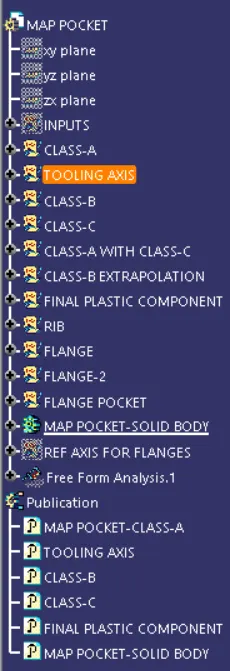
4. MAP POCKET:
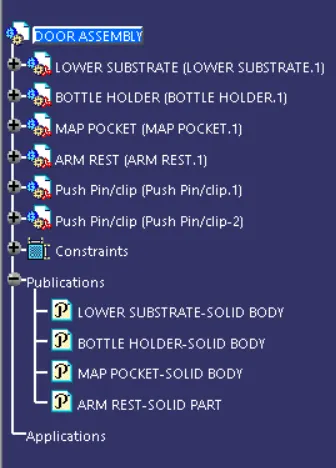
5. ASSEMBLY:
CONCLUSION:
The door Panel has been successfully designed by following OEM standards used in Automotive Industry. All the attachment features are properly placed at different locations he designed part meets all the defined objectives.