Project 2
Aim: To route the wiring harness around the given car body part and prepare a flatten view drawing in CATIA V5.
Objective:
- To download the 3D CAD data for connectors from TE Connectivity website.
- Define the connector data as Electrical Part in CATIA V5.
- Prepare a catalogue for all the components of harness assembly.
- To route the wiring harness as per requirement.
- Apply protective coverings to the wire harness.
- To flatten the wiring harness.
- To prepare the drawing of the flattened harness assembly.
Theory: The given car body part is the Back Door assembly. In this case, the wiring harness needs to be routed around the back door to make connections for the Rear Lighting assembly and Lights on the number plate. The harness would originate from a single connector that would connect this harness to the main harness of the car. The connectors would be placed on the appropriately and two different circuits would be designed for the rear lights and the number plate lights. The Back door assembly is shown below:
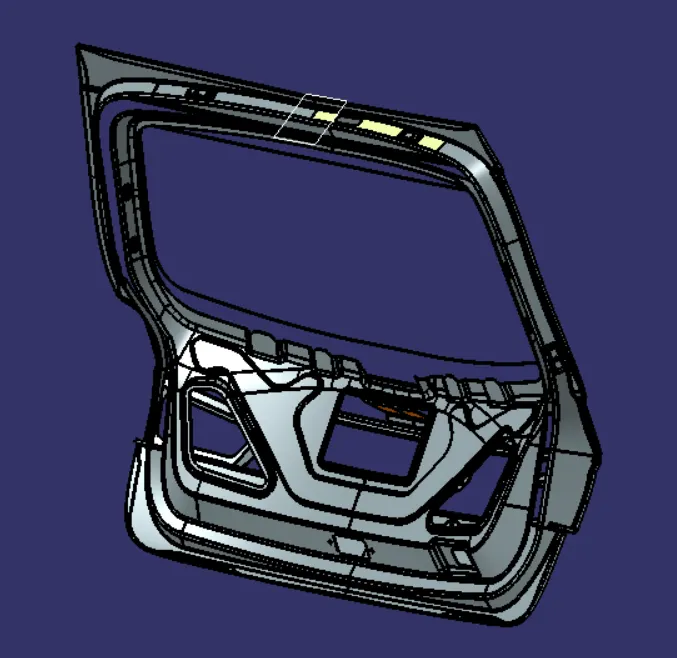
Fig. 1: Isometric view of Back Door Assembly of a car.
Following would be the arrangement of connectors on the engine.
- C-1563689-1: Placed on top of the back door and originate the wiring harness for the back door.
- 12-Pole Connector: This connector is assembled on a cavity clip and is placed on appropriate coordinates for the rear lights and number plate lights.
- Fir Clip: The fir clip is placed at multiple locations to enable routing of the harness.
Creating a Catalogue file:
- Open new ‘CatalogDocument’ in CATIA V5.
- Use ‘Add Family’ command to add ‘Connectors’, ‘Fir Clip’ and ‘COT Tubes’ as families in the catalogue.
- Save as ‘Back Door Harness Catalogue’
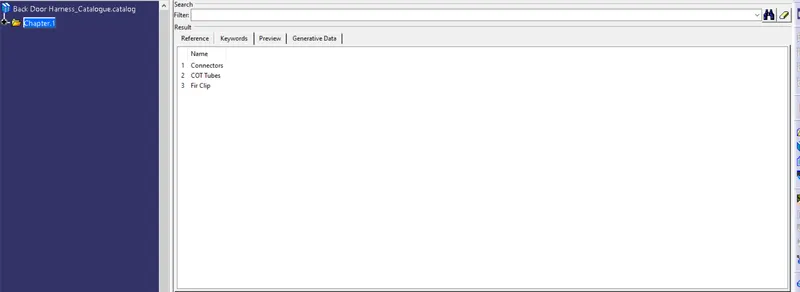
Fig. 2: Creating the Catalogue.
Electrical Definition of Connectors:
- Open the connector in ‘Electrical Part Design’ Workbench.
- Insert points in the center of the faces.
- Define it as ‘Define Connector’
- Define the bundle connection point.
- Use ‘Store Device’ command to add in the catalogue in the ‘Connectors’ family.
- Save the part.
- Follow the above steps for all the connectors.
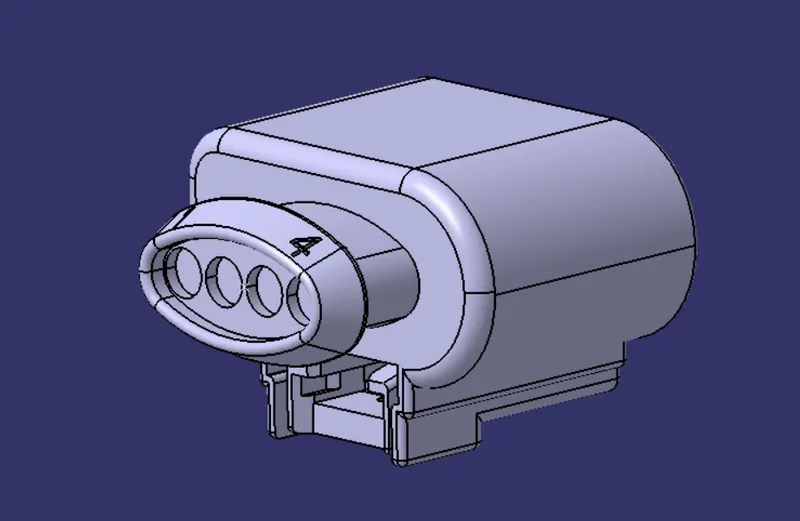
Fig. 3: Isometric view of C-1563689-1 Connector
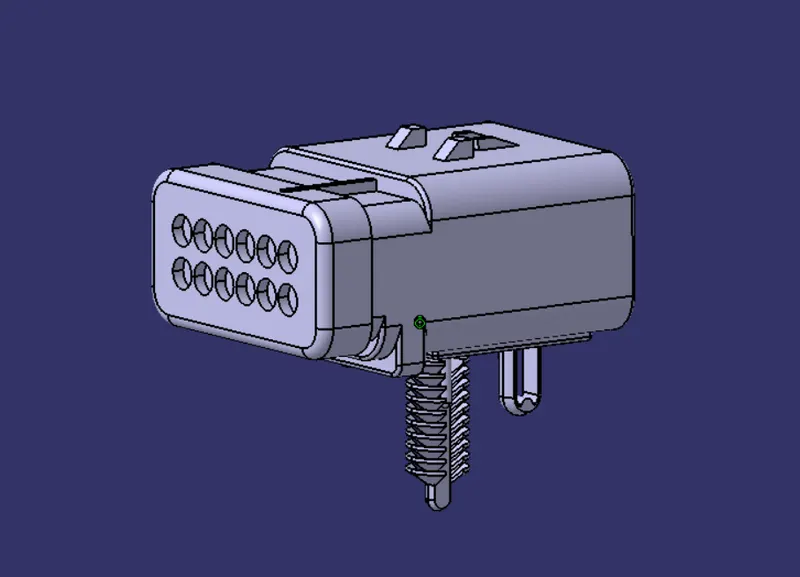
Fig. 4: Isometric view of 12-Pole Connector Assembly.
Definition of Fir Clip:
- Open the part in ‘Electrical Part Design’ Workbench.
- Insert point and plane on the entry and exit side of the Fir Clip.
- Insert a base plane on the support part.
- Use ‘Define Equipment’ command.
- Add to the ‘Fir Clip’ family in the catalogue.
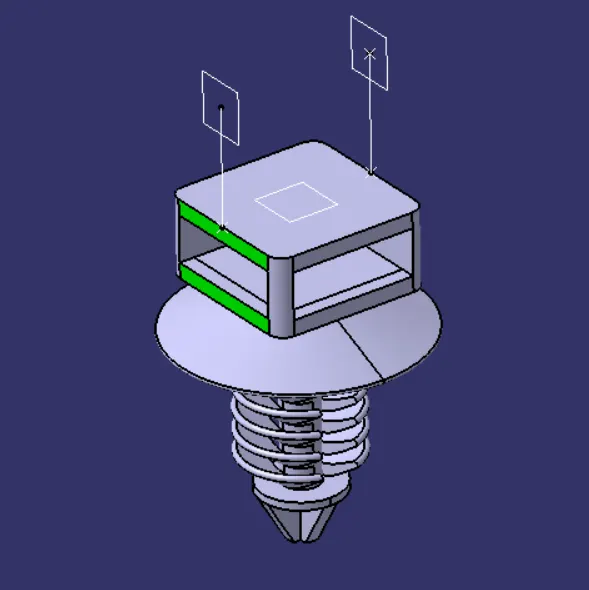
Fig. 5: Isometric View of Fir Clip.
Creating the Protection Part:
- Open a new ‘Electrical Part Design’ workbench.
- Use ‘Define Protection Part’ command to create a corrugated tube of outer diameter 10mm
- Add to the ‘COT Tube’ family in the catalogue.
- Save it.
- Similarly, create COT Tubes with outer diameter 15mm and 20mm and add to the catalogue.
Placing the connectors in place:
- Open a new ‘CATProduct’ file and import the back door assembly into this product.
- Create a new product in the main product for wiring harness assembly. All the connectors and the wiring harness would be placed in this assembly so that it can be defined as an electrical assembly and use for flattening.
- Import the C-15636899-1 connector and place it on the top of the back door.
- Import the 12-Pole Connector Assembly and place it at the 4 positions of the rear lights and number plate lights.
- Import the Fir clip and place them according to the routing requirement.
- After all the components are placed in position, define the assembly as ‘Electrical Bundle’ to enable harness design.
- Start form the C-15636899-1 connector and route through the Fir Clips towards left side of the door and until the last fir clip on this path. The harness diameter is 15mm in this region.
- Create branch point on this harness near to the entry inside the back door to extract a wire harness of 15mm diameter towards the right side of the door. Left side will connect the rear lights and right side will connect the number plate lights.
- Add branch points after the final fir clip in the individual path and design the harness of 8mm diameter to connect to the connectors.
- Similarly on the right hand side, follow above steps and route the wiring harness.
- Insert COT Tubes from the catalogue at appropriate places.
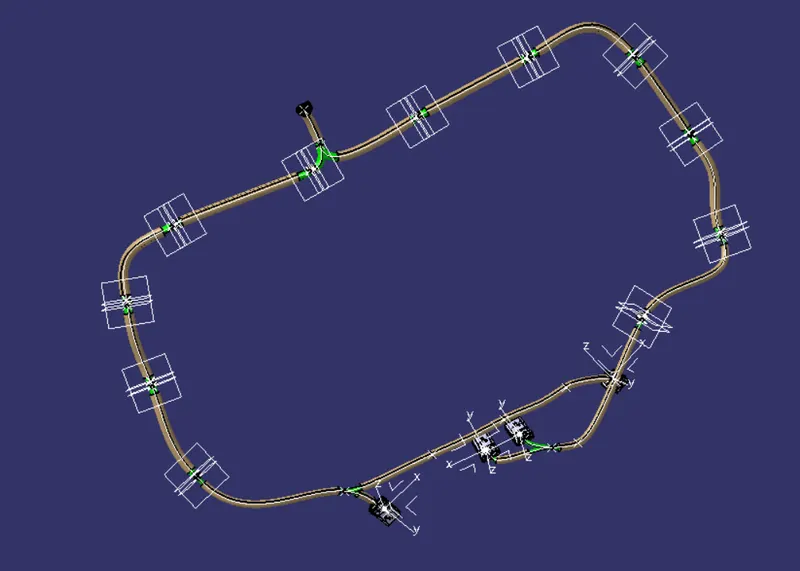
Fig. 6: Isometric View of the Wiring Harness.
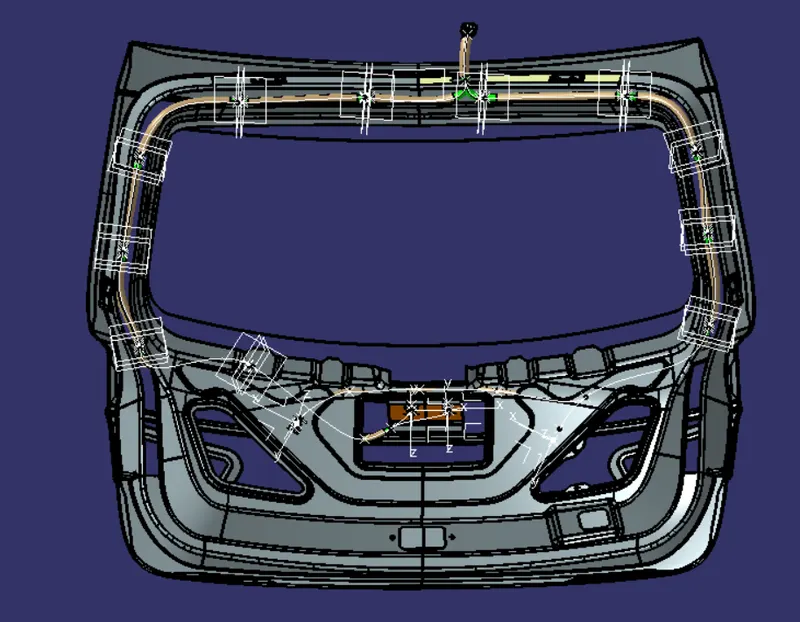
Fig. 7: Wiring Harness routed around the back door assembly.
Creating the flattened wiring harness and drawing of the harness:
- Open a new product in ‘Electrical Harness Flattening’ workbench.
- Setup the Flattening Parameters.
- Use ‘Extract’ command and click on the harness bundle to import in the harness flattening workbench.
- Flatten the wiring harness.
- Use commands to set up flattened harness as shown below.
- Update the assembly and save it.
- Open a new drawing in the ‘Drafting’ workbench with an A0 paper sheet.
- Insert the Front view of the flattened harness.
- Insert a BOM in the drawing sheet.
- Dimension the wiring harness and the protective coverings.
- Use ‘Balloon’ to name the connectors.
- Insert a text box to write a note, if any.
- Use ‘Sheet Background’ command to set up the ‘Title Block’ and other details.
- Save it as drawing and a pdf file.
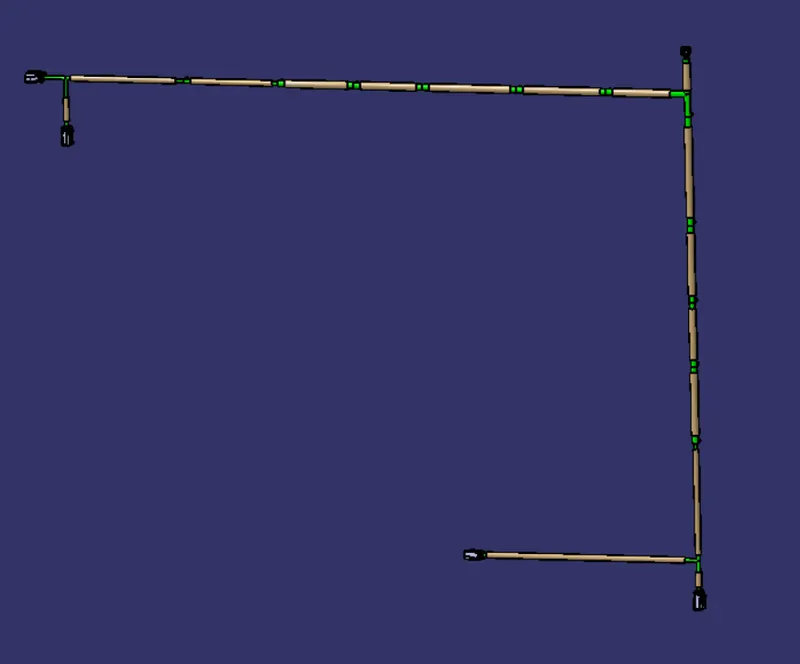
Fig. 8: Top View of the flattened wire harness.
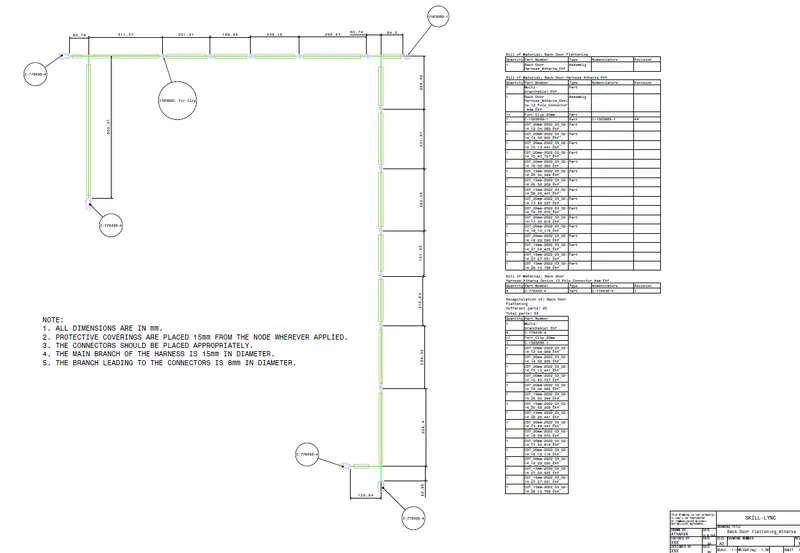
Fig. 9: Drawing sheet of the Flattened wiring harness.
Conclusion: The routing of the wiring harness on the given engine and preparing a flatten view drawing in CATIA V5 is completed successfully.