Creation of Multiple viewports, Scaling the drawing and setting in Template in AutoCad
- Aim:
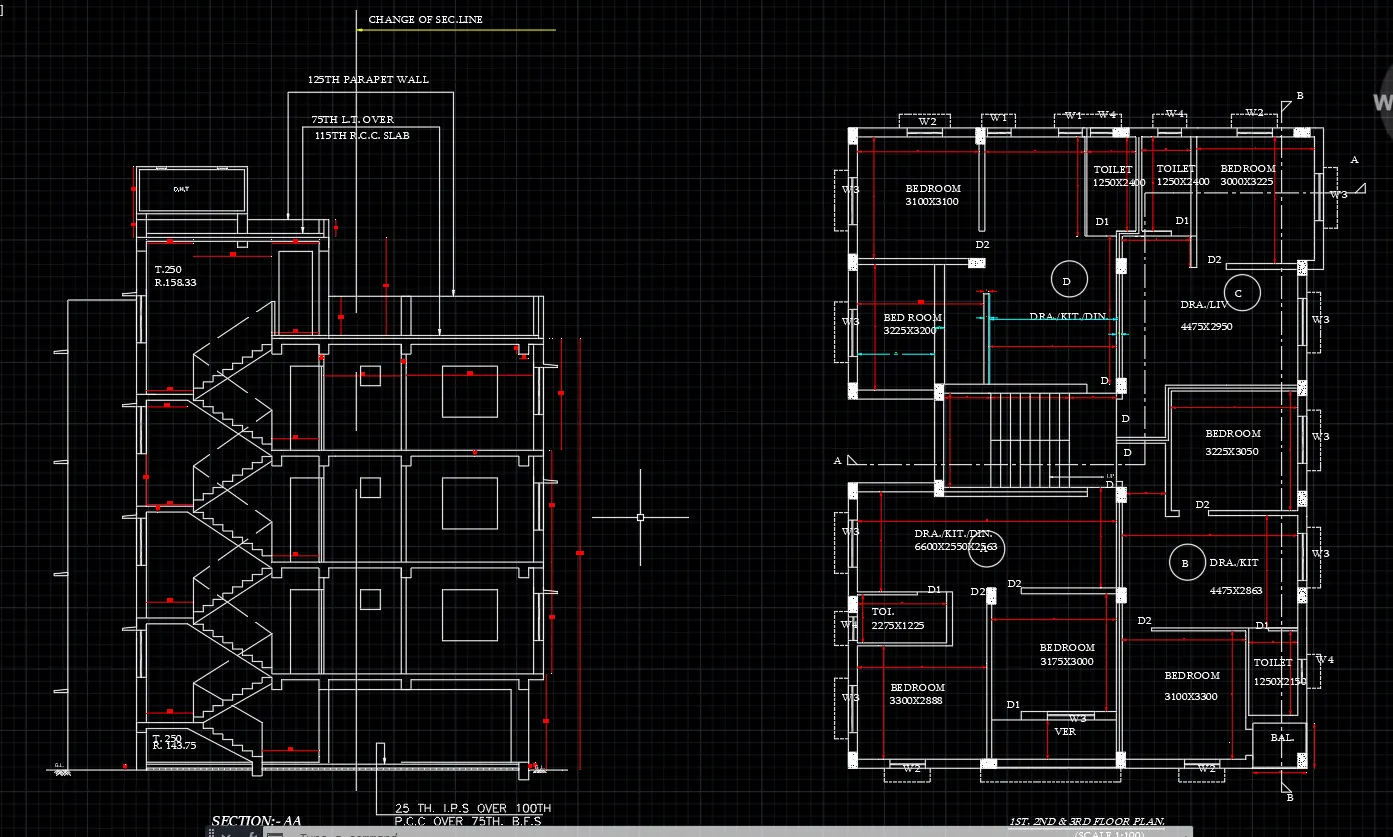
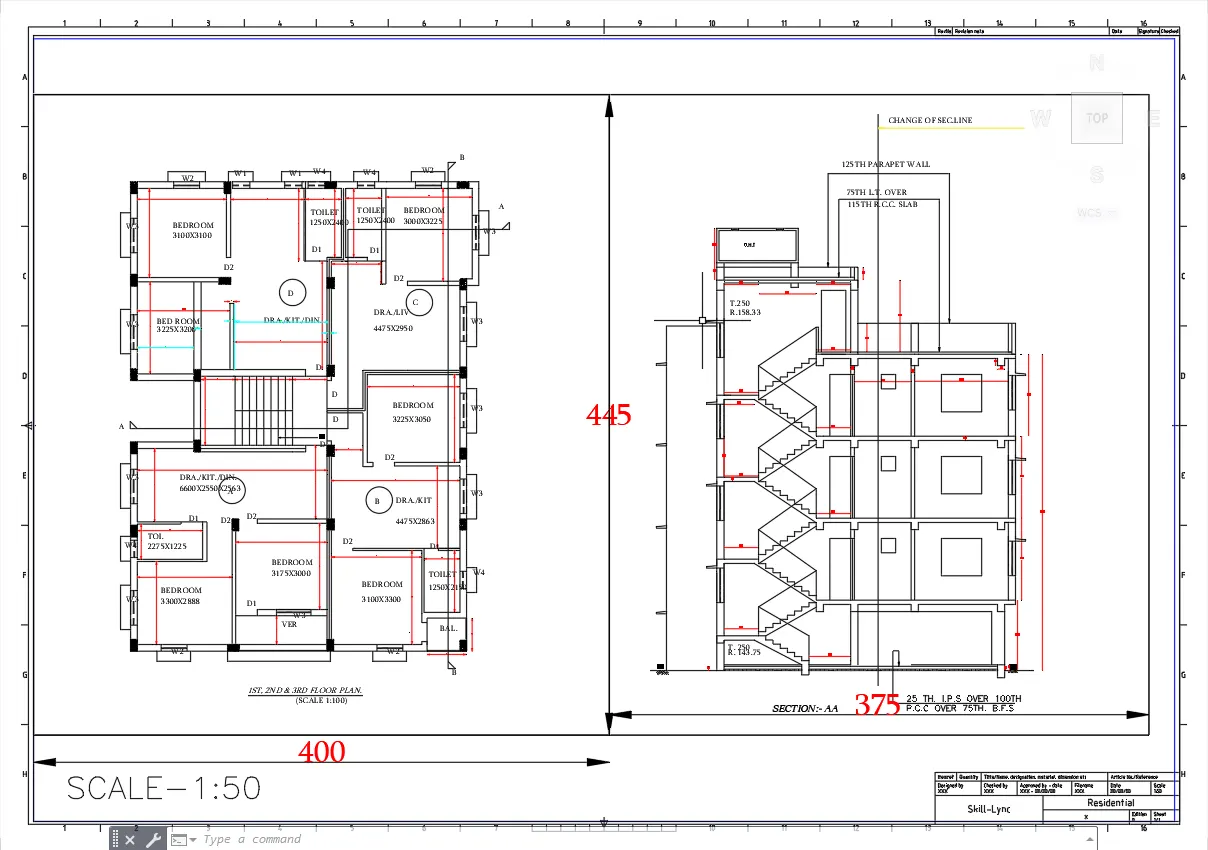
- To create layout of the Plan and Section A of the project in Challenge 7 as shown in the figure above, in
- AutoCAD.
- Introduction:
- The layout is created in AutoCAD using the template Tutorial-mArch.dwt in a scale as given in the Figure. The procedure is explained in detail with diagrams of each step and the final result is given.
- Procedure:
- STEPT 1
- Go to START MENU, select AutoCAD.
- Go to Application Menu and select Open.
- Open the Week 7 drawing.
.
- STEP 2
- Zoom in to the plan.
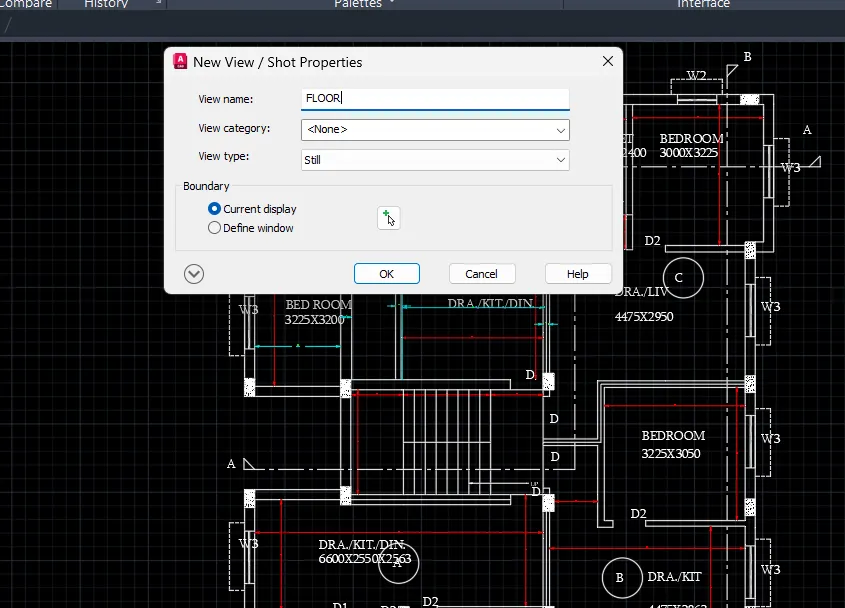
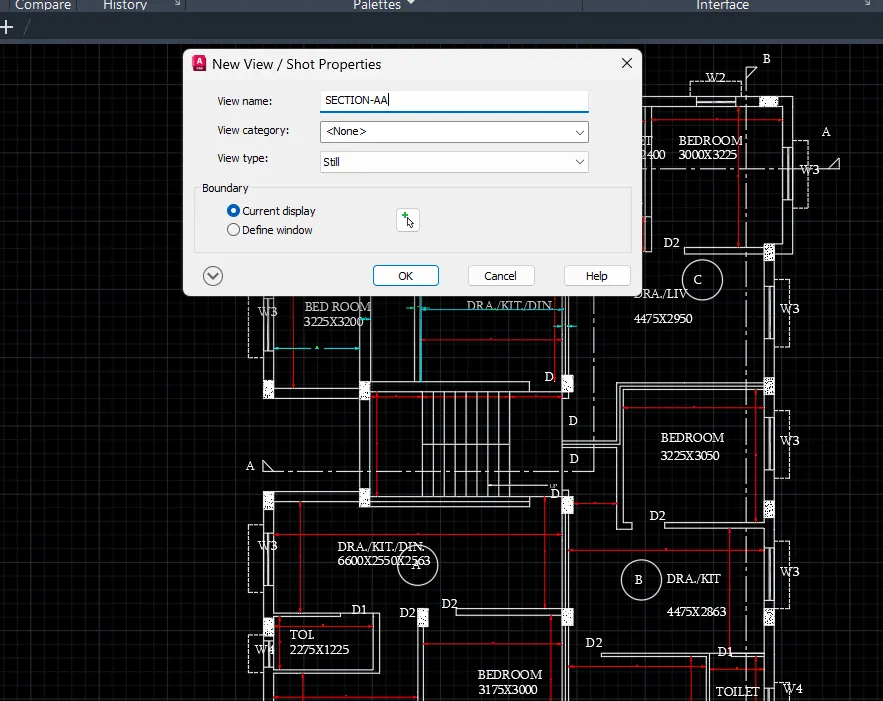
- To create views: Ribbon>View>Named Views>New View.
- In the New View dialog box enter view name as Plan and click OK
- Repeat the same process to create Section A view.
- STEP 3
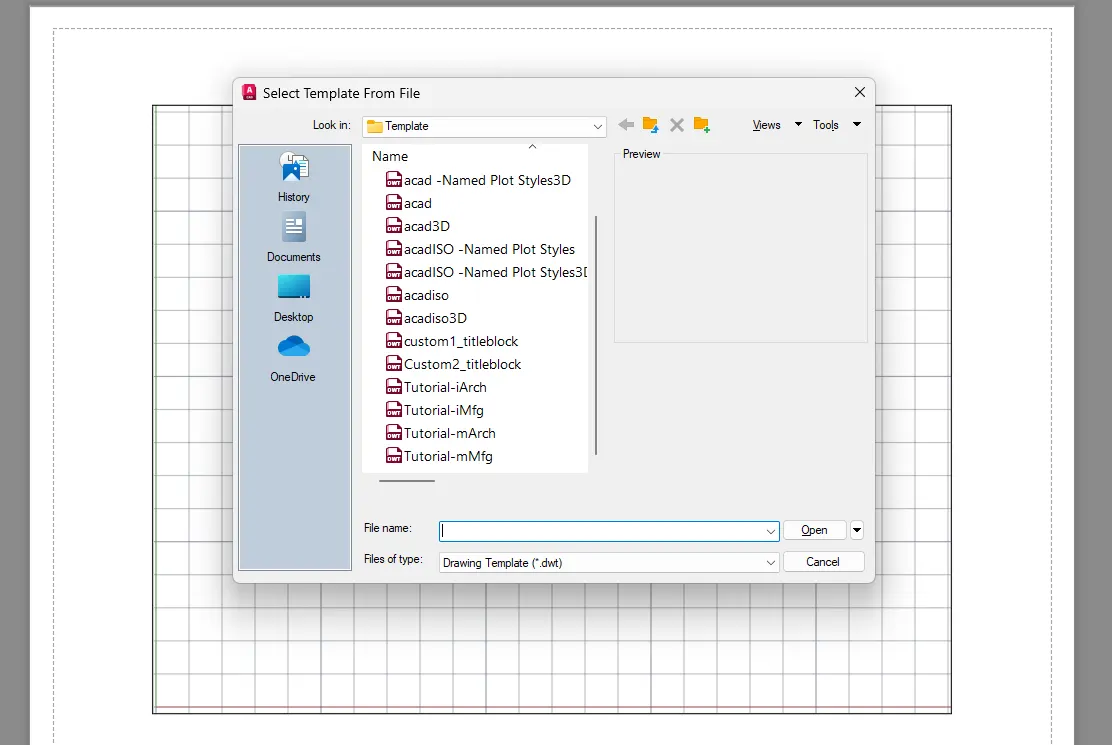
- To create a new Layout, enter LAYOUT in the command line.
- Select the Template option.
- Select the Tutorial-mArch template.
- Click Open.
- Right click on the layout tab, select the rename option and enter new name as Plan and Section.
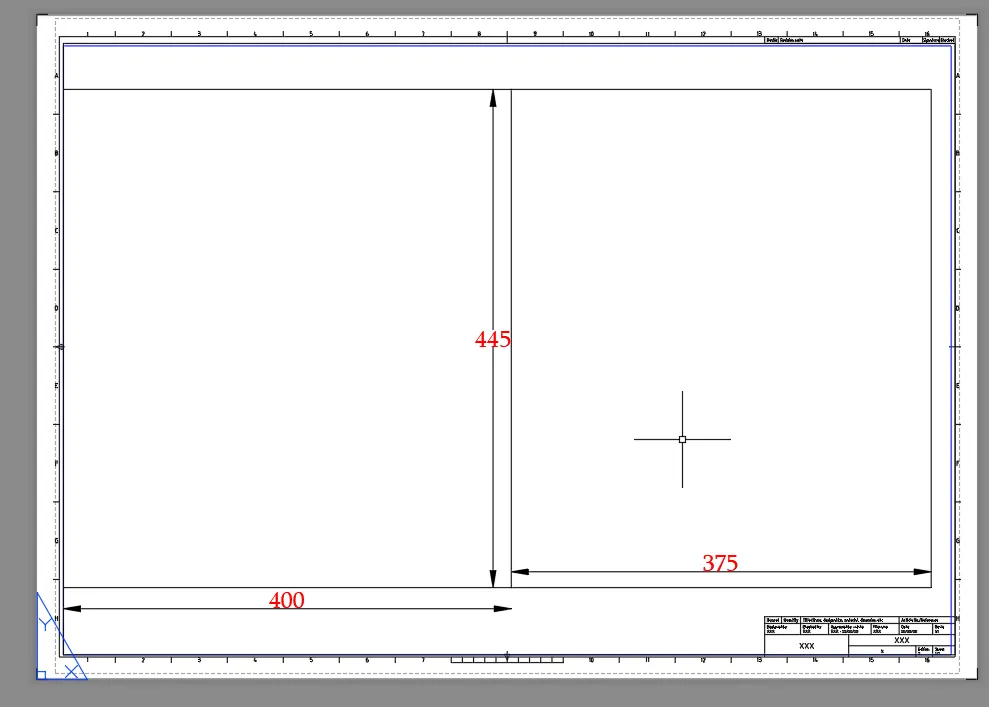
- STEP 4
- Enter PAGESETUP in the command line.
- Select the specifc layout, and click on Modify.
- Select the ISO A1 paper size.
- Click OK.
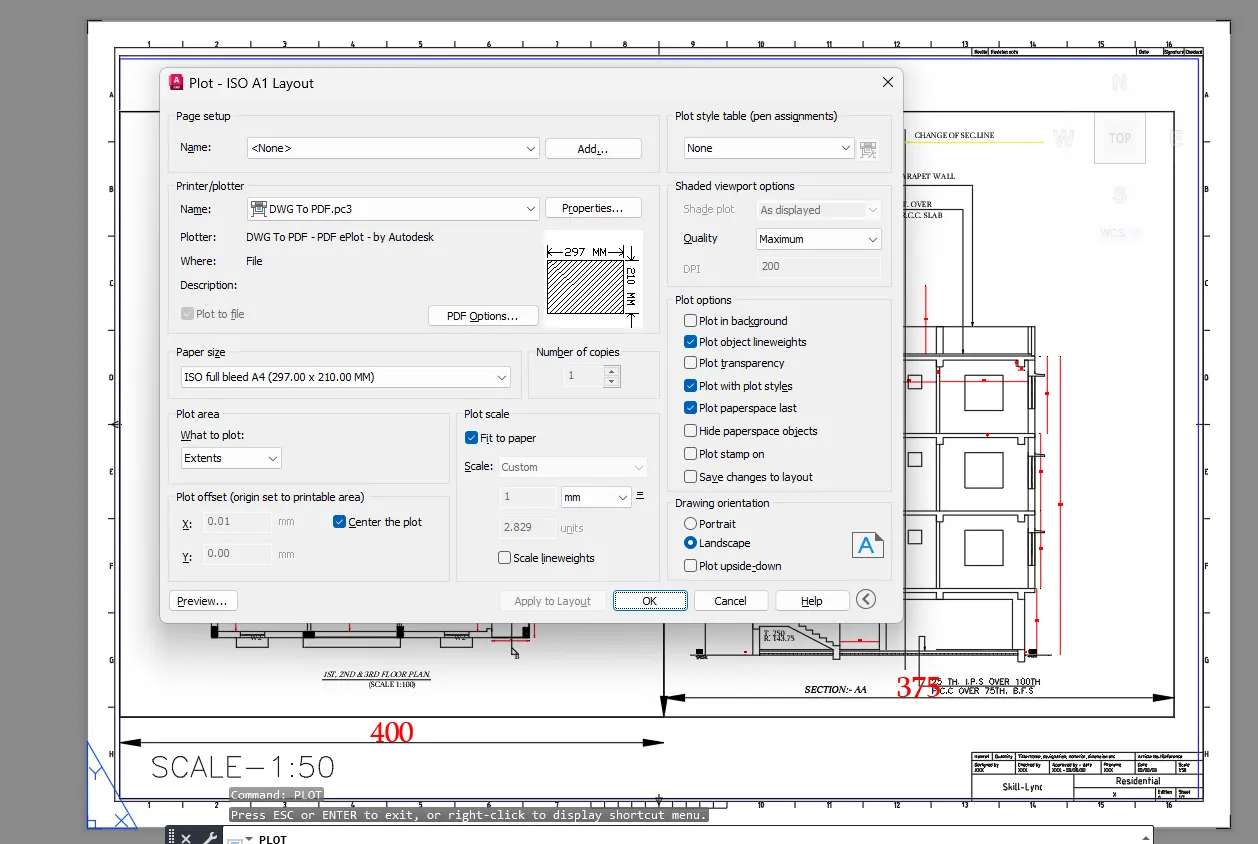
- STEP 5
- Select the Rectangle tool by entering 'REC' command in the command tab.
- Specify the first point at the inner edge of the.
- Select Dimensions option in the command line. Specify length of rectangle as 400 in the command line.
- Specify width of rectangle as 445 in the command line.
- Move the cursor downwards and click ENTER.
- Again, Select the Rectangle tool by entering 'REC' command in the command tab.
- Specify the first point at the inner edge of the.
- Select Dimensions option in the command line.
- Specify length of rectangle as 375 in the command line. Specify width of rectangle as 445 in the command line.
- Move the cursor downwards and click ENTER.
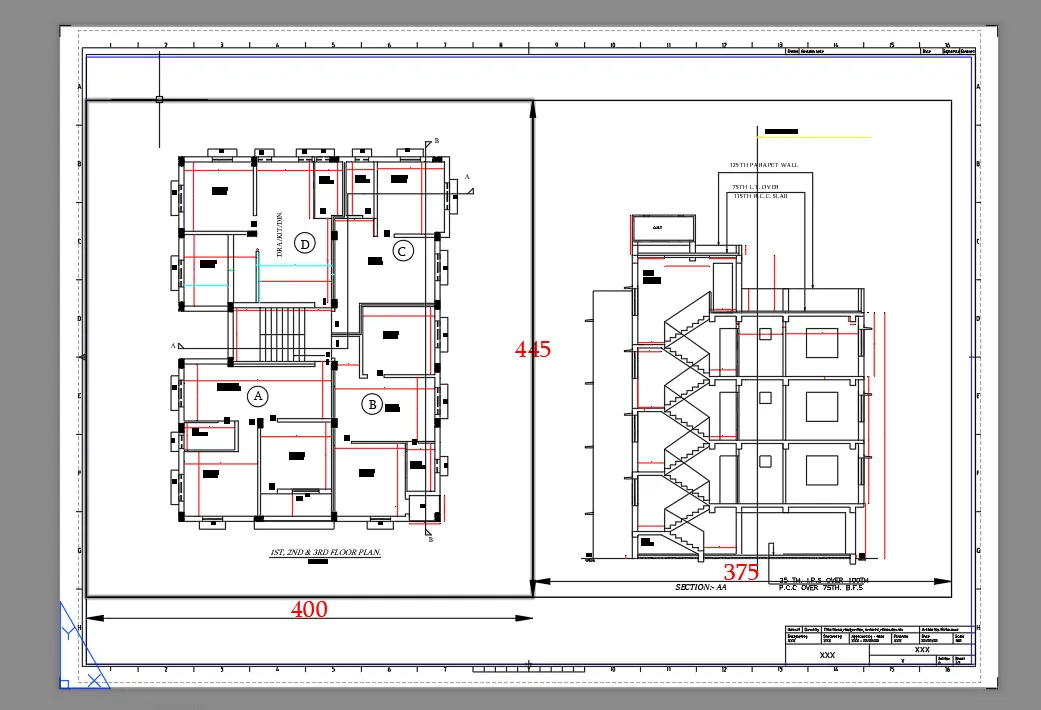
- Go to Layout>Insert View.
- Select the saved Plan and Section views and insert them to their respective boxes.
- Entor MS in the command line.
- Open Layer Manager dialog box and change the Viewport Layer Colors fo rboth the viewports to darker shades.
- Select the views and scale them as required individually.
- Enter PAN in the command line to adjust the position of the drawing inside the viewport.
- Lock view.
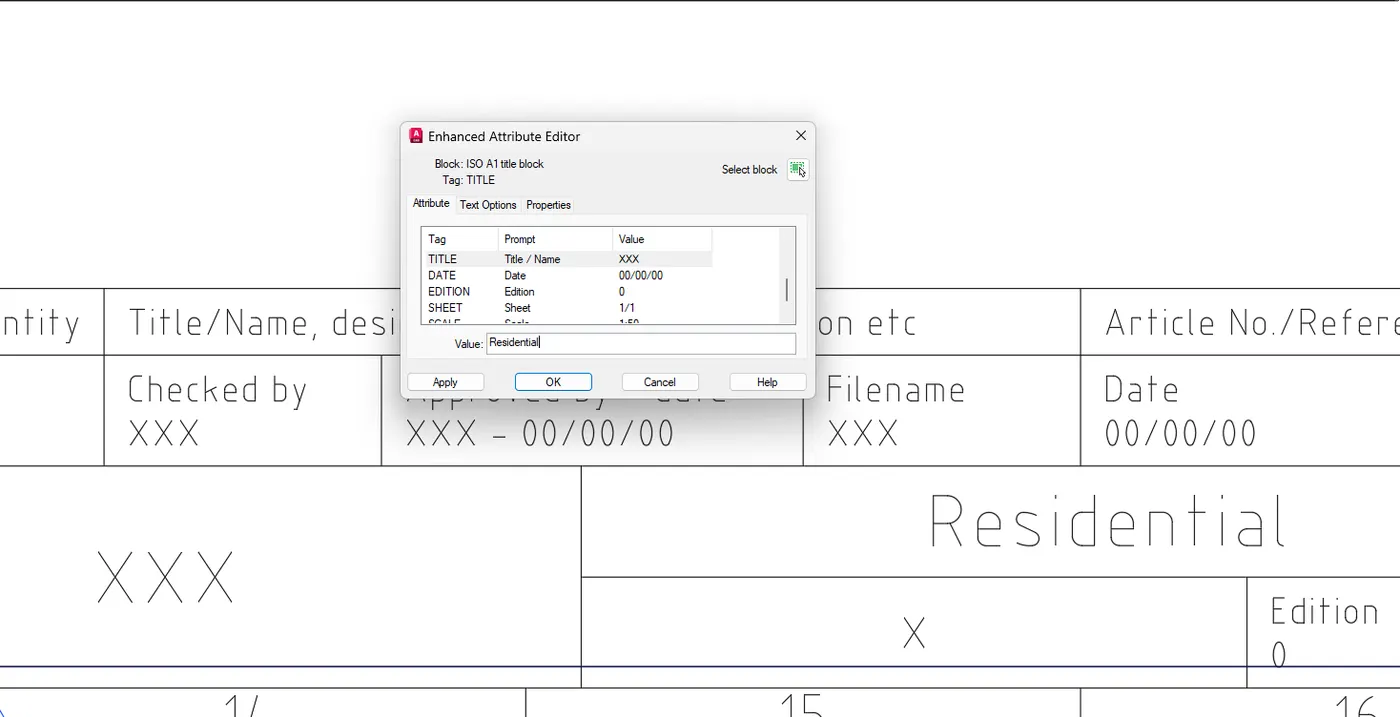
- STEP 6
- Enter PS in the command line.
- Enter ATTEDIT in the command line.
- Select the block reference as the template title box.
- In the Edit Attributes dialog box enter the necessary details.
- Click OK.
- STEP 7
- Save the drawing.
- Enter PLOT in the command line.
- In the Plot dialog box make necessary changes, check the preview, press Esc.
- Click ok.
- Save the Pdf. file.
- Result:-
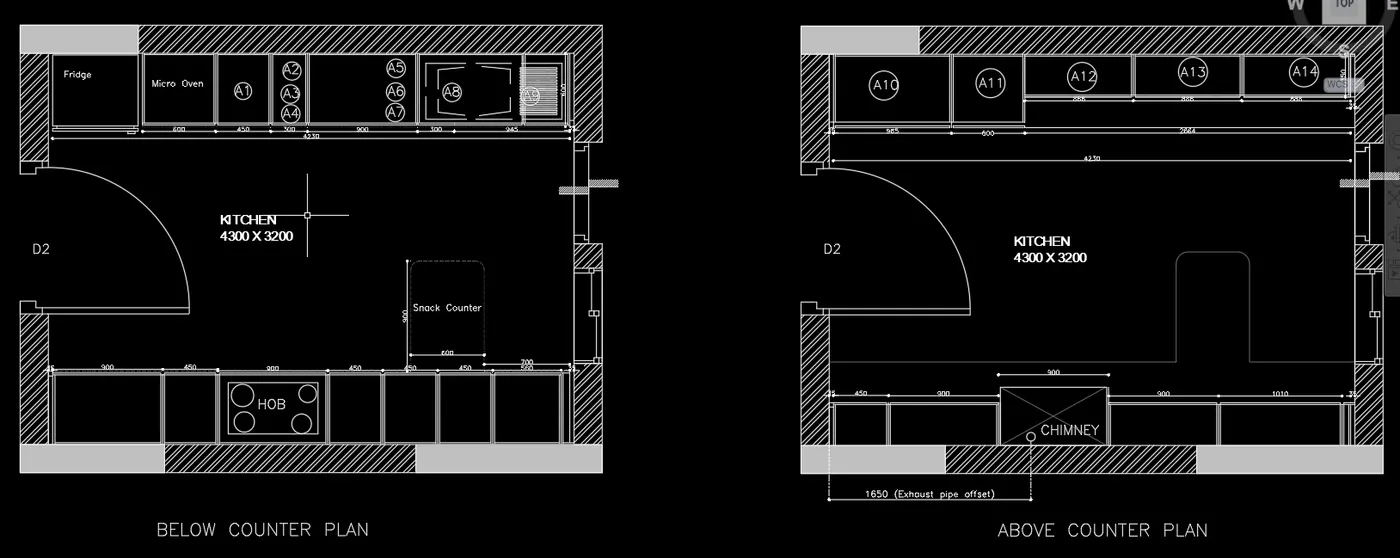
Aim:-
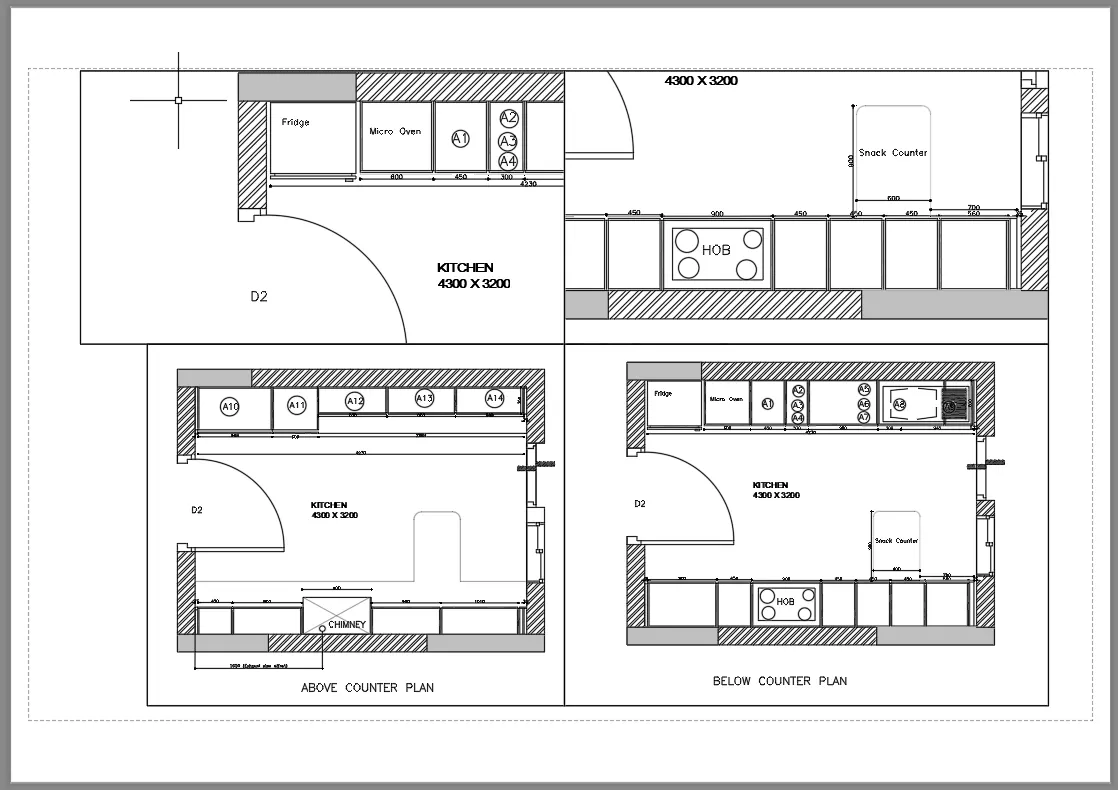
- To create layout of the kitchen in Challenge 9 as shown in the figure above, in AutoCAD. Introduction: The layout is created and plotted in AutoCAD, The procedure is explained in detail with diagrams of each step and the final result is given.
- Procedure:
- STEP1:
- Go to START MENU, select AutoCAD .
- Go to Application Menu and select Open.
- Open the Week 10 Kitchen layout drawing.
- STEP 2
- To create a new Layout, enter LAYOUT in the command line.
- Select the New option.
- Enter new layout name as Kitchen Layout!.
- Press Enter.
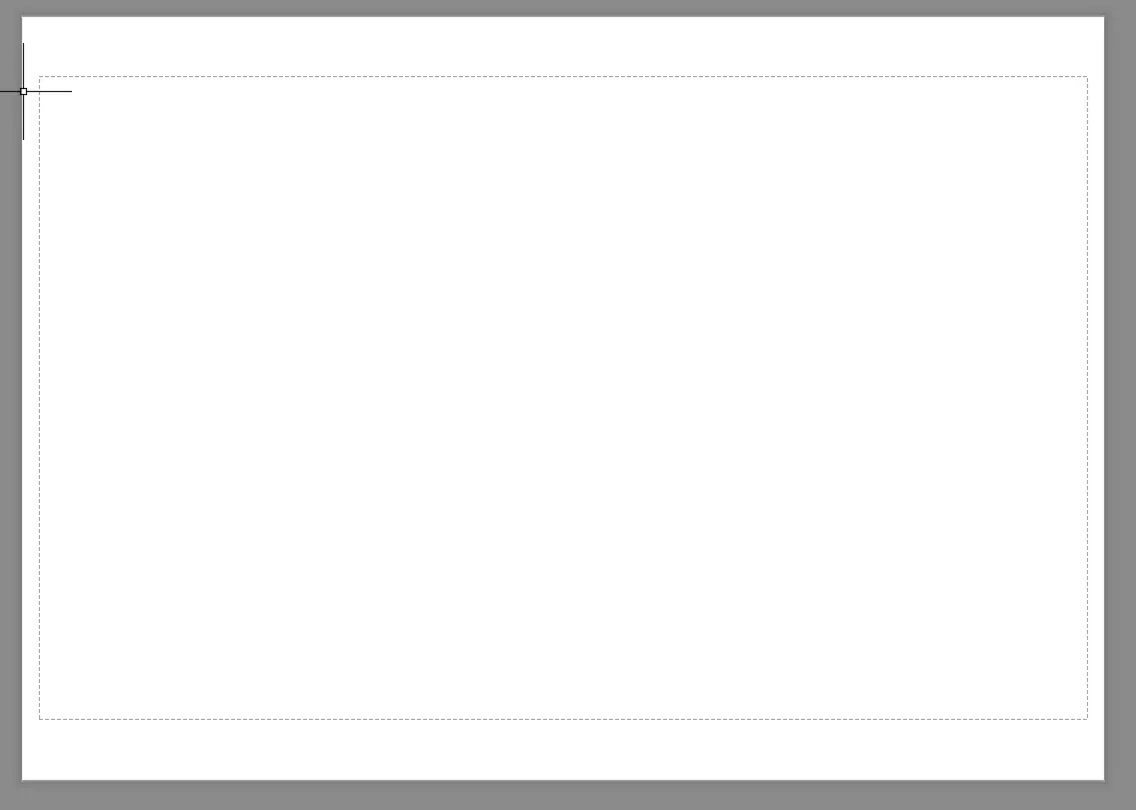
- Go the Layout page and Select and delete the default model view.
- STEP 3
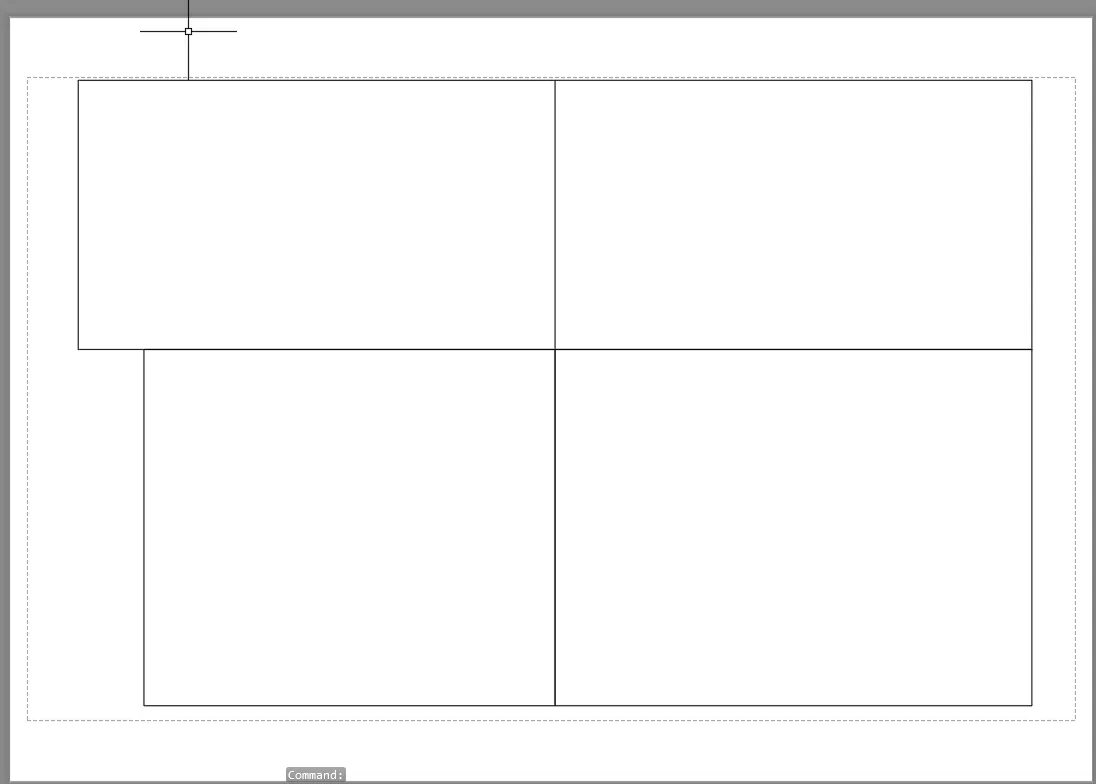
- Use LINE COMMAND to draw the lines
- Go to MV>NEW.
- Select the LAYOUTS from the models.
- Drag and place the object in the plots.
- Enter MS in the command line.
- Enter PAN in the command line to adjust the position of the drawing inside the viewport.
- Lock views.
- Enter PS to go to paper space.
- Enter PAGESETUP in the command line.
- Select the specifc layout, and click on Modify.
- Select the ISO A4 paper size.
- Click OK
- STEP 4
- Go to Annote>Text Style>Annotative.
- Enter MTEXT command in the command line.
- Specify the start point of text as required.
- Enter ED in the command promt and edit the text boxes as required.
- Click Enter and press Esc.
- Save the drawing.
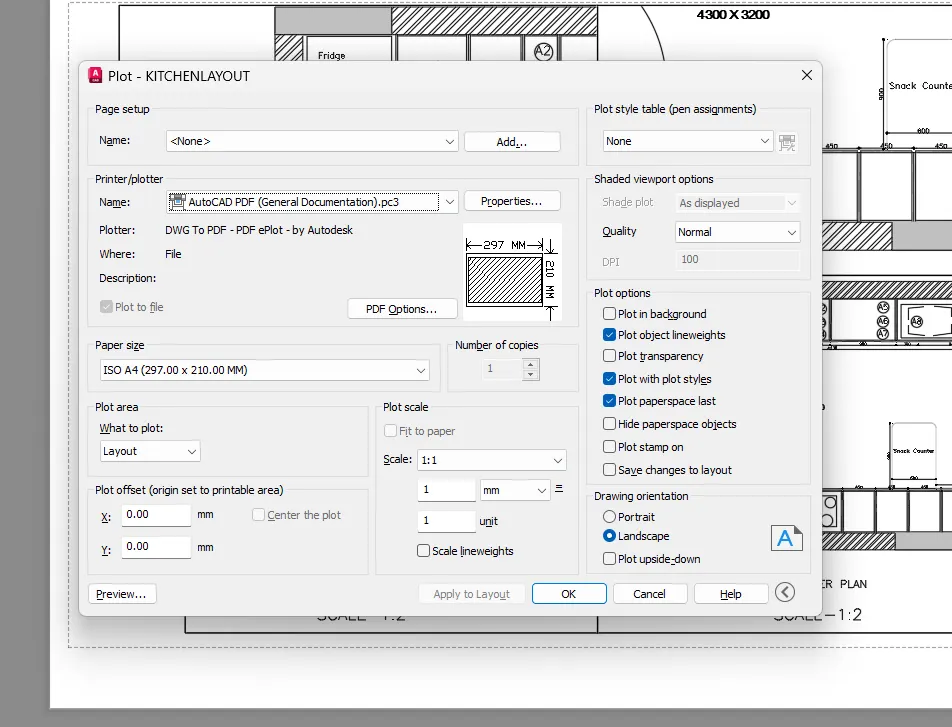
- Enter PLOT in the command line.
- In the Plot dialog box make necessary changes, check the preview, press Esc.
- Click OK.
- Save the Pdf file.
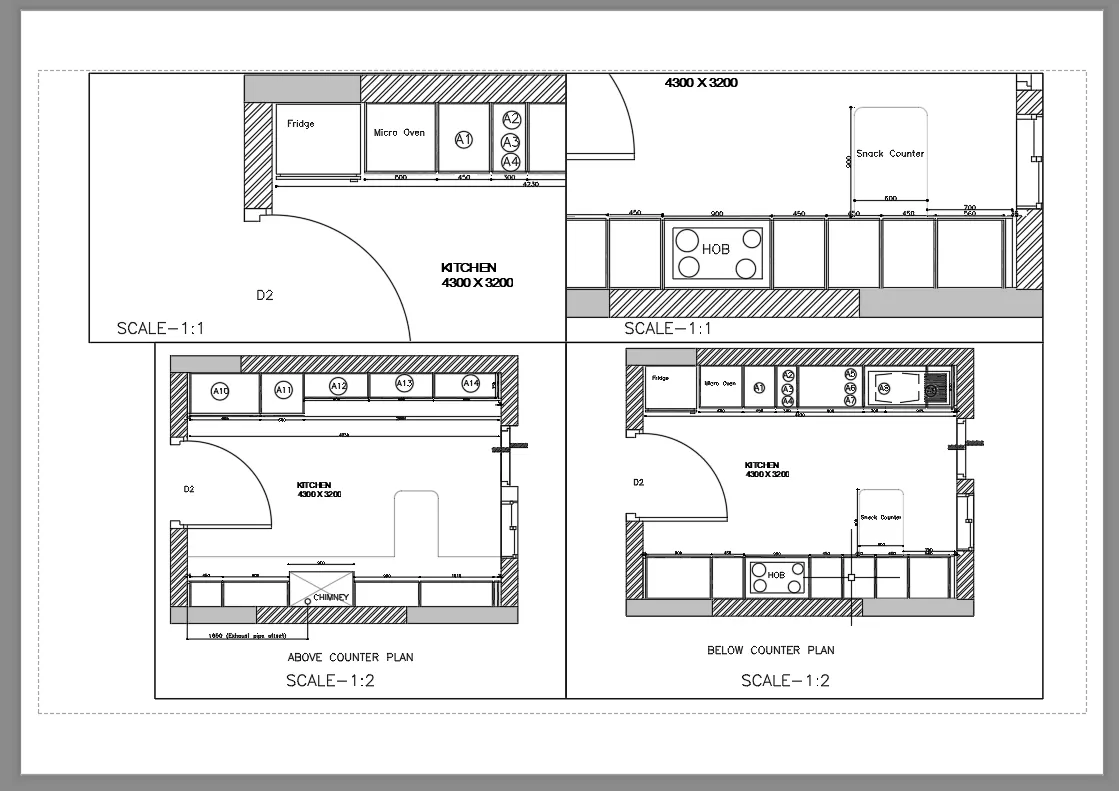
Result:-
Aim:
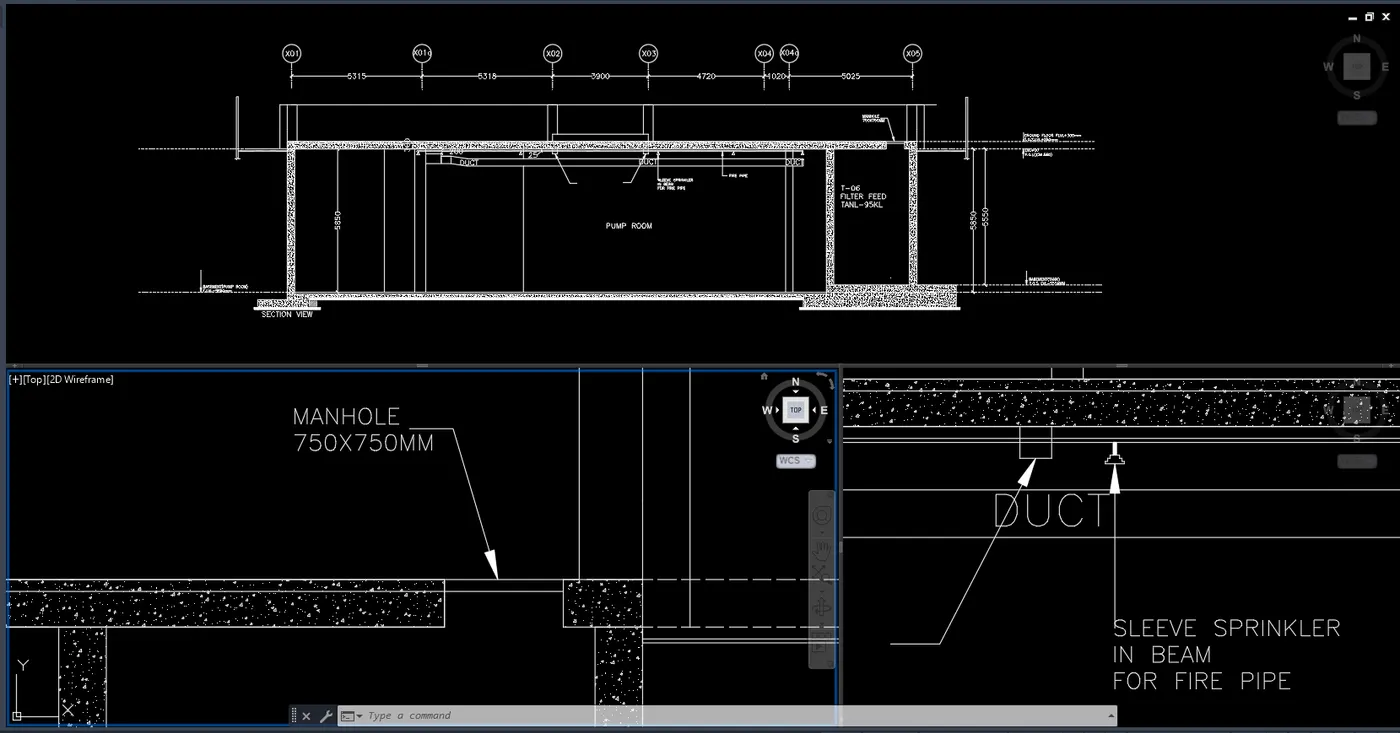
To create layout of the section created Challenge 9 as shown in the figure above, in AutoCAD.
Introduction:
The layout is created and plotted in AutoCAD. The procedure is explained in detail with diagrams of each step and the final result is given.
Procedure:
- Step1:
- Go to START MENU, select AutoCAD.
- Go to Application Menu and select Open.
- Open the Week 10 Industrial Section drawing
- Go to Ribbon View>View Configuration.
- Select Three:Above from the drop down list.
- In the windows select and zoom in on the views as shown in the given figure.
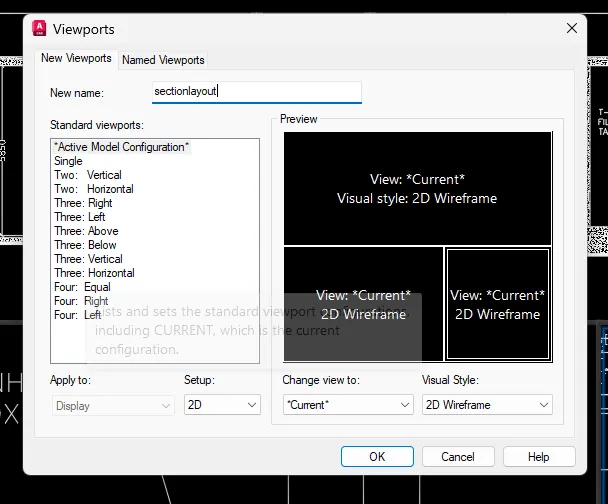
- Click on the Named option in the Model Viewports panel.
- Click on New Viewports
- Enter the name as Section layout), Click OK.
- STEP 2
- Select the Above counter plan viewport.
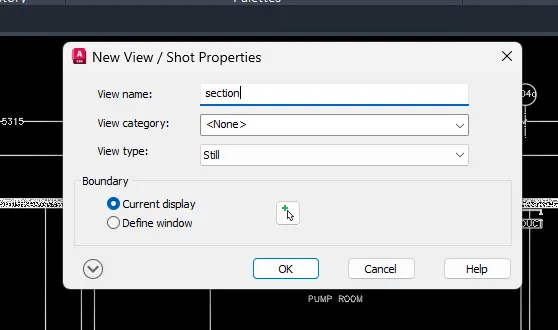
- To create views: Ribbon>View>Named Views>New View.
- In the New View dialog box enter view name as Section and click OK.
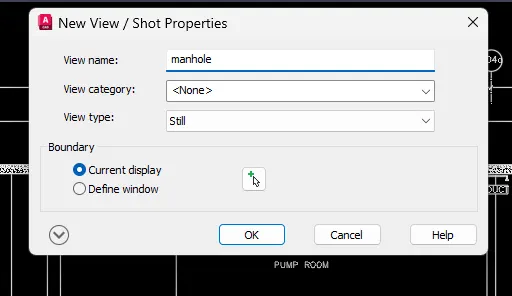
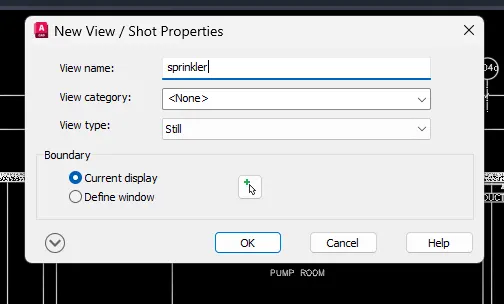
- Repeat the same process to create Manhole, Sprinkler views.
- STEP 3
- To create a new Layout, enter LAYOUT in the command line.
- Select the New option.
- Enter new layout name as Section Layout).
- Press Enter.
- Go the Layout page and Select and delete the default model view.
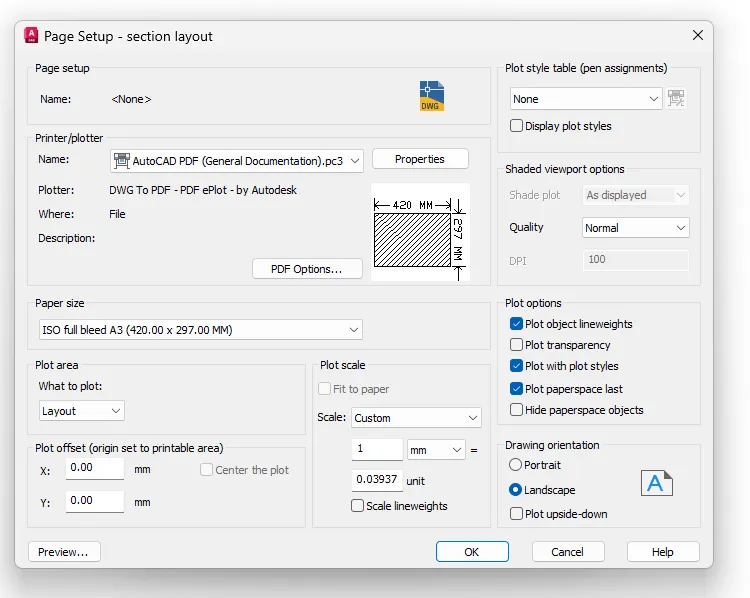
- Enter PAGESETUP in the command line.
- Select the specifc layout, and click on Modify.
- Select the ISO A3 paper size.
- Click OK.
- STEP 4
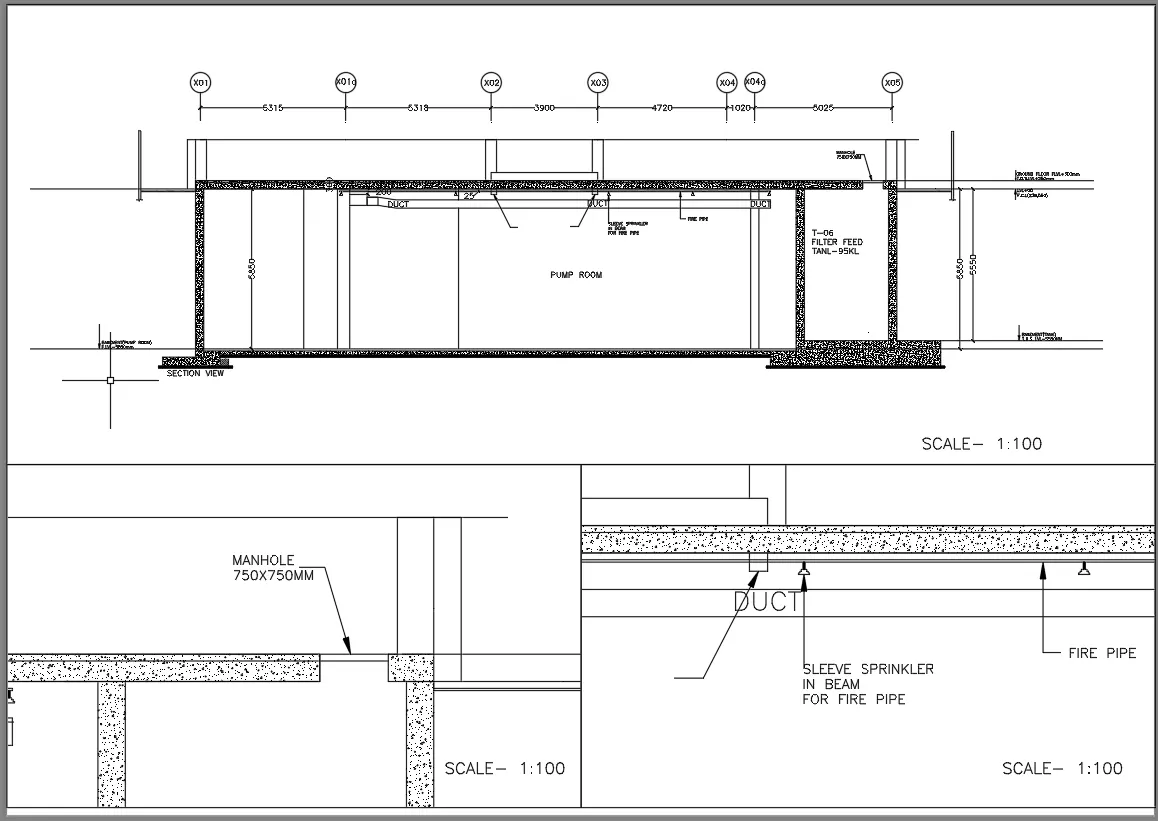
- Enter MV in the command line
- Specify corners and Viewport.
- Repeat MV command twice more to create three viewports.
- Enter MS in the command line.
- Select the viewports and assign the specific views to the viewports
- Open Layer Manager dialog box and change the Viewport Layer Colors for both the viewports to darker shades Select the views and scale them as required individually.
- Enter PAN in the command line to adjust the position of the drawing inside the viewport.
- Lock views
- Enter PS to go to paper space.
- STEP 5
- Go to Annote>Text Style Annotative.
- Enter MTEXT command in the command line.
- Specify the start point of text as required.
- Type in the Text and copy the text box to required locations.
- Enter ED in the command promt and edit the text boxes as required.
- Click Enter and press Esc.
- Save the drawing.
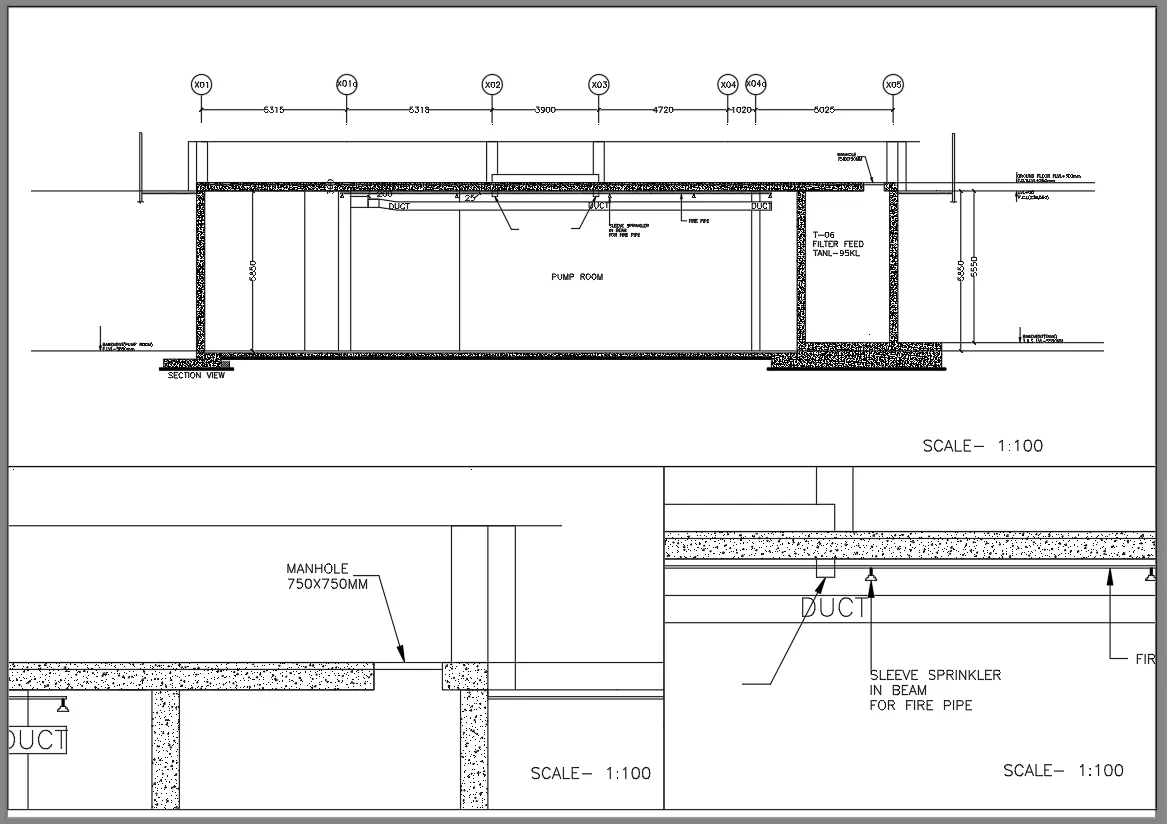
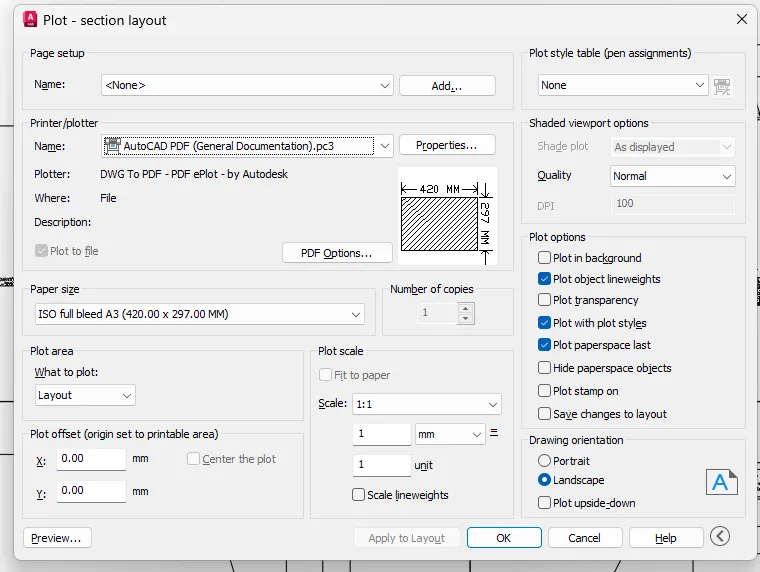
- Enter PLOT in the command line.
- In the Plot dialog box make necessary changes, check the preview, press Esc.
- Click OK.
- Save the Pdf file.
Result:-