Creating Architectural and Structural model with 3D rendering using REVIT
1) Select the type of structure you want to build from one of the three below:
a. Multi-Unit Residential Apartment
b. Office Buildings
c. School
Ans -
From the above type of structure i want to build for "Multi-Unit Residential Apartment".
_________________________________________________________________________________________
2) Assume reasonable assumptions for geographic and location details for your project modeling. Based on assumptions and type of structure selected identify the modeling requirements from NBC
Following are the assumptions for geographic and location details for my project-
- My Project comes under "Residential Category "
- Project is located in the Developing area of my City.
- At present Road Width my project is "40 feet".
- Height of my Project is 55 feet.
- setbacks for my site Front 30', Rear 10', Right & Left 10'.
- Height & Floor Area are as per "NBC" requirements.
_______________________________________________________________________________________
3) Using the structural model, include the following components based on the type of structure selected
a. Foundation – Isolated / Wall/Matt Foundation
b. Columns
c. Beams Connected to Columns
d. Roof Framing/ Truss
e. Floor / Decks
f. Floor Openings for Elevators and Stair
AIM- By Using the structural model, include the following component
- Foundation – Isolated / Wall/Matt Foundation
- Columns
- Beams Connected to Columns
- Roof Framing/ Truss
- Floor / Decks
- Floor Openings for Elevators and Stair
PROCEDURE-
- Open the revit file, Open New structural Template
- Draw grids as per Plan Center line
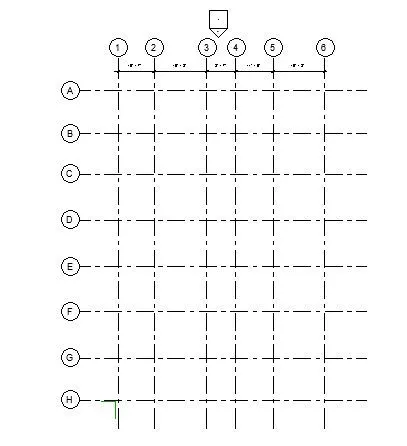
- From the Structural Tab Select Columns
- Goto load family & select the required Column.
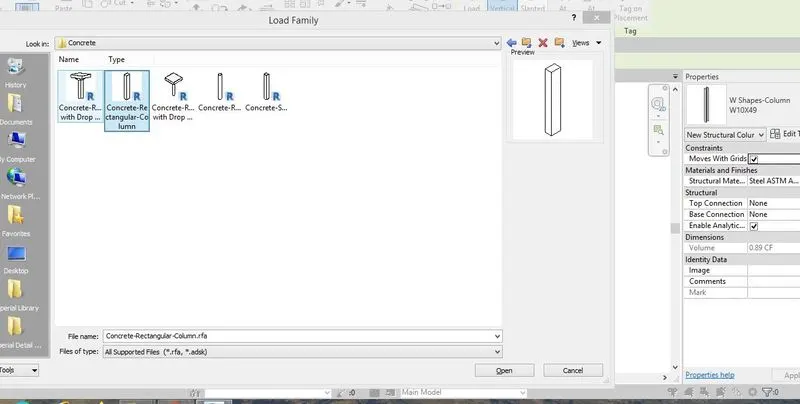
- Place rectangular column vertically along the grids.
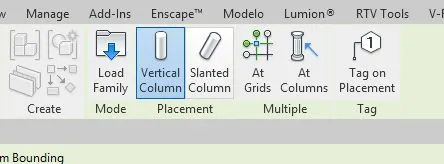
- Structural Columns placed Successfully along the Grids.
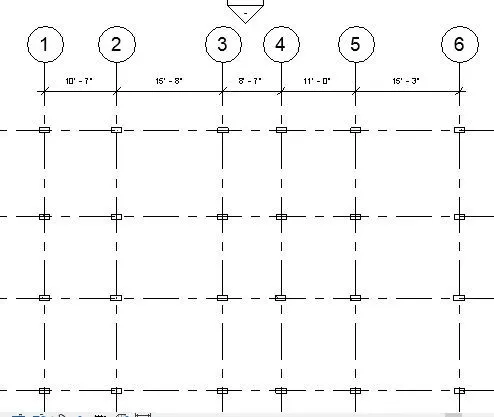
- Similarly Goto Foundation in Structural Tab. Select Isolated Footing
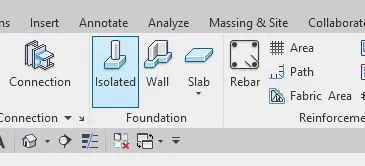
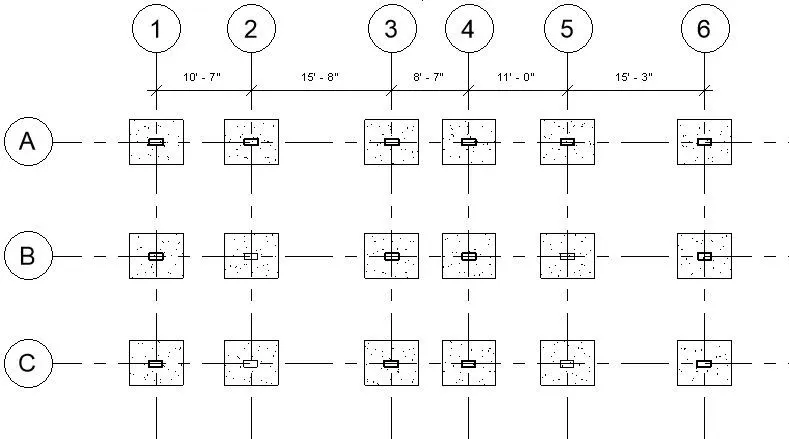
- Place the Footing "At the grids"
- Similarly Goto Beams in Structural Tab. Select load Family
- then goto Structural Framing Select "Concrete beam"
- Change the Size of the Required Beam, Place Accordingly
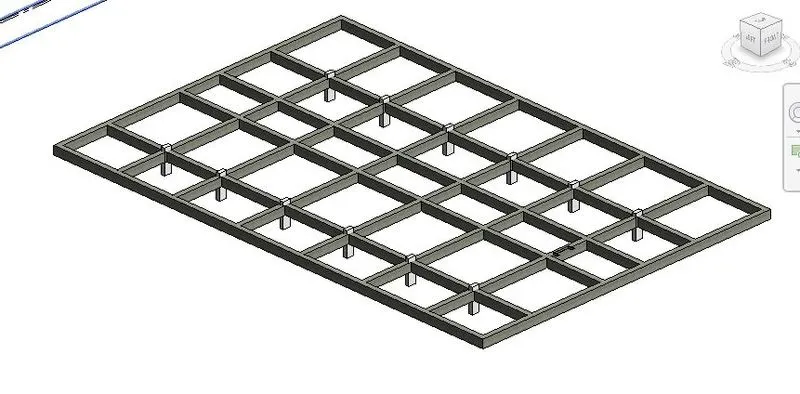
- Similarly Goto Slabs in Structural Tab. Change the Propertie
- Draw the floors & Copy to all the Levels
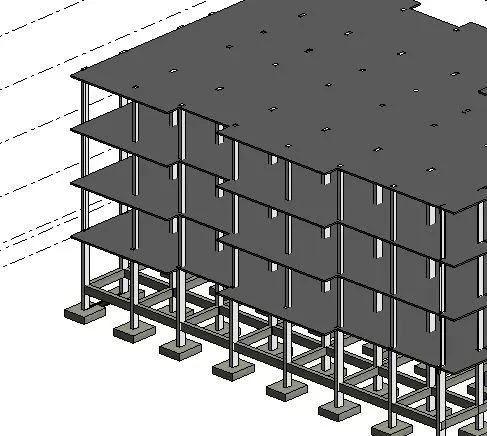
- Edit the Floor Component & provide opening for Stairs,lift, & Shaft.
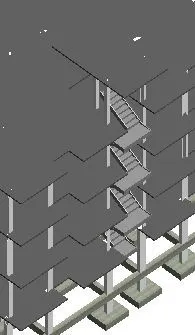
RESULT-
Successfully included the following components in my project
- Foundation – Isolated / Wall/Matt Foundation
- Columns
- Beams Connected to Columns
- Roof Framing/ Truss
- Floor / Decks
- Floor Openings for Elevators and Stair
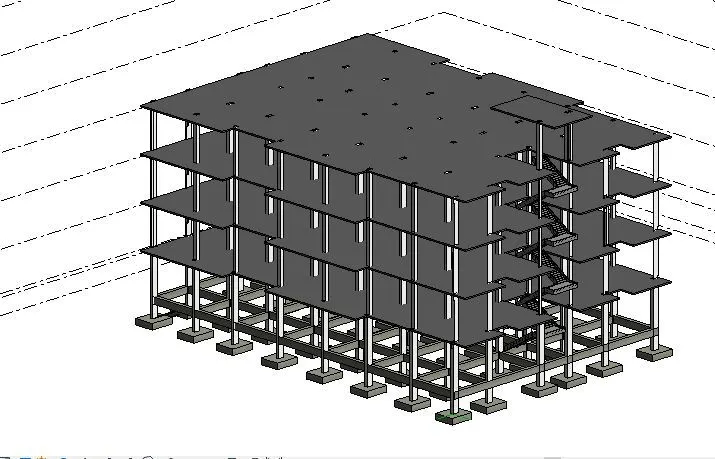
_______________________________________________________________________________________
4) Using the architectural model, include the following components based on the type of structure selected
a. Wall Layout with appropriate material and finishing
b. Exterior façade with fancy finish
c. Interior partition walls to size rooms
d. Components to add details to a room ( Desk, Chair, Lighting, Plumbing fixtures)
e. Add components such as stairs Elevators
f. Have at-least one side of the building with curtain walls and glass panels
g. Include interior and exterior lighting fixtures
h. Place proper topographic components from outside ( Trees, Parking, Plants) to add details to the model
AIM -By Using the architectural model include the following components in my Project.
- Wall Layout with appropriate material and finishing
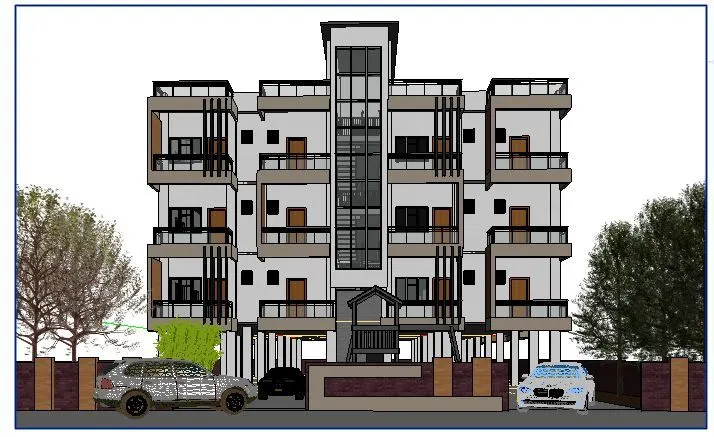
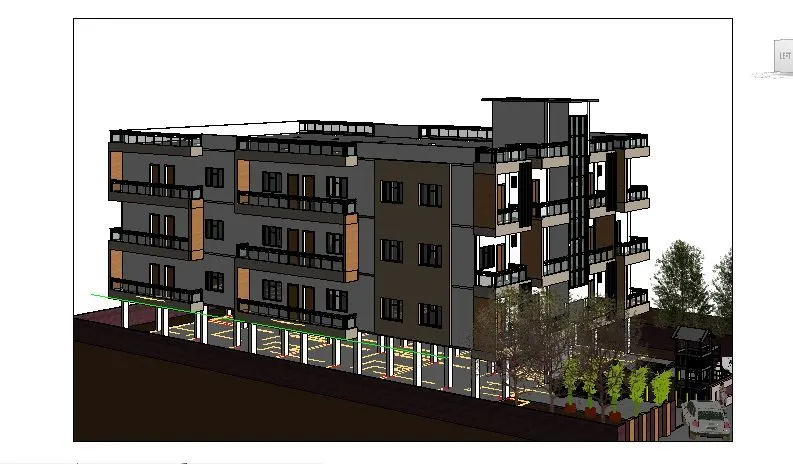
- Exterior façade with fancy finish
- Interior partition walls to size rooms
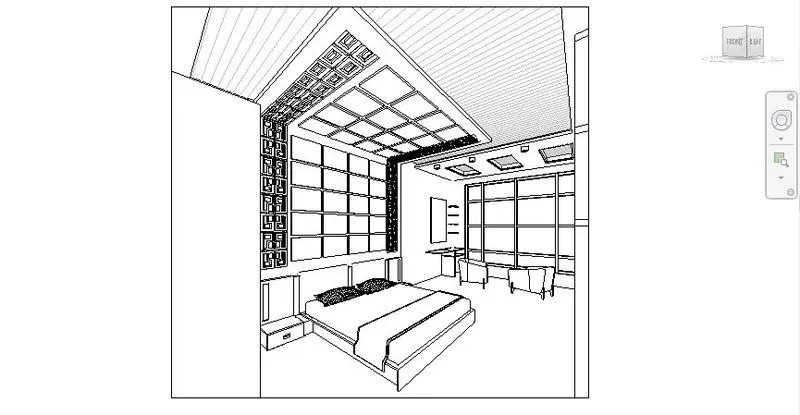
- Components to add details to a room ( Desk, Chair, Lighting, Plumbing fixtures)
- Add components such as stairs Elevators
- Have at-least one side of the building with curtain walls and glass panels
- Include interior and exterior lighting fixtures
- Place proper topographic components from outside ( Trees, Parking, Plants) to add details to the model
PROCEDURE-
- Open the revit file, Open New Architectural Template
- Goto "Walls" in Architectural Tab Change the Property as required Change the Material as required.For Outer wall 9" & Inner wall 4". "Change the finishing material as per our ownRequirement"
- Place the wall (9"& 4") as per plan, Copy to all the floors
- Goto Components in Architectural Tab. Add components such as Desk, Chair, Lighting, Plumbing fixtures, furniture etc. in the rooms
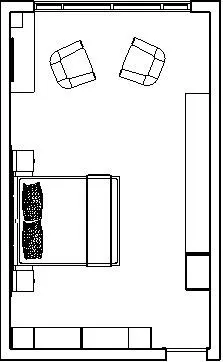
- Goto Cealing in Architectural Tab Design the Cealing as Required.
- Then provide interior lighting fixtures in the Component tab as Required.
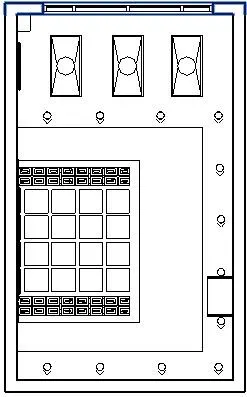
- Draw Stair case in Architectural Tab
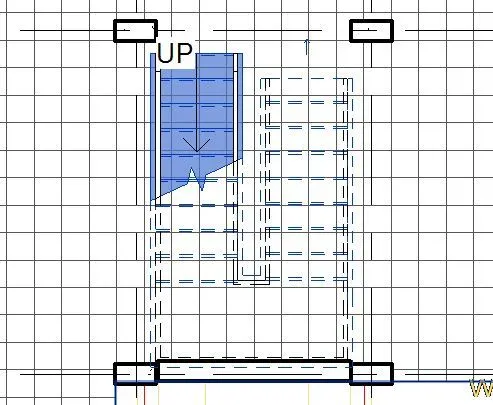
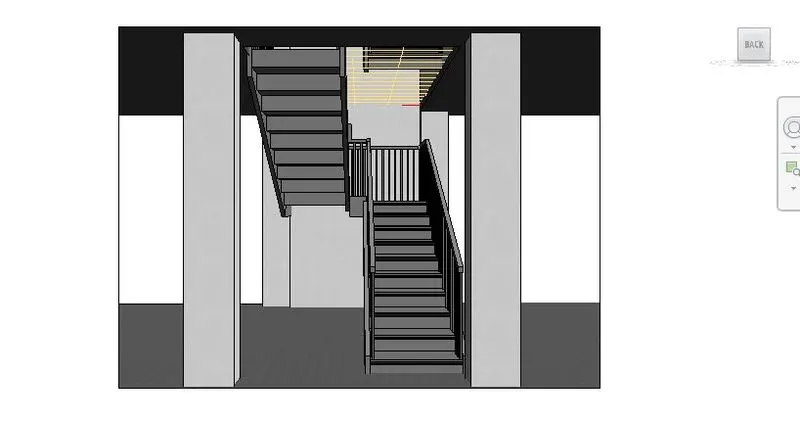
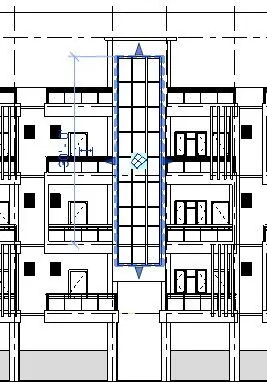
- Provided curtain wall in front of the building
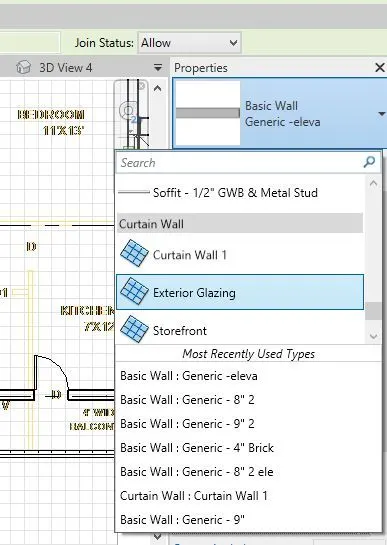
- Select curtain wall & place accordingly
- Goto Massing & site Select Site Components
- Place the Components such as Trees, Plants Etc
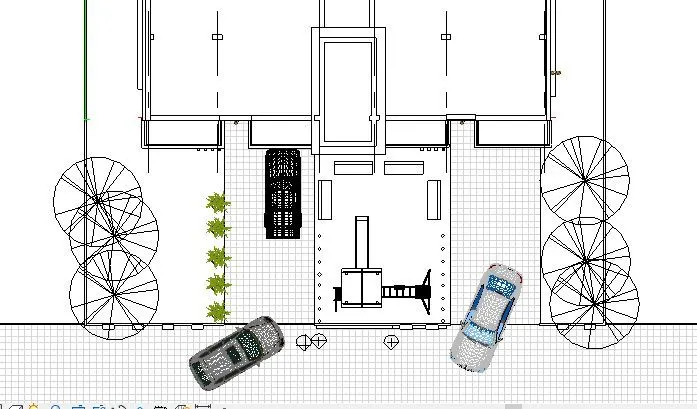
RESULT-
Successfully included the Required components in my project.
_______________________________________________________________________________________
5) Provide a set of drawings in an architectural and structural model to list the following details with categories and appropriate sheet templates included
a. Floor Plans with Annotations
b. Elevations
c. Sections
AIM - To Provide a set of drawings in an architectural and structural model
- Floor Plans with Annotations
- Elevations
- Sections
PROCEDURE-
- Open the revit file
- open the View Tab select the sheet tool.
- In sheet dialog box select the required sheet.
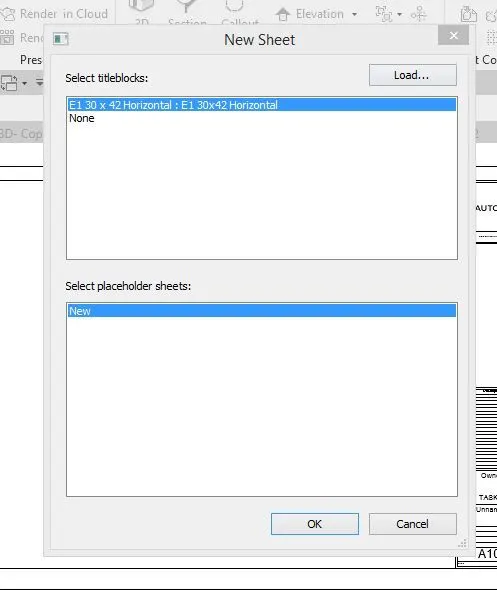
- Edit the title box as required, by Clicking on the names.
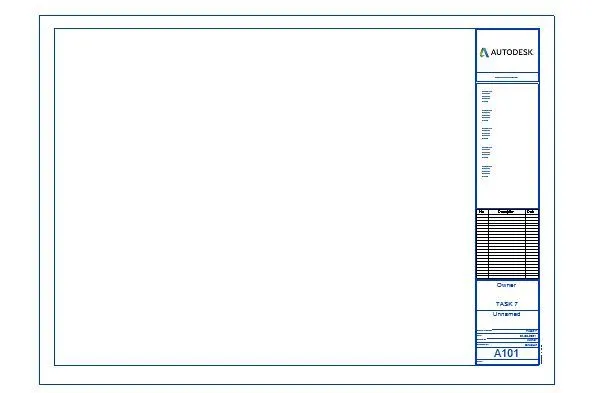
- Goto the insert tab and select the Images.
- Add images as per requirement.
- Similarly create different sheets for Elevation, Section etc.
RESULT-
Finally we have created all the required sheets
- Floor Plans
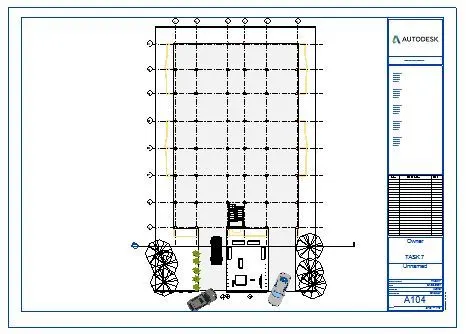
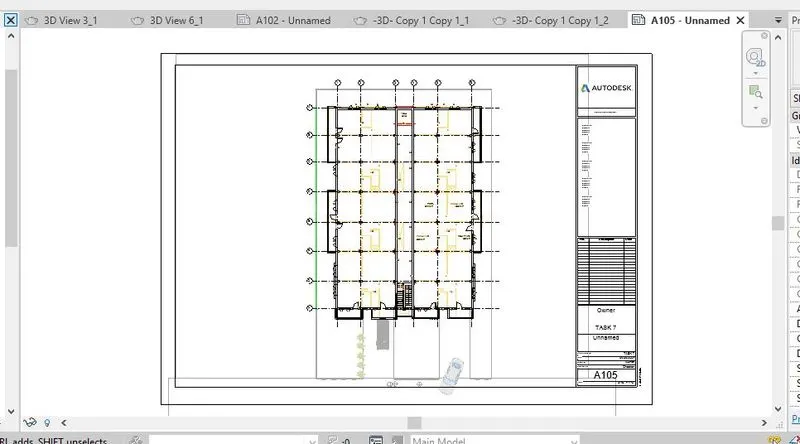
- Elevations
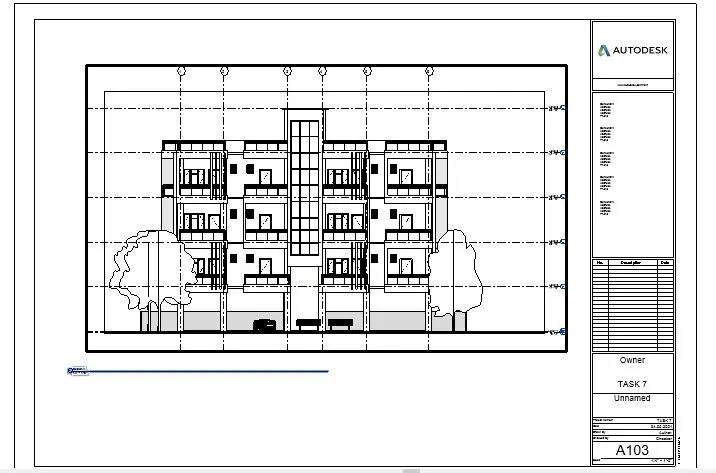
c. Sections
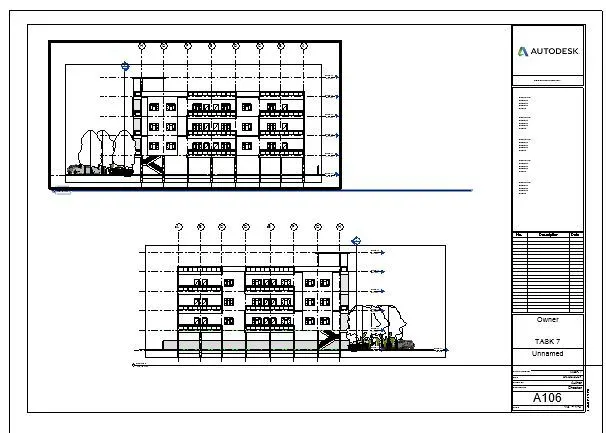
_______________________________________________________________________________________
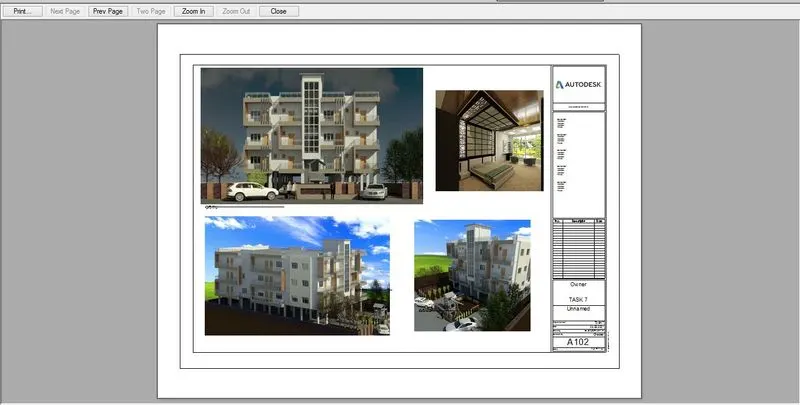
6) Using the Rendering settings, Render images of the 3D model produced and include the rendered images to the drawing sheets
a. Rendering from interior rooms
b. Rendering from out showing topographic features
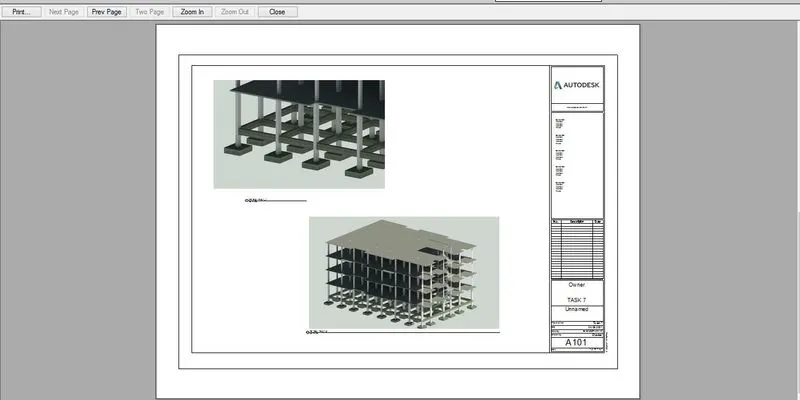
c. Rendering through structural framing
AIM-By Using the Rendering settings produced and include the rendered images of the 3D model.
PROCEDURE-
- Open the revit File, goto the Camera and create some 3d views to render.(for both interior & exterior)
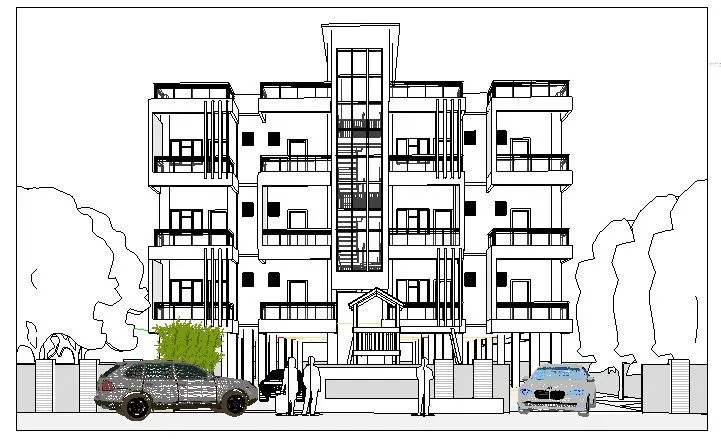
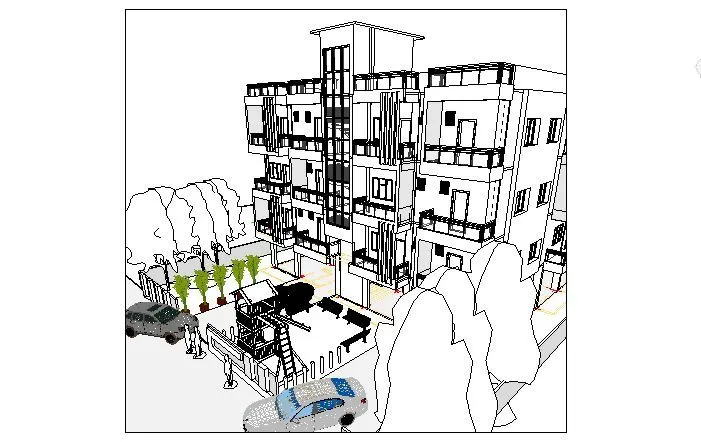
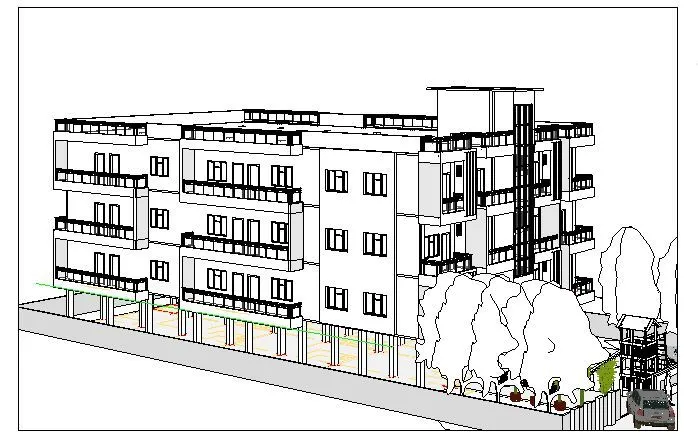
- Goto render option present in the bottom

- Click on render option then dialog box will appears
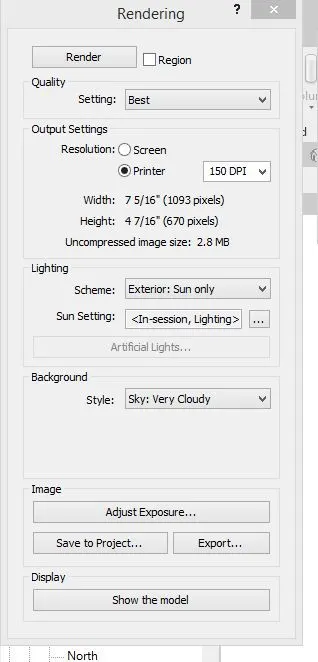
- Select the required Quality, resolution, lighting, etct. then click on render.
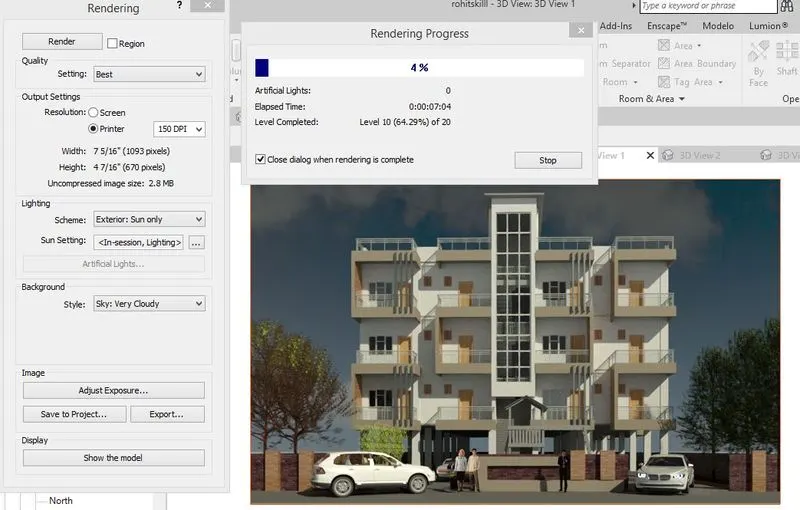
- Render all the selected views similarly.
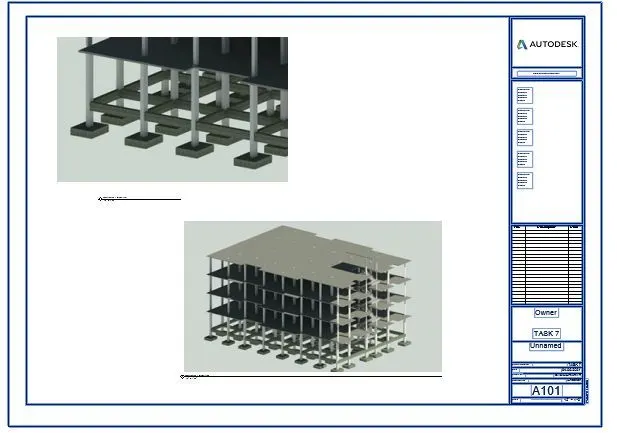
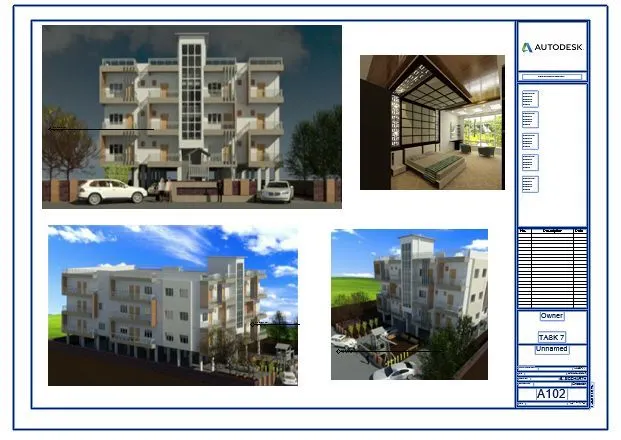
- Create Sheets & place all the renderd images produced for the presentation.
RESULT-
we have successfully rendered the images
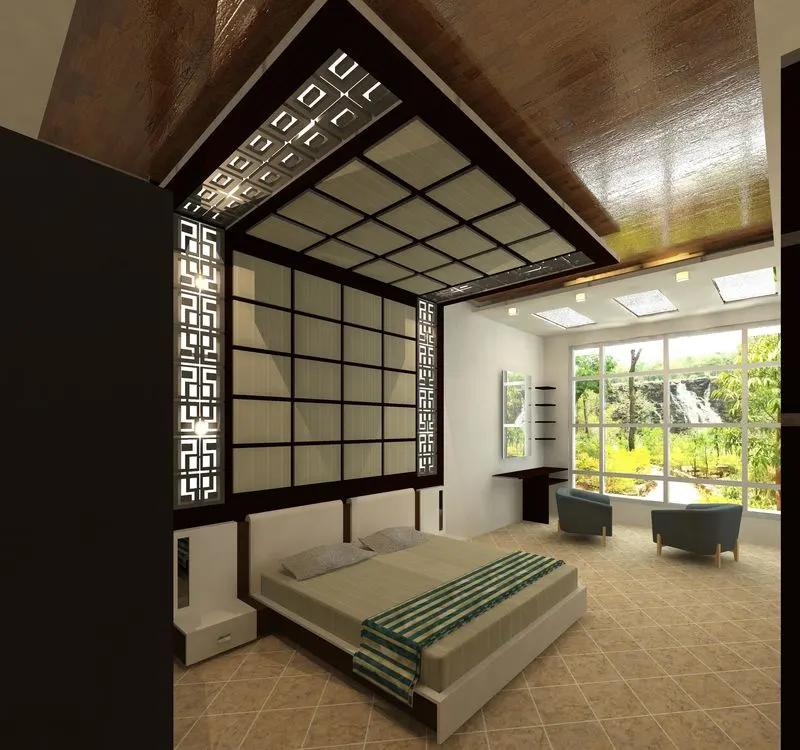
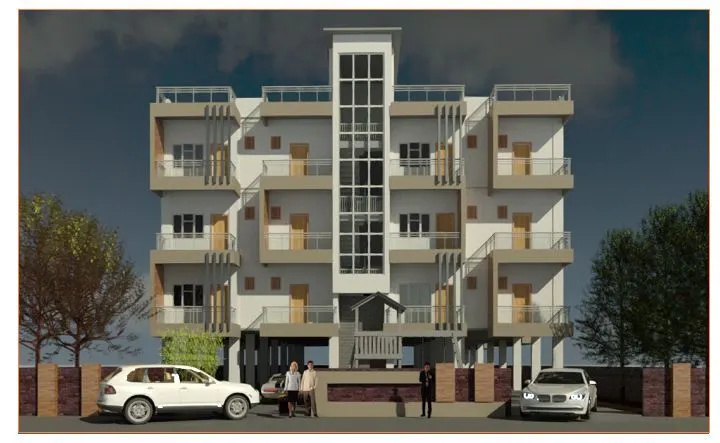
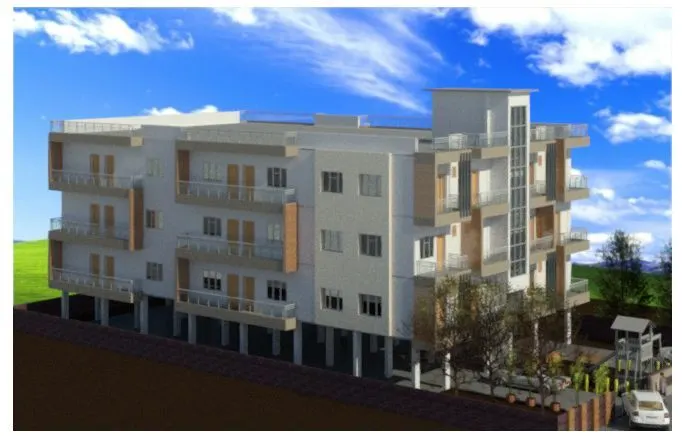
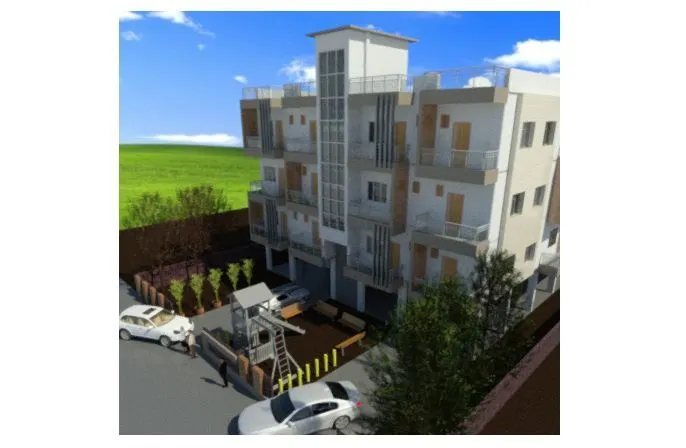
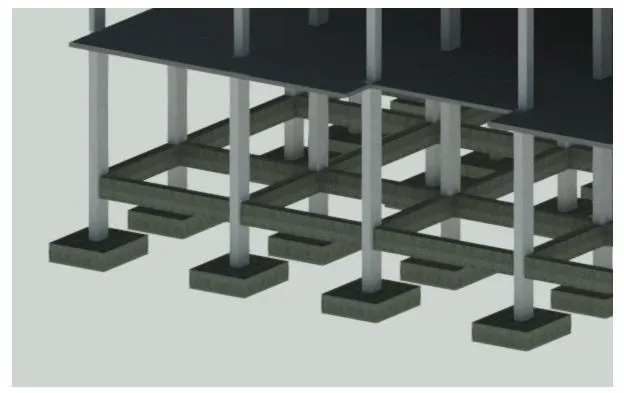
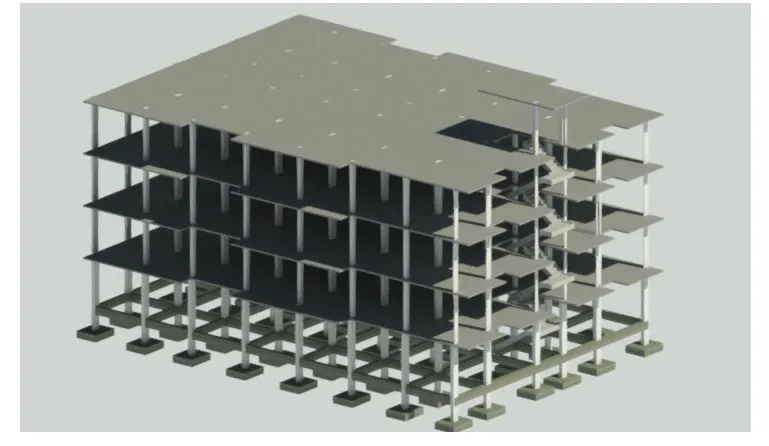
we have successfully rendered the images & created drawing sheets
_______________________________________________________________________________________
7) Print the set of drawing sheets created and submit the drawings from the architecture and structure model
AIM- To Print the set of drawing sheets created and submit the drawings from the architecture and structure model
PROCEURE-
- Open the revit file
- Goto sheets
- press "ctrl + p". Dialog box will appear.
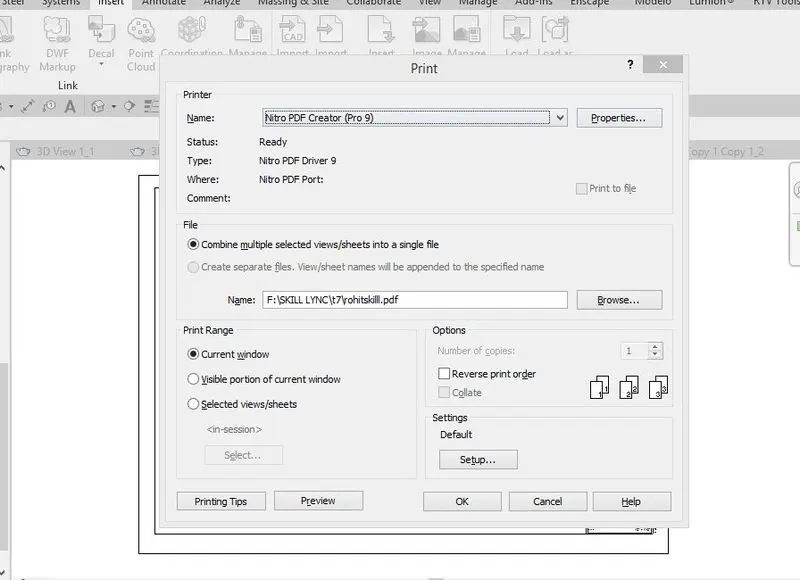
- Change the printer name as required & set up the sheet press ok
RESULT
we have successfully created drawing sheets from the architecture and structure model
_________________________________________________________________________________________________