Wiring harness routing & packaging Rules Week 3 Challenge
REPORT
P CLAMP
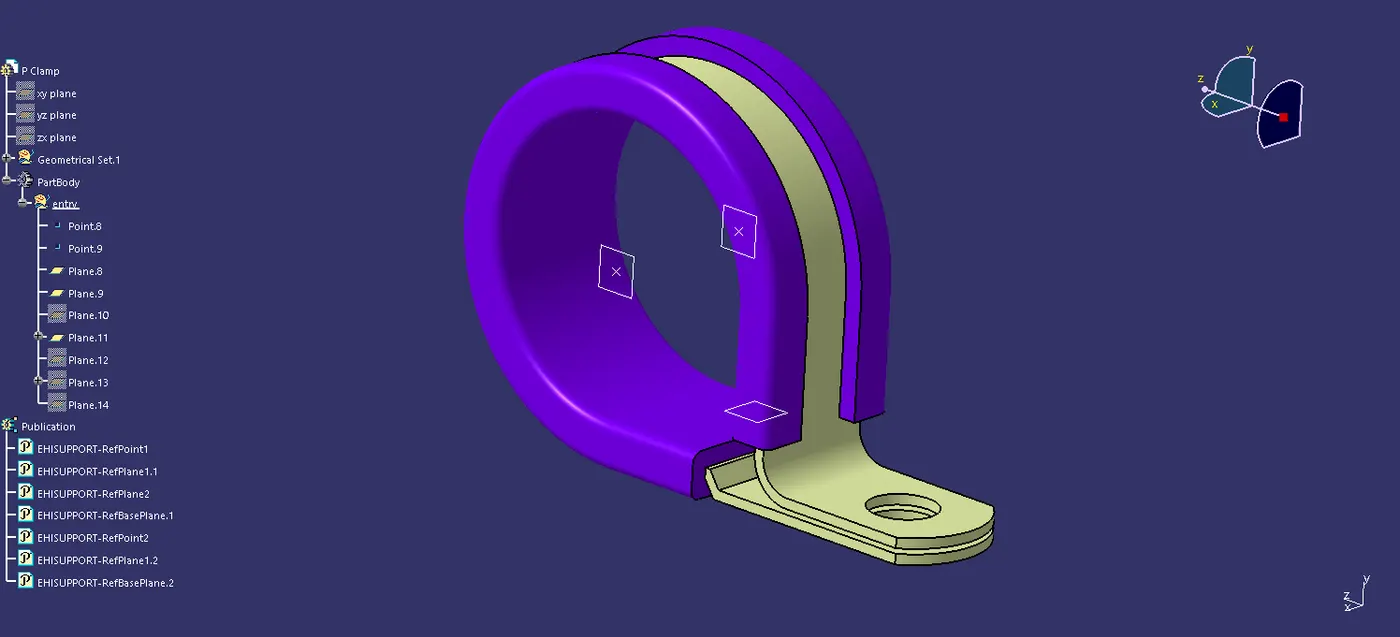
Step1: Import from the part in given link and open catia software, in p clamp is full open surface was there so i using the joint command in generative shape design workbench.
Step2: created the entry and exit way of the p clampand base plane is offseted to the 2mm because of wiring harness routing clearanes. in this and all planes are create using the poin of the p clamp.
Step3: Move to the electrical part design workbench and define the p clamp using the define support part commandand then the agin using the same command to fix the entry and exit point of the p clamp.By selecting the plane and point.
Step4: create a new catlogue document and create a catalogue and save it, then p clamp part is saved and using the device store add the catalogue in this part.
BACKSHELL
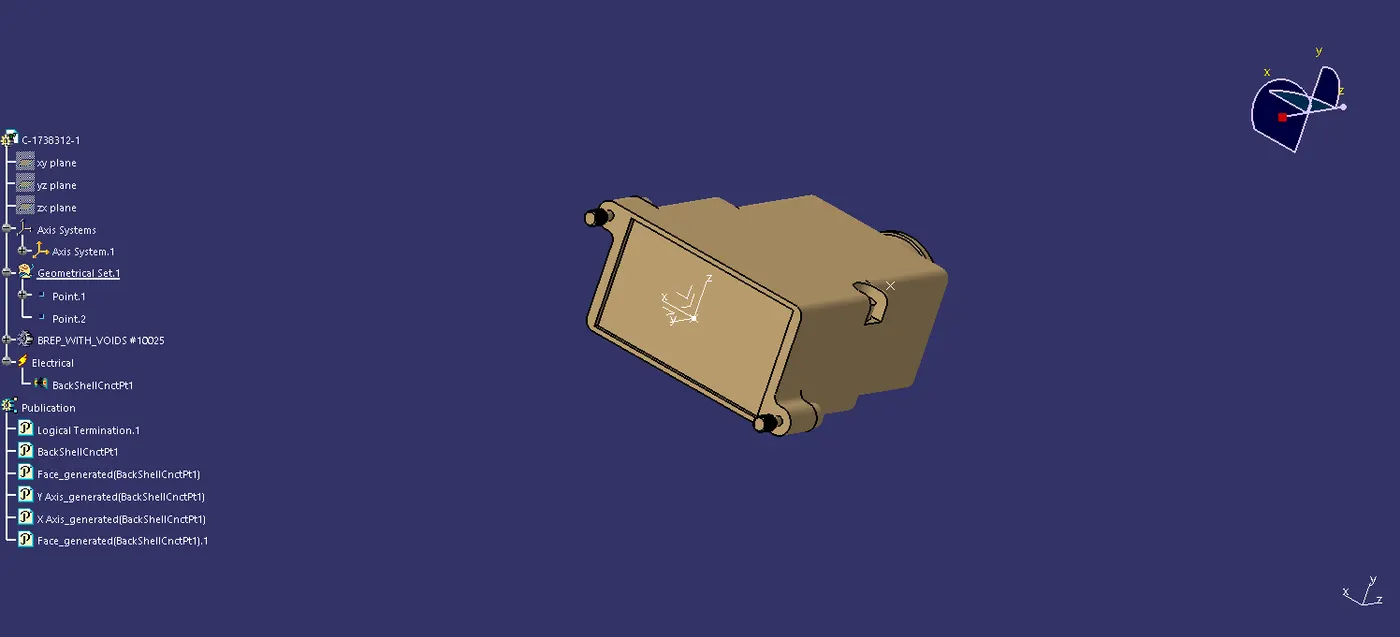
Step1: crated the point using the point between command and orgin the axis created then the coincideance is y axis and orientation is x axis.
Step2: created the point in the bundle connecting side of the backshell.
Step3: created the catalogue and add it to the catlogue in this backshell.
Corrugated tubes
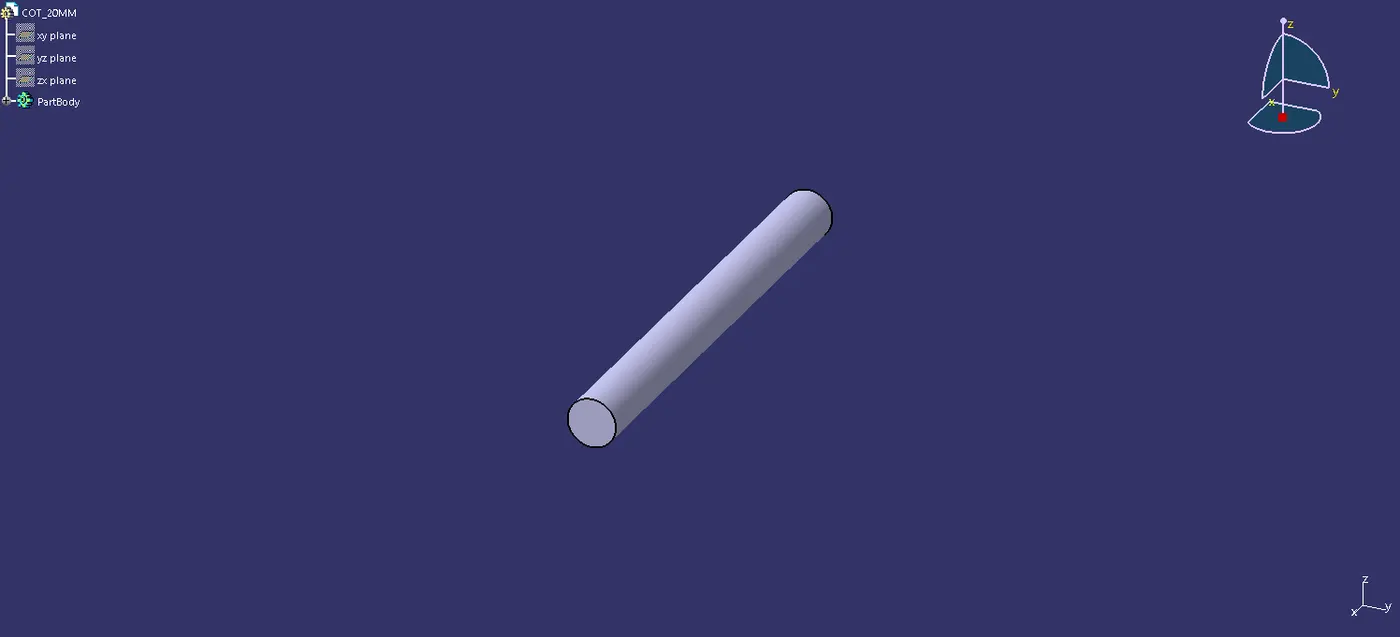
Step1: crating a new part and named it for the COT_20mm for example
Step2: selecting the part command the define protective part that is feeded in give diameter and thickness of the corrugated tube.
Step3: after that created the catalogue for the corrogated tube, that catalogue type is conduit and give ok.
Step4: Then that of the electrical pert design workbench add the corrugated tube in device store catalogue.