Wiring harness design in CATIA V5 - 3D modeling Week 7 Challenge
* First of all select the connectors and define them electrically and arrange it in proper way as per the CH_week 4, in mechanical assembly work bench.
* Then go to the electrical harness assembly workbench and route the bundle with connector as per given diagram shows.
*Then create new product file rename it as CH_week_7, then select flattening parameter command then branch is added save it.
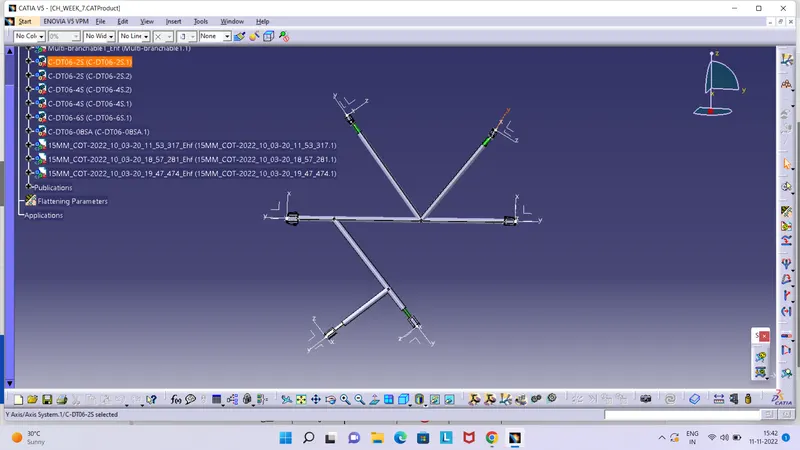 Then select the extract command and import the harness assembly which save as week_4 now assembly is added to a product file, then selected a flatten commond window will pop_up, in select in active plane as connector face then select one branch of assembly then click on all branches commond in window click on ok and update it. Some branches can be rotate as per given image by using ratate commond then the add protection covering on all branch and add updated harness file in to a product by using syncromesh command, then check the flatten by use of update flatten commond, all this activity do with wiring harness flattening workbench.
* Then go to create new drawing file with ISO landscape and save it as week_7_harness drawing then click on front view commond then make window of catia vertically then select face of connector which last time selected for flatten product of a harness assembly drawing will be added in a drawing file then click on blank area of sheet .
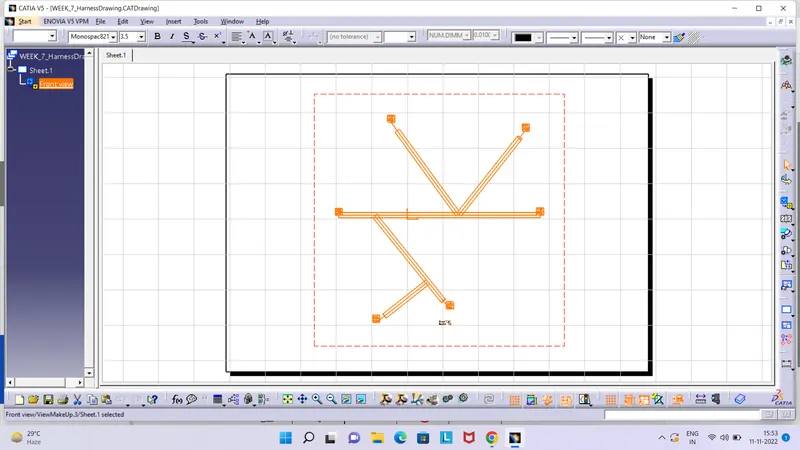
Drawing view not showing properlly so that's why click right button of mouse on the view (dotted line) go to properties tick the 3D wireframe with always visible and save the drawing.