Week 9 - Project - A pillar Design with Master Section
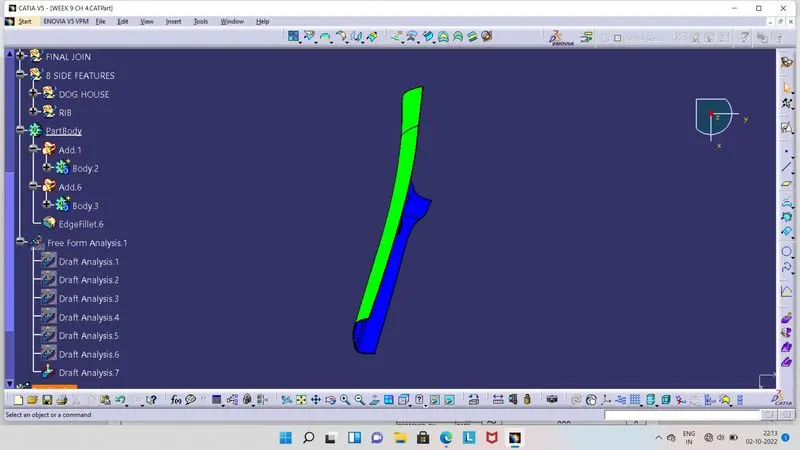
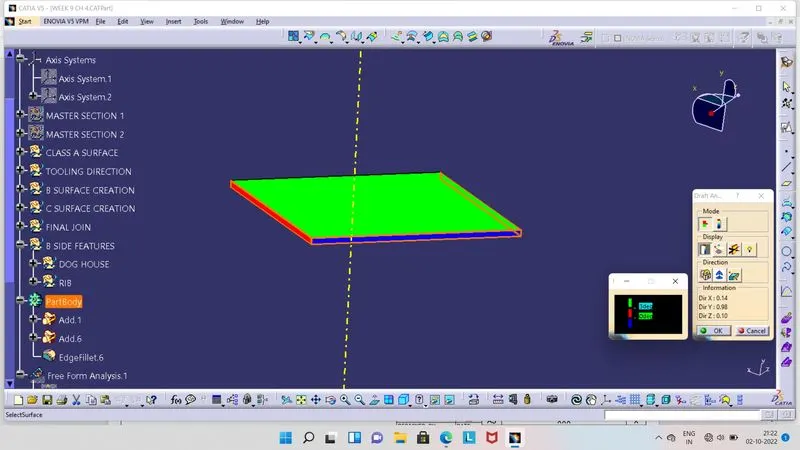
- Screenshots of Draft Analysis report for the given Class A Surface.
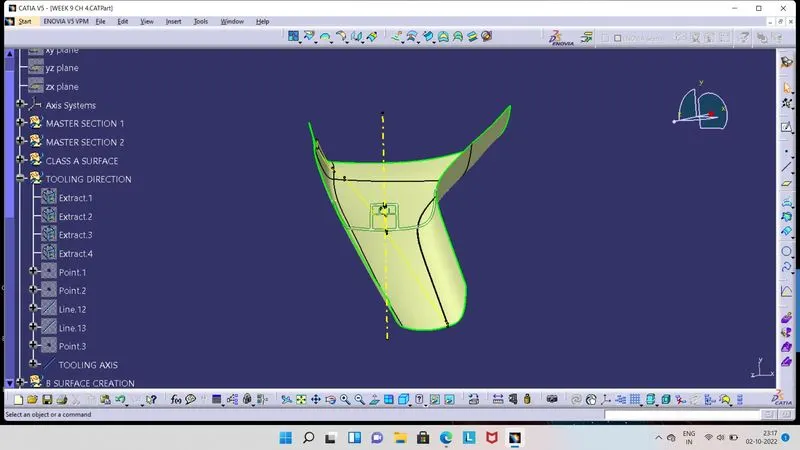
- For Draft Analysis, we need Tooling Axis. Here we have input as a Class A Surface with 2 Master sections.
- So, by using this Mastersections, as extracting lines from it, creates a bisecting line as we get the two bisecting lines from a exracted lines.
- Then, what final bisecting line we get, it is our Tooling Axis.
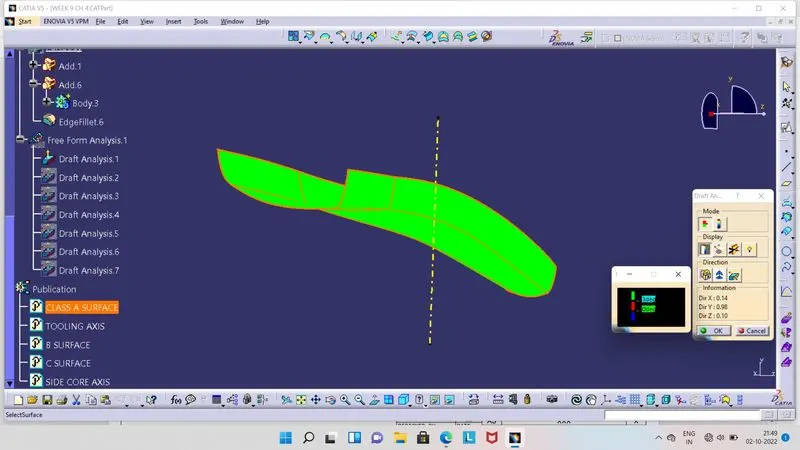
- As we get Tooling Axis, we can go for Draft Analysis.
- Ensure that our component is in the Material View mode while Draft Analysis.
- Click on Feature Draft Analysis tool, so as shown in above image at right hand side 2 boxes will get appear on our screen.
- From there we have to select Compass and move the compass at Tooling Axis such that, Compass should be align with it.
- Then click on lock symbol and then on Class A Surface. So surface will get colour on it.
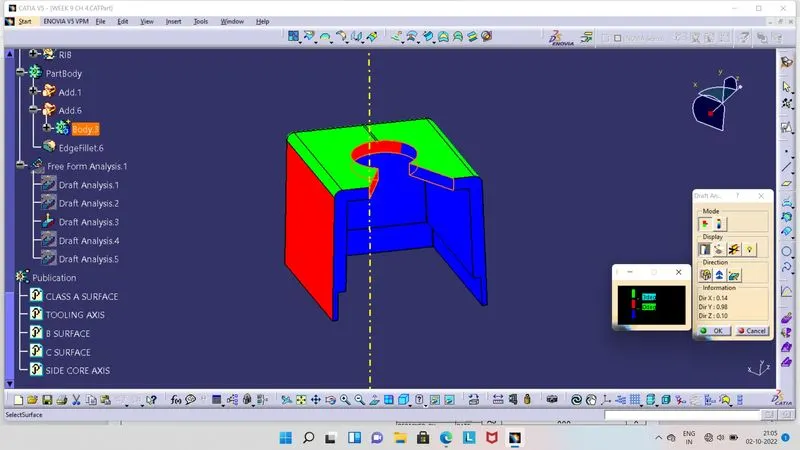
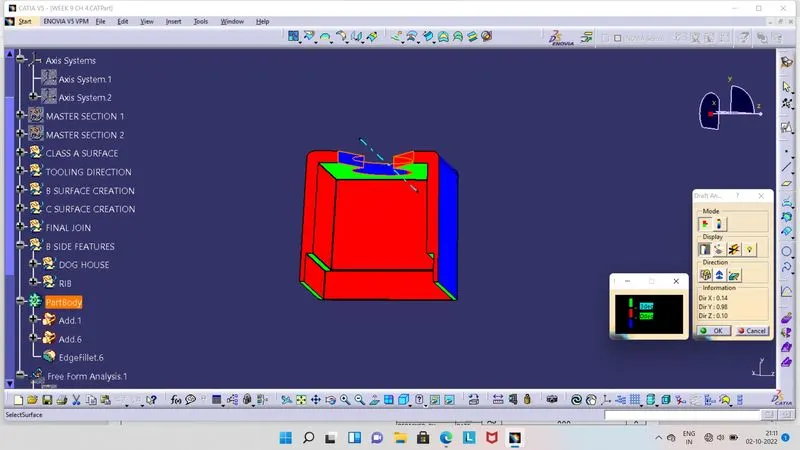
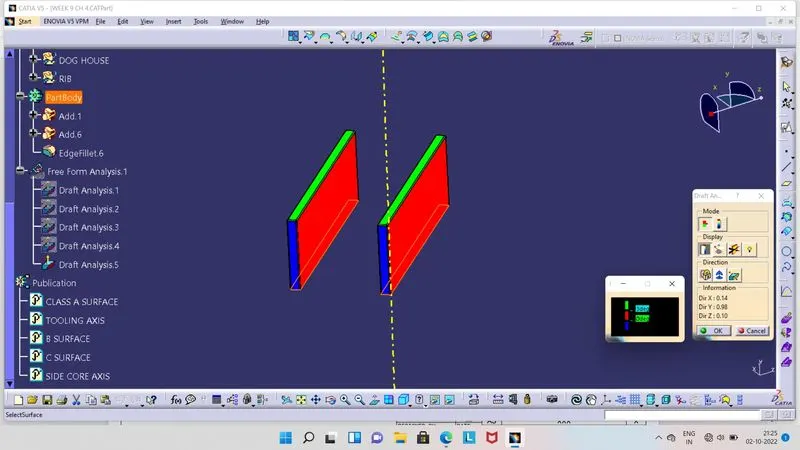
- Green colour indicates that, draft angle is above 3 degrees.
- Red colour indicates that, draft angle is between 0 to 3 degrees.
- Blue colour indicates that, draft angle is below 0 degrees or negative.
- Screenshots of Draft Analysis report for the Plastic Component.
- Class B Surface :
- Its a offset surface of a Class A Surface.
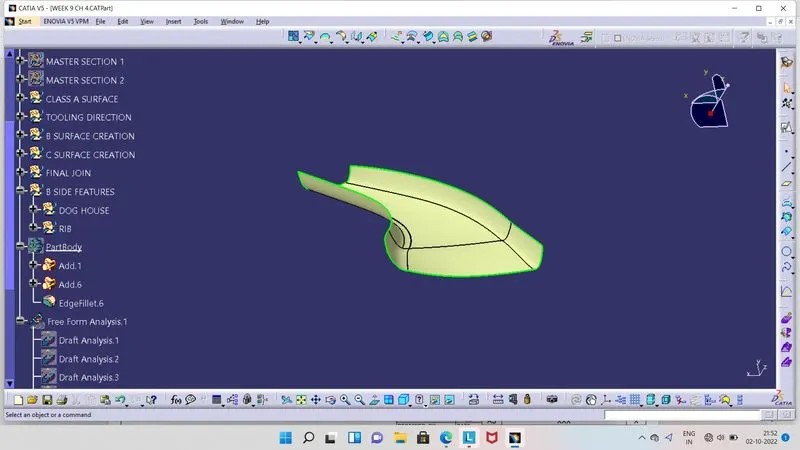
- From measuring the value of Mastersection, here we have given 2.5 mm offset and at left side of as shown in above image, we have given 1.945 mm offset from Class A Surface.
- Class C Surface :
- Its a joining surface of Class A and B Surfaces.
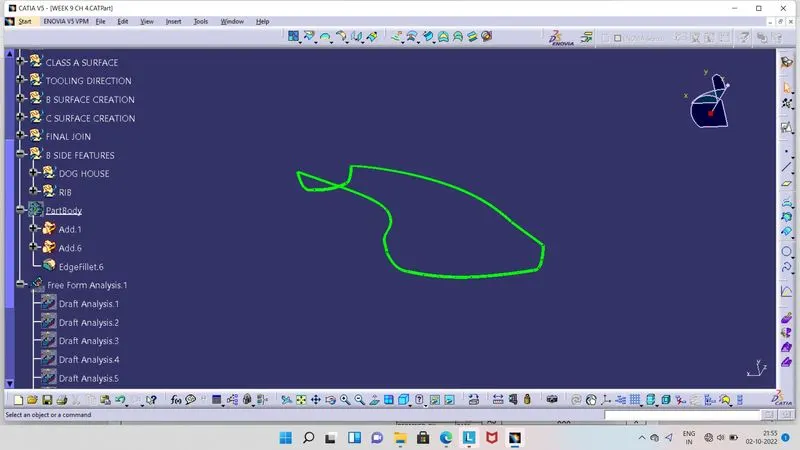
- Joining of Class A, B and C surfaces.
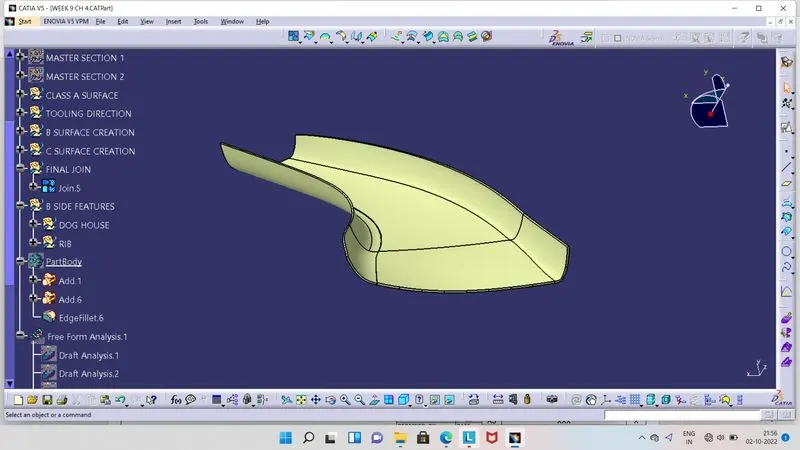
- Plastic Component without Dog House and Ribs.
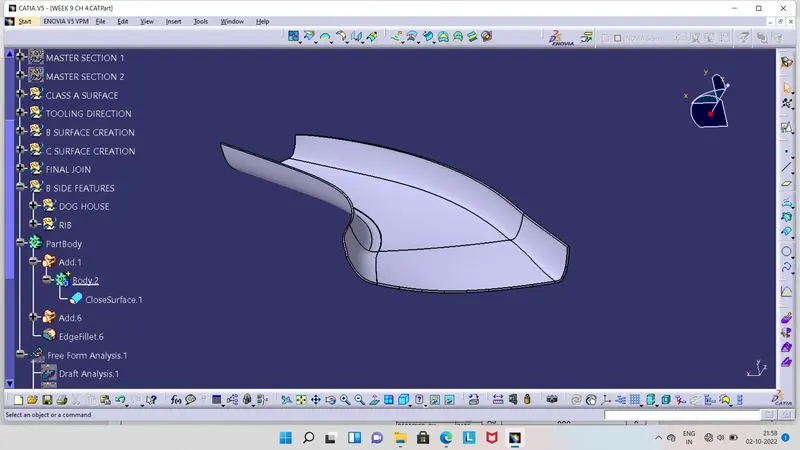
- Draft Analysis of Plastic Component.
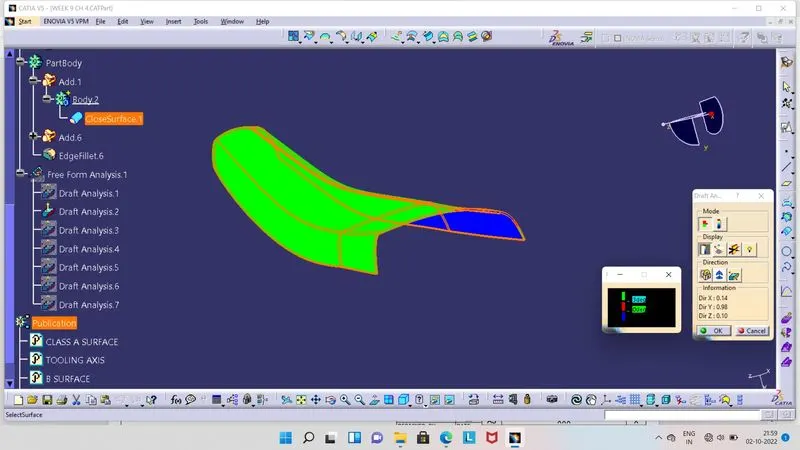
- Click on Draft Analysis tool.
- Ensure that our component is in the Material View mode while Draft Analysis.
- Click on Feature Draft Analysis tool, so as shown in above image at right hand side 2 boxes will get appear on our screen.
- From there we have to select Compass and move the compass at Tooling Axis such that, Compass should be align with it.
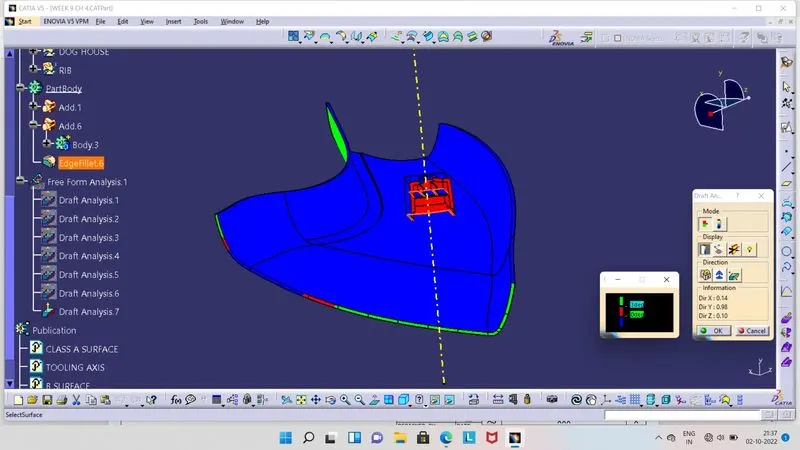
- Then click on lock symbol and then on Plastic component. So, component will get colour on it.
- Green colour indicates that, draft angle is above 3 degrees.
- Red colour indicates that, draft angle is between 0 to 3 degrees.
- Blue colour indicates that, draft angle is below 0 degrees or negative.
- Dog House :
- It is a engeering feature use to prevent the main surface from the Sink Marks.
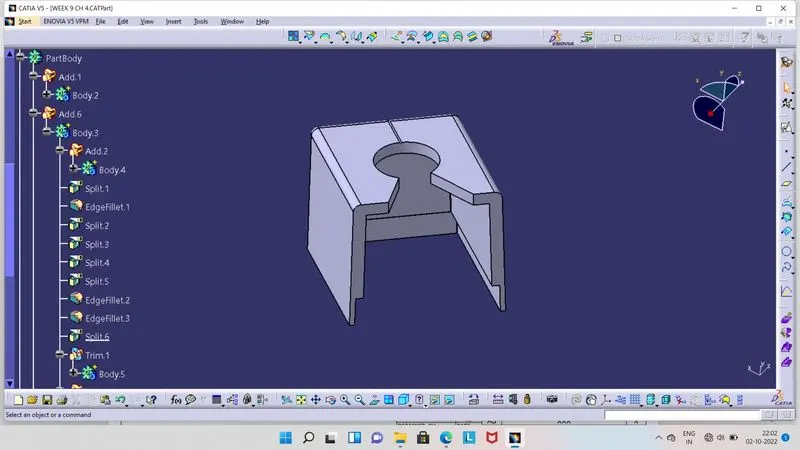
- Here we have created a Dog House using Given 2 Mastersections.
- So width of it is 23.755 mm and height is 27.435 mm.
- By having relation of base thickness for Dog House as, 0.4 × thickness of the main component. So we get 1 mm, here given wall thickness of Dog House is 2.5 mm.
- So, we have to deduct 1.5 mm from it at base of Dog House to get 1 mm thickness, upto to height of 3 mm to 6 mm by having relation for it.
- We have given here 5.9 mm height from base of the Dog House.
- Fillet radius is given in Mastersection is 1.5 mm, so we have applied on Dog house at the outer side of it and given minimum Fillet 0.1 mm at inner side of it.
- On the top portion of Dog House we have given 6.326 mm radius for the circle and creates lines with 30 degree angle from center axis from the center point of the circle.
- Draft Analyis of Dog House with Main Tooling Axis :
- Draft Analysis of Dog House with Side Core Axis :
- Horizontal Rib :
- For supporting and give strenght to the component Ribs are used.
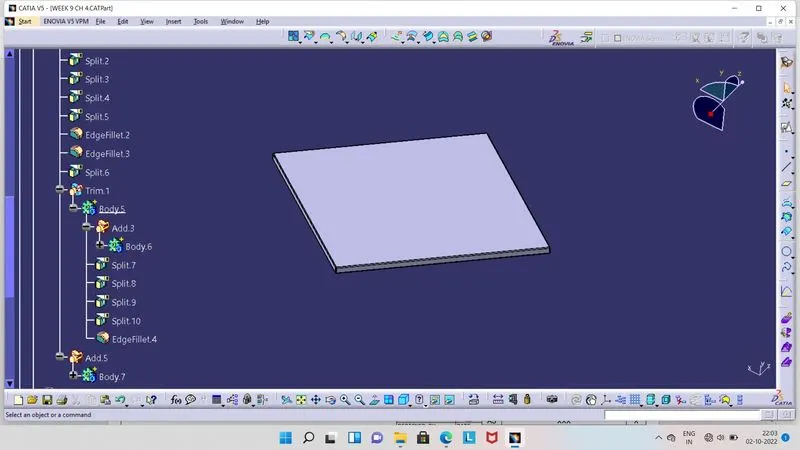
- By extracting the line of Rib from given Mastersection, we have created Rib by giving thickness to it after its extrude.
- Here its thickness is 1 mm and we have given 0.1 mm radius fillet at all side of it.
- Draft Analysis of Horizontal Rib :
- Vertical Ribs :
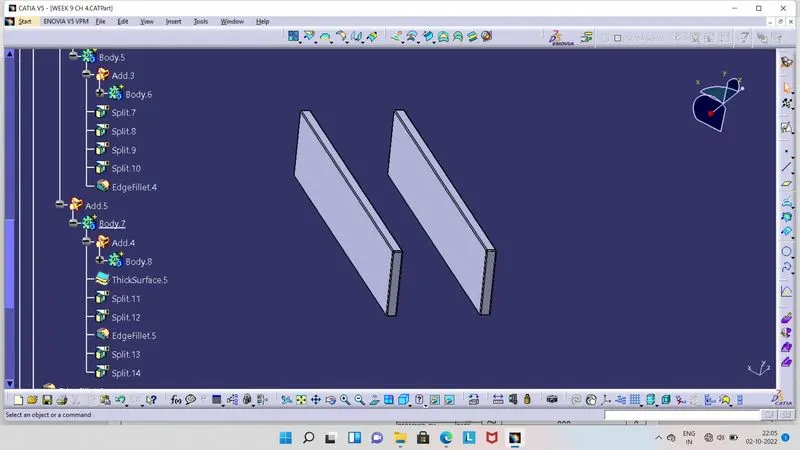
- Here its thickness given is 1 mm and height 6 mm.
- We have given 0.1 mm Fillet radius at all side of it.
- Draft Analysis of Vertical Ribs :
- Dog House with Ribs :
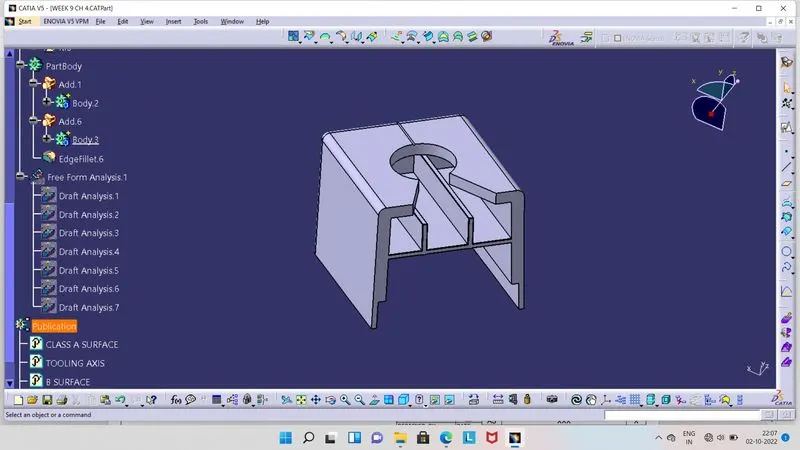
- Draft Analysis of Dog House with Ribs :
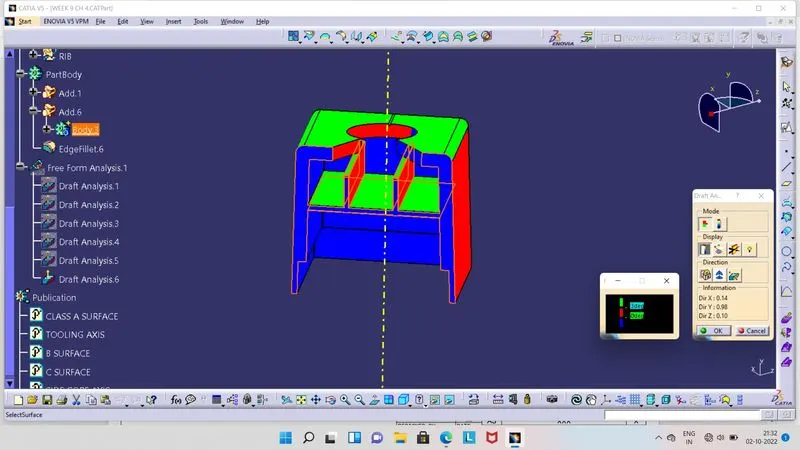
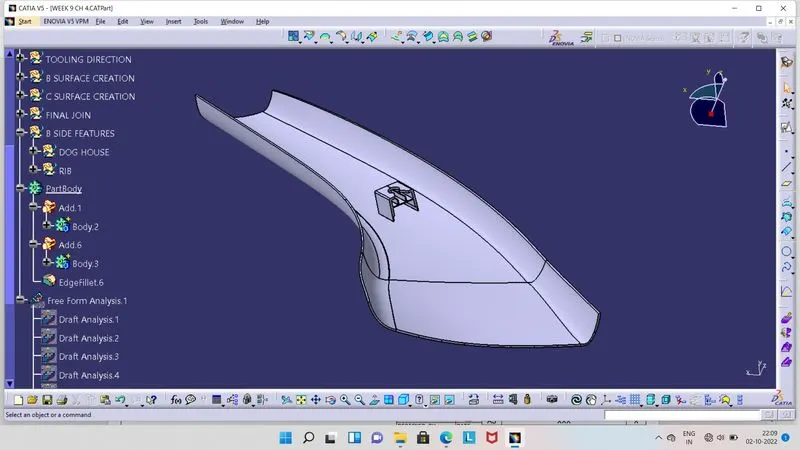
- Final Plastic Component with Dog House and Ribs :
- Draft Analysis of Final Plastic Component with Dog House and Ribs :
- Final Component's view in various orientations.
- Isometric View :
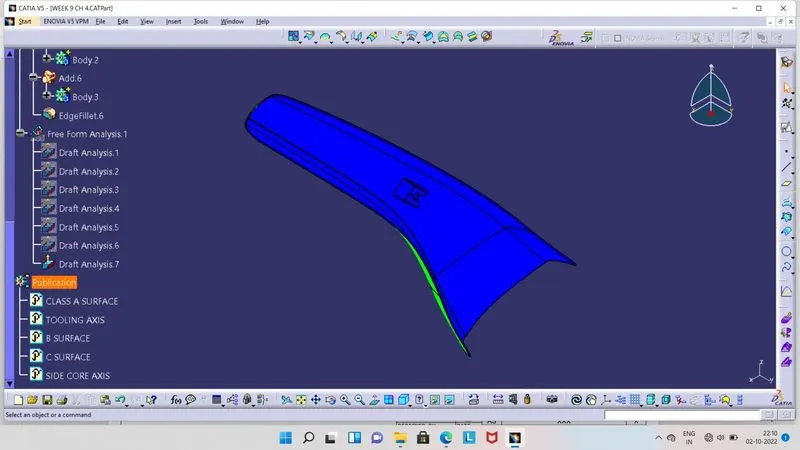
- Front View :
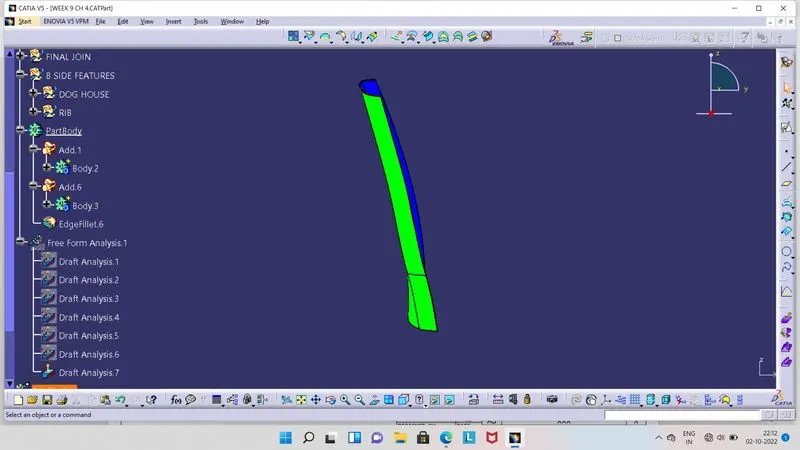
- Side View :
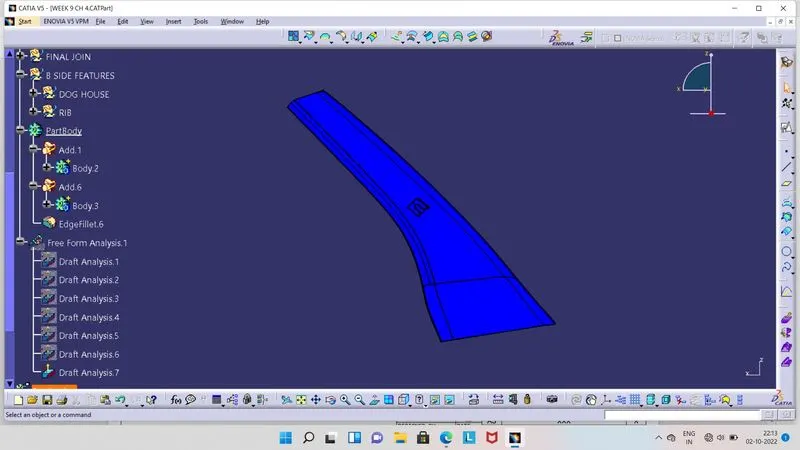
- Top View :