Week 9 - Challenge 2 - Switch Bezel Design
Dear sir,
Please find the attached CATPart file & the tooling axis and draft analysis report attached below.
Switch bezel Report
First I have opened SWITCH BEZEL STEP FILE provided for the challange, then Saved it as .CATPart file in which class A Surface was pre existed and created class B & C surfaces, tooling access and date the draught analysis.
- I renamed the first geometrical set as "Input" under which "Class A Surface" and "Tooling Axis" geometrical sets are present. Class A surface is available under "Class A Surface" and under "Tooling Axis" I created tooling axis.
-
Tooling Axis Creation
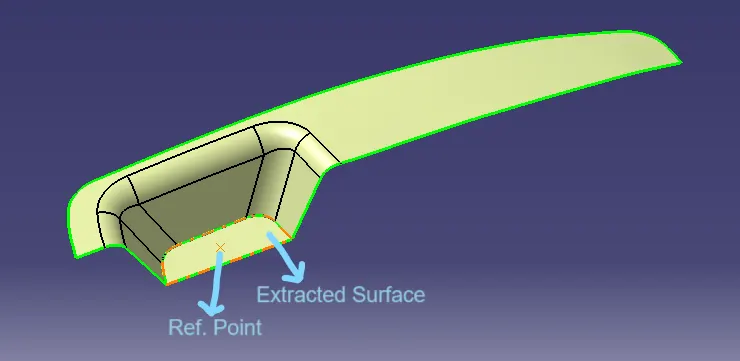
- 1st extracted the surface shown below, created "Ref. Point" on that surface, 10 created "Intersecting Access System" on that point.
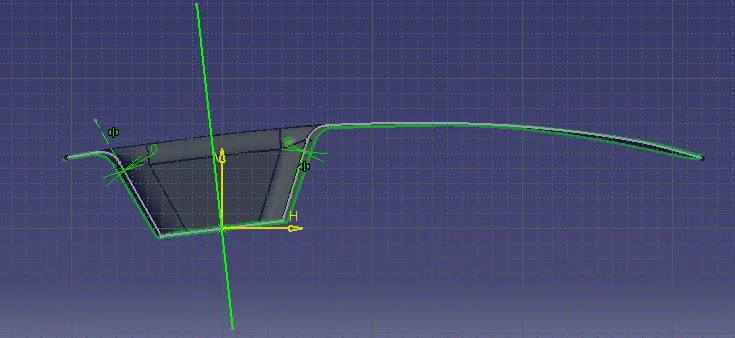
- By applying intersection command intersected the class A surface along Y-Z plane. Then inserted a positioned sketch in Y-Z plane and created a vertical line on "Ref. Point" by bisecting method.
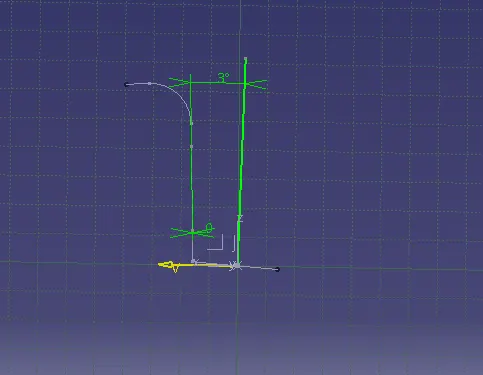
- Again intersected class A along Z-X plane and created a line with an angle of 3 deg. with respect to ref. line on the same point.
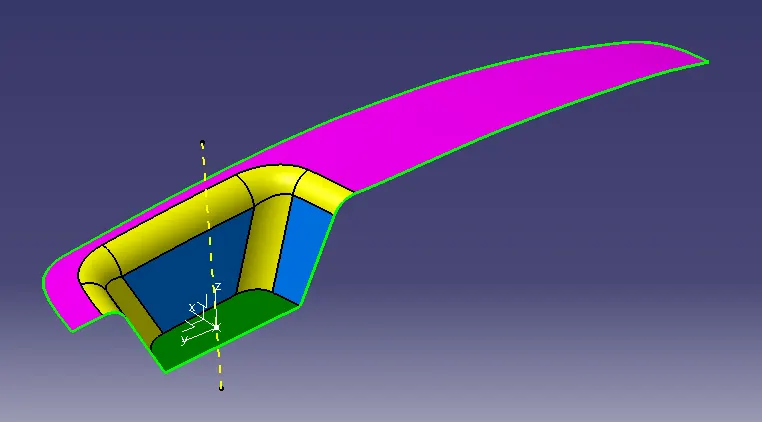
- Bisected previous two lines and created the "Tooling Axis", then changed the colour, thickness and changed it into a dotted line.
-
Draft Analysis of Class A
- For draft analysis I clicked in "Customize View Parameters" on view mode & select "Material", then go to Insert > Analysis > Feature Draft Analysis.
- The default analysis mode is Quick Analysis Mode. In this mode only 3 options are there just like the below image, any angle above 3 deg. will be green, any angle in between 0 to 3 deg. will be Red and any angle less than 0 will be Blue. You can set the limits of the angles by double clicking on them. Once you select on any place of the class A surface as per the angles the colours of the places will be changed. Here all the angles are more than 3 deg. so whole surface is green. The standard minimum draft angle is 3 deg. so I was checking by every angle with respect to 3 deg.
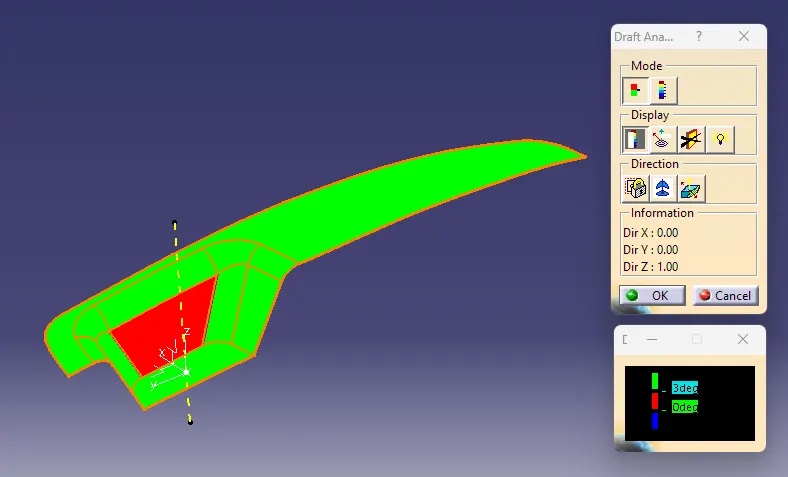
- Once I switched to Full analysis mode I can check the draft angle in more detail. In this mode only so many options are there just like the below image, any angle above 20 deg. will be Red, any angle in between 2 to 20 deg. will be Cyan, any angle in between 0 to 2 deg. will be Green, any angle in between -2 to 0 deg. will be Yellow, any angle in between -20 to -2 deg. will be Navy Blue and any angle less than -20 will be Brown. You can set the limits of the angles by double clicking on them. Once you select on any place of the class A surface as per the angles the colours of the places will be changed. Here all the places with angles more than 20 deg. are Red, places with angles in between 2 to 20 deg. are Cyan and only one surface is Green because, the angle is between 0 to 2 deg. This mode is specially used for the complex surfaces.
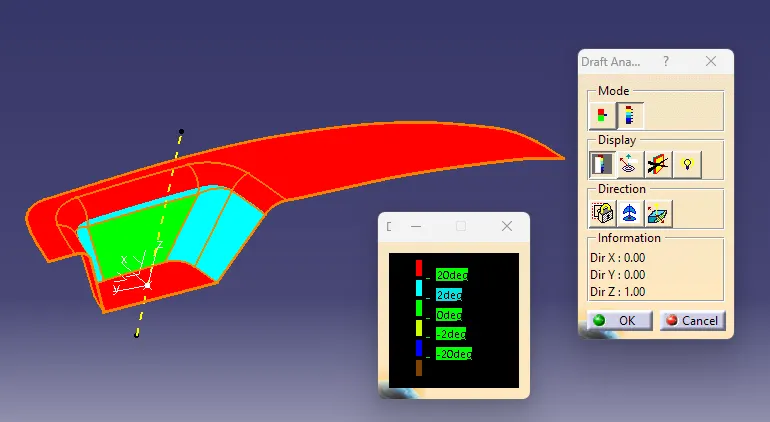
-
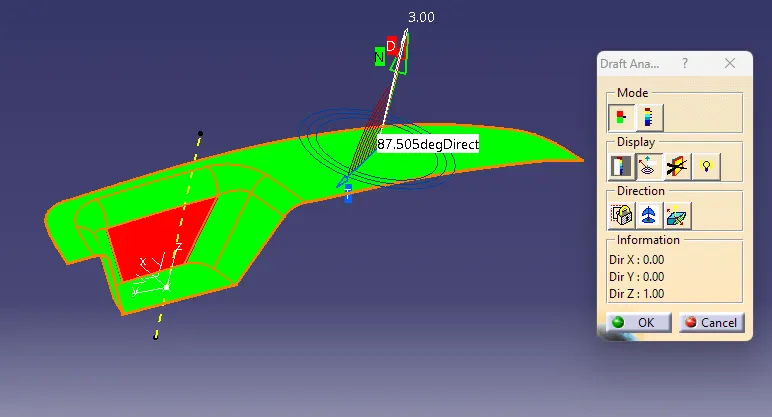
In display section 1st option is Color Scale option, which surface colors will be change as per the draft angles. 2nd option is Analysis under the running point. In this option can check the draft at any point. You can see the below image it is showing 87.505 deg. on that point after selecting that option. Rest 2 options are not much useful.
- In direction section 1st option is for locking or unlocking the draft direction. 2nd option is compass option for defining draft direction, which is shown in below picture. 3rd option is inverses the draft direction.
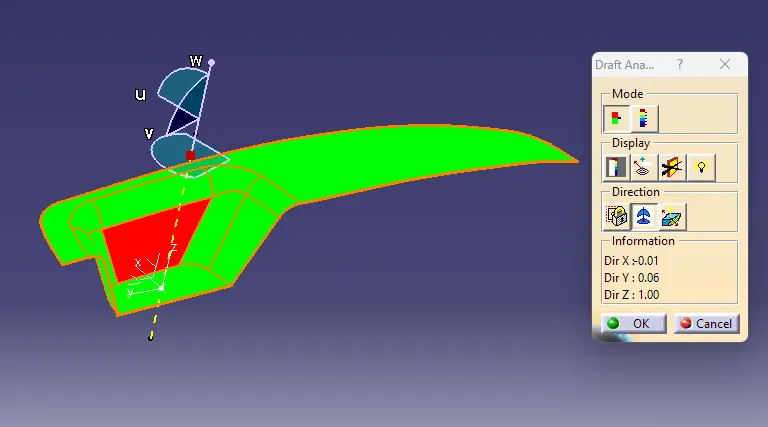
- Basically while analysing the draft angle of class A suface, 1st on the view mode I selected the customize view parameters & then selected material on the next dialog box. Then brought the compass near the tooling axis and alighned with it. Checked the angles with color scale option and also checked the angle by analysis under the runnung point option.
-
Draft Analysis of Final Plastic Component/Solid Body
-
I did the draft analysis of the solid body same way I did the class A surface. The color scale images of the solid body in various orientations are attached.
-
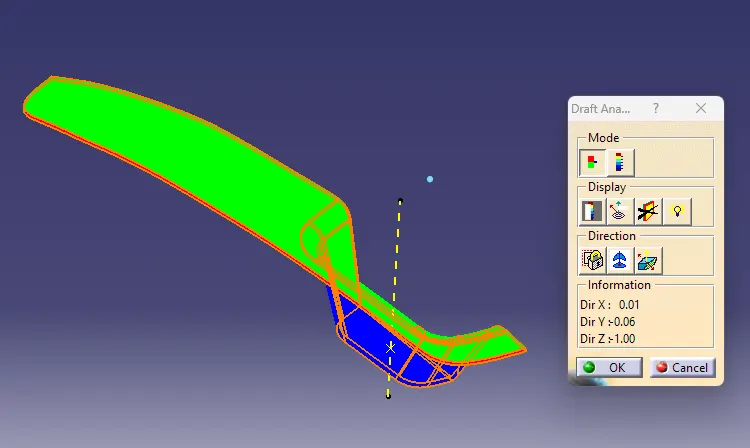
Isometric View
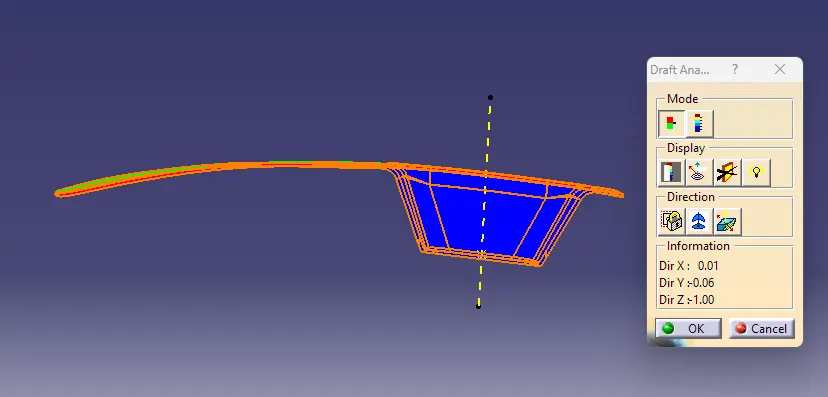
Front View
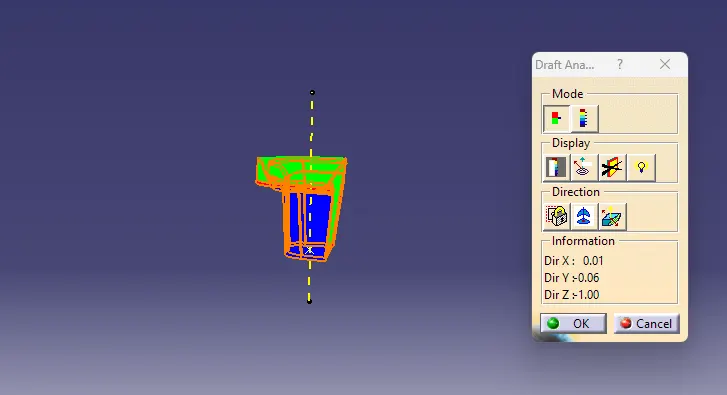
Side View
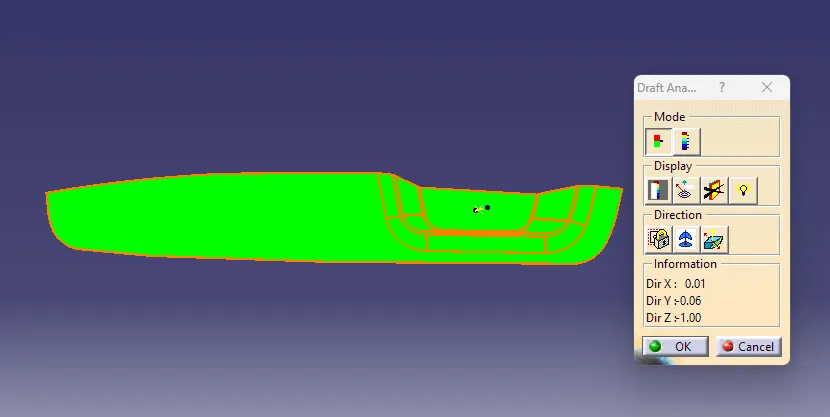
Top View
Thanks & Regards
Lohit Tripathy