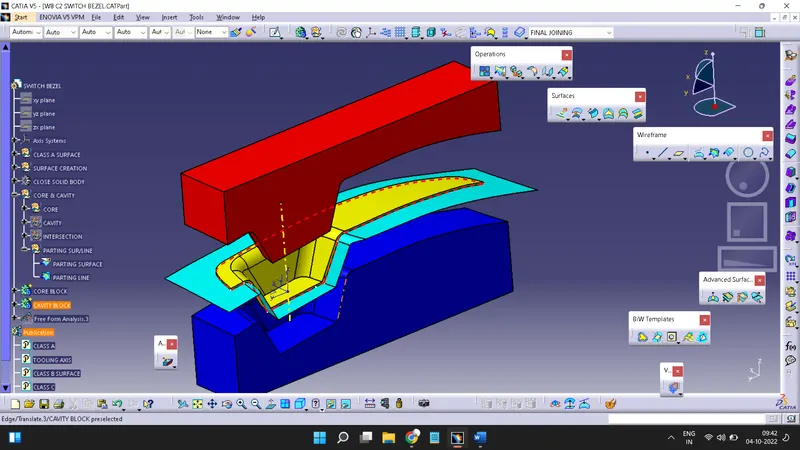
Week 8 - Challenge 6 - Core & Cavity Design
Objective:- The main objective of this challenge is to design a Core and Cavity for a Switch Bezel in CATIA V5 with the help of a surface workbench.
Draft Analysis:-
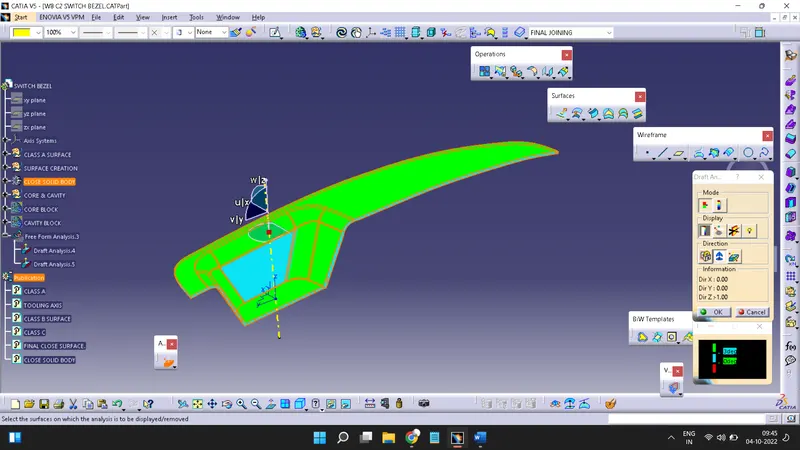
A draft analysis is helps to detect a angle of a component. it will be easily removed. In catia a draft analysis is performed based on colour rain identify zones Using a draft and by using a draft analysis we can verify taper angle.
Examine angle change with a face as well as look at what time line and injection surface in parts
A draft analysis help to give a proper draft angle
Draft angle describe the amount of taper of mould which perpendicular to the party line
Minimum draft angle is required 3 degree.
Creation Of Core Block:-
Firstly take a boundary of CLASS A surface and Extrapolate it
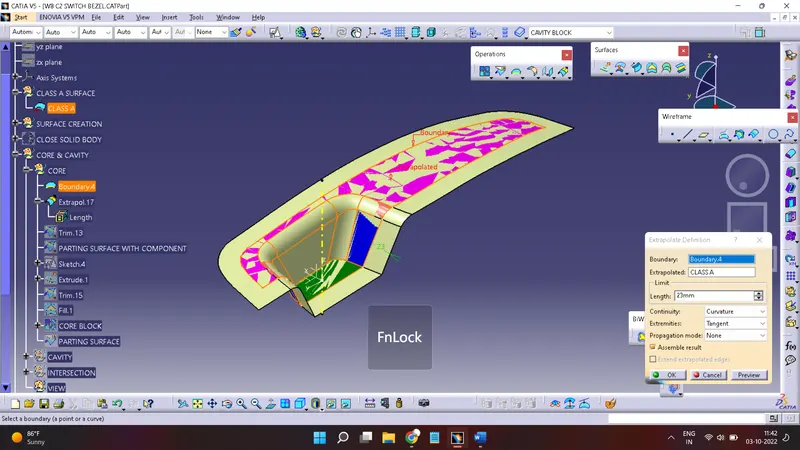
After extrapolation of CLASS A unhide the CLASS C surface and trim the unusable part
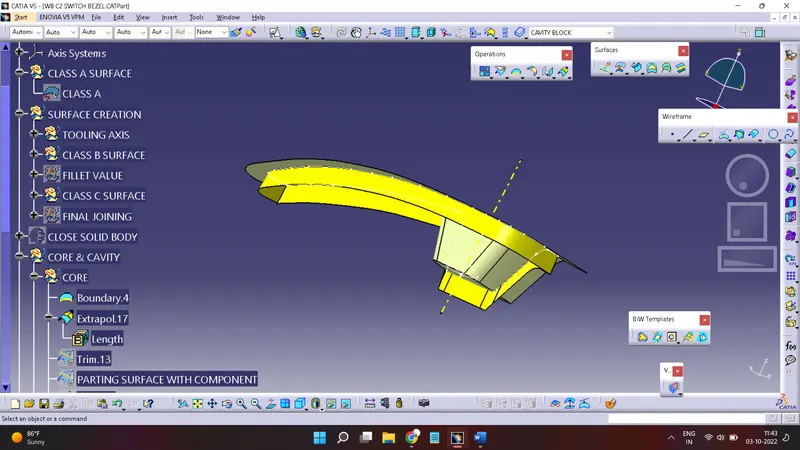
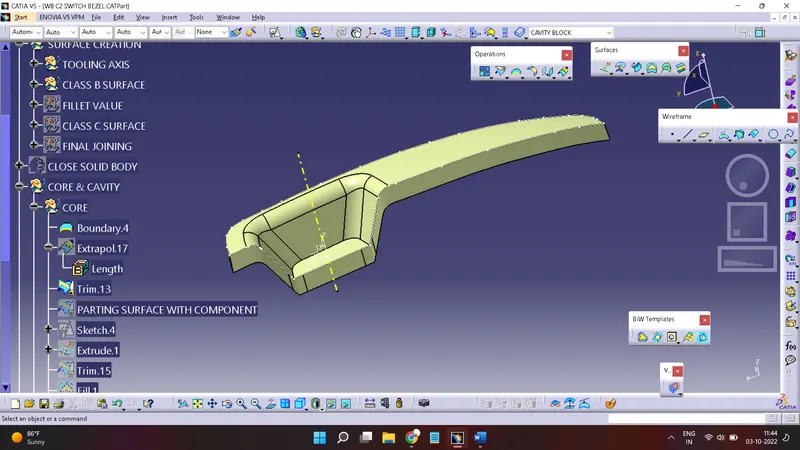
Now Unhide CLASS B surface
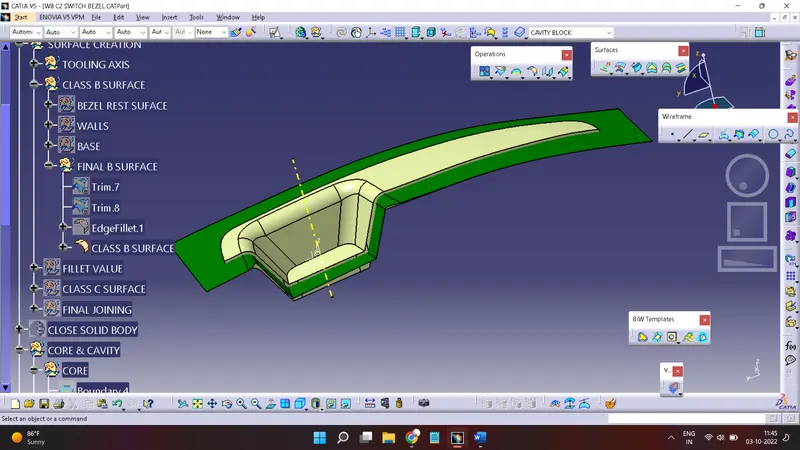
Do trim again in joining of CLASS A & CLASSS C with CLASS B
Take outer part of class B surface
This is a Parting Surface With Component which have impression of SWITCH BEZEL
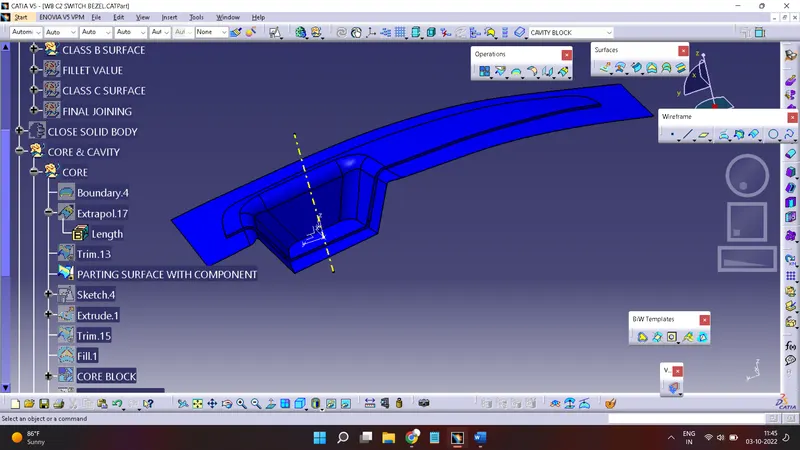
Now need to create a core block
For this select the base surface plane and create a rectangle within a parting surface
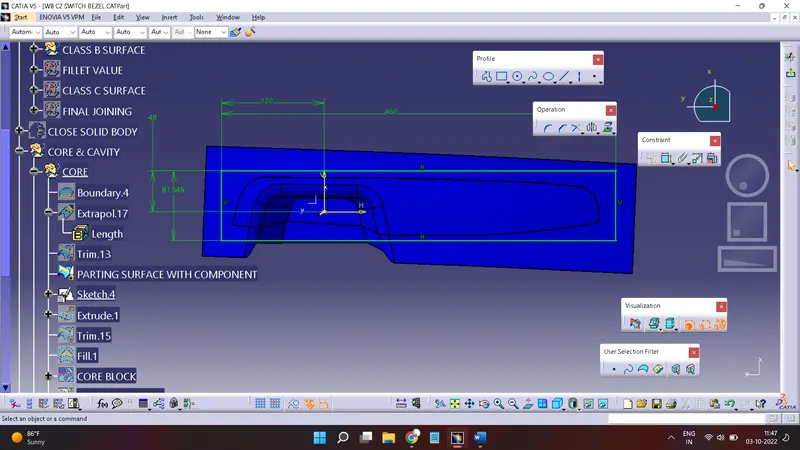
Extrude the surface
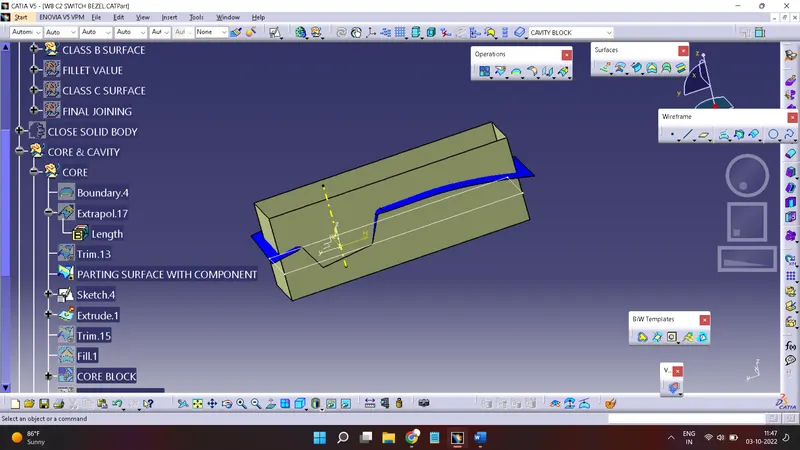
By using a trim command remove unusable surface
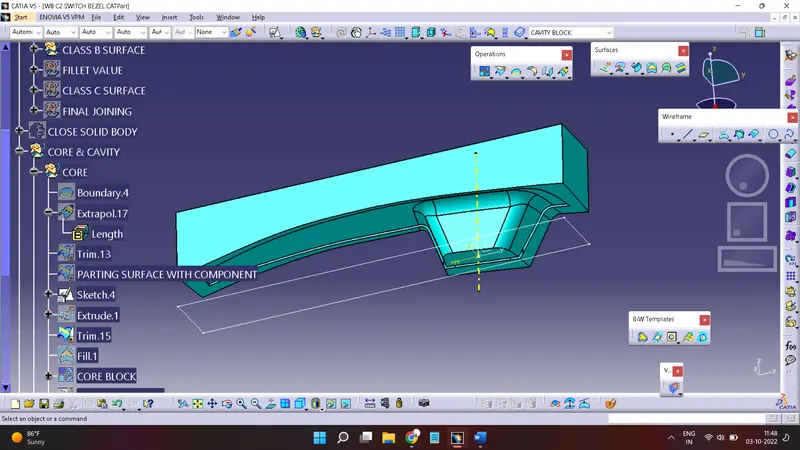
Take remaining the core side surface and fill the portion
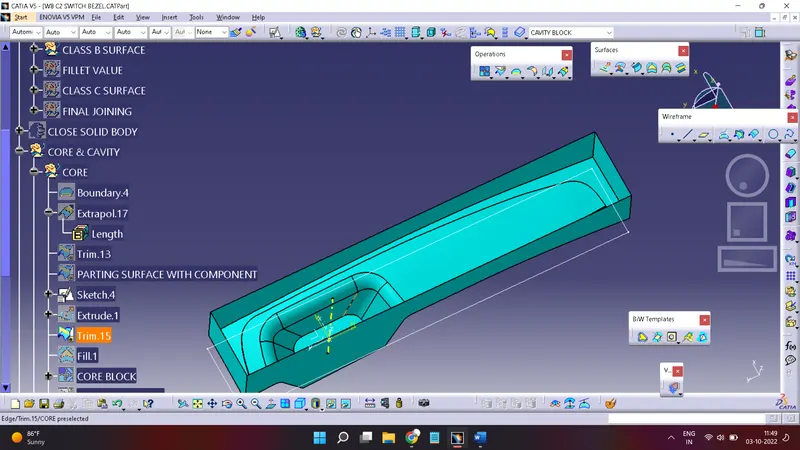
Now join the core surface and fill
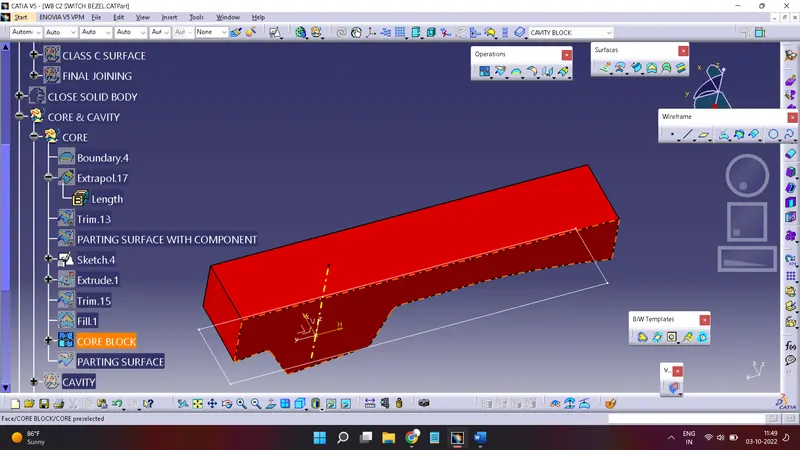
This is a final CORE BLOCK SURFACE
Creation Of Cavity Block:-
For creation of cavity need a class B surface and extrude surface
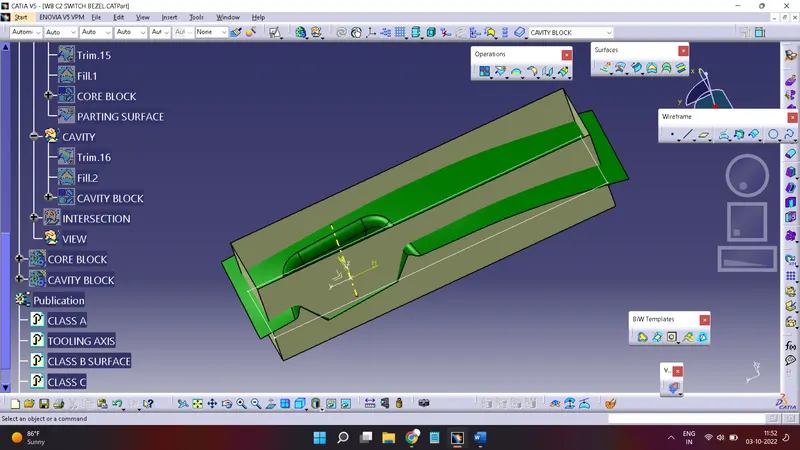
Do trim of CLASS B & Extrude rectangular surface
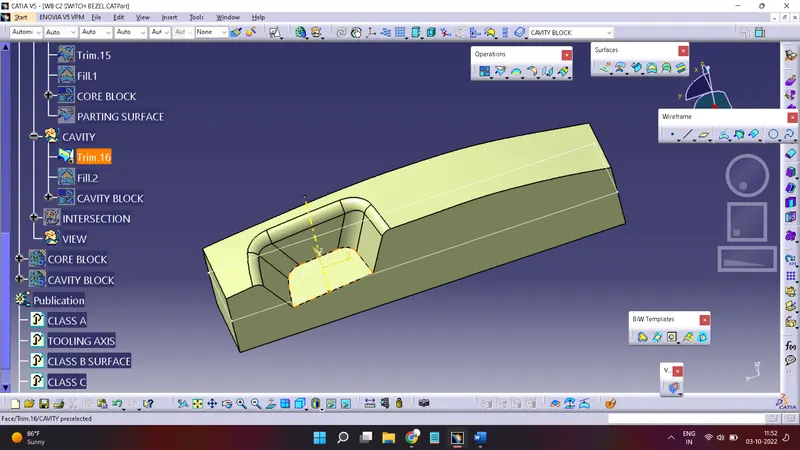
Now fill the open part and join together
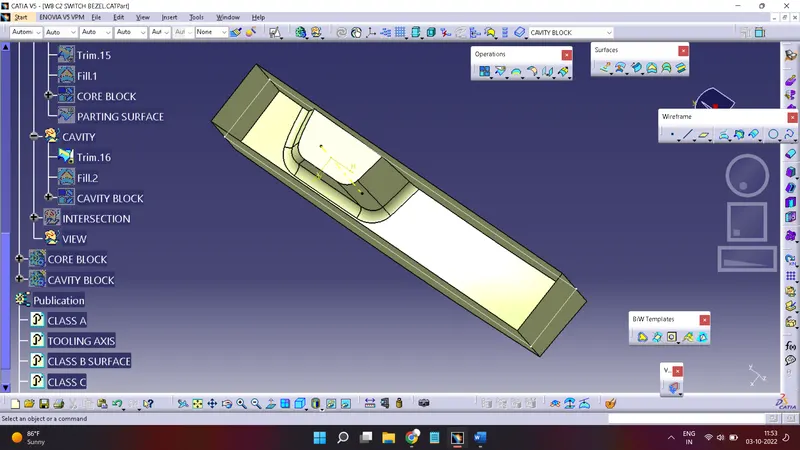
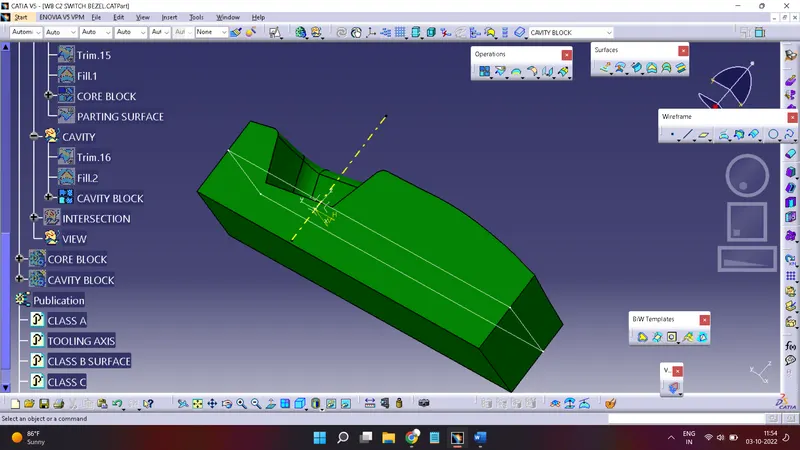
This is a Final CAVITY BLOCK SURFACE
Creation Of Intersection between plane with Component & Core/Cavity Block:-
Goto Wireframe> Intersection
Select first element as a plane and second element Surface Block, Core Block & Cavity.
Then OK
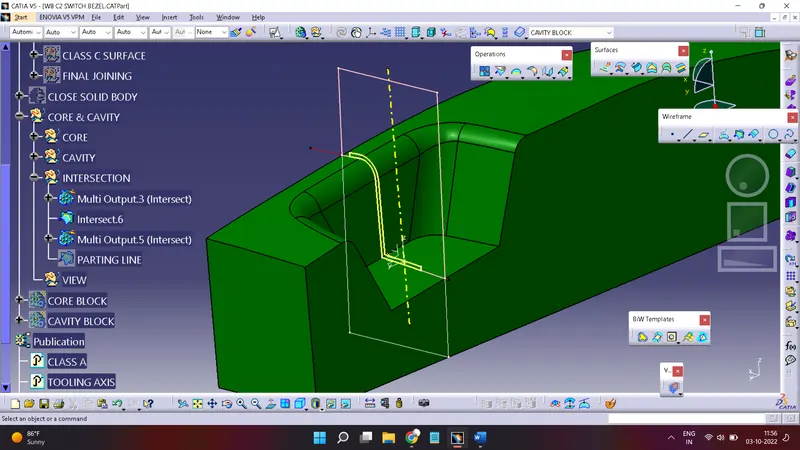
Creation Of Parting Line:-
Unhide the joining of Class A & Class C surface
And Class B surface
Now goto Wireframe> Intersection
Select first element as a joining of Class A & Class C surface & second as a Class B Surface
Get a Parting line
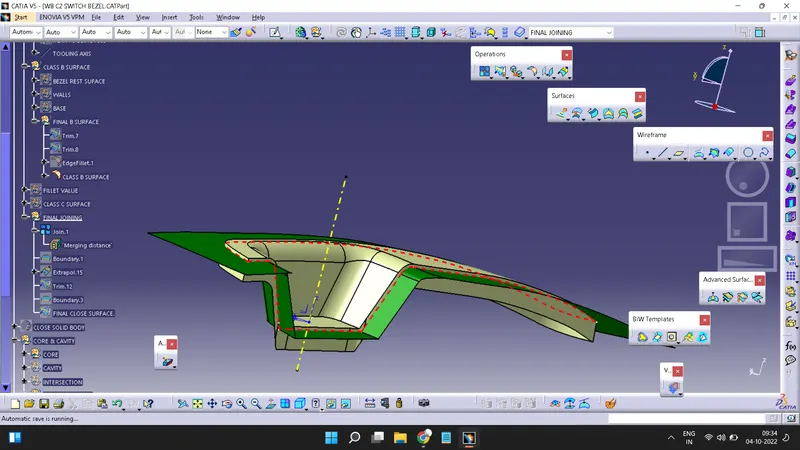
Take Class B & Parting line and split B surface with parting line.
Get a PARTING SURFACE
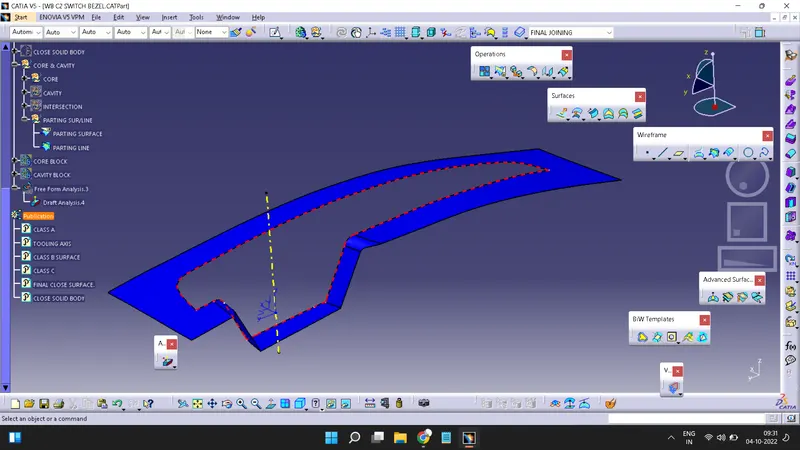
Creation Of Solid Block :-
Goto Start>Mechanical Design >Part Design
Here Use Surface Creation Toolbar >Close Surface for create a Solid Component
Select close surface
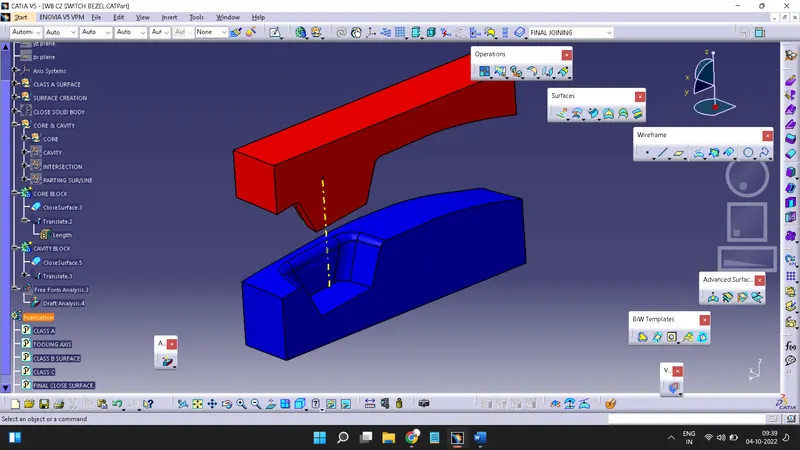
FINAL COMPONENT, CORE, CAVITY, PARTING LINE& PARTING AXIS