Week 8 - Challenge 3 - Switch Bezel Design
Aim: To create the tooling axis for the given Class-A surface of the Switch Bezel and create a solid part along with Class-B and Class-C surface.
Procedure: The input model for the draft analysis is the class-A surface given by the class-A designers as shown below:
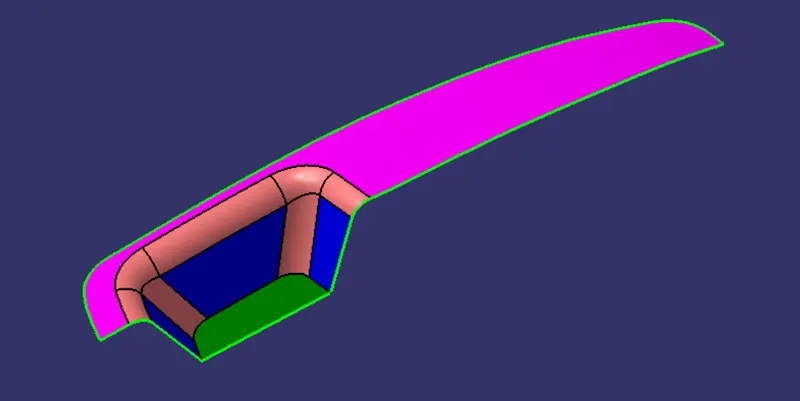
Fig. 1: Switch Bezel Class-A Surface
Considering the shape of the given path for initially we will define the tooling axis by the bisecting method. We need to draw sketches and then bisect those sketches to get the tooling axis.
Place a point on the green coloured surface in the Class-A surface and put an axis system on that point. Create the following sketch on the YZ plane.
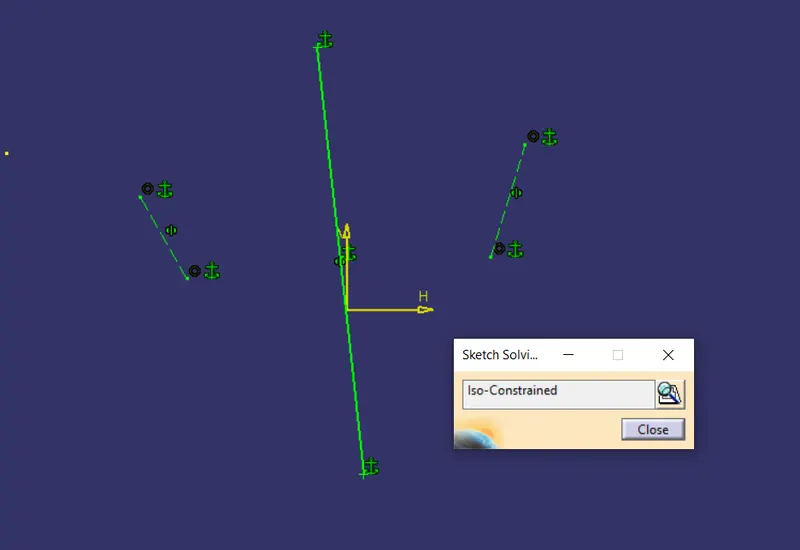
Fig. 2: Sketch 1
Draw the following sketch on the XZ plane as shown below:
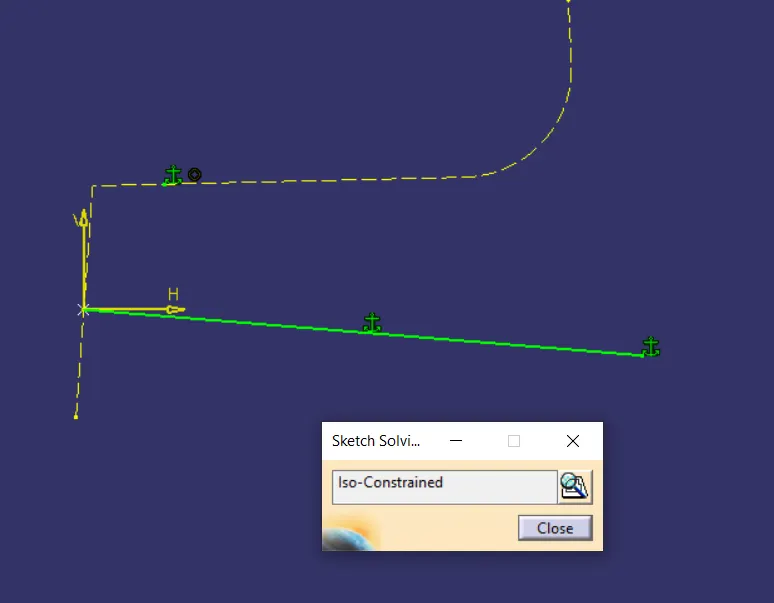
Fig. 2: Sketch 2
Draw a bisecting line to get the tooling axis.
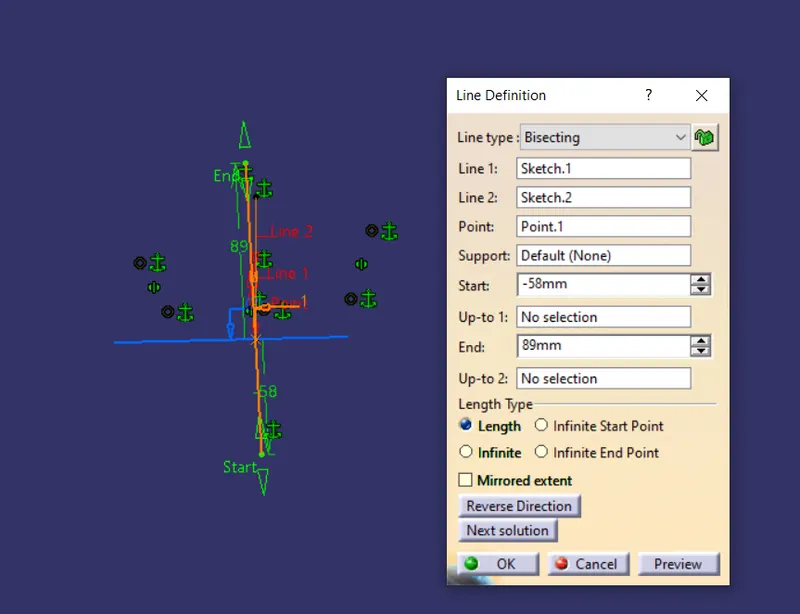
Fig. 3: Bisecting line
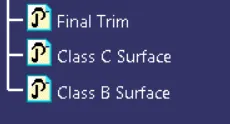
This tooling axis and the Switch Bezel Class-A surface need to be accessed multiple times and hence, need to be published. Go to Tools>Publication. These will be published in the feature tree.
Next step is to perform the draft analysis of the part with reference to the Tooling Axis. Go to Insert>Analysis>Feature Draft Analysis. Make sure that the View Mode Customization is set to the Material Mode as shown below:
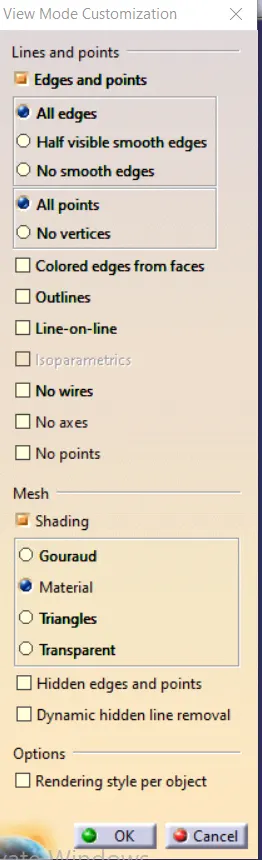
Fig. 4: View Mode Customization
In the draft analysis toolbar shown below, insert the axis system from the Direction tab and place it over the Tooling Axis such that the ’w’ of the compass is aligned to the tooling axis. Lock the compass in place.
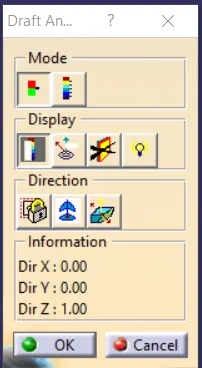
Fig. 5: Draft Analysis Toolbar
Another tool box in the Draft Analysis represents the colour coding of the draft angle of the faces from the tooling Axis or the Compass placement. It is shown below:
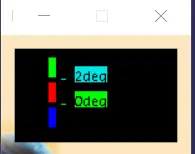
Fig. 6:Draft Analysis Toolbar
If the angle of a surface is less than the 0deg in this picture, the face will be represented by Blue colour. If the angle of the surface is between the two values shown in the figure, the face is represented in the Red colour and if the value is greater than the highest value, it is represented in Green colour.
After opening this toolbar, click anywhere on the Fan Cover surface. The Draft analysis is shown below:
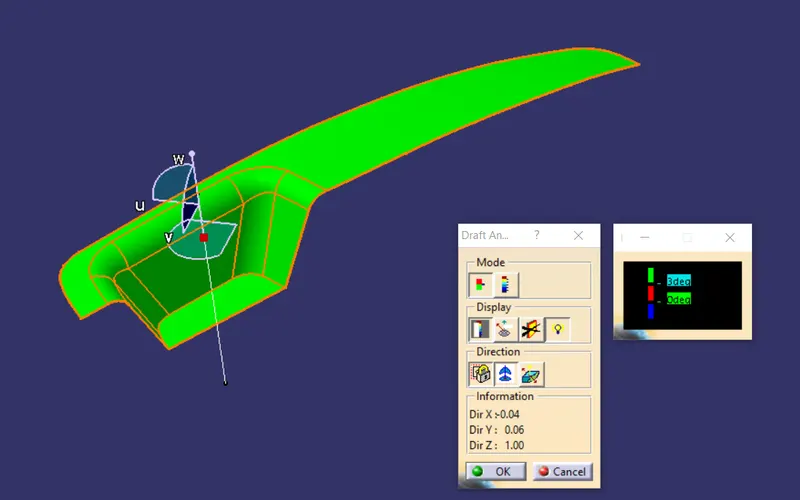
Fig. 7: Draft Analysis of the Class A Surface
The draft analysis of the solid body is shown below:
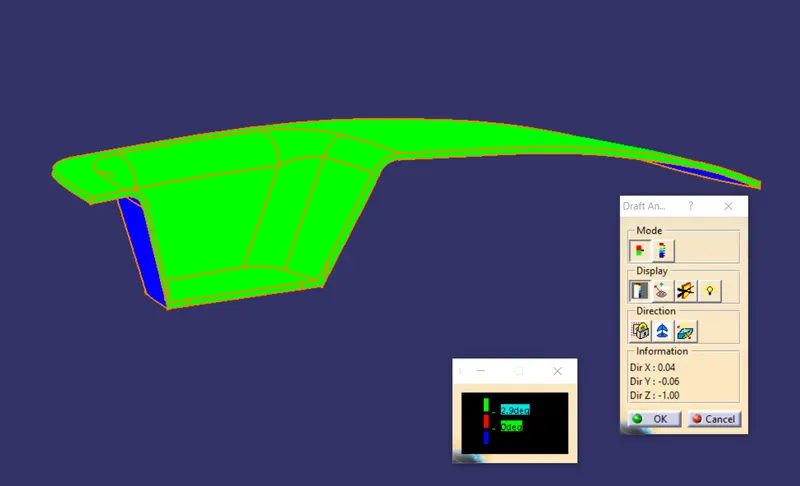
Fig. 8: Draft Analysis of the Solid Body
Since the faces are angled at more than 3 degrees, they are shown in Green colour. Click on the 2nd icon under the Display menu and hover over the face, it will display actual value of the draft as shown above.
To make a Class-B surface, follow the steps for every individual surface:
Select the surface and use Extract, Untrim, Extrapolate, Trim and Offset commands to make a surface profile similar to the Class-A surface as shown below:
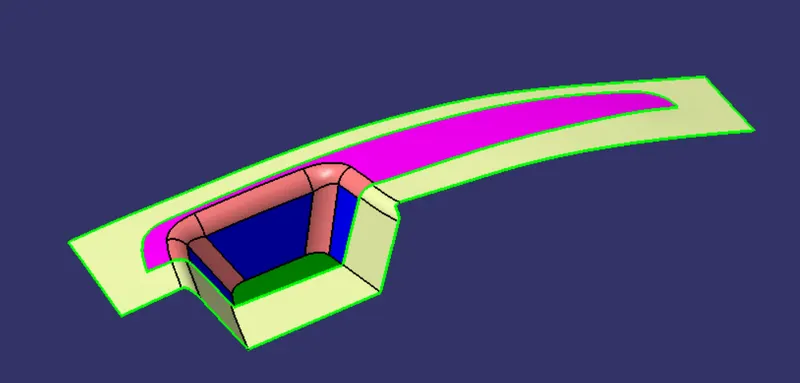
Fig. 9.1: Class B Surface
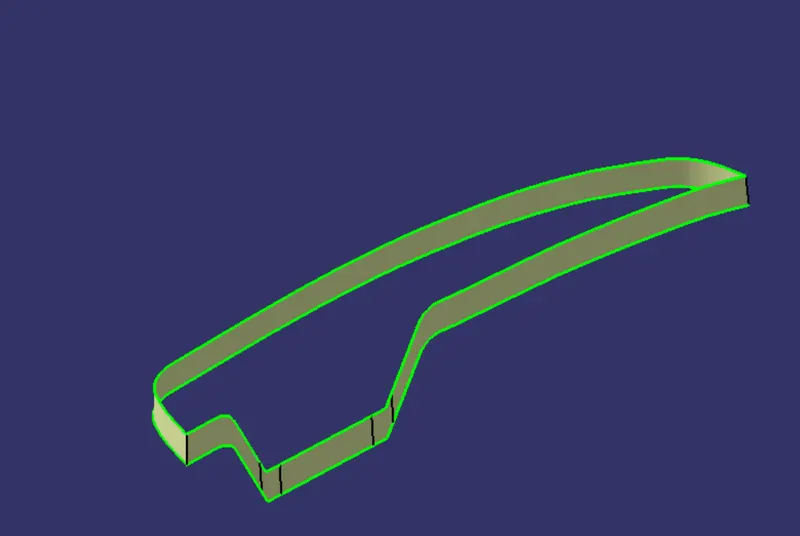
Fig. 9.2: Class C Surface
In this class-B surface, the fillets should be given such that the thickness of the component is uniform.
To create a Class-C surface, use the Sweep command to sweep the boundary of the Class-A surface along the tooling axis and Trim the surface together to get a closed surface. In the Part Design, use the Close Surface command to make a solid part and save. The orientation of the part is shown below along with the feature tree:
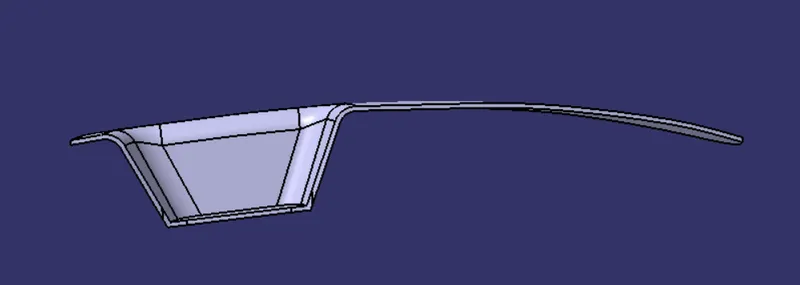
Fig. 10: Front View
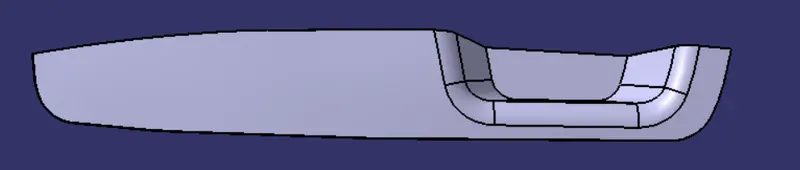
Fig. 11: Top View
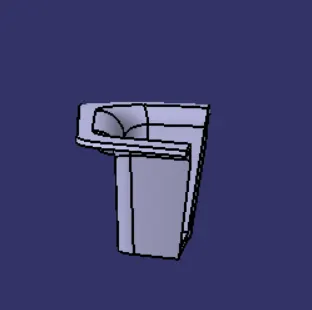
Fig. 12: Right View
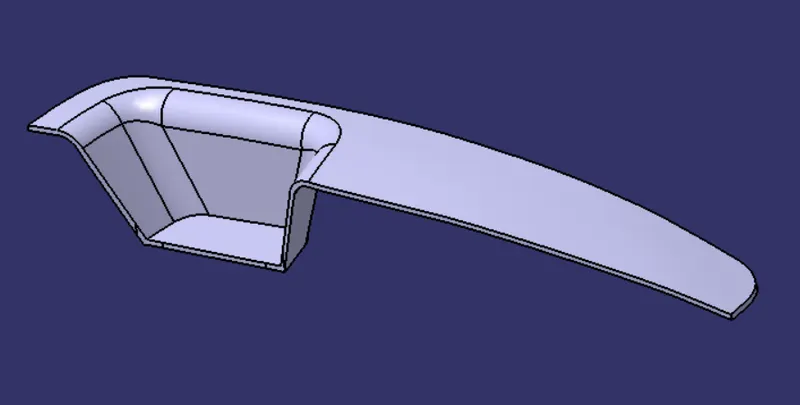
Fig. 13: Isometric View
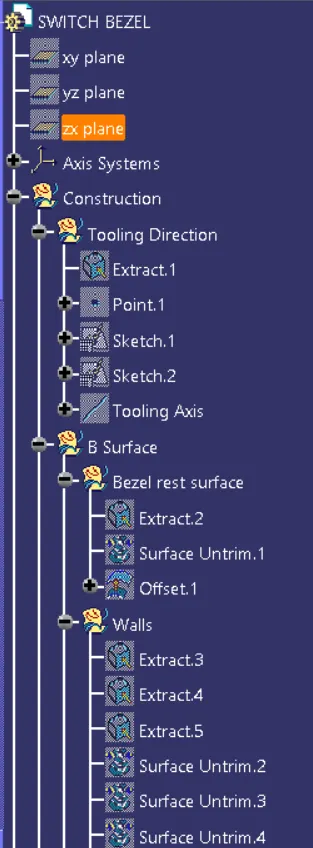
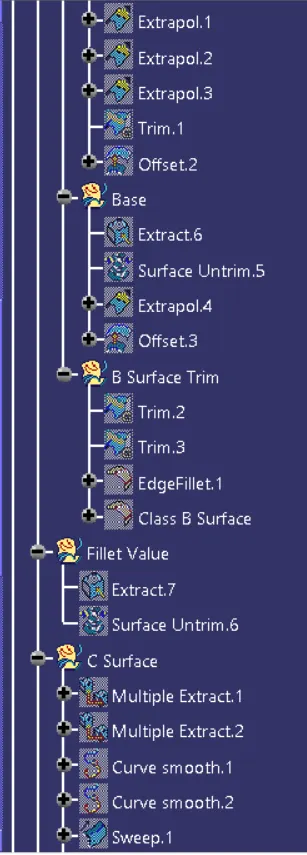
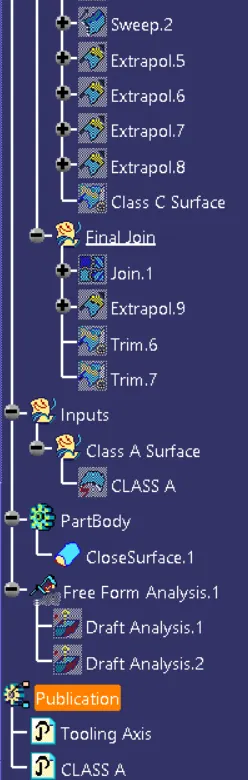
The feature tree is shown below: