For the given component create tetramesh according to quality criteria and check tet collapse.
Objective:- For the given component create 3D mesh according to quality criteria
i- Create tetra mesh for a housing model, Element size min.- 2mm, target- 5mm, max.- 7mm and tet collapse 0.15
ii- For the given model create a 3D mesh with 6mm.
Procedure:-
i- Housing model
- Open Hyperworks and import the component via "Import geometry" as it is a "STEP" file.
- Change the values of Quality check which is under Tools -> Quality Check by the values of quality criteria given, in 2D min and max element length value and in 3D tet collapse value.
- There are 2 components and only one is solid.
- Delete the solid and check for any geometry cleanup, toggle the line not required.
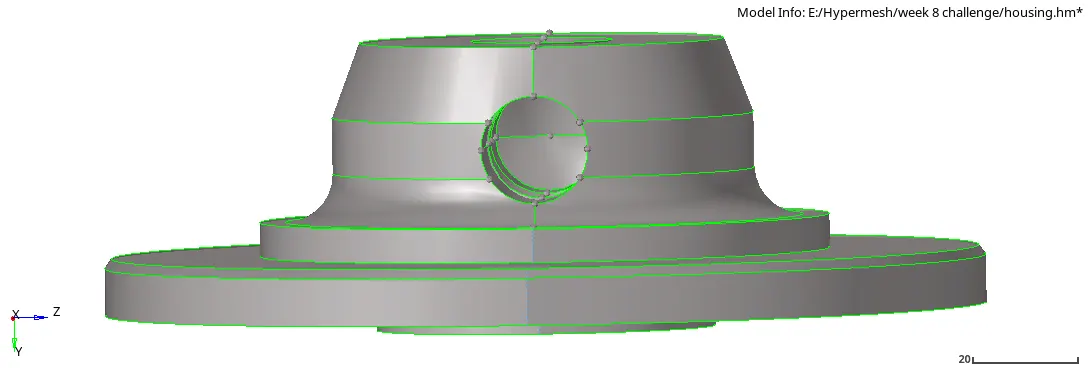
- Now under 2D, automesh -> surf -> element size- 5, mesh type - tria -> mesh.
- Now under Tool -> check elements -> check for min and max element length. If any elements fail than remesh the elements or change the length of the element under geom -> distance -> two nodes and again check quality of elements.
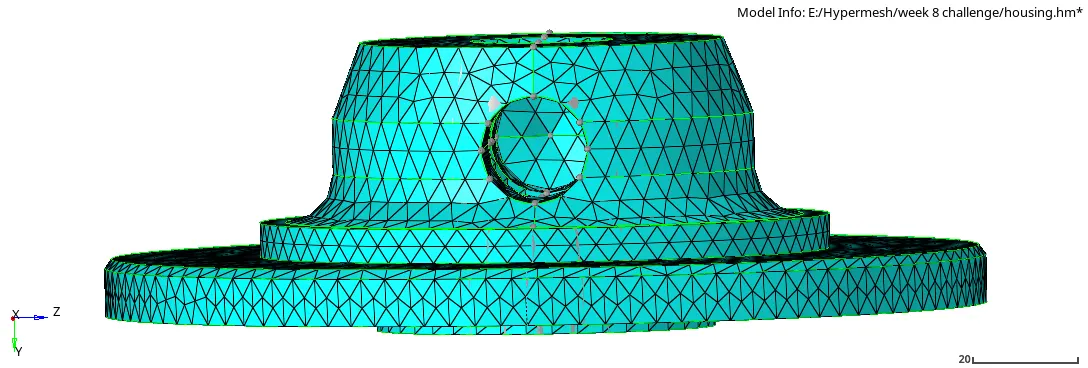
- After generating 2D tria mesh, now under 3D -> tetramesh, choose tetramesh parameters check min and max tetra size provide the values also check the fill voids, fix midnodes and smoothing and Element quality target -> tet collapse provide value. Now choose tetramesh -> fixed trias/quads to tetra mesh "elements", select the elements displayed on the screen -> mesh.
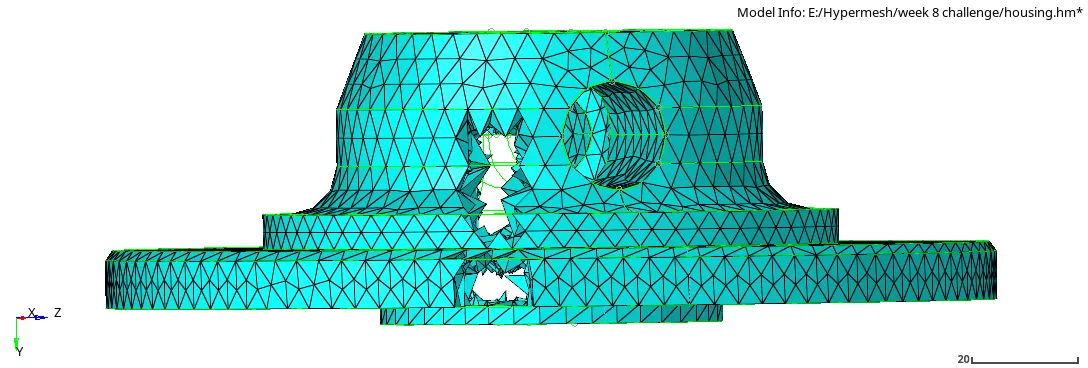
- After generating tetra mesh, under tool -> check elements -> 3D -> check for tet collapse, the elements which are failing save failed and mask those and perform tetraremesh or try changing the element length under geom -> distance -> two nodes and again check for tet collapse.
- Now for other the component, perform geometry cleanup under geom -> quick edit.
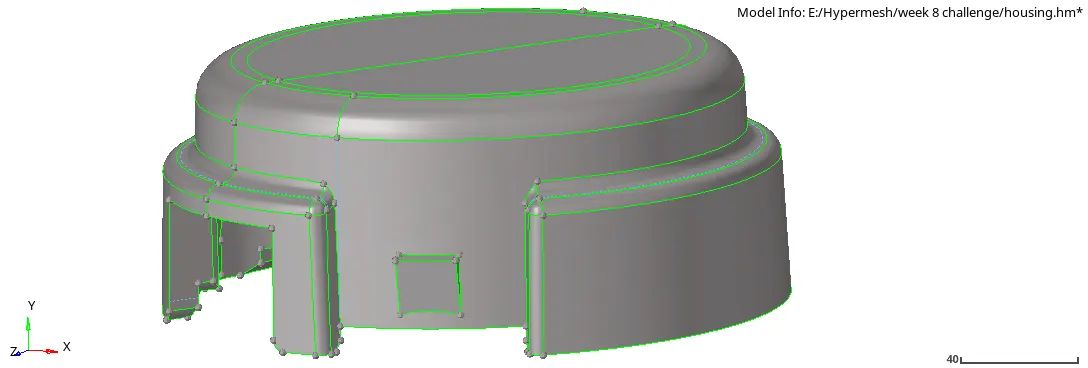
- Under 2d -> automesh -> surf -> element size- 5, mesh type - tria -> mesh.
- Now under Tool -> check elements -> check for min and max element length. If any elements fail than remesh the elements or change the length of the element under geom -> distance -> two nodes and again check quality of elements.
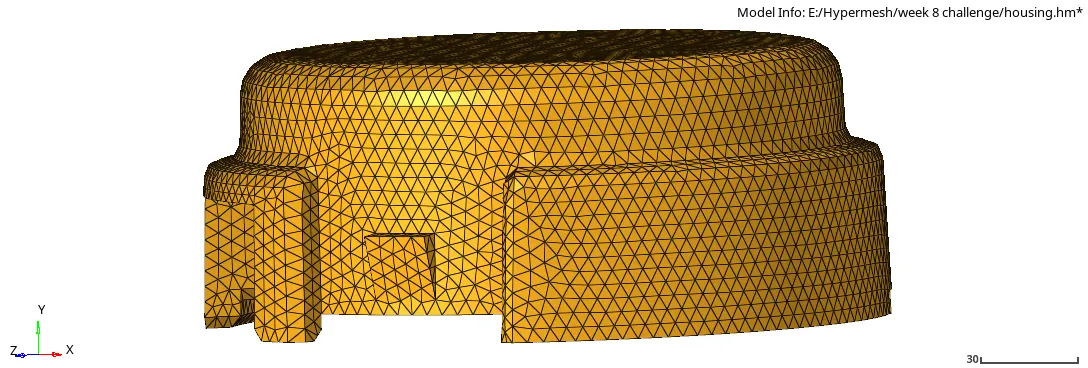
- After generating 2D tria mesh, now under 3D -> tetramesh, choose tetramesh parameters check min and max tetra size provide the values also check the fill voids, fix midnodes and smoothing and Element quality target -> tet collapse provide value. Now choose tetramesh -> fixed trias/quads to tetra mesh "elements", select the elements displayed on the screen -> mesh.
- After generating tetra mesh, under tool -> check elements -> 3D -> check for tet collapse, the elements which are failing save failed and mask those and perform tetraremesh or try changing the element length under geom -> distance -> two nodes and again check for tet collapse.
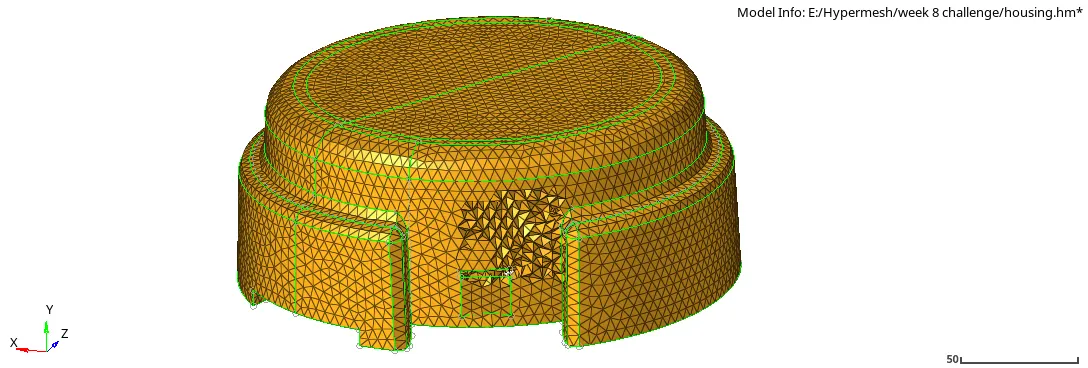
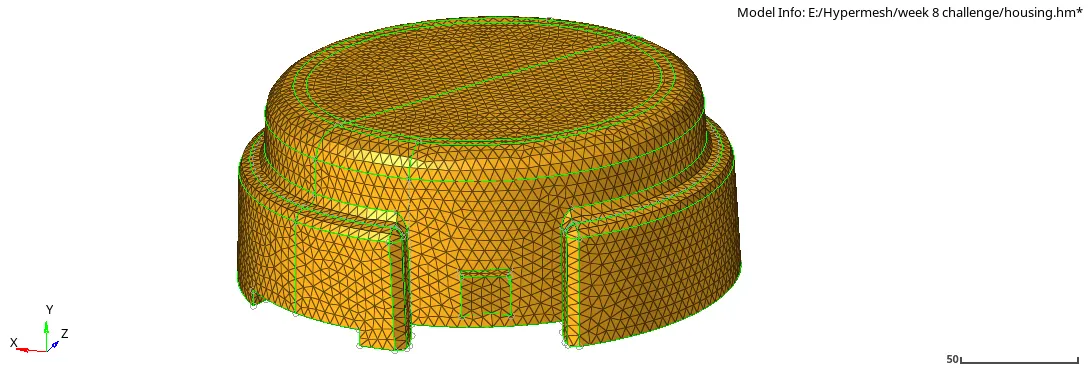
Result:-
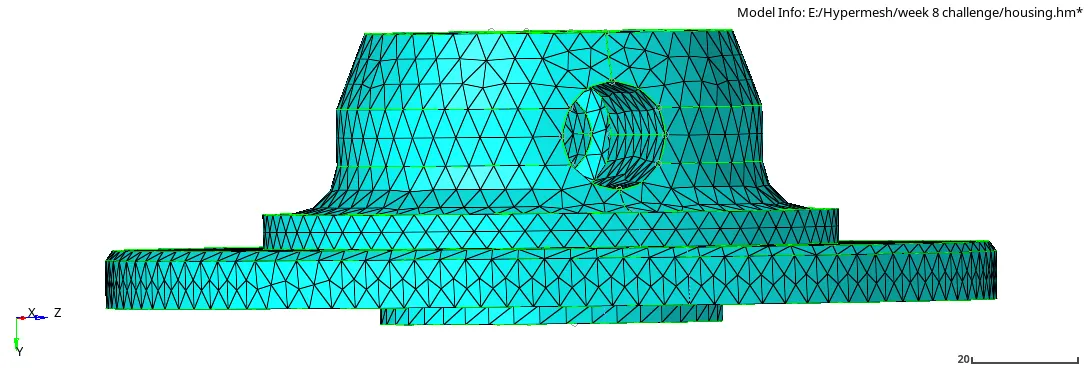
ii- Chassis Assembly
- Open Hyperworks and open model as the file is .hm file.
- There are 7 components but there are 8 solid components, so first create new component than under tool -> organize -> collectors -> solids -> select the solid want to move -> move, rename the component, now there are 8 component and each of the 4 component are symmetric to its type.
- Select the component "Imported 23-1", delete the solid.
- Remove the surface filler edges, geom -> defeature -> surf fillet -> min radius- 1 and max radius - 8, find fillet in selected "surface" -> find -> remove.
- Delete the teeth from the component and fill the gap, by geom -> surf -> ruled -> select the lines -> create.
- Perform the required geometric cleanup on the component by using geom -> quick edit.
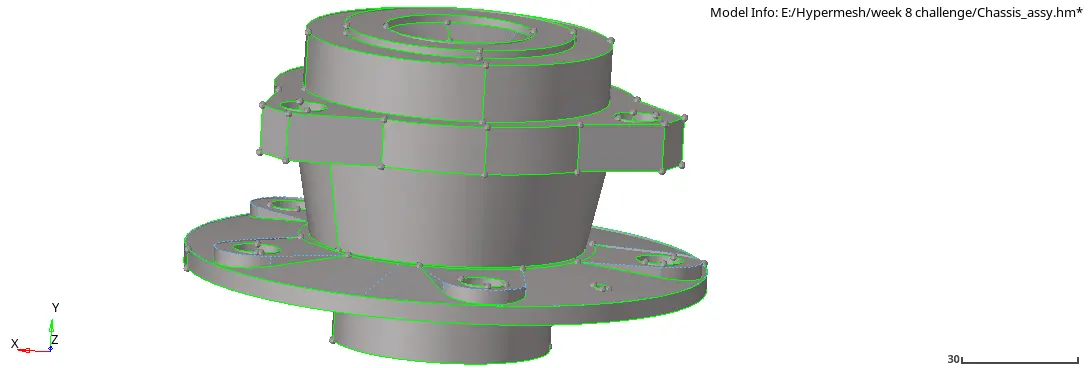
- Under 2d -> automesh -> surf -> element size- 6, mesh type - tria -> mesh.
- Now under Tool -> check elements -> check for min and max element length. If any elements fail than remesh the elements or change the length of the element under geom -> distance -> two nodes and again check quality of elements.
- After generating 2D tria mesh, now under 3D -> tetramesh, choose tetramesh parameters check min and max tetra size provide the values also check the fill voids, fix midnodes and smoothing and Element quality target -> tet collapse provide value. Now choose tetramesh -> fixed trias/quads to tetra mesh "elements", select the elements displayed on the screen -> mesh.
- After generating tetra mesh, under tool -> check elements -> 3D -> check for tet collapse, the elements which are failing save failed and mask those and perform tetraremesh or try changing the element length under geom -> distance -> two nodes and again check for tet collapse.
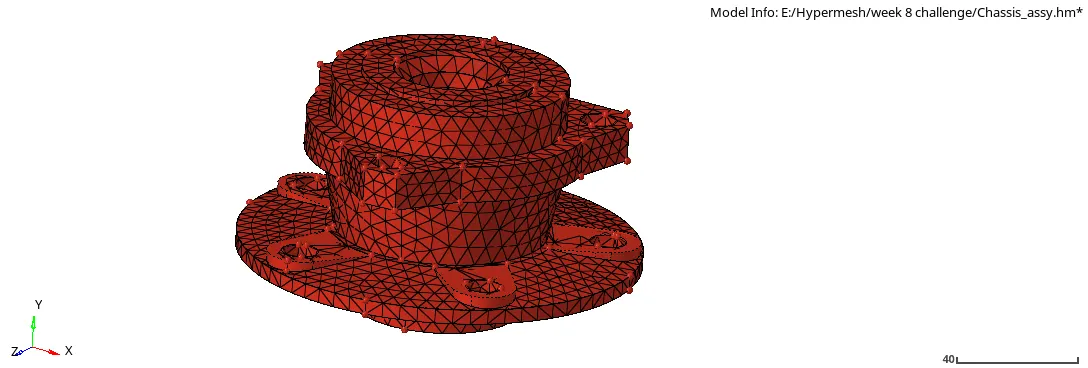
- Now under geom -> nodes -> arc center -> select the curve line of above component and the exact same line of its symmetric component -> create. Node will be created which will be used to reflect the elements of all components.
- For component imported 1-2, 24-1 and 27-1 perform volumetric tetra mesh individually, by 3D -> tetramesh -> select tetramesh parameters, check max and min tetra size and provide values, also check the fill voids, fix midnodes and smoothing and Element quality target -> tet collapse provide value. Now select volume tetra -> provide element size- 6 -> enclosed volume "solids" -> mesh.
- After generating tetra mesh, under tool -> check elements -> 3D -> check for tet collapse, the elements which are failing save failed and mask those and perform tetraremesh or try changing the element length under geom -> distance -> two nodes and again check for tet collapse.
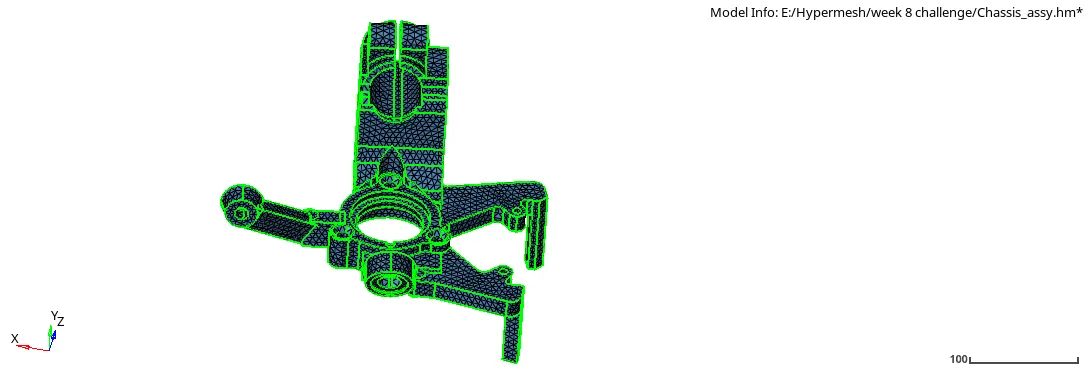
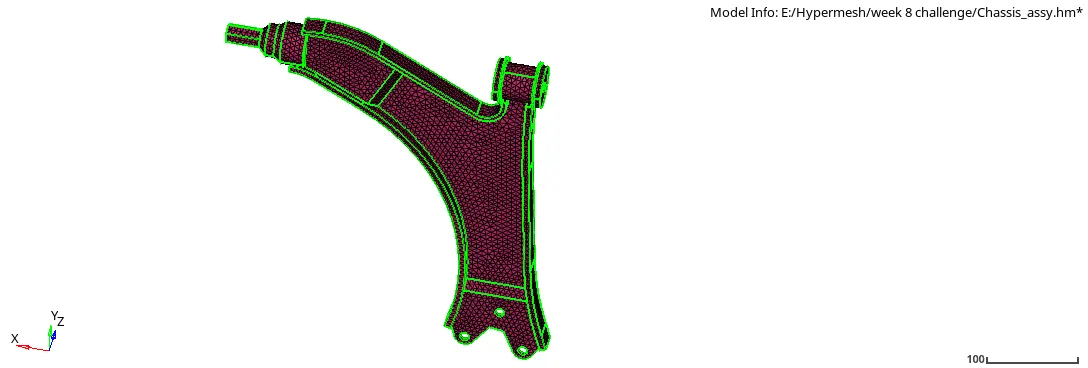
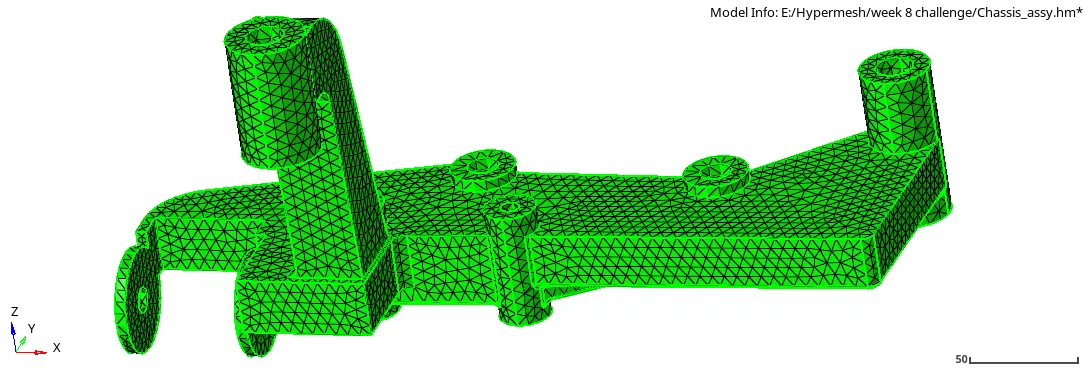
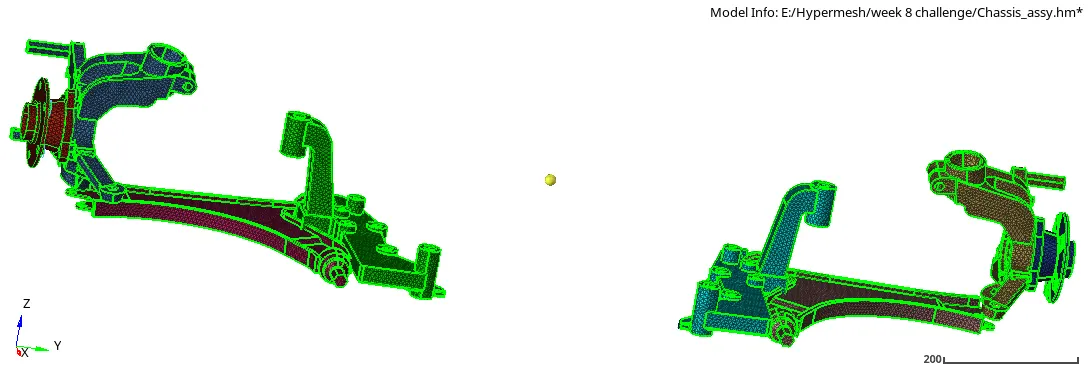
- After meshing the 4 component, use the created node to reflect each component's elements to its respective symmetries. Tool -> reflect -> elements -> yaxis -> select the elements, duplicate it -> select the node as base -> reflect.
Result:-
Conclusion:-
So by completing this challenge I learned how to create tetramesh in different ways one by creating tria shell elements and then creating tetra mesh other by volume tetra mesh and how to perform tet collapse check and solve it.