Meshing of Side Door component according to given quality criteria in Hypermesh.
Objective:- To mesh the side door component according to quality criteria and assign thickness.
| S.N | Quality Criteria | Value |
| 1 | Aspect Ratio | 5 |
| 2 | Skewness | 45 |
| 3 | Warping | 15 |
| 4 | Taper | 0.5 |
| 5 | Min. Length | 2mm |
| 6 | Max. Length | 6mm |
| 7 | Min angle Quad | 45 |
| 8 | Max angle Quad | 135 |
| 9 | Min angle Tria | 20 |
| 10 | Max angle Tria | 120 |
| 11 | Tria % | 10 |
| 12 | Target Element Length | 4mm |
Procedure:-
- Open HyperWorks and open model as it is a .hm file
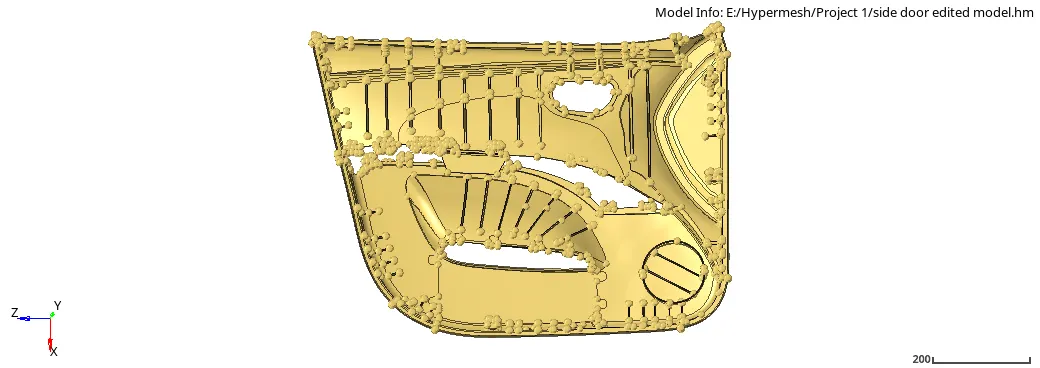
- The model have complicated geometry and ununiform thickness.
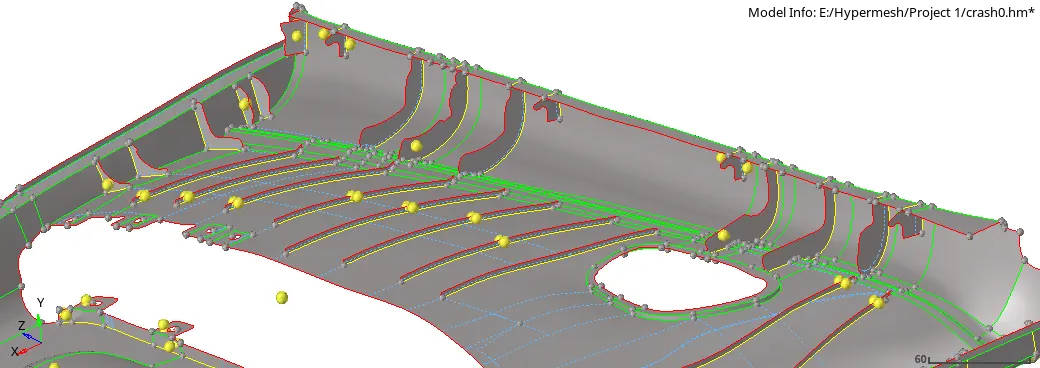
- To simplify, divide the single component into 4 segments by Geom -> Surface edit -> Trim with surfs/plane -> with plane -> select the surface -> (as the model is in the z-x plane to divide the component into first 2 parts along the Z-axis) select Z-axis and choose the base point top or bottom side from where to want to cut -> trim, repeat it with X-axis to further divide the 2 segments into 4 and choose the base point left or right side.
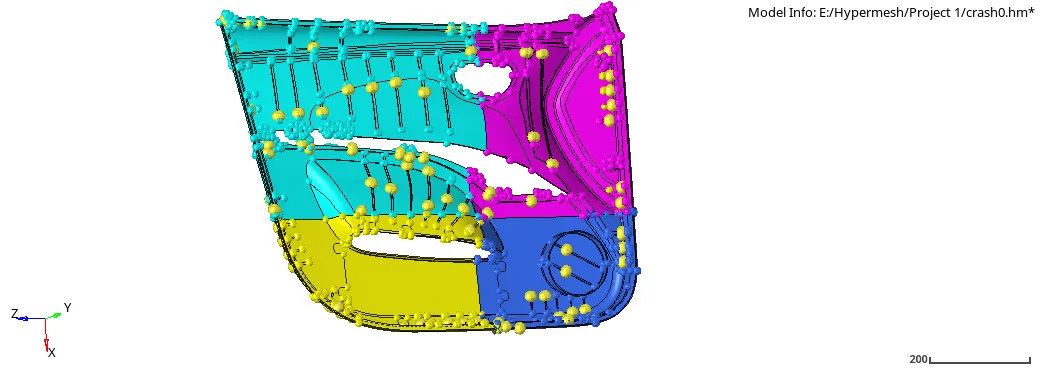
- As one surface contains ribs and the other surface don't and the thickness of the edges is also different from the base surface, create a new Component in the tab bar and name it "mid_surf_1" extract the midsurface manually for the base form the surface that doesn't have ribs also for the 2 edges separately by Geom -> surface edit -> offset -> check for vector normal if it is the opposite direction of offset reverse it -> select the surface to offset and duplicate it, provide offset value -> offset.
- To extract the midsurface of the ribs, Geom -> midsurface -> final edit tools -> surface 1 and 2 of the rib -> extract or if the rib is uniform in thickness use offset option.
- Connect the extracted midsurface of ribs to midsurface of the base by:-
i. Geom -> surface edit -> trim with lines -> under with line -> surface edges (select the rib surface which to project) -> Surface (Select the base surface where to project) -> normal to surface -> trim, after projecting the line use "replace points" under quick edit to connect the rib surface to base surface. Or
ii. Extend the rib surface line which wants to connect to base surface and trim the non required surface, by Geom -> Surfaces -> Drag along vector -> choose the line to drag, provide direction of drag by N1 and N2 also the distance -> Drag+, after extending the surface Geom -> Surface edit -> trim with surfs/plane -> under with surf, select the surface wanted to trim than the base surface, check the "trim both" -> trim.
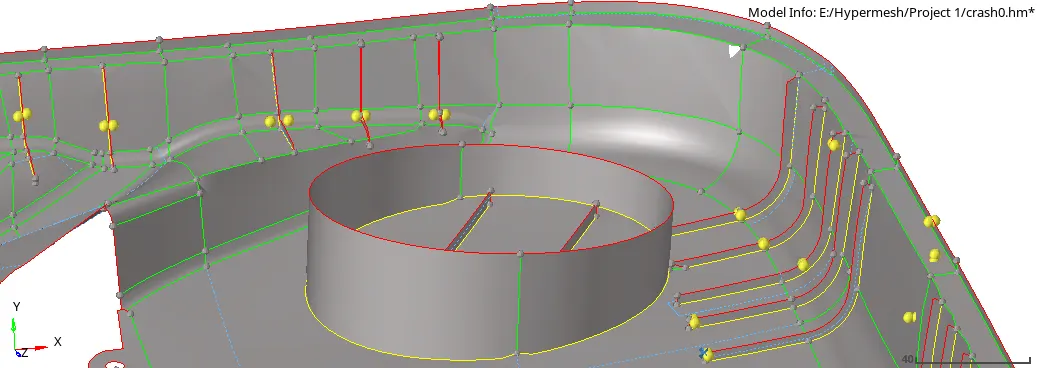
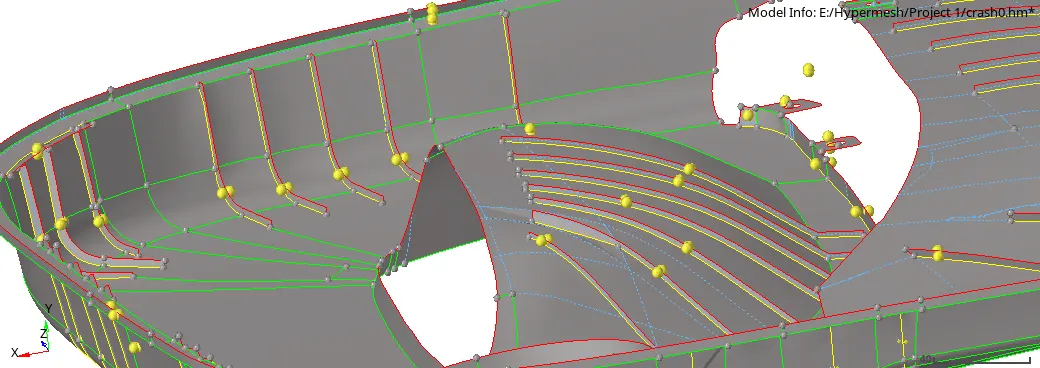
- Before meshing change the values of criteria file settings according to the quality criteria provided by Toolbar -> Preferences -> Criteria file settings and update the quality criteria values in Tools -> Check elements.
- After projecting the ribs to the base surface mesh each segment individually by 2D -> automesh -> surface -> element size= 4mm, mesh type= quad -> mesh.
- To obtain a uniform mesh try to remesh the elements and use quality index cleanup tool options.
- Under Tool -> Check elements, check for warpage, Jacobian, min/max element length, min/max tria and quad angle, taper, aspect ratio, and skewness if any error is found perform remesh or use cleanup tools to correct that.
- To assign thickness to the elements fist measure their corresponding thickness from parent geometry and create different component collector according to thickness also create properties for different thickness and assign to their respective component, by using "Organize" option under Tool, elements of different part can be assigned to their respective component having the desired thickness.
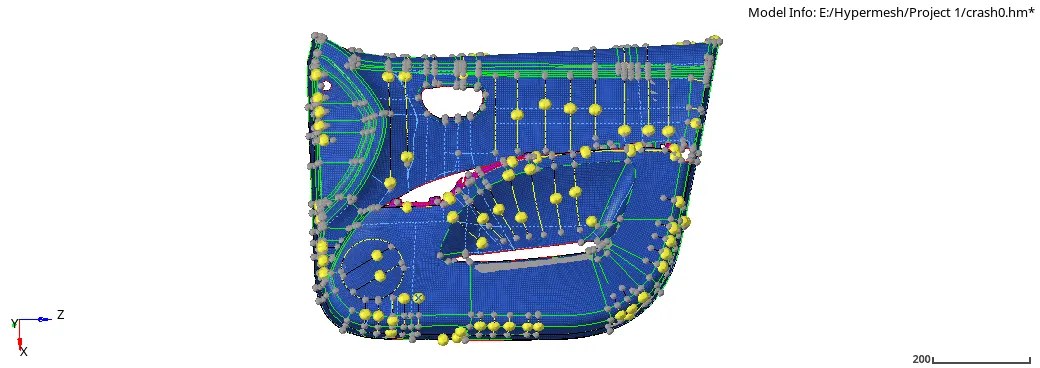
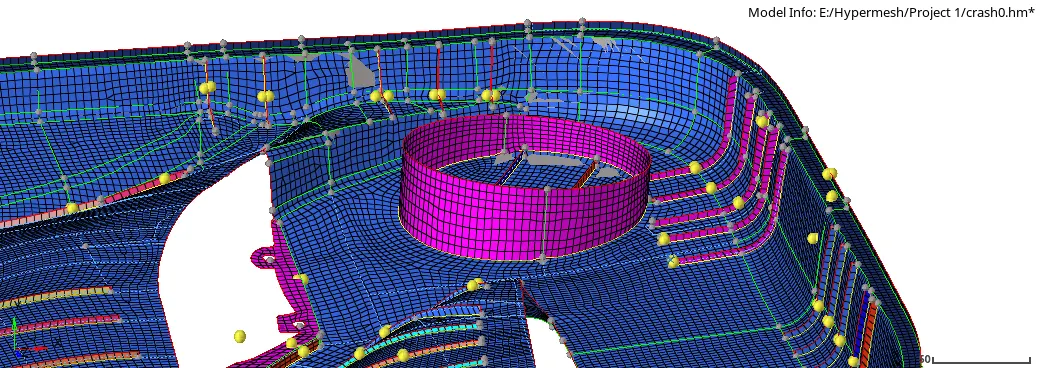
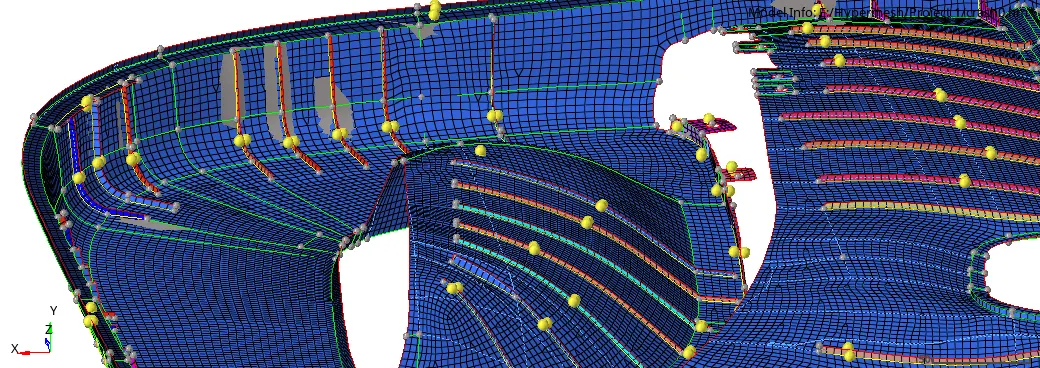
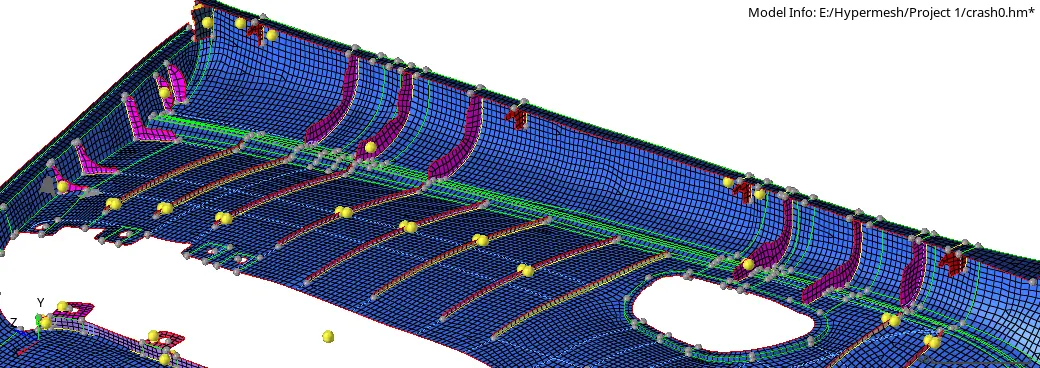
Result:-
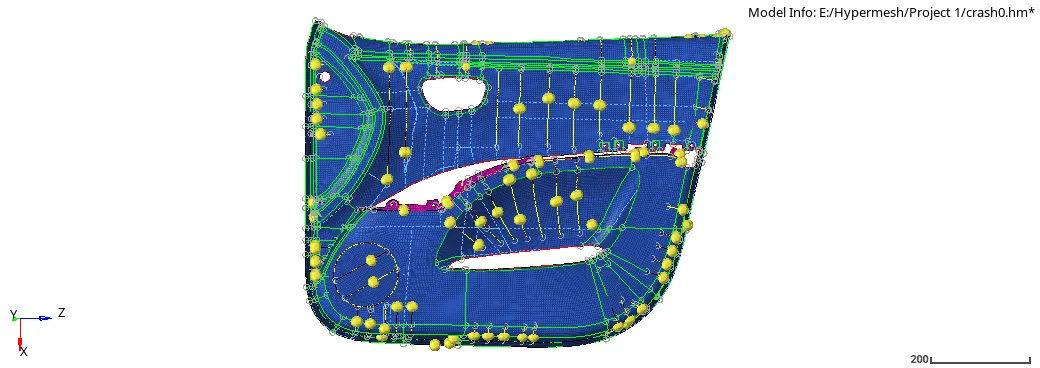
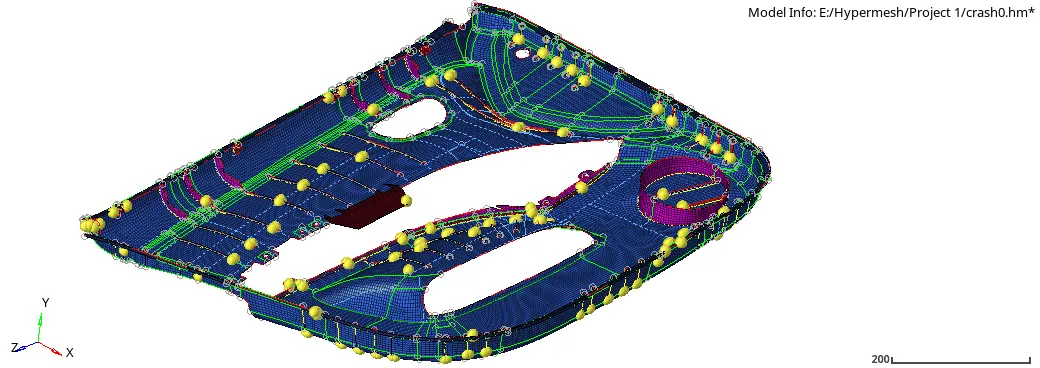
Conclusion:-
So by completing this challenge, I learned how to project surface in different ways and to mesh the component which has complicated surface and different thickness and also assigning thickness to the respective part.