Week 8 - Challenge 1 - Draft Analysis on a Fan Cover
Aim: To create the tooling access for the given fan cover model meeting the requirements of the Draft angle and perform the draft analysis on the model.
Introduction: The modelling of plastic the component involves considering factors Draft ejectors side core lifters and undercuts. Is performed to ensure proper ejection of the plastic component from the mould cavity. During the cooling process of the injection molding of the component tends to cling to the core of the mould and forcefully removing the part may cause wear and tear to the component, Core and the cavity. To ensure that this does not happen we need to perform the draft analysis which is described as below.
Procedure: The input model for the draft analysis is the class-A surface given by the class-A designers as shown below:
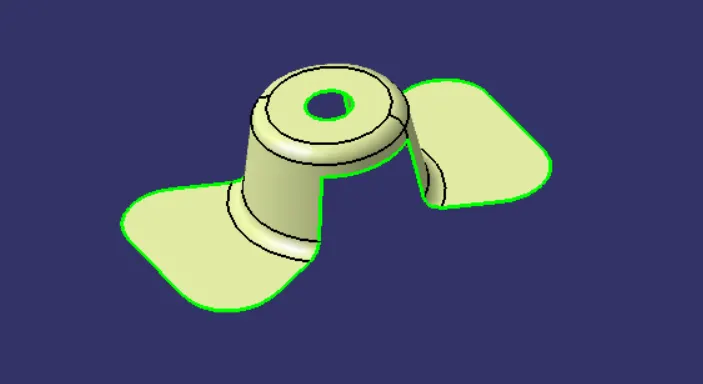
Fig. 1: Fan Cover Class-A Surface
The next part is to define the tooling axis. This helps to visualise how the component will be manufactured inside the mould. This ensures the orientation of the part inside the cavity and how it will form. Based on this tooling axis the designer will design with mold and cavity for the production of the component. Tooling axis is defined as follows:
Considering the shape of the given path for initially we will define a dummy tooling axis and follow the bisecting method to generate the actual tooling axis. There is a hole which we need to clear using a Core, the first step is to create a point at the centre of this hole from where the tooling axis might pass. Create a point using the point definition and create a line using line definition and point and direction option inside it. This represents the dummy tooling axis for the component.
The tooling axis is expected to be in the Z direction and will be defined using the bisecting method. So, a line is drawn in Z direction and named as a Dummy Tooling Axis.
To make a tooling axis using the bisecting method, we need to have axis in X and Y direction and bisect those to get axis in the Z direction. To draw the X and Y tooling axis, we use the Intersect Method. In the Generative Shape Design Workbench, use the Intersect tool to get the intersection between the XZ plane and the Fan Cover. It is shown below:
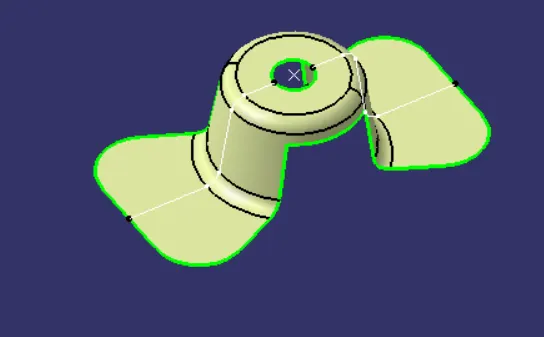
Fig. 2: Intersect of component and XZ plane
There are 2 faces which could potentially cause trouble during ejection and we need to check whether the draft given to these surfaces is adequate or not. Using the line definition tool, draw two lines as shown below and draw a bisecting line. This bisecting line is named as X tooling axis.
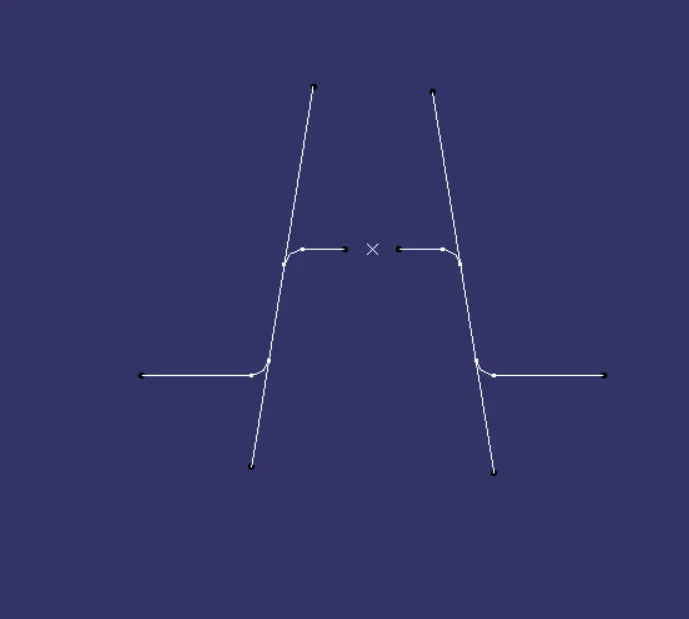
Fig. 3: Lines representing the drafted faces.
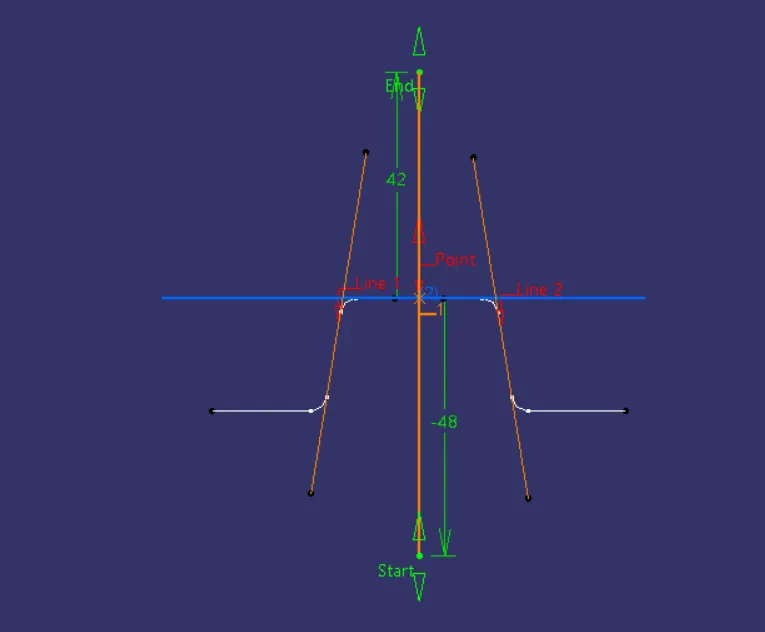
Fig. 4: Bisecting lines to get X tooling axis
Next, a similar process is to be followed to define the Y tooling axis. The intersect and the bisecting line are shown in the following images:
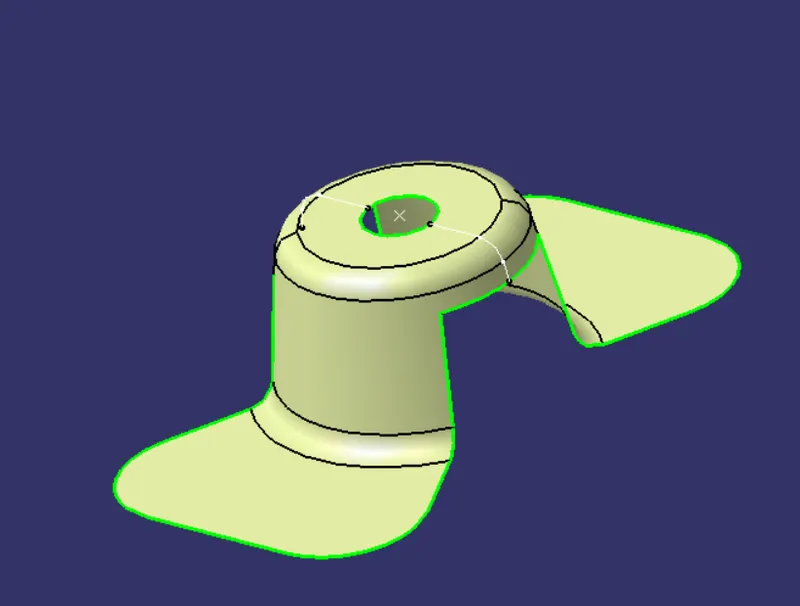
Fig. 5:Intersect between component and YZ plane
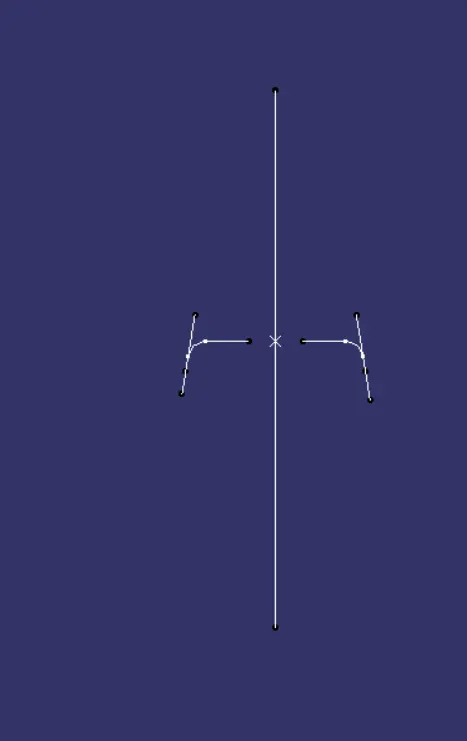
Fig. 6: Lines representing the drafted faces.
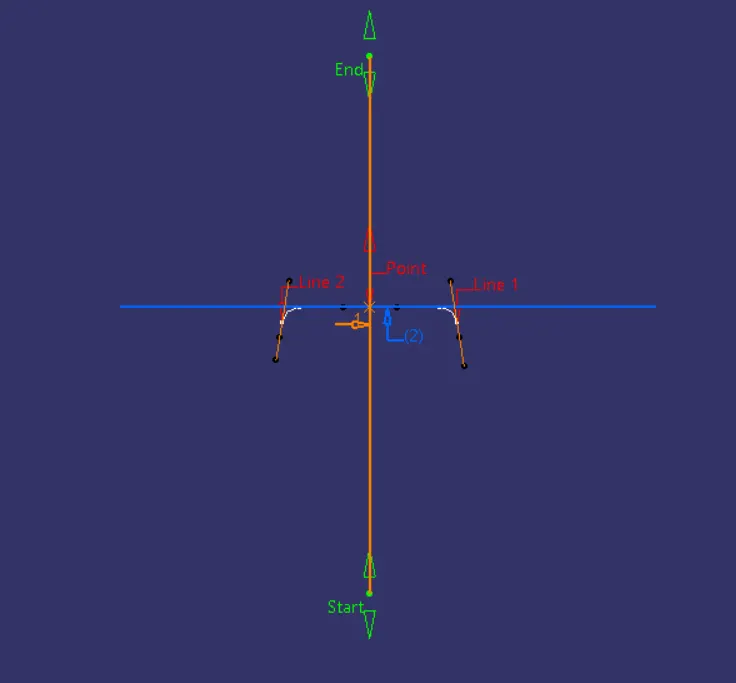
Fig. 7: Bisecting lines to get X tooling axis
Using the line definition tool, draw a bisecting line between the X tooling axis and Y tooling axis. This line would be in the Z direction and name it as the Tooling Axis. This tooling axis and the Fan Cover need to be accessed multiple times and hence, need to be published. Go to Tools>Publication. These will be published in the feature tree.
Next step is to perform the draft analysis of the part with reference to the Tooling Axis. Go to Insert>Analysis>Feature Draft Analysis. Make sure that the View Mode Customization is set to the Material Mode as shown below:
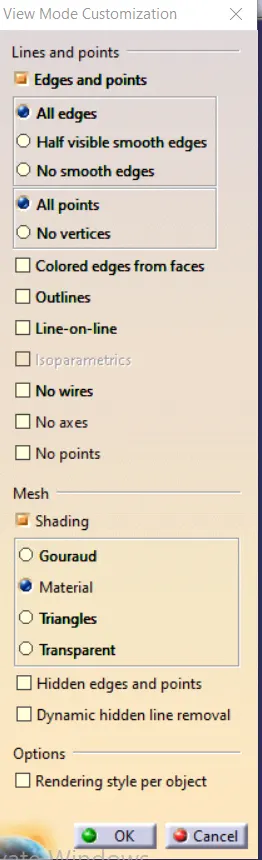
Fig. 8: View Mode Customization
In the draft analysis toolbar shown below, insert the axis system from the Direction tab and place it over the Tooling Axis such that the ’w’ of the compass is aligned to the tooling axis. Lock the compass in place.
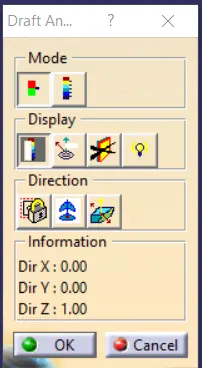
Fig. 9: Draft Analysis Toolbar
Another tool box in the Draft Analysis represents the colour coding of the draft angle of the faces from the Tooling Axis or the Compass placement. It is shown below:
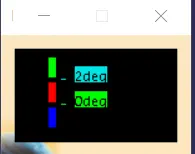
Fig. 10: Draft Analysis Toolbar
If the angle of a surface is less than the 0deg in this picture, the face will be represented by Blue colour. If the angle of the surface is between the two values shown in the figure, the face is represented in the Red colour and if the value is greater than the highest value, it is represented in Green colour.
After opening this toolbar, click anywhere on the Fan Cover surface. The Draft analysis is shown below:
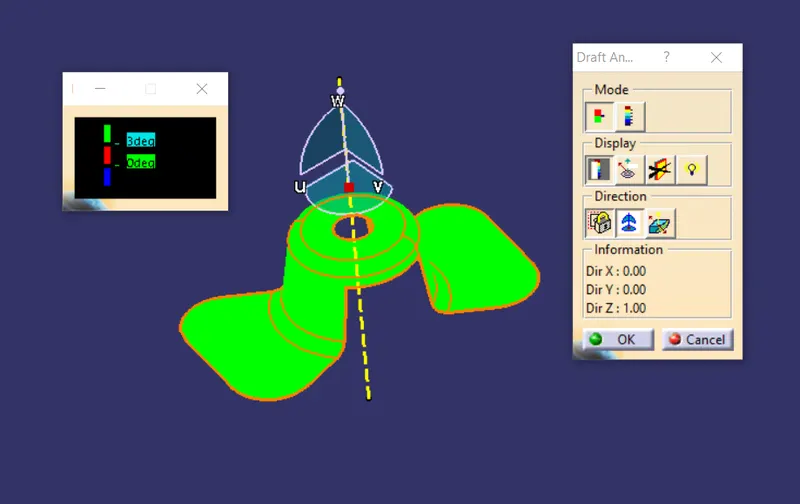
Fig. 11: Draft Analysis Trial 1
Since the faces are angled at more than 3 degrees, they are shown in Green colour. Click on the 2nd icon under the Display menu and hover over the face, it will display actual value of the draft as shown above.
If the upper limit is changed to 10 degrees, the face is shown in Red colour as in the below image.
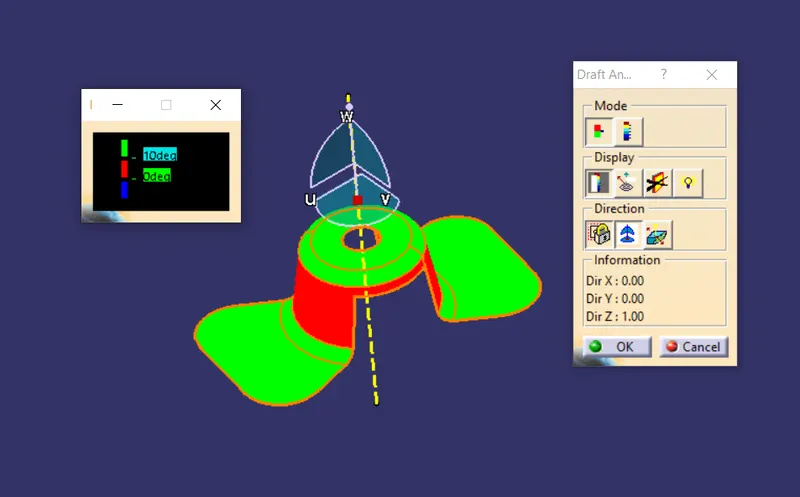
Fig. 12: Draft Analysis Trial 2
If the limits are changed as shown below, the drafted face is shown in Blue colour.
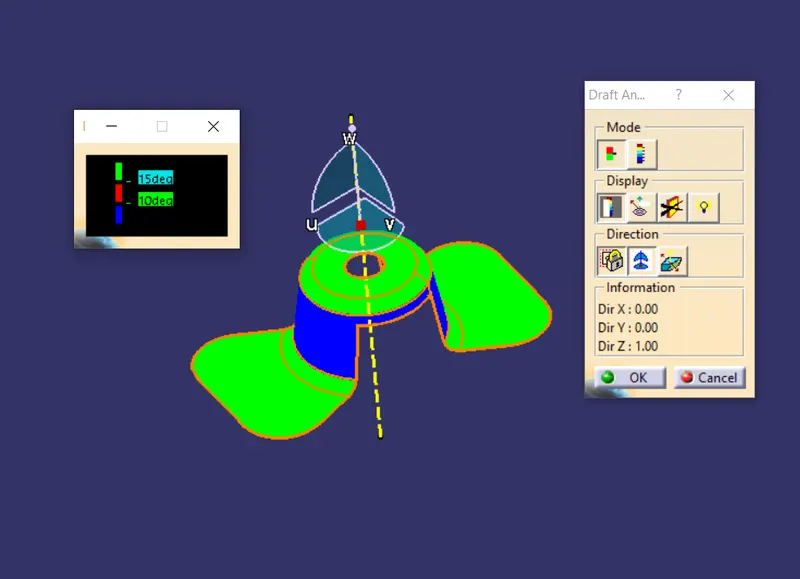
Fig. 13: Draft Analysis Trial 3
In the plastic component design rules, the draft is set between 0 degree and 3 degree and the result is shown below:
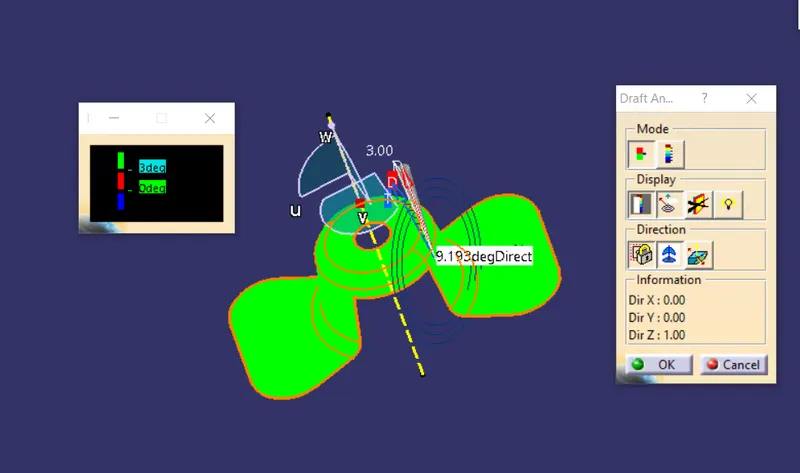
Fig. 14: Draft Analysis of FAN Cover
The orientation of the component is shown below:
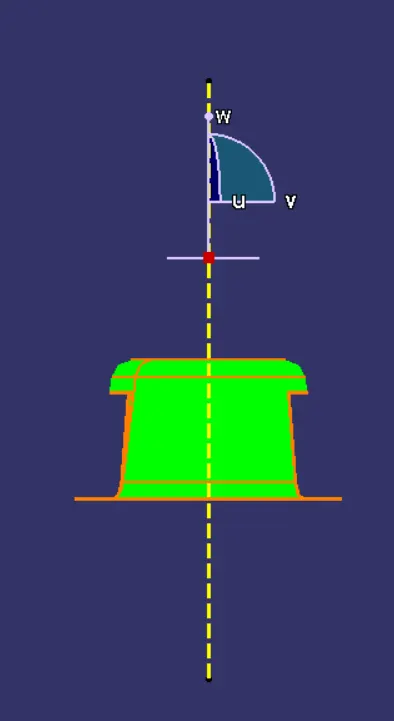
Fig. 15: Front View
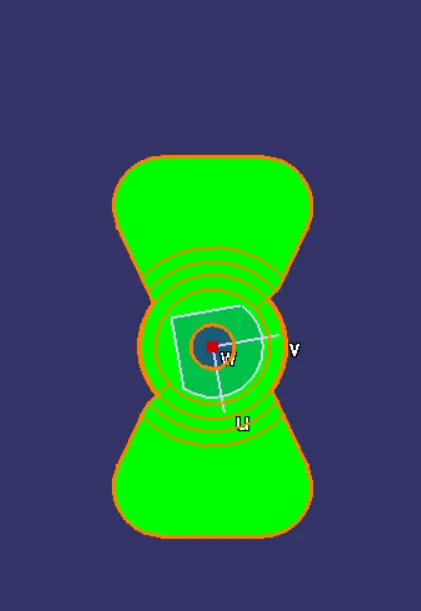
Fig. 16: Top View
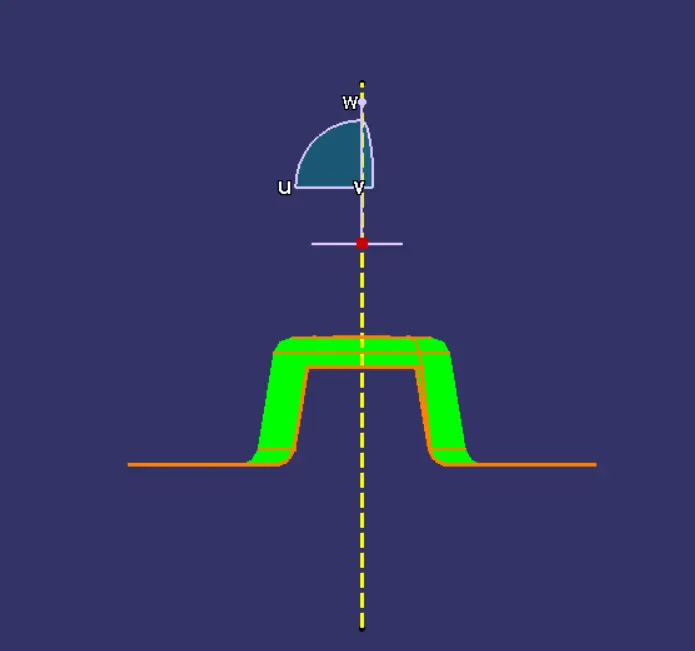
Fig. 17: Right View
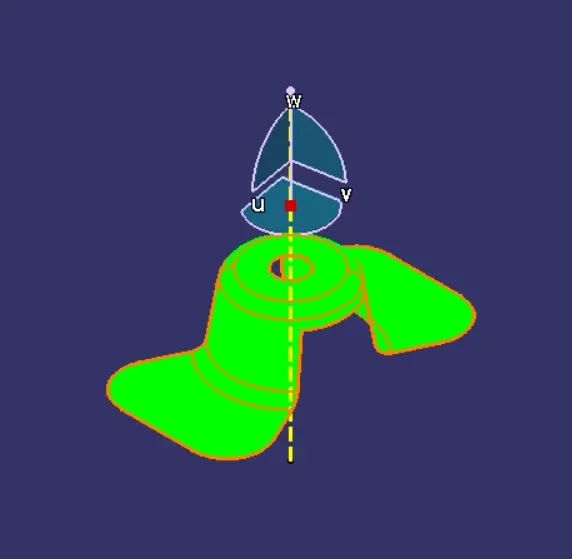
Fig. 18: Isometric View
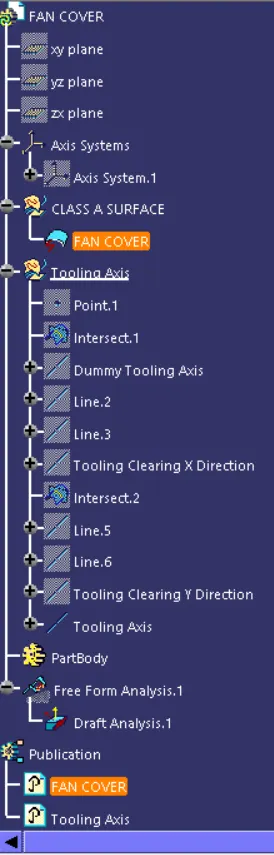
Fig. 19: Feature Tree
Conclusion:
The draft analysis of the Fan Cover was completed successfully.