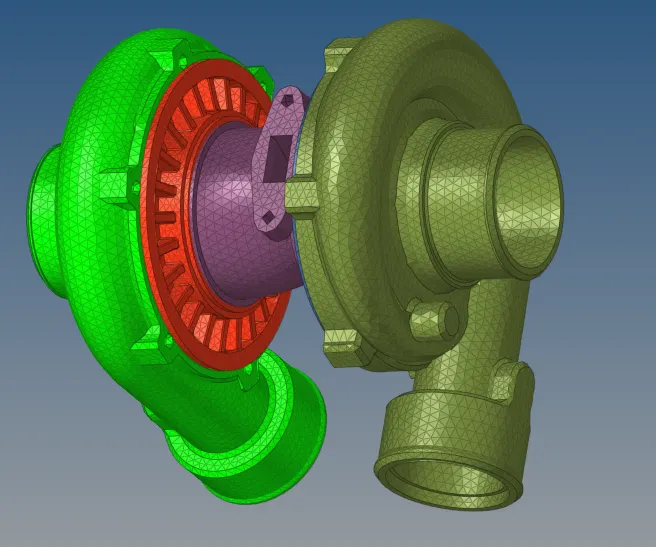
Week 8-3D Tetra Meshing Challenge
#8 Week Challenge Hyper-mesh for FEA Plastic and Sheet Metal Applications
Task_1: Create a Tetra-mesh for Housing component with the following quality criteria,
Method of generation: 2D to 3D Conversion
Elements sizes:
Min- 2 Units,
Max- 7 Units
Target- 5 Units,
Tet collapse: 0.15
Import the geometry;
- Click on the import icon on the main menu bar.
- Select the import geometry and choose the file, click on import.
- Then the file will be imported and will be shown in the graphical area as below,
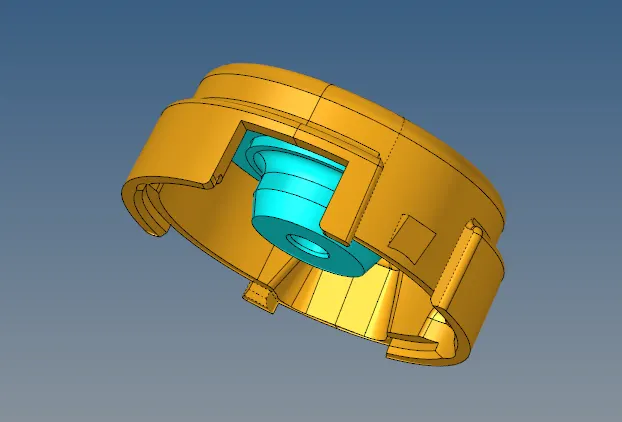
2D Meshing:
- Click on the 2D from the menu bar.
- Click on auto-mesh and enter the target element size as 5 units.
- Select the type as tria elements, give the minimum and maximum element length in the criteria file.
- Click on the surfaces and select the displayed surfaces, make sure the component is made as current component.
- Click on create mesh, check for the elements failed and re-mesh the elements.

2D Tria to 3D Tetra Mesh Conversion:
- Click on the 3D from the menu bar and select the tetra-mesh.
- Click on the tetra-mesh parameters and enter the min, max and Tet collapse values.
- Click on the tetra-mesh and select the elements as displayed and click on mesh.

- Click on tools and check elements(F10) and check the min, max, Tet collapse for the elements failed.

- Go to the delete the 2D tria elements on the surfaces.
- Mask the elements and you can check the 3D Tetra elements.
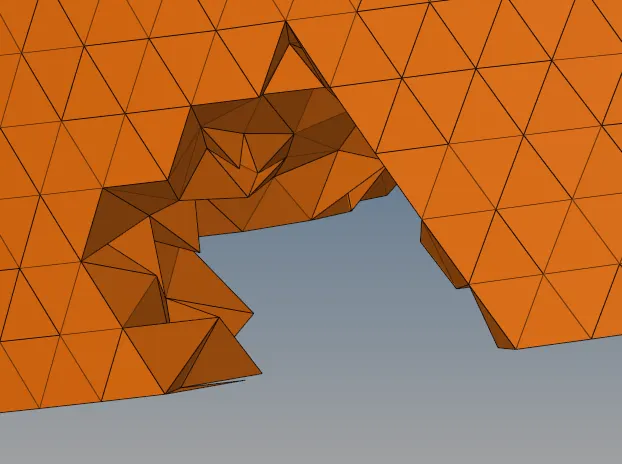
The Output:
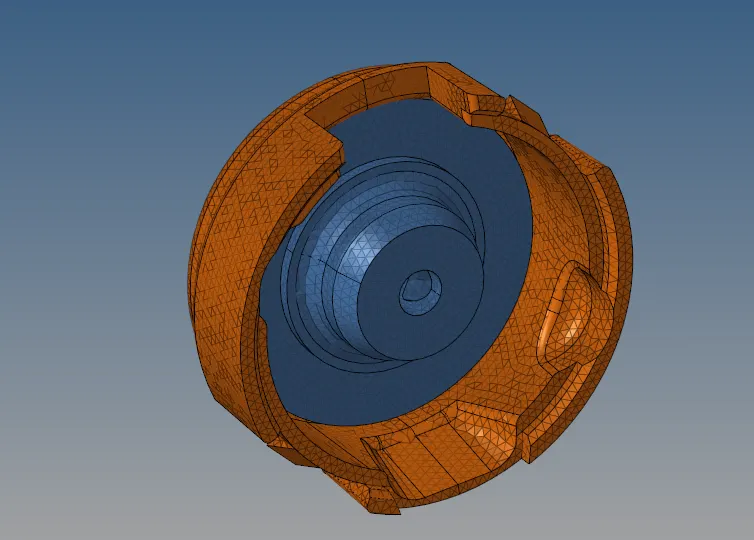
Task_2:
Method of generation: Quick Tetra-mesh (using utility tab)
Import the geometry;
- Click on the import icon on the main menu bar.
- Select the import geometry and choose the file, click on import.
- Then the file will be imported and will be shown in the graphical area as below,
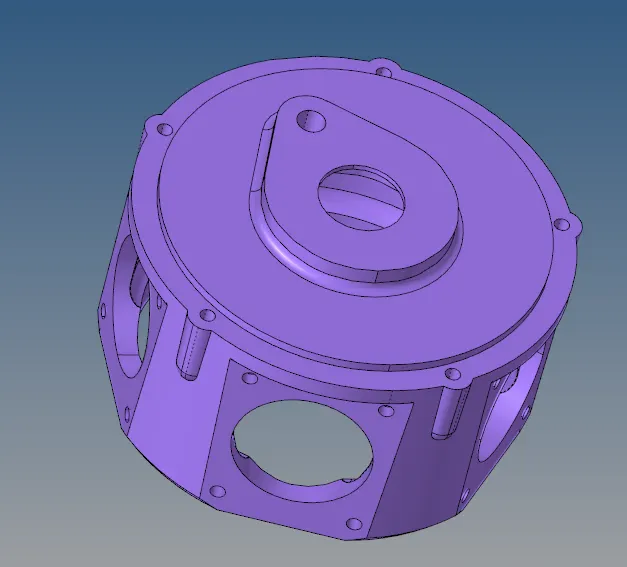
Quick Tetra-mesh using Utility panel:
- Click on the view from the display menu >Browser > Hyper-mesh > Utility.
- Select the Geom /mesh from the utility menu that appears.
- Click on the quick tetra mesh and select the components, enter the mesh size as 3.
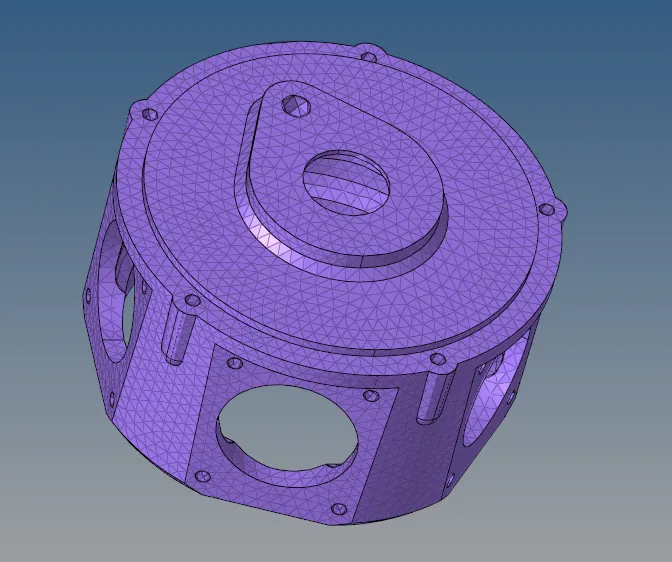
- Click on mesh and the appears as new collector in the component tree.
- Check the Tet -collapse for the elements failed.
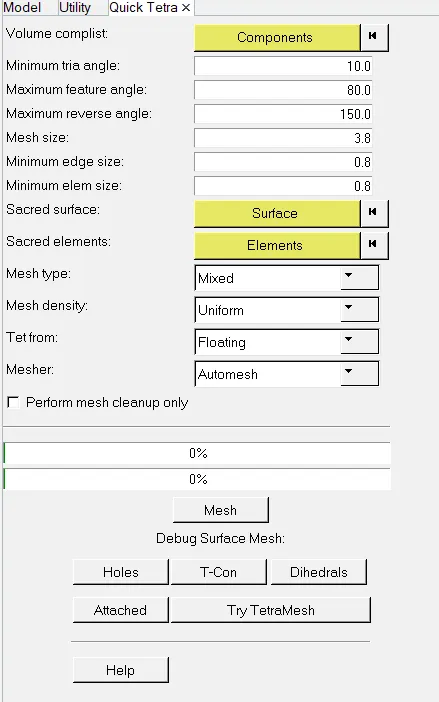
The Output:
Task_3:
Method of generation: Quick Tetra mesh / Volume Tetra-mesh
Import the geometry;
- Click on the import icon on the main menu bar.
- Select the import geometry and choose the file, click on import.
- Then the file will be imported and will be shown in the graphical area as below,
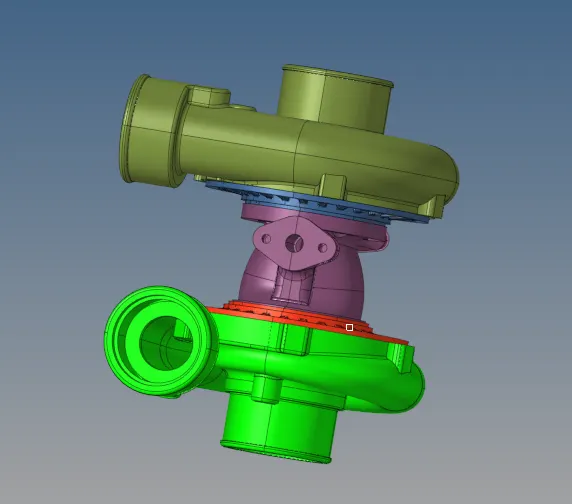
Volume Tetra-meshing:
- Click on 3D mesh from the menu bar and select the Tetra-mesh.
- Click on Tetra mesh parameters and enter the value of Tet collapse.

- Click on Volume Tetra-mesh and enter the target element size as 4.
- Select the components, make them as current and click on mesh.
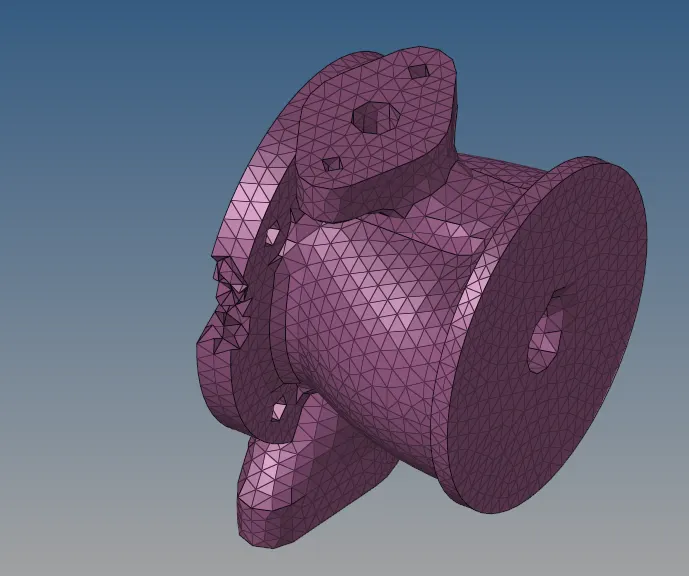
- Click on mask(F5) and select the elements and check for the 3D tetra-mesh elements and then click on unmask all.
- Click on Check elements(F10) and check for Tet collapse elements failed.
- If there are any elements failed click on re-mesh and select the elements as displayed and click on mesh.
- The final output should have 01 elements failed for Tet collapse.
The Output: