Week 8-3D Tetra Meshing Challenge
CHALLENGE 1
- Component 1
Aim- Create a Teramesh for Housing component with the following quality criteria and 2D to 3D Conversion for given condition.
Procedure- Import the step file from the folder
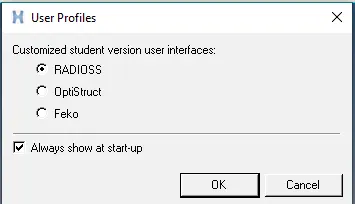
select the user profile as radioss for the component.
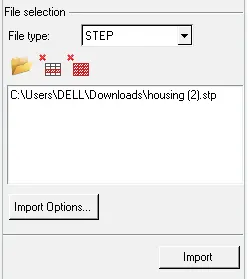
Import the geometry from file selection and its in step and select that and import.
Import the component its in to GUI.
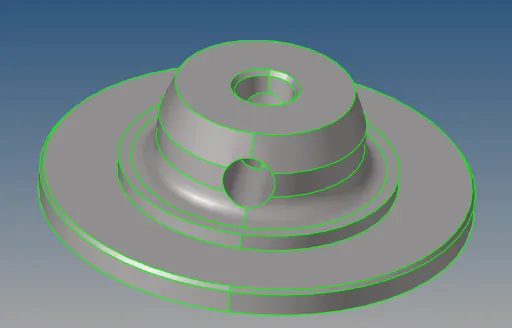
For this component do the 2D mesh as per the given condition.

mension the target element size is 5 and select the mesh type as trias. select the surface and mesh the given component
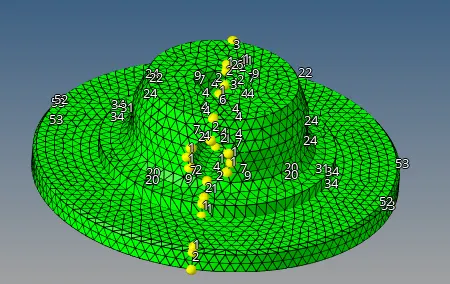
Accept the mesh and check for the min and max. element length.
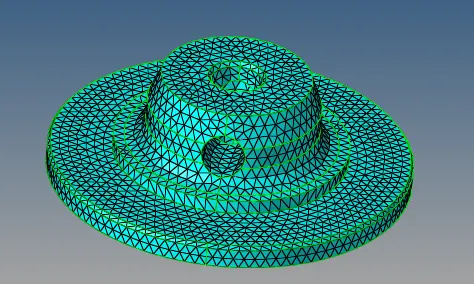
Below showing image the elements are failing for minimum elemental quality for the component.

If its failing for the min and max. elements length save that elements

Select the mask and select by retrive. press mask and get reverse, it shows the saved fail elements gets reflect

For failed elements select the unmask adjecent.
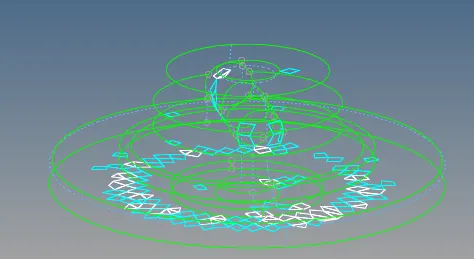
Again remesh that elements untill the elements get pass for the min and max for elements failing.
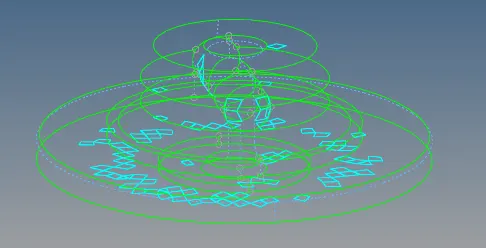
Similarly this procedure repeates for the max. elements.
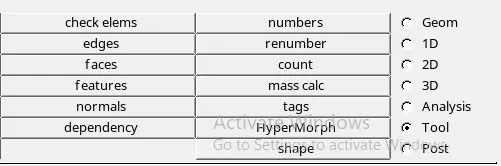
It shows 0 for the 2D elemental failuer.

The below image shows the component is pass for min. and max elemental size for the component.
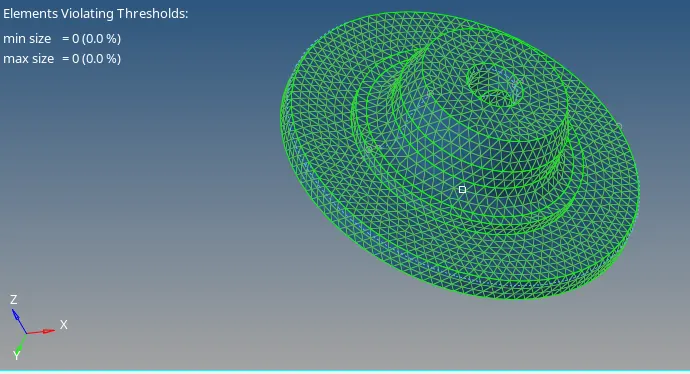
This image shows pass for min elemental size for 2D elements.

This image shows pass for max elemental size for 2D elements.

Next do it for 3D mesh for the component same component.
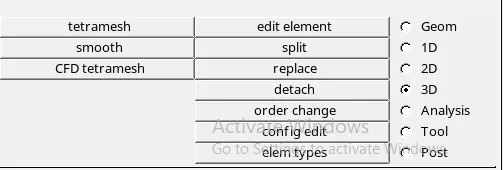
Select the 3D from tool bar and select the tetramesh. select the all 2D elements and 3D mesh for the component.

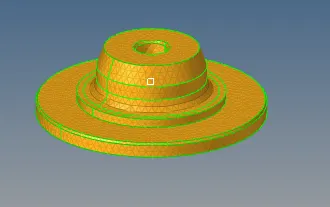
The 3D tetra mesh has been done for the below component.
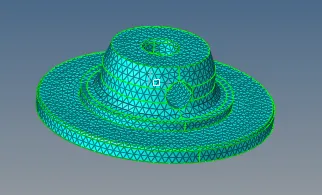
To check the 3D elements mask the the elements

select some region and it shows the 3D elements and select unmask all as shown in below.
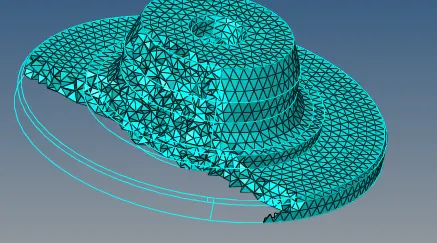
Check for the tet collapse for the component.

The tet collapse shows 0% for failing the elements to component.

The final component is as shown below.
Conclusion
As per the given condition the component is ready with the tetra mesh.
- Component 2
Aim- Create a Teramesh for Housing component with the following quality criteria and 2D to 3D Conversion for given condition.
Procedure- Import the step file from the folder
select the user profile as radioss for the component.
Import the geometry from file selection and its in step and select that and import.
The below shown the import model.
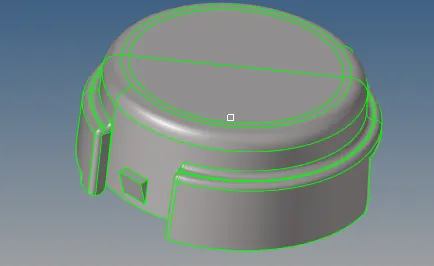
For this component do the 2D mesh as per the given condition.
Mension the target element size is 5 and select the mesh type as trias. select the surface and mesh the given component
Accept the mesh and check for the min and max. element length.
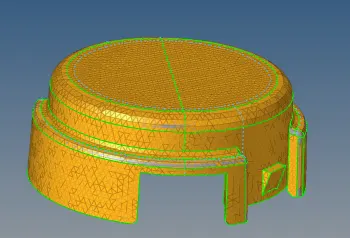
Below showing image the check the elements are failing for minimum elemental quality .
Select the check elements.
Below shown the element failuer for min and max. elements failuers for the components.
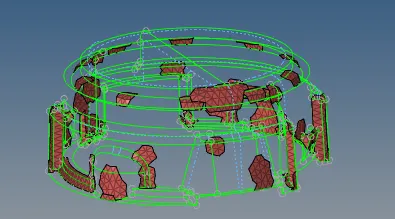
It below shown the elements gets failed min. and max. 2D elements.


If its failing for the min and max. elements length save that elements
Select the mask and select by retrive. press mask and get reverse, it shows the saved fail elements gets reflect
For failed elements select the unmask adjecent.
Again remesh that elements untill the elements get pass for the min and max for elements failing.
Similarly check elements and the procedure repeates again for the elements.
This image shows pass for min elemental size for 2D elements.

This image shows pass for max elemental size for 2D elements.

The below image shows the component is pass for min. and max elemental size for the component.
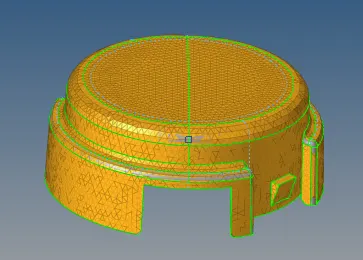
This image shows pass for min elemental size for 2D elements.
Next do it for 3D mesh for the component same component.
Select the 3D from tool bar and select the tetramesh. select the all 2D elements and 3D mesh for the component.
The 3D tetra mesh has been done for the below component.
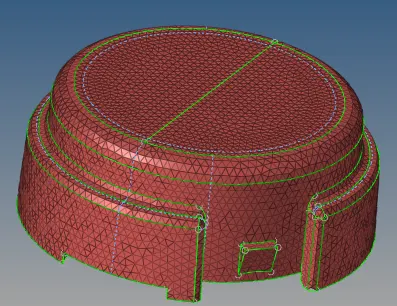
To check the 3D elements mask the the elements
select some region and it shows the 3D elements and select unmask all as shown in below.
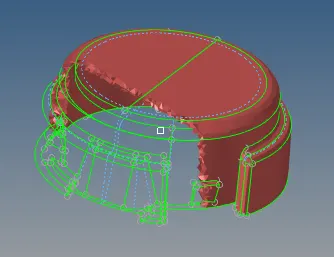
Check for the tet collapse for the component.
The tet collapse shows 0% for failing the elements to component.

The final component is as shown below.
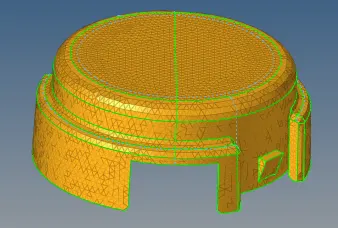
Conclusion
As per the given condition the component is ready with the tetra mesh.
CHALLENGE 2
Aim- For the given model, Create a 3D Tetramesh with the following quality criteria, using Quick Tetra Mesh/ Volume Tetra Mesh
Procedure- Open file from the folder
Select the user profile as radioss for the component.
Below shown the component seems like.
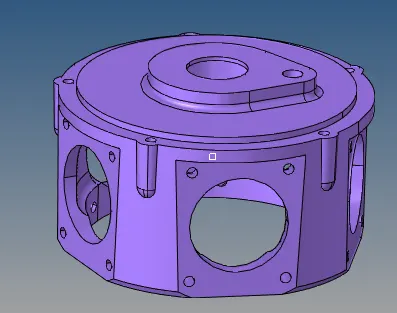
For this component, using the quick tetra mesh for the component.
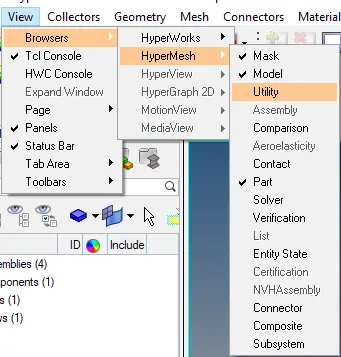
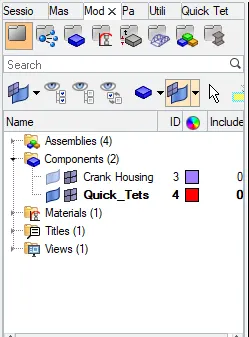
Select view and select browsers ,hypermesh,utility and it will create different folder.
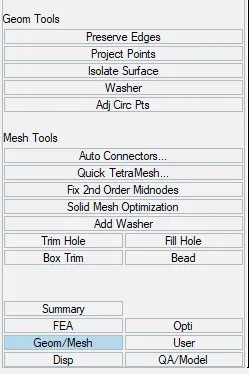
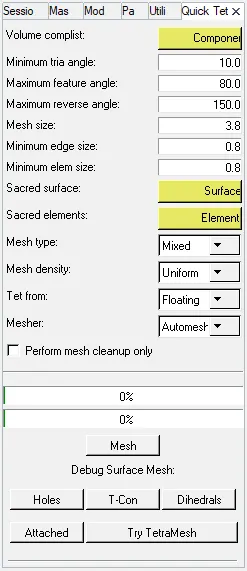
Select the quick tetramesh option and asign the value for target element size and press mesh.
Select the surface of the component and proced.

Select the mesh it shows after completing mesh surface mesh completed.
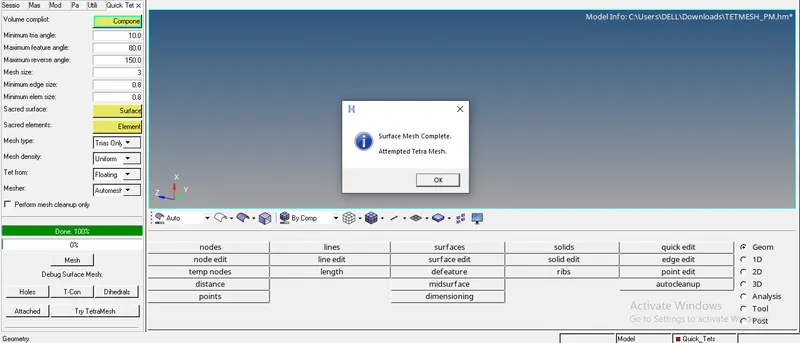
It will create the different collector for the quick tetramesh option.
Check the component have 3D mesh by using the mask command.

Select the portion for the component and make it mask.
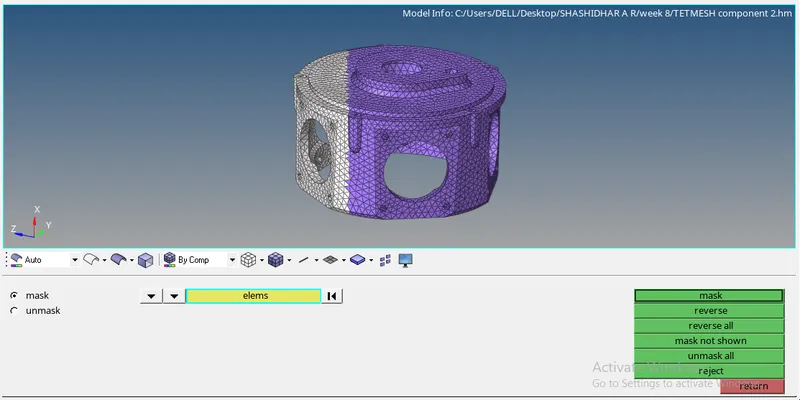
It shows proper proper 3D mesh for the component.
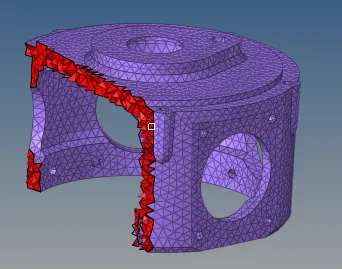
Check for the component for check elems and 3D tet collapse.
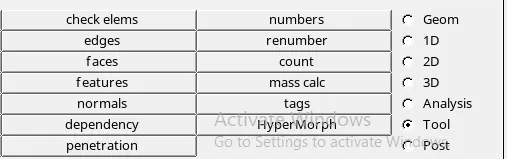
Set the tet collapse as 0.15 and showing for tet collapse.

It shows the tet collapse for the this component.

Use the unmask adjecent from the component.
Select the tet collapse element and select retrieve.

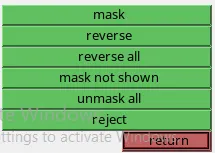
Mask the tet elements for component.

Get mask and make it reverse.
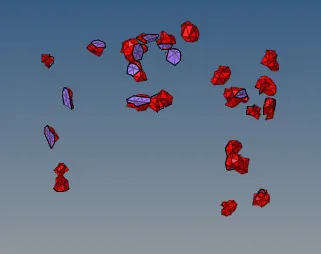
Use the unmask adjecent from the component.
It shows the tet collapse elements for the component.
Select the tetra remesh and select free boundary face will be remeshable.

Remesh the tet collapse element and check for the elements.

The component will get free from the tet collapse and the final component shown as shown in below.
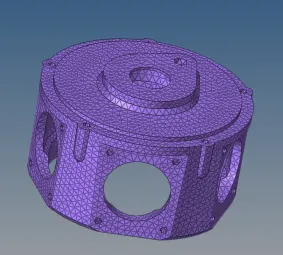
Conclusion
As per the given condition the component is ready with the tetra mesh.
CHALLENGE 3
- Component 1
Aim- For the given model, Create a 3D Tetramesh with the following quality criteria, using Quick Tetra Mesh/ Volume Tetra Mesh
Procedure- Open file from the folder
Select the user profile as radioss for the component.
Below shown the component seems like complex the component.
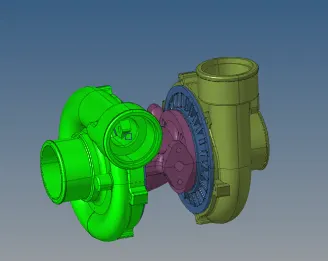
From the collector the other component can hide and make current component
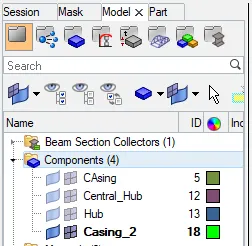
Select the casing component and shown below component and also the procedure is same for the bothe casing.
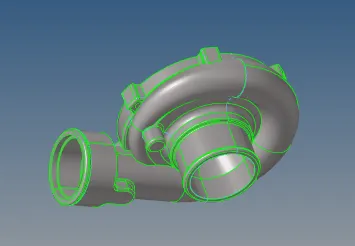
The meshing is done by using the volume tetra and select the surface. Mention the target element size and select the cleanup elements.

Below shown the component gets the 3D volume tetra option and make the
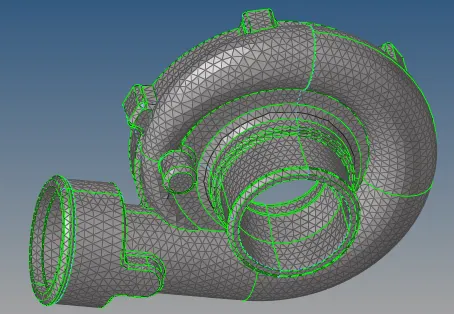
Check the component have 3D mesh by using the mask command.
Select the portion for the component and make it mask.
It shows proper proper 3D mesh for the component.
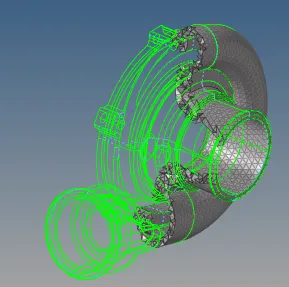
Check for the component for check elems and 3D tet collapse.
Set the tet collapse as 0.15 and showing for tet collapse.
It shows the tet collapse for the this component.
Check for the component for check elems and 3D tet collapse.
Set the tet collapse as 0.15 and showing for tet collapse.
It shows the tet collapse for the component.
Select the tet collapse element and select retrieve.
Mask the tet elements for component.
select mask and select it reverse.
Use the unmask adjecent from the component.
Select the tetra remesh and select free boundary face will be remeshable.
Remesh the tet collapse element and check for the elements.
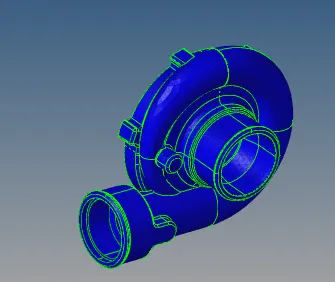
Conclusion
As per the given condition the component is ready with the tetra mesh.
- Component 2
Aim- For the given model, Create a 3D Tetramesh with the following quality criteria, using Quick Tetra Mesh/ Volume Tetra Mesh
Procedure- Open file from the folder
Select the user profile as radioss for the component.
Below shown the component anf fit the model.
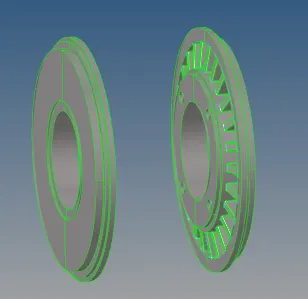
The meshing is done by using the volume tetra and select the surface. Mention the target element size and select the cleanup elements.
Below shown the component gets the 3D volume tetra option and make the mesh and shown below
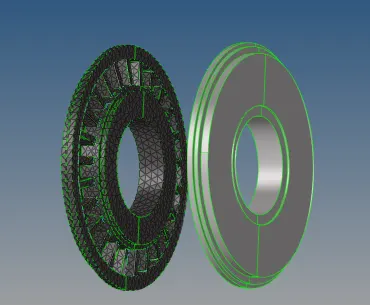
Check the component have 3D mesh by using the mask command.
Select the portion for the component and make it mask. After select the unmask.
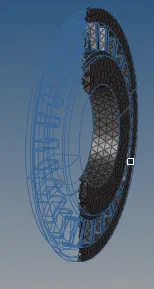
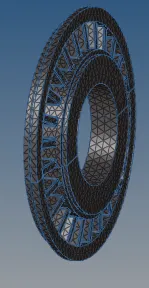
It shows proper proper 3D mesh in component.
Check for the component for tet collapse and 3D tet collapse.
Set the tet collapse as 0.15 and showing for tet collapse.
It shows the tet collapse for the this component.

It shows the 0% failuer for the tet collapse for the component, for hub component select the reflect the volume tetra.
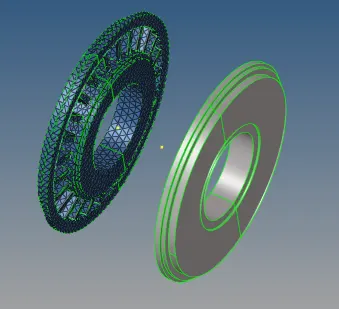
By choose the arc by center and make node center.
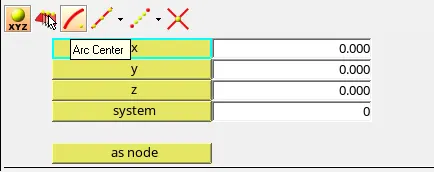
Make the proper node for the component.

Select the interpolate nodes and make the nodes between the component.
Select the tool, select the reflect.
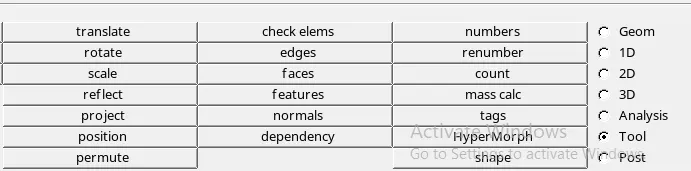
select the elements and select the y- axis and select the base point and reflect.

It shows the reflected elements over the opposite hub. final component shown in below.
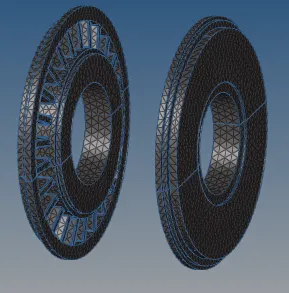
Also the component should check the elements and its shows 0%.
Conclusion
As per the given condition the component is ready with the tetra mesh.
- Component 3
Aim- For the given model, Create a 3D Tetramesh with the following quality criteria, using Quick Tetra Mesh/ Volume Tetra Mesh
Procedure- Open file from the folder
Select the user profile as radioss for the component.
Below shown the component anf fit the model..
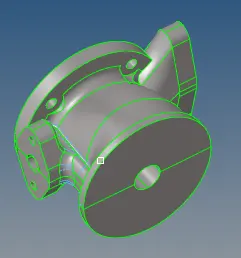
The meshing is done by using the volume tetra and select the surface. Mention the target element size and select the cleanup elements.
Below shown the component gets the 3D volume tetra option and make the mesh and shown below
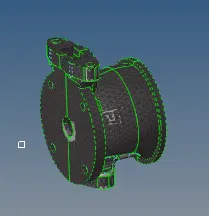
Check the component have 3D mesh by using the mask command.
Select the portion for the component and make it mask.
It shows proper proper 3D mesh for the component.
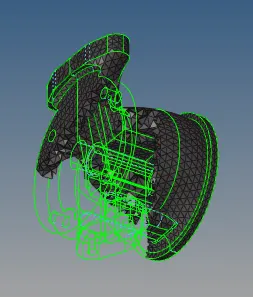
Check for the component for check elems and 3D tet collapse.
Set the tet collapse as 0.15 and showing for tet collapse.
It shows the tet collapse for the this component.

If the component have any tet collapse we can repeate the same procedure and use the tetra remesh. and use the translate also solve the tetra mesh elements.

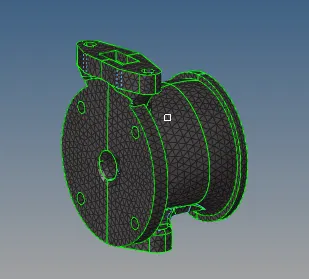
It shows the 0% failuer for the tet collapse for the component, for hub component select the reflect the volume tetra.
Conclusion
As per the given condition the component is ready with the tetra mesh.