Week 8-3D Tetra Meshing Challenge
AIM:
- Create a Teramesh for Housing component with the following quality criteria.
TetraMesh Generation Method: 2D to 3D Conversion
Elements sizes: Min- 2 Units, Target- 5 Units, Max- 7 Units.
Tet collapse: 0.15.
- For the given model, Create a 3D Tetramesh with the following quality criteria.
TetraMesh Generation Method: Quick Tetra Mesh/ Volume Tetra Mesh
Target Element size: 3 Units.
Tet Collapse: 0.15.
- For the given assembly model, Create a 3D Tetramesh with the following quality criteria.
TetraMesh Generation Method: Quick Tetra Mesh/ Volume Tetra Mesh
Target Element size: 4 Units.
Tet Collapse: 0.15.
SOFTWARE:
Hypermesh.
METHODOLOGY:
- Conversion of 2D tria elements into Tetrahedral elements by using tetra mesh panel.
- Generating tetra mesh by using Quick tetra mesh from the utility panel.
- Generating tetra mesh by using the volume tetra mesh panel.
TETRA MESHING
Tetrahedral is four nodded solid elements which mesh can be generated through the tria mesh element by creating a volume and the existing volume of the geometry. The Tetra element will have four triangular faces with four nodes joining them together.
PROCEDURE:
- Conversion of 2D tria elements into Tetrahedral elements by using tetra mesh panel.
- Import the model.
- Check geometry, Close the open surfaces.
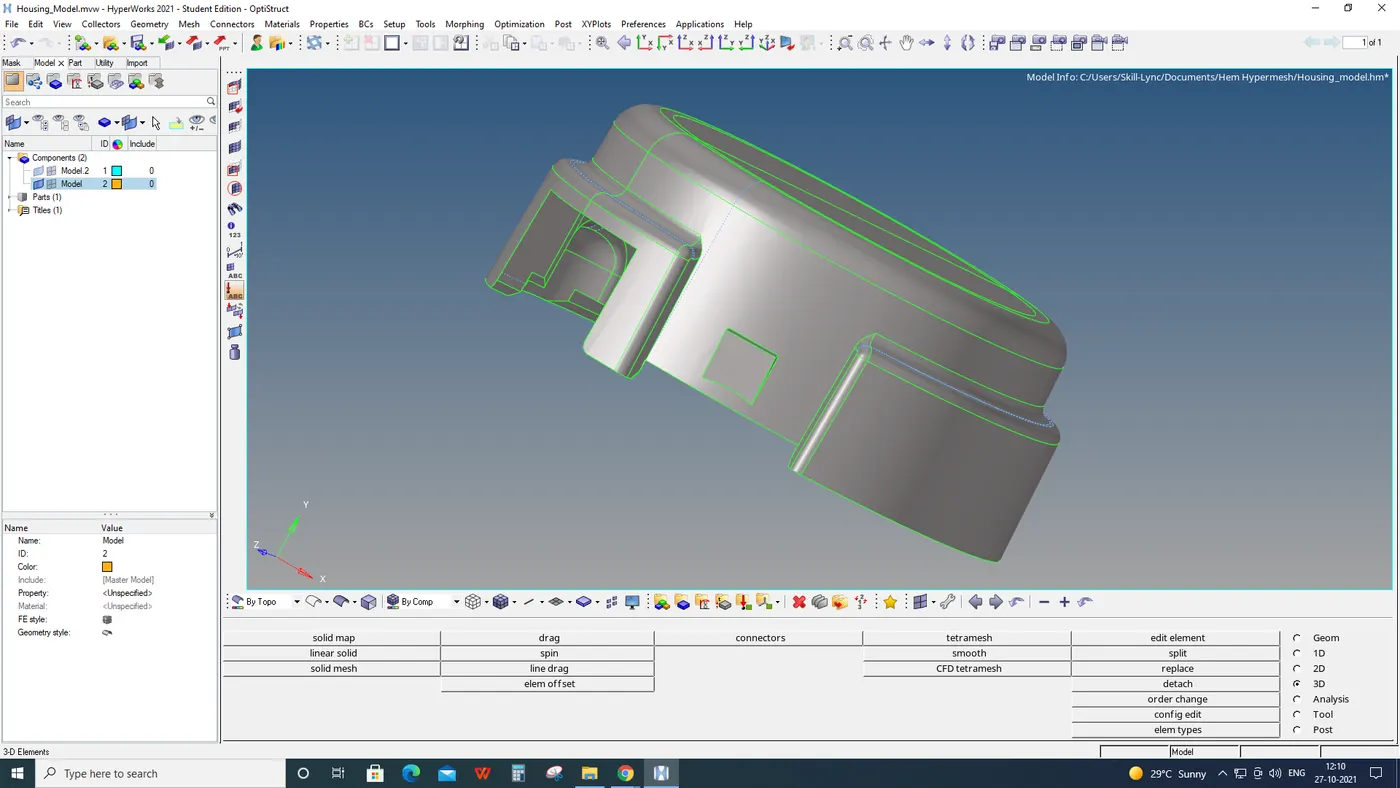
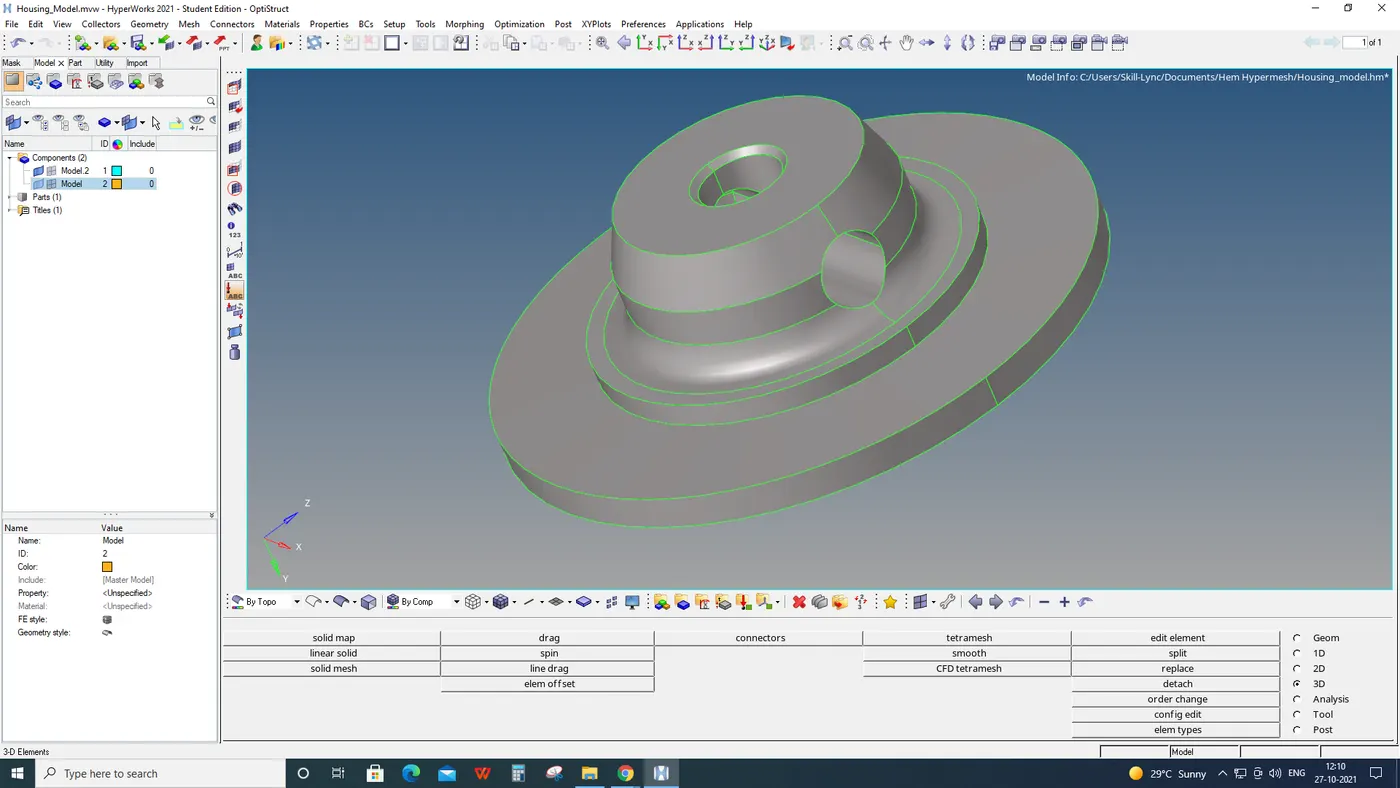
- Delete solid geometry.
- Mesh the surface with tria elements: Elements sizes: Min- 2 Units, Target- 5 Units, Max- 7 Units.
- Check elements in the Quality index.
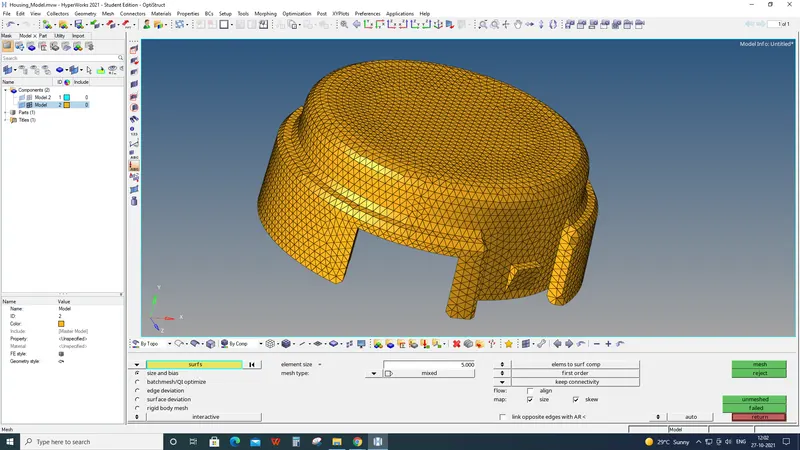
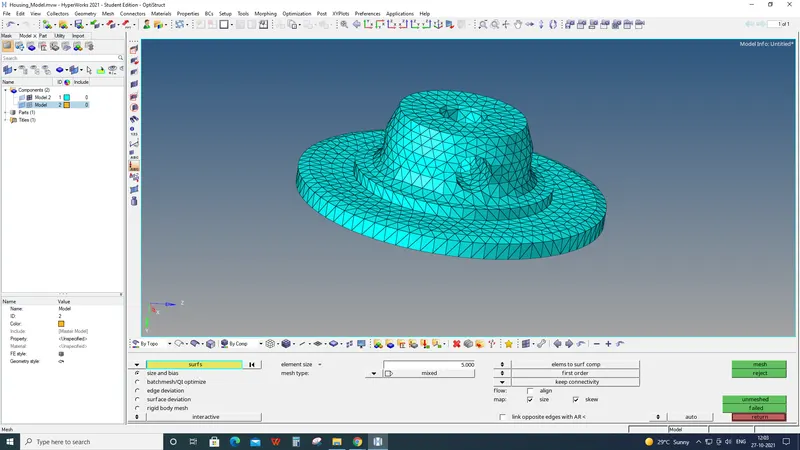
- Mesh the 2D elements into tetra elements with tet collapse of 0.150.
3D> Tetramesh> Tetra Mesh> Parameters> Tet Collapse 0.150> Mesh.
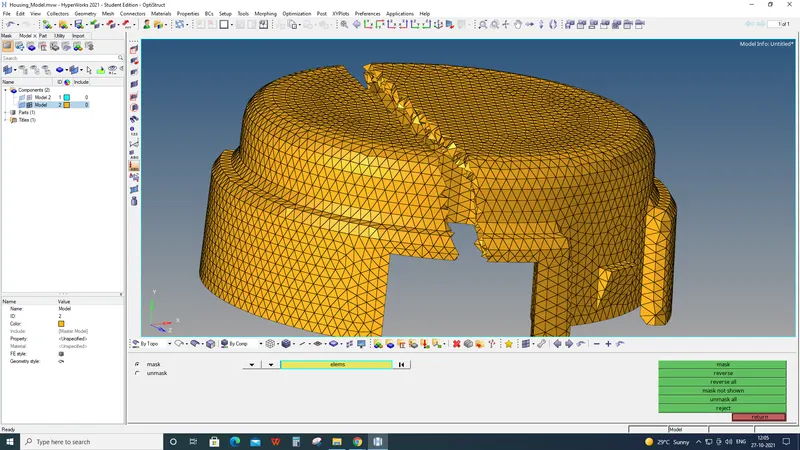
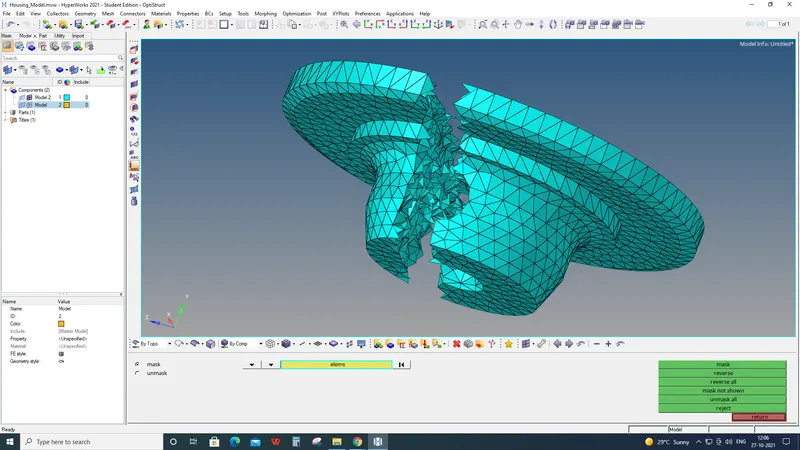
RESULT: The conversion of 2D elements to Tetramesh elements is done.
2. Generating tetra mesh by using Quick tetra mesh from the utility panel.
AIM:
To generate tetra mesh using quick tetra mesh.
SOFTWARE:
Hypermesh.
PROCEDURE:
- Import the model and check the geometry.
- Delete solid geometry.
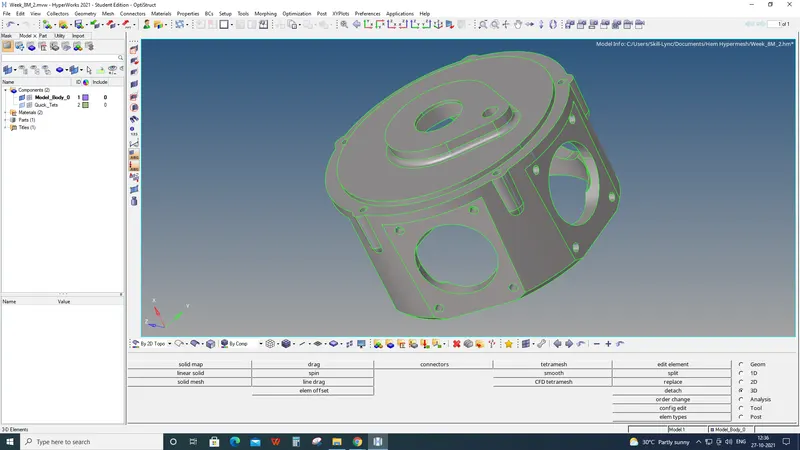
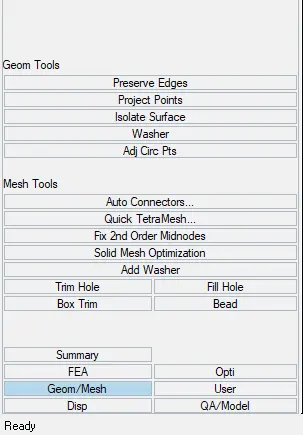
- Create the quick tetra mesh.
View> Browse> Hypermesh> Utility.
Geomesh> Quickmesh> Componets> Mesh size: 3> Mesh.
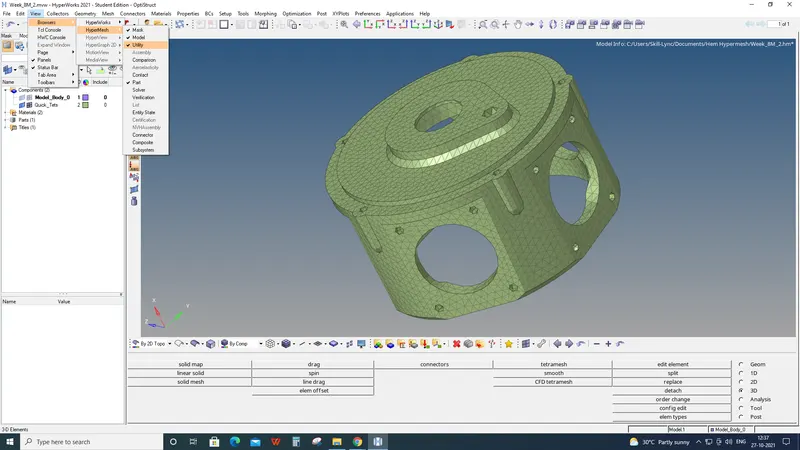
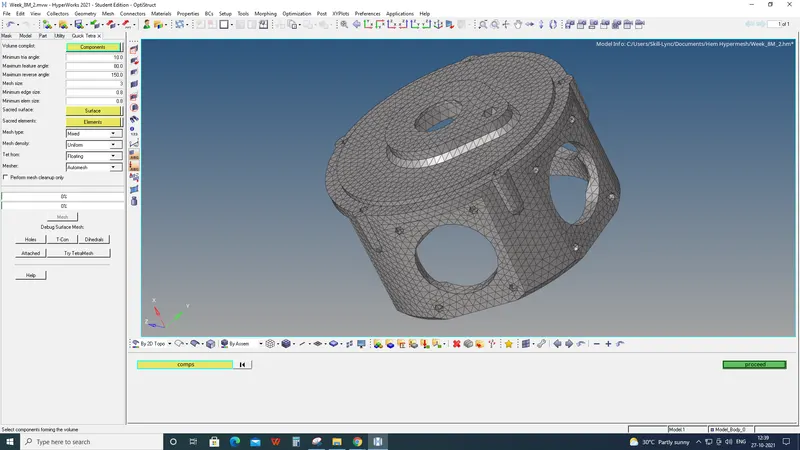
- If many tetra elements are failed in tet collapse use Tetra Remesh.
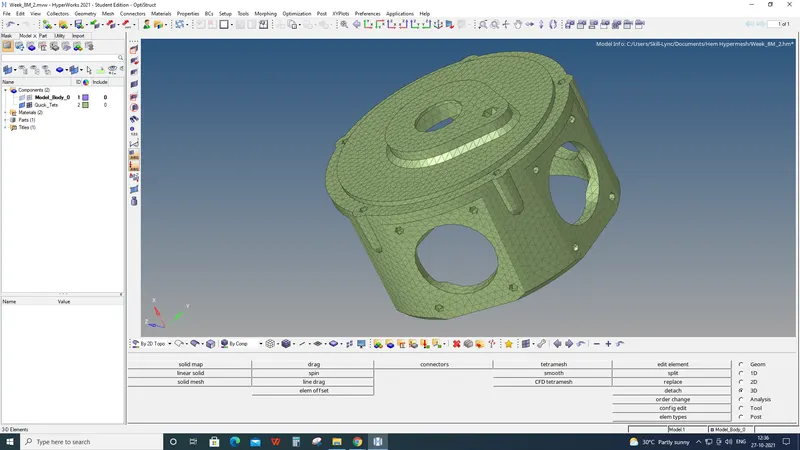
RESULT:
Generated tetra mesh by using Quick tetra mesh from the utility panel.
3. Generating tetra mesh by using the volume tetra mesh panel.
AIM:
To generate tetra mesh by using the volume tetra mesh panel for a given geometry.
PROCEDURE:
- Import the model and check the geometry.
- Mesh the model in solid geometry.
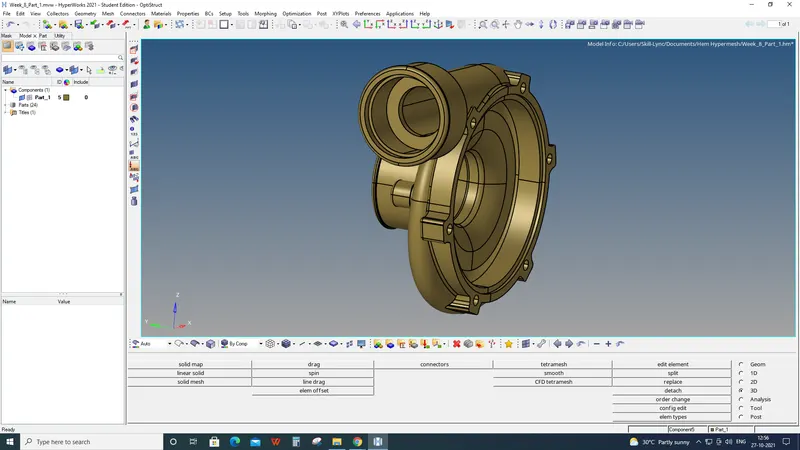
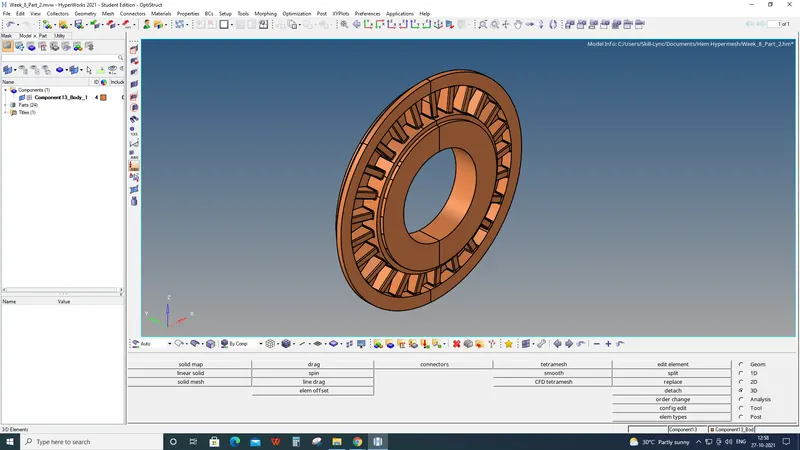
Make separate files for every component because of hypermesh support up to 100000 elements.
- Mesh the component in Volume tetra.
3D> Tetramesh> Volumetetra> Element size: 4> Tet collapse: 0.150> Mesh.
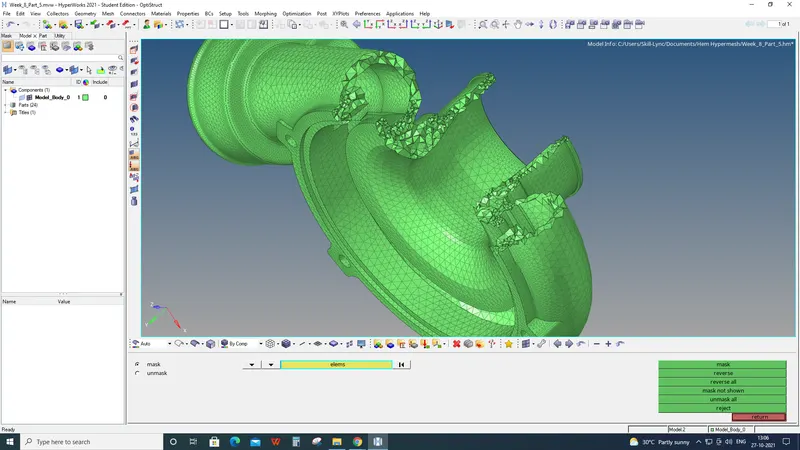
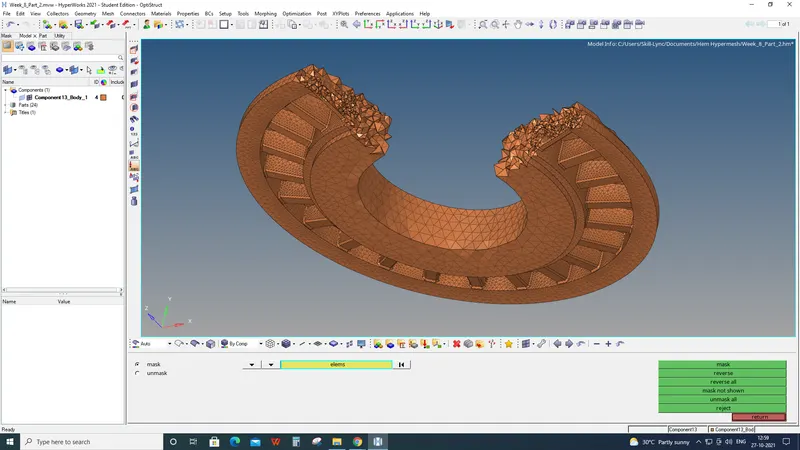
RESULT:
Generated tetra mesh by using the volume tetra mesh panel for a given components.