To change the shape of the component by the morphing technique.
Objective:- To change the shape of the component by the morphing technique.
Procedure:-
- Morphing- The functions of the Morphing menu can be used to efficiently re-shape both FE and/or Geometry based models.
- Domain or Box Morphing is preformed via boxes that are created around a particular part or assembly that the user intends to morph. The movement of the Morphing boxes control points defines the morphing operations on the entities inside the Morph box. This type of Morphing can be applied to both FE and Geometry based models.
- Direct morphing features gives the user the ability to efficiently modify a part locally without having to create Morphing boxes. This method is extremely useful in creating local modifications on single parts. Creation of depressions, surface fitting certain FE part features to new target geometry, moving selected features along the contour of a surface and also the ability to freeze (rigid) elements during the morphing process are some of the direct morphing abilities.
- Open ANSA and open the component file which is in ".igs" as provided.
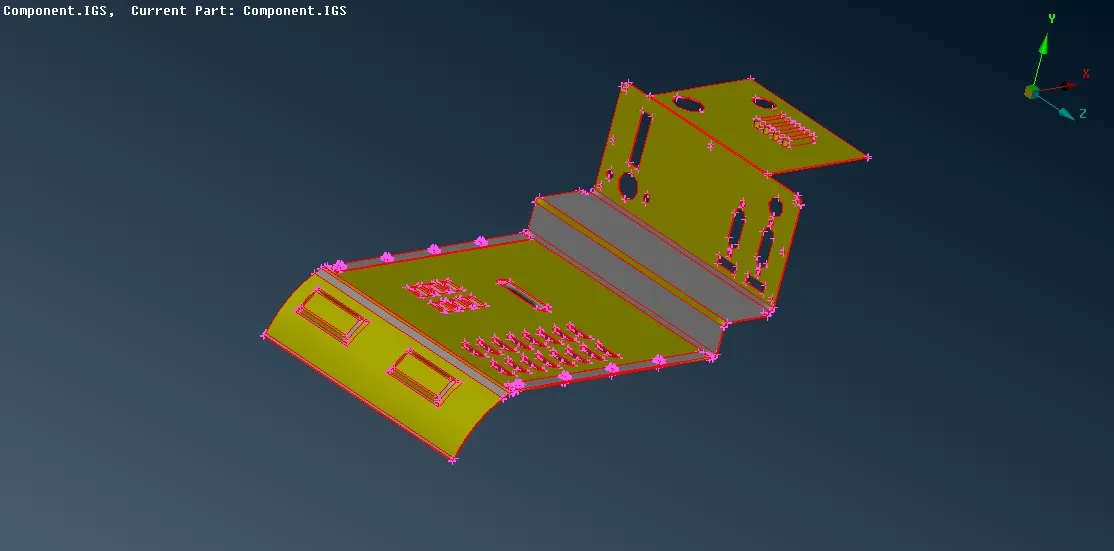
- From the modules use topo, Topo -> Faces -> Topo -> select the entities.
- Also even the orientation of the component by using the "Orient" option which is under Modules -> Topo -> Faces -> Orient.
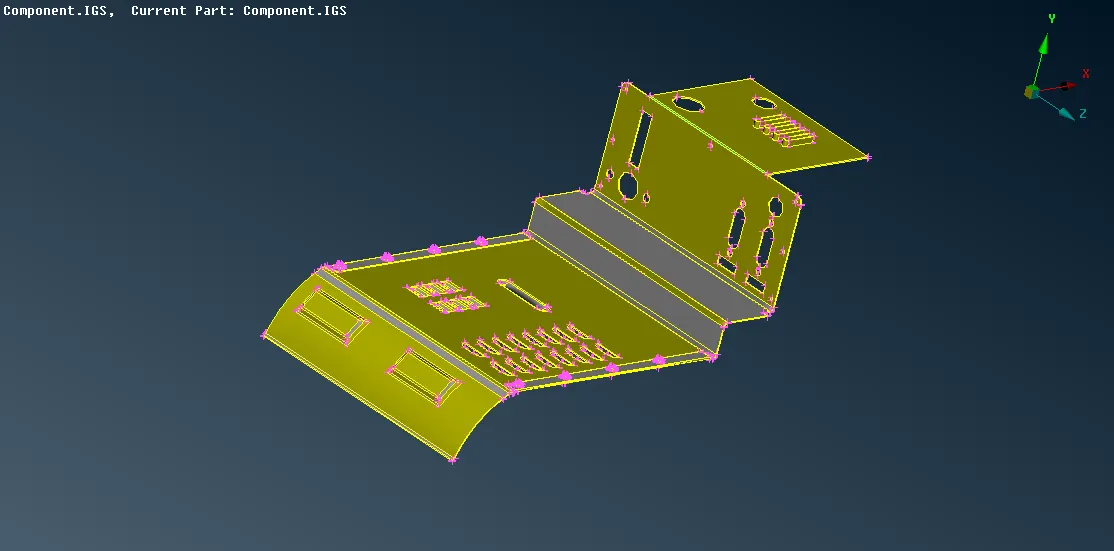
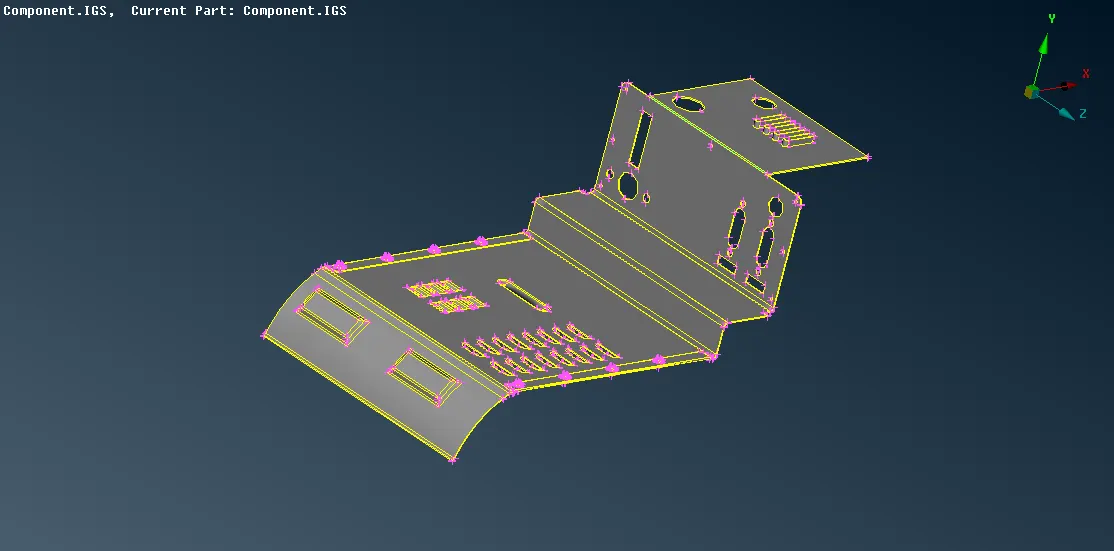
- Isolate the panel entity by using the !Not option from the focus.
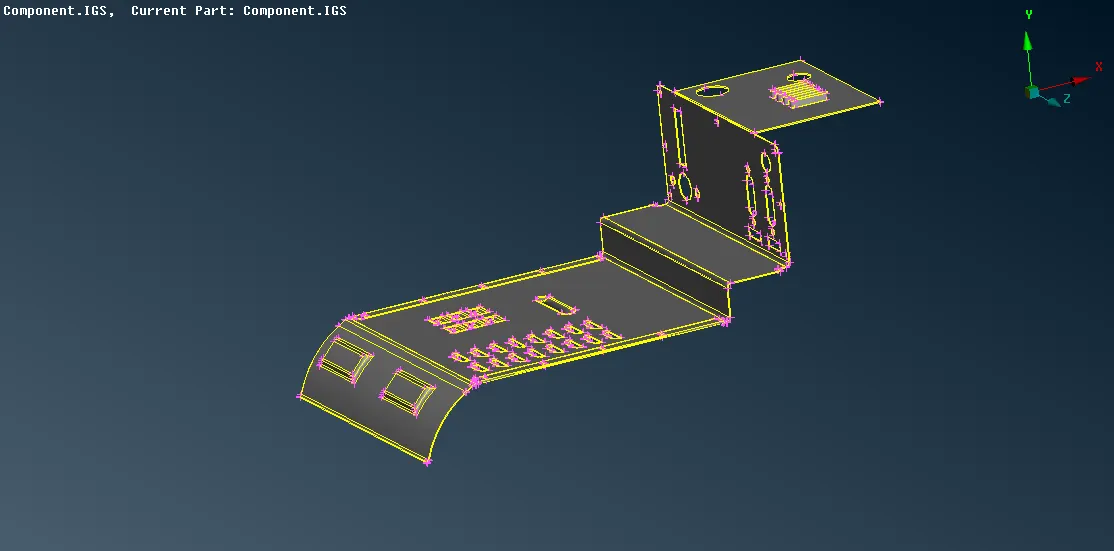
- To change the shape of the panel options in the morph module can be used.
- In Morph module, Morph -> Boxes -> New ->Ortho -> Geometry -> Select the part want to morph -> middle mouse click, morph boundary will be shown -> middle mouse click to confirm.
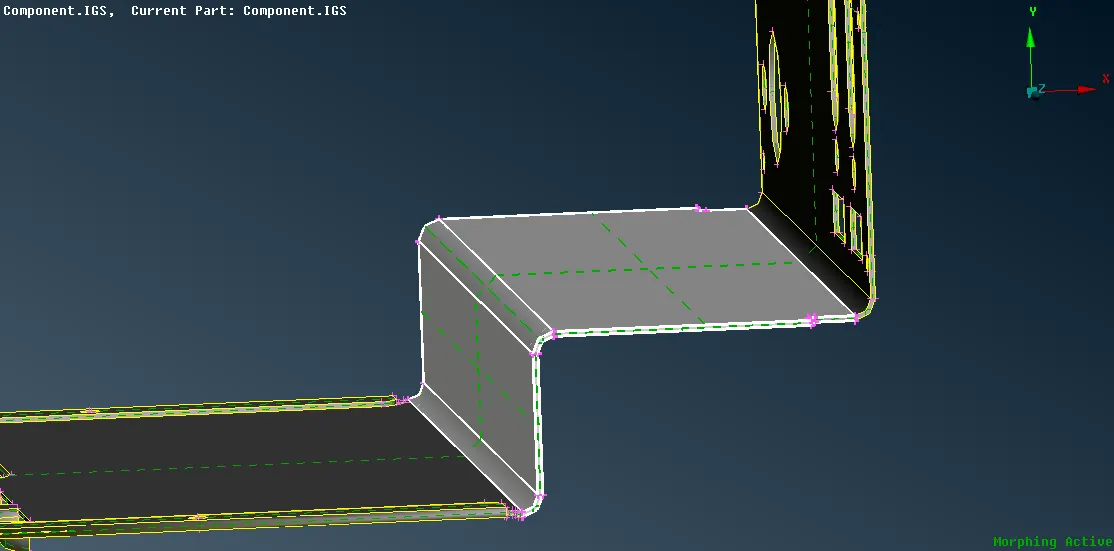
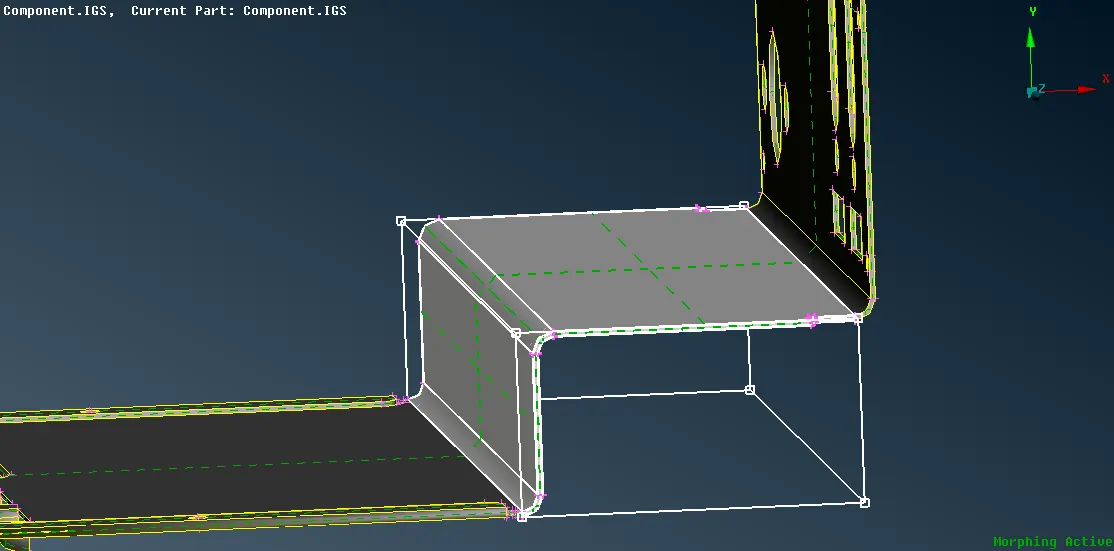
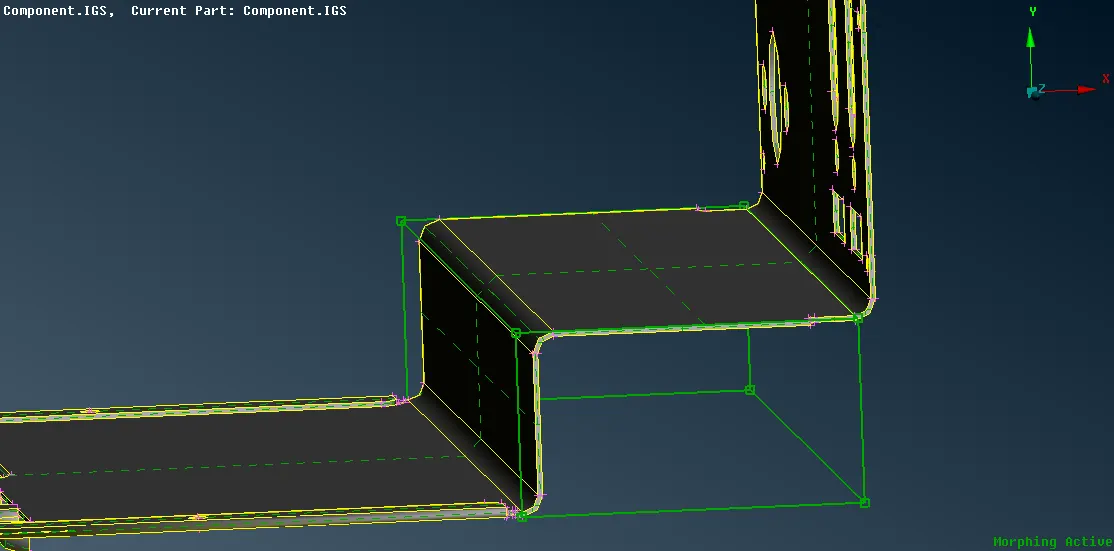
- To move the selected part, Morph -> Box Morphing -> Move ->Select the nodes of the box from which side want to reshape -> middle mouse click to confirm -> drag the nodes to change the shape by moving the mouse in a particular direction -> middle mouse click to confirm -> ok.
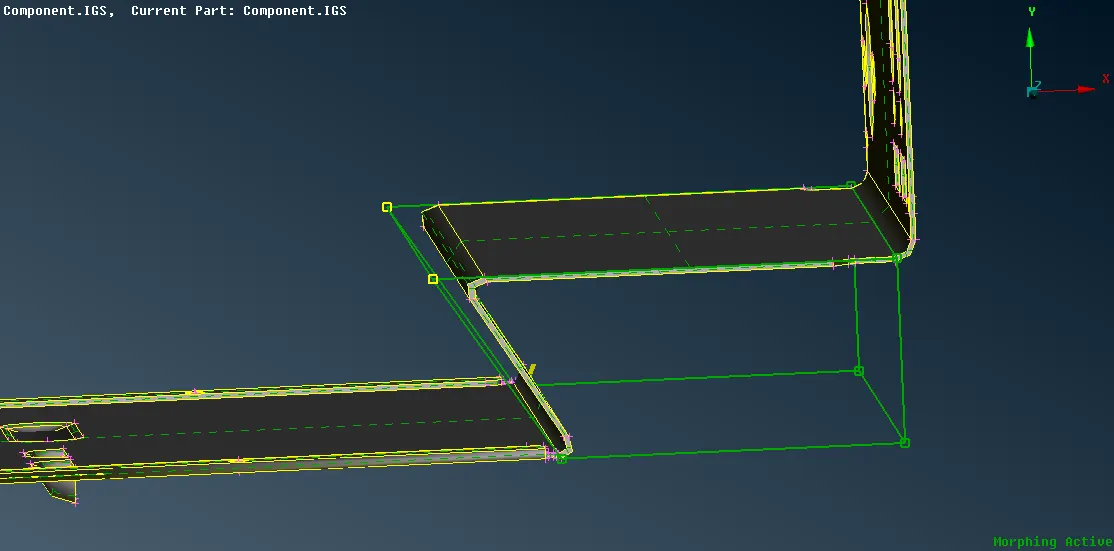
- The morph selection box also can be split to achieve a more desirable way to change the shape by Morph -> Boxes -> New ->Ortho -> Geometry -> Select the part want to morph -> middle mouse click, morph boundary will be shown -> middle mouse click to confirm. Then to split the morph selection box Morph -> Boxes -> Split -> by User or Number etc (if by number select the side of morph box want to divide and provide how many number want to divide).
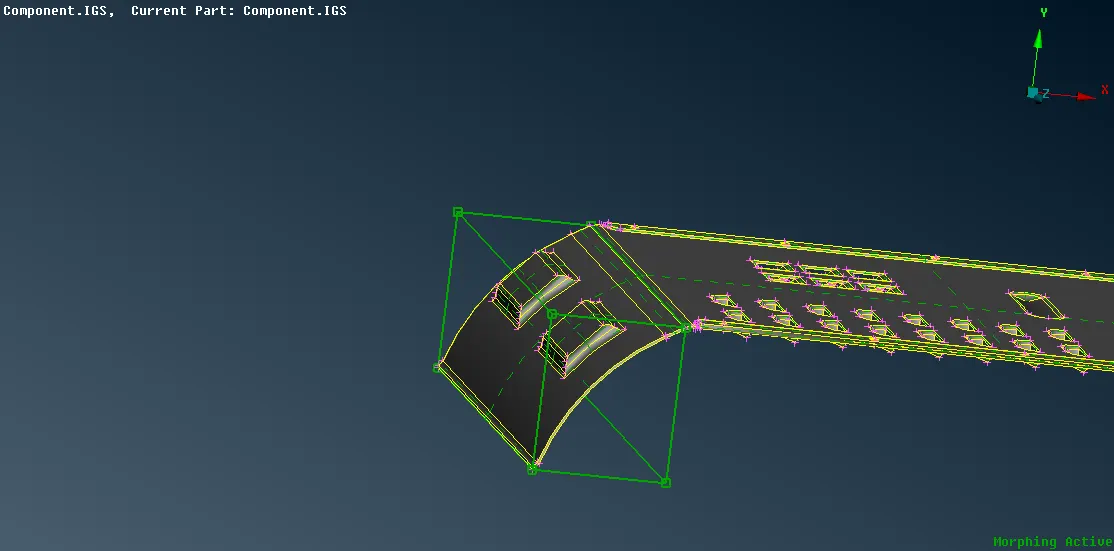
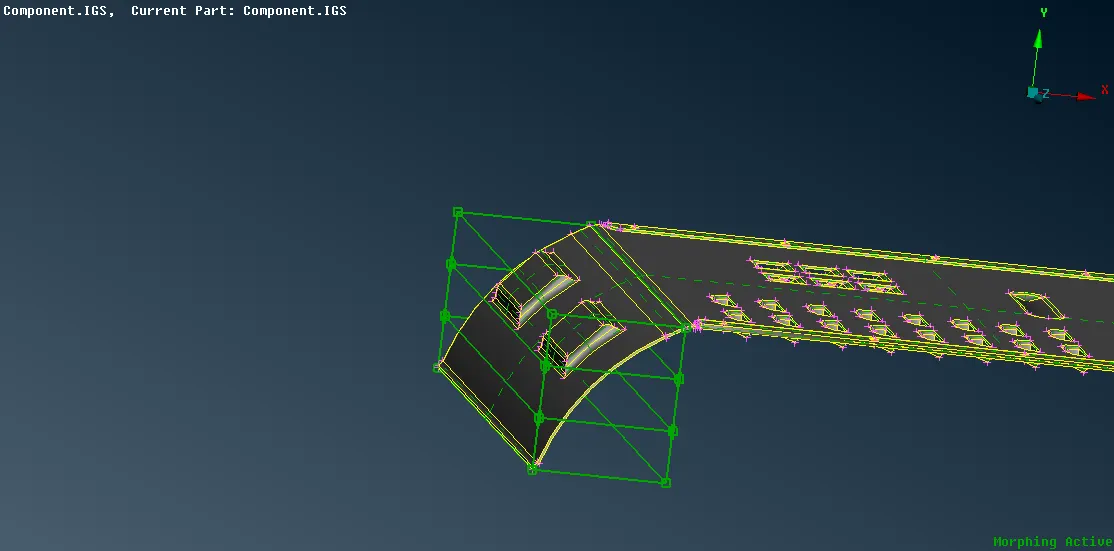
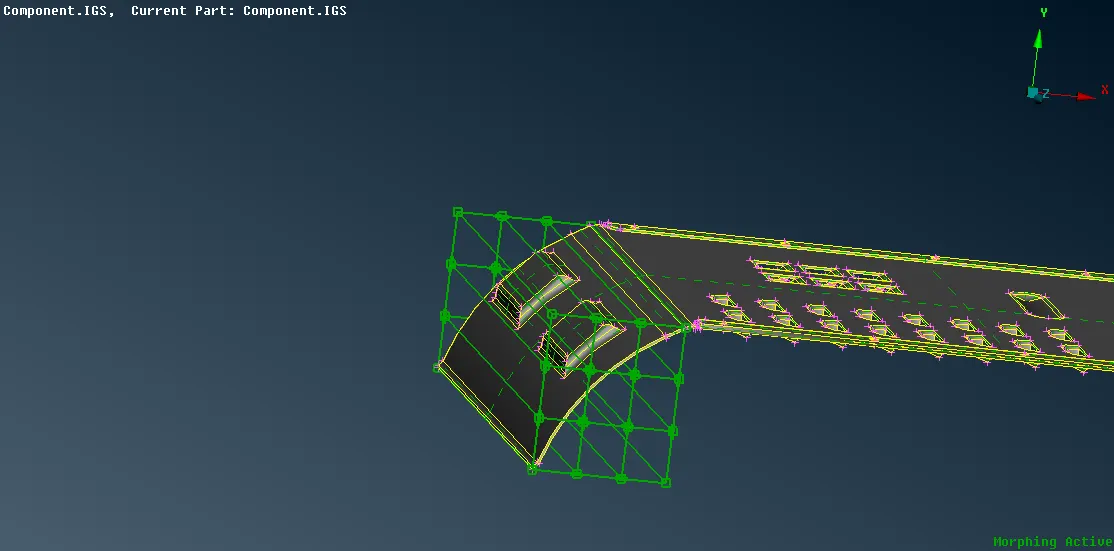
- To move the selected part, Morph -> Box Morphing -> Move ->Select the nodes of the box from which side want to reshape -> middle mouse click to confirm -> drag the nodes to change the shape by moving the mouse in a particular direction -> middle mouse click to confirm -> ok.
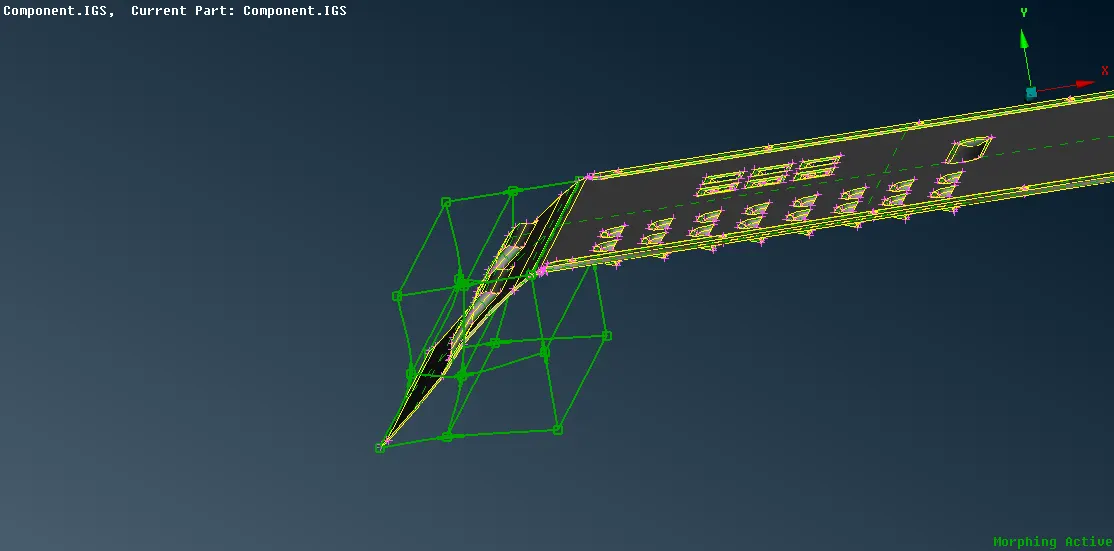
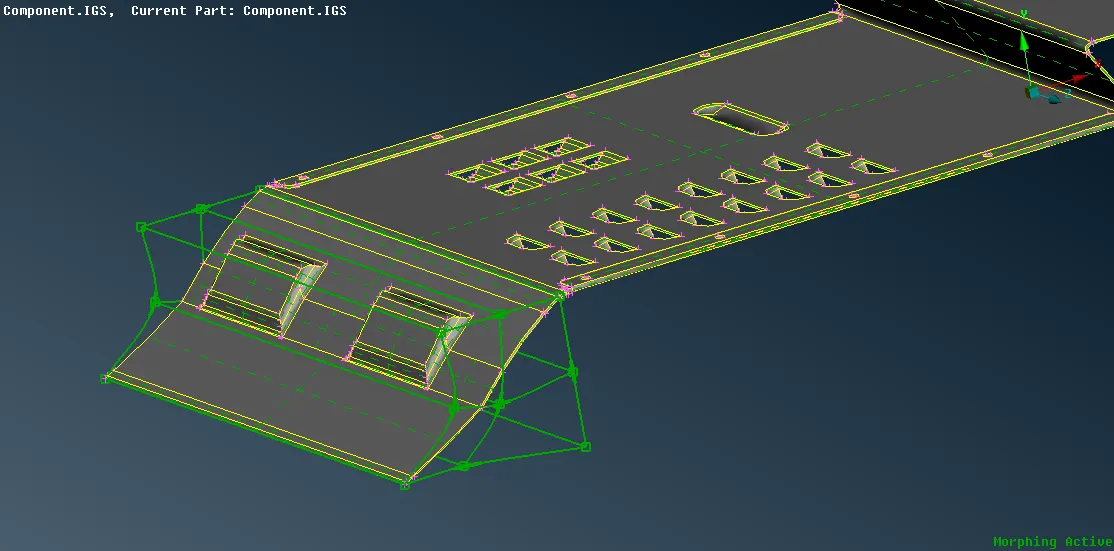
- To morph mesh geometry, extract the mid of the entity and mesh it.
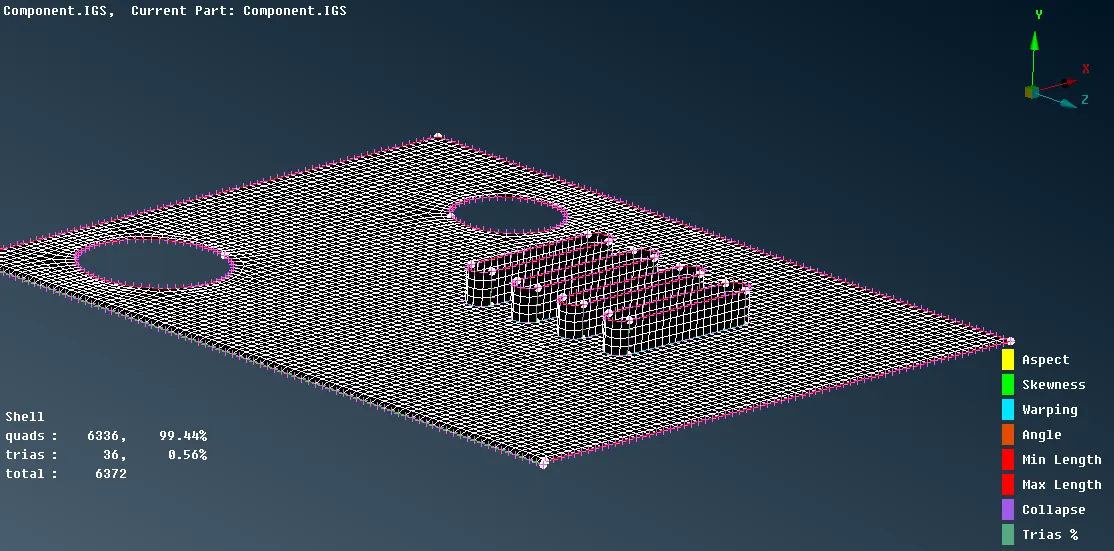
- Release the elements from the geometry by Mesh -> Elements -> Release -> Select the elements -> middle mouse click to confirm.
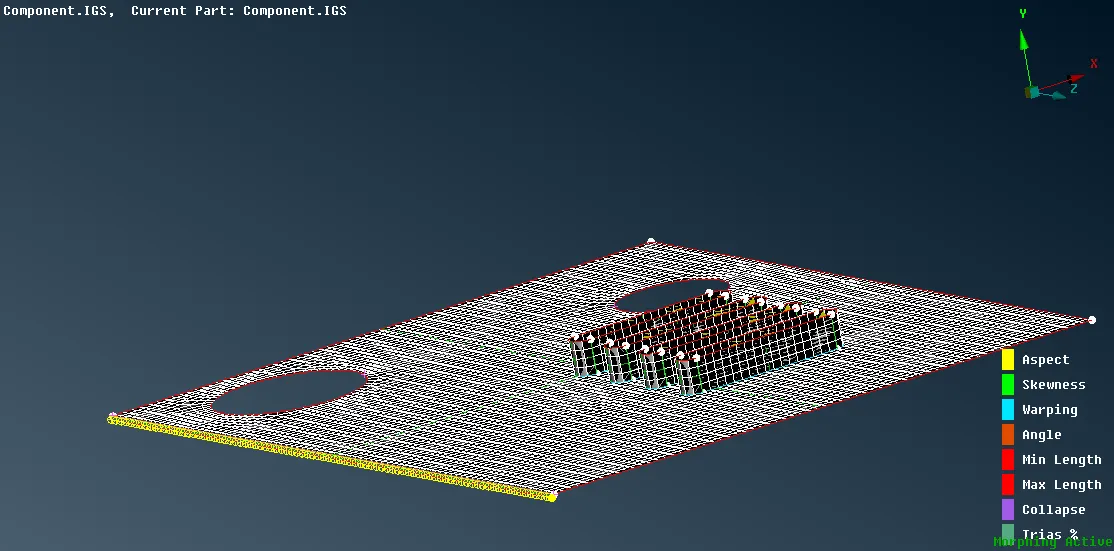
- To morph the element of the bracket, Morph -> Boxes -> New -> Ortho -> FE entities -> Select the elements want to morph -> middle mouse click, morph boundary will be shown -> middle mouse click to confirm.
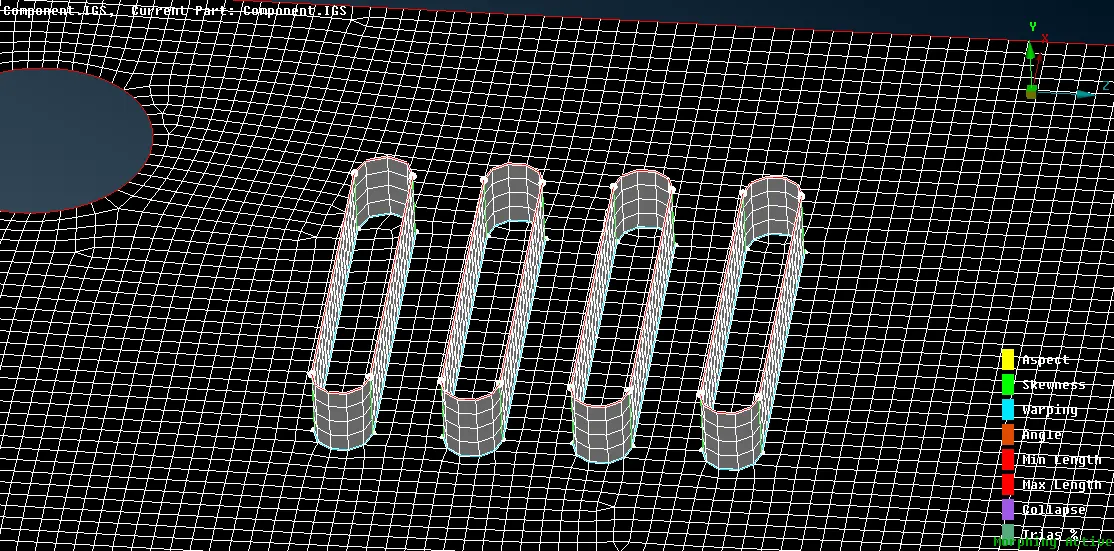
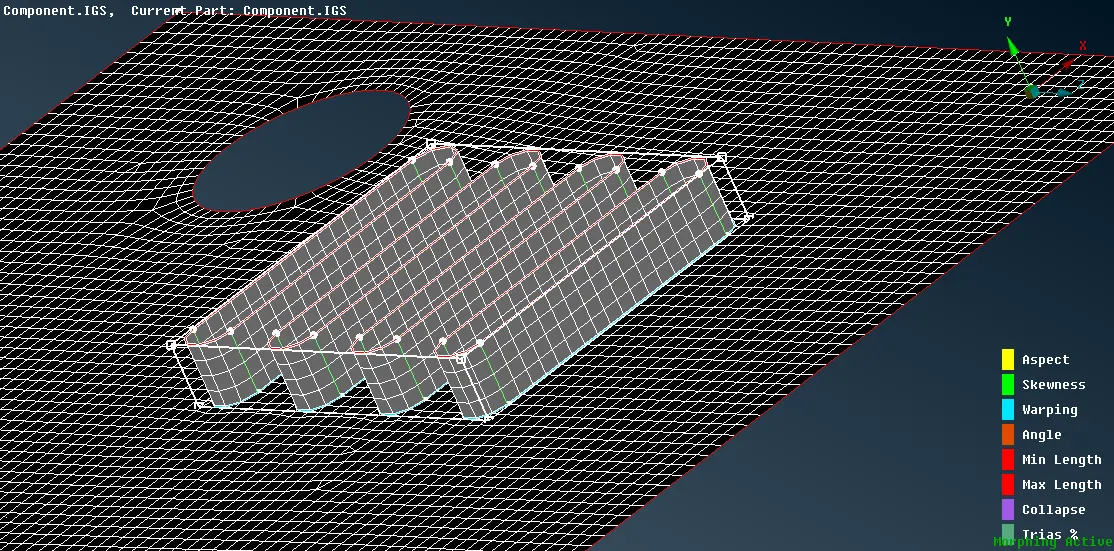
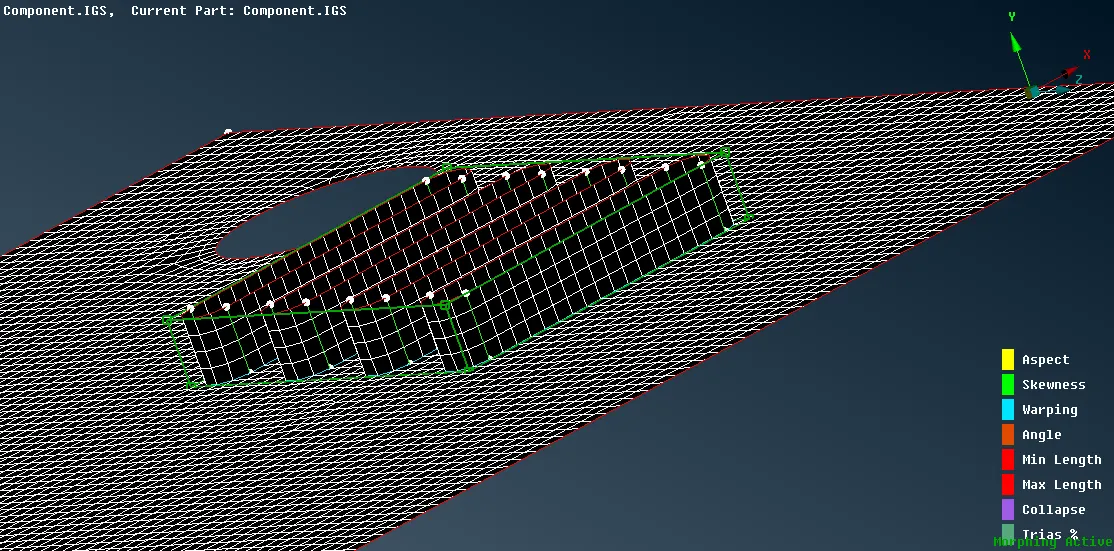
- To move the selected part, Morph -> Box Morphing -> Move ->Select the nodes of the box from which side want to reshape -> middle mouse click to confirm -> drag the nodes to change the shape by moving the mouse in a particular direction or click on "Numerical input" and provide the desired value want to change in that particular direction of X, Y and Z-> middle mouse click to confirm -> ok.
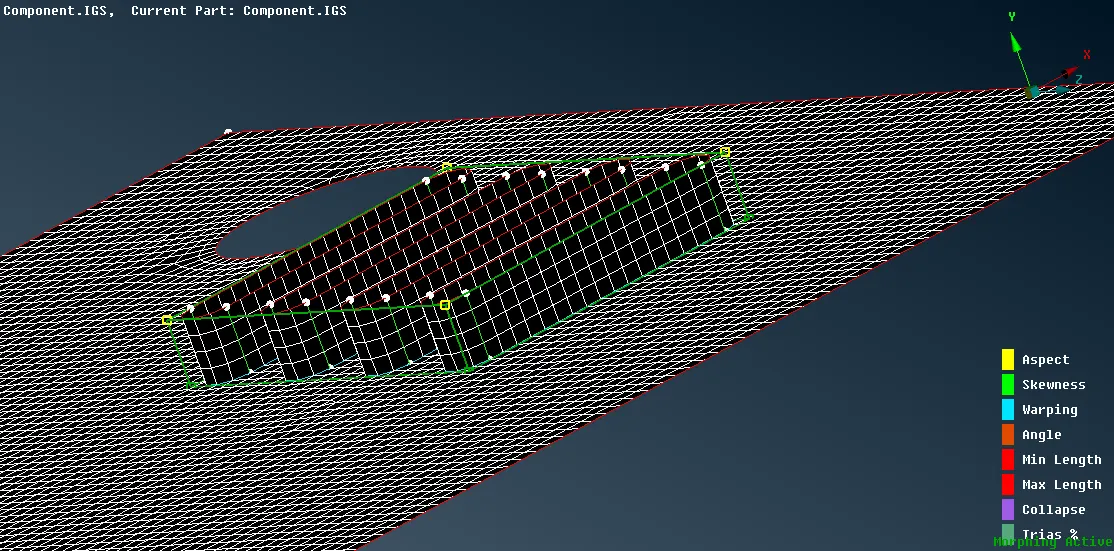
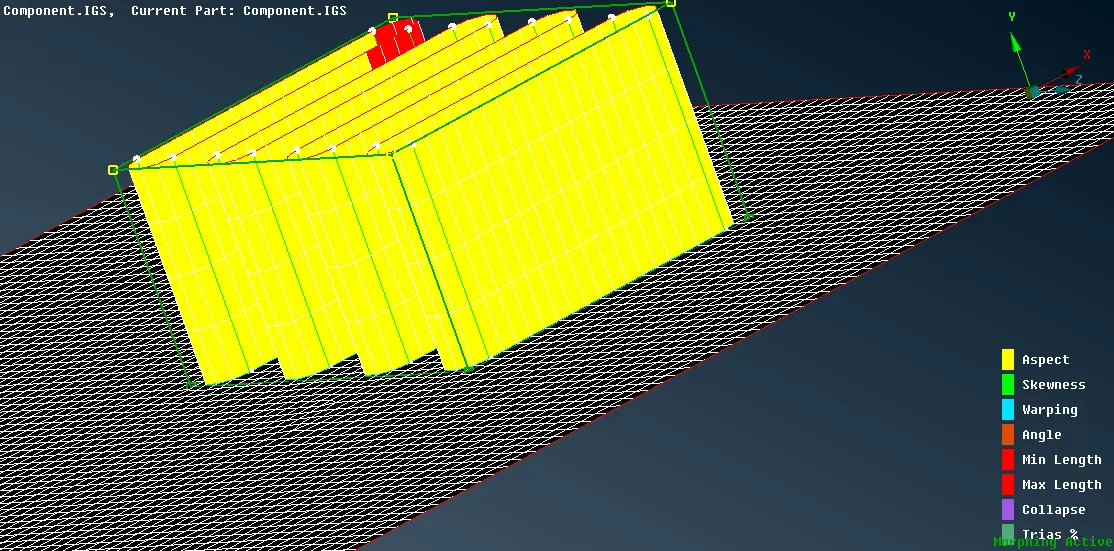
- As the length of the element is changed it will show failed element, it can be corrected by just remeshing the part Mesh -> Shell elements -> Reconstruction -> Select the elements to reconstruct.
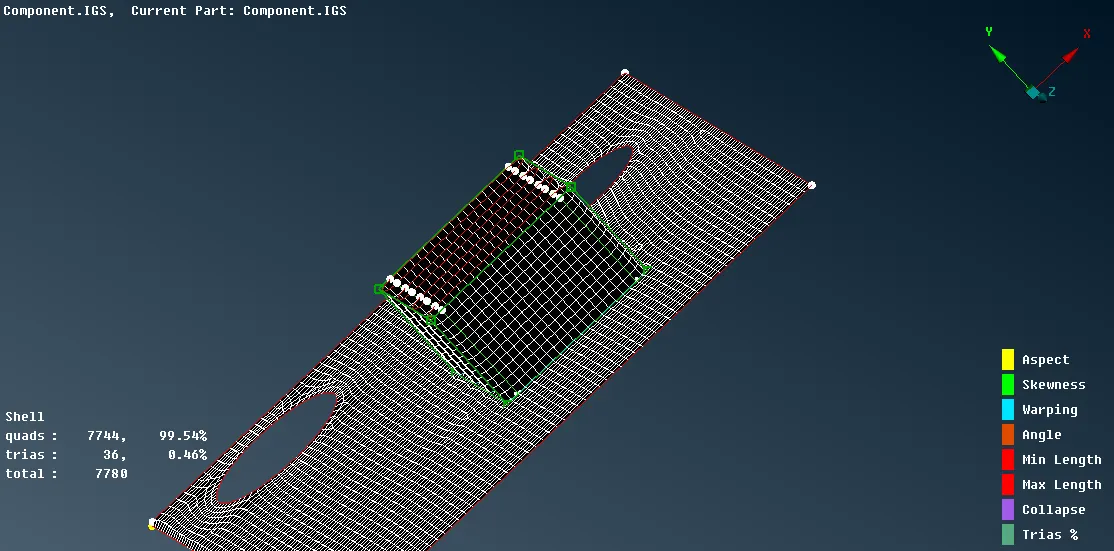
- The morph box selection can be deleted by Morph -> Boxes -> Delete -> Select the morph box.
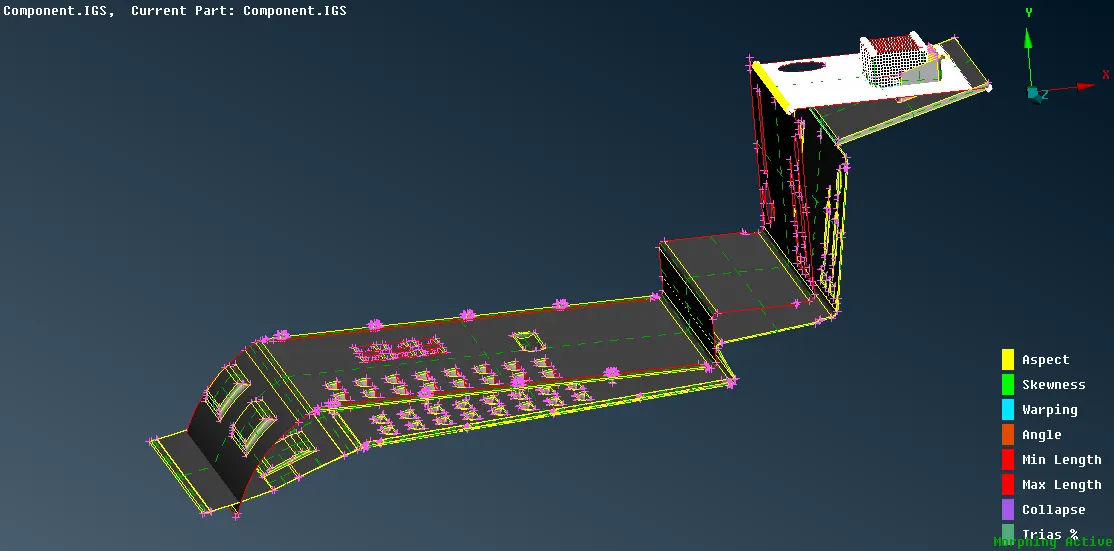
Result:-
Conclusion:-
So by completing this challenge, I learnt what is morphing and how it can be used to change to the desired shape for the given component's geometry and FE also.