Week 4 - CHT Analysis on Exhaust port
Aim - To perform a CHT analysis on an exhaust port of an automobile and calculate the heat transfer co-efficients from the results.
Introduction - Conjugate Heat Transfer analysis is a method of simulating heat transfer between a solid and liquid by exchanging thermal energy between their interfaces. Application of which can be found in heat exchangers, automobile systems such as engine, exhaust system, cooling system etc., heat sinks, boilers, and a lot of other mechanical equipments.
Theory -
Why CHT?
CHT analysis becomes advantageous when it comes to calculating heat transfer co-efficients of a material with another material at a different temperature undergoing heat transfer process with the help of intuitive contours.
Contours of temperature and velocity can also be produced to study and understand the physical characteristics of two matter in contact transferring heat through their interfaces.
This method does not restrict the combination of matter being just confined to solid-liquid, but also liquid-liquid and solid-solid.
Complex geometries can also be introduced for analysis without any issues whatsoever, as long as the meshing resolution is refined and appropriate at areas where it is needed such as a hole.
CHT Analysis can be used for any heat related or heat transfer related applications over a wide range of equipments without any restrictions over geometries, boundary conditions etc.
Where is CHT used?
HVAC system.
Turbochargers in automobiles.
Boilers, other power plant applications such as burners, heat exchangers.
Electronic components, for example, circuit boards.
Solving and modelling approach-
The simulation is produced with a base line set up initially and then a refined set up to achieve better results and compare.
The base line set up is proceeded to fluent with the default mesh size without any additional refinement, such as body sizing, face sizing, inflation layers.
Then the results for the same set up is loaded in Post processing and stored for comparison with the refined set up.
For refinement the mesh size is reduced on appropriate bodies and inflation layers are added on the wall where the convection is taking place, i.e. the interface bringing the solid body in contact with the fluid volume.
The results from both of the set up's CFD Post processing is compared.
Pre-processing and solver setting -
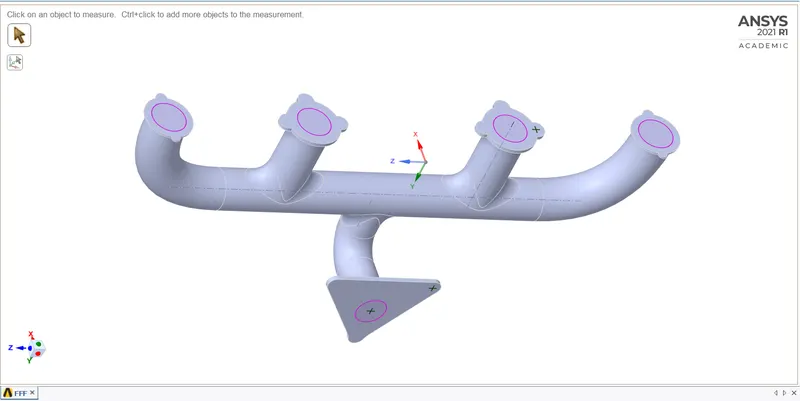
Geometry-
- Load the geometry in SpaceClaim.
- Get rid of the extra edges if any with the help of Extra Edges function in Repair.
- Extract the fluid volume by edge selection.
- Merge the solid and liquid component in an individual component and delete the empty components.
- Select Workbench from the top menu and select the Share function which allows for sharing coincident topology and also turn on share topology from the left window.
Mesh-
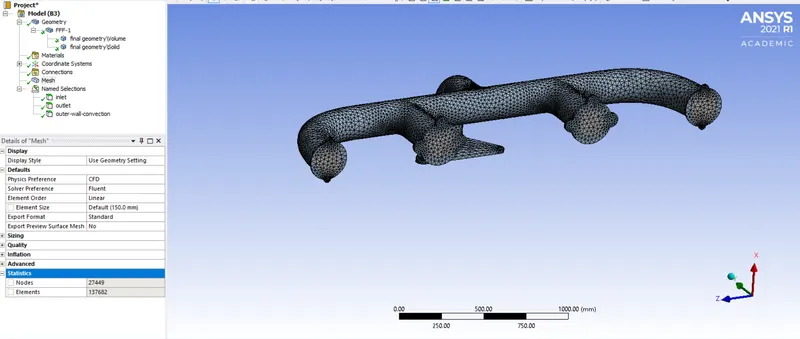
- First create the named selections appropriately, i.e. inlets, outlet and the wall as 'outer-wall-convection' for easy reference.
- Generate the mesh, keep every setting as default and update the mesh in fluent.
Solver-
- Perform a mesh check.
- Select general and keep the solver at steady state and pressure based.
- Select the energy equation for temperatures and select the k-omega SST viscous model.
- Check the material and make sure the solid component is a solid and the fluid volume is fluid.
- Set up the boundary conditions such as the velocity inlet, pressure outlet, heat transfer co-efficient of the outer-wall.
- Uncheck for convergence from Residuals in the Solution to have all the iterations run.
- Define appropriate reports and initialize the solution using either hybrid or standard.
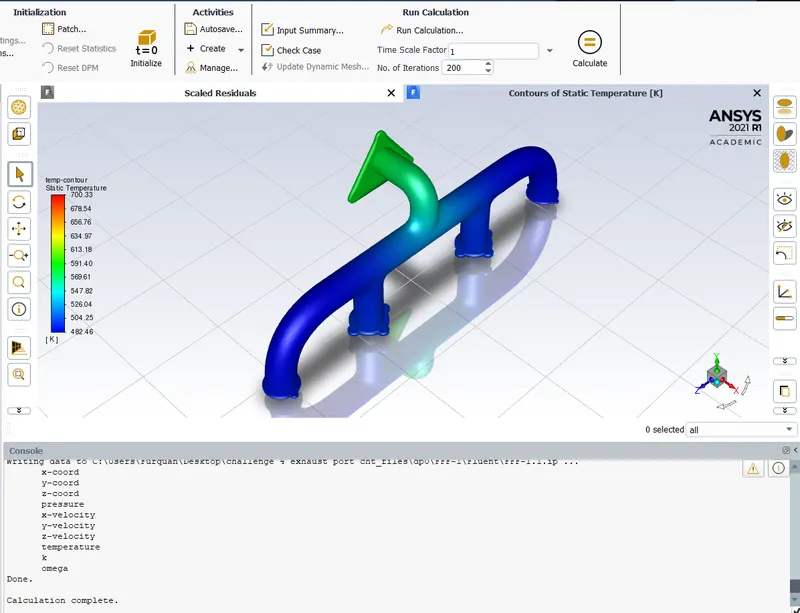
- After the initialization create appropriate contours and animations and run for calculation with proper number of iterations.
- Now, the most important part in fluent for having data of the Heat transfer co-efficient includes, Go to Files > Export > Solution data and select the file type as CDAT for CFD-Post and Ensight in ASCII format, select both the solid and liquid cell zones, select the 'outer-wall-convection' surface and select all the HTC quantities from the list for post processing.
Results-
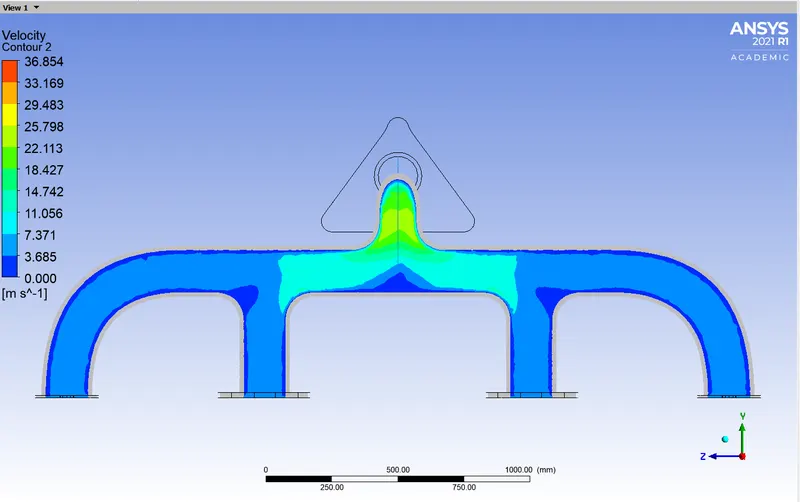
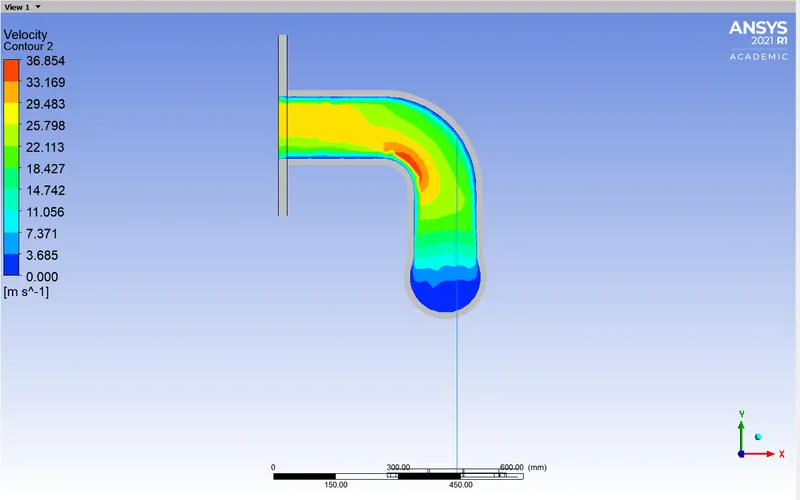
- The velocity streamlines
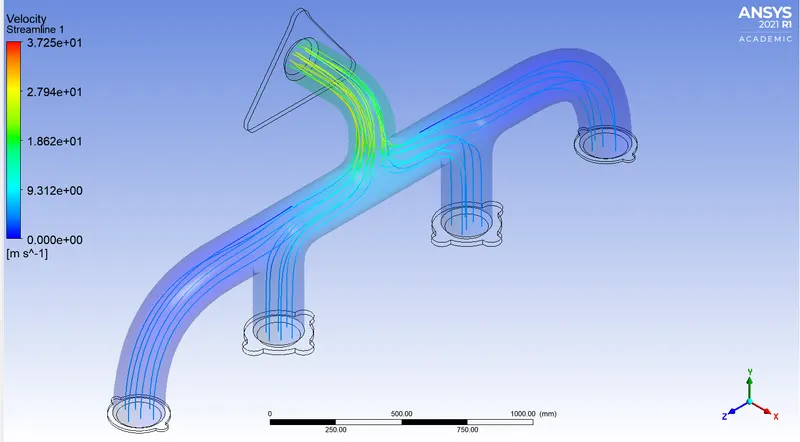
The velocity increases as the cross-sectional area towards the outlet decreases.
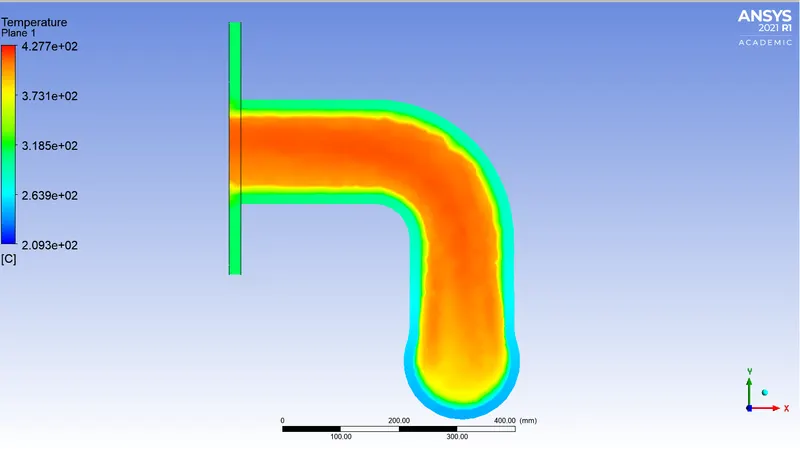
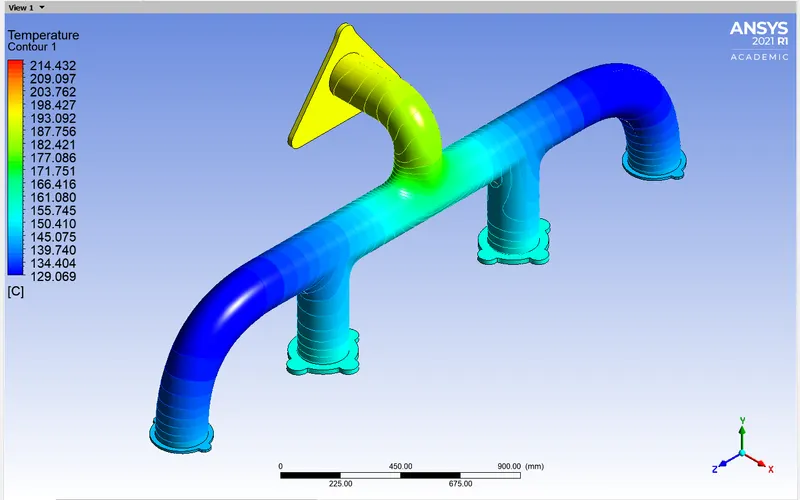
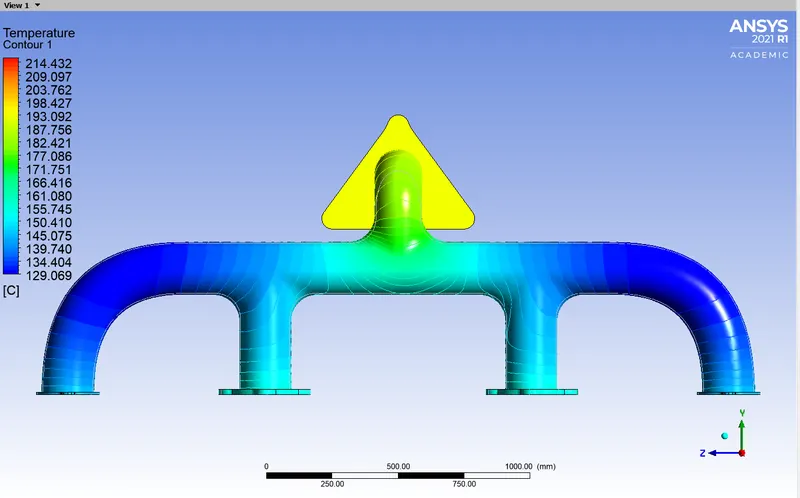
- Temperature contours
Side view plane
Front view plane
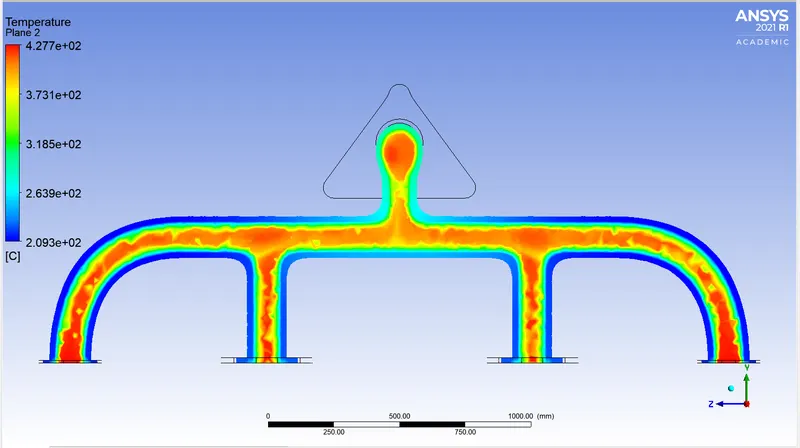
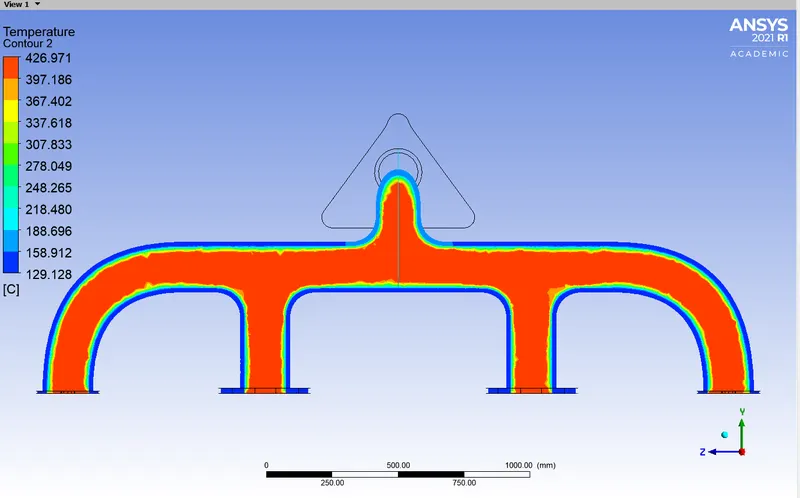
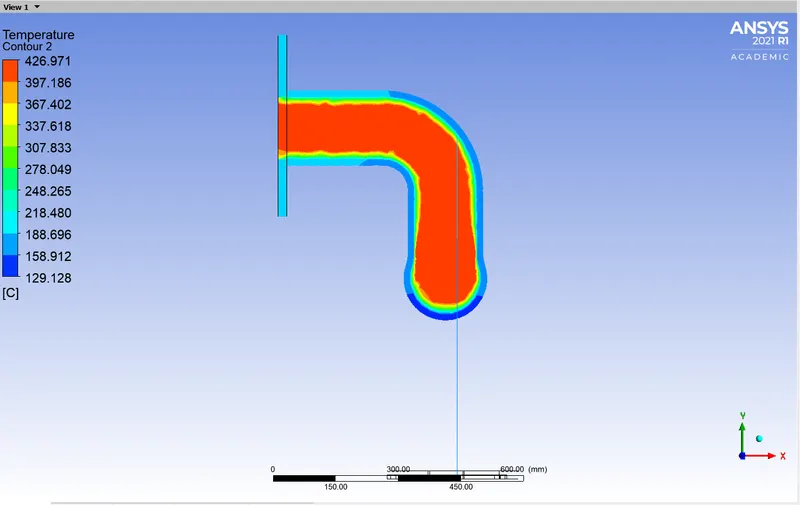
The temperature of the exhaust emissions so to say is higher in the centre of the pipe and decreases towards the wall
Internal solid surface
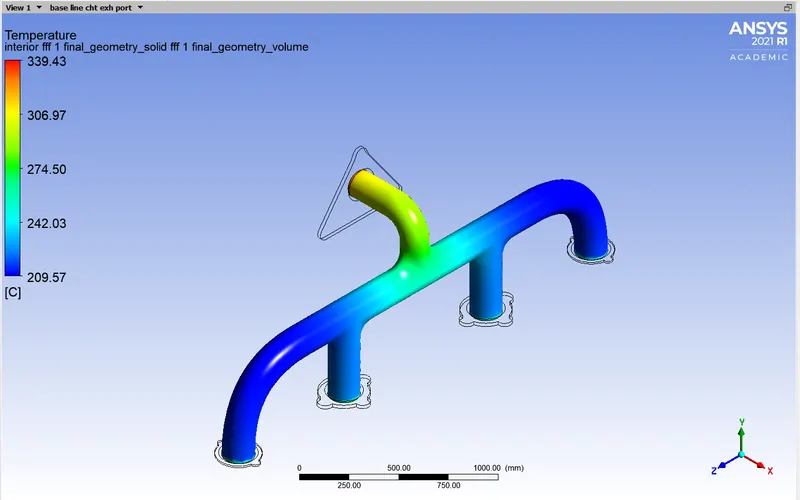
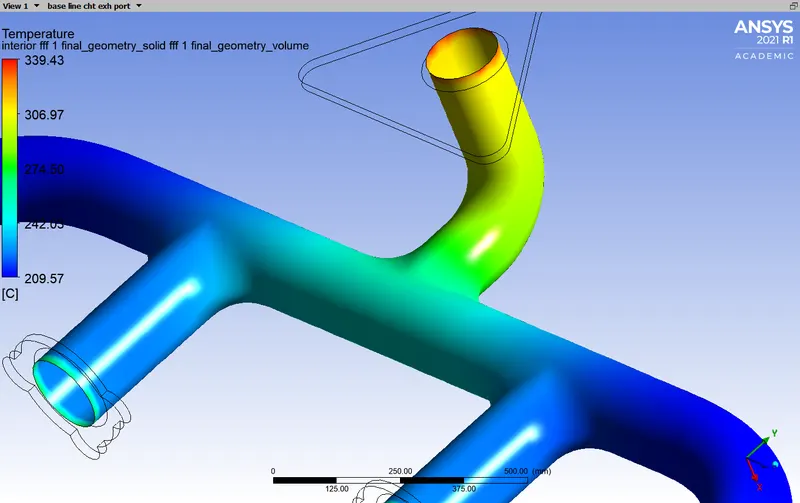
The temperature rises where the exhaust emissions from the four inlets meet near the outlet giving a significant rise in temperature.
- Wall Heat Transfer Co-efficient
To set up a contour for wall HTC, we have to import the HTC files generated in Fluent and saved in the computer for CFD-Post to load and display Wall HTC contour. In CFD-Post select files and then select load results from the drop down list and select the HTC files stored.
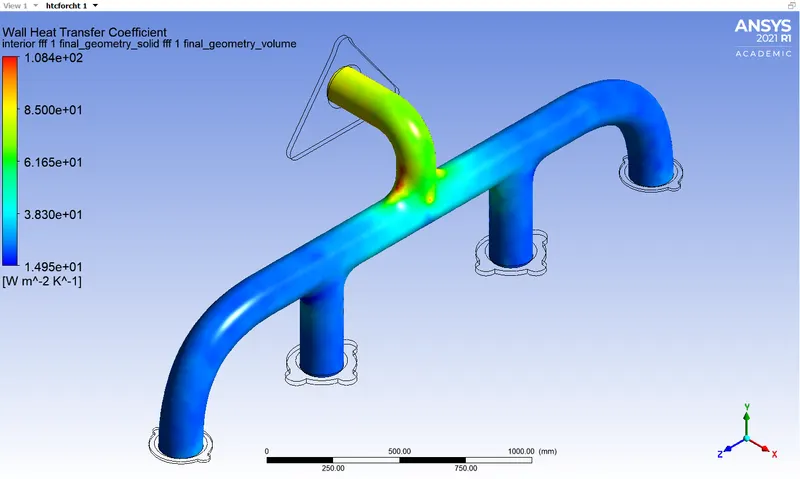
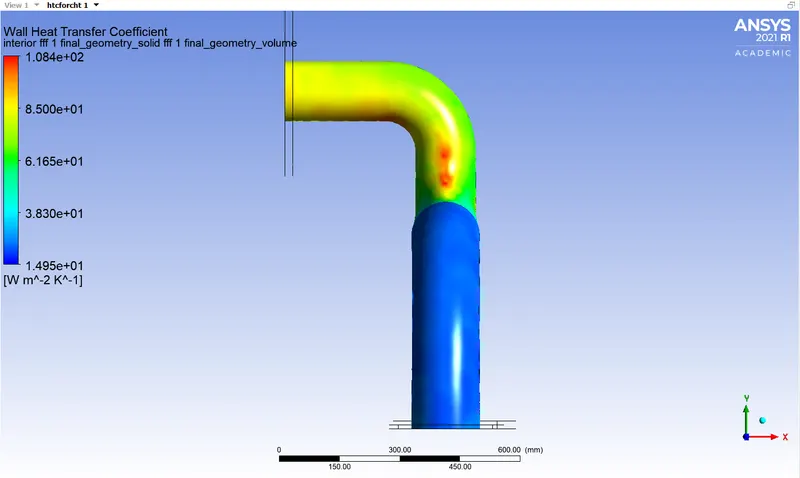
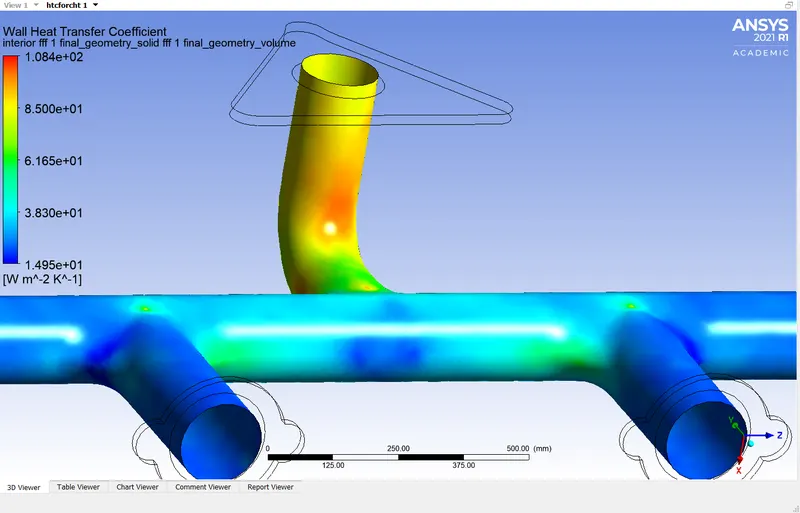
The HTC is the highest near the outlet due to higher velocity in the same area which results in higher Reynolds number.
Refined set-up -
The Meshing is made refined by giving inflation layers to the inner solid surface and decreasing the element size of the outer solid.
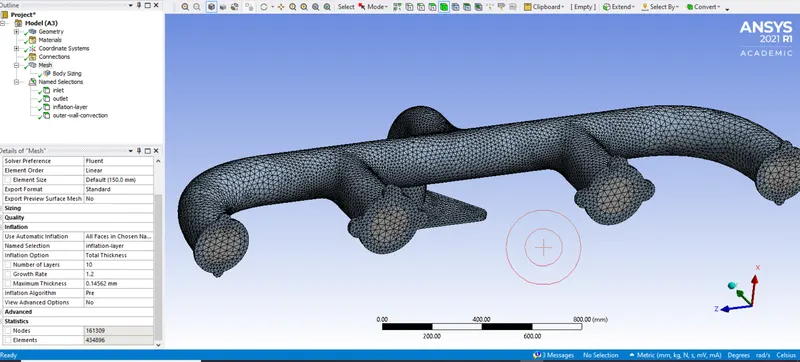
Inflation layer calculation-
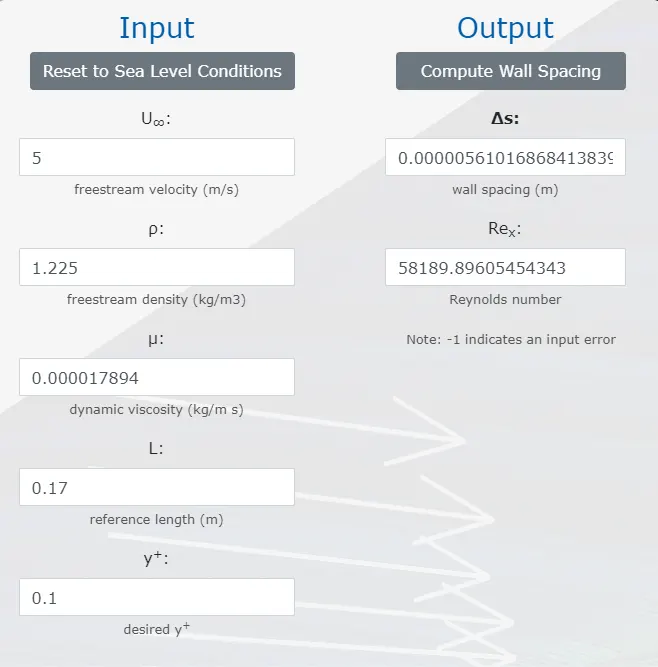
for y+ = 0.1, growth factor = 1.2 and 1st layer thickness = 0.00000561 m;
| Layer number | Thickness (m) |
| 1 | 0.00000561 |
| 2 | 0.000006732 |
| 3 | 0.000008078 |
| 4 | 0.000009694 |
| 5 | 0.000011632 |
| 6 | 0.000013958 |
| 7 | 0.00001675 |
| 8 | 0.0000201 |
| 9 | 0.00002412 |
| 10 | 0.000028944 |
Total thickness of the inflation layer = 0.000145618 m
The mesh is updated and loaded on fluent.
The equations are solved in Fluent similar to the base line set up.
To check the yplus value is between 0.1 and 3 for a k-omega model plotting a Wall Yplus plot on fluent.
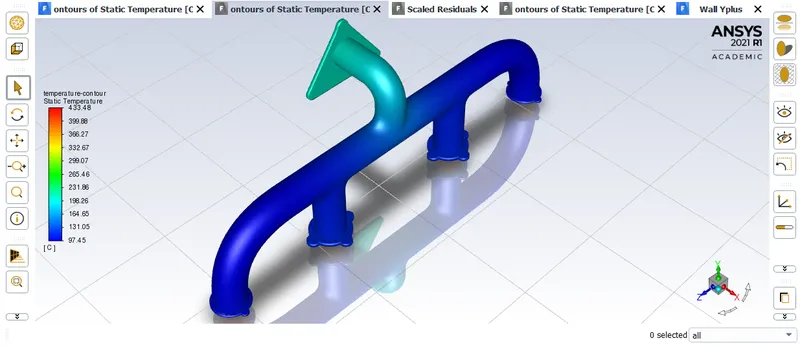
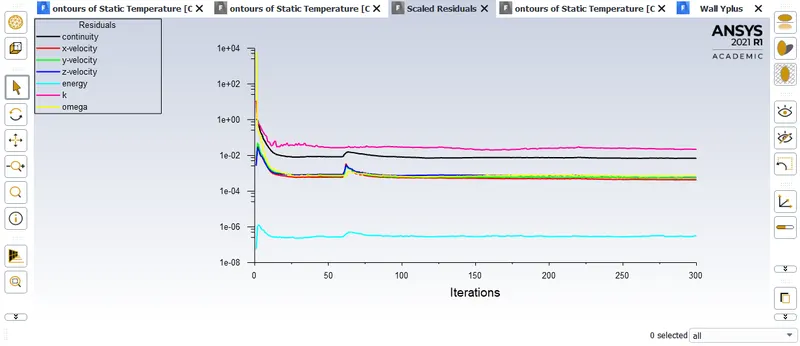
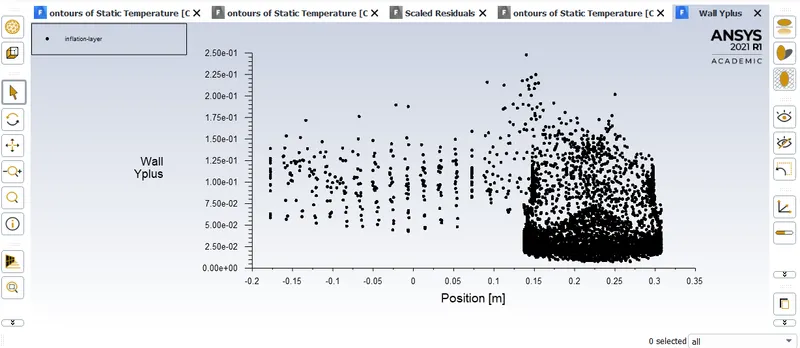
CFD Post results-
- Velocity plane contour
- Temperature body contour
- Wall Heat Transfer Coefficient
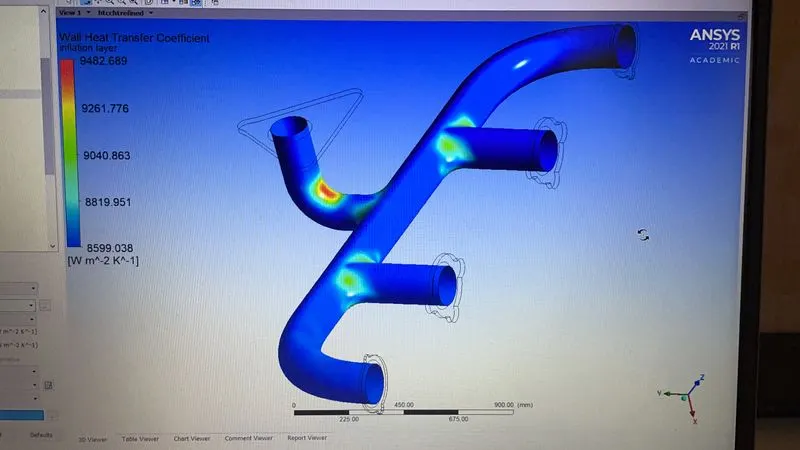
The Heat Transfer Co-efficient is highest at the point where velocity is the highest.
- Temperature plane contour
Value comparison table between the base line and refined set up-
|
Parameter |
Base line value |
Refined value |
|
Heat transfer coefficient (W/m2K) |
108.4 |
9482.689(Local) |
|
Temperature(°C) |
339.43 |
426.971 |
|
Velocity(m/s) |
37.25 |
36.854 |
Nusselt number (Nu) is equal to the dimensionless temperature gradient at the surface, and it provides a measure of the convection heat transfer occurring at the surface.
A Nusselt number of Nu=1 for a fluid layer represents heat transfer across the layer by pure conduction. The larger the Nusselt number, the more effective the convection. A larger Nusselt number corresponds to more effective convection, with turbulent flow typically in the 100–1000 range. For turbulent flow, the Nusselt number is usually a function of the Reynolds number and the Prandtl number.
Nu = h.L/kf
where, h = convective heat transfer coefficient
L = characterisitic length
kf = thermal conductivity
For an internal turbulent flow, the correlation for Nusselt number is given by the Dittus Boelter equation which goes by,
NuDh = 0.023 . ReDh0.8 . Pr0.4
where, Dh = hydraulic diameter
Re = Reynolds number
Pr = Prandtl number
The validity of this equation is for,
0.6 < Pr < 160
ReDh > 10000
L/D > 10
With these relations the Heat transfer coefficient can be obtained theoretically to help verify our simulation results.
Factors the accuracy of HTC predictions depend on-
- Details of the geometry properly drafted.
- High Mesh quality with appropriate element sizes at particular areas of the geometry.
- The Yplus value for the inflation layers.
- Right model of choice.
- Checking for convergence.
- Proper analysis of Results.
Conclusion-
Although the temperature and velocity values in the both the above cases does not differ significantly, the Wall HTC has a large difference.
Wall HTC is an important property of a material to conduct heat transfer, which in this case is convective in nature, hence should be simulated and analysed carefully.