Create 1D elements on the component using Hypermesh
Week 4 Challenge
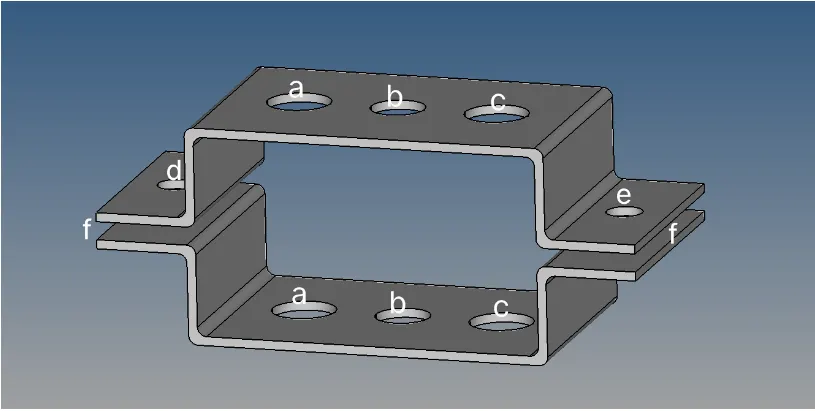
AIM: To create 1D elements on the given component with given cross-section and DOF using Hypermesh
SPECIFICATION:
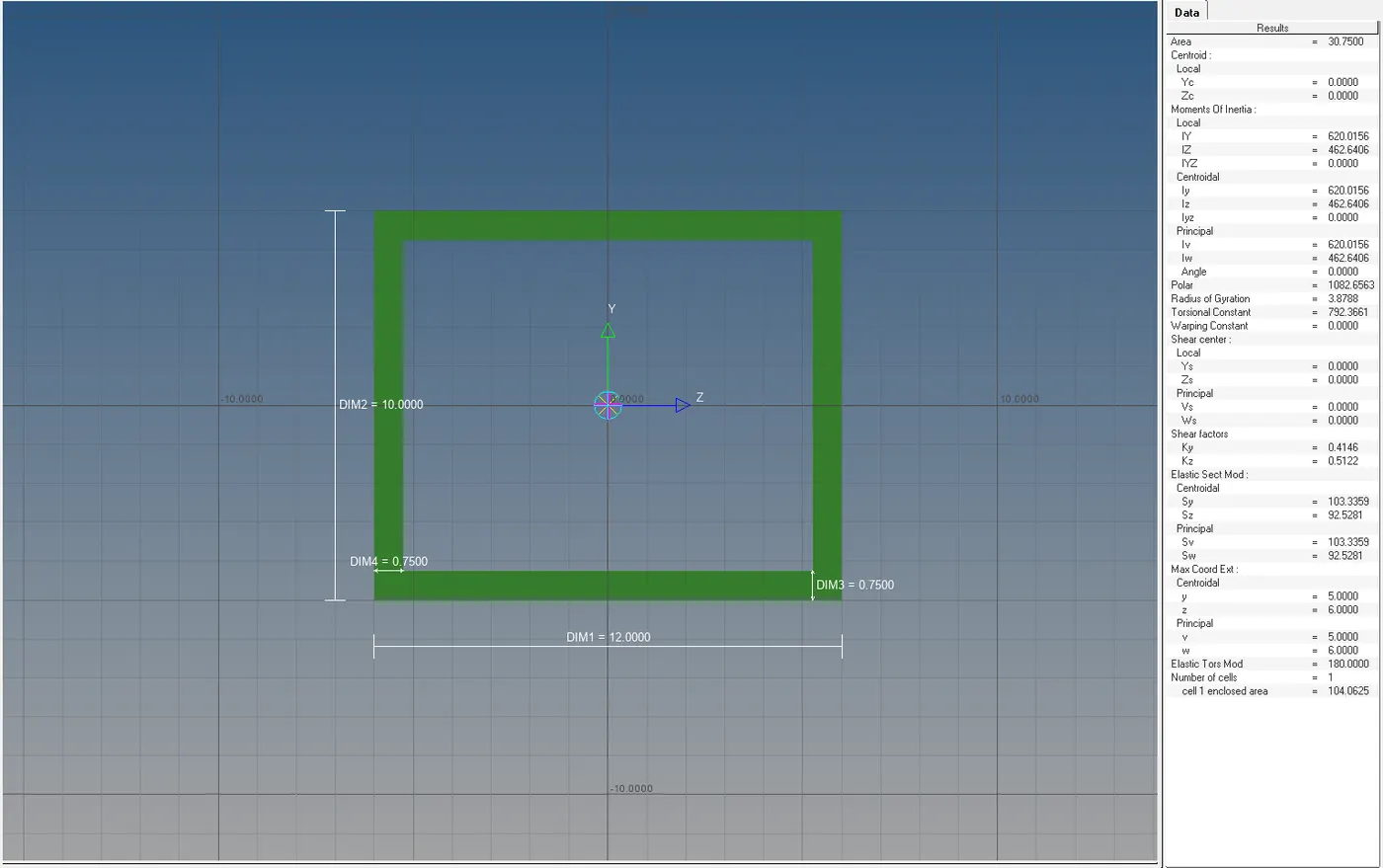
a. Rod element:- with only translational DOF and RBE2 link
Cross-Section: BOX- Dimension a= 12 mm
dimension b=10 mm
Thickness t= 0.75 mm
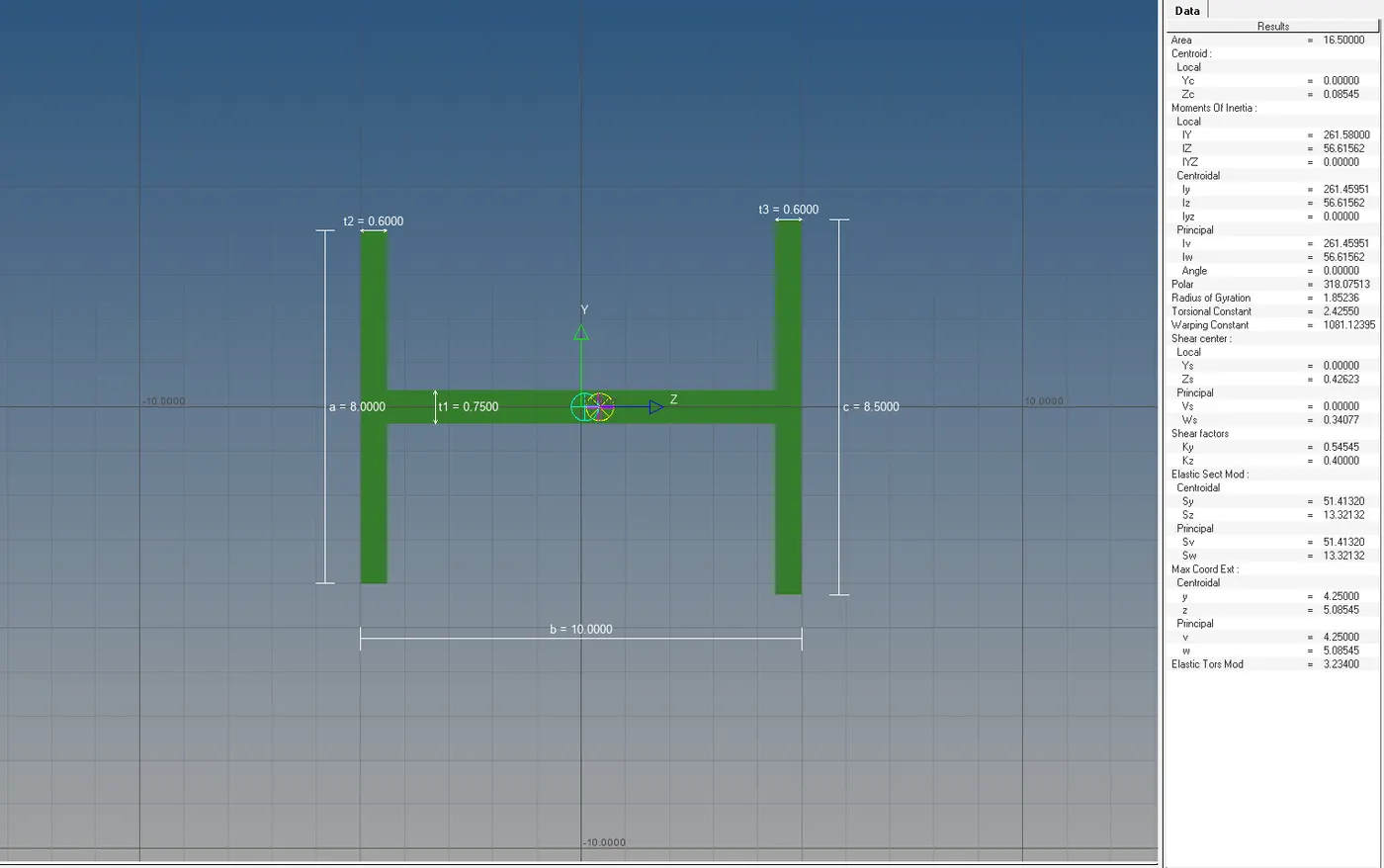
b. Beam element:- with all DOF and RBE3 link
Cross-Section: I Section- Dimension a= 8 mm
Dimension b= 10 mm
Dimension c= 8.5 mm
Thickness t1= 0.75 mm
Thickness t2= .6 mm
Thickness t3= .6 mm
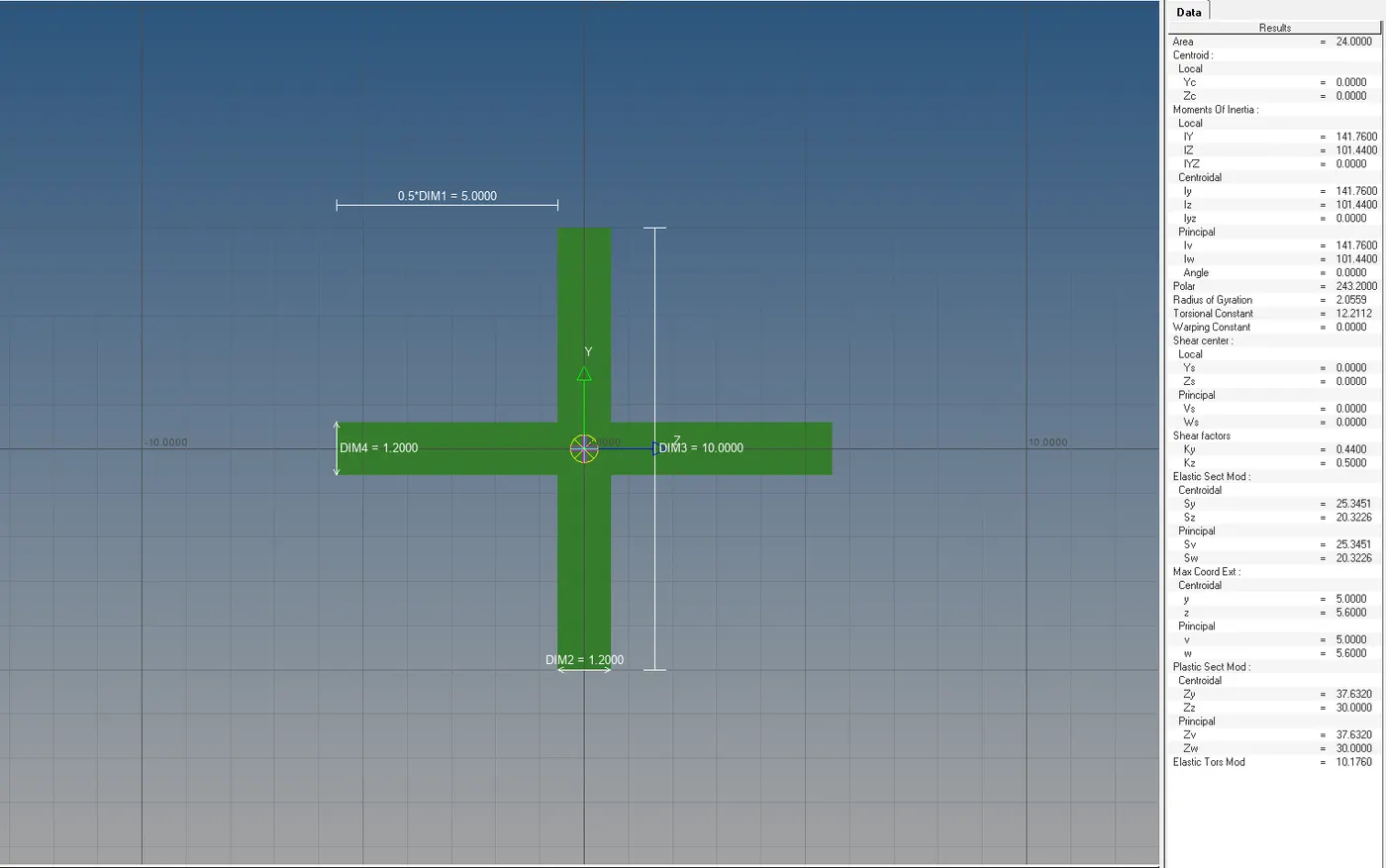
c. Bar element:- with only x and y DOFs With RBE3 link
Cross-section: CROSS section- Dimension DIM1= 5 mm
Thickness DIM2= 1.2 mm
Dimension DIM3= 10 mm
Thickness DIM4= 1.2mm
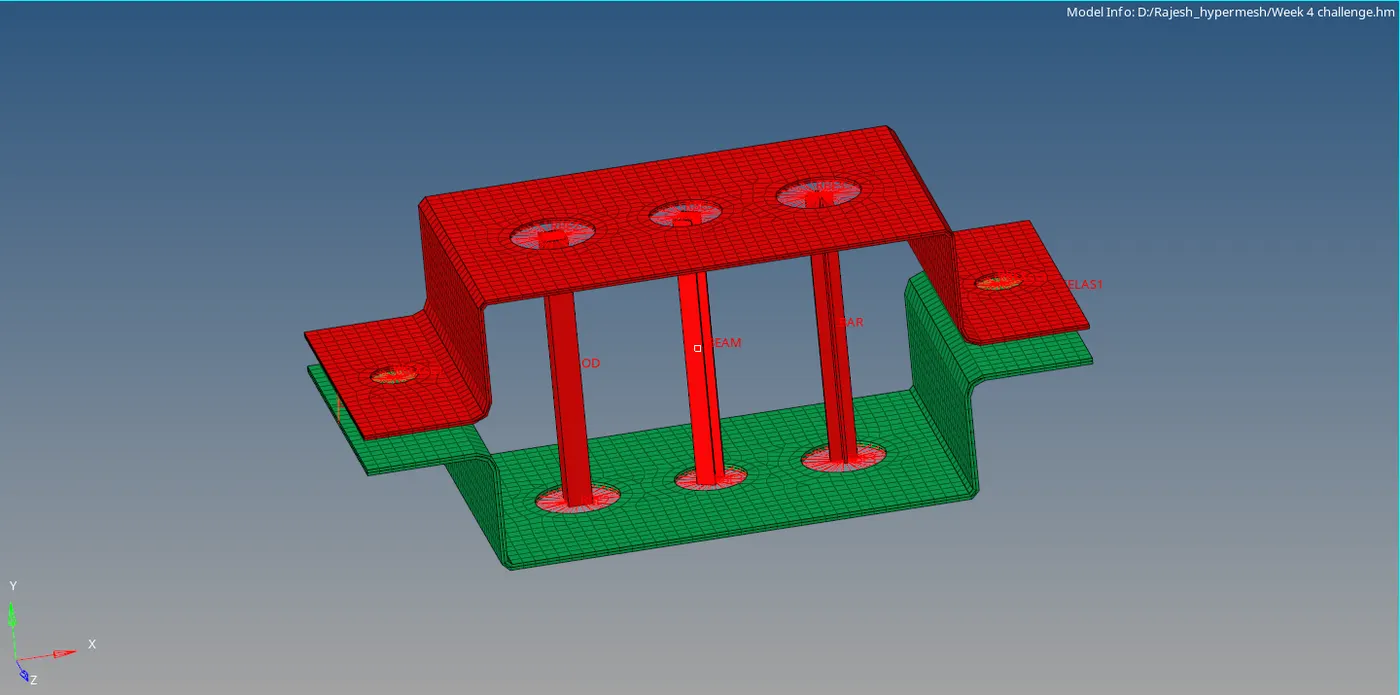
d. & e. apply the mass of magnitude 10 with RBE2 link
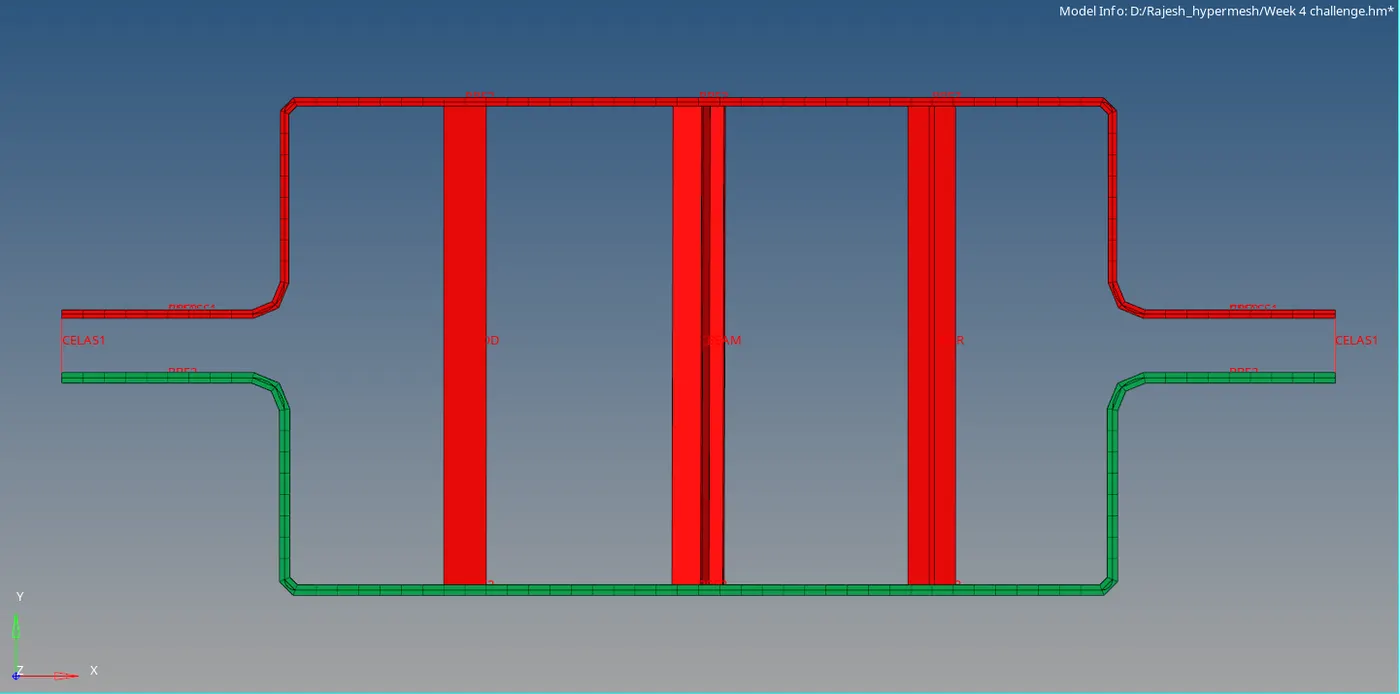
f. Join the two components with Spring elements
PROCEDURE:
I. Importing the geometry
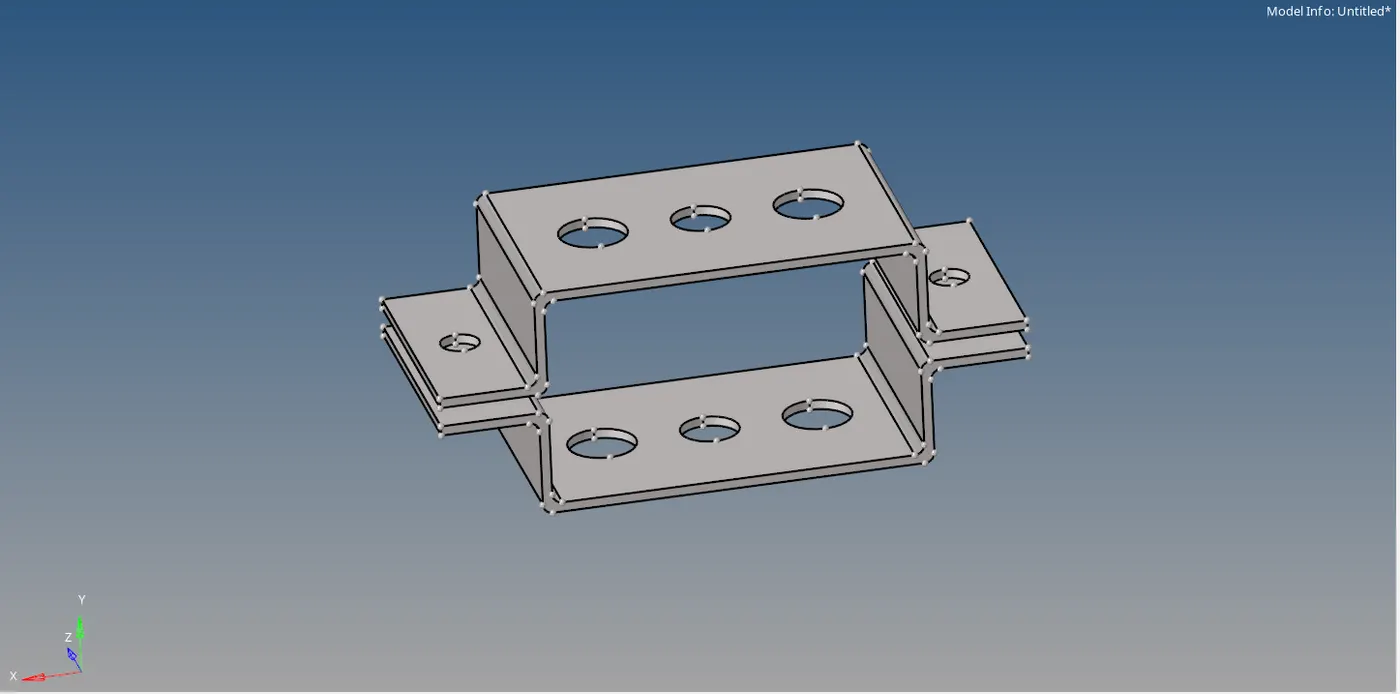
Import the geometry into the workspace and delete the wireframe.
II. Creating the mid surface for the given component
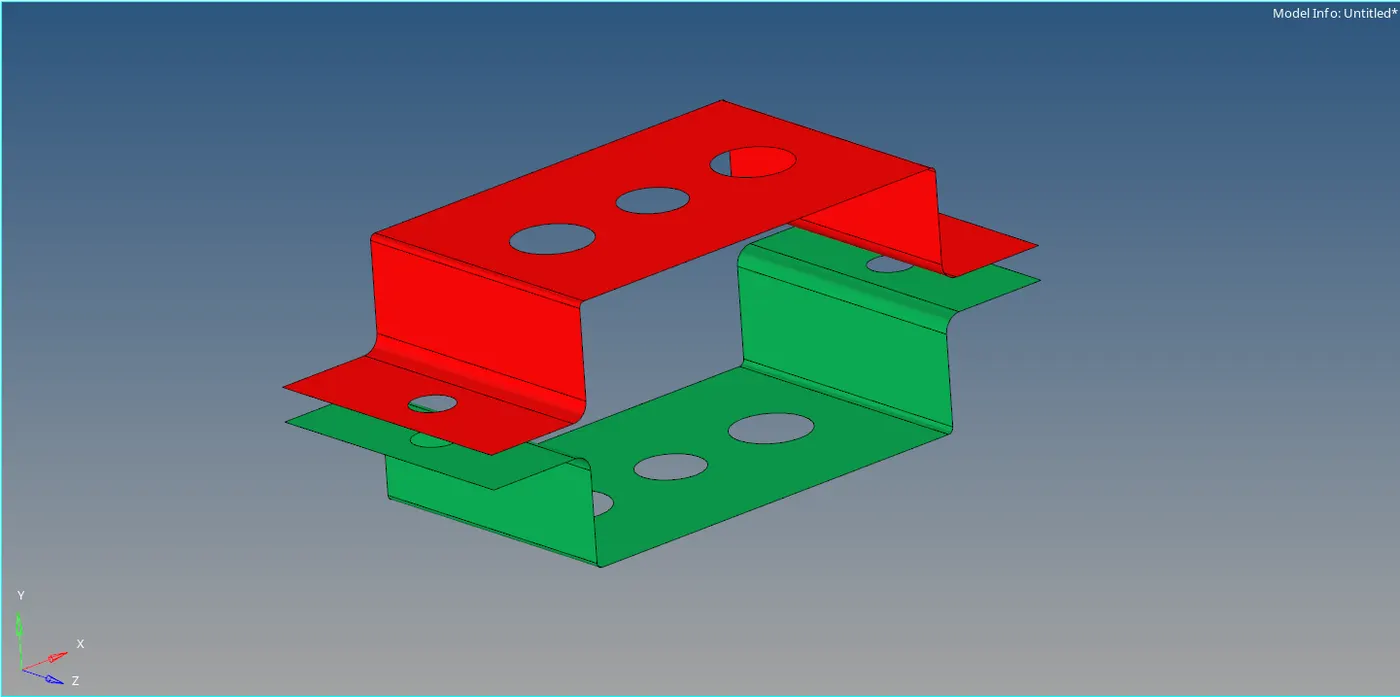
Step 1:- Select the component and create a mid surface for the top component (bracket 2) by making it current selection. Select the skin offset for the mid surface so a proper surface is created at the bends(fillets).
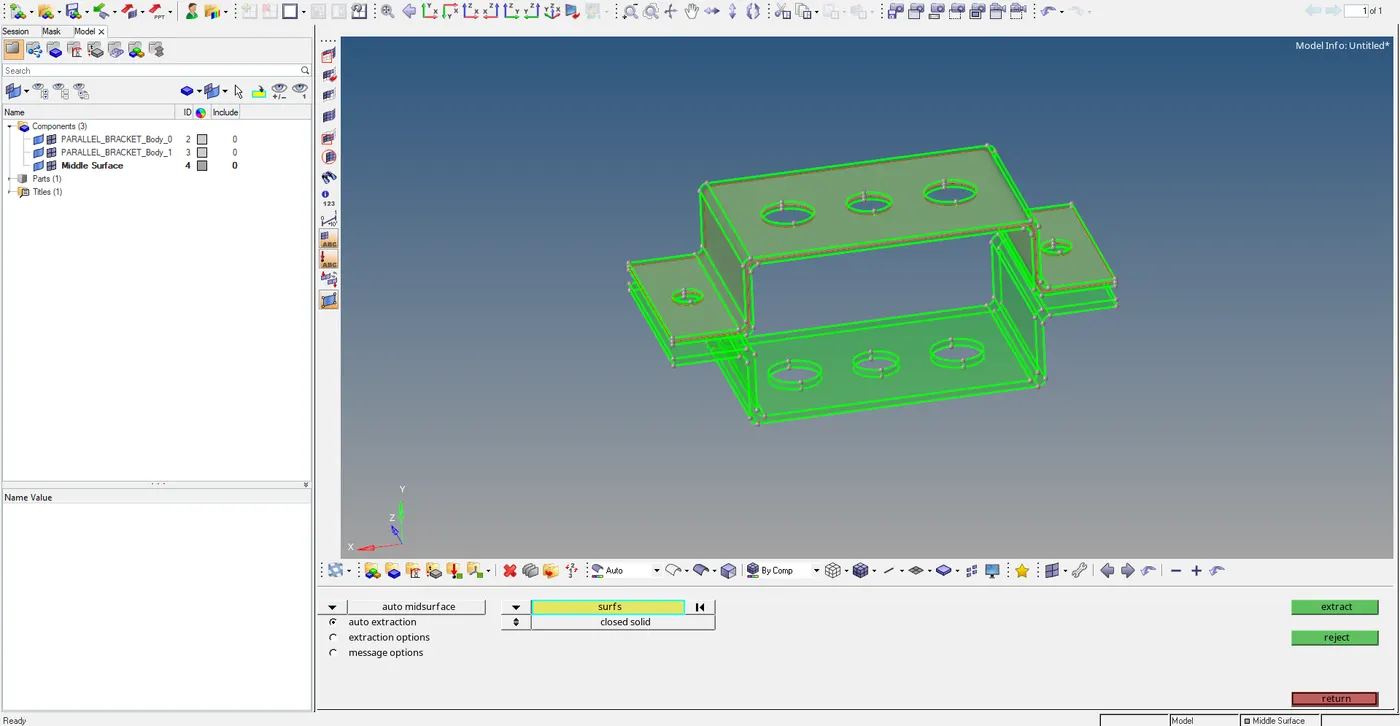
Step 2:- Select the component and create a mid surface for the bottom component (bracket 2) by making its current selection. Select the skin offset for the mid surface so a proper surface is created at the bends(fillets).
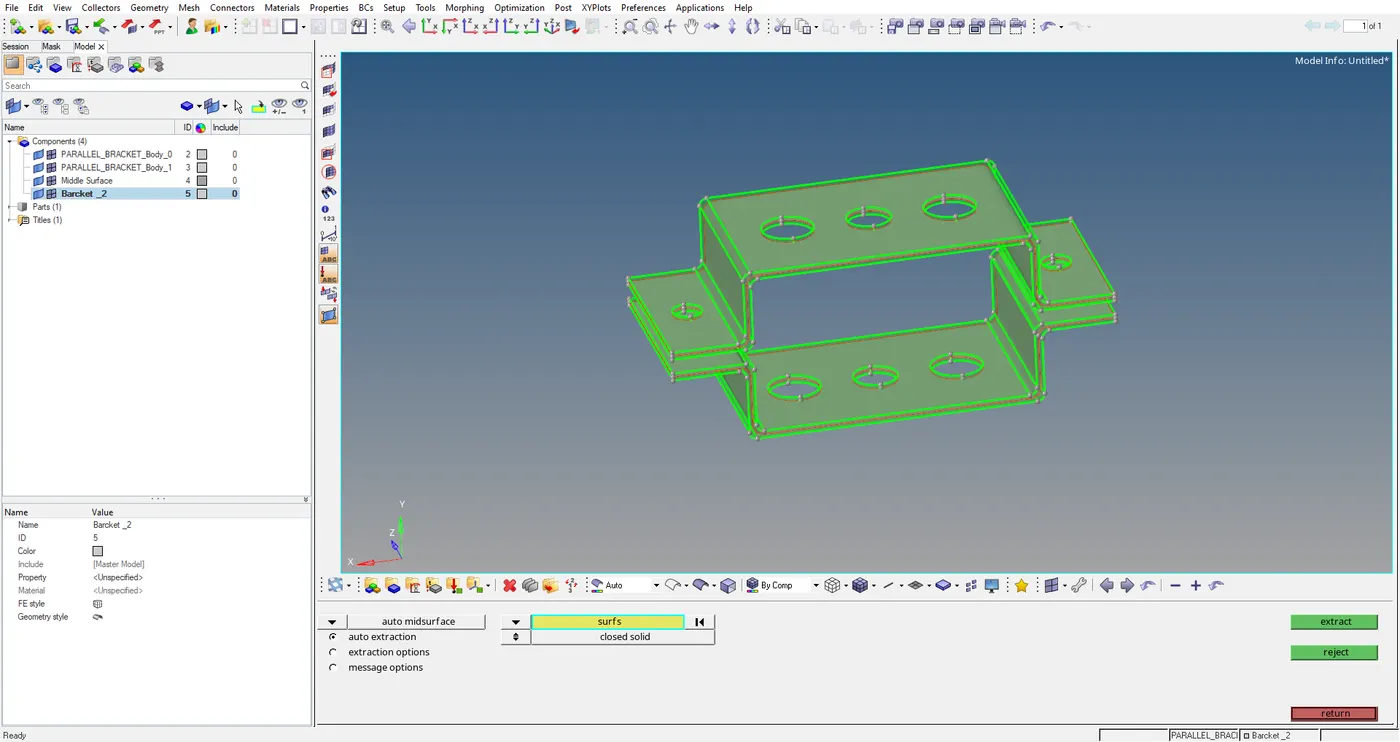
Step 3:- After the creation of mid surface for both the component i.e. both the bracket and rename the mid surface respectively with different colours.
III. Meshing the component
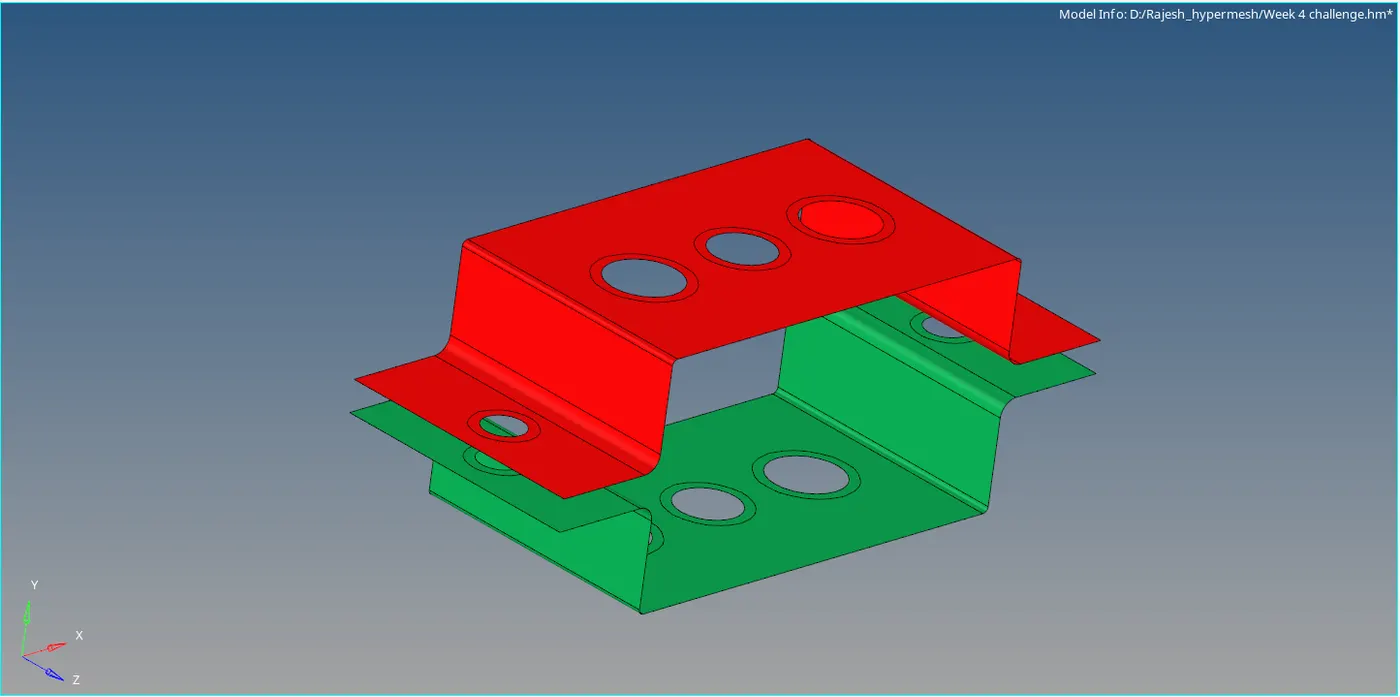
Step 1:- To mesh the given component, we need to create washer splits near the hole region for a smooth mesh. Washer split offset we selected is 5mm.
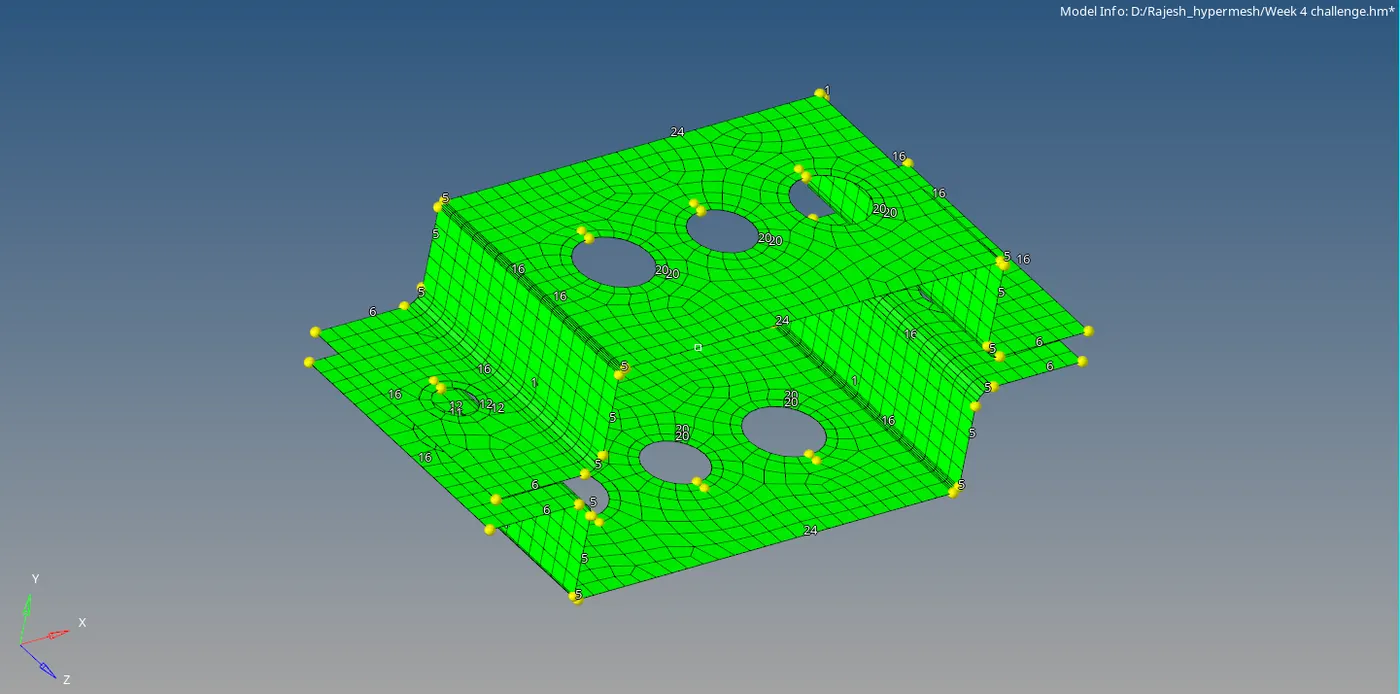
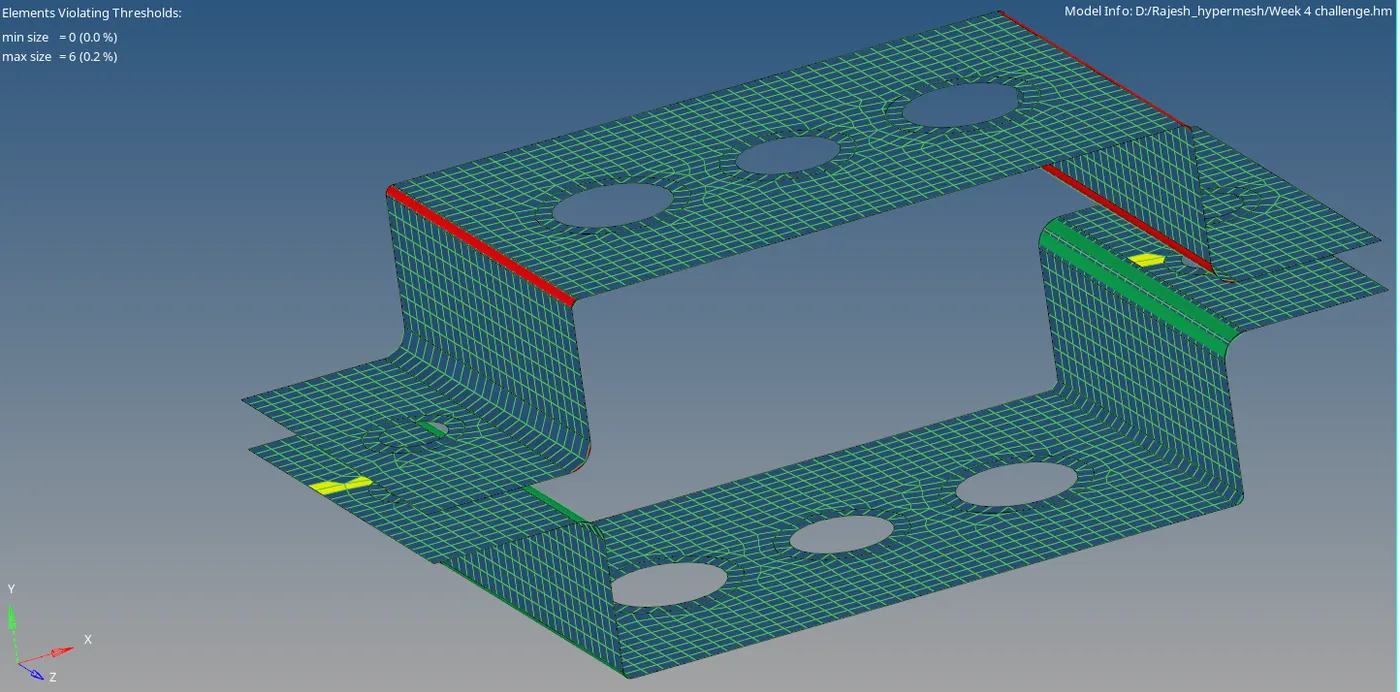
Step 2:- Generate the mesh with element size as 5mm with mixed element type and check for the quality of the mesh with quality index and optimize.
IV. Create Material
We select steel as the material for this component with respective properties.
E=210000 and Nu=0.3
V. Creating the properties
We created the properties for the respective component also creating rod, beam bar& mass properties with assigning the Card ID and material.
| Serial Nos. | Property name | Card ID |
| 1 | Bracket_1 | PSHELL |
| 2 | Bracket_2 | PSHELL |
| 3 | Bar | PBAR |
| 4 | Rod | PROD |
| 5 | Beam | PBEAM |
| 6 | Mass | PMASS |
VI. Create the 1D Elements
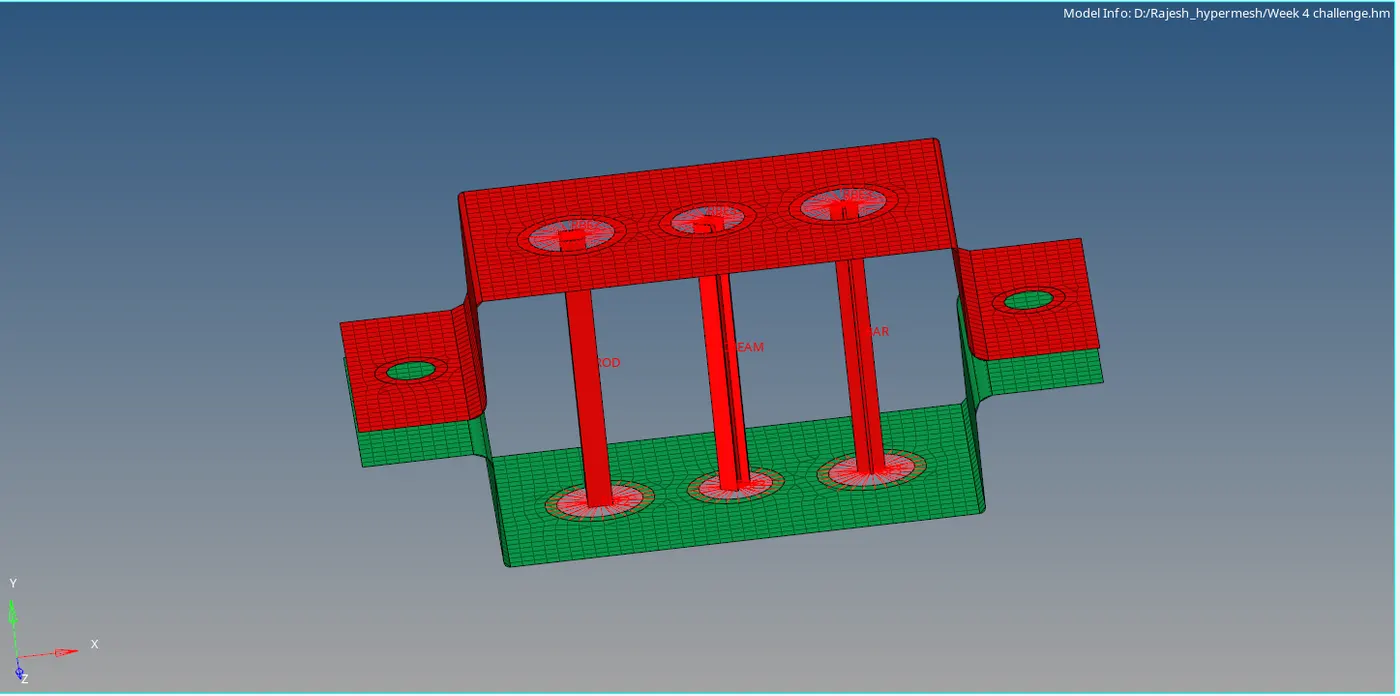
To create the 1D element, we need to go the hyper beam tool and select the respective cross-section for creating the 1D element and give the assigned dimension to the geometry as mentioned in the specification.
VII. Create the rigid at points a,b,c & d
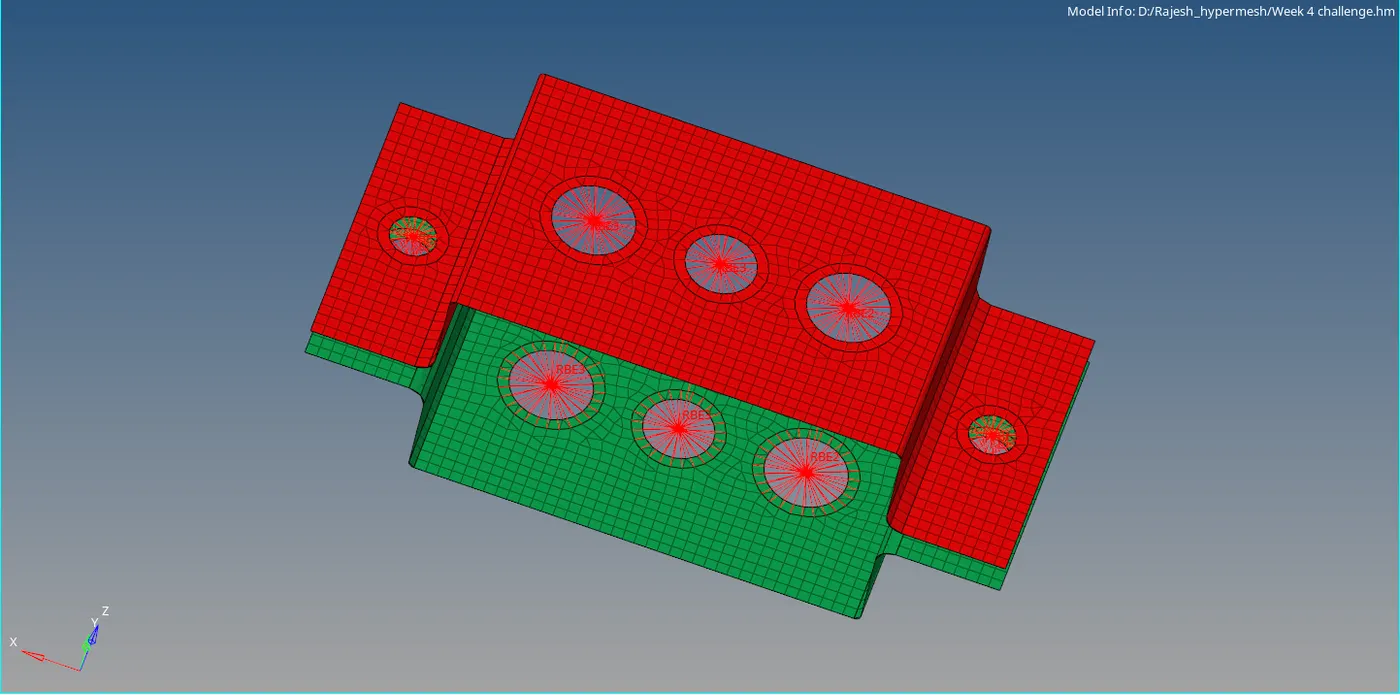
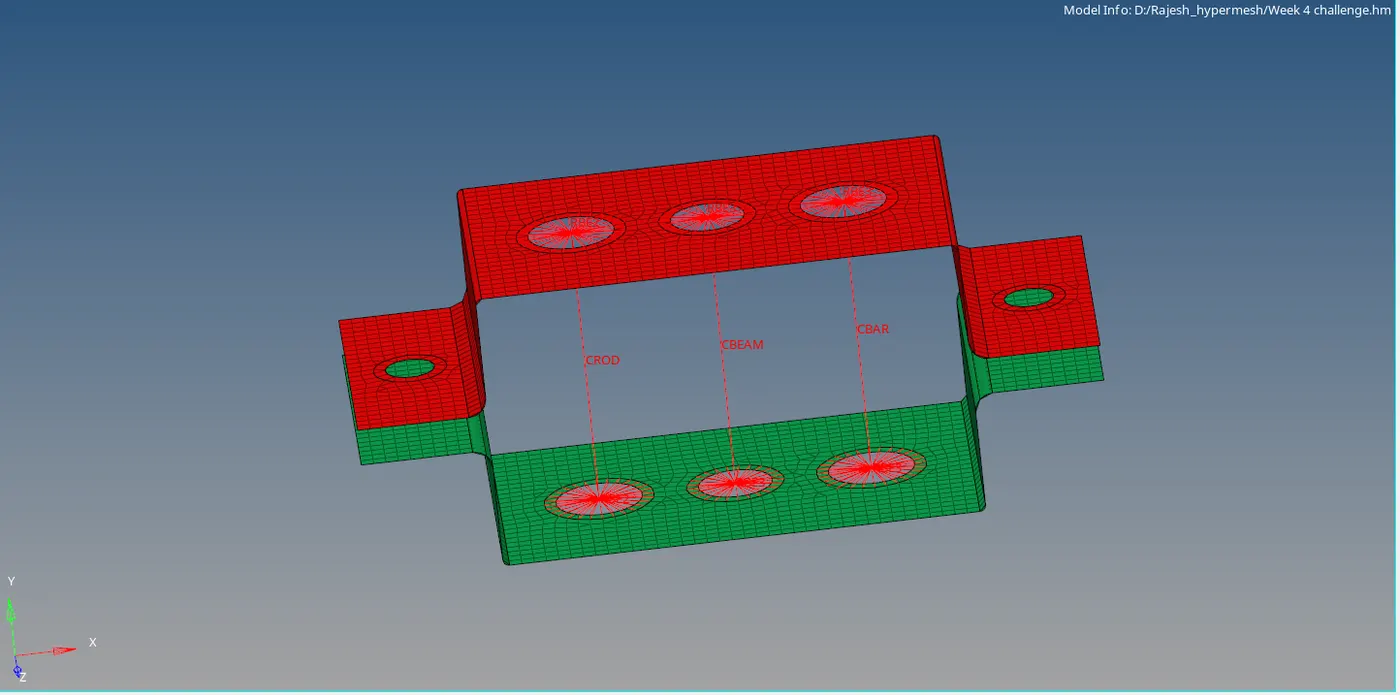
Create the RBE2 and RBE3 at the respective holes with the given DOF.
VIII. Create the 1D element on the rigid
Step 1:- Creating the rod, bar and beam 1D elements at the respective node points.
Step 2:- Update the 1D element with respect to their property.
Step 3:- Create the mass at node d and spring between 2 brackets.
CONCLUSION:
Created mesh for the given model and 1D element for the given cross and DOF.