Week 4-1D Element Creation Challenge
AIM : Create 1D elements on the following component with given cross-section and DOF .Mesh the Given component with the Size of 5 Units
Of Elements with diamensions as ,
a. Rod element:- Translational DOF should be Constrained with RBE2 link
Cross-Section: BOX- Dimension a= 12 mm
dimension b=10 mm
Thickness t= 0.75 mm
b. Beam element:- All DOF should be constrained with RBE3 link
Cross-Section: I Section- Dimension a= 8 mm
Dimension b= 10 mm
Dimension c= 8.5 mm
Thickness t1= 0.75 mm
Thickness t2= .6 mm
Thickness t3= .6 mm
c. Bar element:- Constrain only x and y DOFs With RBE3 link
Cross-section: X section- Dimension DIM1= 5 mm
Thickness DIM2= 1.2 mm
Dimension DIM3= 10 mm
Thickness DIM4= 1.2mm
d. & e. Apply the mass of magnitude 10 with the RBE2 link
f. Join the two components with Spring elements
Procedure : Import the geomerty Import solver desk -add model from import geometry and import.
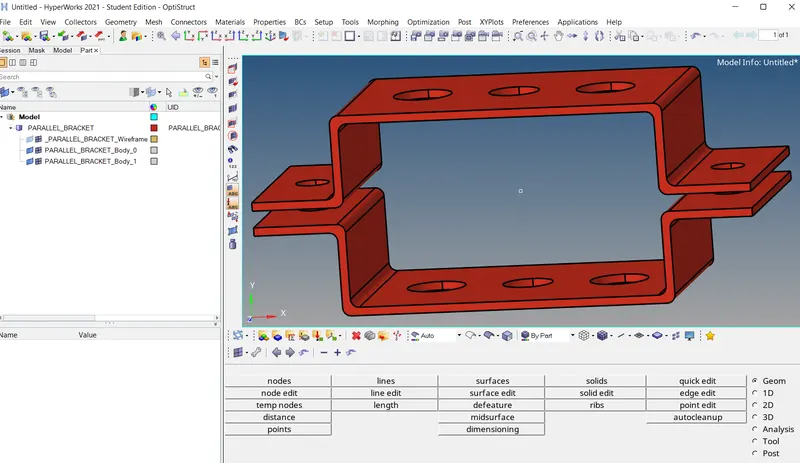
Step 1: Creating the mid surface of the Model .
First delete the solid part from delete tool and change the icon to solid -click all - delete entitiy
- Mid surfacing bracket 1 : geomerty - mid surface- extraction option - off set planes . Auto extraction- surface (click the surface of bracket 1) - extrack(beacket 1 mid surfacing completed)
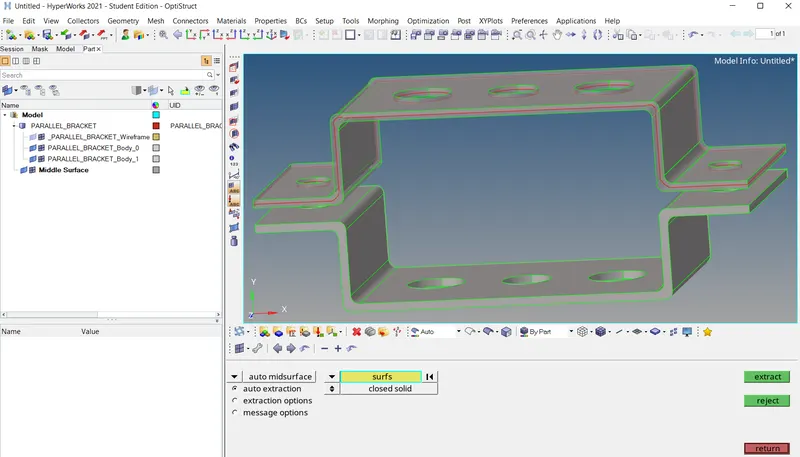
create a component of bracket 2 and rename mid surfacing 1 into bracket 1.click bracket 2 and change both colours.
- Mid surfacing bracket 2-click bracket 2-auto extraction -surfs (click the bracket 2)-extract. delete the parellel bracket .
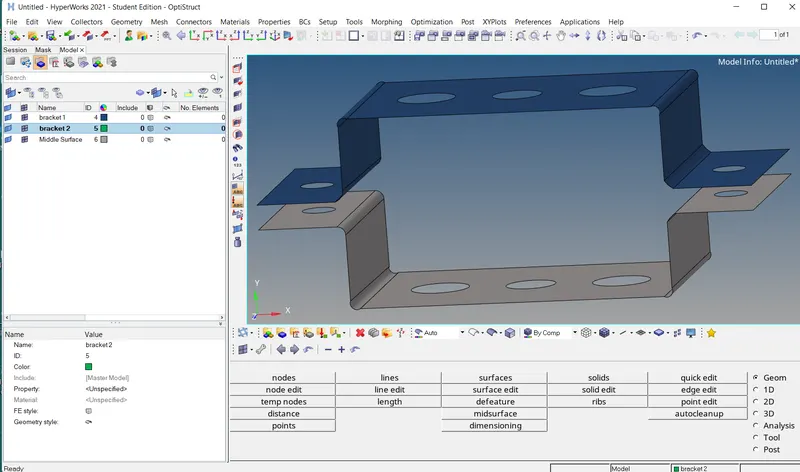
- Want to move the surfacing into bracket 2 : tool -organize-check the bracket in bracket 2 - click the bracket - move.(bracket colour is changes to the given bracket 2 component colourand delete the old mid surface component.
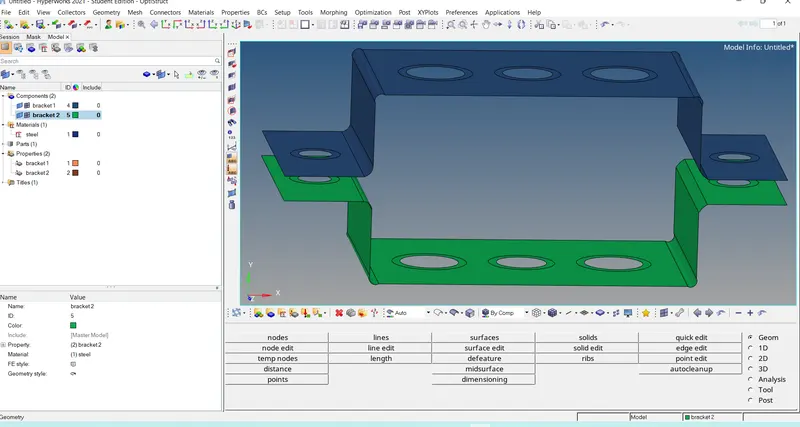
Step 2: Giving a materials and property to the model.
Give a material as steel by creating a material from tab part( card image Mat 1 - E=21000 .....) and create property named bracket 1 and bracket 2.card image of brackets are p shell , material as steel and thickeness is 2 and 2.5 respectively.give the components to materialsmand properties .
Want to create a washer split to get accuracy : Geomerty - quick edit -washer split and give off set value 5 and perform to all the circles (holes).
Step 3 : Meshing the given Model
2D Mesh:2d -auto mesh-element size =5 - mesh type = mixed - click surface -displayed - mesh.
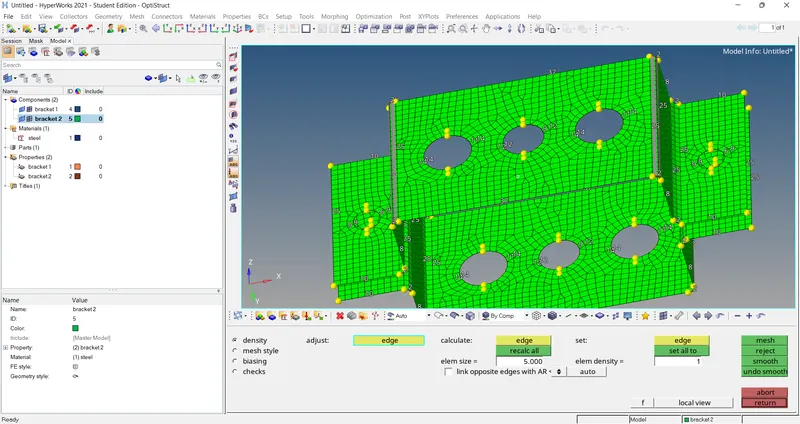
check the washer number if any mismatch is there correct the nodes by clicking right and left button of the mouse and make it same of all circles.recalculate all and mesh.
Step 4 : Creating the cross section of the element
create the constraint link : 1D - rigids -create node - calculate nodes - nodes by path and selelct nodes-created Rbe2 links in a with transition DOF.
create reb3 link in b with all DOF .created reb3 link with xy dof in c ,create rbe 2 in d and e and create spring link in f.
- Creating a Rod elelment : 1D - hyper beam -standard section - optistruct - standard scetion type=created box and given the diamensions.
- Created Beam element :Create - standard -optistruct - I section - given the diamensions.
- Created a Bar element : Create -standard-optistruct - cross section - given the diamensions.
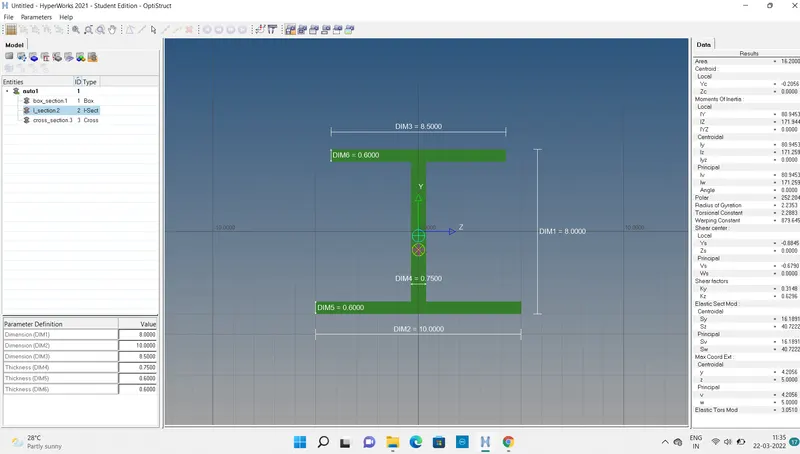
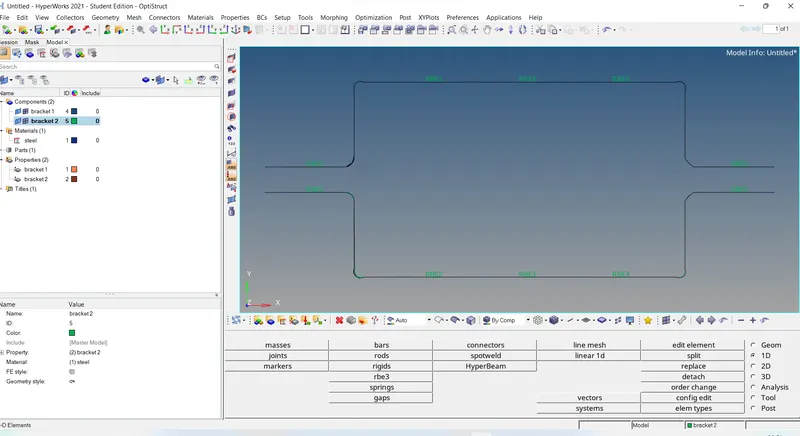
Step 5 : Creating the constrained links .
- Creating a Rod : 1d- rods - connect the two centre node of rbe2 link -element types CROD .
- Creating a Beam : 1d -bars - connect the two centre nodeof rbe 3 link with oriantation - element type CBEAM.
- Creating a Bar : 1d - Bars - connect the two center rbe3 link with oriantation - element type CBAR.
- Creating Masses : 1d - masses -click the node and give a magnitude of 10 in both e and f of rbe2 link with element type CMASS1-Create.
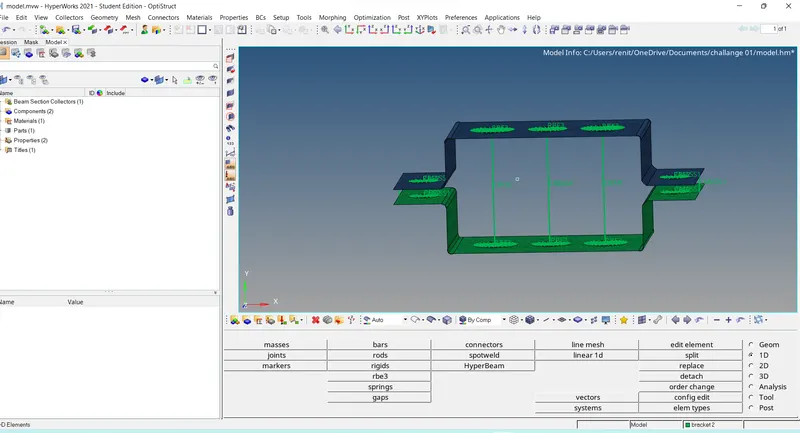
Step 6 : Creating properties and crossection of all elements.
In tab part ,created the properties and give a name as elements .given tyhe cross-sections.
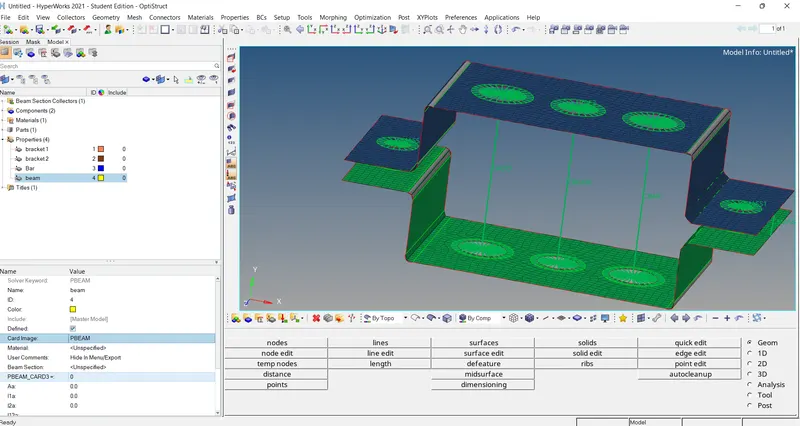
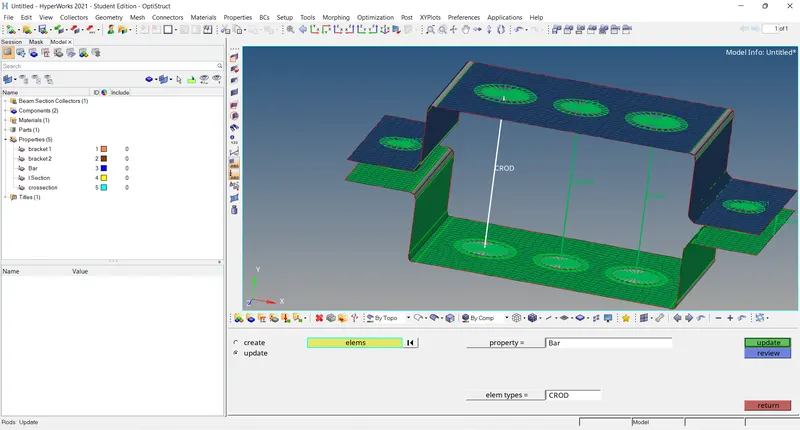
Step 7: Update the given properties and crossection Of Bars.
- Updating of Rods : 1D -Rods -update - click the element - Give the property as Bar - Update.
- Updating of Beam : 1D -Bars - update-clik the element - Give the property as I section - update.
- Updating of Bars : 1D - Bars -update - click the element - Give the property as crossection - update.
Final Model
1D Traditional element presentation - 1D Detailed element presentation .
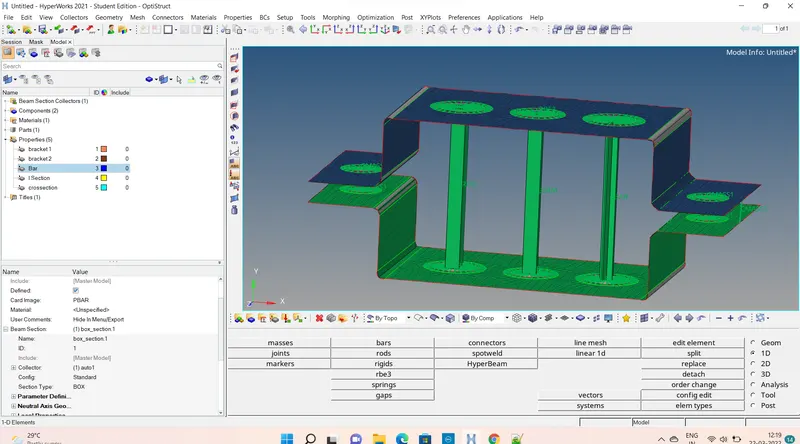
Results :
Given component is meshed and created 1D elements on the component with given cross-section and DOF
Learning outcomes:
Stuied how to created cross-section and how to create an element materials and property .studies about the links and joining.Got the knowledge of Geomerty tools and 1D tools.
thanks
Renith balachandran