Week 2- 2R Robotic Arm Challenge
Matlab program for simulating the Forward kinematics of a 2R Robotic Arm:
Definition of Robotic arm:
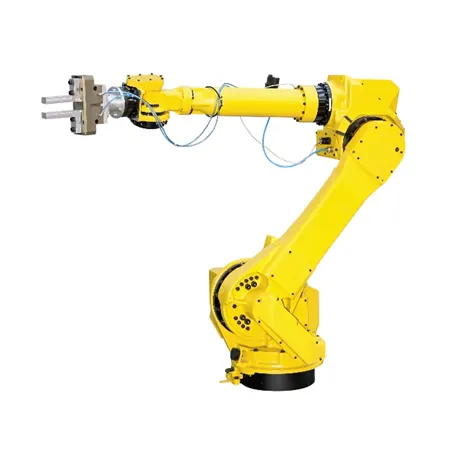
A robotic arm is a type of mechanical arm, usually programmable, with similar functions to a human arm; the arm may be the sum total of the mechanism or may be part of a more complex robot. The links of such a manipulator are connected by joints allowing either rotational motion (such as in an articulated bot) or translational (linear) displacement. The links of the manipulator can be considered to form a kinematic chain. The terminus of the kinematic chain of the manipulator is called the end effector and it is analogous to the human hand.
Matlab Code:
clear all

close all

clc


%inputs values

l1=2;% length of link1

l2=0.75;% length of link2

theta1=linspace(0,90,20);% angle of travel of link1

theta2=linspace(0,90,20);% anlge of travel of link2

ct=1;

for i=1:length(theta1)

    THETA1=theta1(i);

    for j=1:length(theta2)

        THETA2=theta2(j);

        x0=0; % X coordinate of link1 starting point

        y0=0; % Y coordinate of link1 starting point


        x1=l1*cosd(THETA1);% X coordinate of link1 ending point/ link2 starting point

        y1=l1*sind(THETA1);% Y coordinate of link1 ending point/ link2 starting point


        x2=x1+l2*cosd(THETA2);% X coordinate of link2 ending point

        y2=y1+l2*sind(THETA2);% Y coordinate of link2 ending point


        %plotting


        plot([x0 x1],[y0 y1],[x1 x2],[y1 y2],'linewidth',3)% Plotting the X & Y axis coordinates

        axis([0 3 0 3])

        pause(0.03)

        M(ct)=getframe(gcf);% Movie file creation

        ct=ct+1;


    end


end


movie(M)

videofile=VideoWriter('forward_kinematics.avi','Uncompressed AVI');

open(videofile)

writeVideo(videofile,M)

close(videofile)
Stepwise Explanation of code:
Step-1
Click Windows Start -> Search ‘Matlab’ application. Once it appears on the window screen & clicks the Matlab icon.
Then Matlab will be opened & then open a new window in the editor column & save the file name as ‘2R_Robotic arm_Challenge.m’.
Step-2
Enter ‘clear all, close all, clc’ command.
The usage of the above commands are shown below:
- ‘Clear all’ command is used to clear all the data stored from the workspace.
- ‘Close all’ command is used to close all graphs & plots.
- ‘clc’ command is used to clear the command window.
Step-3
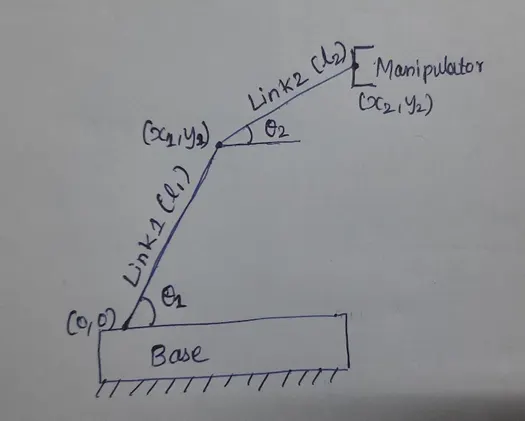
Then assign the input values for link1, link2 (length-l1, l2) and angles (θ1, θ2).
l1=2 m, l2=0.75m
θ1, θ2 is assigned with linspace command from 0 to180 deg C angle of rotation with 10 intervals.
θ1=linspace(0,90,20);
θ2=linspace(0,90,20);
Step-4
Type ct=1 to begin the contour command.
Step-5
Next type For loop command for continuously moves the robotic arm.
for i=1:length(theta1)
THETA1=theta1(i);
for j=1:length(theta2)
THETA2=theta2(j);
The values of i & j are changing from 1 to the length of ‘theta1’ for ‘i’ & 1 to the length of ‘theta2’ for ‘j’. Changing values of theta1 & theta2 are stored in variables ‘THETA1’ & ‘THETA2’. Theta2 will move to various positions for each position of theta1. i.e., each position of link1 is having various positions of link2.
Step-4
Then assign below values for x0, x1,x2,y0,y1 & y2.
x0=0;
y0=0;
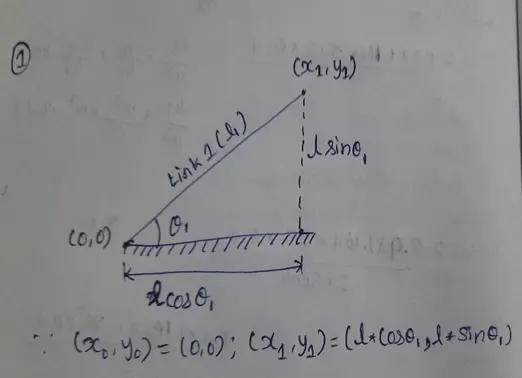
x1=l1*cosd(THETA1);
y1=l1*sind(THETA1);
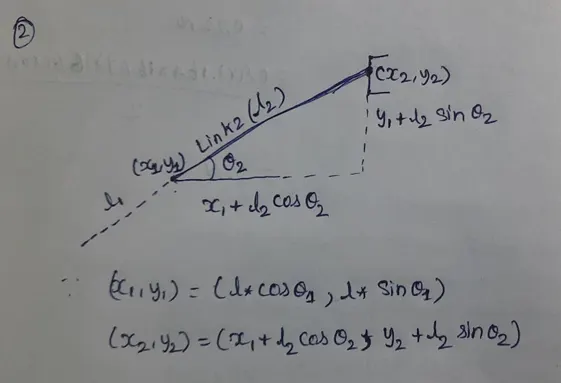
x2=x1+l2*cosd(THETA2);
y2=y1+l2*sind(THETA2);
Note: cosd(θ) will give output in degree. cos(θ) will give output in radians.
Step-5
Give coordinates values for x0, x1,x2,y0,y1 & y2.
Plot values for ([x0 x1], [x1 x2], [y0 y1], [y1 y2]) with linewidth value 3.
Step-6
Assign Maximum & Minimum limits for the (X & Y) axes by using the axis command.
X-axis range from 0 to 3.
Y-axis range from 0 to 3.
axis([0 3 0 3])
Step-7
Pause command is used to slow down the output video playback time.
Pasuse(0.03)
Step8
getframe command is used to get the individual frame from M variable.
M(ct)=getframe(gcf);
Step-9
Then increment the value of ct=ct+1;
Step-10
Type end commands twice to close the inner & outer for loops.
Step-11
Type movie command to create movie file of output.
movie(M)
assign video file variable, for which movie file to be created.
Give the format of the movie file in VideoWriter function.
videofile=VideoWriter('forward_kinematics.avi','Uncompressed AVI');
the below commands are used for opening, writing & closing the movie file.
open(videofile)
writeVideo(videofile,M)
close(videofile)
Step-12
The program is successfully executed.
Refer to the below youtube link for the movie file of the program result.
https://www.youtube.com/watch?v=pOmNLw4TvNQ
Errors faced in programming:
1)Error-1
Error faced:
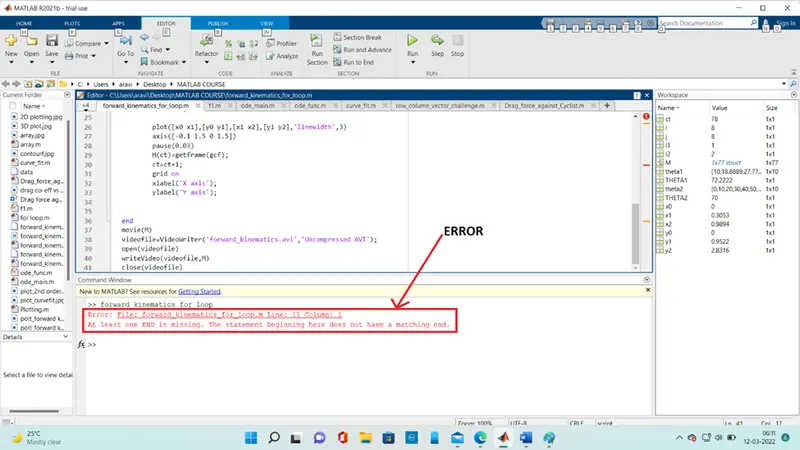
Step taken to correct the error:
In this program, we have used two For loop commands. One end command is missed from internal the For loop in the program.
Missed end command is added & corrected.
2) Error-2
Error faced:
Step taken to correct the error:
Linewidth is typed as a variable. It should be typed as ‘linewidth’ as a string.
linewidth is changed ‘linewidth’ & corrected.