Week 12 Challenge
1.Generate report for the steel building design from challenges 1 – 6 along with the loading summary.
Ans)
Aim: To generate report for the steel building design from challenges 1 – 6 along with the loading summary.
Tools Required:
-> Tekla Model
-> Reports
-> Model Reports
-> Show Reports
-> Edit Header
Procedure:
- Firstly, open the tekla model that is previously created.
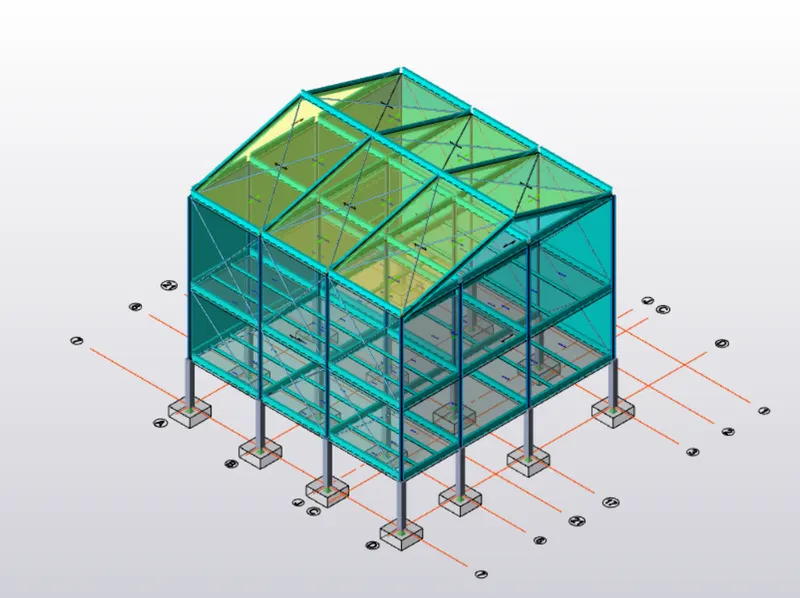
- Now select the reports option.
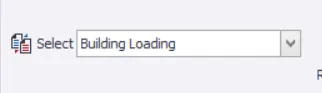
- Now under the reports tool bar we find the select option where we can choose the options.
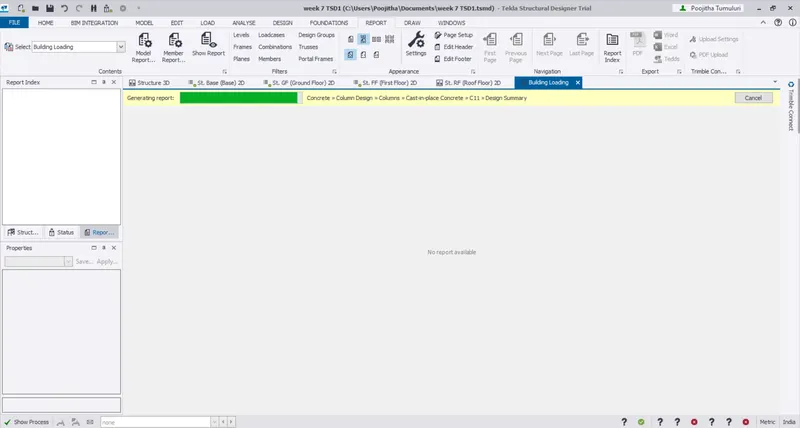
- After selecting one among them click on the Model report.
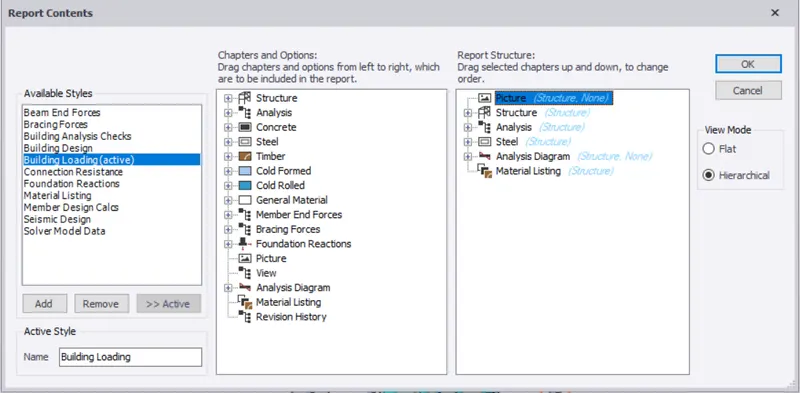
- Now you will be directed to a new dialogue box, where you have to select few among them which are required for our structure input details.
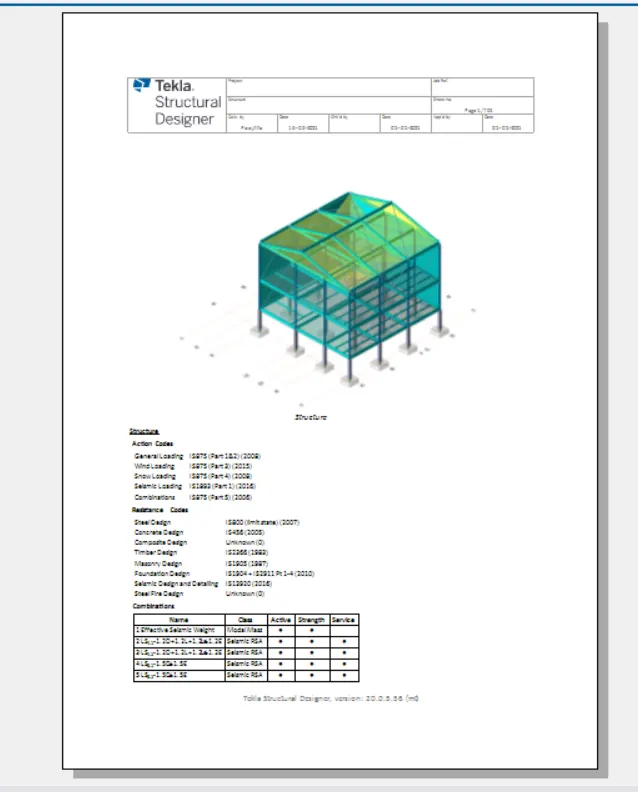
- After selecting few you can click on ok.
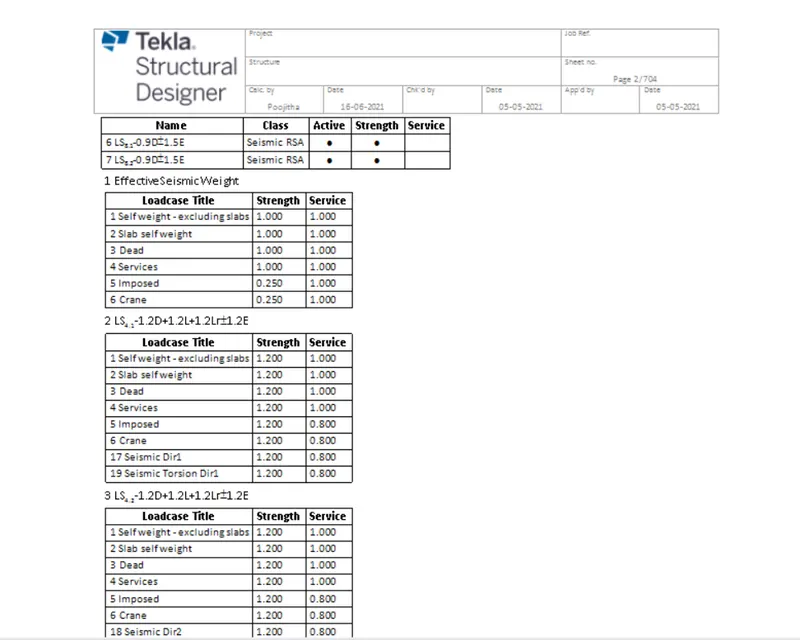
- Now select the show reports option to see them.
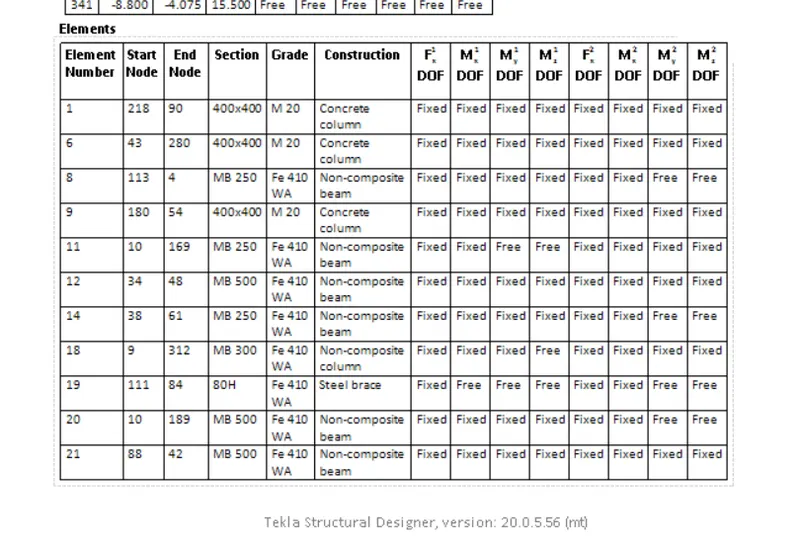
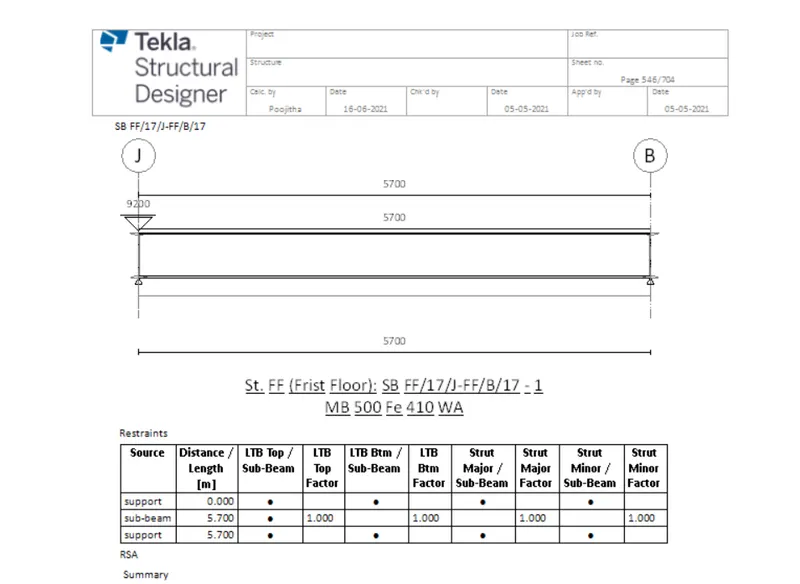
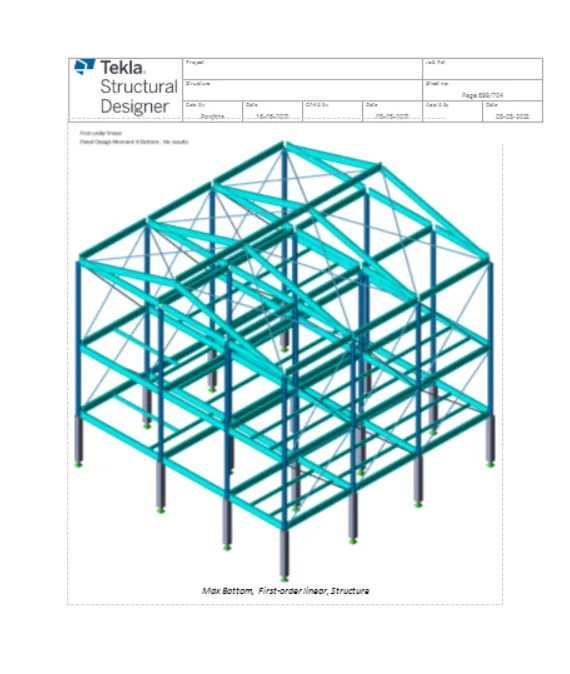
- Now you can see reports are generated on your work space.
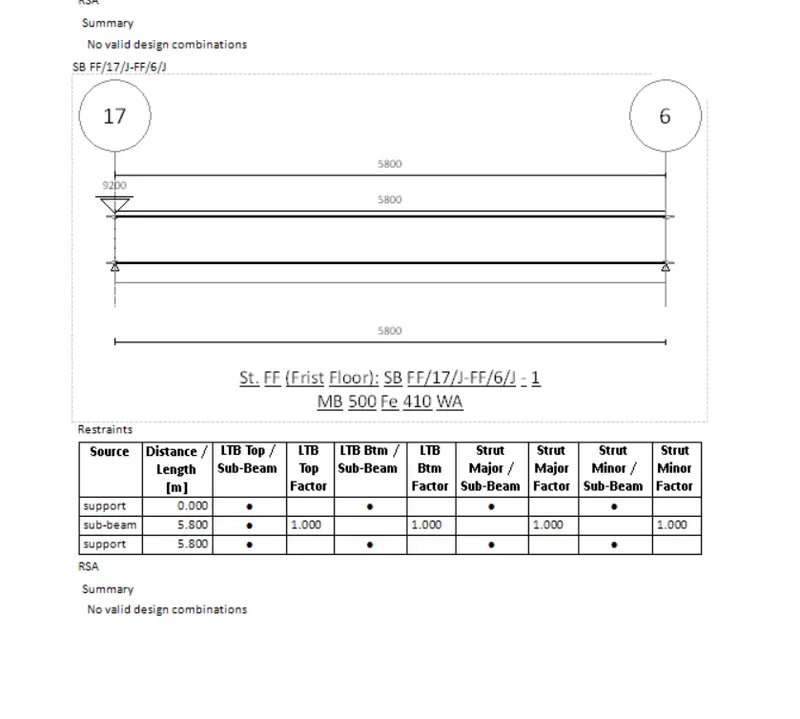
- You can click on the icon present on the tool bar for the next page and previous page options.
- Also you can click on the PDF option to generate a PDF of the reports.
- Or you can convert the reports into any format such as PDF, Excel, Word and many more of your of your choice depending on the availability.
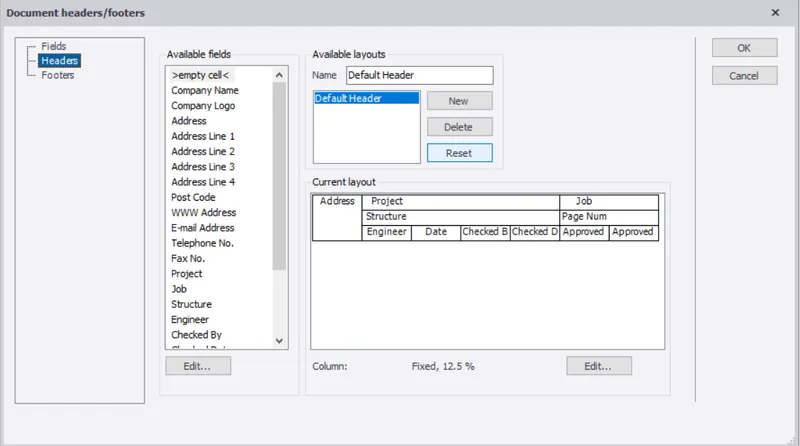
- Now with the help of edit header option you can edit the project name, address, checked by, approved by and many more.
Result:
Hence by following the above series of steps we can generate report for the steel building design from challenges 1 – 6 along with the loading summary.
2.Generate report for RC structure along with the loading summary.
Ans)
Aim: To generate report for RC structure along with the loading summary.
Tools Required:
-> Tekla Model
-> Reports
-> Model Reports
-> Show Reports
-> Edit Header
Procedure:
- Firstly, open the tekla model that is previously created.
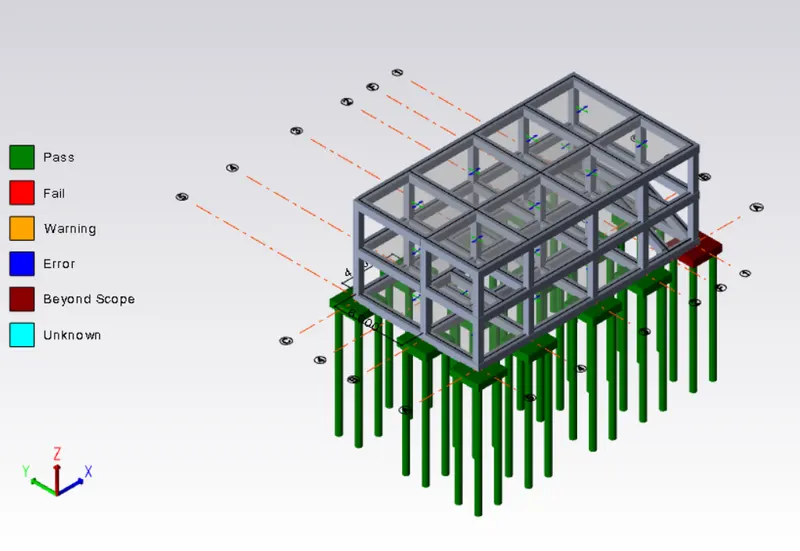
- Now select the reports option.
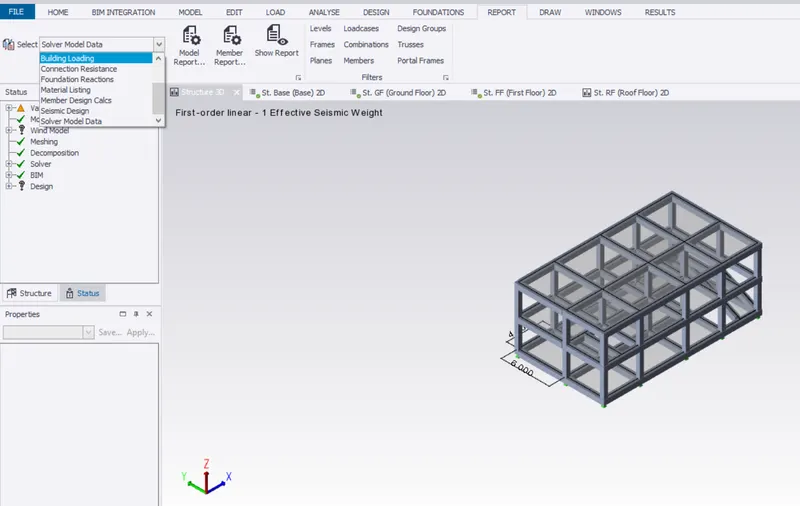
- Now under the reports tool bar we find the select option where we can choose the options.
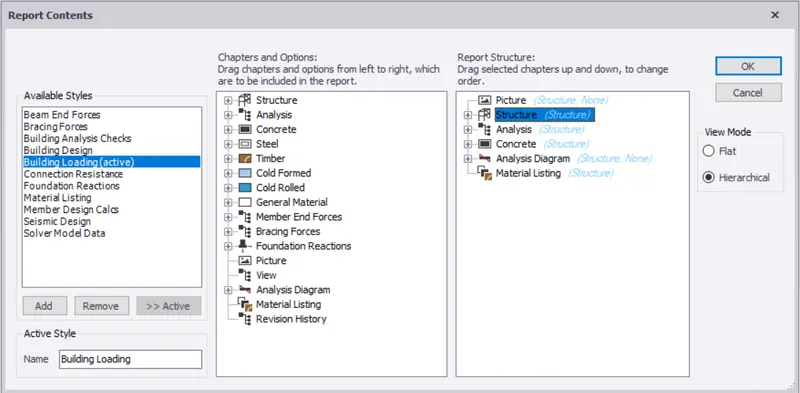
- After selecting one among them click on the Model report.
- Now you will be directed to a new dialogue box, where you have to select few among them which are required for our structure input details.
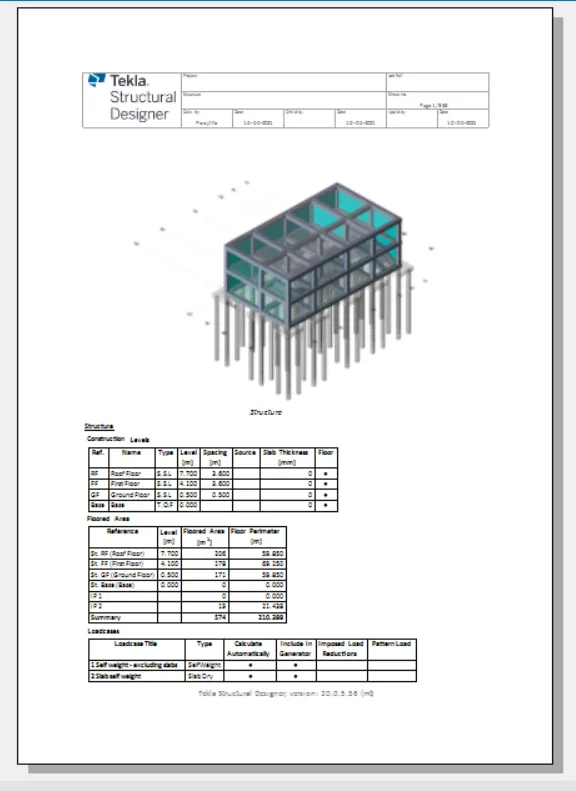
- After selecting few you can click on ok.
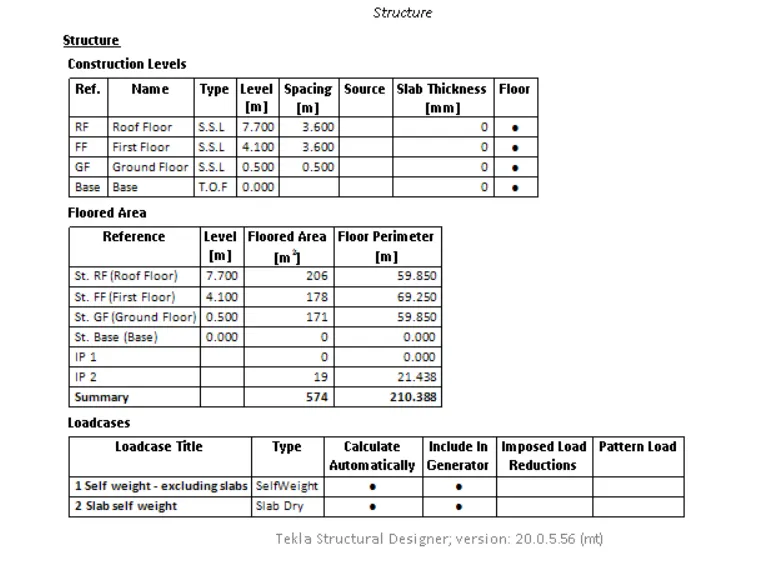
- Now select the show reports option to see them.
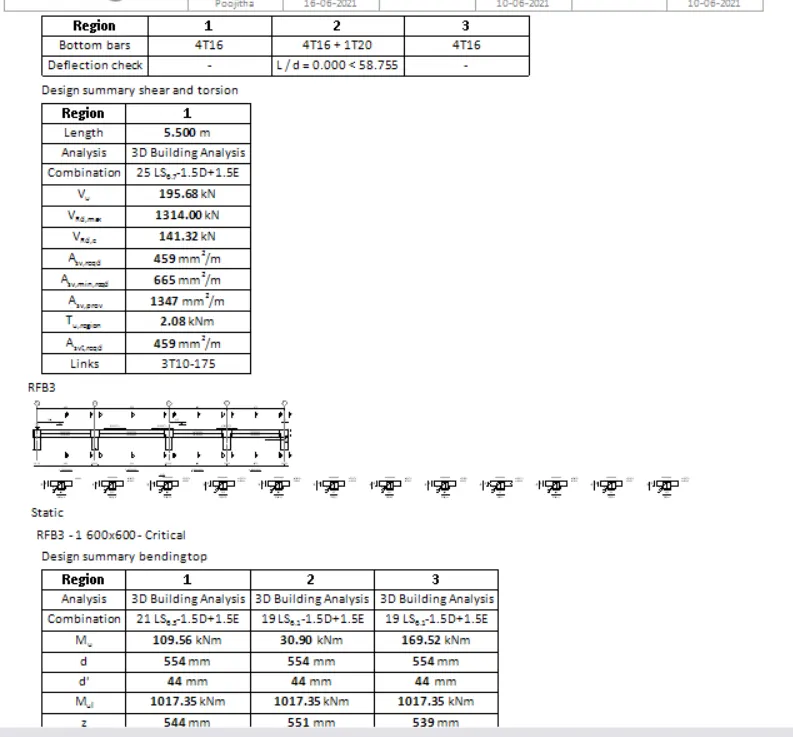
- Now you can see reports are generated on your work space.
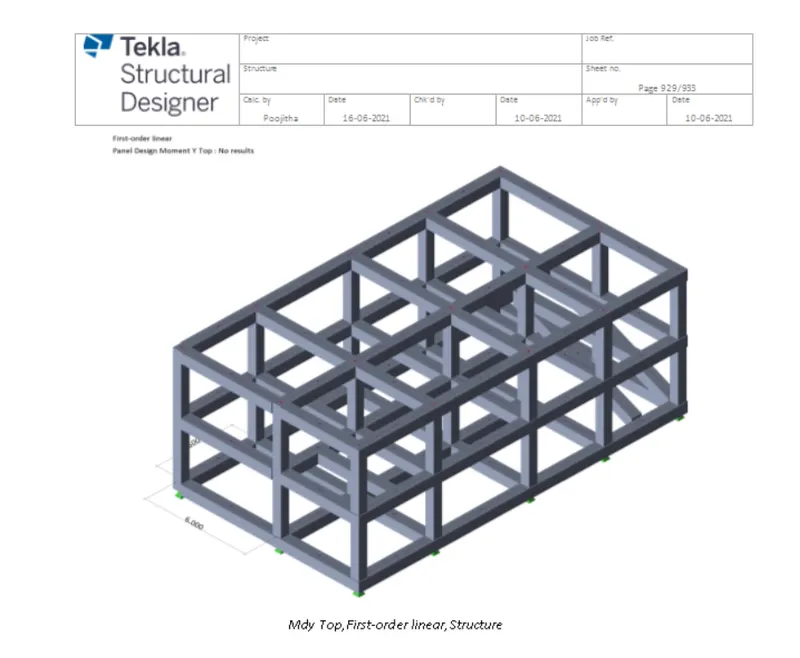
- You can click on the icon present on the tool bar for the next page and previous page options.
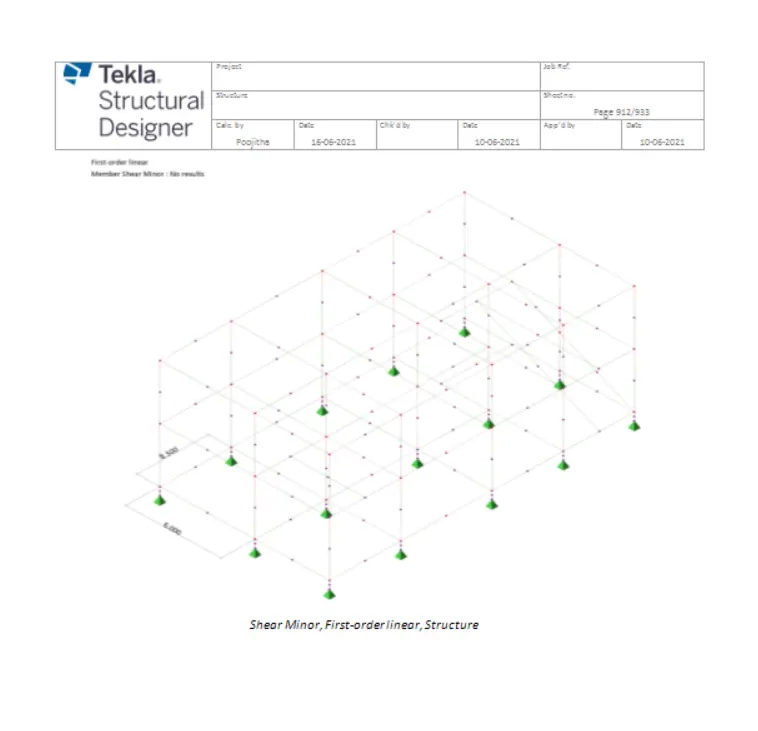
- Also you can click on the PDF option to generate a PDF of the reports.
- Or you can convert the reports into any formate such as PDF, Excel, Word and many more of your choice depending on the availability.
- Now with the help of edit header option you can edit the project name, address, checked by, approved by and many more.
Result:
Hence by following the above series of steps we can generate report for RC structure along with the loading summary.
3.Update the layers settings in the model and generate plan drawings and details from the model.
Ans)
Aim: To update the layers settings in the model and generate plan drawings and details from the model
Tools Required:
-> Tekla Model
-> Home
-> Settings
-> Drawings
-> Layer Style
-> Layer Configurations
Procedure:
- Firstly, open the tekla model that is previously created.
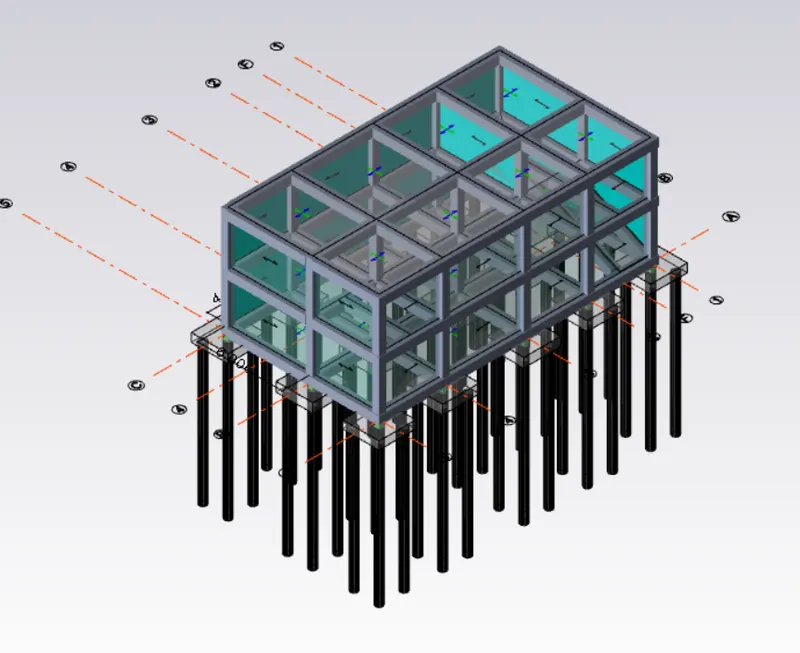
- Now select the settings option under the home page.
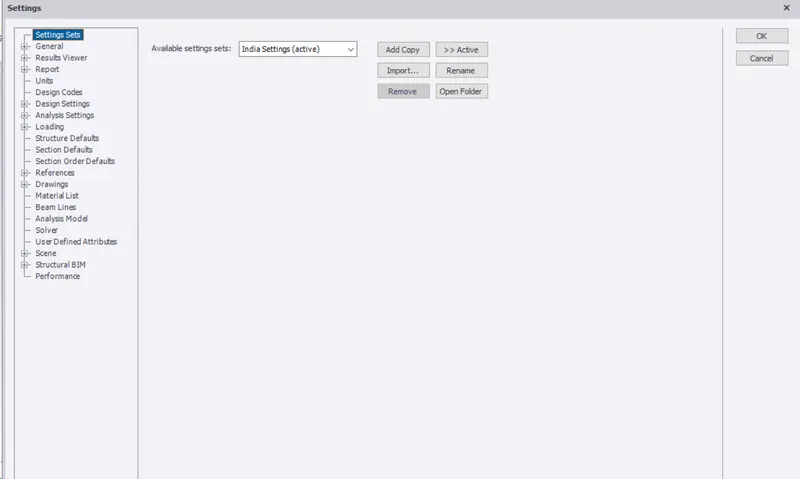
- Now you will be directed to a new dialogue box.
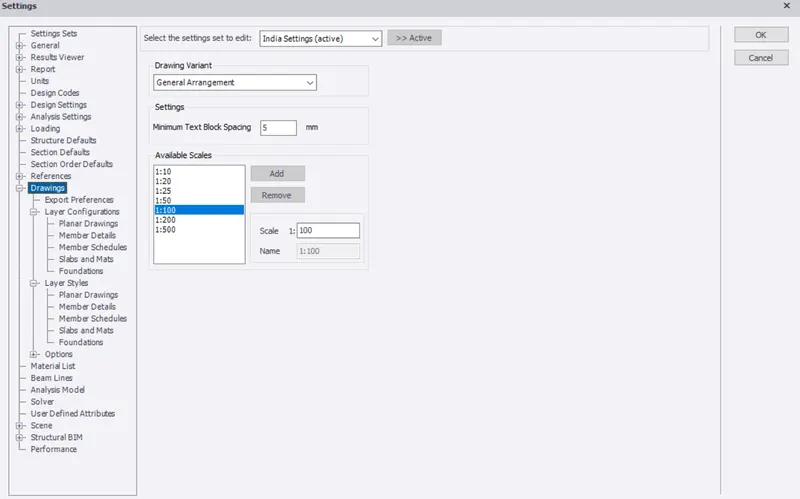
- Where you need to select the Drawings option under that select the layer configuration option.
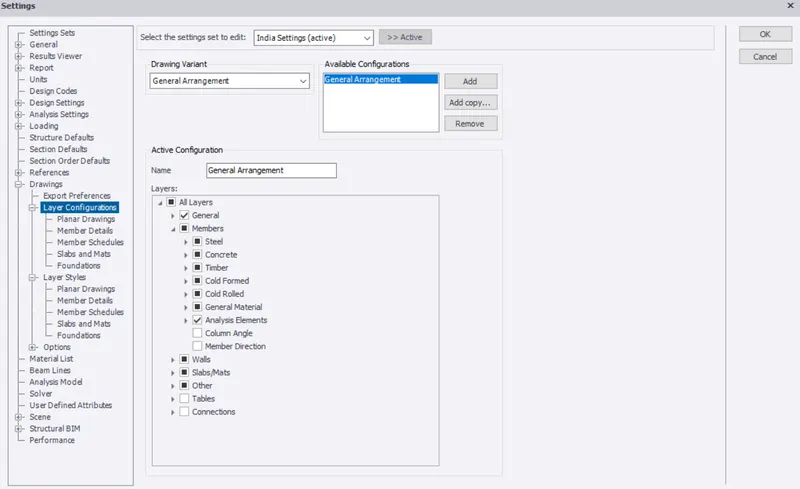
- Now under that select the options of your choice that you like to change.
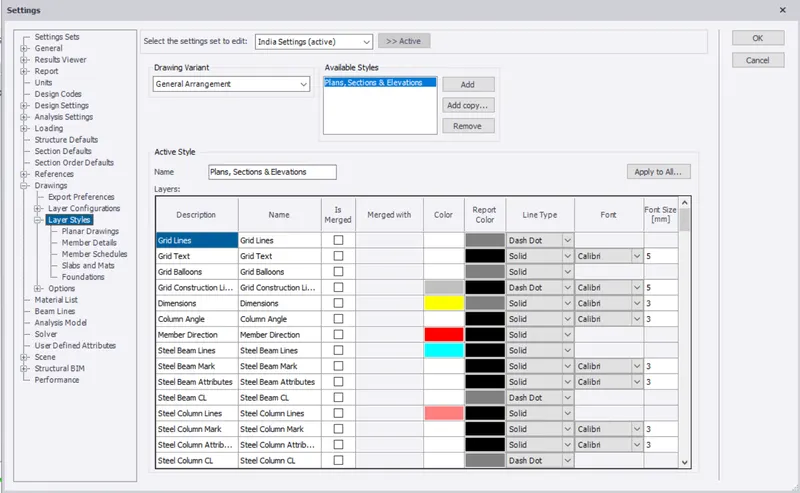
- In the same manner select the layer styles options.
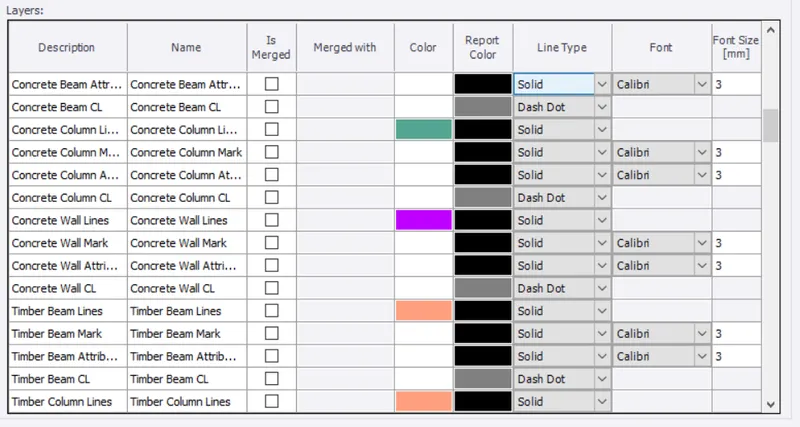
- Now under that select the options of your choice that you like to change.
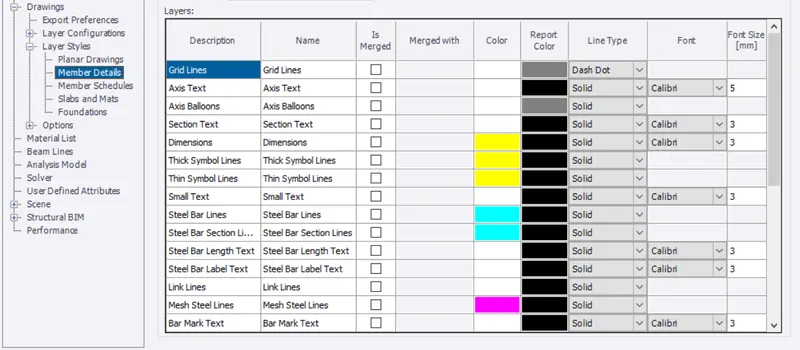
- Now select the colour change of your requirement for both the layer configurations and layer settings.
- If you are fine with the system default selections then there is no need of any change.
Result:
Hence by following the above series of steps we can update the layers settings in the model and generate plan drawings and details from the model.