Week 11 - Project - A pillar Design with Master Section
A-PILLAR DESIGN WITH MASTER SECTION
AIM:
- To create the A-Pillar's Plastic component from the given Class-A surface using the master section that is provided while following the design rules.
INTRODUCTION:
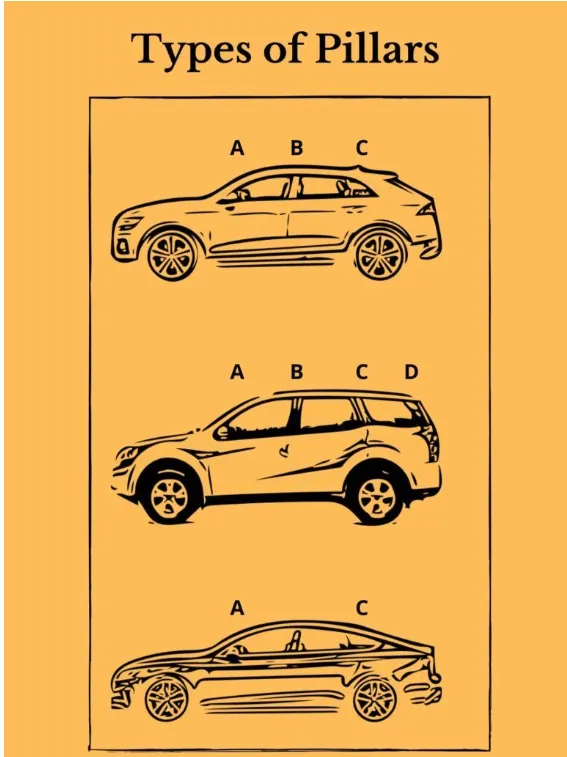
- Types of Pillars and their importance in the Automotive Industry:
fig(1)
- These Pillars standing at the vertical or near-vertical (slightly inclined) position are structural supports for the car's roof and window areas.
- They are pretty crucial as they provide a strong foundation to install the glass( windscreen, rear and side windows) of a car. Also, these are strong enough to hold the entire roof.
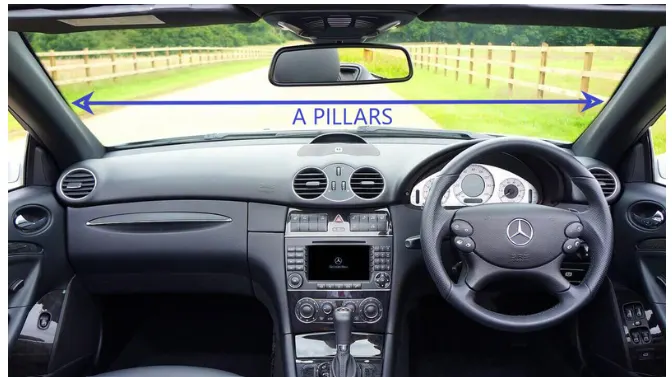
- There are several pillars a car can have, and each has got a name. Pillars are named "A", "B", "C" and "D", if you move from the front to the rear end of your vehicle.
fig(2)
- The number of pillars will vary from car to car.
- For example, most sedans and hatchbacks will have three(A,B & C) pillars whereas larger car like SUVs will have all four (A, B, C & D) pillars.
- Hardtop structures (often referred to as pillarless hardtops) will have only two(A & C) pillars.
ROLE OF THE A-PILLAR:
- A-Pillar is located on either side of your car's front window (or windshield).
- They also hold the hinges of your front doors. A-Pillar are normally made of steel alloys.
- Besides being a supporting member, A-Pillars are very crucial as far as safety is concerned. A-pillars usually carry a significant amount of load during a frontal collision or a rollover crash. So the larger the width or cross-section, the greater would be the strength but A-pillars always block the drivers vision (create blind spots) to some extent that can be realized while driving. So, having that said, using thicker A-Pillar can make the situation even worst. It might further lower the driver's vision and raise a question about the vehicle's and passenger's safety.
- Hence, the design of A-Pillars must be optimized giving equal importance to both strength and the driver's vision.
- Firstly, we have to create the required Tooling axis for the given class-A surface while meeting the requirements of the necessary Draft Analysis & then perform the Draft-Analysis operation on the class-A surface itself.
- After that, we have to create the required class-B & class-C surface using which we have to make the final plastic component and perform Draft Analysis.
MAIN REPORT:
- Types of surfaces and their importance for an Automotive Plastic Designer:
CLASS-A SURFACE:
- It is an aesthetic surface with the highest quality finish. Most Class-A surfaces for an Automotive component are made using 'Autodesk-Alias' based on the final concept-sketch. All Class-A surfaces should have 'Curvature-Continuity', meaning the continuity between the surface should share the same boundary. It is taken as reference by the Automotive Plastic designer to create 'Class B' and 'Class C' surfaces.
CLASS-B SURFACE:
- The Class-B surface resides below the class-A surface at a certain thickness. It is created using Engineering Principles that consist of all the necessary features such as Ribs, Bosses, Snaps, etc. This surface isn't to the observer from the outside.
CLASS-C SURFACE:
- It is the surface created between the class-A and Class-B surfaces to joim them with each other.
- Now, we will begin by checking the state of connectivity for the class-A surface and ensure that there are no gaps between the surfaces as all the surfaces should be joined well together with each other and shouldn't consist of any discontinuities between them.
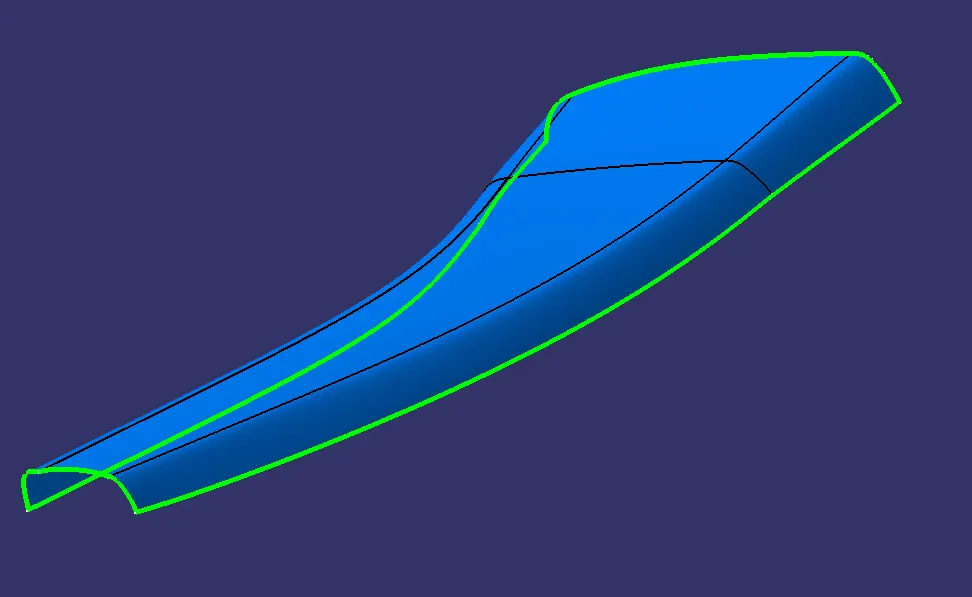
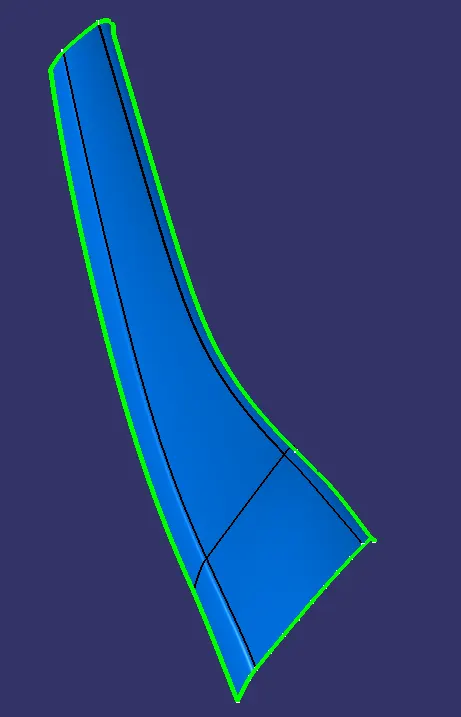
Our Class-A Surface:
fig(3)
fig(4)
There are two methods to inspect the State of Connectivity for the Class-A surface:
1. Using the 'Join' command from the 'Operation Toolbar':
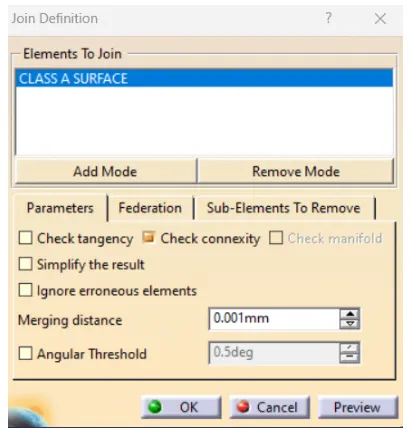
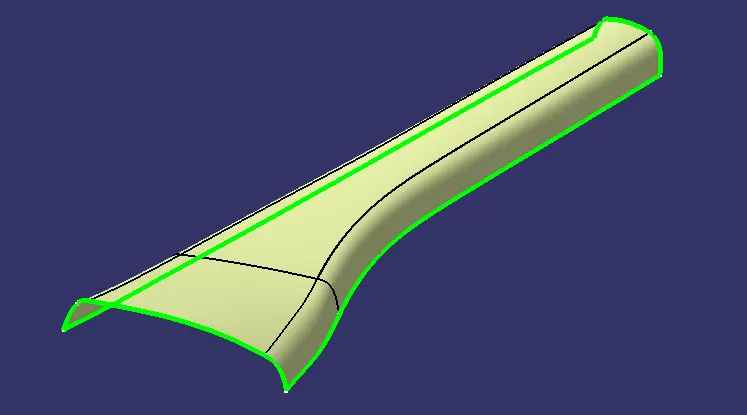
- First, we'll click on 'Join Command' and select our Class-A surface. Then, We have to ensure that the 'Check Connexity' option is marked as shown in the images below. It will check for any gaps that may be present between our surfaces. Then, we'll click on the 'Preview' button and it it doesn't show any 'Connexity Error' on our surface then it means our surface is well-connected and there are no discontinuities between it.
fig(5)
fig(6)
- In our case, there are no'Connexity Error' for the given Class-A surface.
- In case there is a connexity error, we can fix it by increasing the 'Merging-Distance' up to 0.003mm following the industrial standards.
2. Using the 'Boundary command' from the Operations Toolbar:
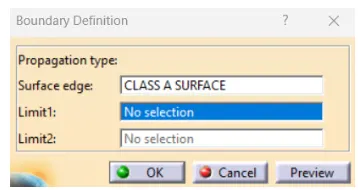
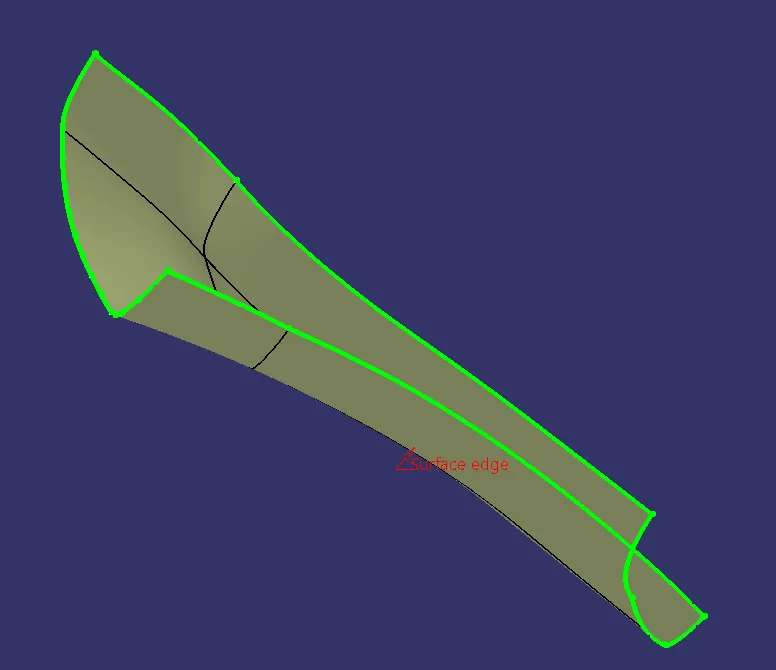
- In this case, we have to click on the 'Boundary' command and then select the Class-A Surface. After that, we'll click on the 'Preview' button to highlight all the boundaries that are on the class-A surface and check if there are any internal boundaries other than the outer edge boundaries.
fig(7)
fig(8)
- In our case, there is only one boundary present on the class-A surface which is the Outer Edge Boundary and hence we can conclude that all the surfaces are well connected.
CLASS-A SURFACE WITH MASTER SECTION:
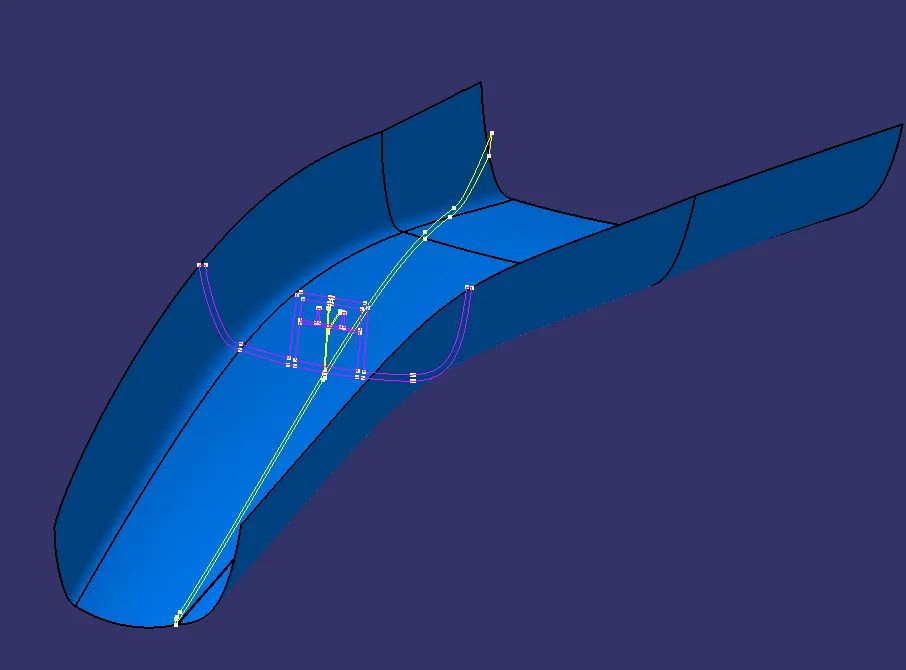
fig(9)
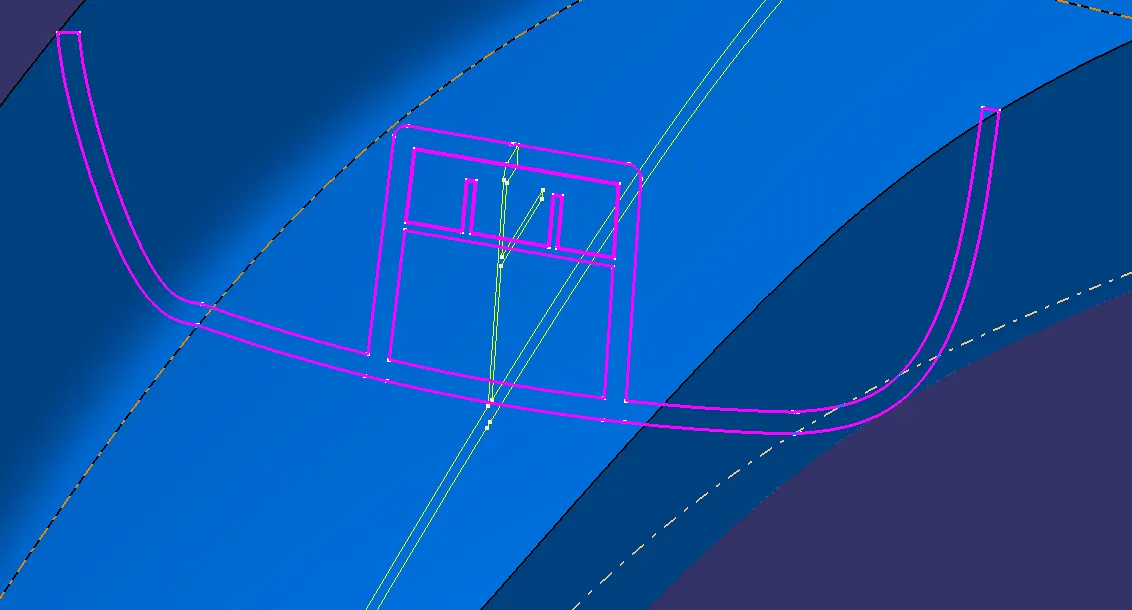
fig(10)
PROCEDURE TO CREATE THE MAIN TOOLING AXIS:
- Since we have a Master section provided to us using which we have to create the desired A-Pillar Plastic Component, We'll use that master section by extracting the lines as shown below and create a Bisecting Line with respect to those extracted lines to create our Main Tooling axis.
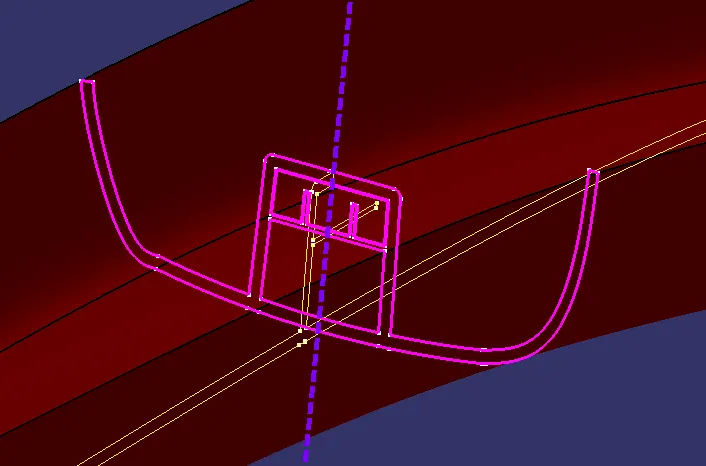
fig(11)
DRAFT ANALYSIS ON THE CLASS-A SURFACE:
- Next, we will perform a Draft Analysis on the Class-A Surface itself:
- Before starting with a draft analysis operation, we will go to the 'Customize view Parameters' option under the 'View Toolbar'. Then we will enter the 'Custom view mode' where we will go under the 'Mesh' option and select 'Material' and press OK.
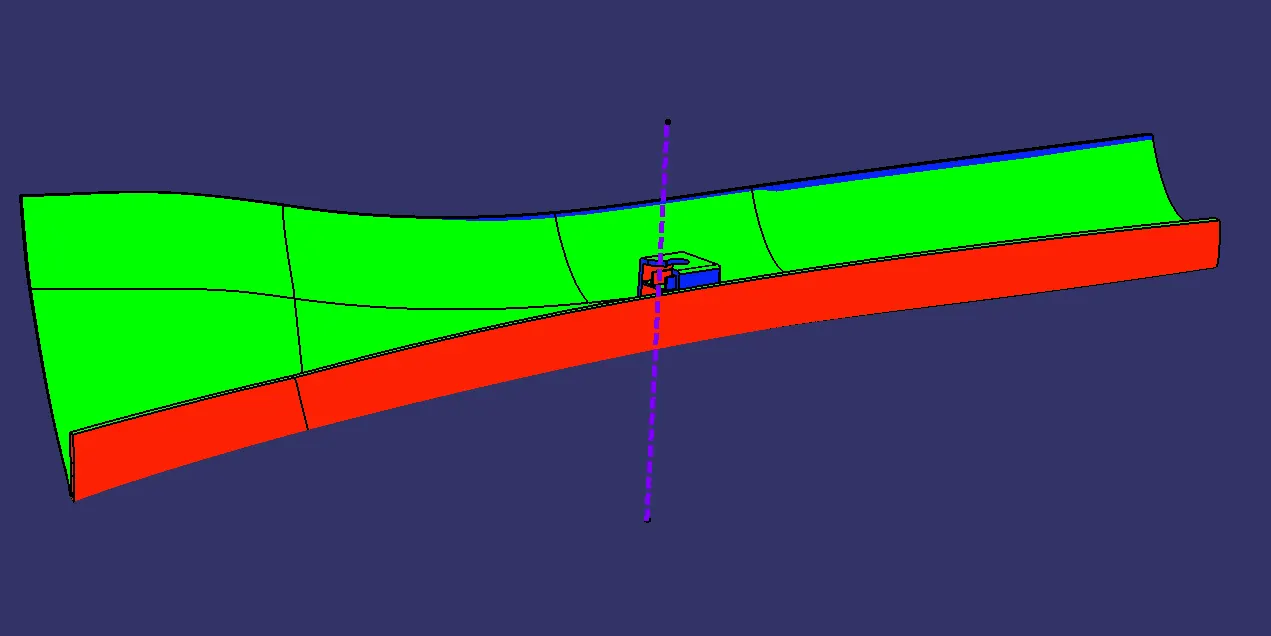
- To start the Draft analysis in the generative surface design workbench, we will go to insert and then look for the option called Analysis. Once found, we will go under that and click on Feature Draft Analysis. This will open the Draft Analysis dialogue box. There, we will ensure that under mode we have selected Quick analysis, under Display we will select Show or Hide the color scale and the select 3 degrees as the permissible draft angle. Then, under Direction we will choose the icon with the symbol of the compass on it which stands for Use the compass to define the new current draft direction.
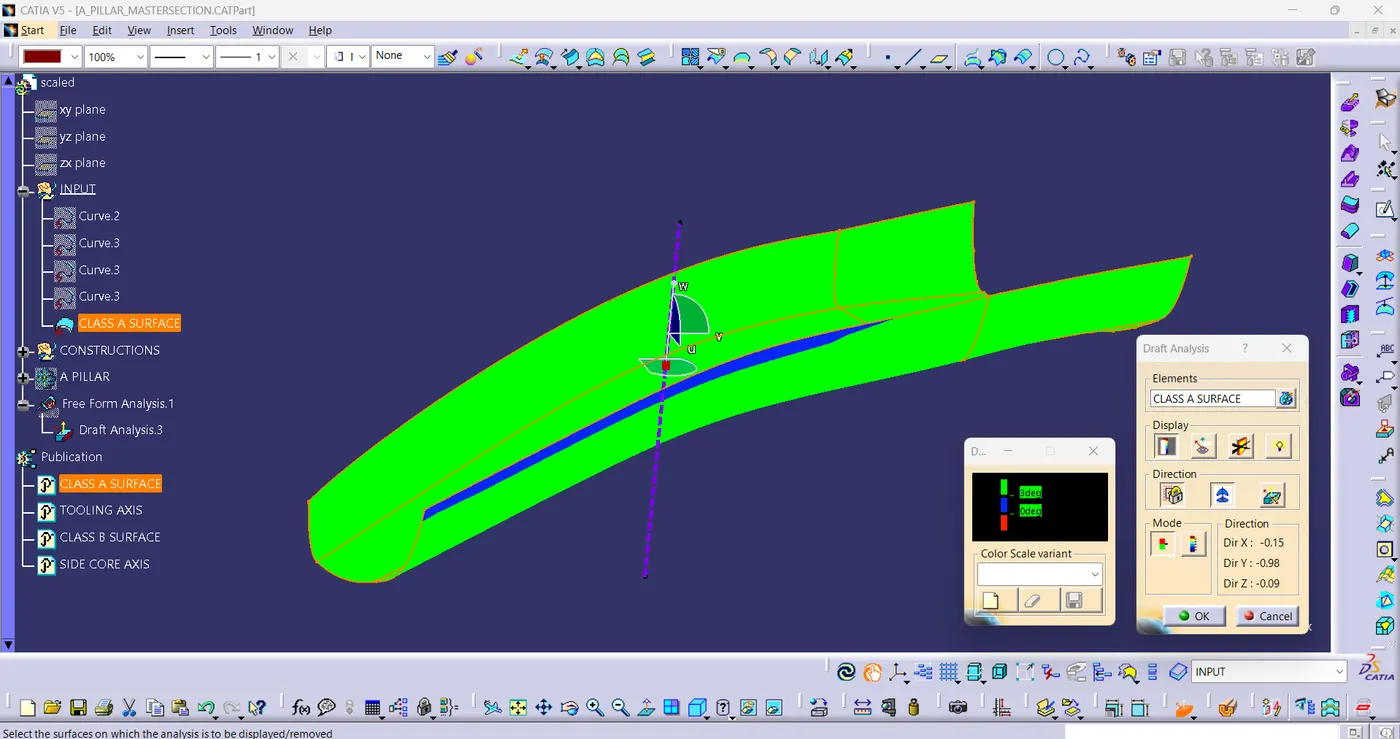
fig(12)
- It is evident from the above image that the Draft Analysis on our Class-A surface was successful and the component is feasible to manufacture.
- At the region shown the draft angle is lower than 3 degrees but only bya small amount.
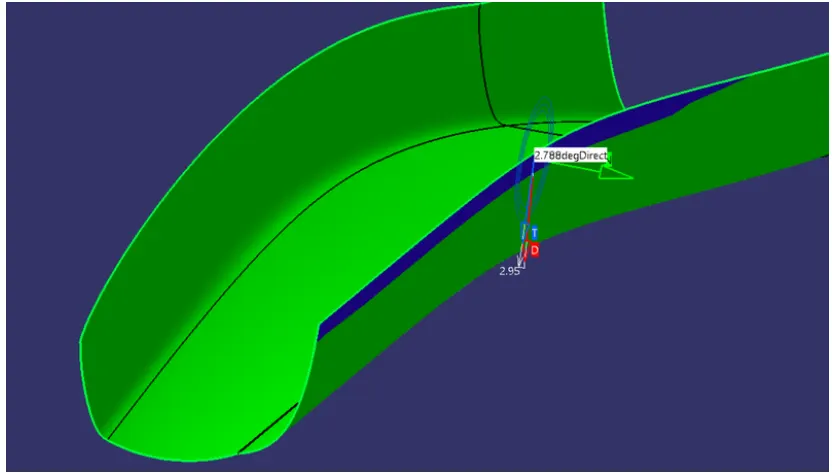
fig(13)
- We can communicate this development with the class-A surface designer and request them to recreate this region so that it'll clear properly with the main tooling axis but for now we're going to continue with this Class-A surface.
PROCEDURE TO CREATE THE CLASS-B SURFACE:
- We'll offset the class-A surface by 2.5mm as shown Below:
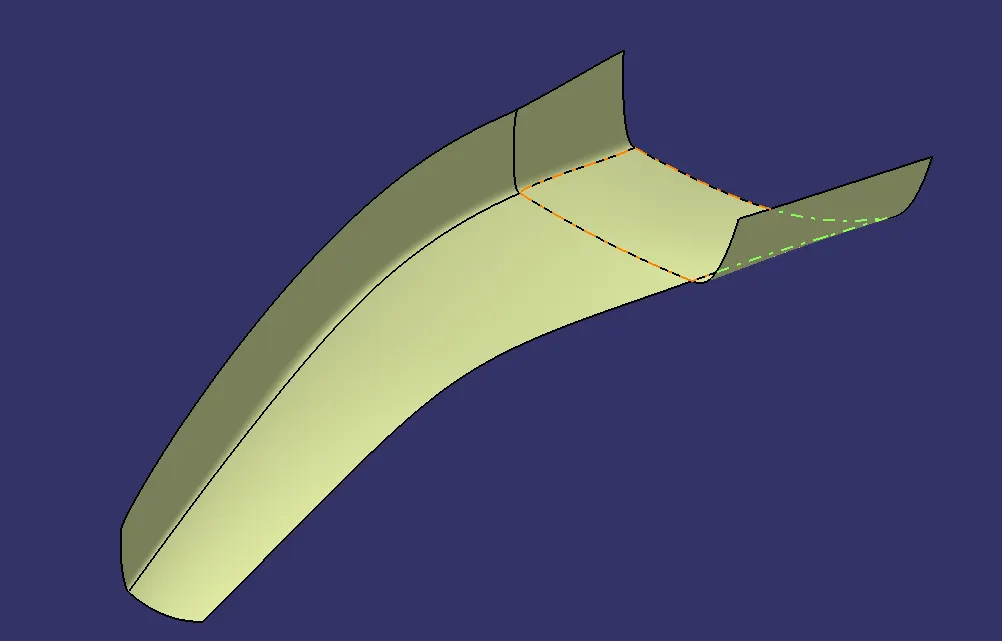
fig(14)
- It is not offseting properly due to complexity of the curvature of the class-A Surface and hence we have to recreate that missing patch using tools such as sweep command as shown below.
- We'll create two boundaries as shown below so that we can use the sweep command on it :
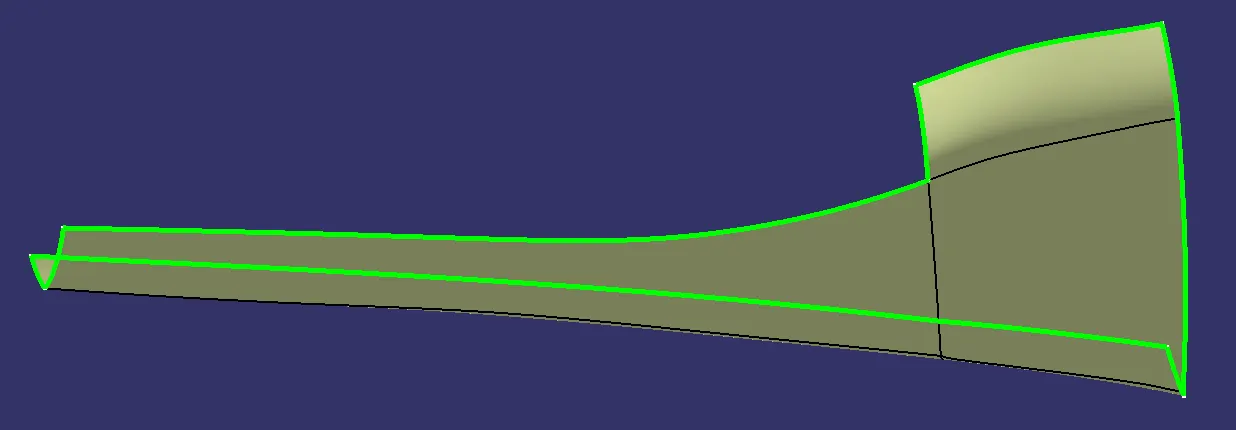
fig(15)
- We'll create it using Reference Surface in the sweep command's dialogue box as shown below:
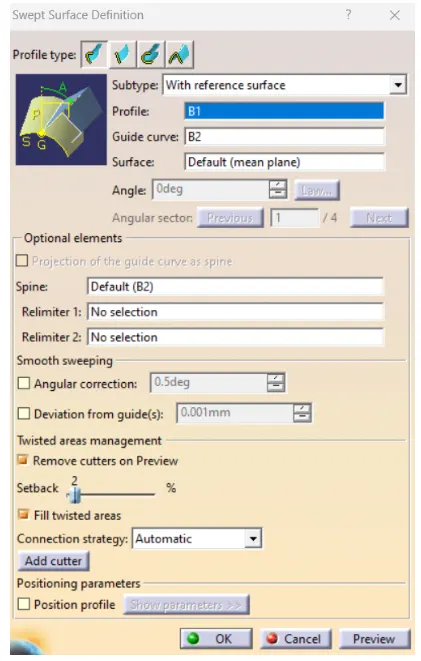
fig(16)
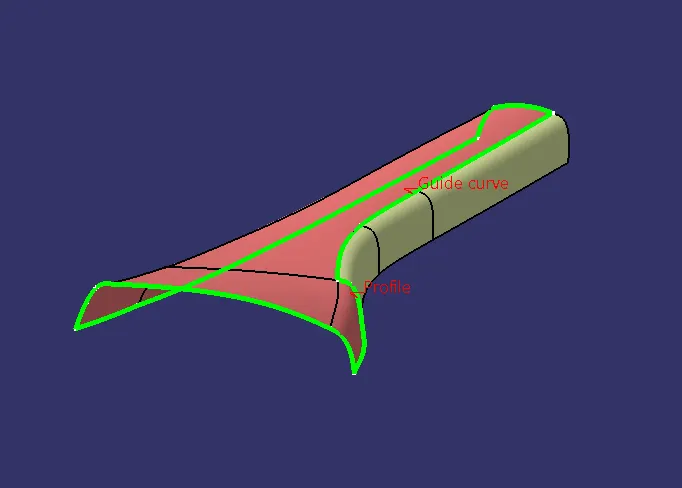
fig(17)
- Then, We'll join the newly created surface with the main offset obtained from the class-A surface.
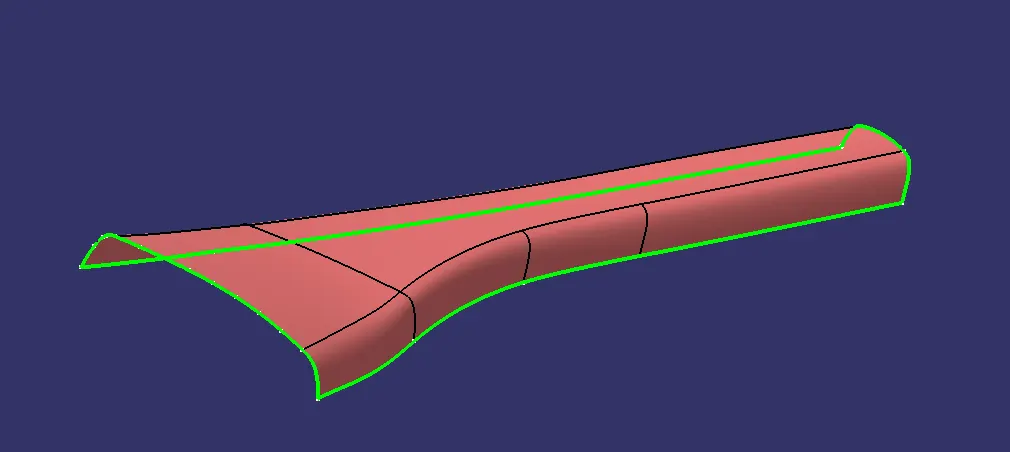
fig(18)
- Hence, our Class-B Surface is created.
PROCEDURE TO CREATE THE CLASS-C SURFACE:
- To create the class-C surface firstly we have to unhide the class-A surface and extract it's boundaries as shown in fig(19).
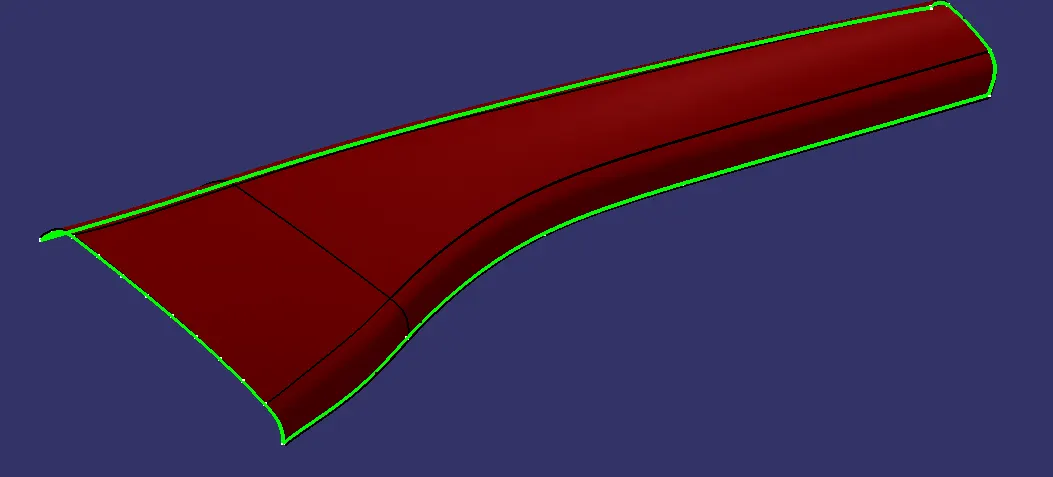
fig(19)
- We're going to smoothen these extracted boundaries using 'Curve Smooth'. Then, we're going to use the 'Sweep' command with ' Reference surface' & 'With Draft Direction' to create the class-C surface as shown below:
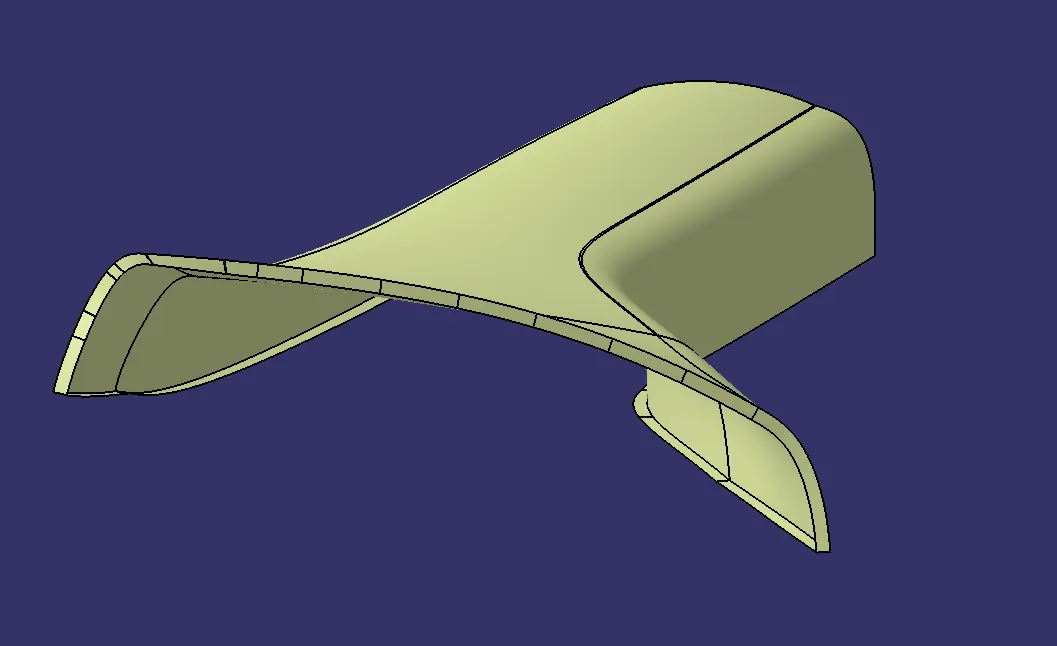
fig(20)
- Now, We're going to join the Class-A and Class-C surfaces with each other.
- Then, we going to trim it with the class-B surface. To ensure that it will be feasible to trim the Class-B surface with the joint surface of Class-A & C, we're going to extrapolate the Class-B Surface by a small amount to obtain the closed body as shown below:
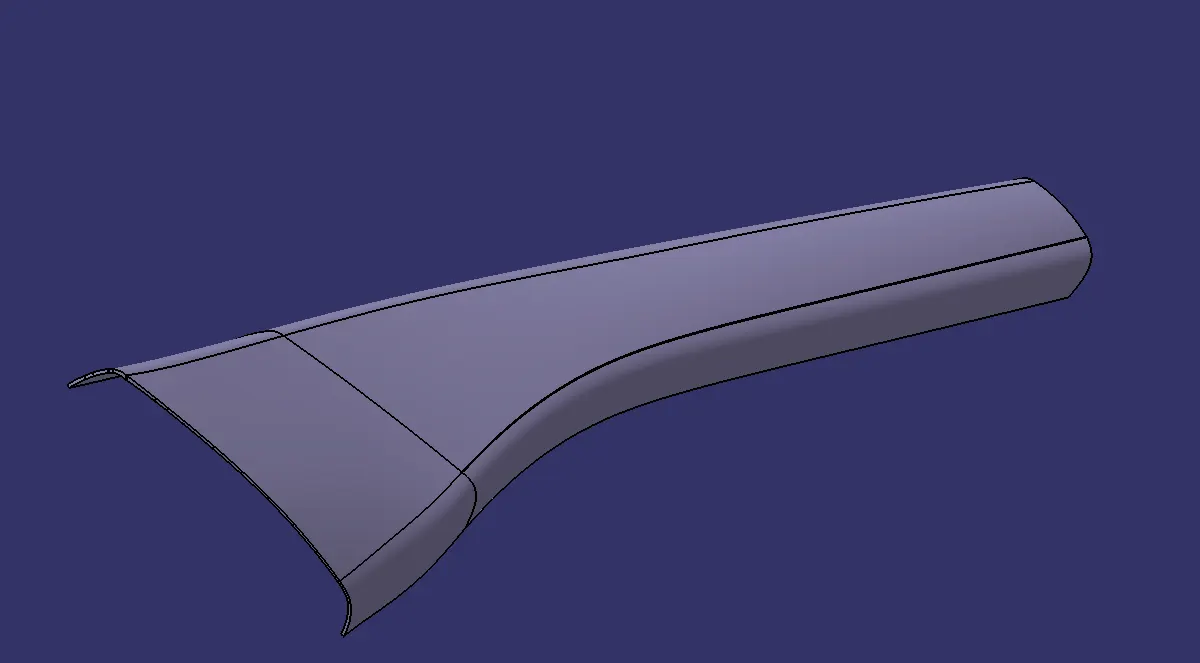
fig(21)
DRAFT ANALYSIS FOR THE CLOSED BODY USING THE MAIN TOOLING AXIS:
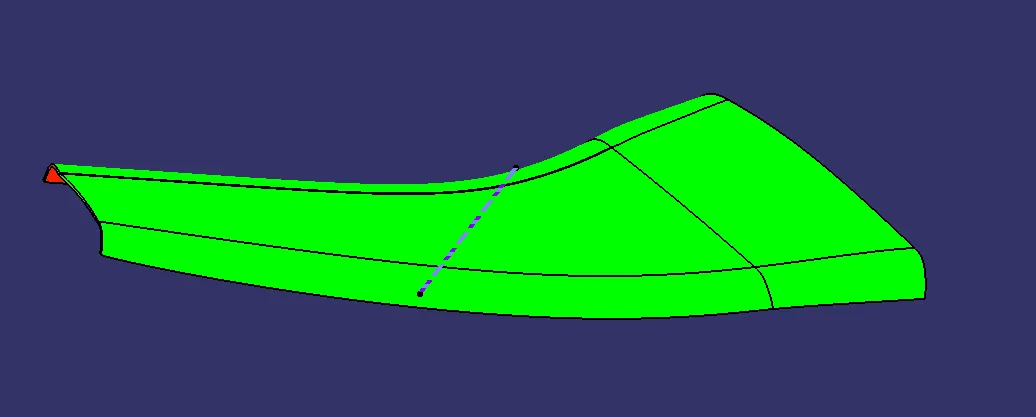
fig(22)
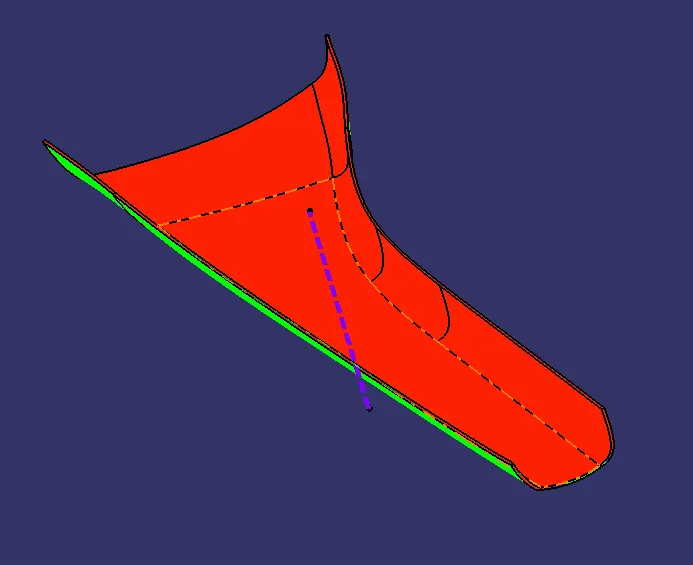
fig(23)
PROCEDURE TO CREATE THE ENGINEERING FEATURE- DOG HOUSE USING THE MASTER SECTION:-
- Using the master section we can create a sketch that can be extruded to create the dog house's walls as shown in fig(24).
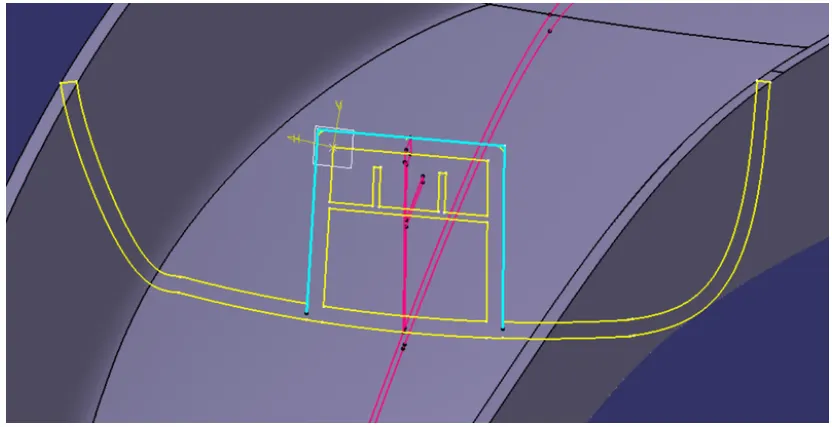
fig(24)
- Using multi-section surface command we're going to create the rear wall of the dog house as shown in fig(25).
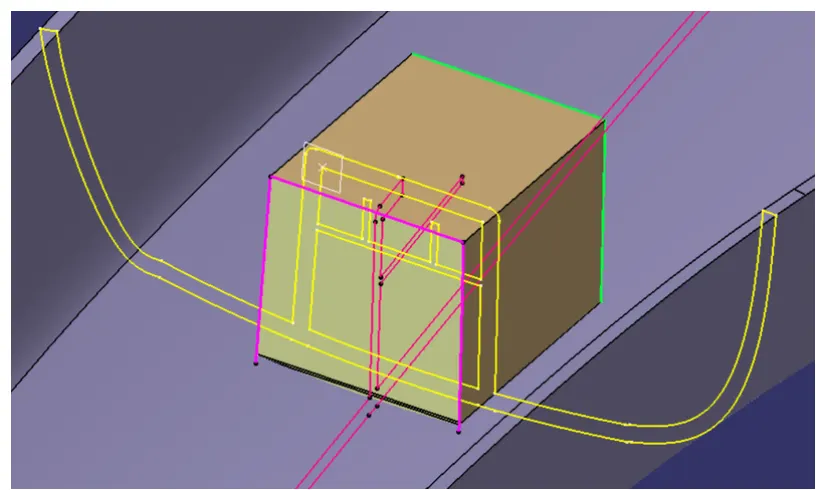
fig(25)
- Then, we'll join them all together and move on to the part workbench to thicken it by 2.5mm as shown in fig(26).
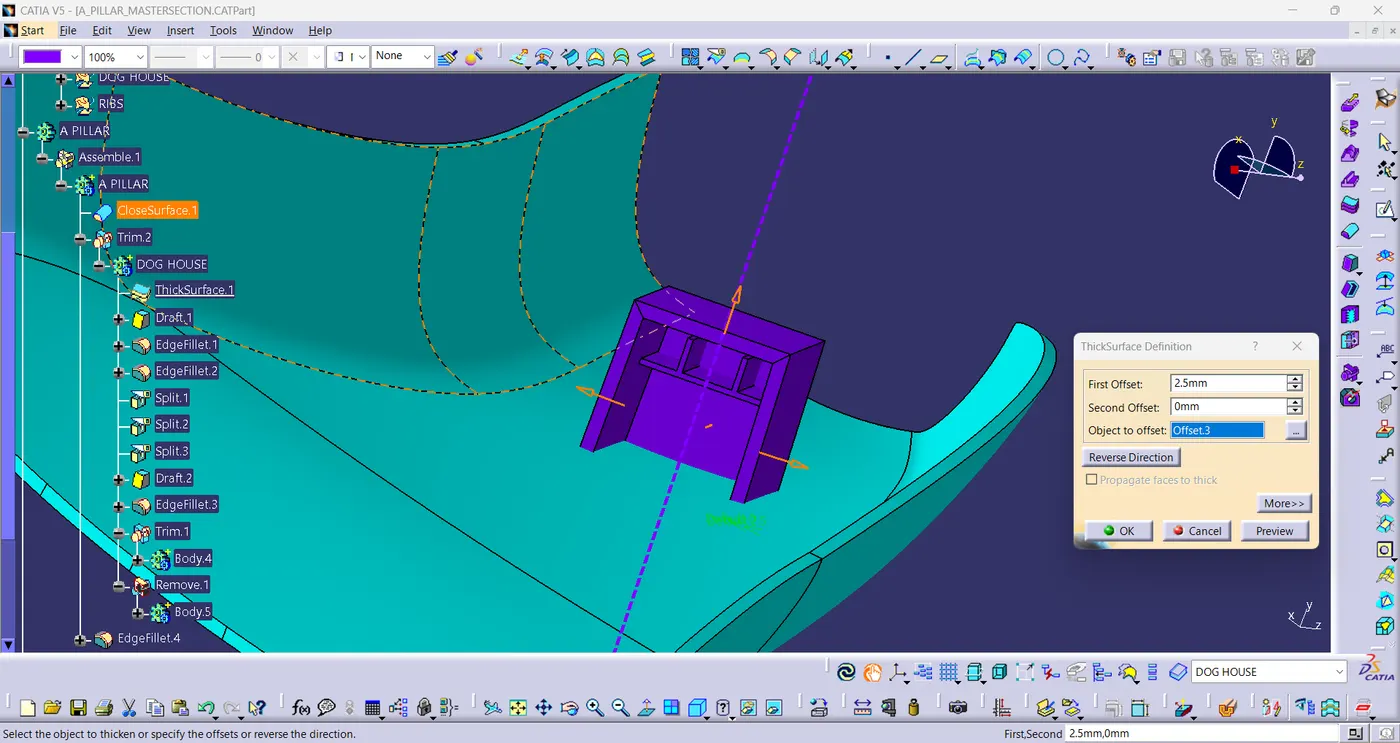
fig(26)
- After that, we're going to provide all the required drafts using the Draft angle command in part work bench.
- Draft Angle is provided at both the outer and inner sections of the doghouse with respect to the main tooling axis and side core axis respectively.
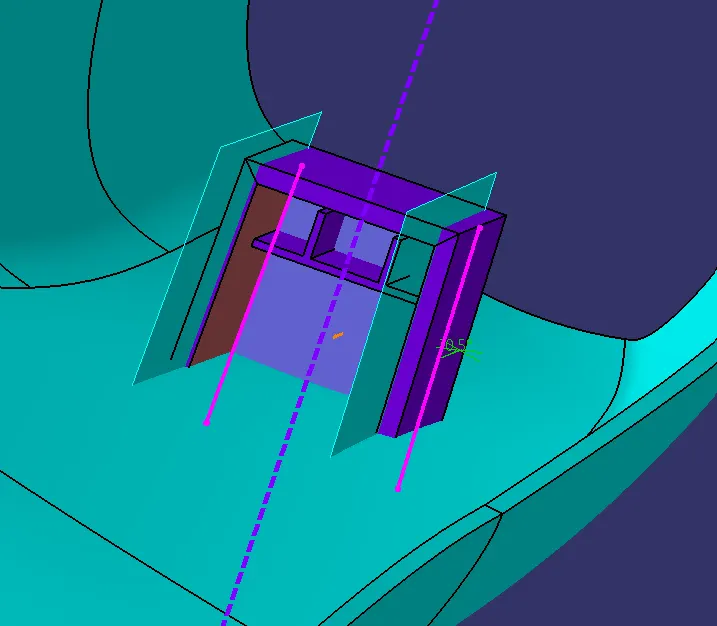
fig(27)
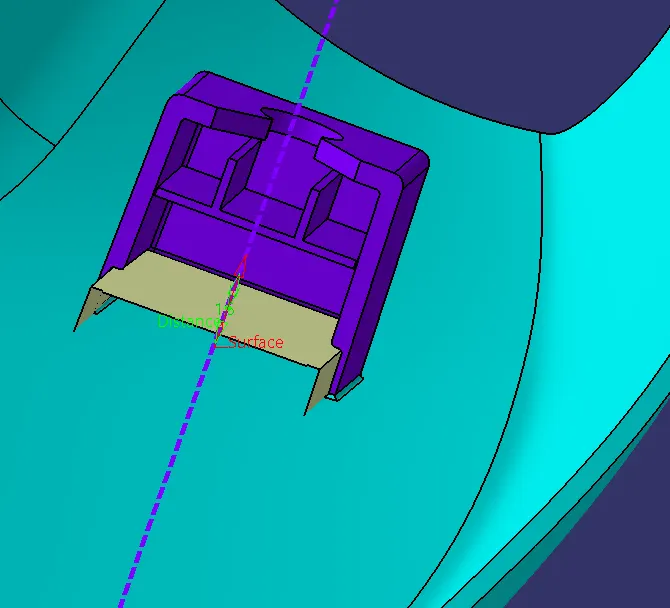
- Then, using the master section, we're going to create the inner walls of the doghouse as shown in fig(28).
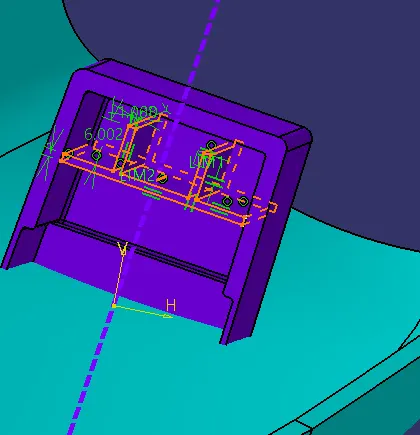
fig(28)
fig(29)
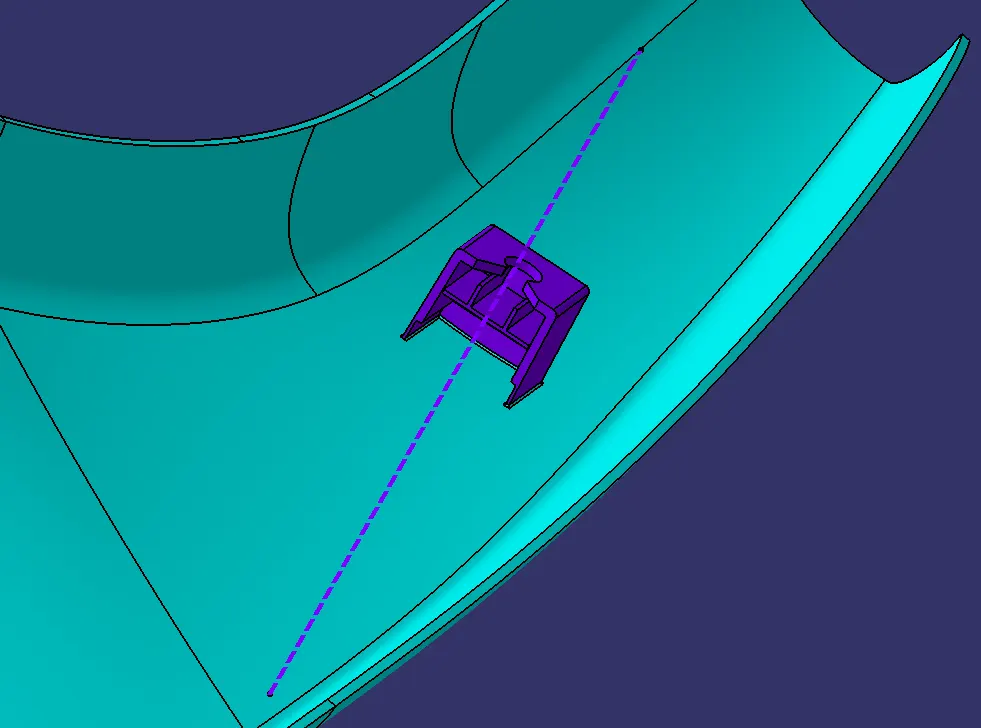
- At last , apply fillet to all the edges of the doghouse.
fig(30)
DRAFT ANALYSIS OF A-PILLAR:
fig(31)
3-D ORIENTATIONS:
ISOMETRIC VIEW:
fig(32)
FRONT VIEW:
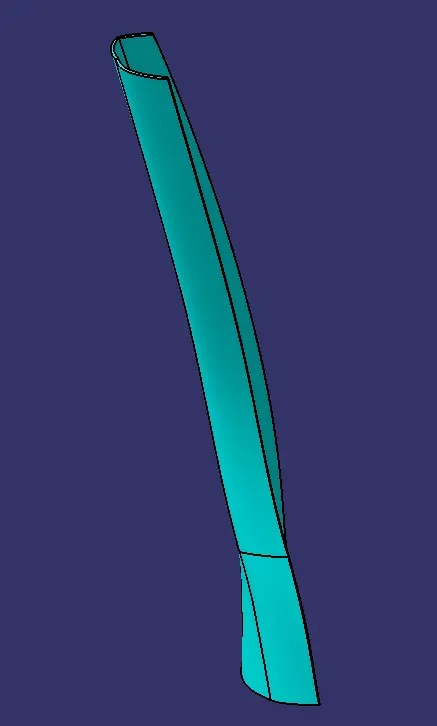
fig(33)
SIDE VIEW:
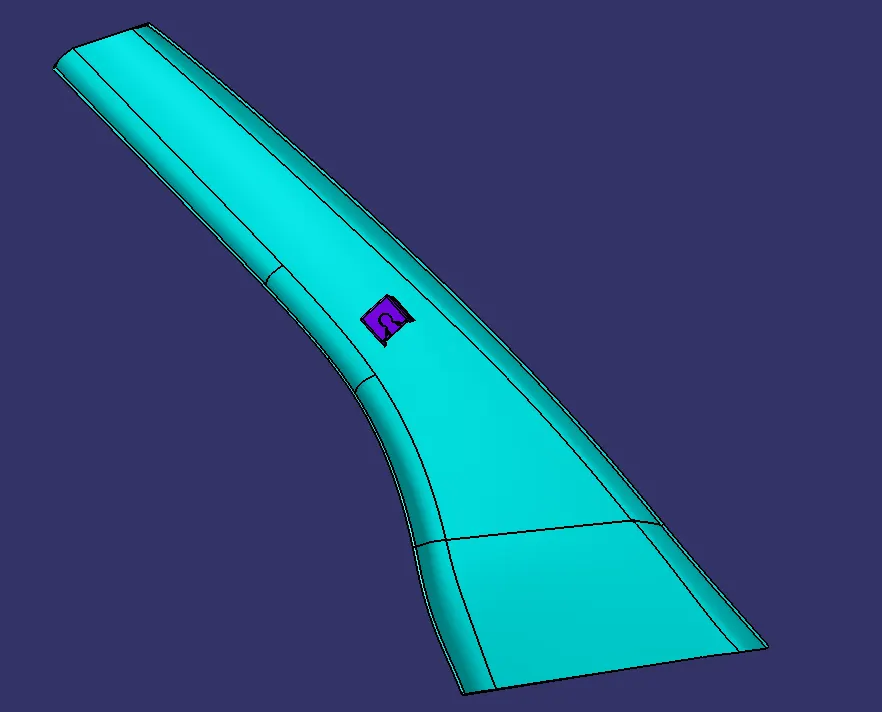
fig(34)
TOP VIEW:
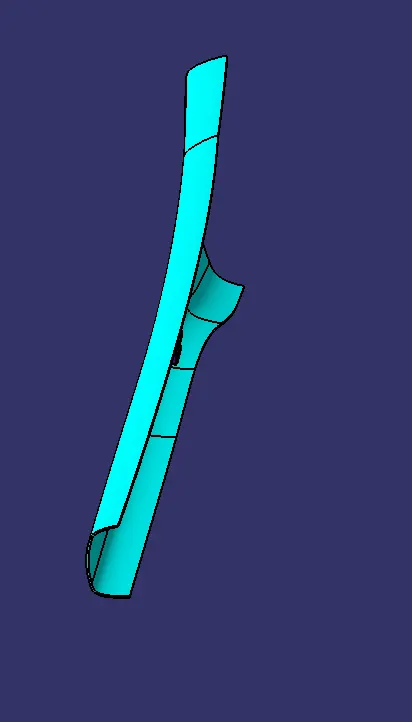
fig(35)
CONCLUSION:
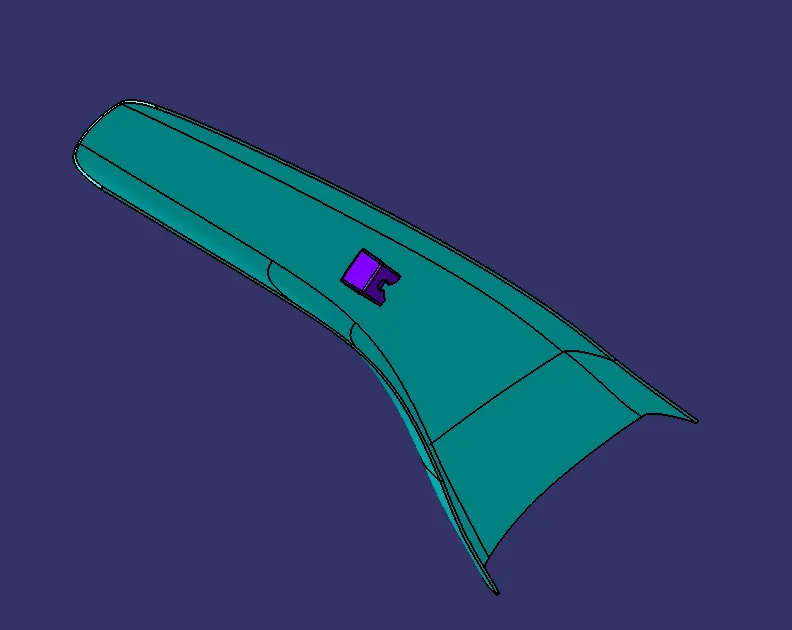
- I have successfully designed the A-Pillar by following all the design rules and master section as well. Draft Analysis were performed on Class-A surface and on the final component of A-Pillar.