Week 11-3D Tetra Meshing Challenge
3D Tetra Meshing Challenge
Objective:
To Create a Teramesh for three models and check for tet collapse in the given components using Hypermesh.
Procedures:
Model 1:
Geometry Import
The Housing Component is imported. The model is next checked for any missing surfaces or triple cons. The imported component is shown in Figure 1.
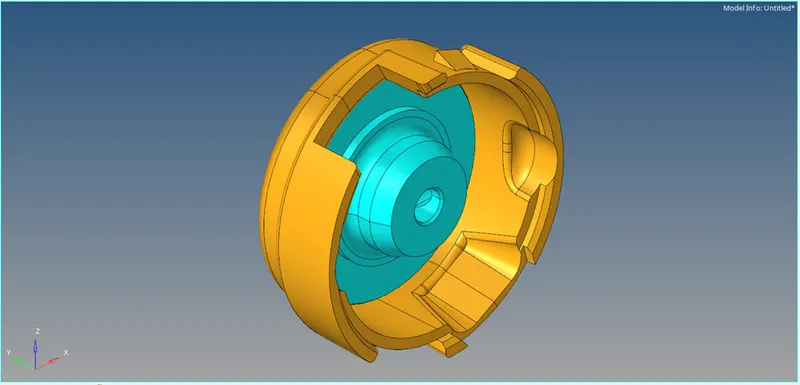
Figure 1: Imported Housing Component
Quality Criteria
The quality criteria has been assigned as per the given data by Preference + Criteria File Settings. In the Criteria Editor dialog box as shown in Figure 2.
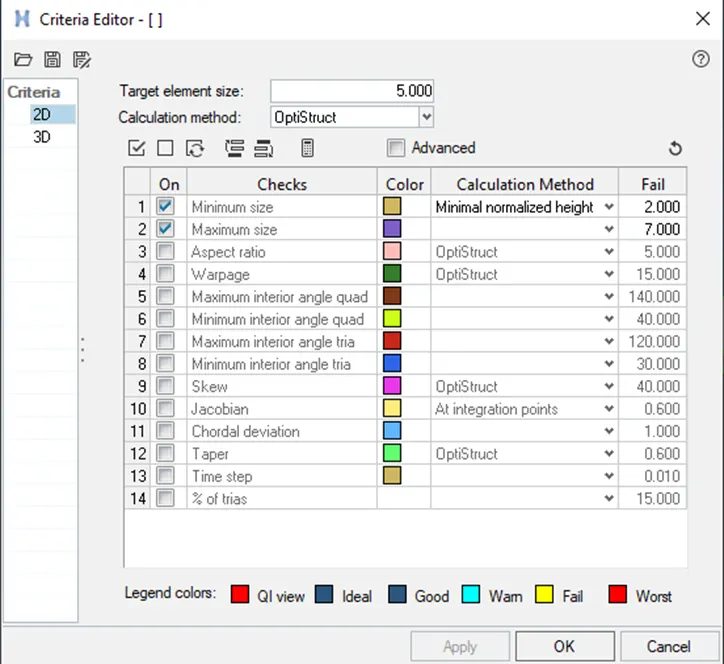
Figure 2: Criteria Editor dialog box
Meshing
Delete the solids on the model and with the model surface create a 2-D mesh by
Command : 2D+ automesh+ surface+ tria-element+ mesh.
Convert 2D tria mesh in to 3D tetra mesh by
Command : 3D + tetramesh+ select the element+ mesh.
3D Tetra meshed component is shown in figure 3, 4, 5& 6
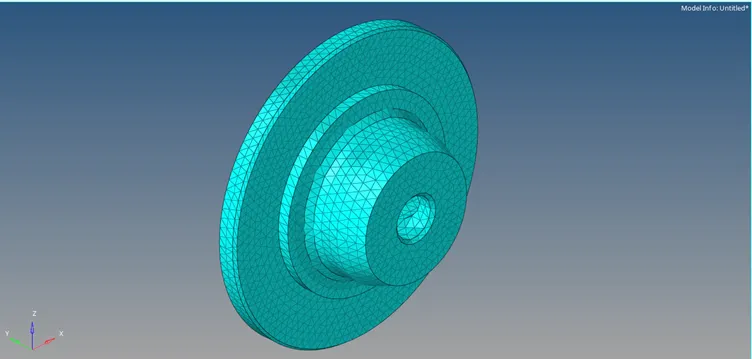
Figure 3: Meshed Inner housing model
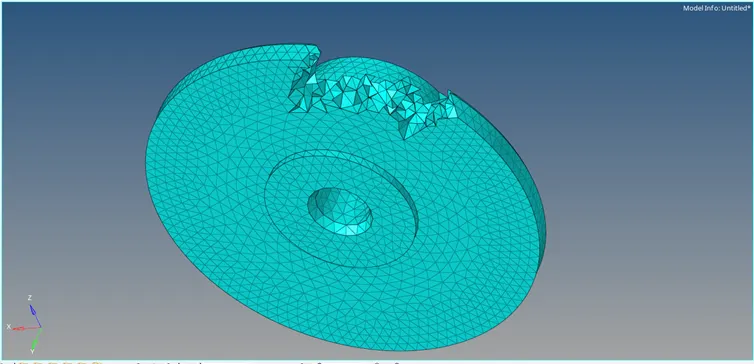
Figure 4: Masked Inner housing model
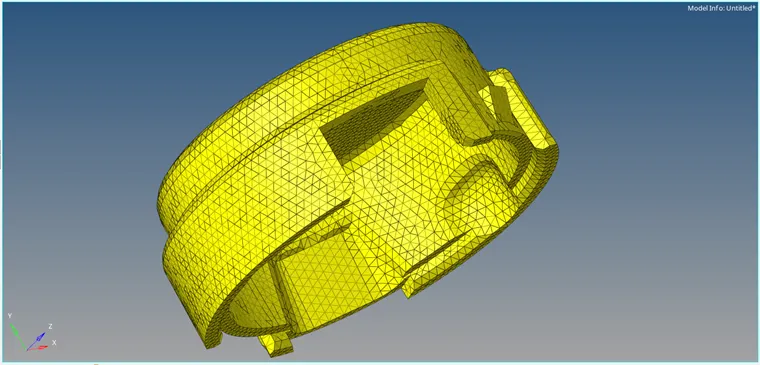
Figure 5: Meshed outer housing model
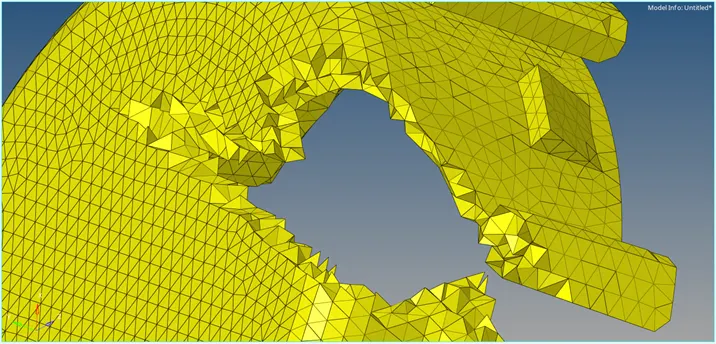
Figure 6: Masked Inner housing model
Tet collapse - Element quality
In order to know the tet collapse use
Command: Tools+ check elements+ 3d+ tet collapse+ save failed
By reverse masking mesh elements the failed elements can be seen separately as shown in figure 7.
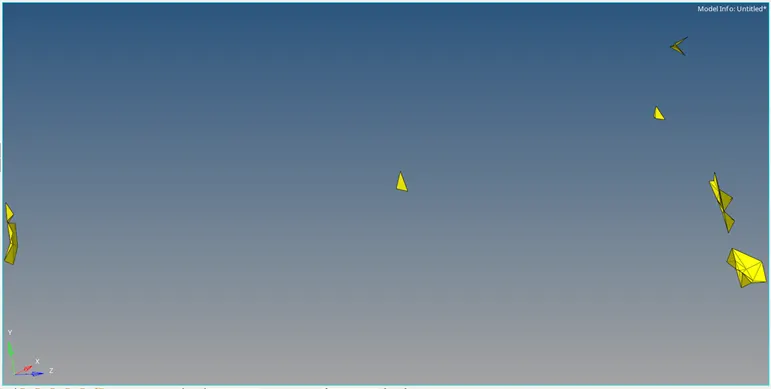
Figure 7: Failed mesh elements
By changing the distance in each elements failed elements ate removed as shown in figure 8,& 9.
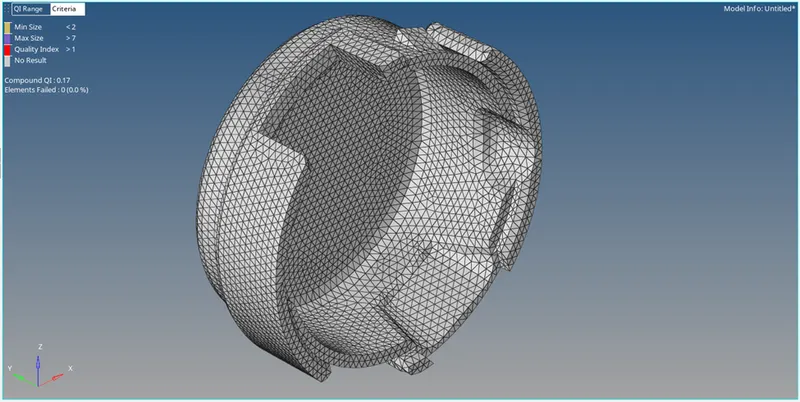
Figure 8: Quality checked outer housing meshed model
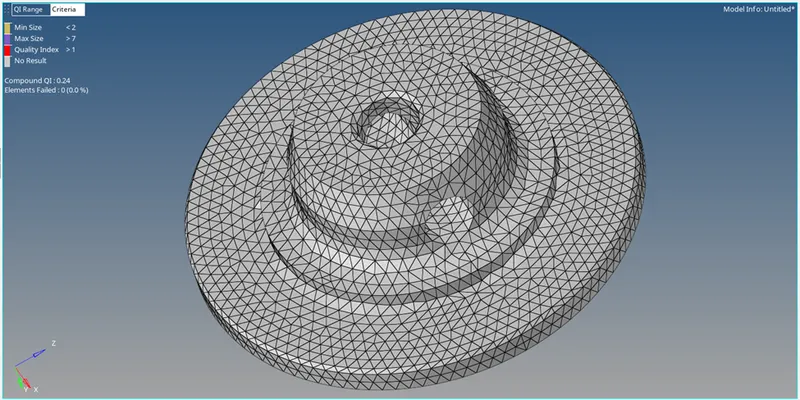
Figure 9: Quality checked inner housing meshed model
Model 2:
Geometry Import
The model 2 is imported. The model is next checked for any missing surfaces or triple cons. The imported solid component is shown in Figure 10.
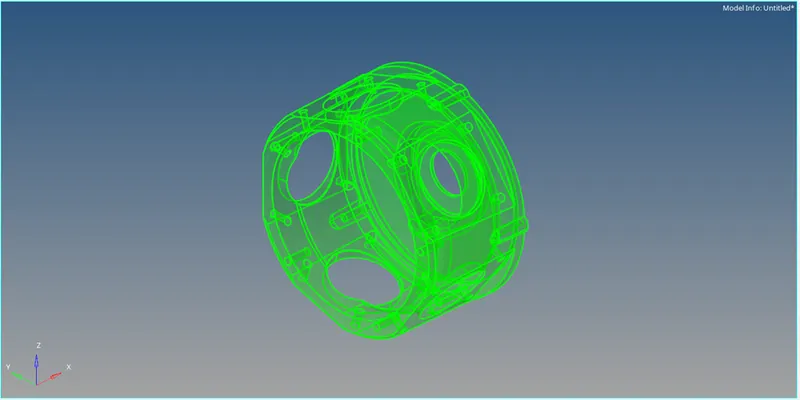
Figure 10: Model 2
Quality Criteria
The quality criteria has been assigned as per the given data by Preference + Criteria File Settings. In the Criteria Editor dialog box as shown in Figure 11.
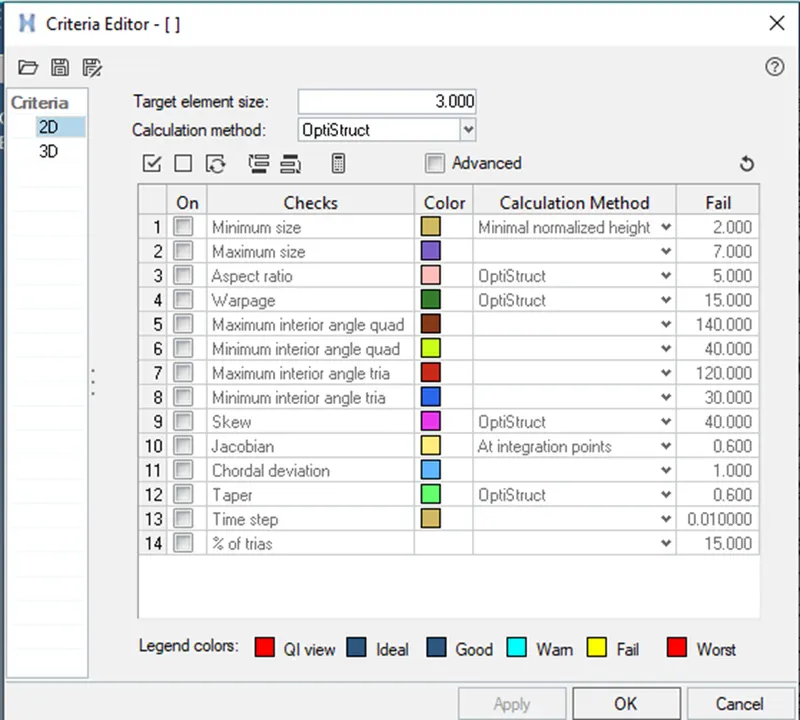
Figure 11: Criteria Editor dialog box
Meshing
The solid model is directly 3D tetra meshed by
Command : 3d+ tetramesh+ volume tetramesh+ comps+ mesh
3D Tetra meshed component is shown in figure 12
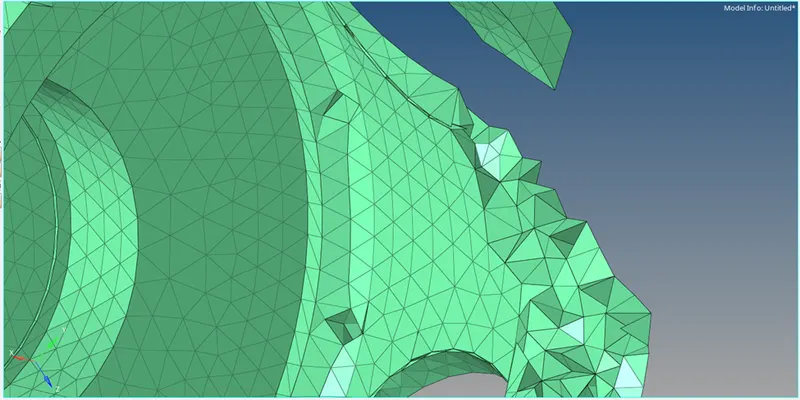
Figure 12: Masked 3d tetra meshed model
Tet collapse - Element quality
In order to know the tet collapse use
Command: Tools+ check elements+ 3d+ tet collapse+ save failed
By reverse masking mesh elements the failed elements can be seen separately as shown in figure 13.
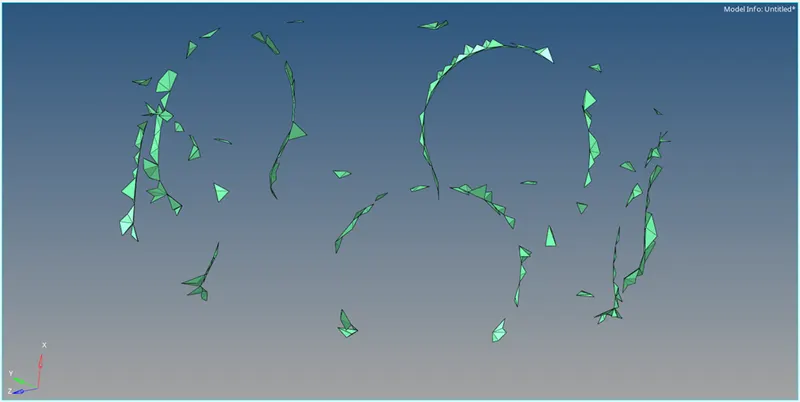
Figure 13: Failed mesh elements
By changing the distance in each elements failed elements ate removed as shown in figure 14.
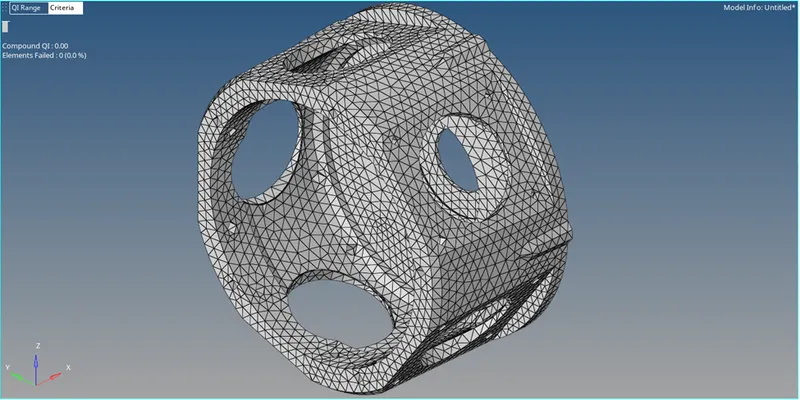
Figure 14: Quality checked Model 2.
Model 3:
Geometry Import
The Model 3 is imported. The model is next checked for any missing surfaces or triple cons. The imported assembly component is shown in Figure 15.
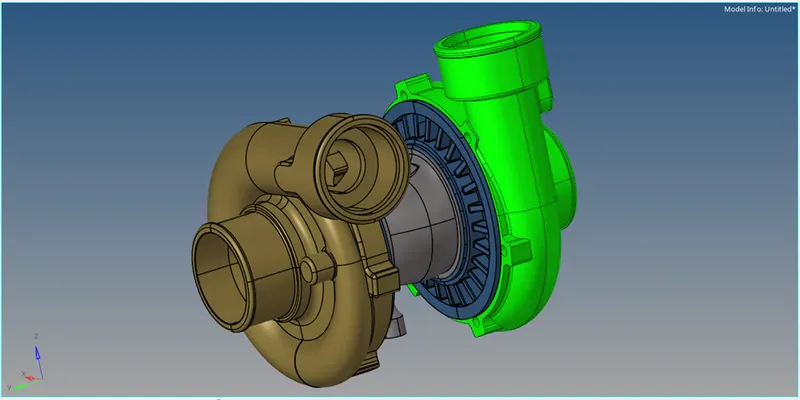
Figure 15: Model 3 - assembly component
Quality Criteria
The quality criteria has been assigned as per the given data by Preference + Criteria File Settings. In the Criteria Editor dialog box as shown in Figure 16.
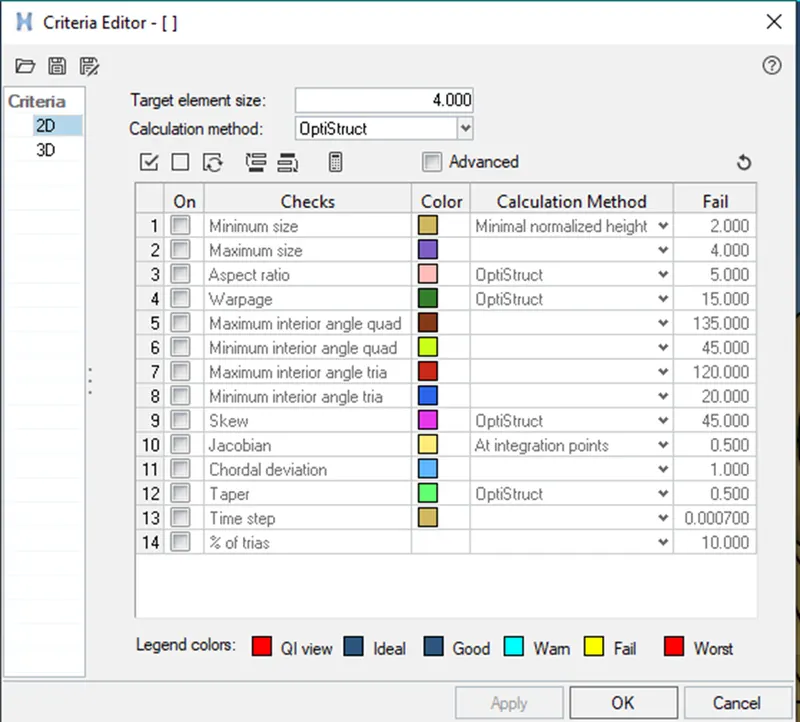
Figure 16: Criteria Editor dialog box
Meshing
The solid assembly model is directly 3D tetra meshed by
Command : 3d+ tetramesh+ volume tetramesh+ comps+ mesh
3D Tetra meshed assembly component is shown in figure 17& 18.
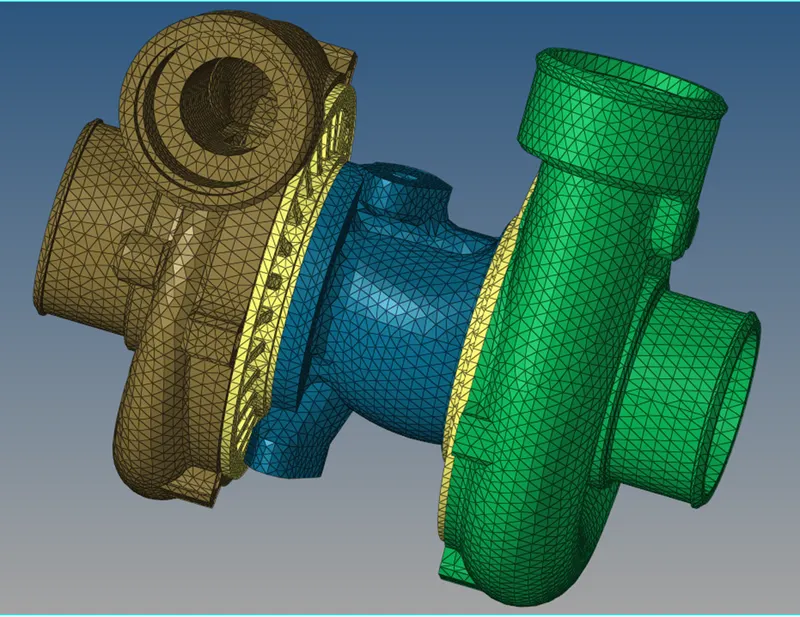
Figure 17: 3d tetra meshed assembly model
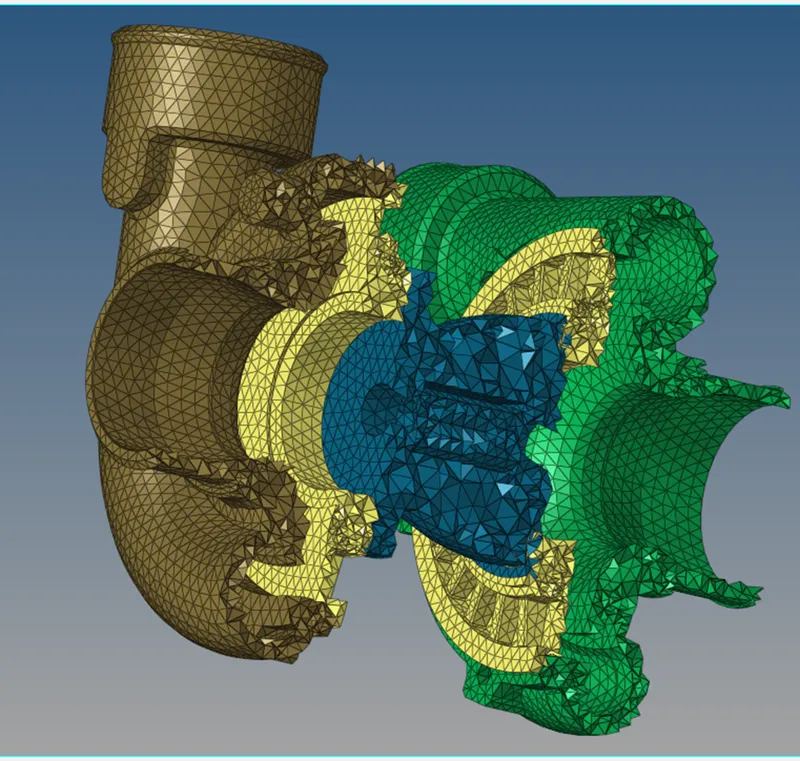
Figure 18: Masked 3d tetra meshed assembly model
Element quality
By changing the distance in each elements failed elements ate removed as shown in figure 19.
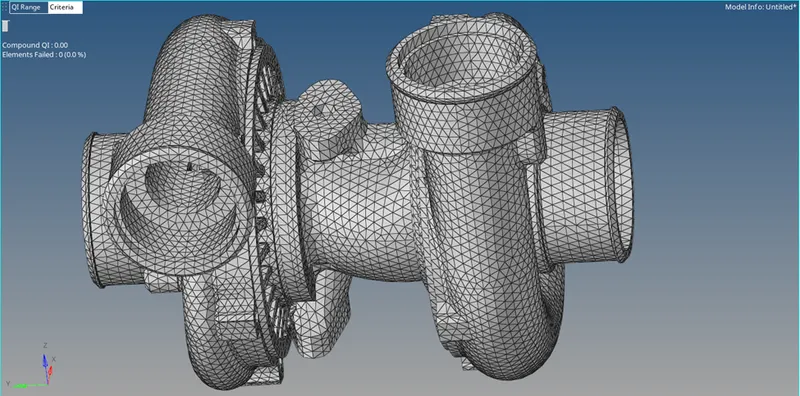
Figure 19: Quality checked Model 3
CONCLUSION:
- The given models are meshed using 3d tetra elements and quality checked.
.