Week 10 Challenge
1.Based on the analysis design RC column and beam.
Ans)
Aim: Top design RC column and beam based on the analysis.
Tools Required:
->Tekla model
->Beams
->Columns
->Interactive Design
->Static
->Validate
->Design
->Settings
->Properties
Procedure:
- Firstly open the model that is created perviously.
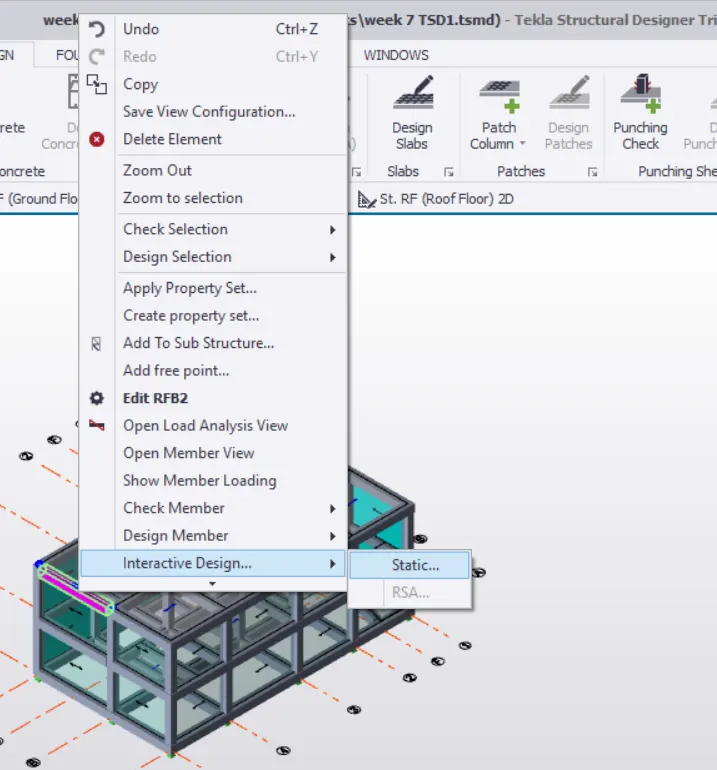
- Now select a column and give a right click then you can notice a dialogue box.
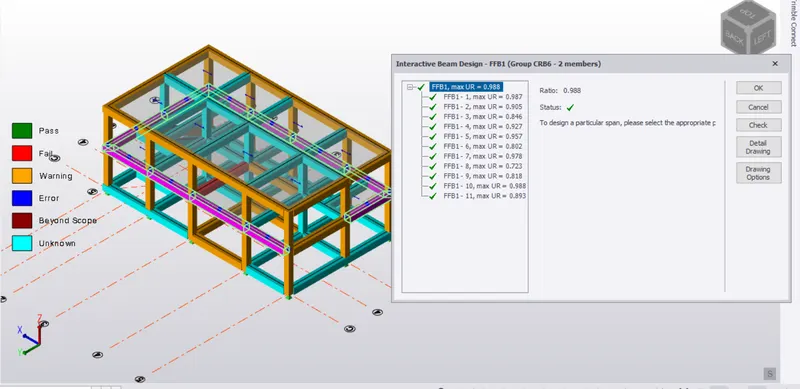
- Now in that dialogue box select the interactive design and under that select the static option.
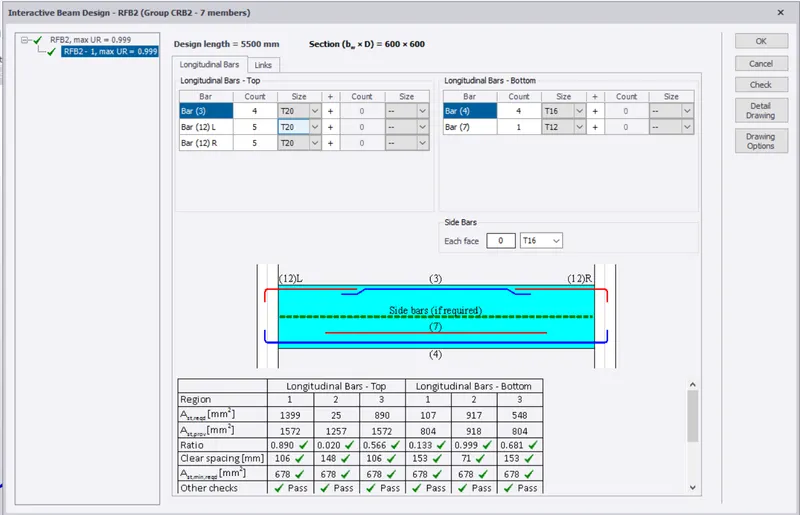
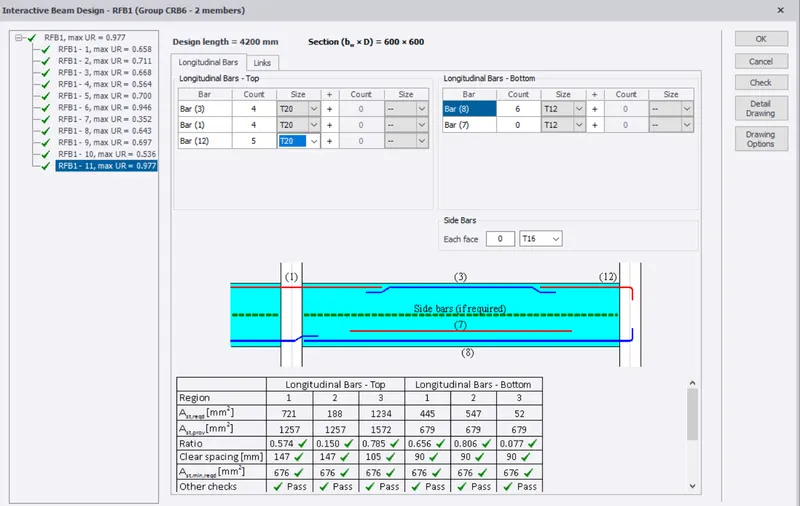
- Now a new dialogue box appears about the properties of the column that you select.
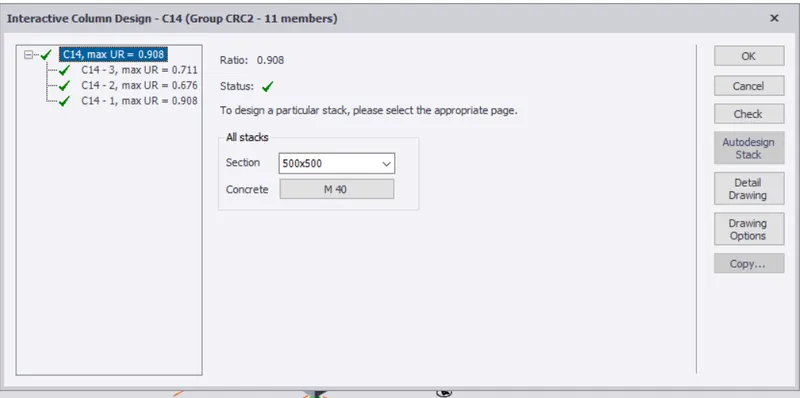
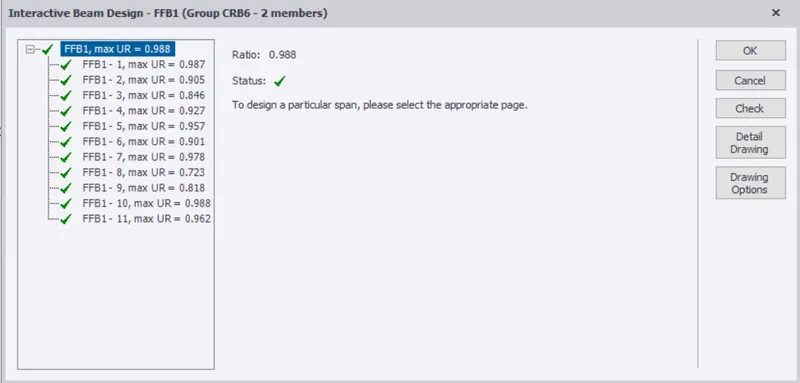
- Now check the status of the column and see weather it is red cross mark or a green tick mark.
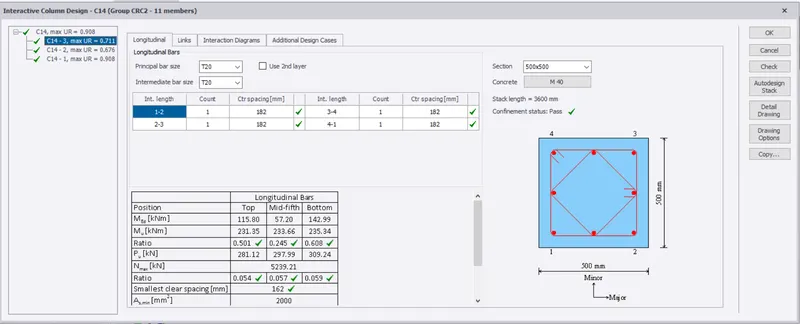
- If it is a green tick mark it says that the column requirements for the structure are satisfied.
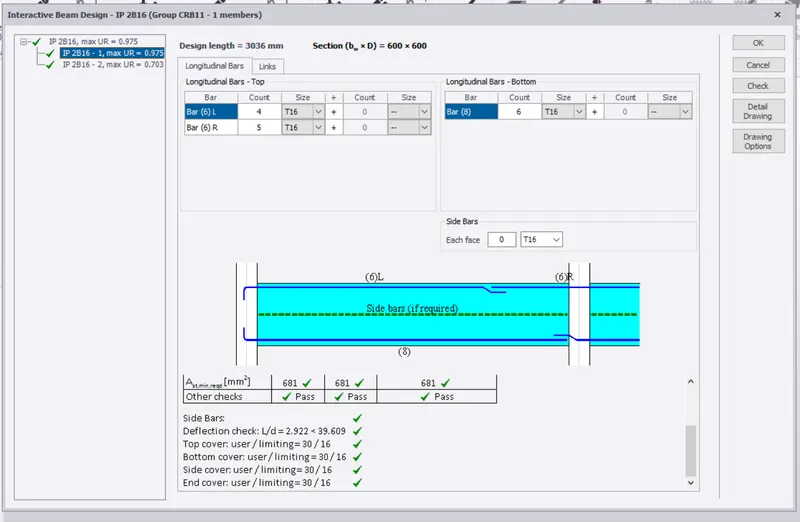
- If it is red cross mark change the properties either by increasing or decreasing the size of the column and this would surely chnage the red cross mark with green tick mark.
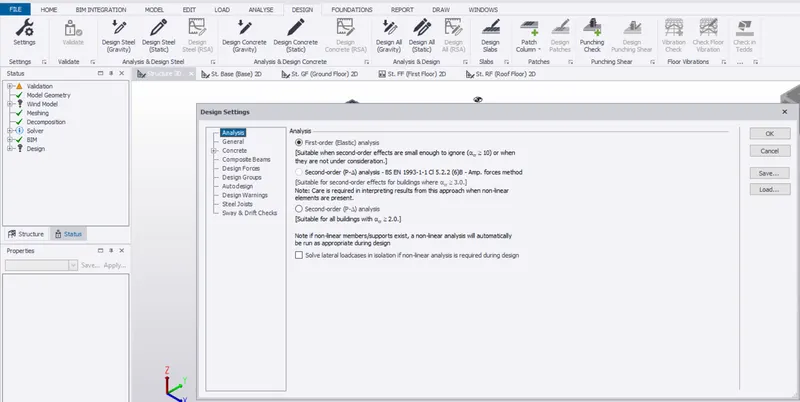
- Now select the design icon that is present on the top task bar of the of the tekla softwear.
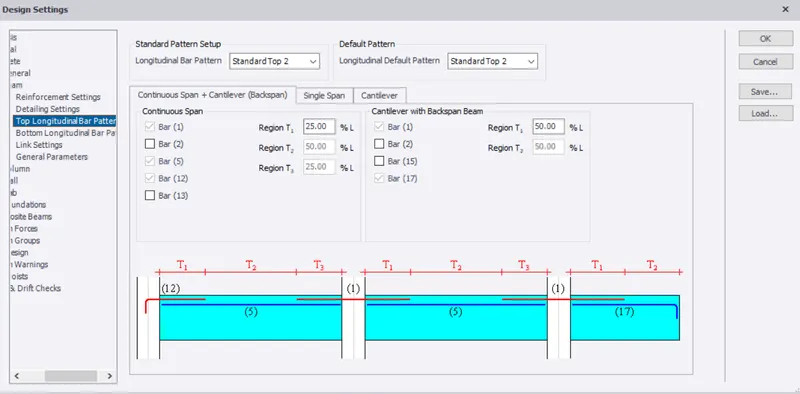
- Under that select the settings option, under that select concrete and under that select the top longitudinal and bottom longitudinal values that are to be changed.
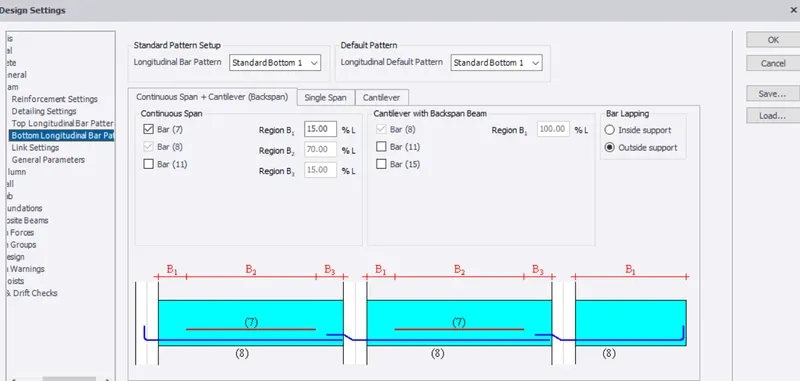
- And now change as per requirements.
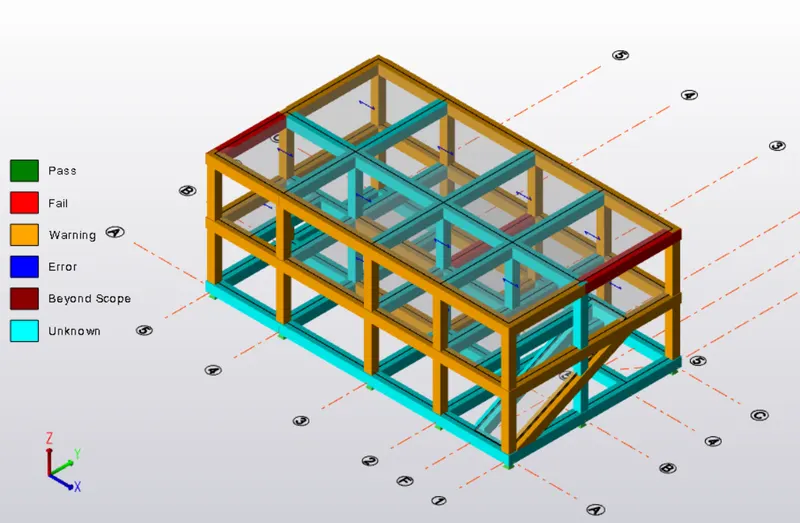
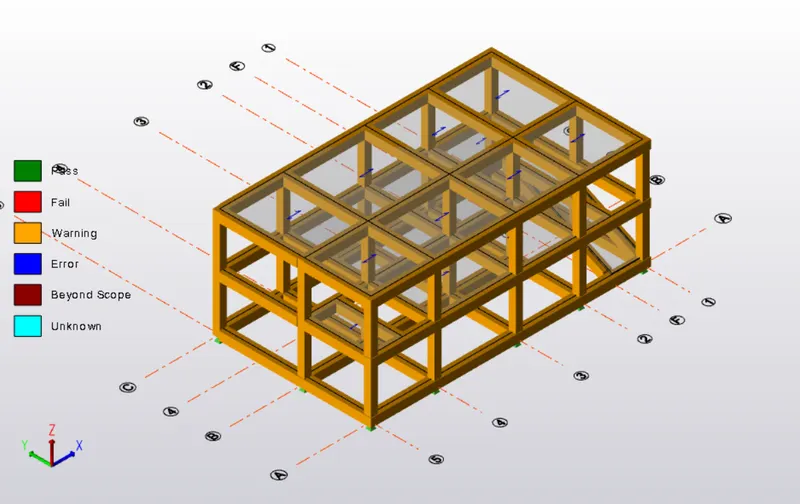
- After all that we need to open the review view.
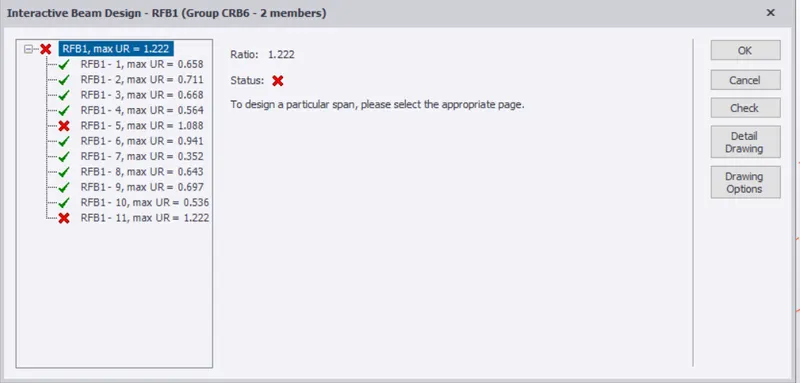
- By doing so we will be able to check the status of the structure.
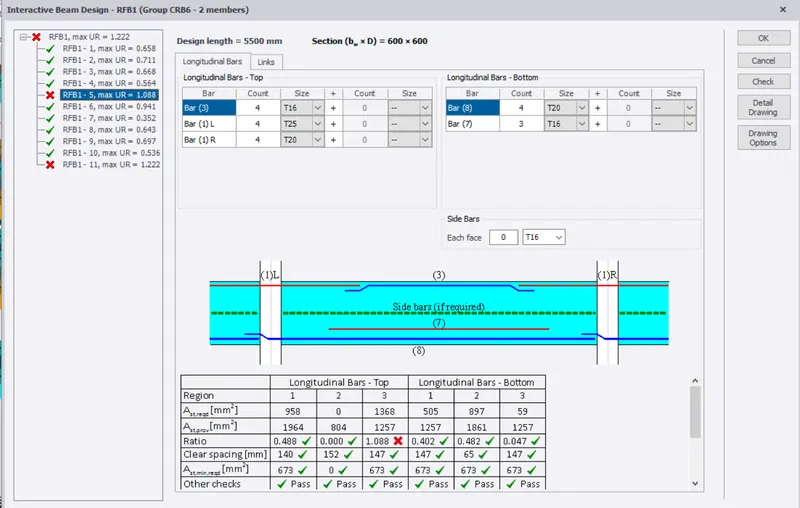
- Repeate the same process with the few RC beams and RC columns.
Result:
Henec by following the above series of steps we will be able to design RC column and RC beam based on the analysis.