Usage of Navigation tool , Timeliner and Clash Detection test using Naviswork
1) AIM:
To Use the Architecture/ Structure Project file developed by you in Week 6 to 8. Export the Revit architecture and structure model to Navisworks Cache file following the export settings discussed in class
Procedure:
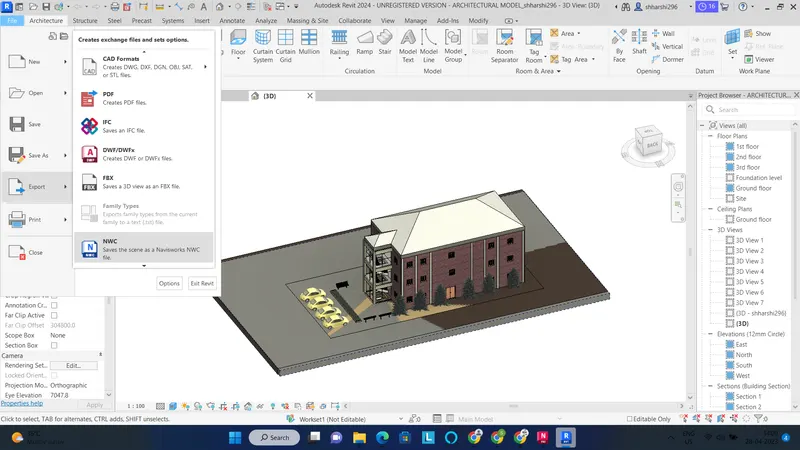
Open the Architectural model that we have created in the previous weeks
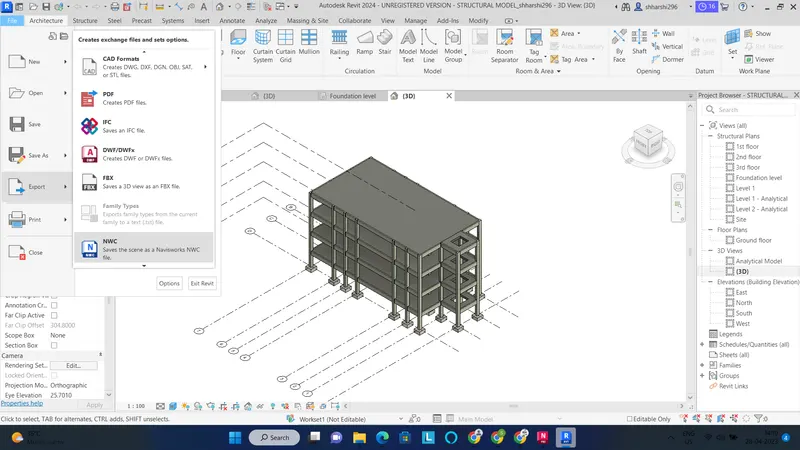
File - Export
Now export the Structural model to Navisworks
2) AIM:
To Use Navigate Tool to walk around the model and walk through the rooms created and record your moving as animation in your Navisworks file
Procedure:
File - Open
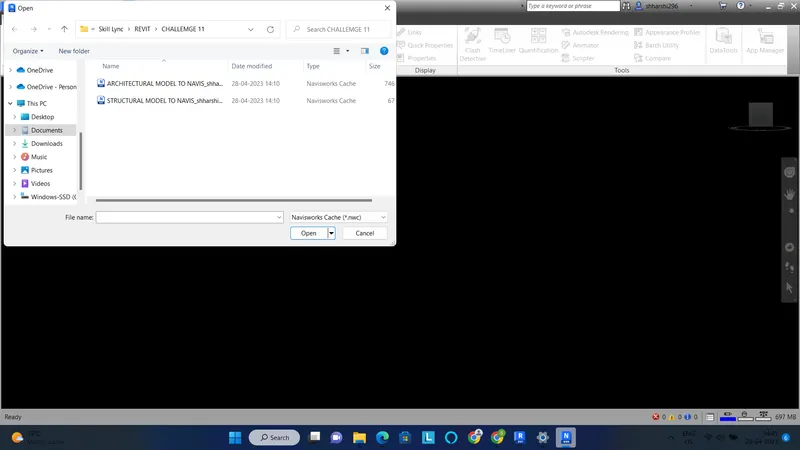
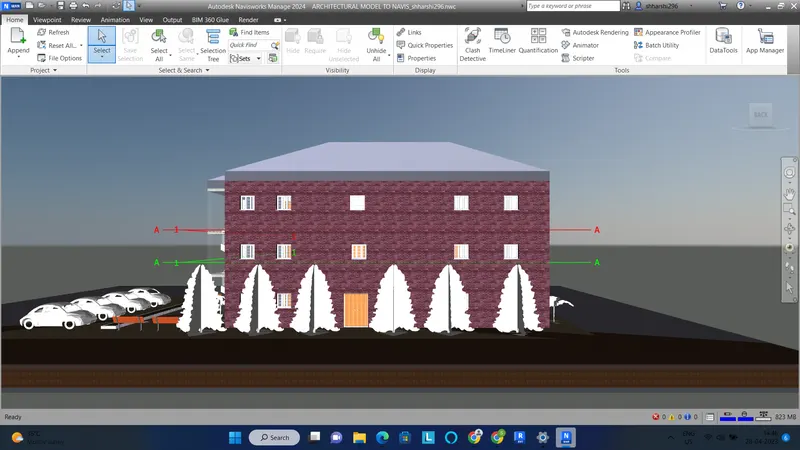
Viewpoint - Walk
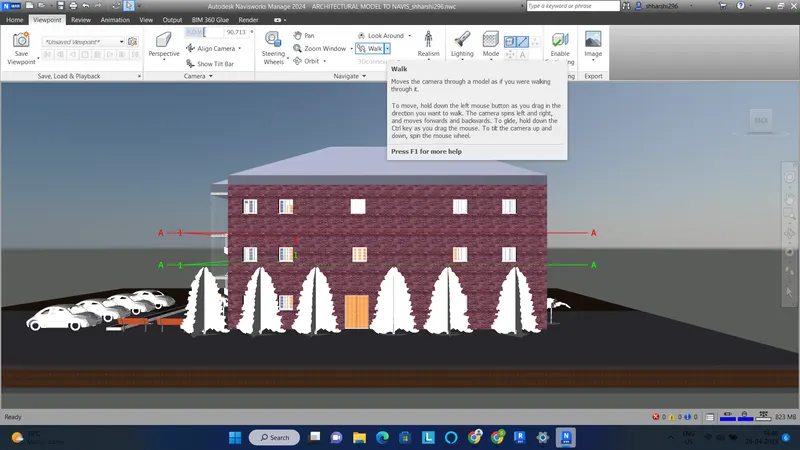
Click on Save Viewpoint.
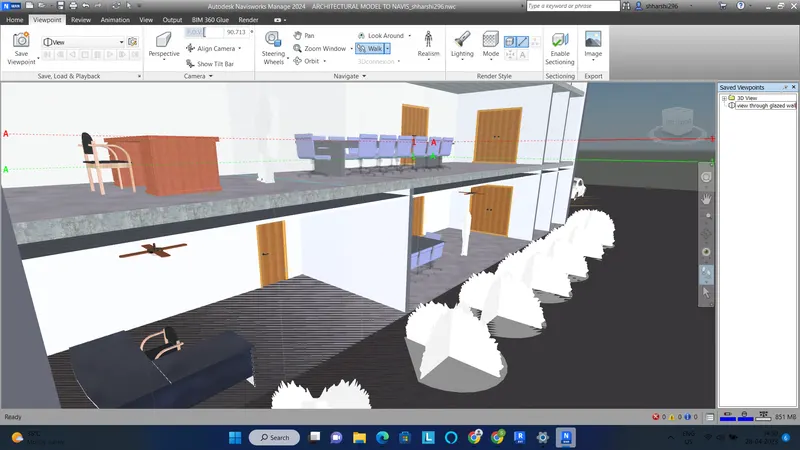
Now click on Record under Save viewpoint to save recording of the walk through
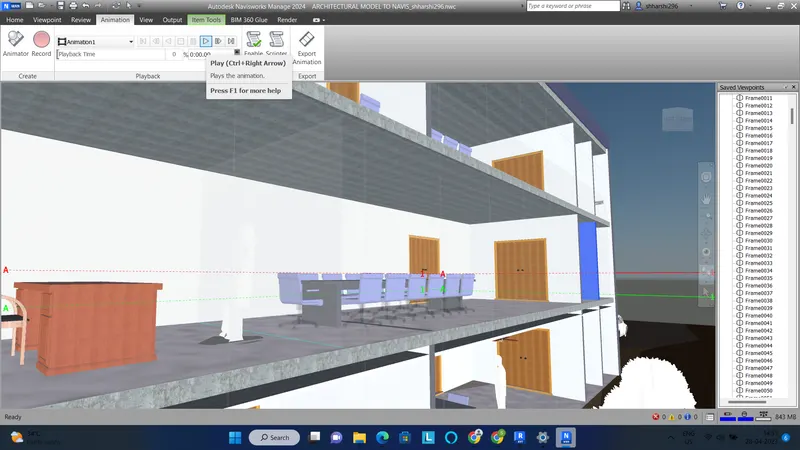
3) AIM:
To Use Navigate tool to use Realism feature to walk through the model and record your moving as animation in Navisworks file
Procedure:
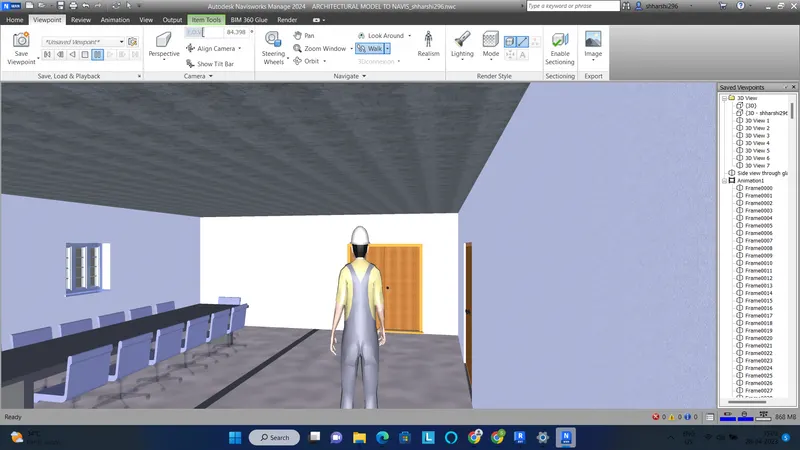
Viewpoint - Realism - Third person
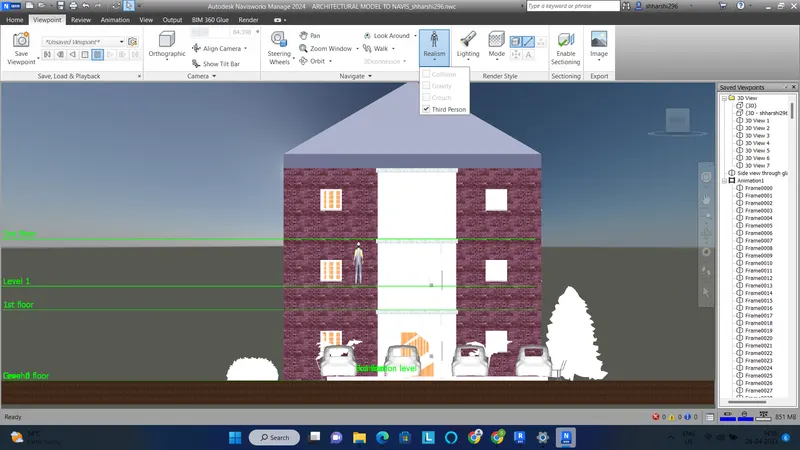
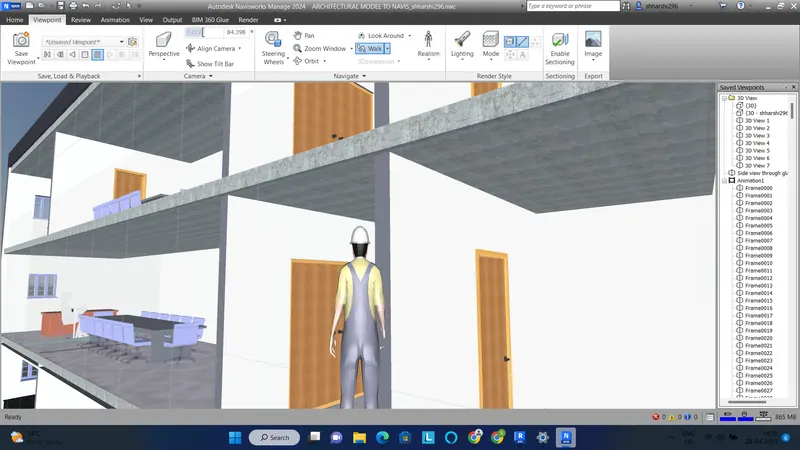
Use the keyboard arrows/mouse to walk the person through the model
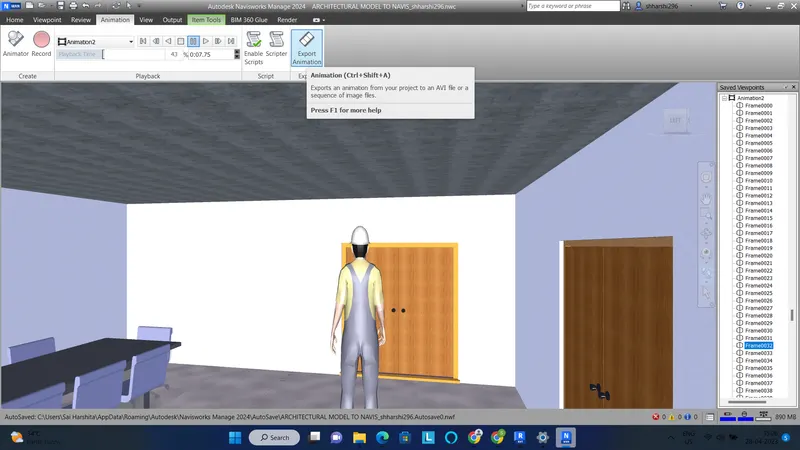
Animation - Export animation
4) AIM:
Embed both architecture and structure *.nwc file to your Navisworks file. Create a clash detection test between the two models
a. Run the Clash Detection Test
b. Study the clashes between the two models
c. List which of the clashes could be approved
d. List which of the clashes could be neglected ( will be taken care later)
e. List which of the clashes can be resolved
f. Save the results after color coding the clashes to the Navisworks file
g. In case of resolution annotate the clash and save the view to defined views in Navisworks
Procedure:
Import the .nwc architectual model
Append the structural model
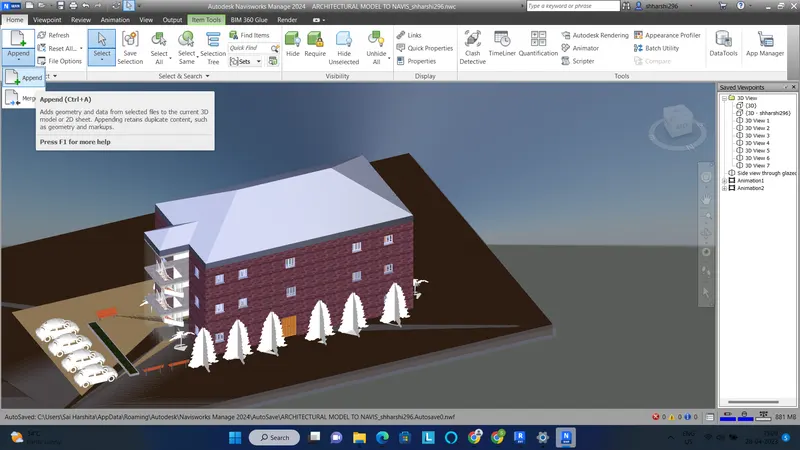
Then click on Clash detective
Add test in the Clash detective window
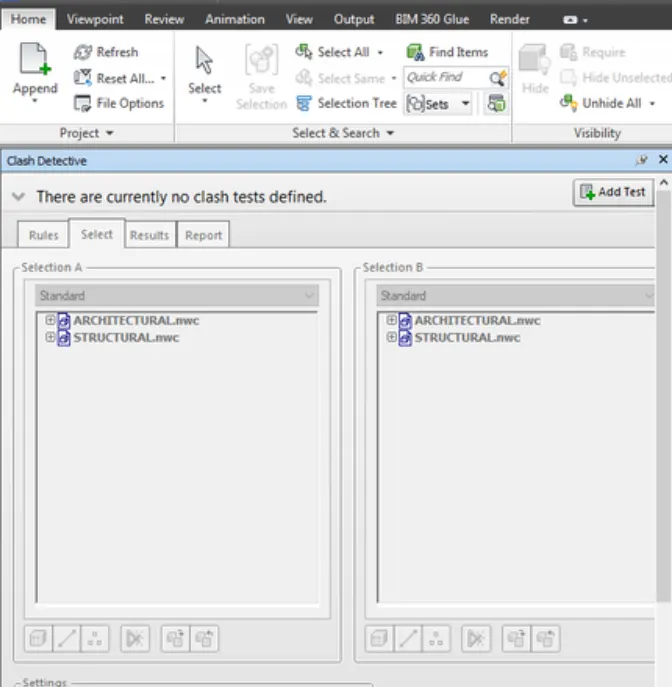
Click Architectural model in Selection A and Structural model in Selection B
Click Run test
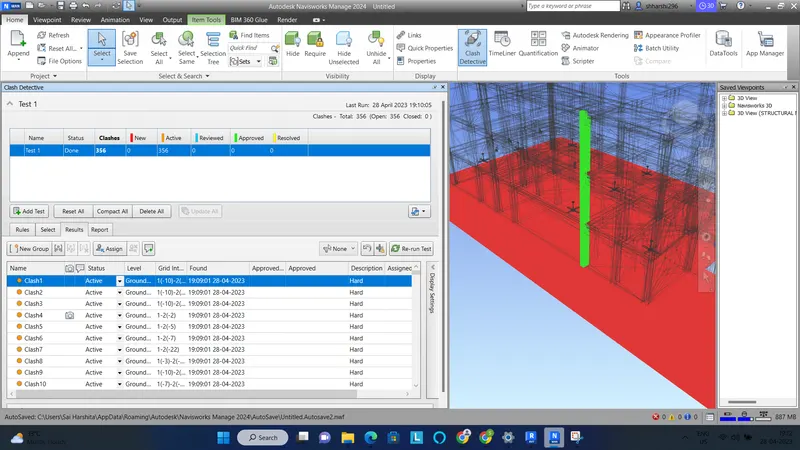
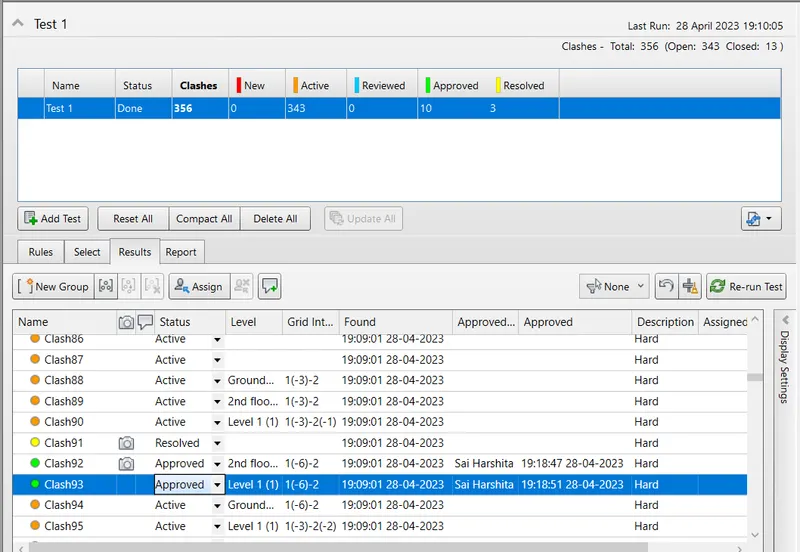
When clashes are approved as part of the construction, these clashes will not appear anymore. it turns into green colour once we click approve
THE CLASHES THAT ARE PART OF CONSTRUCTION WILL BE APPROVED AND THESE CLASHES NO MORE APPEAR.
ONCE THE CLASH STATUS IS APPROVED THE COLOR IS CHANGED TO GREEN COLOUR.
THE CLASH WILL NOT AFFECT THE MODEL IF IT IS NEGLECTED AND IT WILL BE TAKEN CARE LATER.
THE CLASHES IS MARKED AS RESOLVED WHEN THE MODEL BOUNDARY CONDITION ARE CHANGED AND THESE CLASHES ARE EXCLUDED FROM THE CLASH DETECTION TEST.
5) AIM: Using the Timeliner feature in Navisworks prepare a schedule for the project developed in week 6 to 8 by adding reasonable assumptions for task start date and end date and simulate the task completion as a visual simulation. Record it and save the timeline simulation to Navisworks file
Procedure:
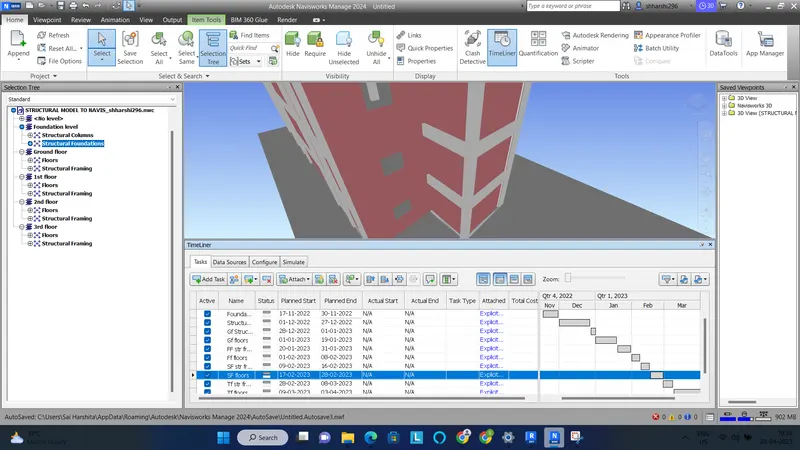
Click on Selection tree and pin it
Now click on the timeliner
Add task one by one and attach the current selection
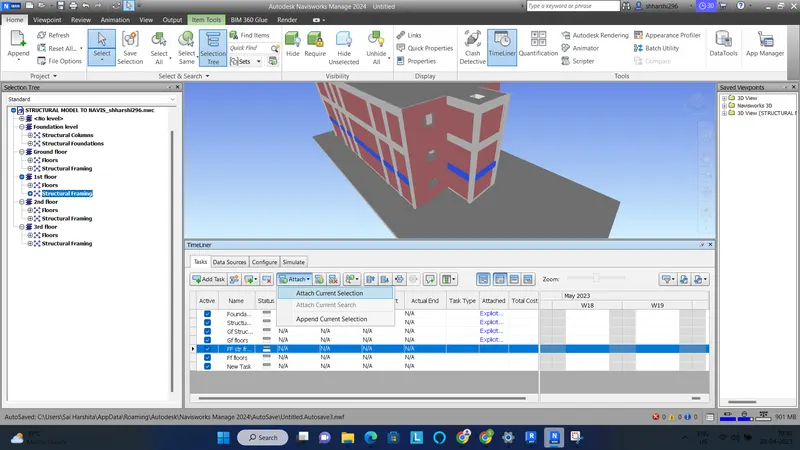
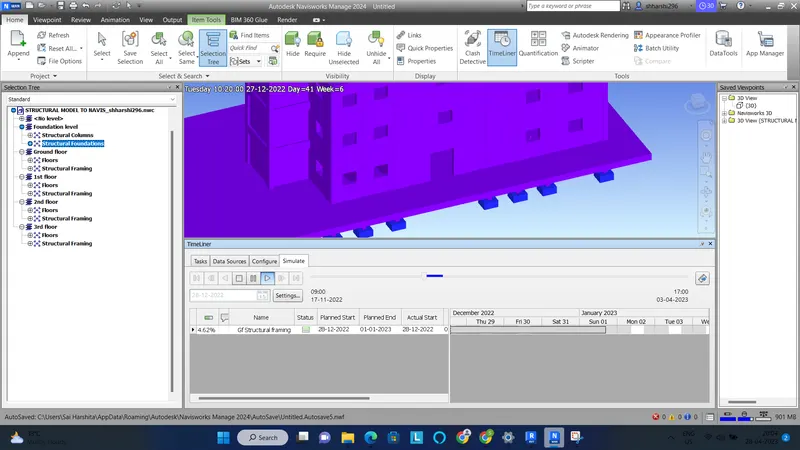
Click on Simulate
Export the animation
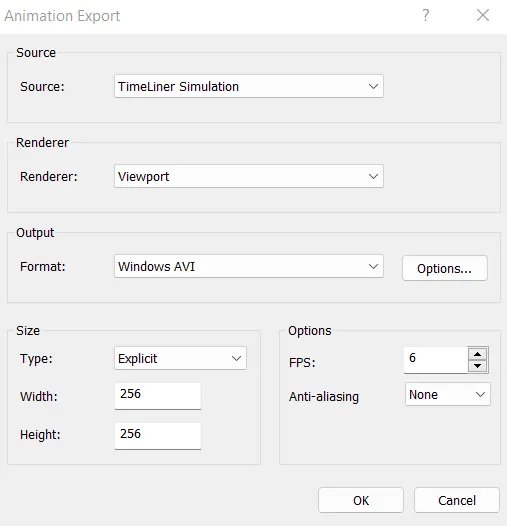
Save it in the desired location