To Generate report for Steel Industrial and RC structures using TSD
CHALLENGE 13
1.Aim:
To Generate report for the steel building design from challenges 1 – 6 along with the loading summary
Introduction:
Generating report is a very important task since it gives information on all the details of the members like loadings, section details, reinforcement, design calculations, design summary etc
Procedure:
- Launch TSD and open the steel building challenge
- Analyze the model to generate report
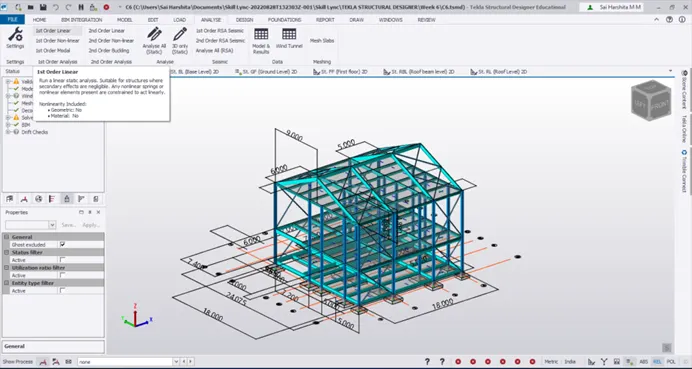
- Now go to Report – Model report
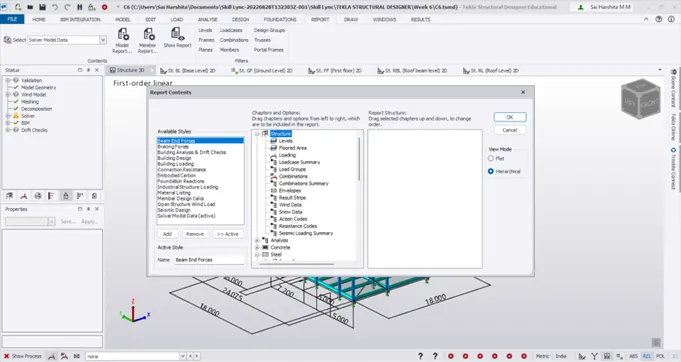
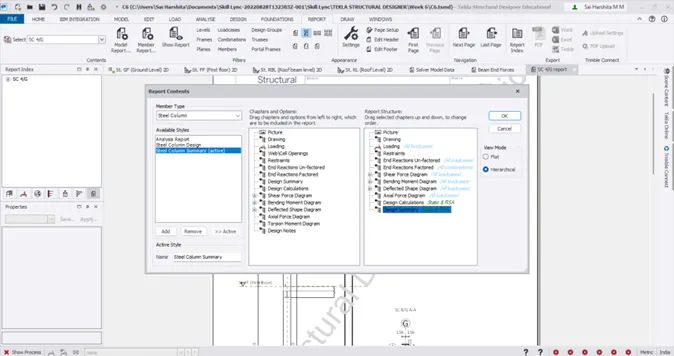
- Select Beam end forces
- From the Chapters and Options, click and drag the chapters to the report structure
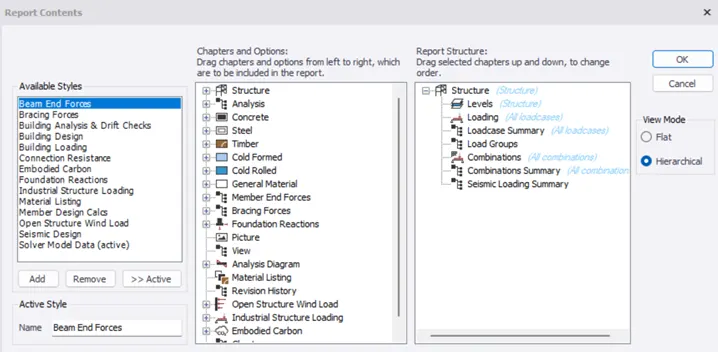
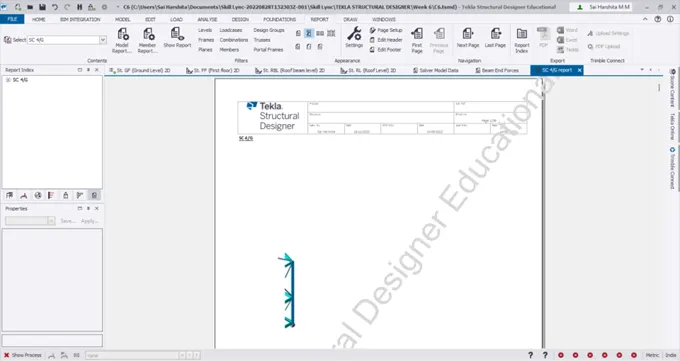
- Click on OK and Show report
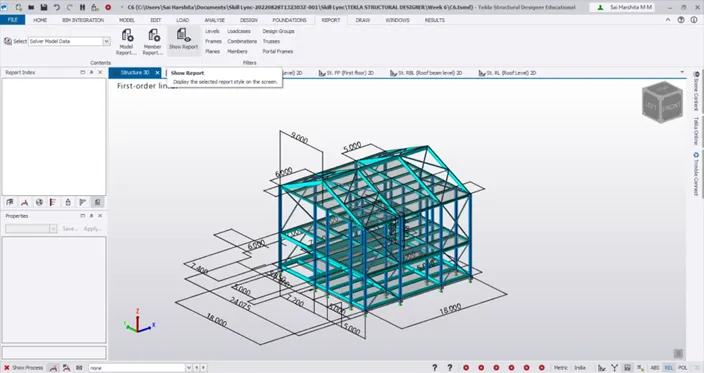
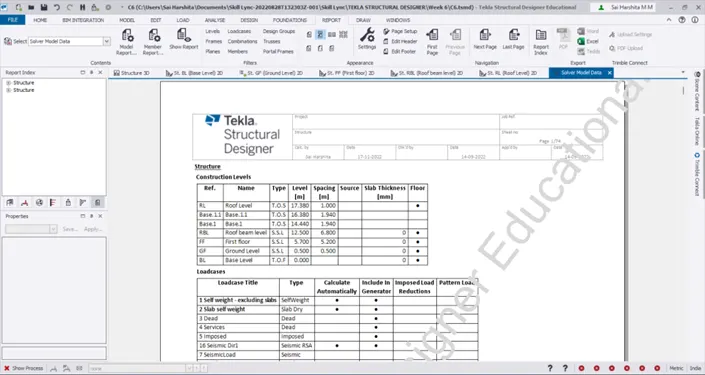
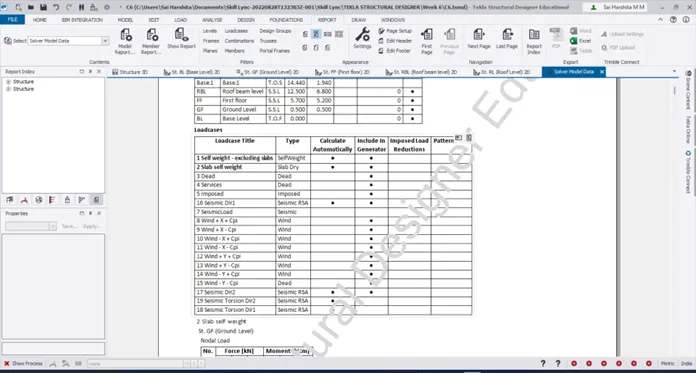
- Click on Next page
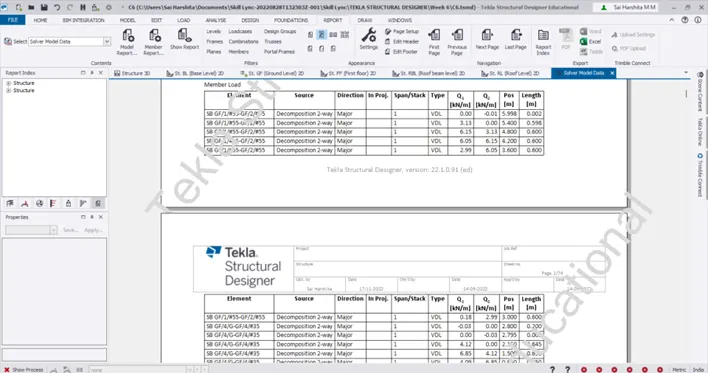
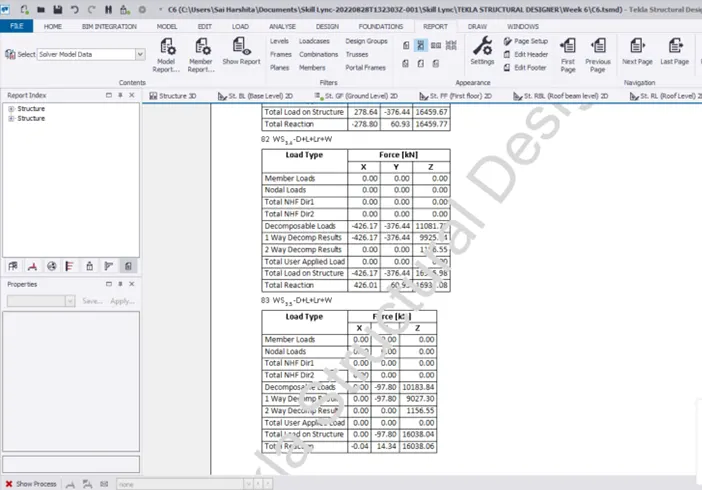
- Select Beam end forces and view the loads in various storeys
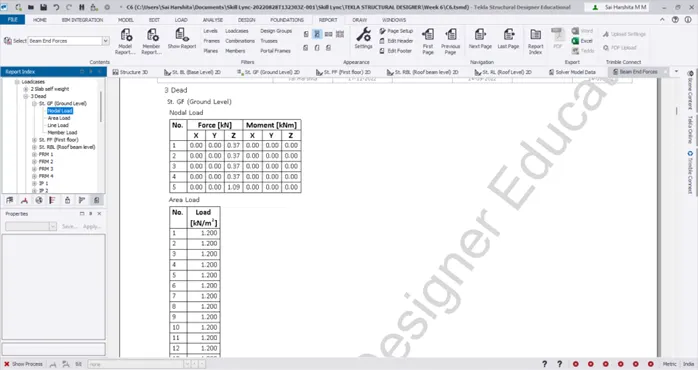
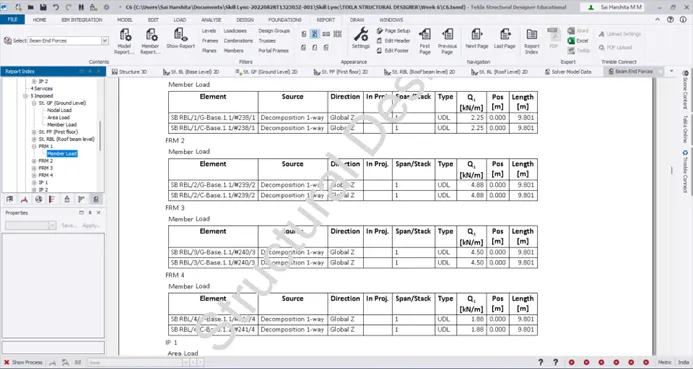
- We can also view the member loads frame wise
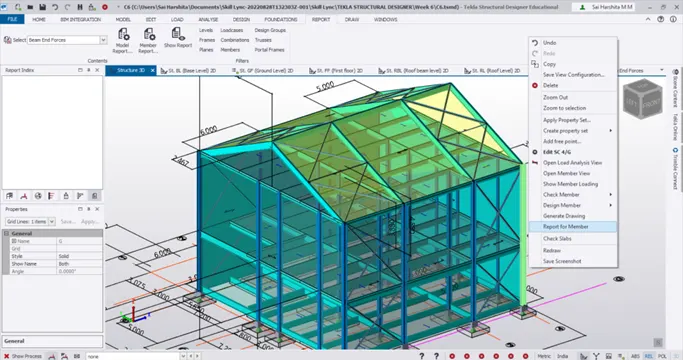
- We can also select any member, right click to generate Report for member
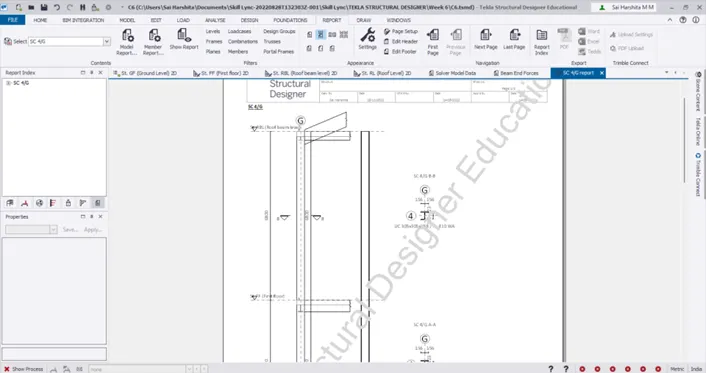
- We can go to Member report to add any additional details in the report
SFD for dead loads
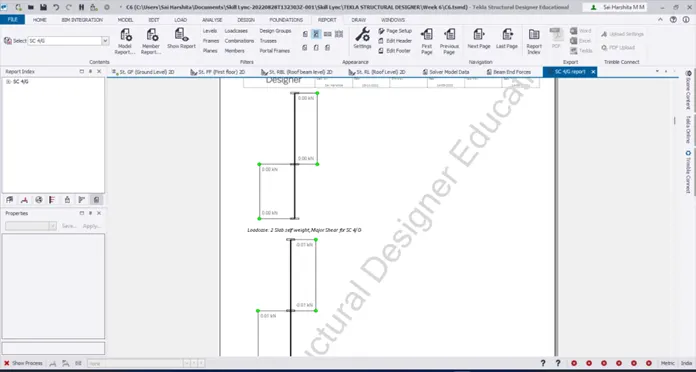
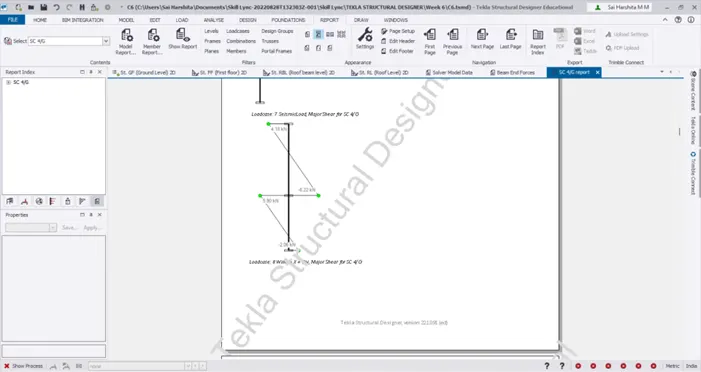
SFD for lateral loads
BMD for dead loads
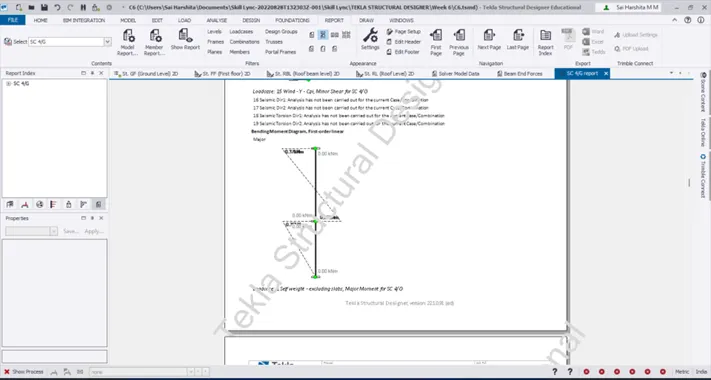
BMD for lateral loads
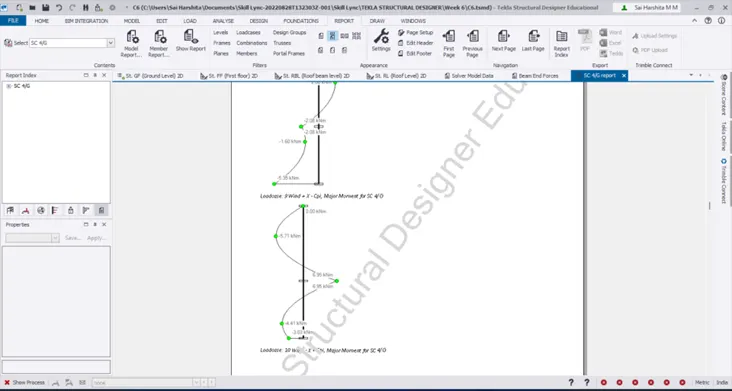
AFD for dead loads
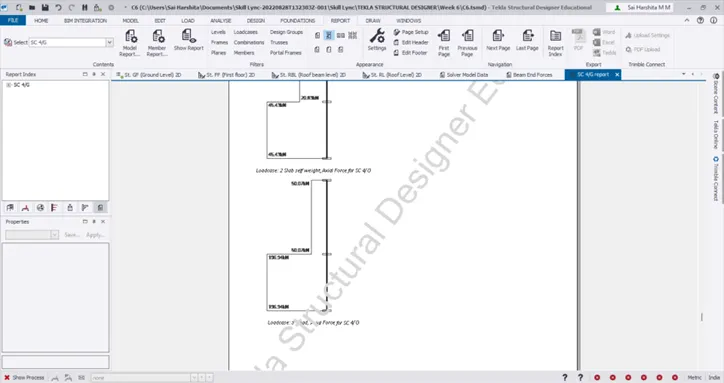
Design Summary
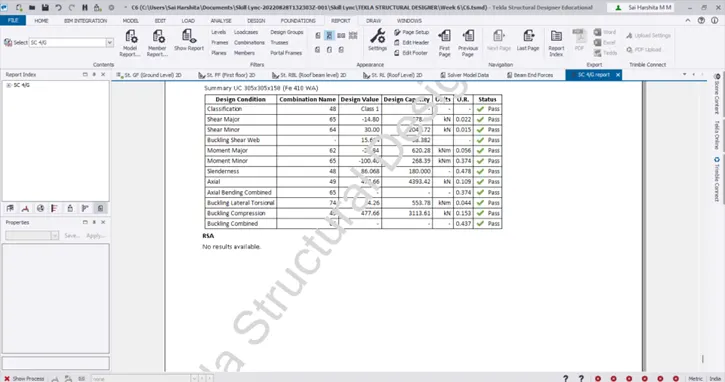
- Member report – Steel brace – for generating report for steel braces
- Note that since the braces are subjected to only axial forces, AFD is only available
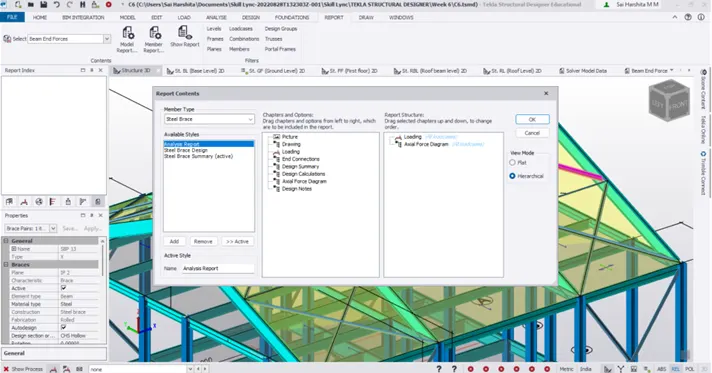
- Go to Model Report – to generate report on Steel braces
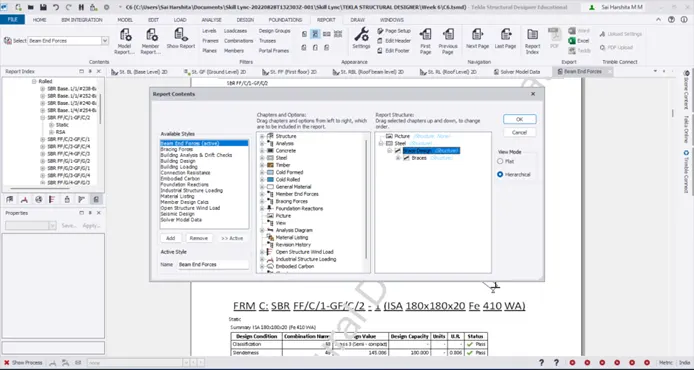
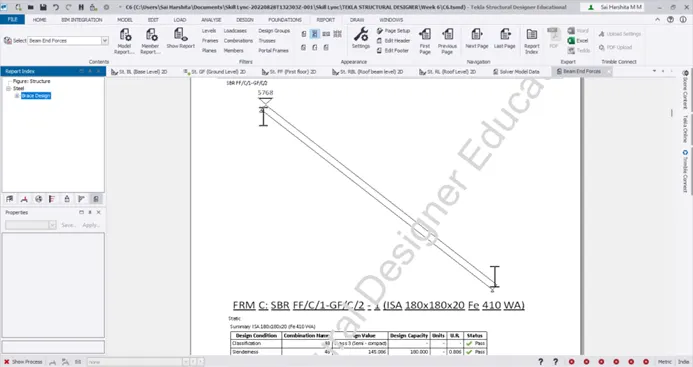
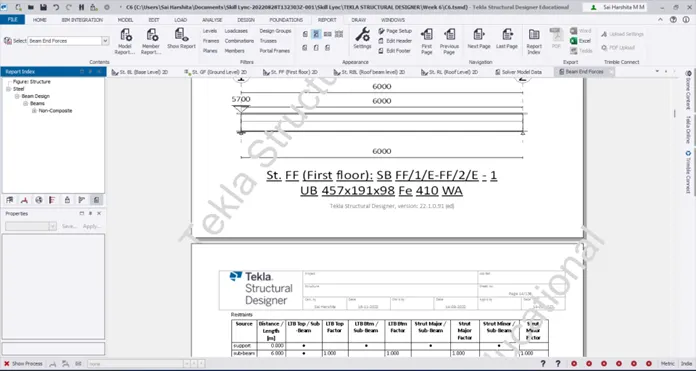
- Similarly separate report for beams can also be generated
Result:
Hence the report is generated for the steel structure in challenges 1-6
2.Aim:
To Generate report for the RC structure along with the loading summary
Introduction:
Generating report is a very important task since it gives information on all the details of the members like loadings, section details, reinforcement, design calculations, design summary etc
Procedure:
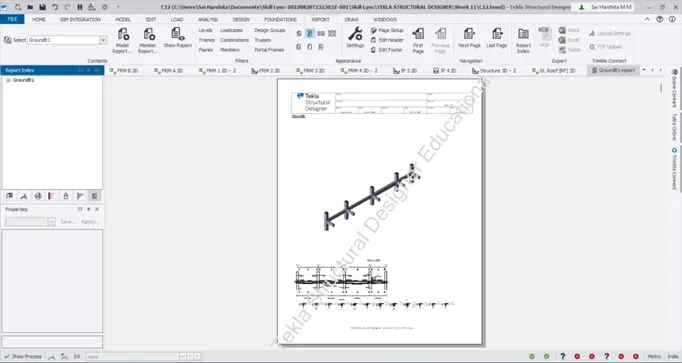
- Launch TSD and open the RC structure challenge 12
- Analyze the model to generate report
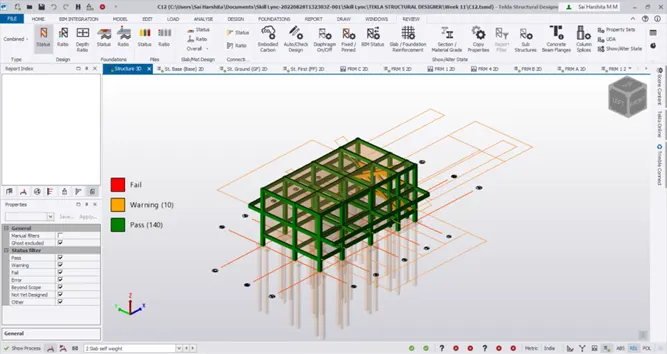
- Now go to any floor and select any beam member to generate report of the same
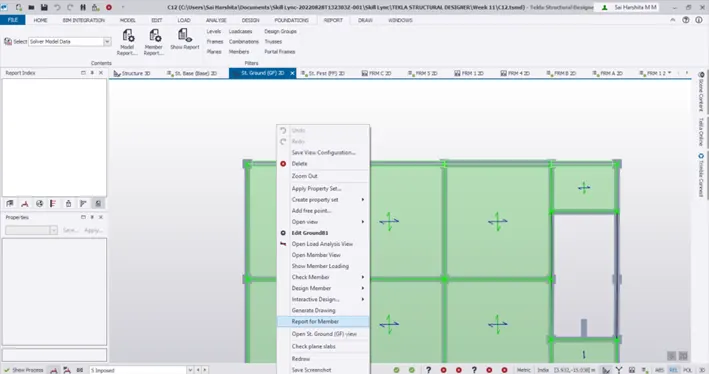
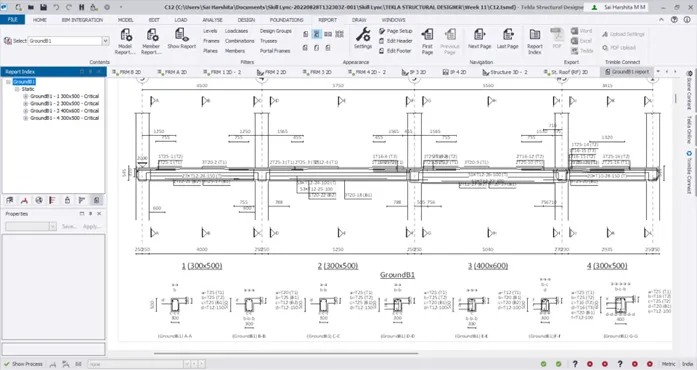
- Go to Member report to add additional details to the report
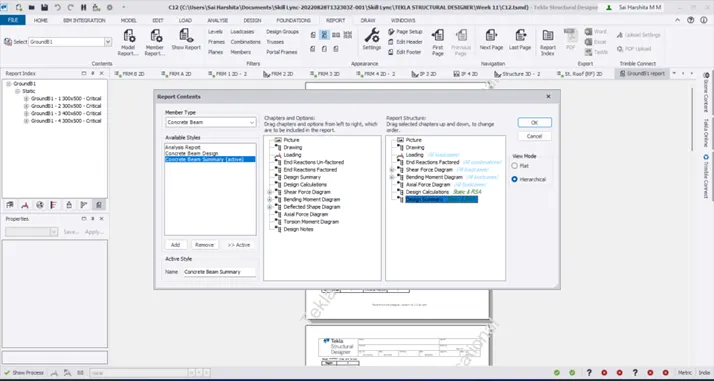
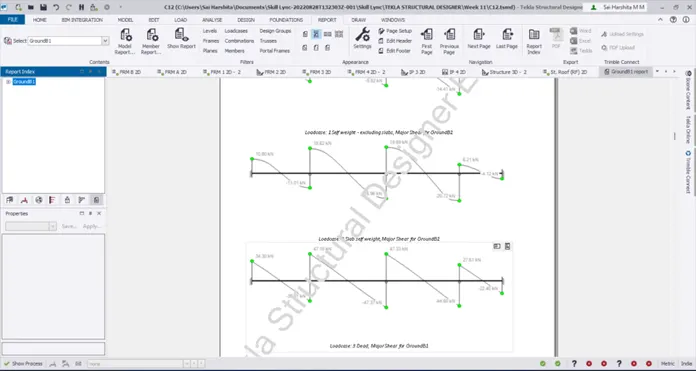
SFD
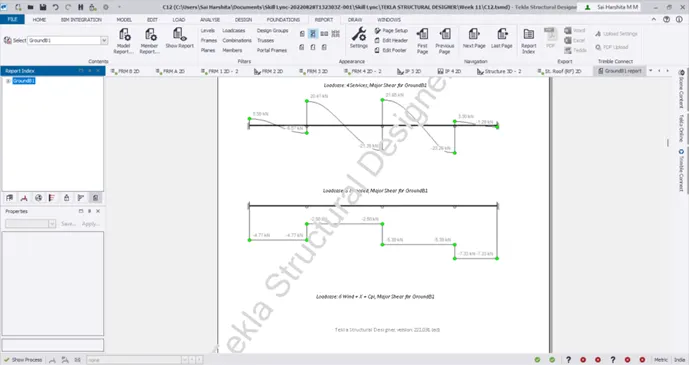
BMD
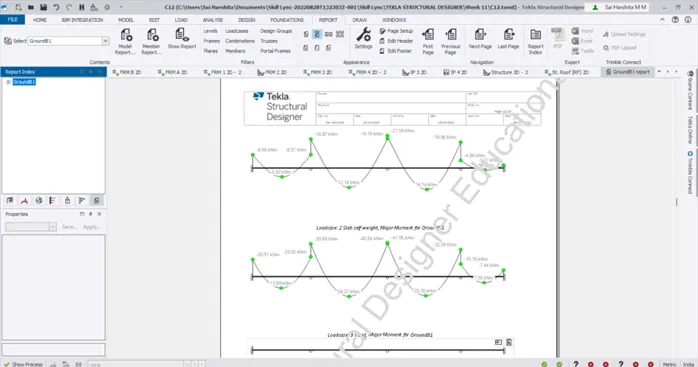
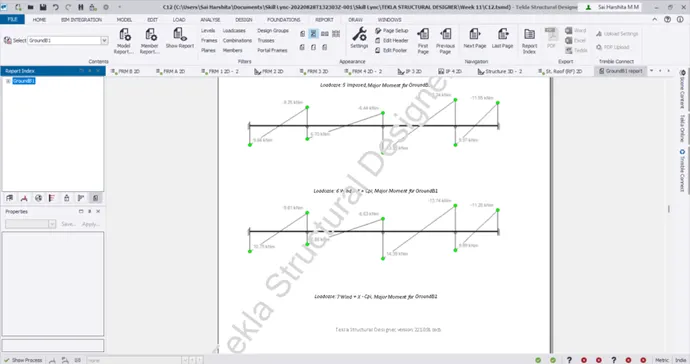
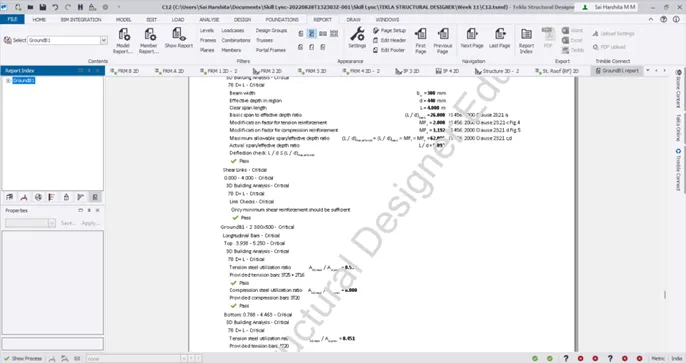
- Also check the design summary
Column report
- Select any column and right click to generate report
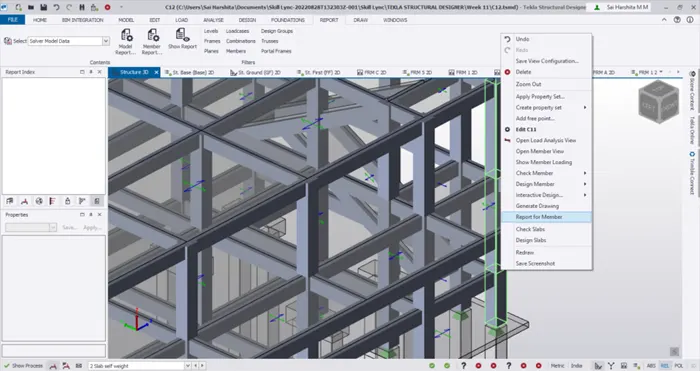
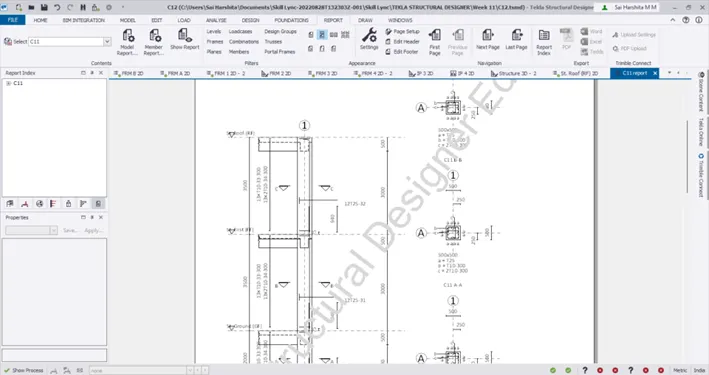
- Click on Member report to add additional details
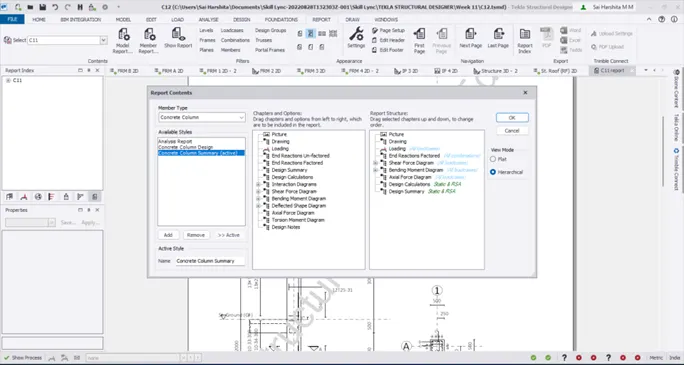
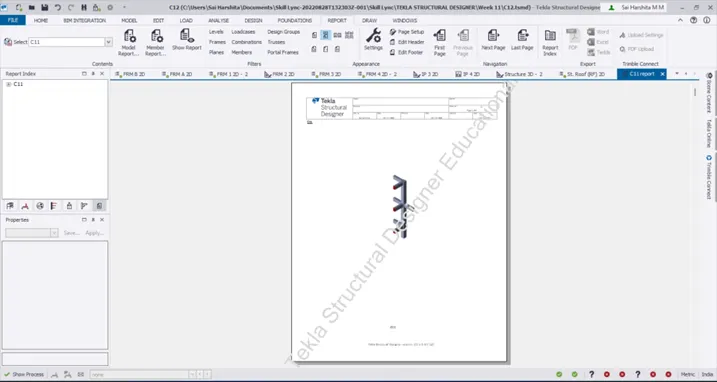
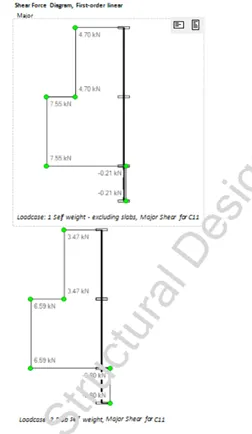
SFD
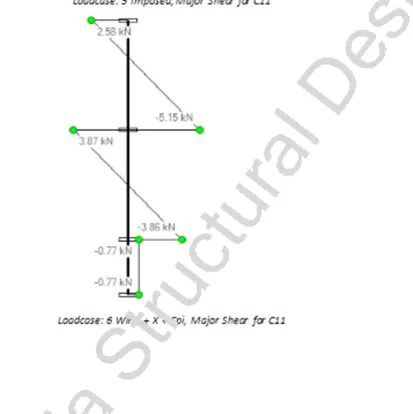
BMD:
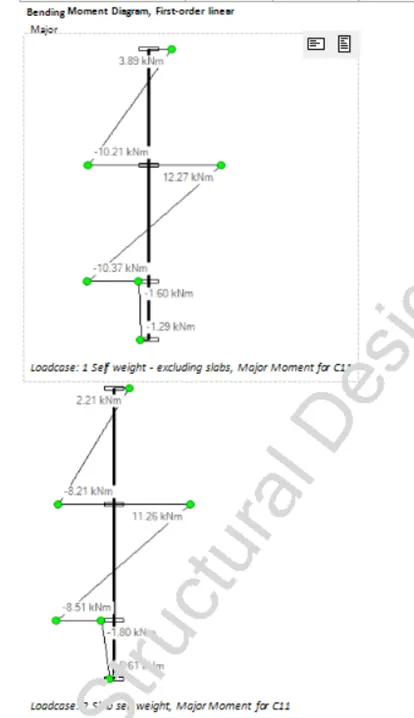
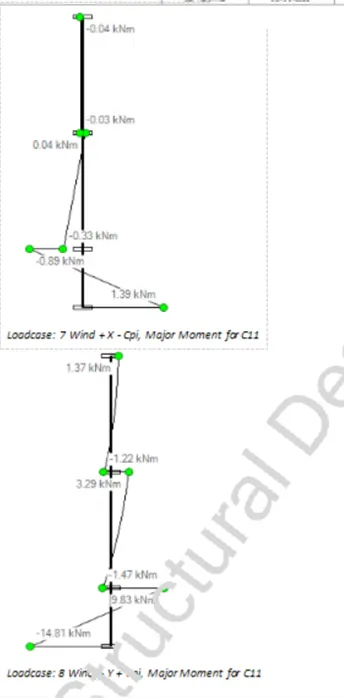
AFD
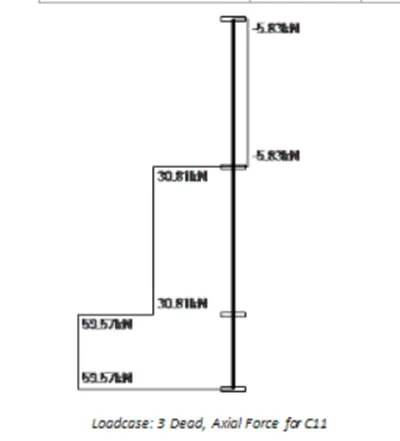
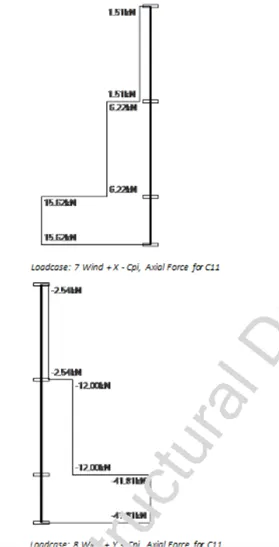
Design Summary
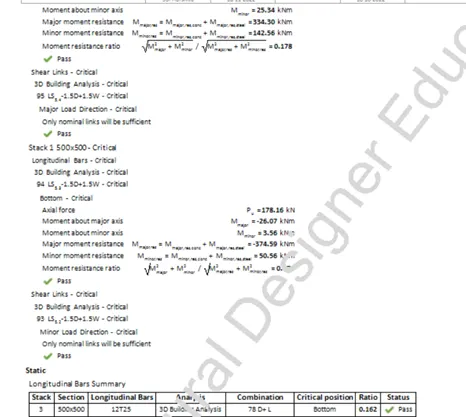
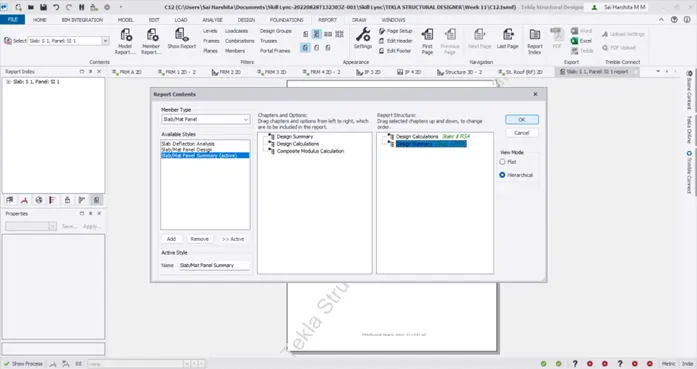
Slab report
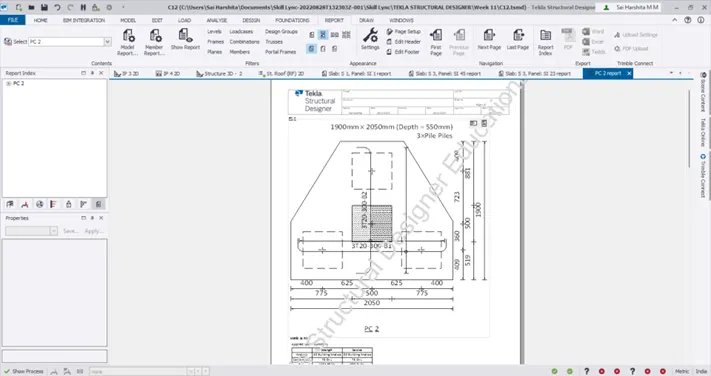
- Now go to the base level and generate report for the footing member
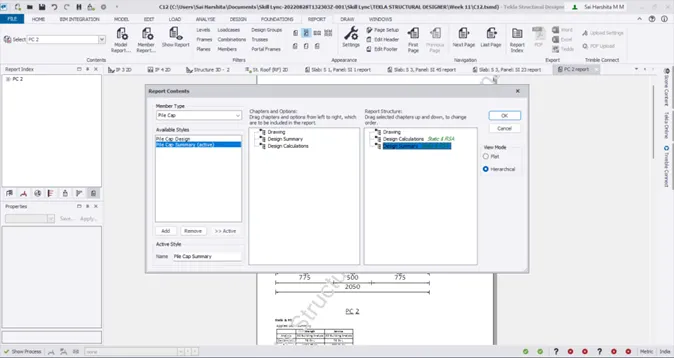
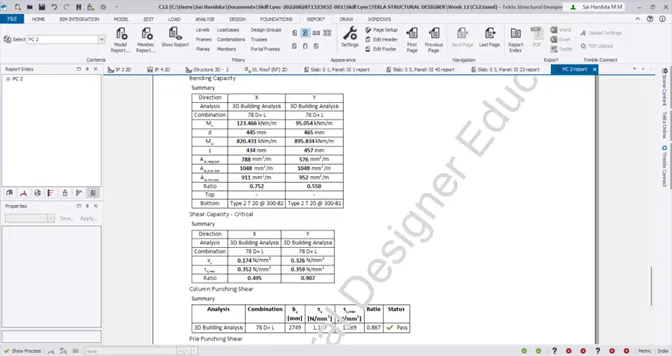
- Now generating report of the entire structure
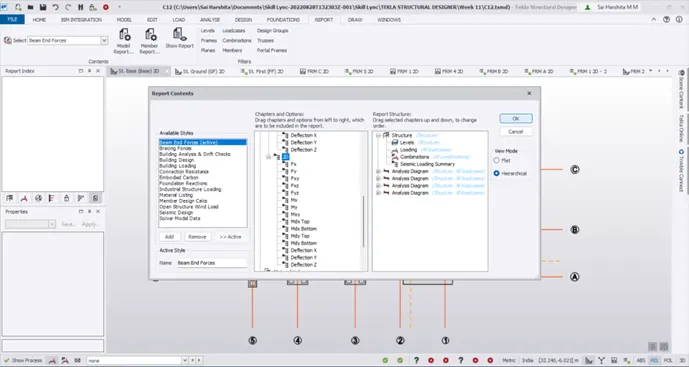
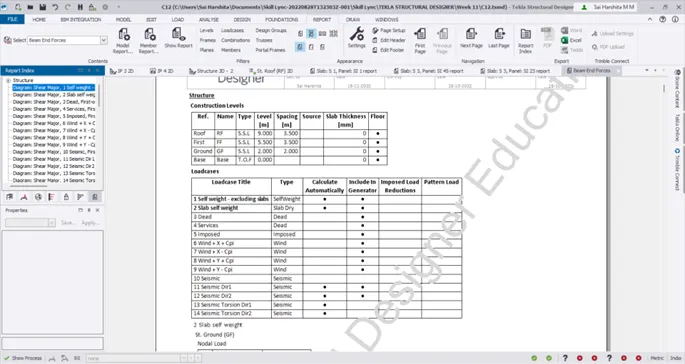
SFD for wind load
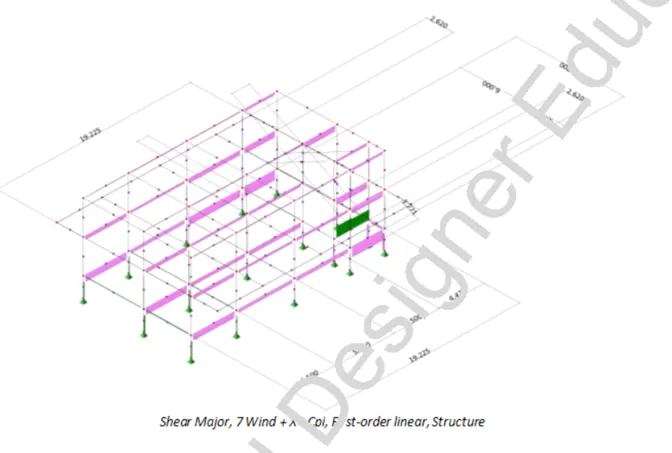
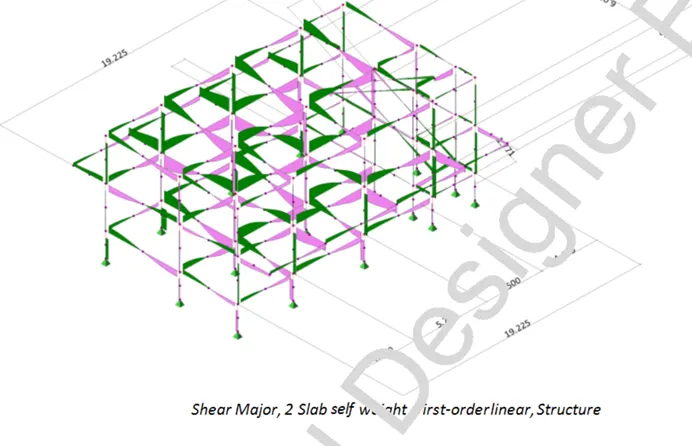
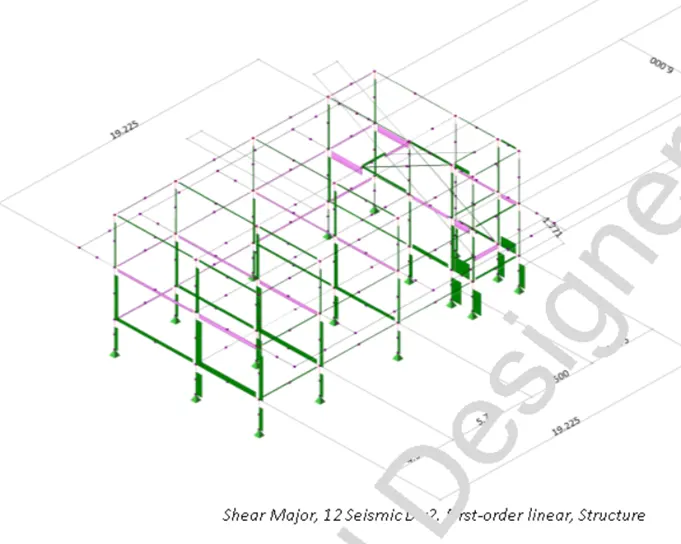
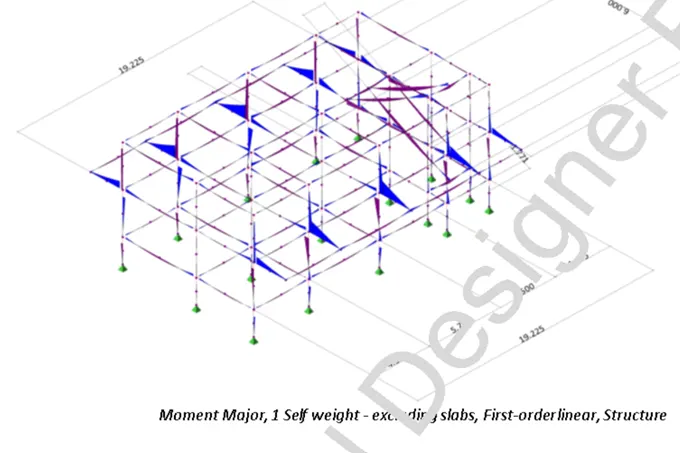
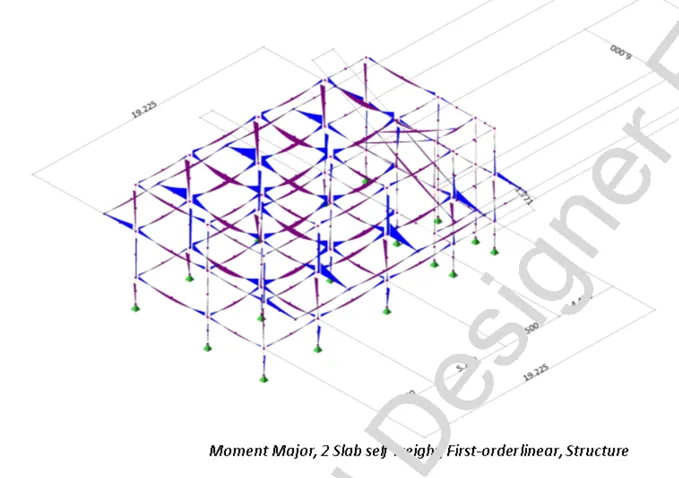
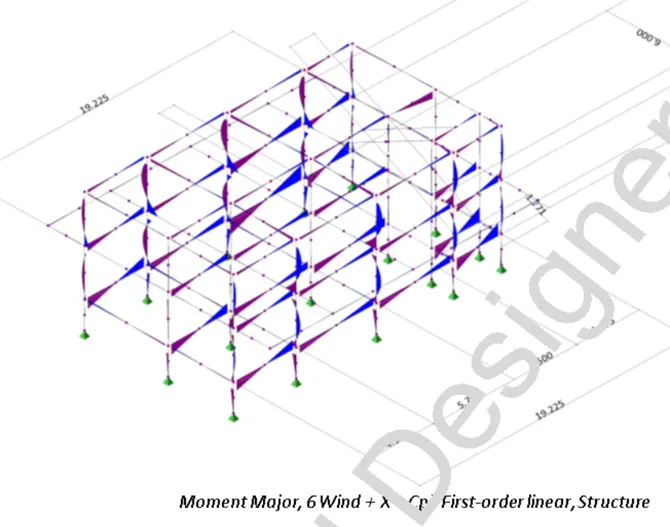
- Report can also be generated for a selected frame by right clicking on the chapter and choosing model filter
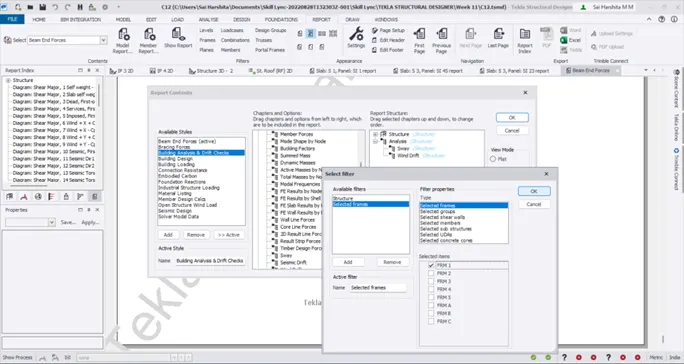
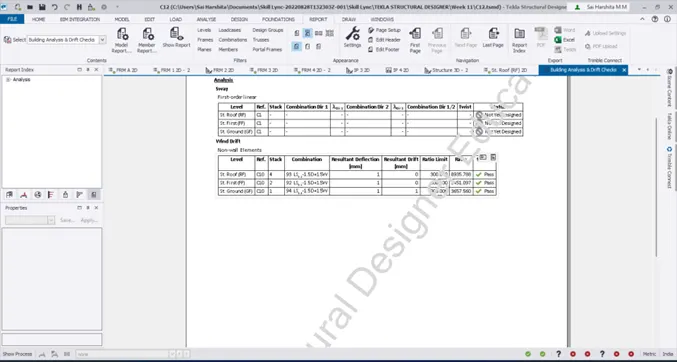
Result:
Hence report for RC structure along with the loading summary is generated
3.AIM:
To update the layers settings in the model and generate plan drawings and details from the model
Introduction:
Layer settings can be updated from the Settings option available
Procedure:
- Go to Draw – Settings
- From the Layer configuration tab, check the available configuration – General Arrangement
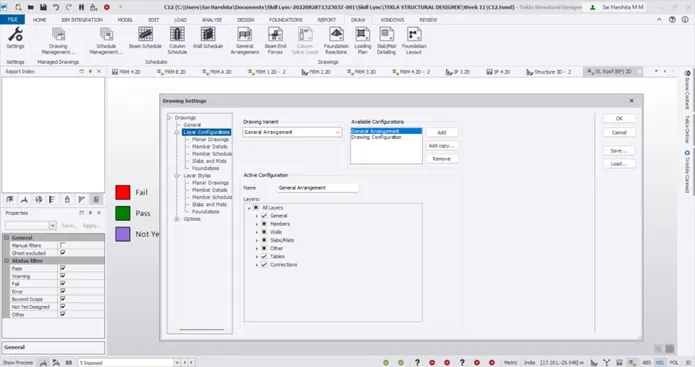
- We can also select the desired colour from the colour palette available
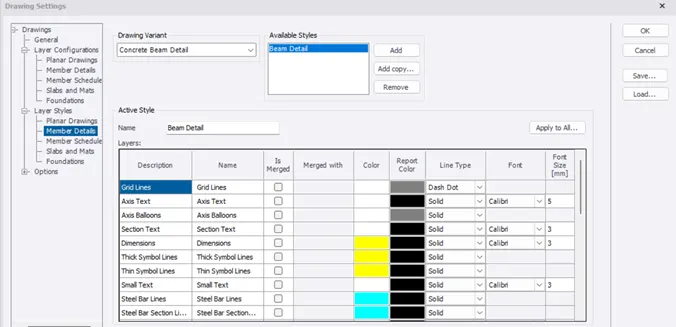
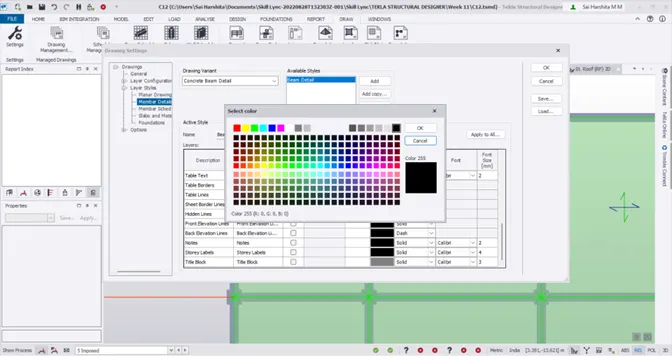
- Go to a particular level and click on General Arrangement
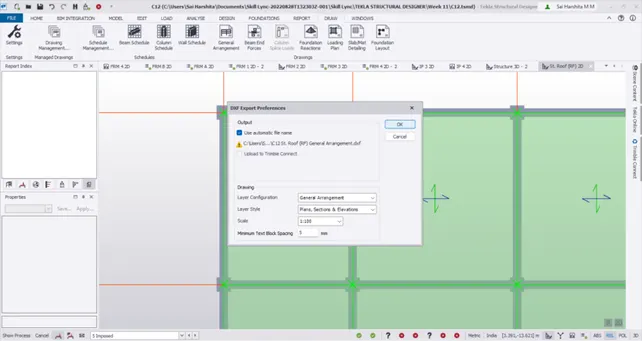
- Now .dxf files get opened in AutoCAD
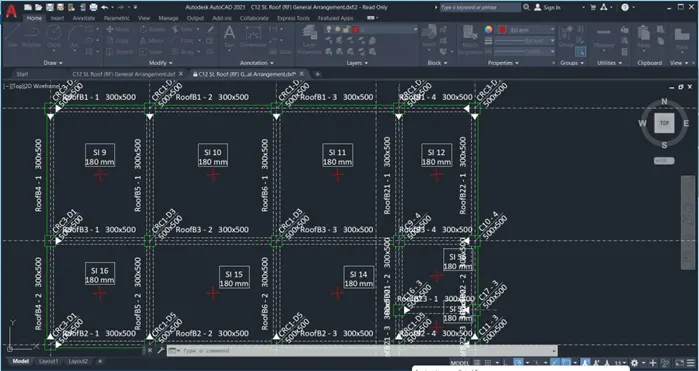
- Similarly the plan drawings of the other floor can also be generated.
Result:
Thus the Layer settings can be changed and thereby the plan drawings and details are generated