Switch Bezel Design Week 8 Challenge
AIM:
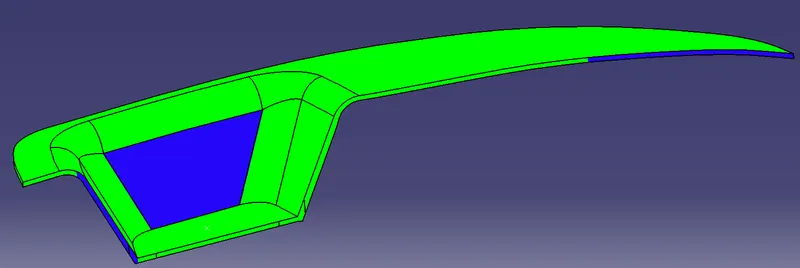
To create Door Switch Bezel and add thickness to it and generate the Draft Analysis on a solid surface.
PROCEDURE:
1.Check for any openings in the given Door Switch Bezel model by using BOUNDARY. In BOUNDARY > select edges - select the surface to create the boundary at the openings.
2.Create a point at the center of the circle by using Point Definition by selecting the circle.
3.Create an Axis system at the point that is created at the circle using Axis System Definition by selecting the point.
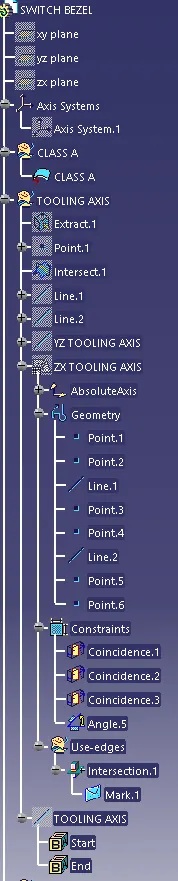
4.Now create an intersection in the ZY plane by Intersection Definition for the Door Switch Bezel.
5.Now using Point-Point in Point Definition extend the line to take reference drafted lines on both sides and bisect those lines to get the direction in the ZY plane.
6.Create an intersection in the ZX plane and create a Tooling axis in the ZX plane.
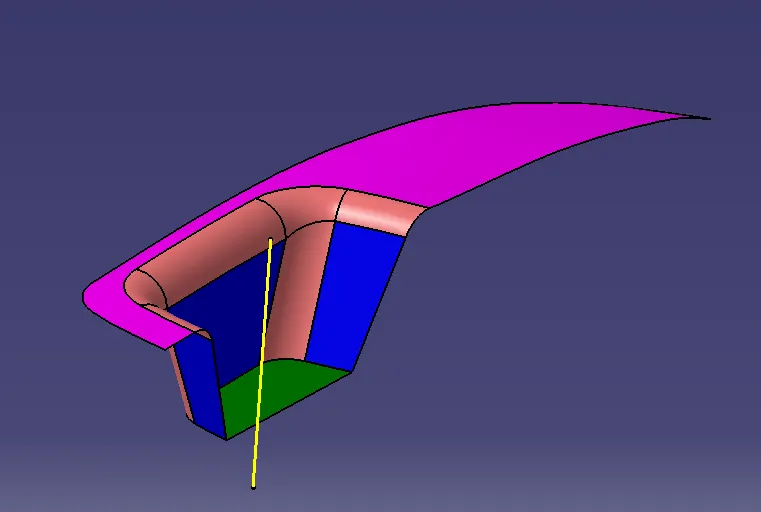
7.Bisect those two tooling axis lines and create a Main Tooling axis and name the bisected line as Main Tooling Axis and do the draft analysis for the Class A surface.
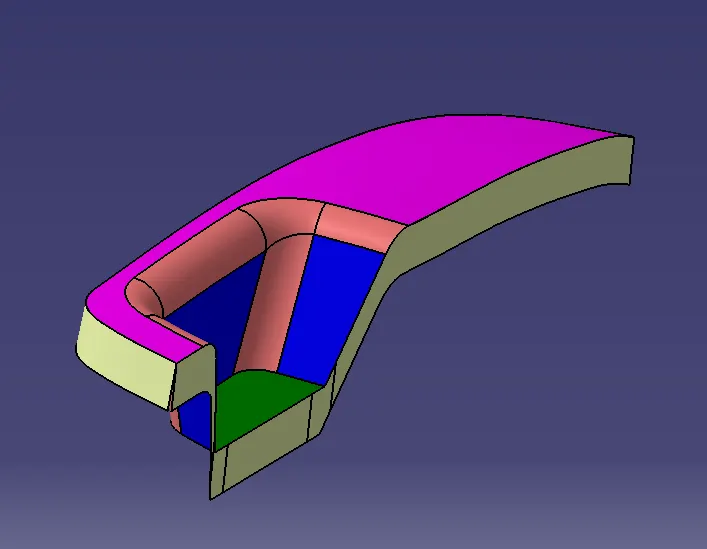
8.Now create the Plastic design for the given Class A surface of Door Switch Bezel by creating the Class B and C surfaces.
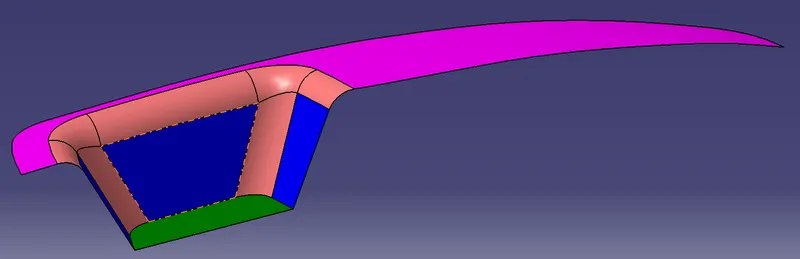
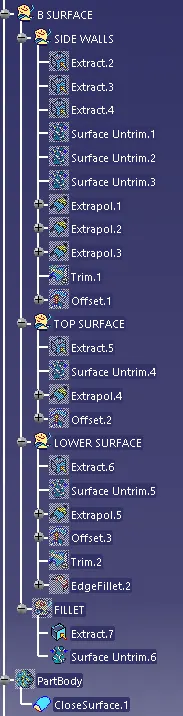
8.Extract the side walls of the Door Switch Bezel by Extract option by selecting the faces.Select the faces as shown.
9.Untrim the extracted surface using the Untrim option by selecting the surfaces.
10.Extrapolate the Untrimmed surfaces using the Extrapolate option.In Extrapolate Definition: Boundaries - select the edge of the Untrim surface and Extrapolate - untrimmed surface.
11.Trim the Excess portion of the surface using the trim option and offset the surface to a distance of 2.5mm in downward direction.
12.Do the same process for Top surface and Lower surface by extracting and offsetting the surface and trim the component and add the fillets with uniform thickness all over the body.
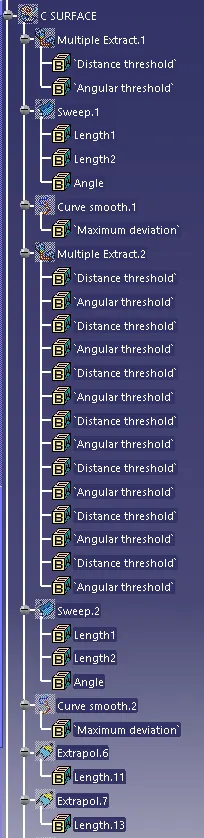
13.Create the class C surface for class A surface by using the Multi extract option by selecting the boundaries.Select the Tangent propagation.Create the Class C using Sweep option.Create a smooth curve for the extracted boundary.Select the extracted boundary.
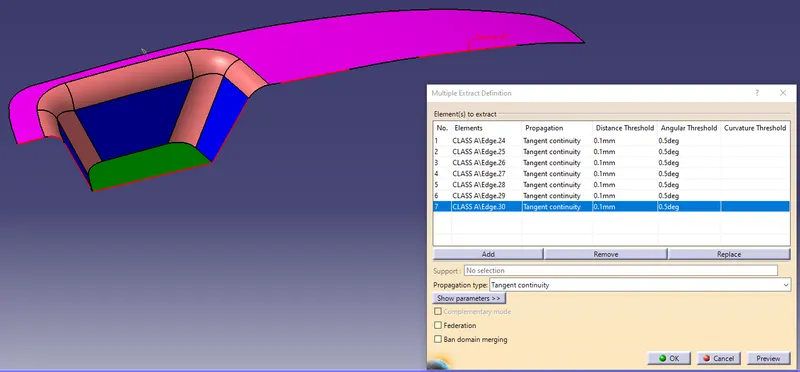
14.Replace the Multi extract boundary with the Smooth curve.Similarly on the other side.
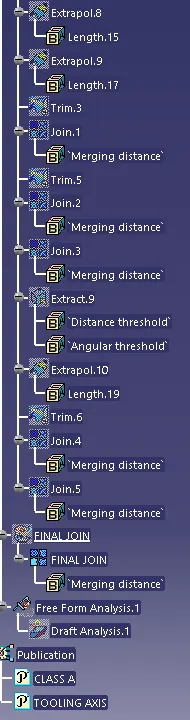
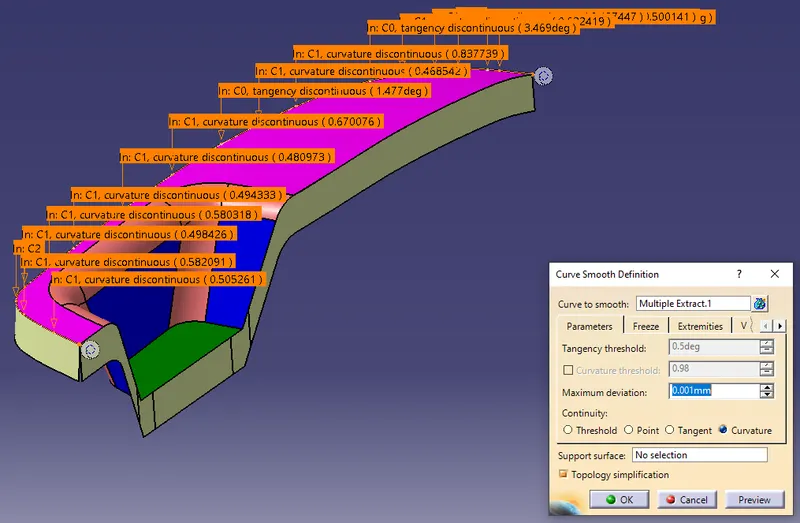
15.Join the surfaces and trim the surfaces with Class B and Class C.
16.Check for any open boundaries in Plastic design and create the solid surface for the design in Part design using a closed surface option.
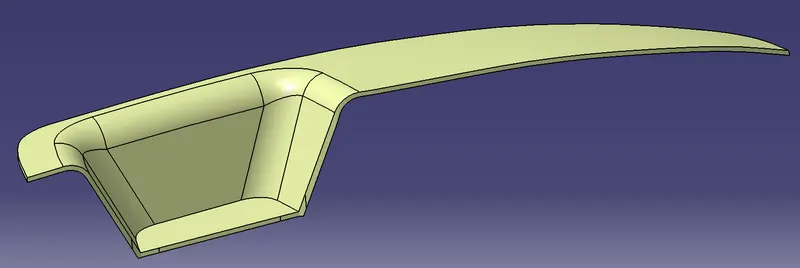
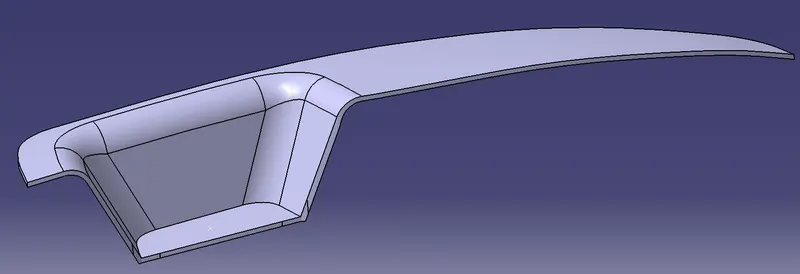
SOLID SURFACE
17.Now do the draft analysis for the solid component and check for the draft angle.
RESULT:
Created the Door Switch Bezel and added thickness to it and generated the Draft Analysis on a solid surface for Door Switch Bezel.