Week 4- Challenge
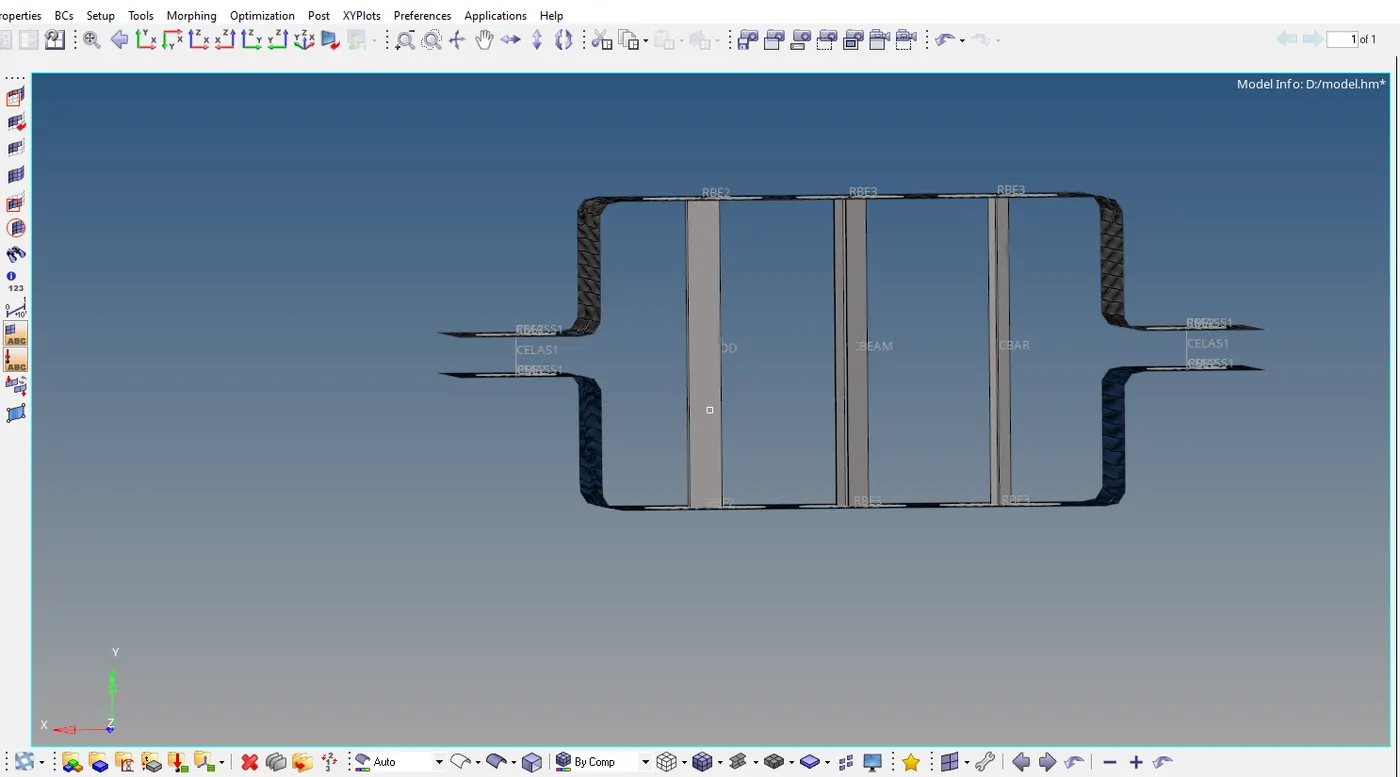
AIM:To create 1D elements of bar,beam and rod with given cross section and DOF's in Parallel brackets.
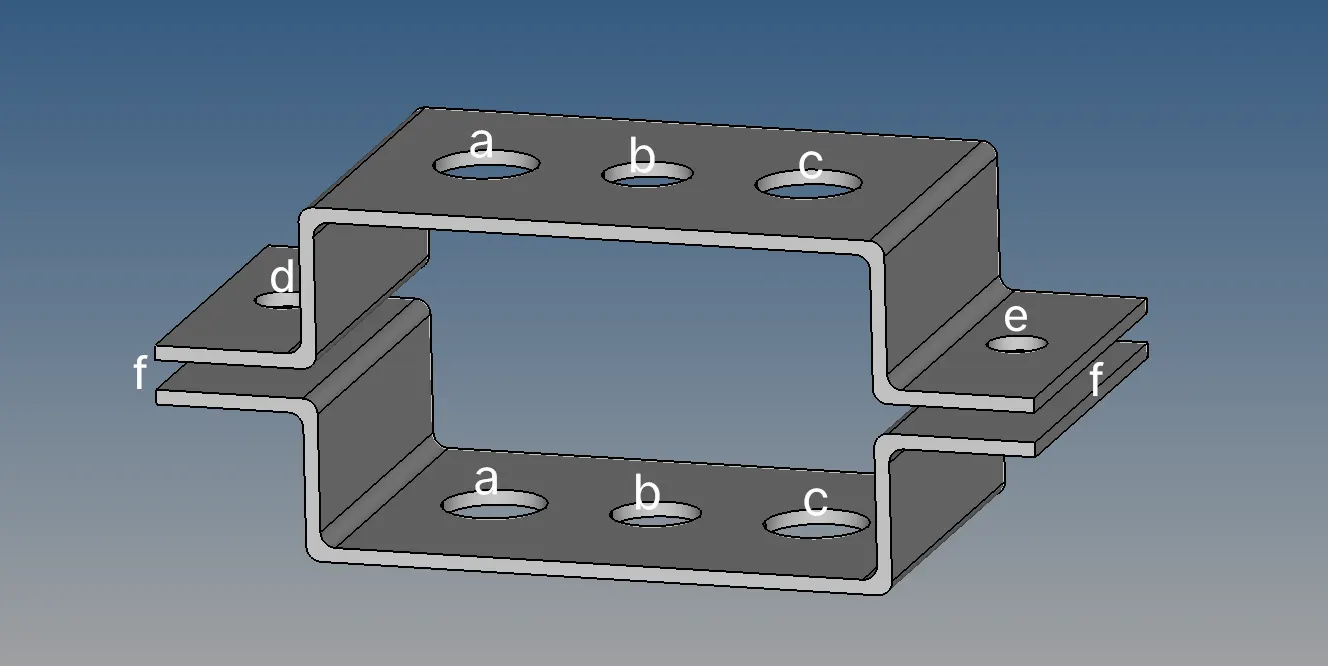
PROCEDURE:
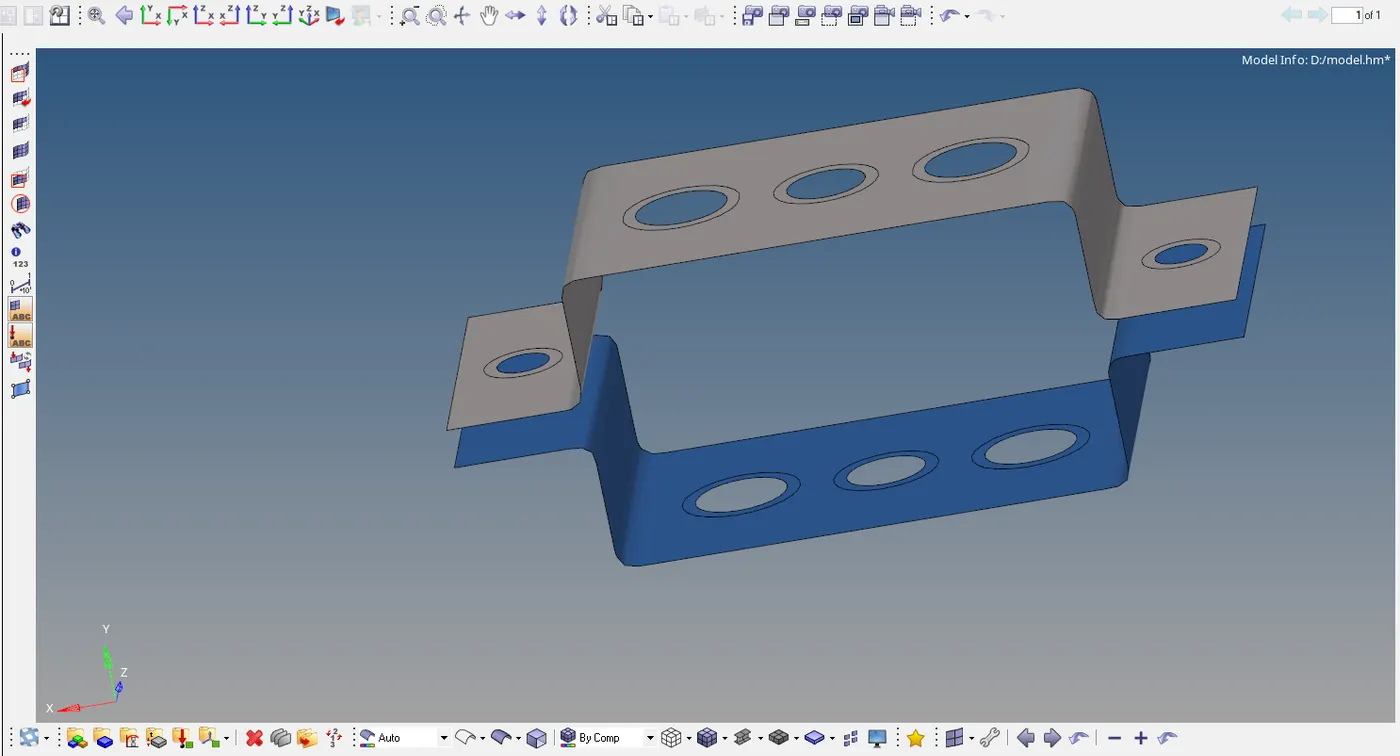
1.Extracting the mid surface from the bracket by midsurface in geometry,one after the other and create a name for 2 mid-surfaces individually.
2.Assign the material as steel and create 2 properties individually as brackets.In properties assign them thickness,card image and material.
3.Assigning the properties in the components individually.
4.Create a washer split in quick edits in geometry for circles and assign the offset value.
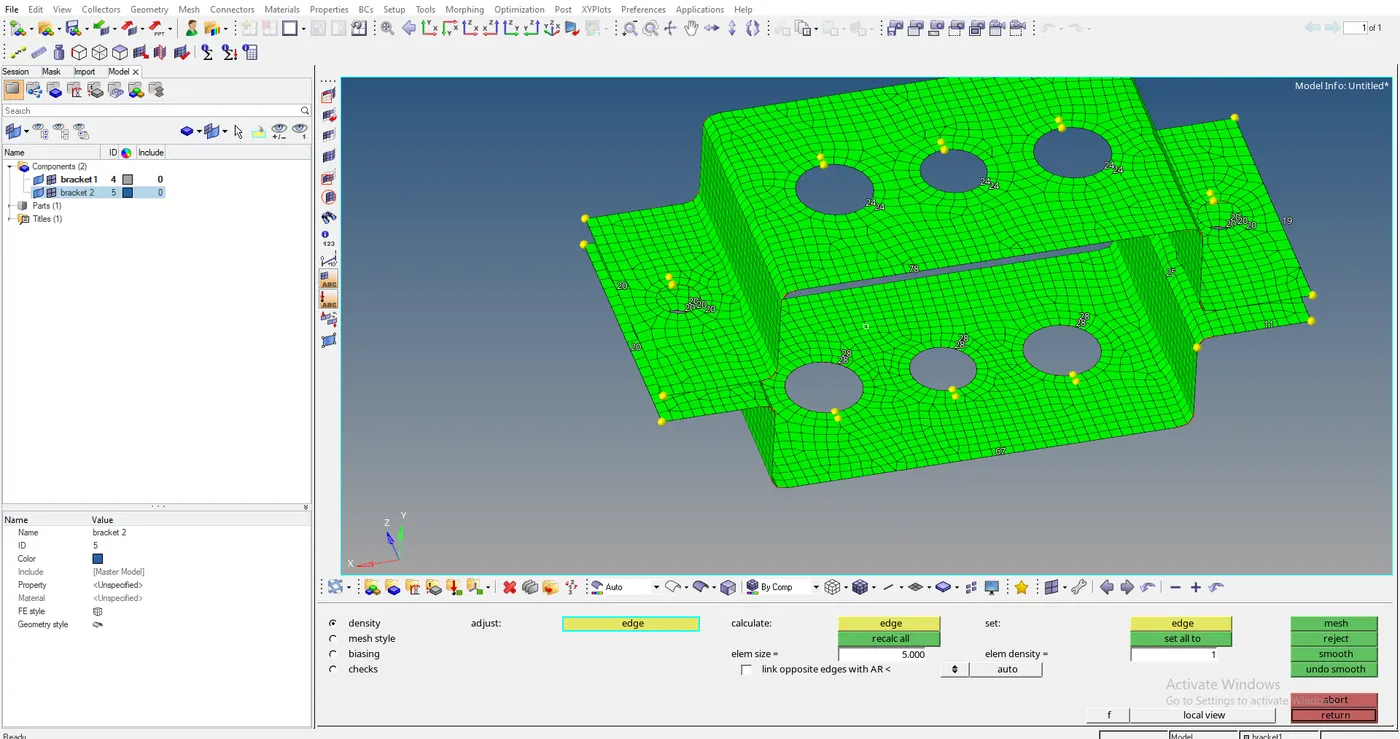
5. Mesh the model in automesh in 2D by giving the element size and mesh type.Adjust the nodes at the circle and washer split equally to avoid trais and capture correctly.
6a.Creating the rigid or rbe2 and rod element at the circles 'a'.
1.In rigids,select the multiple nodes and calculate nodes and give the by path and select only translational DOF's to create the nodes around the circle and washer split.
2.Creating the rod element in Hyperbeam in 1D,in standard section select the hyperbeam in library and type.this will take to the Hyperbeam view.
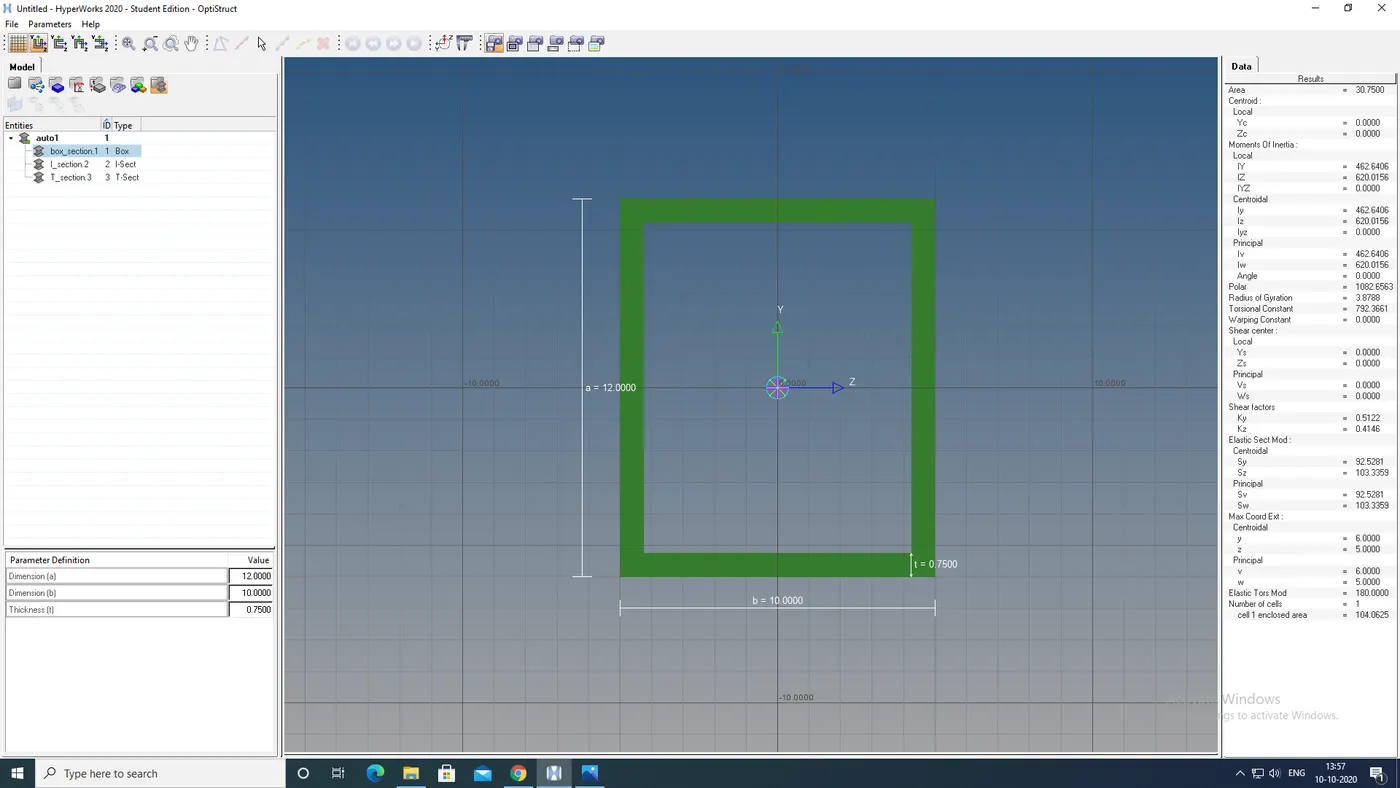
3.In Hyperbeam view create the cross section of the box by selecting the solid rectangle in create>standard section>hypermesh.Assign the values of box as dimensions of a=12mm,b=10mm and thickness of 0.75mm.
b.Creating the rbe3 link and beam element at the circle 'b'.
1.In rbe3,select the by path in nodes and calculate nodes and all DOF's and create the nodes around the circleand washersplit.
2.Creating the beam element in Hyperbeam in 1D,in standard section select the hyperbeam in library and type.this will take to the Hyperbeam view.
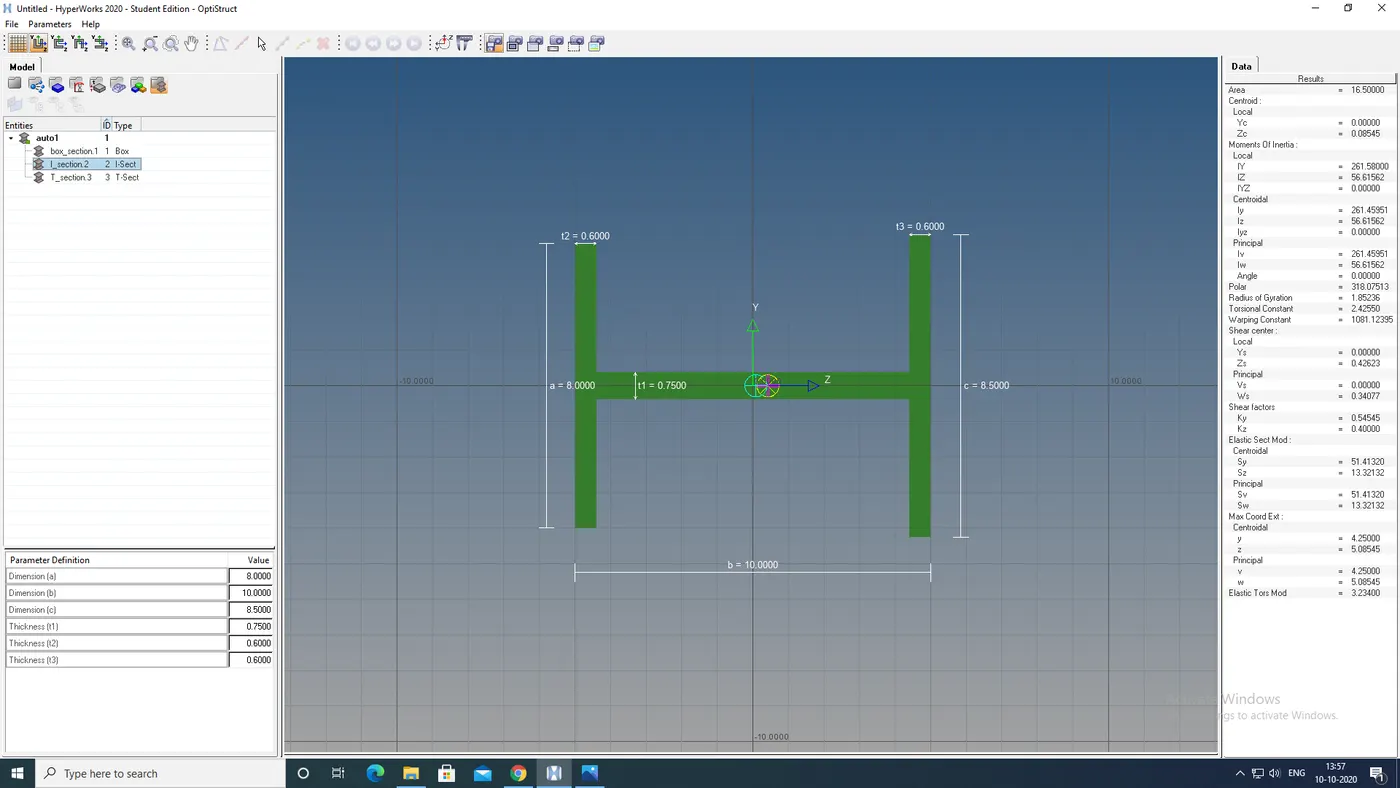
3.In Hyperbeam view create the cross scetion of I by selecting the standard I section in create>standard section>hypermesh.Assign the values of I section as dimensions of a=8mm,b=10mm and c=8.5mm and thickness of t1=0.75mm,t2=0.6mm,t3=0.6mm.
6c.Creating the rbe3 link and bar element at the circle 'c'.
1.In rbe3,select the path in nodes and calculate nodes and select the translational and rotational DOF's of x and y .
2.Creating the bar element in Hyperbeam in 1D,in standard section select the Hyperbeam in library and type.This will take to the Hyperbeam view.
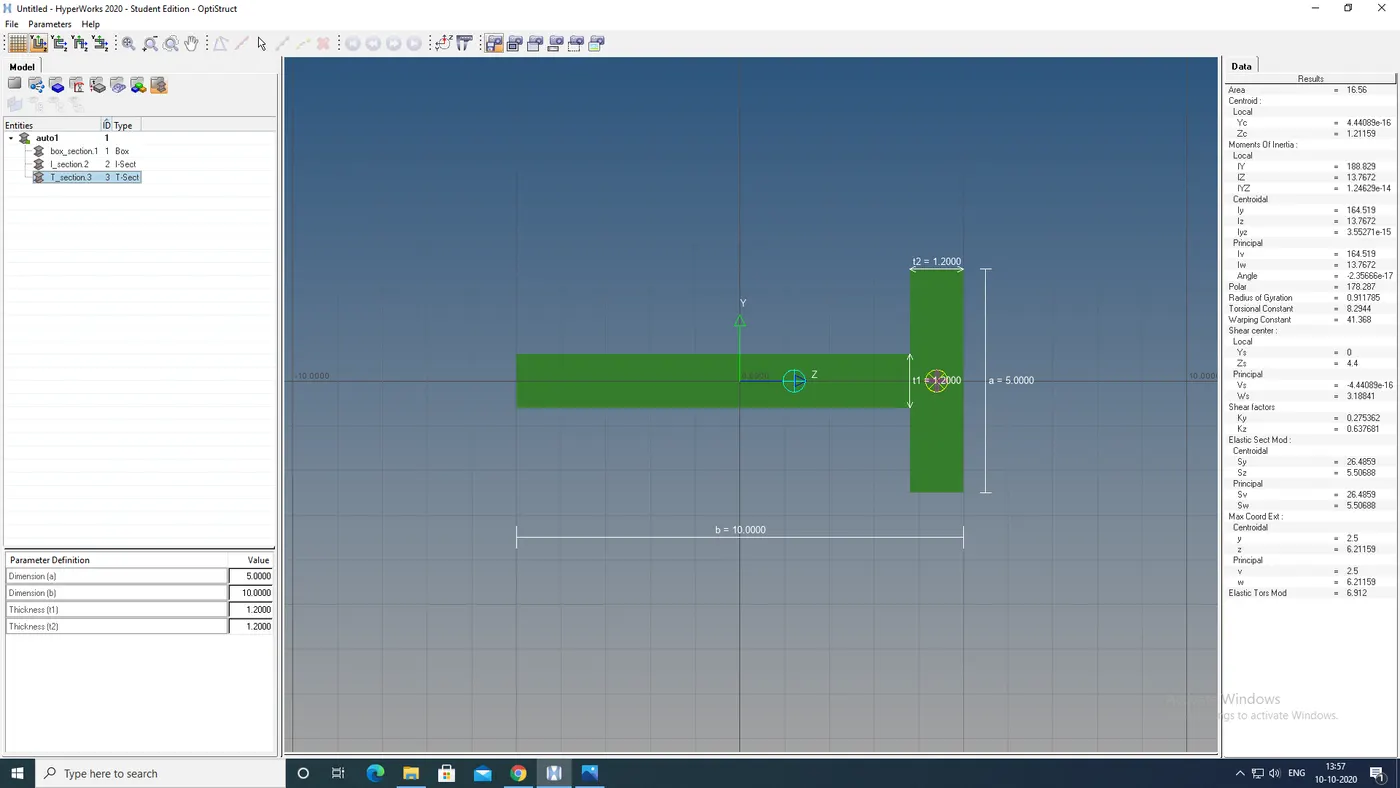
3.In Hyperbeam view create the cross section of Cross by selecting the standard T section in create>standard section>hypermesh.Assign the values of T sectiion as dimensions of a=5mm,b=10mm and thickness of t1=1.2mm and t2=1.2mm.
7.Return to the model view,create 3 seperate properties for rod,beam and bar
a.For Rod,create property and select the card image as PROD and beam section as Box section.
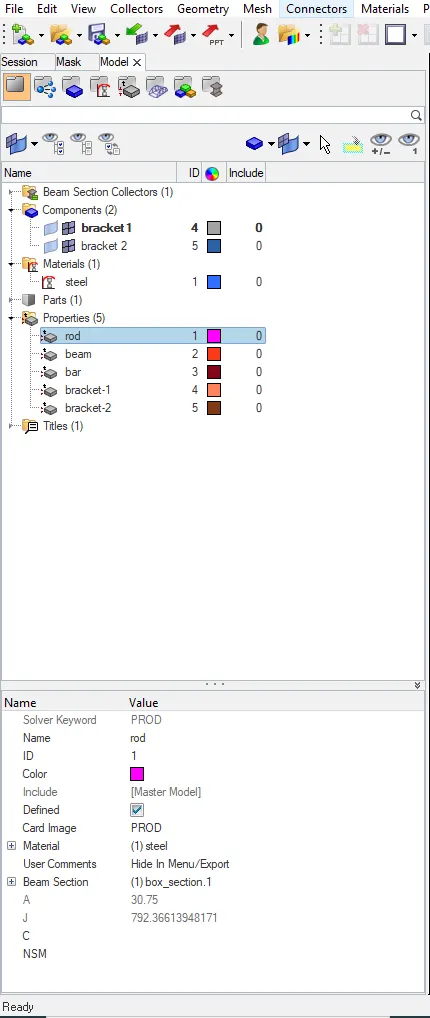
b.For Beam,create property and select the card image as PBEAM and beam section as I section.
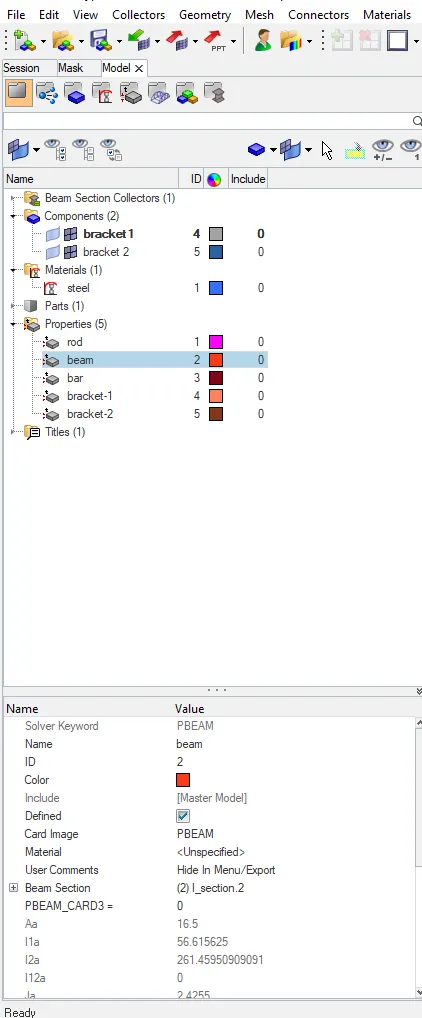
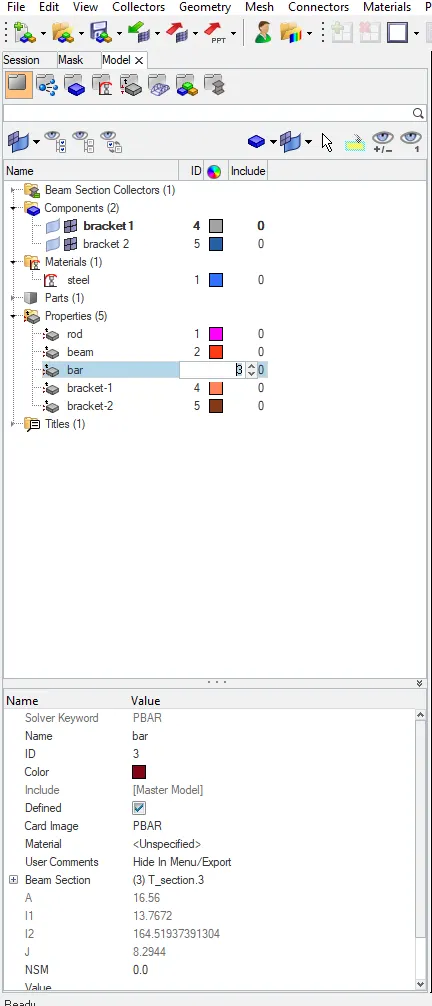
c.For Bar,create property and select the card image as PBAR and beam section as T section.
8.Now create the elements of Rod,Beam and Bar between the 2 parallel brackets in 1D.
a.In Rod,select the two nodes on two brackets at center of circle of 'a' and give the cross section direction and select element type as CROD.Update the property as rod.
b.For Beam,select the bars and then select the two nodes of two brackets at the center of cirlce in 'b' and give the cross section direction and select the element type as CBEAM.Update the property as beam.
c.In Bars,select the two nodes of two brackets at the center of the circle in 'c' and give the cross section direction select the element type as CBAR.Update the property as bar.
9a.Now create the rbe2 link at the both sides of circles 'e' by selecting the multiple nodes and calculate nodes,nodes by path in Rigids to create masses on parallel brackets.
b.Now create a mass by selecting masses in 1D, select the nodes on parallel brackets and element type as CMASS1 and assign the mass of magnitude 10 and then create which creates the mass between the link RB2 at cicels 'e'.
10.Join the two brackets with the springs at the points 'f' or 'e' by selecting the springs in 1D,select the element type a CELAS1 and nodes on two bracket and DOF1 by default for springs.
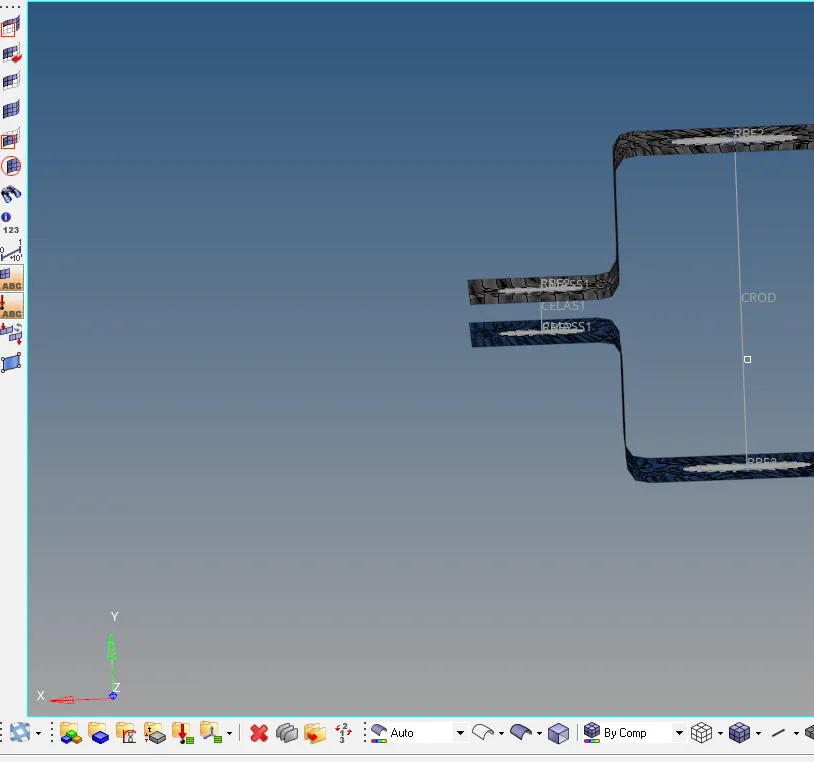
11.To view the cross sections of the 1D elements of rods,bars and beams,select the 1D detailed element representation and 2D detailed representation to view the thickness of mid surface
RESULT: Created the 1D elements for the cross sections of rod,bar and beam with given dimensions and thickness.