Project - 2 - Meshing on the suspension Assembly
PREPROCESSING OF REAR SUSPENSION USING ANSA
Aim: To mesh the geometry with in the given quality criteria and give connections where ever required.
Software Used: BETA CAE ANSA.
Steps Involved:
- Importing geometry and checking geometrical errors.
- Extracting mid-surface for components with thickness less than 5mm.
- Meshing the mid-surface with in the given quality criteria.
- Meshing the components with thickness more than 5mm.
- Defining volume and generating tetra mesh.
- Connecting the components by giving appropriate connections.
- Creating symmetry.
Quality criteria:
For tria elements (Tire and Rim):
|
S. No |
Quality Criteria |
Value |
|
1. |
Target/Average element length |
6.5 |
|
2. |
Minimum Length |
5 |
|
3. |
Maximum Length |
10 |
|
4. |
Skewness |
45 |
For tria elements (Other Components):
|
S. No |
Quality Criteria |
Value |
|
1. |
Target/Average element length |
4 |
|
2. |
Minimum Length |
2 |
|
3. |
Maximum Length |
6 |
|
4. |
Skewness |
45 |
For tetra elements:
|
S. No |
Quality Criteria |
Value |
|
1. |
Tet collapse |
0.2 |
For Mid-surface components:
|
S. No |
Quality Criteria |
Value |
|
1. |
Target/Average element length |
4 |
|
2. |
Minimum length |
2 |
|
3. |
Maximum Length |
6 |
|
4. |
Aspect |
3 |
|
5. |
Warpage |
15 |
|
6. |
Skewness |
45 |
|
7. |
Jacobian |
0.7 |
|
8. |
Minimum Quad Angle |
45 |
|
9. |
Maximum Quad Angle |
135 |
|
10. |
Minimum Tria Angle |
30 |
|
11. |
Maximum Tria Angle |
120 |
|
12. |
Triangle % |
15 |
Procedure:
- Importing geometry and checking for errors:
- To import geometry, select File >> Open >> Click on the file. After importing topo should be performed to connect all the surfaces.
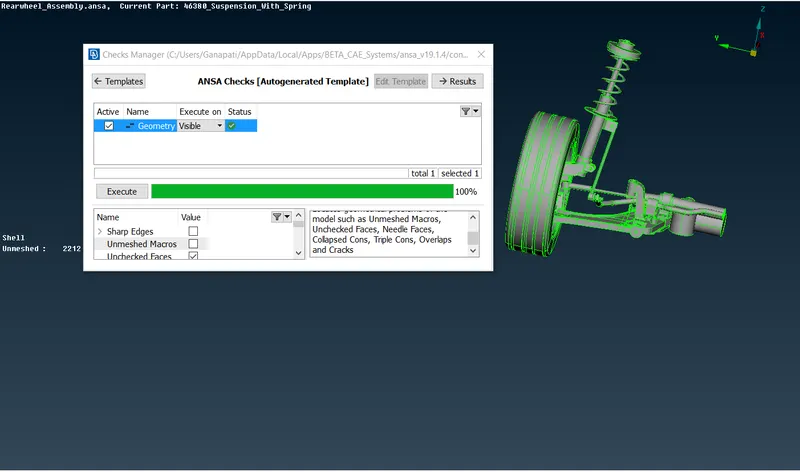
- To check for errors, select Checks Manager >> Geometry >> Execute. Errors can be rectified either by auto fix or by manually if any errors pop up.
- Now the thickness is measured at different locations in the geometry. Components with thickness less than 5mm, mid-surface is extracted and mesh is generated.
- For components with thickness more than 5mm, solid mesh is performed.
2. Extracting mid-surface for components with thickness less than 5mm:
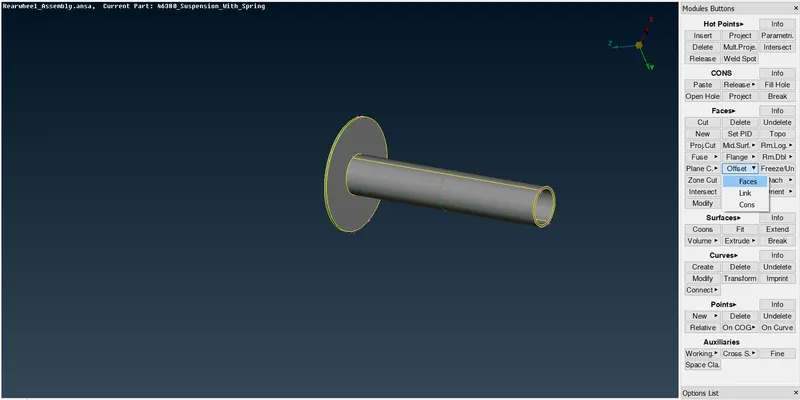
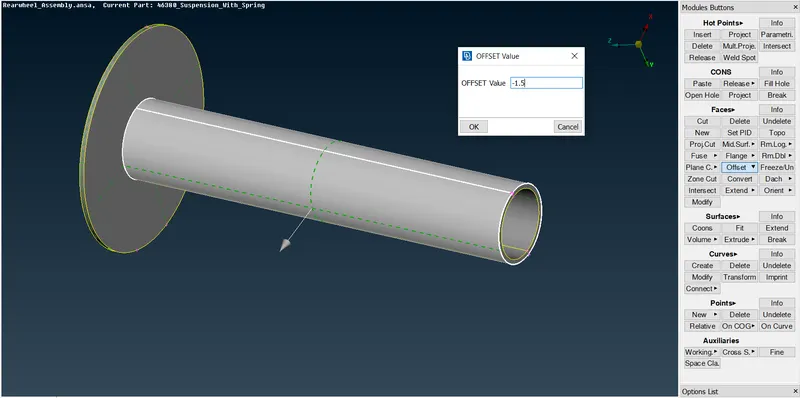
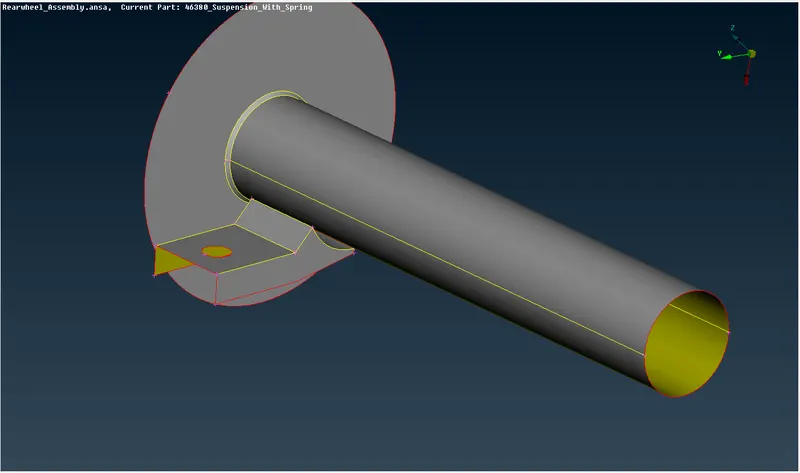
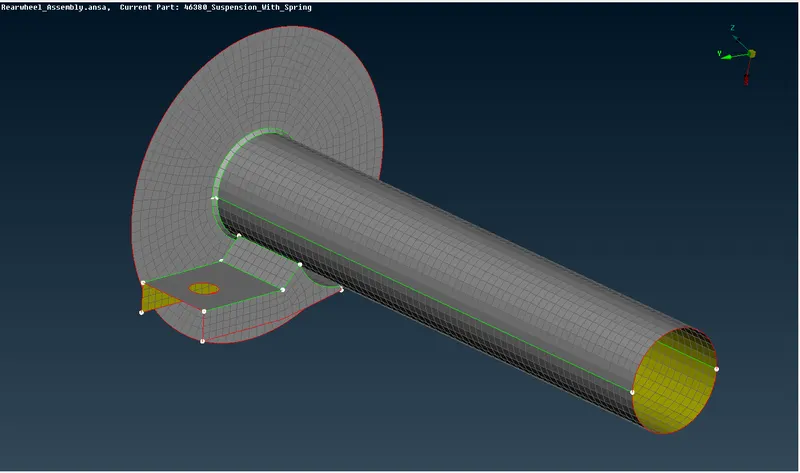
- To extract mid-surface offset is used. To use offset, select Offset >> Faces >> Select the face >> enter the mid value of thickness >> Ok.
3. Meshing the mid-surface with given quality criteria:
- The quality criteria for mid-surface components should be given before meshing the mid-surface.
- Best mesh is used to generate the mesh. To generate mesh, select Best mesh present in mesh generation and then select the surface.
5. Meshing the components with thickness more than 5mm:
- The quality criteria for the respective components should be given before meshing.
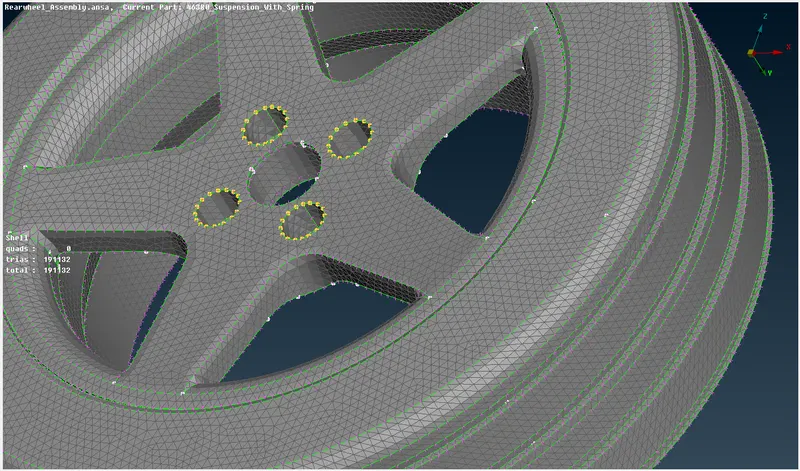
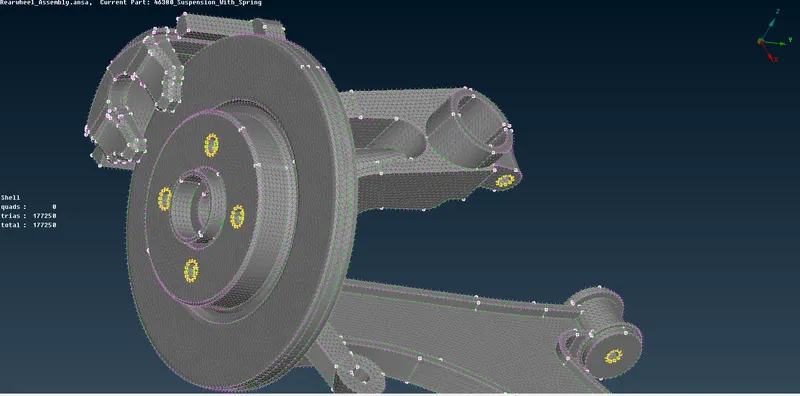
- Spot mesh is used to generate the mesh. To generate mesh, select spot mesh present in mesh generation and then select the surface. Spot mesh is the best option to generate the tetra mesh because it captures features perfectly.
- For flat surfaces, tria can be used and for features, orthotria is used as element type.
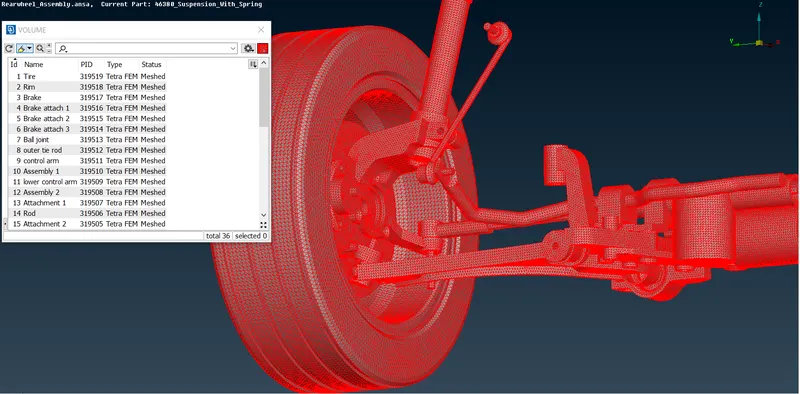
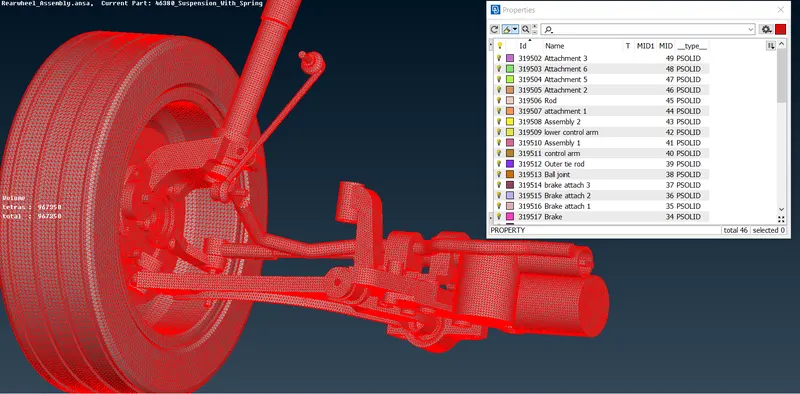
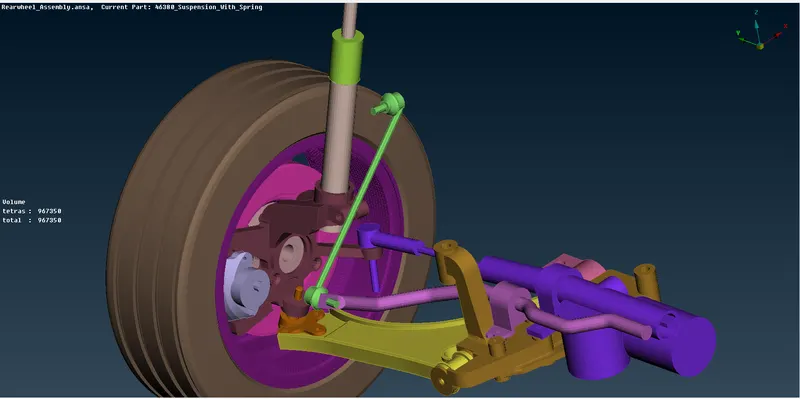
5. Defining volume and generating tetra mesh:
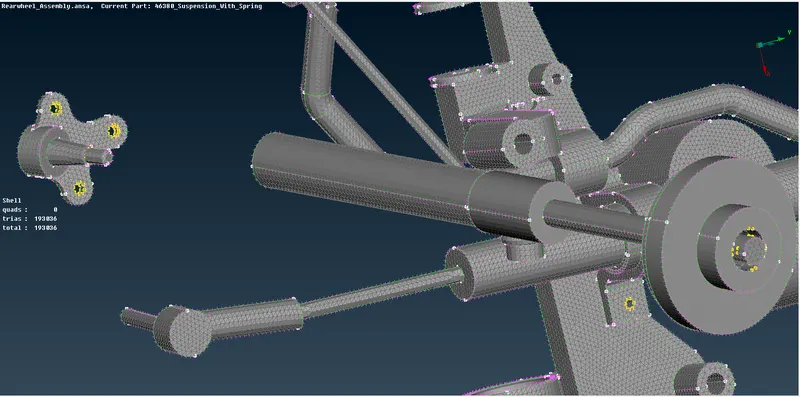
- To define the volume and generate solid mesh volume mesh deck should be selected.
- To define volume, select Define >> Manual >> select the surfaces. Volume defined components can be seen in list option present in volumes.
- To generate the solid mesh, select either tetra rapid or tetra FEM preset in unstructured mesh.
- New PID solid should be created and solid mesh should be assigned to the respective PID.
- There should be any kinks or raised edges in the solid mesh.
6. Connecting the components by giving appropriate connections:
- To give connections, Nastran deck should be selected.
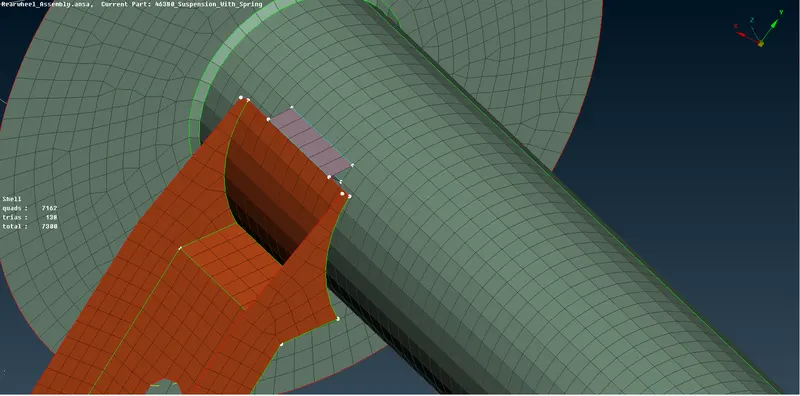
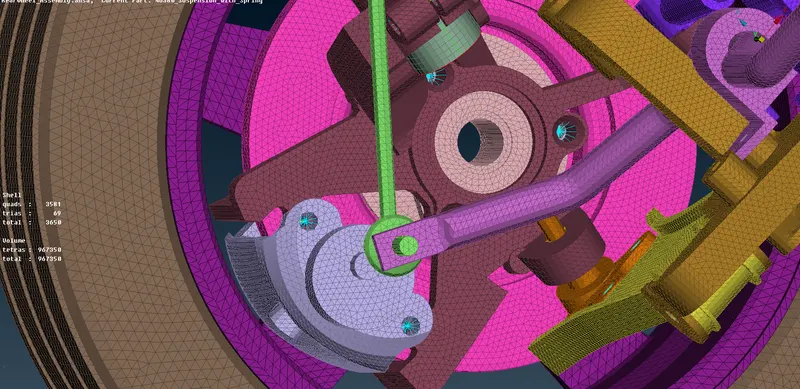
- In this model, seam weld connection and RBE2 connections are given. To give seam weld connection, a curve is generated along the FEA and the curve is converted into seam line using convert option present in assembly deck.
- After converting the curve to seam weld, connection manager is opened and seamline is selected. Now the PID of both the components are given in connection manager and in FE rep type overlap shell is selected.
- Now the seam weld connection is generated.
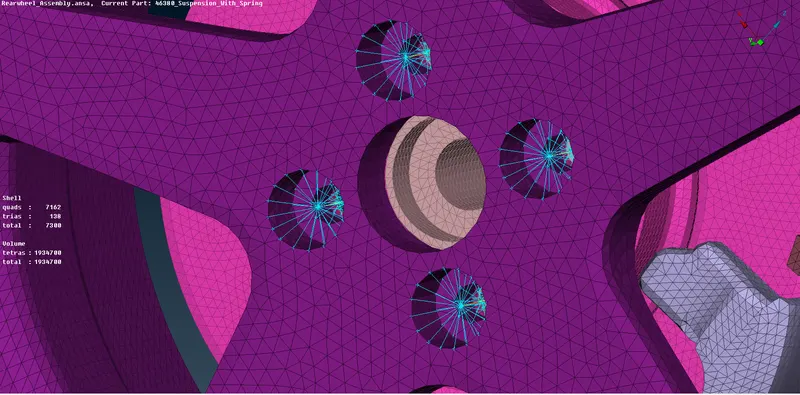
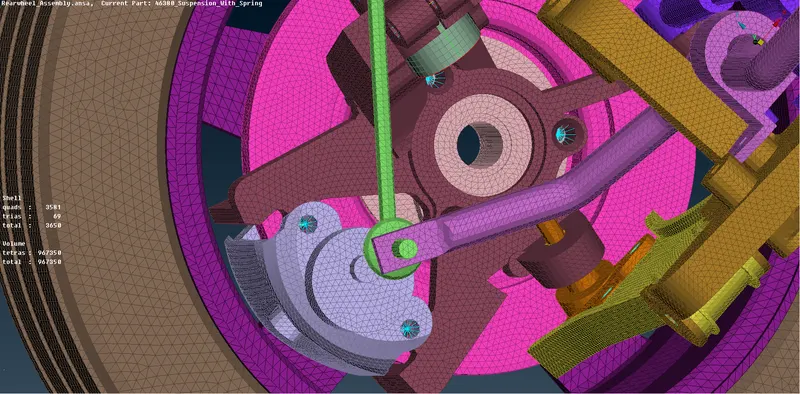
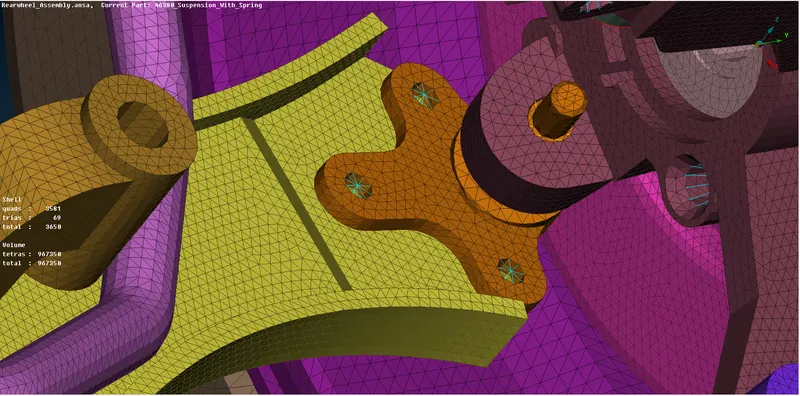
- RBE2 connection is given where the nut and bolt are used to connect the components. To generate the RBE2 connection, nodes are selected and all Degree of freedom is constrained.
Representing spring with 1D bar element:
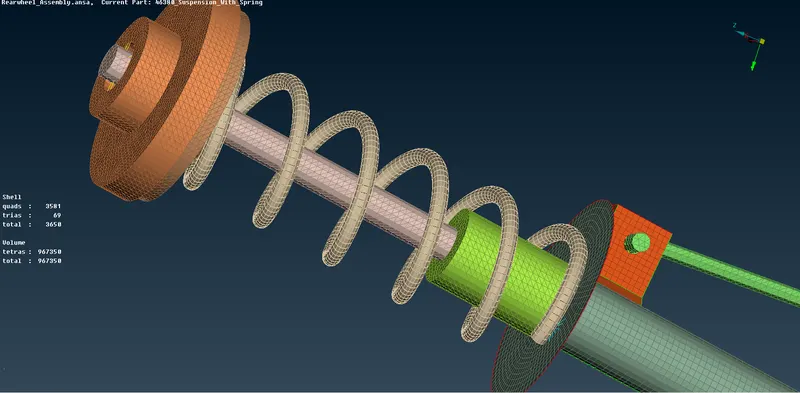
- To represent a spring with 1D bar element, curve is created along the center. After creating the curve, COG point is generated to define the orientation of the curve.
- Now switch to Nastran deck and select CBAR in elements and change the selection type to curve(box) select the COG of the curve. Now the element length is given and PID is created.
- To give the area for the curve, press shift +? key and the radius of the curve is given and then click on. Now the ANSA will automatically calculate the area. By clicking on ok 1D bar element is generated.
- To represent the 1D element as solid, line element cross section as solids should be selected in quality parameters.
7. Creating Symmetry:
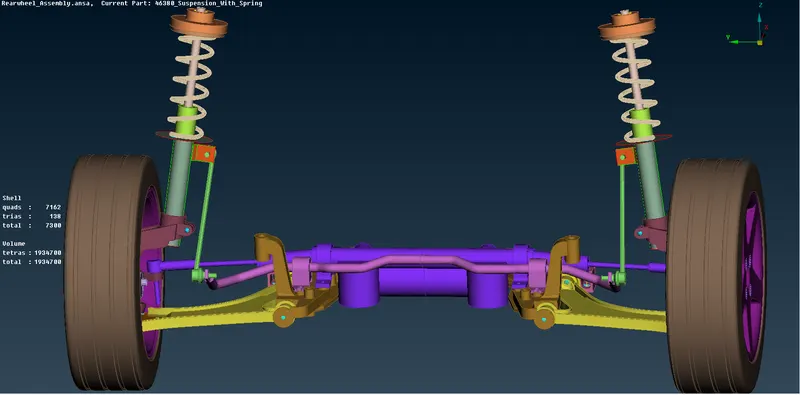
- To create the symmetry, transform option present in utilities deck is used. Select transform >> copy >> entities >> symmetry >> mirror 3 points plane >> select any 3 points on the entities and click ok.
Conclusion:
- For the given rear suspension model, geometry cleanup is performed, mesh is generated with in the given quality criteria and appropriate connections are made.
Model file link:
https://drive.google.com/file/d/1HSl5103kKgY7BG5AaxQL12AcMrqd8RgR/view?usp=sharing