Week 6
Providing connections in Rear Door using BETA CAE ANSA
Aim: To create necessary connections in the FE model of rear door.
Software used: BETA CAE ANSA.
Procedure:
Assigning PID to different parts of the model:
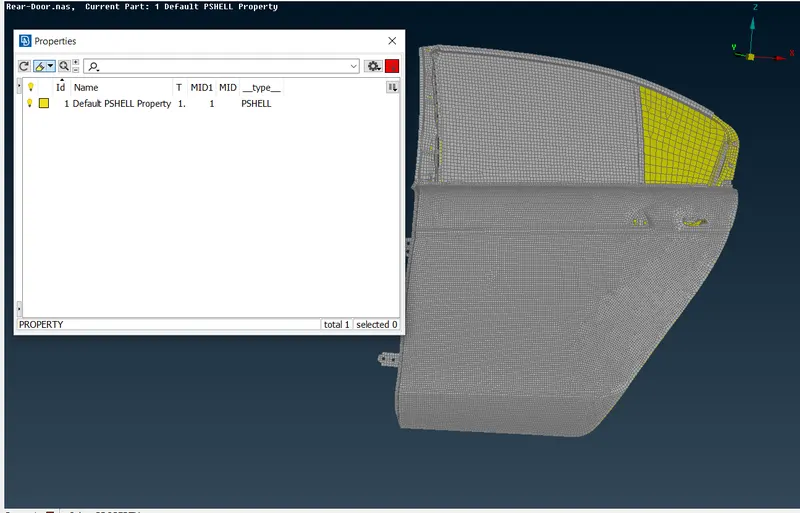
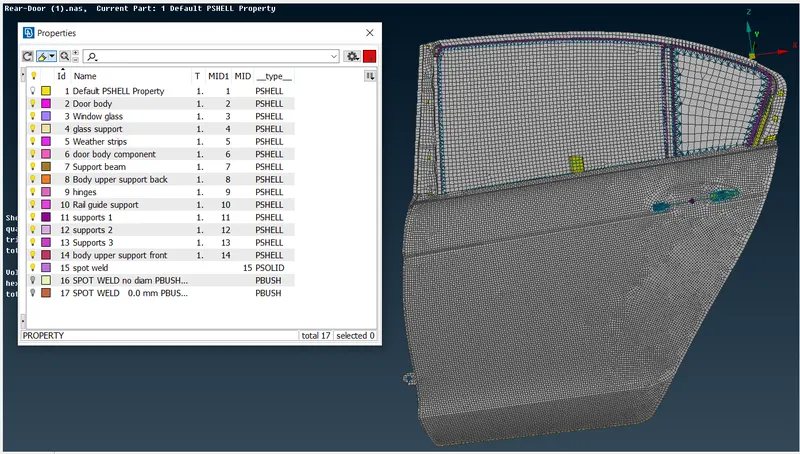
- After importing the model into ANSA, the FE model is used to create the connections. Each part is separated using “iNot” option and PID is assigned respectively.
- To assign the PID, properties is opened and a dialogue box will open. In the dialogue box right click and select “New” then after “PSHELL” and then “PSHELL”.
- PSHELL dialogue box will open where properties like thickness will be given. To assign the PID to the part, right click on the property and select apply from the options available. Now the entities are selected for which the PID should be assigned.
- For all the entities PID should be assigned respectively.
Creating Connections:
- In this rear door connection, different type of connections is made like bolt connection, spotweld connection and CBUSH connection.
Bolt connection:
- Bolt connection can be made by two methods either by using Nastran Deck or by assembly deck.
- In Nastran deck, RBE2 connection is given by selecting entitites or nodes. To use RBE2 connection enter into Nastran deck and select RBE2 and then many node present in elements. After that select the nodes or elements where the bolt connection has to be made and on clicking the middle mouse button variours options like DOF , No of nodes, element ID will be display.
- Now click on finish to complete the bolt connection.
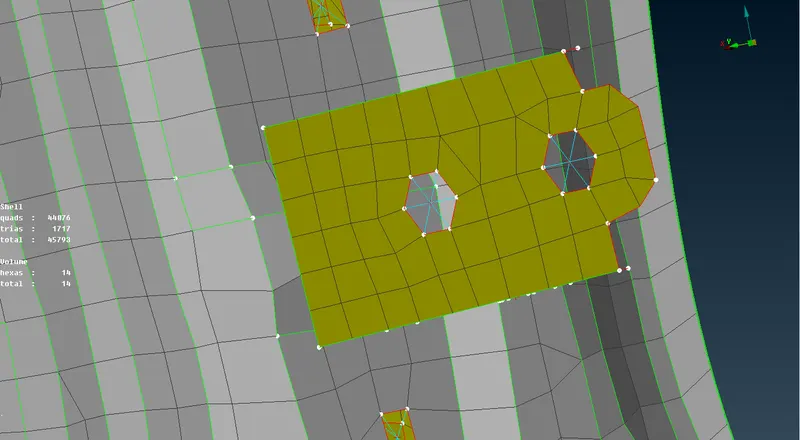
- In Assembly Deck, connection is made with reference to a 3D point. To create a 3D point, select on COG present in points in topology mode.
- After generating the 3D point, transform it into bolt connection by using convert option present in assembly deck. Bolt shaped point is generated. Now open connection manager and select the bolt shaped point and click ok. A dialogue box appers where parts are selected by clicking on P1, P2 and so on respectively.
- After selecting the parts, FE rep type is selected as BOLT. Clicking on Apply and realize will generate the connection.
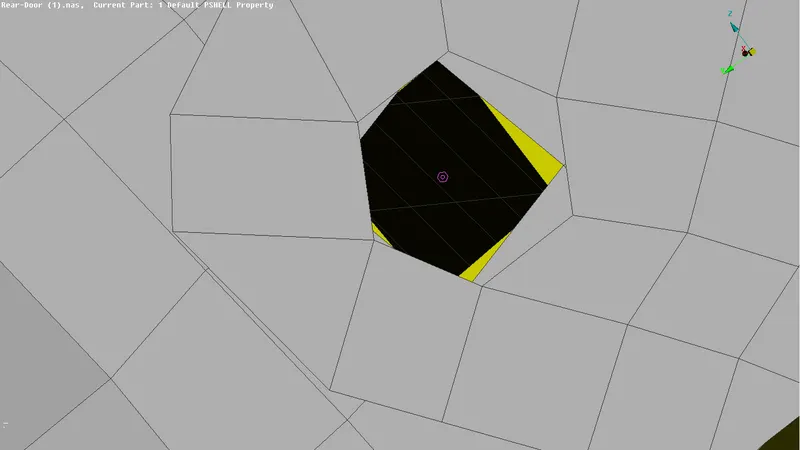
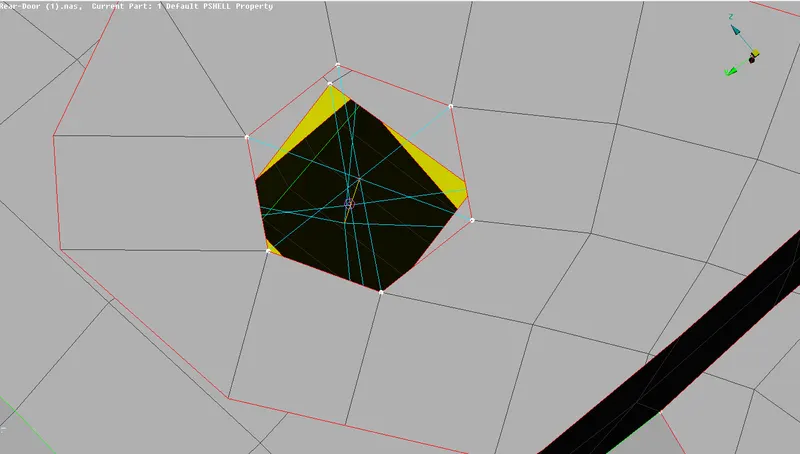
- By using the same procedure bolt connection is made.
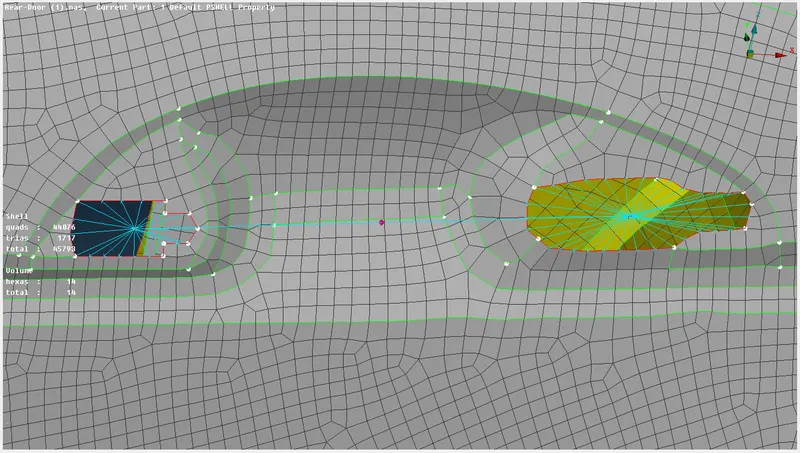
- Some parts like rear view mirror, door handles are not modelled but instead mass is assigned at the COG of that part. In this model, the door handle is modelled. for the holes RBE2 > many node connection is given and after that RBE2 > many node connection is given by selecting the master nodes.
- Now mass is assigned using CONMi option present element. Mass is converted into tonnes and assigned at the COG of the door handle.
Spotweld connection:
- Spotweld connection is made when two parts are
- To create a spot weld connection, 3D point is created using on COG option available in points from topo mode. After creating 3D point convert it into spot weld point using convert option present in Assembly deck.
- Select the connection manager from the assembly deck and select the spot weld points. Now assign the P1 and P2 by using F1 option by selecting the respective parts and pressing on enter.
- Click on FE rep type and select RBE3-HEXA-RBE3 (which is a representation for spotweld in ANSA). PID for the spotweld is assigned by clicking shift+/ and new PID is created.
- Now click on Apply and realize, by this ANSA will generated the spotweld where the point is created.
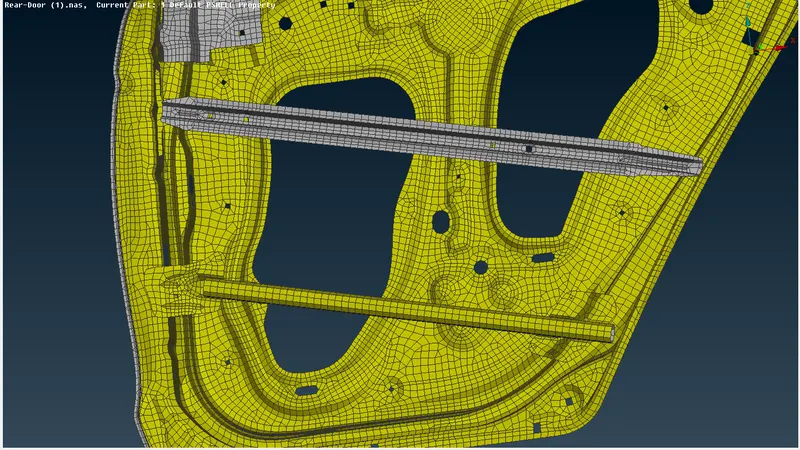
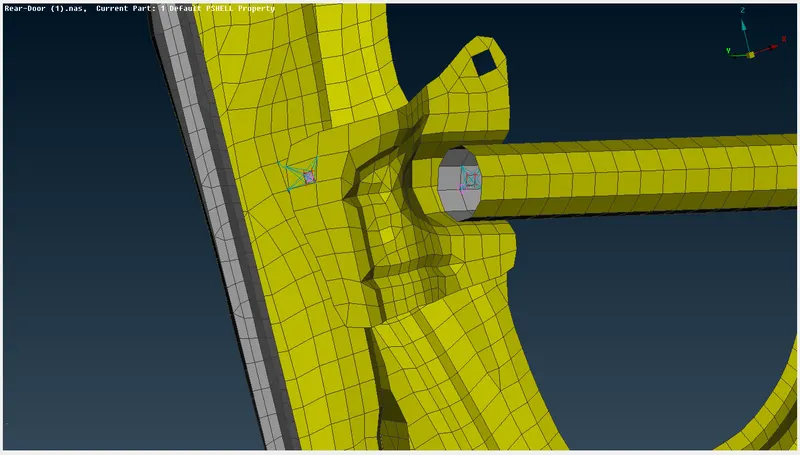
- By using the same procedure Spotweld connection is created where ever it is required.
CBUSH Connection:
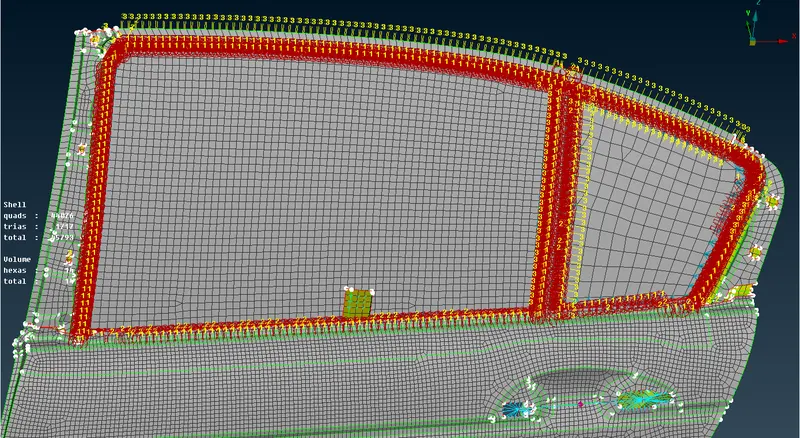
- Cbush connection is given where damping factor is required. For the rear door model, cbush connection is given for the window glass. There are two glasses, one is rigid one and other one is sliding up and down. For the rigid glass cbush connection (RBE3-CBUSH-RBE3) is given on both side of the glass but for the sliding one only one side of glass cbush connection is given.
- To create a cbush connection, first curve should be generated along the perimeter of the FE model. To create a cbush connection on the other side of the glass, the curve generated copied using transform > copy option present in utilities. Then the curve is converted into spotline using convert option present in assembly deck.
- After generating the spotline curve, connection manager is opened and spotline curve is selected. In the connection manager, P1 and P2 are given by selecting the respective parts. In FE rep type RBE3-CBUSH-RBE3 is selected and search distance is given as 50. Now PID is selected using shift+/ key. Now click on Apply and realize to create te cbush connection.
- Repeat the same procedure to create cbush connection where ever required.
Conclusion:
- For the given rear door model, PID is asssigned and necessary connections are made where ever required.