Morphing side body of a car and generating TCL command Script in Hypermesh.
Aim: To Morph the given side body component and create a TCL command file for the same.
Objective:
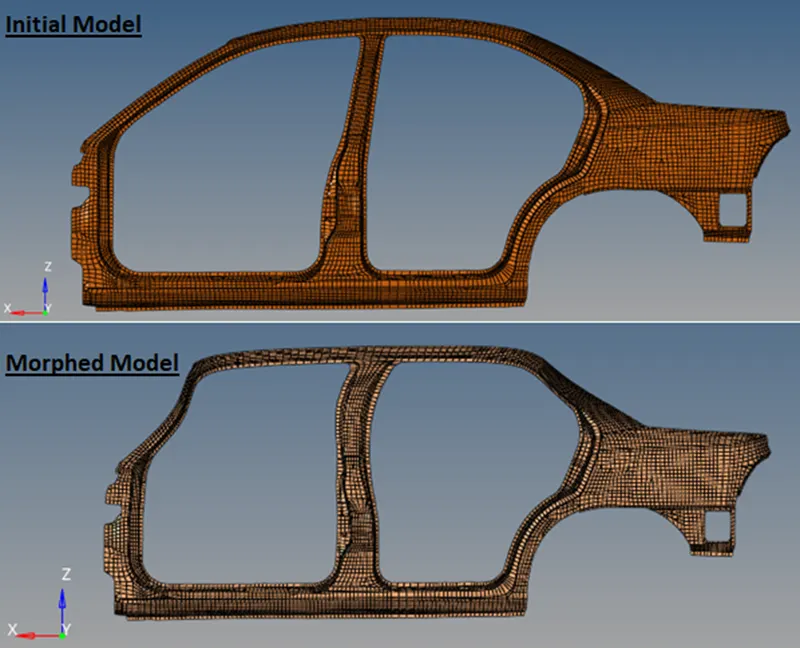
1. Morph the given side body component to the desired shape shown in the images below.
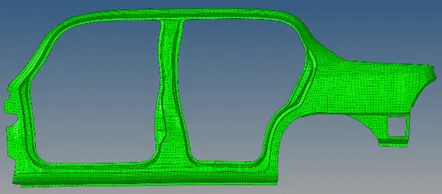
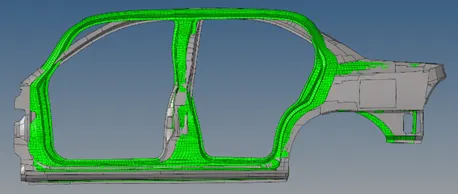
2. Write a Macro (TCL command file creation)for the same.
Note: Before doing the morphing, delete the previous commands that have been recorded in the command.tcl (In Documents) and save the file without changing the filename.
Introduction:
Morphing allows the CAE engineer to modify the geometry of the FEM model, i.e., apply a shape change to an actual mesh, e.g., change radii, thickness of ribs, shape of hard corners, etc. Quite often the morphed FEM model can be exported instantaneously (without any remeshing) allowing the CAE engineer to re-run the analysis of the modified part on the fly.
Steps Taken for Morphing and creating TCL command file:
- TCL File Location:
.TCL file is located in
This PC -> Documents
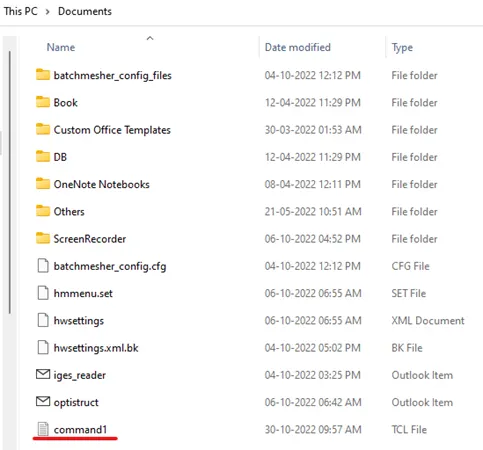
Open the file with note pad, delete all the text and save the file.
- Open Hyper Mesh
Import the solver deck.
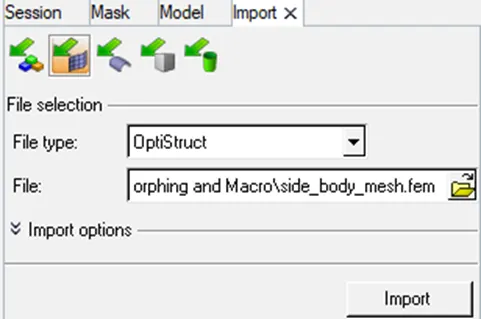
And as we can see the model is already meshed. And all we need to do is to morph the meshed model.
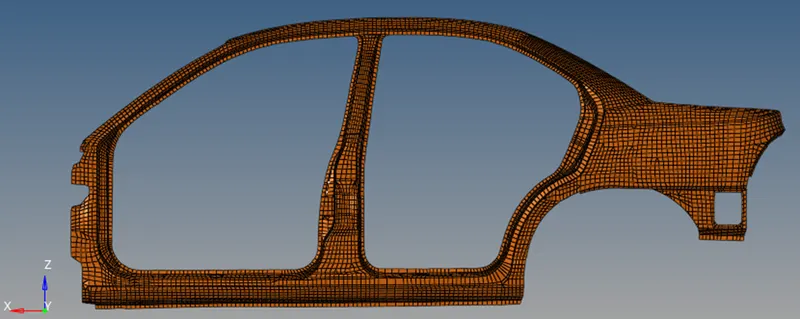
- Morphing the model using Volume morph option in hypermesh:
Go to, Tool -> Hypermorph -> Morph volume

Select the displayed elements and click on ‘create’.
Volume domain with handles (Red Dots) are as shown below.
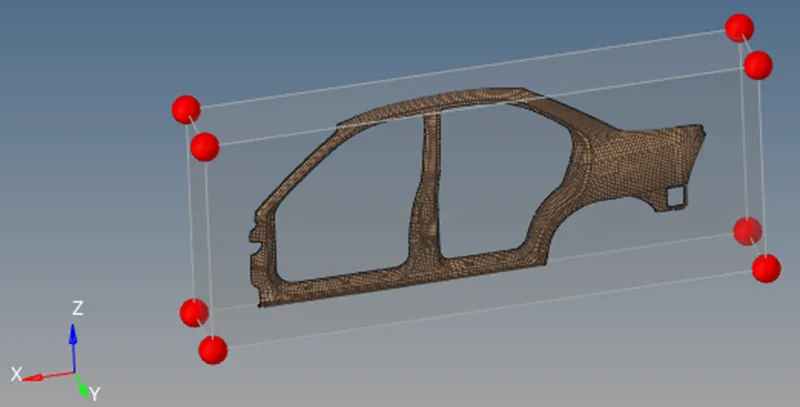
Use ‘split/combine’ to split the volume into small compartments. This will create more handles which will give more flexibility while morphing.

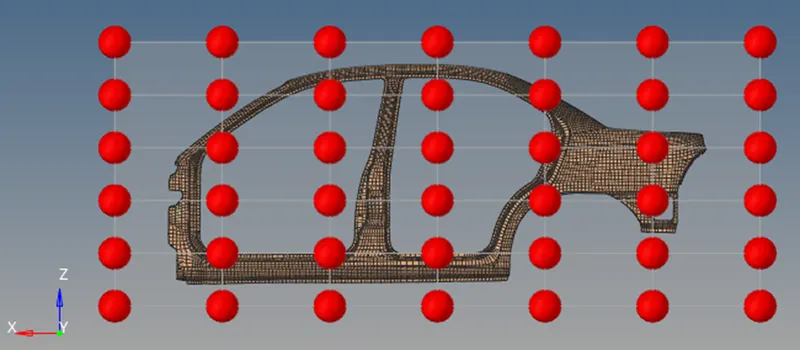
Now, Go to ‘update edges’ to free some of the edges. This will restrict the movement of some of the unselected edges.
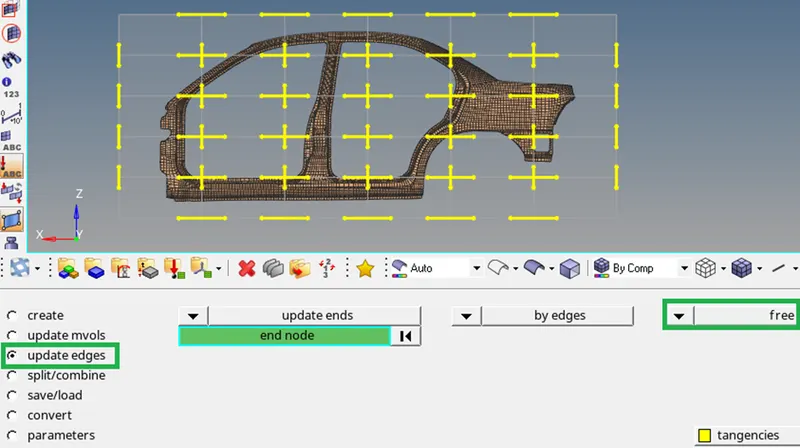
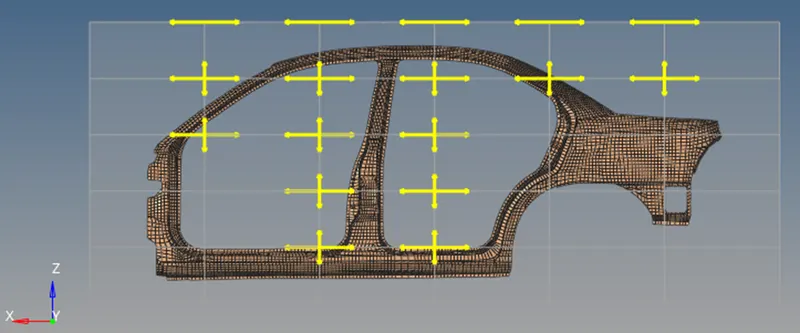
Again, Go to, morph -> move handle

We can alter the model by moving the handle as shown below.
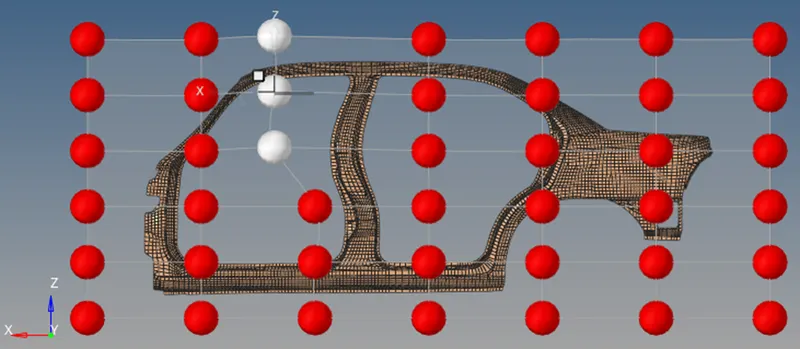
Finally, delete the domain volume to see the final morphed model.
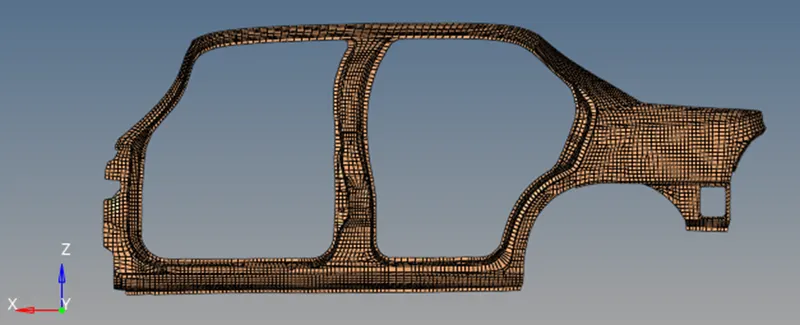
- Morphed model
- Saving the TCL file for later reuse
We can rename and save the TCL command file for later use. If we re-run the TCL file this will automate the morphing process that was used in this assignment.
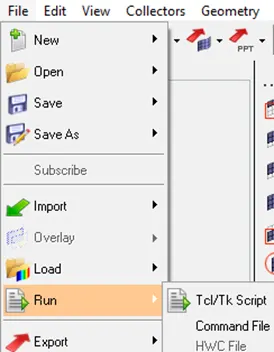
We can re-run the script by going to, File -> Run -> Tcl/Tk Script.