HOOD(ANSA)
HOOD
AIM
For the given CAD model (HOOD) we need to extract the mid surface and the do the preprocessing with the given mesh parameters.
|
S.No |
Quality Criteria |
Value |
|
1 |
Target/Average length |
5 |
|
2 |
Minimum Length |
2 |
|
3 |
Maximum Length |
7 |
|
4 |
Aspect |
3 |
|
5 |
Warpage |
15 |
|
6 |
Skewness |
45 |
|
7 |
Jacobian |
0.7 |
|
8 |
Minimum Quad Angle |
45 |
|
9 |
Maximum Quad Angle |
135 |
|
10 |
Minimum Tria Angle |
30 |
|
11 |
Maximum Tria Angle |
120 |
|
10 |
Tria Percentage |
15 |
Procedure
- Import the cad model and check the errors with the check manager.
- If you find any error in the check manager, we must correct them and proceed to further processing as in the given Hood model there were no errors detected in check manager.
- Check the thickness for each component by measuring option please find the image on how to measure thickness.
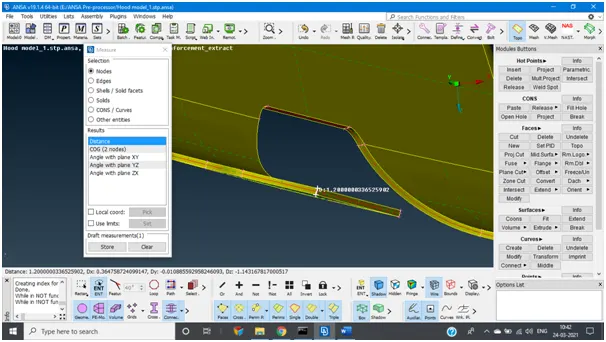
You can find measure option in utilities
- After measuring the thickness extract the mid surface by using offset option.
- In the below image we can see that the one side of the faces are selected to extract mid surface.
- To select faces there two methods:
- We can select manually by clicking on the cross lines on one side of the surface.
- Other method by using the feature caption option set an angle and select any of the cross line this will select the whole one side of the surface.
- We must repeat the same procedure for all individual components.
By this we can extract the mid surface for all the components.
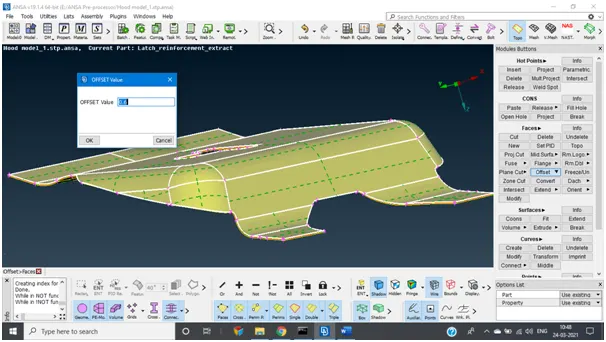
- Now comes the geometry clean up after Mid surface been extracted, we can find some geometrical errors.
- To remove the errors certain commands are used such as:
- Cut
- Topo
- Creating new surfaces if necessary
- Delete hot points at unnecessary places (to delete go to TOPO> Hot points>Delete(select the points))
- As mentioned above the repeat same procedure for all other components.
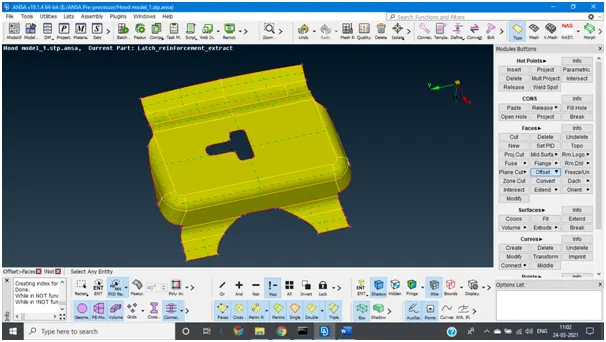
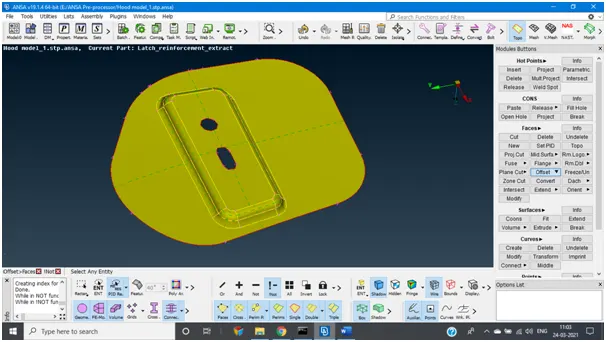
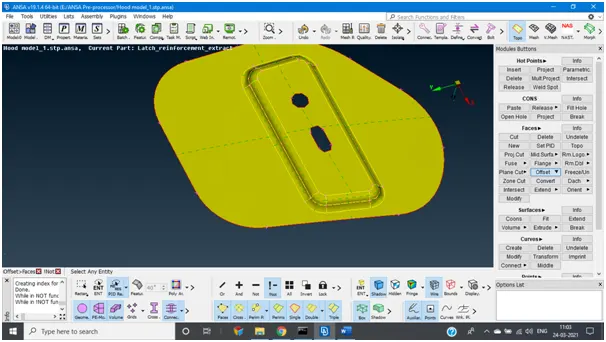
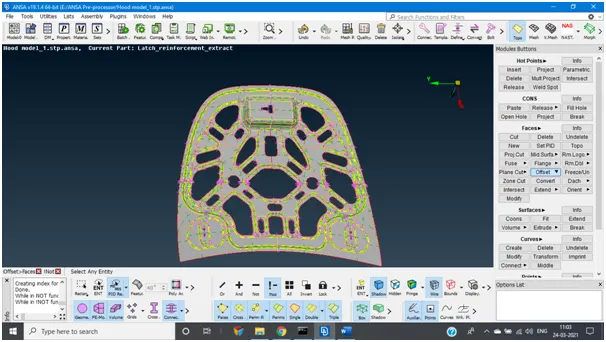
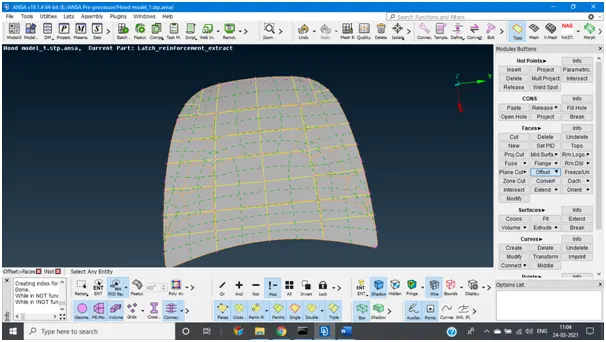
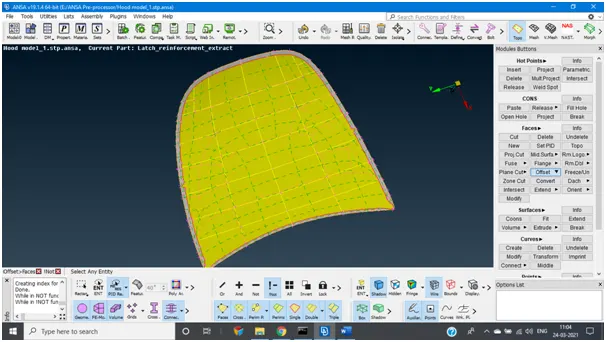
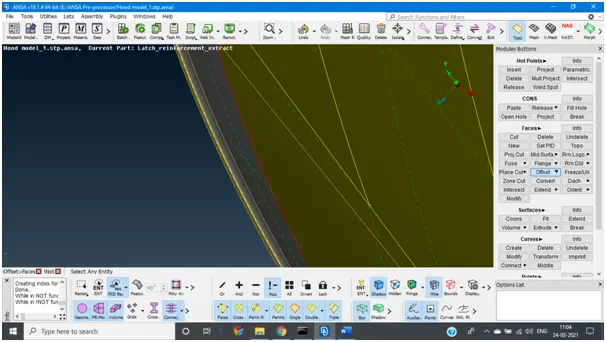
- Above the images are the result of the mid surface extraction. In the last image if we observe hemming part is captured by one double con this will the satisfy our mesh parameters.
- Now the whole component is ready for the mesh.
- To mesh the components, go to Mesh > Mesh generation > spot mesh / Free mesh now select the face and click the middle mouse button to generate.
- If you find any errors in the mesh, please reconstruct the mesh area to remove the off elements.
- This process will continue for all the components.
- There are other ways to rectify the errors.
- Split option in mesh >elements> split here we can find the 3 types based on the requirement use either of them.
- Swap the elements wherever there adjacent tria elements.
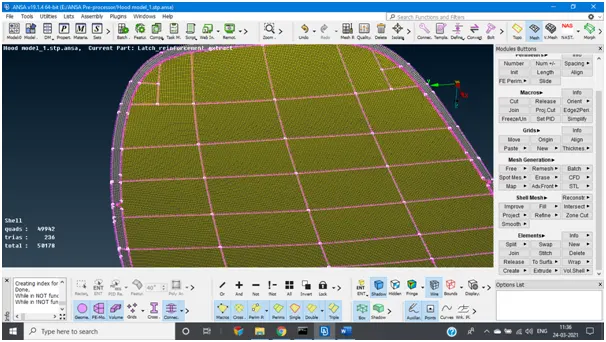
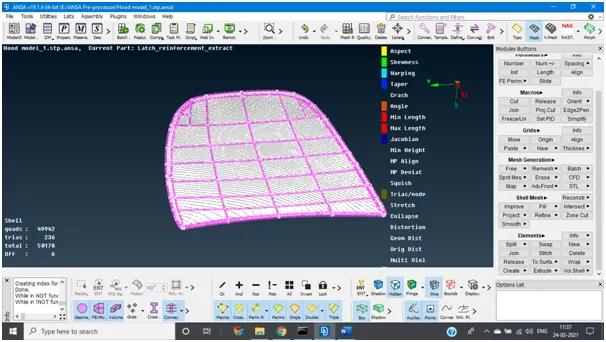
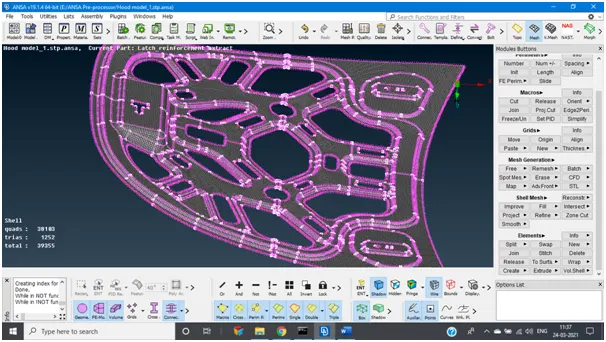
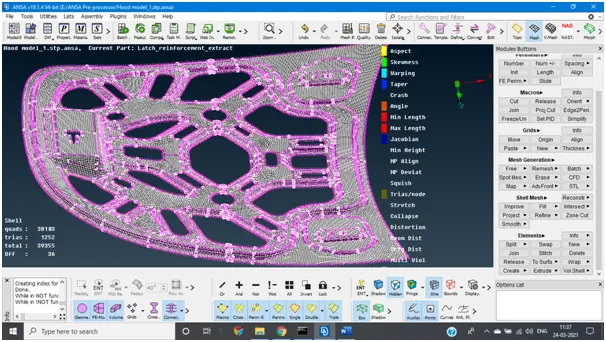
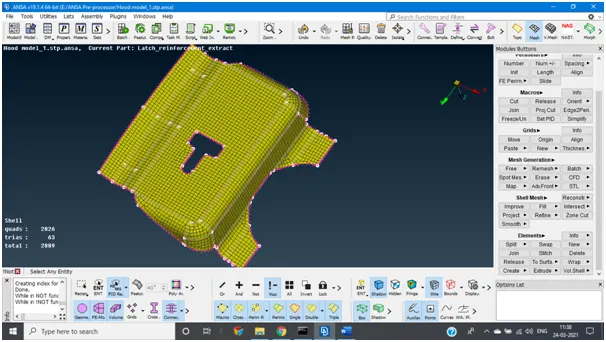
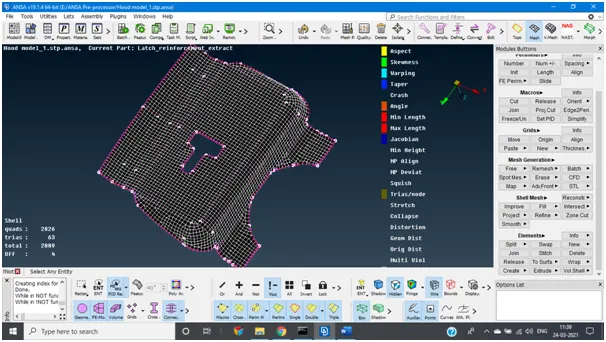
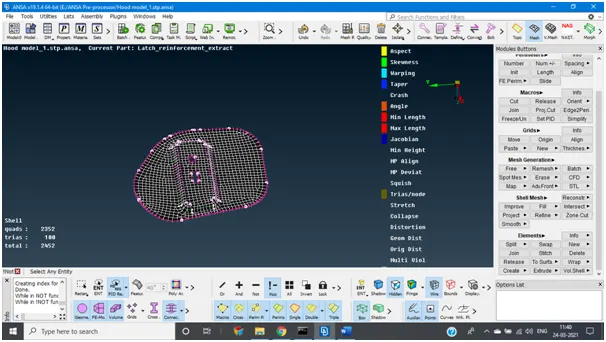
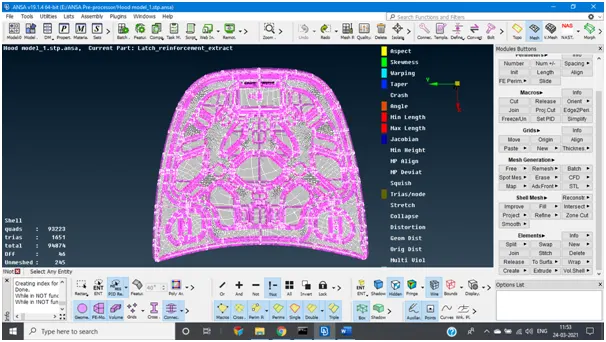
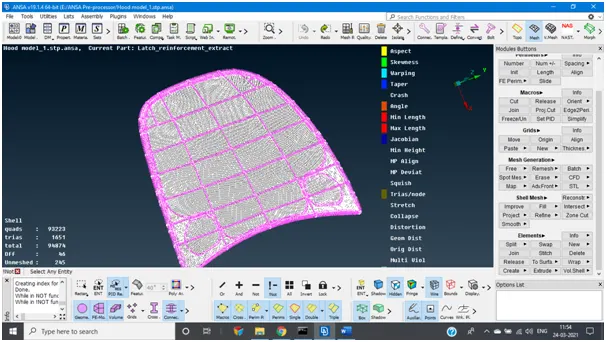
- Above images represent the meshing of each component and mesh parameters.
- If we observe the inner panel and outer panel has symmetry surfaces on two sides. For this kind we can mesh on one side and make a symmetry to other side. After if we find any Topological errors do the topo for the model.
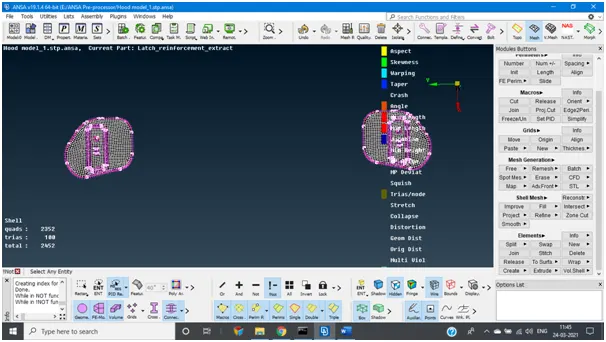
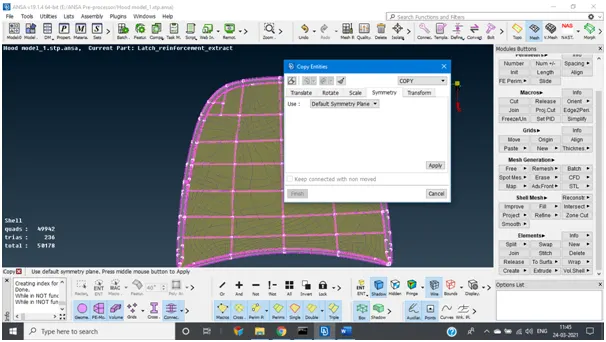
In the above image it represents on how to do the symmetry for the surfaces.
Go to Transform > copy > select the entities >symmetry > select default symmetry plane > finish.
Apart from the default symmetry we can use other options too.
Learning Outcomes:
The reason for the preprocessing is companies cannot make a prototype and make a testing on it because this will lead to wastage of time and money. To overcome this CAE came into effect here we do FEA model once the parameters are satisfied boundary conditions are made and analysis is done on the model this will save lot of time and money.
Conclusion:
To conclude the model has gone through all mesh parameters with less elemental failures.