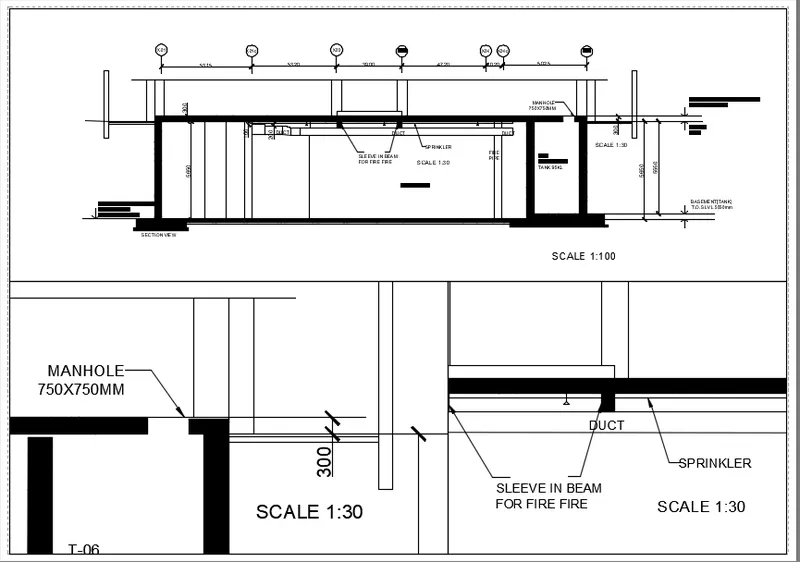
Creation of Multiple viewports, Scaling the drawing and setting in Template in AutoCad
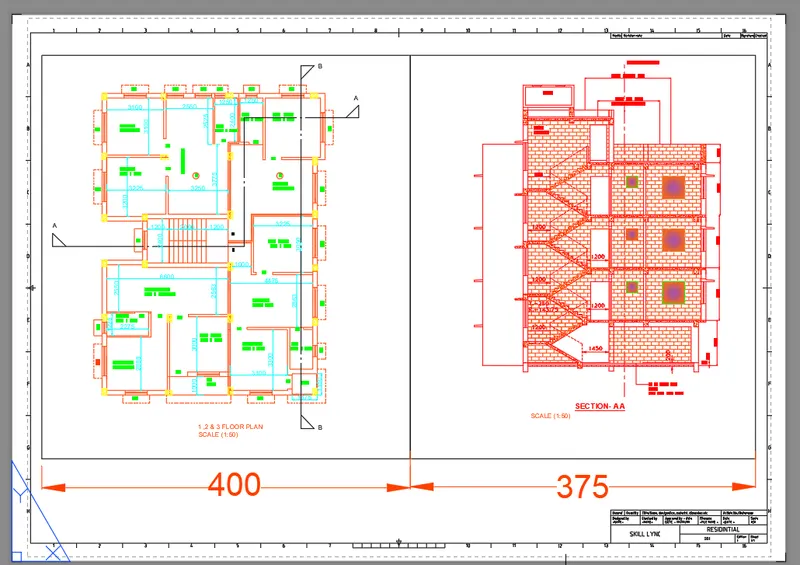
Aim & Introduction: To create layout and plot the plan and section of the project challenge 7 by using template of mArch.dwt in auto cad by using MV command to create the viewport of the size asshown in Figure and also, use ATTEDIT command to edit the information in the title block. the size for the layout is A1.
command used :
- ps -paper space
- ms -model space
- mv - mview
- attedit
- pagesetup
- view
Procedure:
Open drawing of challange 7
got to layout 1
pagesetup> select paper size :A1> apply
create rectangle of 400,438 and 375,438
Create view by using view command
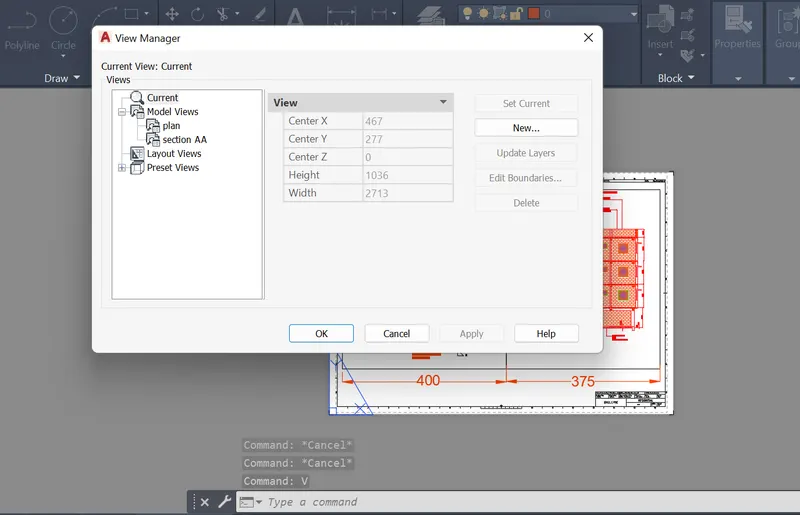
command : mv > object > select rectangle >
Change the scale of the view as 1: 50
ms> v> select plan > set current
ms> v> select section AA > set current
ps > change scale to fit as 1:50
attedit : select block > edit the text as per shown
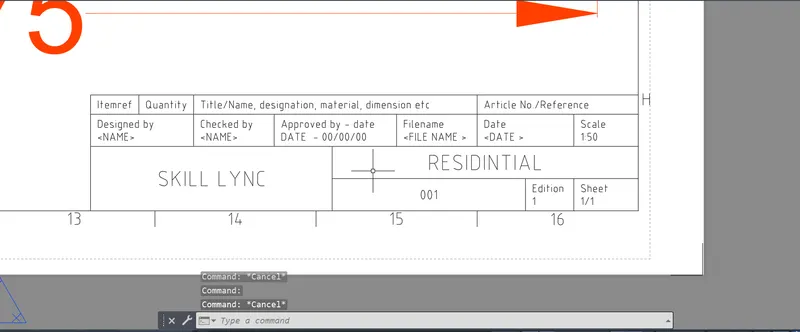
Result:
Aim & Introduction: To create the Kitchen layout with4 views along as shown in the figure
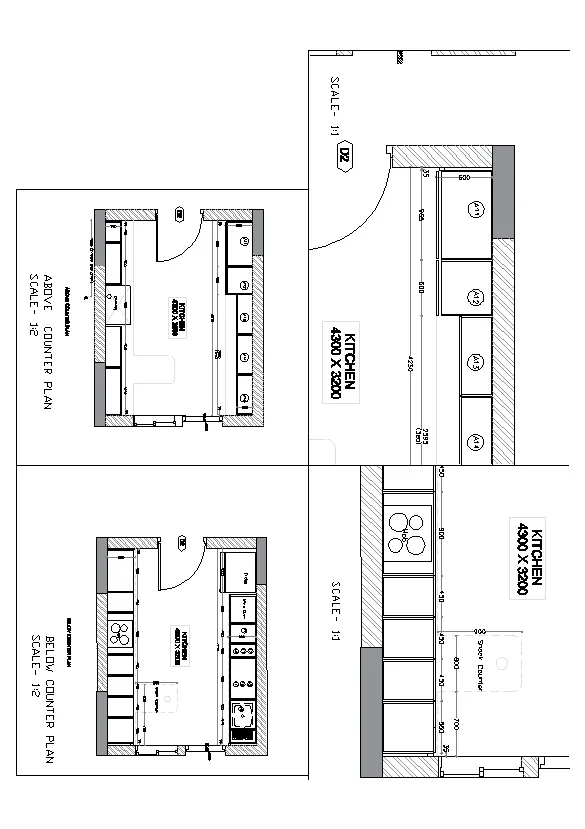
command used :
- ps -paper space
- ms -model space
- mv - mview
- attedit
- pagesetup
- view
Procedure:
Open drawing of challange
got to layout 1
Create view by using view command
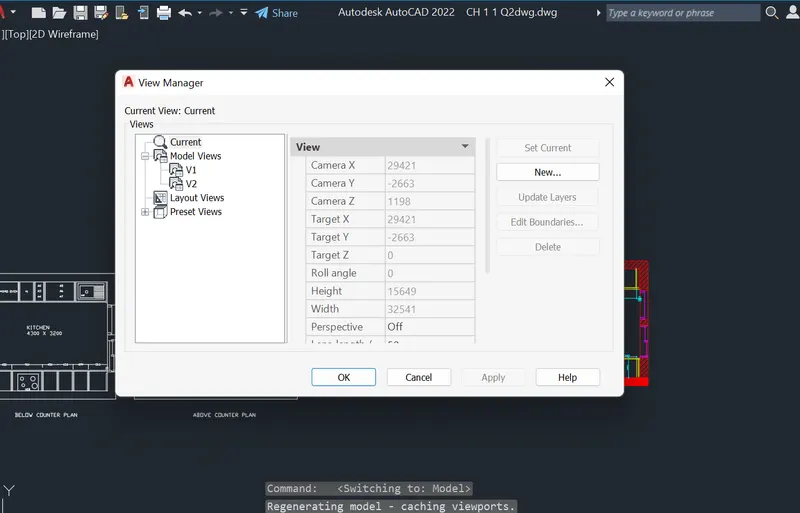
command : mv > 4> specify point > specify opposite corner point point
ms> v> v1 > set current
ms> v> v2 > set current
create a 1:1 layout for another two as shown in figure
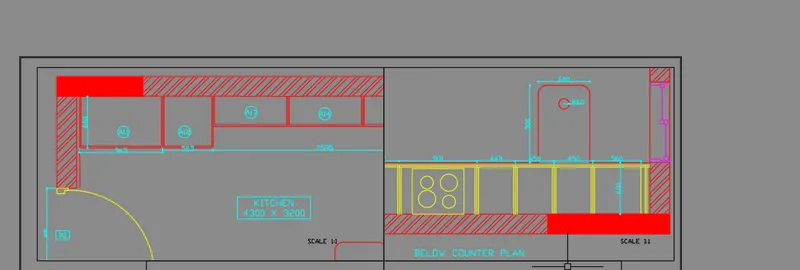
Change the scale of the view as 1:2
ps > change scale to fit as 1:2 for below views and 1:1 for above view
attedit : select block > edit the text as per shown
Result:
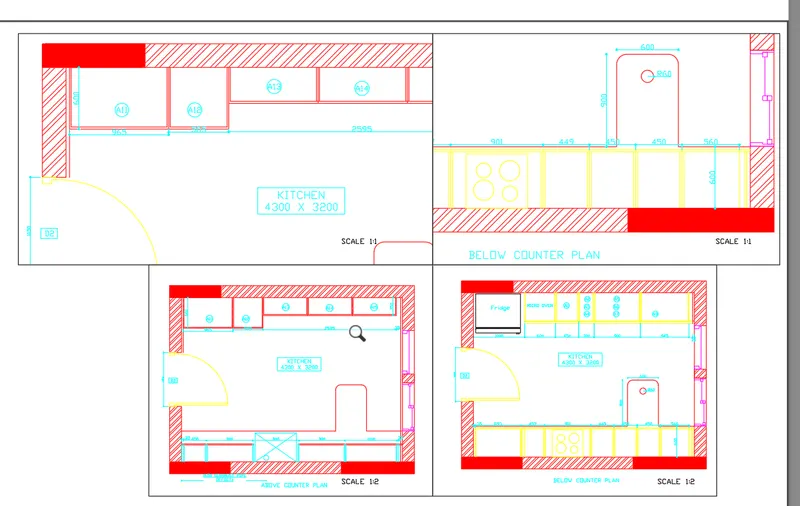
Aim & Introduction: To create the Kitchen layout with4 views along as shown in the figure
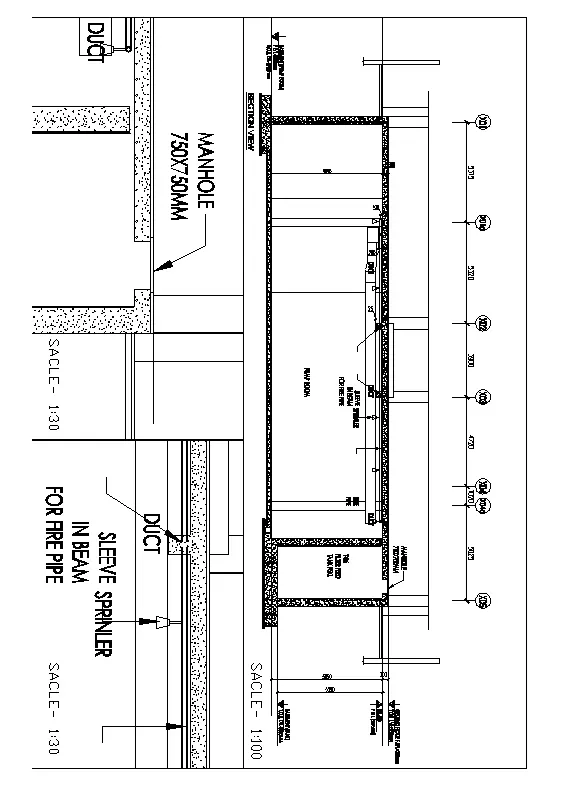
command used :
- ps -paper space
- ms -model space
- mv - mview
- attedit
- pagesetup
- view`
Procedure:
Open drawing of challange
got to layout 1
Create view by using view command
command : mv > 3> specify point > specify opposite corner point point
set views with view command
set a scale for views
adjudt at view prt
Result: