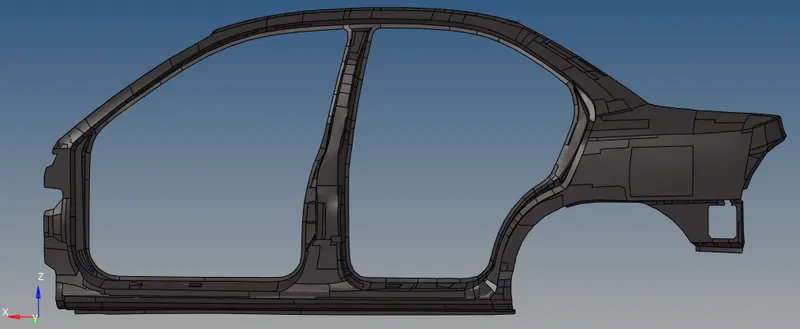
Creating Model, Mesh and extracting CAD model using Hypermesh.
To create a simple bracket in HyperWorks using the given 2D Drawing.
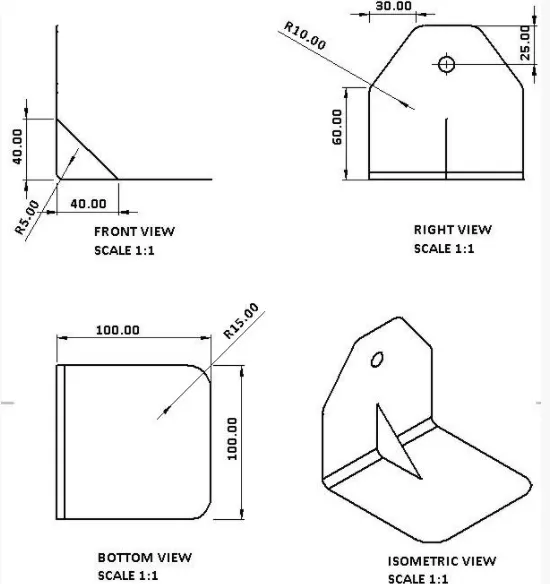
Steps Taken:
- The model was created by going to the ‘Geometry’ tab.

- Then by making use of nodes, lines & surfaces tabs and underlying tools, the geometry and the surface was created.
- Final model is shown below:
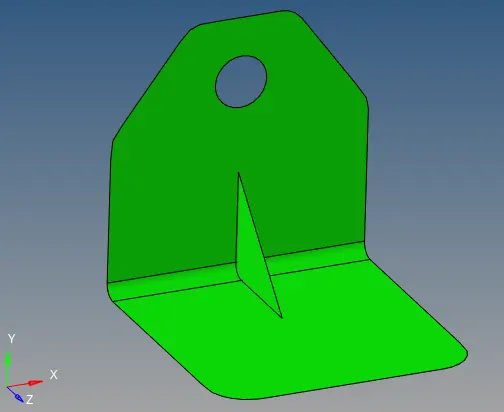
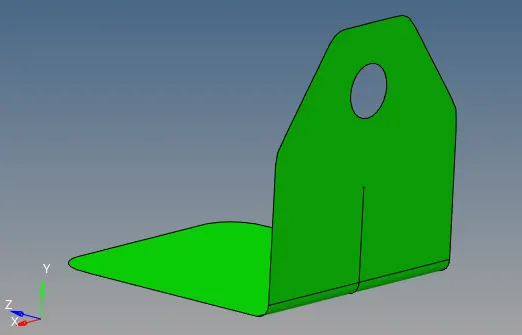
To mesh the given component using the target element size of 5units.
Component to be meshed:
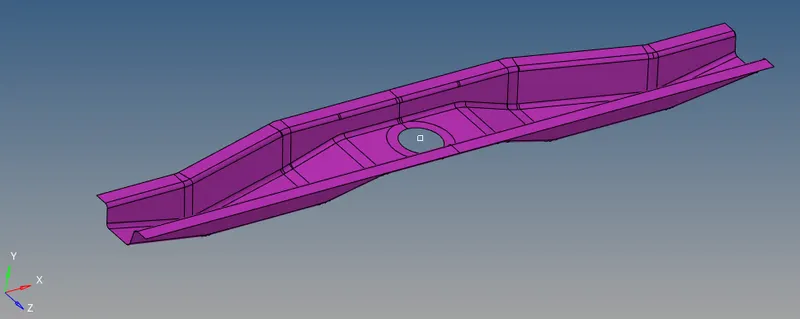
Steps Taken:
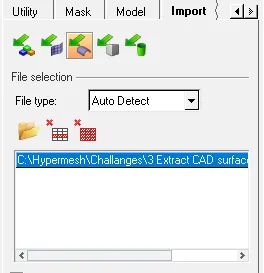
- Import the model to Hypermesh work page by clicking on import model option and selecting the appropriate file.
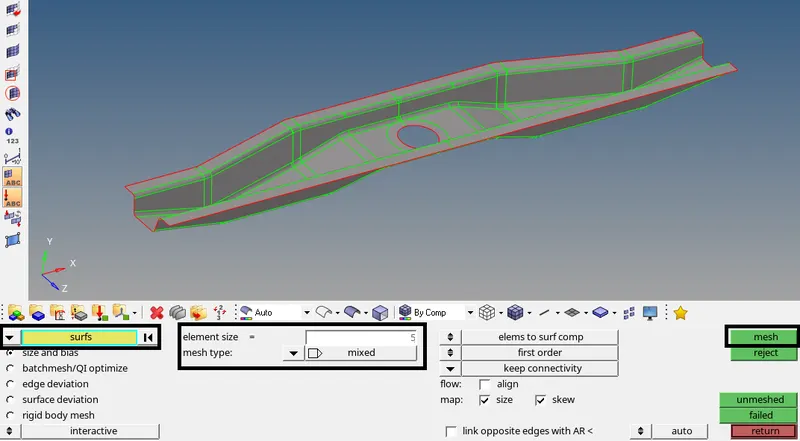
- Since, the model is a sheet metal we will perform 2D meshing by using quard and tria elements. This can be done by clicking on the ‘2D’ radio button followed by ‘automesh’.

- Then choose the ‘element size’ as ‘5’ and ‘element type’ as ‘mixed’. After that, select all the surfaces to be meshed and finally click on the ‘mesh’.
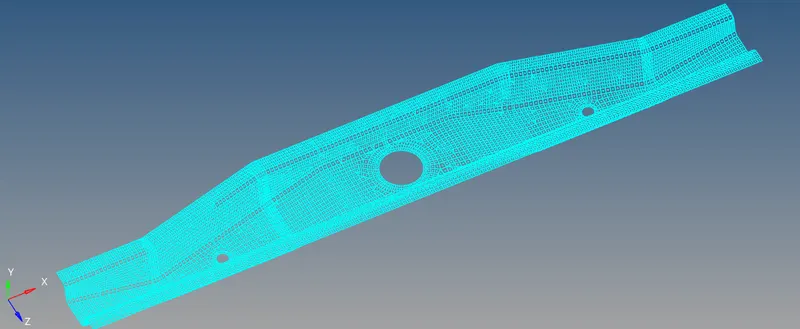
- To ensure the meshing is done properly we need to make sure there is a proper mesh flow and symmetry in the meshed geometry. This can be done by reducing the tria elements by tweaking the number of nodes. The final meshed surface is as shown below:
From the given FE model extract the CAD surface.
The file that we have is in “.FEM” format, that means it is an OptiStruct deck file. To open it we can follow the following steps:
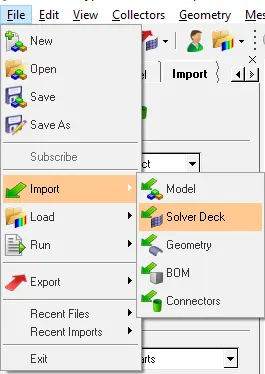
- Click on ‘Files on menu tab. Select ‘Import and then ‘Solver Deck’.
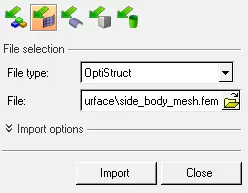
- Then browse for the required file and click on import.
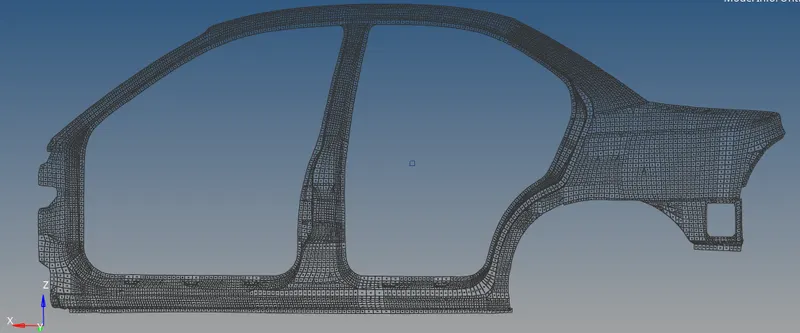
- Imported solver file is as shown below:
Extracting CAD model by creating Surface:
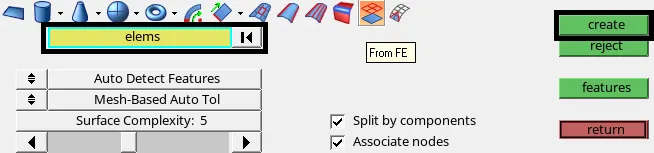
- Select the ‘Geometry’ option then click on 'surfaces'.

- Then select the ‘from FE” option and select all elements. Finally click on ‘create’.
- This will create a CAD surface, as shown below: