Automotive Bumper Design
AIM & OBJECTIVE: To create the Bumper's Plastic-Component using the Class A Surface that is provided. Desired Thickness of the Plastic Component is 3mm with 3 degrees as the Draft Angle.
Firstly, we have to create the required Tooling-Axis for the given Class A Surface while meeting the requirements of the necessary Draft Angle & then perform the Draft-Analysis Operation on the Class A Surface itself.
After that, we have to create the required Class B & Class C Surfaces using which we have to create the Final Plastic Component and perform Draft Analysis on it as well.
MAIN REPORT:
Types of Surfaces and their importance for an Automotive Plastic Designer:
- Class A Surface: Class A is an aesthetic surface with the highest quality finish. Most Class A Surfaces for an Automotive Component are made using 'Autodesk-Alias' based on the final Concept-Sketch. All Class A surfaces should have 'Curvature-Continuity' which means the continuity between the surfaces should share the same boundary. It is taken as a reference by the Automotive Plastic Designer to create 'Class B' and 'Class C' Surfaces.
- Class B Surface: The Class B Surface resides below the Class A Surface at a certain thickness. It is created using Engineering Principles that consist of all the necessary features such as Ribs, Bosses, Snaps, etc. This surface isn't visible to the observer from the outside.
- Class C Surface: The Class C Surface is the surface created between the Class A and Class B surfaces to join them with each other.
Now, we will begin by checking the State of Connectivity for the Class A Surface and ensure that there are no gaps between the surfaces as all the surfaces should be joined well together with each other and shouldn't consist of any discontinuities between them.
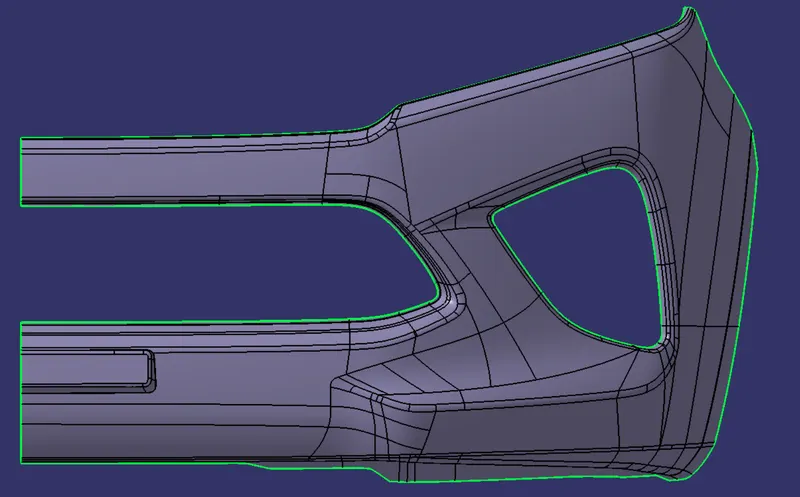
Our Class A Surface:
There are two methods to inspect the State of Connectivity for the Class A Surface:
1. Using the 'Join' Command' from the 'Operations Toolbar':
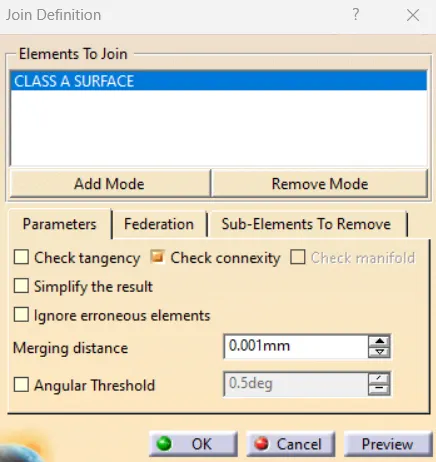
First, we'll click on 'Join Command' and select our Class A Surface. Then, we have to ensure that the 'Check Connexity' option is marked as shown in the images below. It will check for any gaps that may be present between our surfaces. Then, we'll click on the 'Preview' button and if it doesn't show any 'Connexity Error' on our surface then it means our surface is well-connected and there are no discontinuities between it.
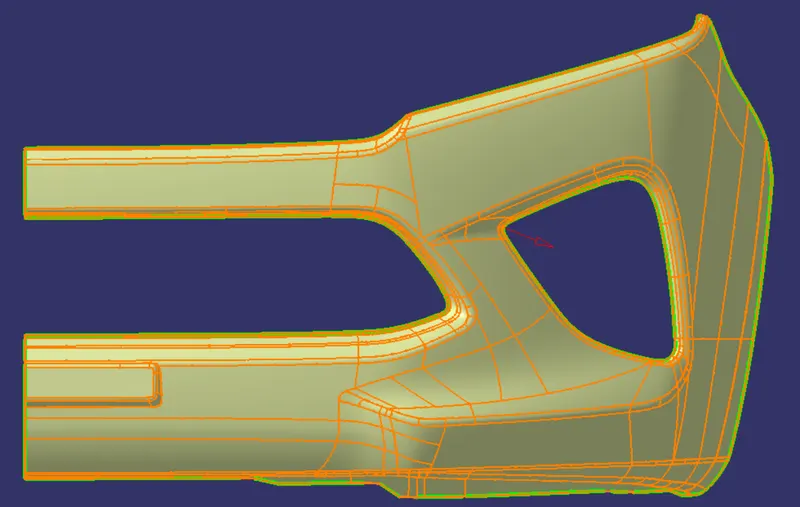
In our case, there are no 'Connexity Errors' for the given Class A Surface.
2. Using the 'Boundary' Command' from the Operations Toolbar:
In this case, we have to click on the 'Boundary' command and then select the Class-A Surface. After that, we'll click on the 'Preview' button to highlight all the boundaries that are on the Class-A surface and check if there are any internal boundaries other than the outer edge boundaries.
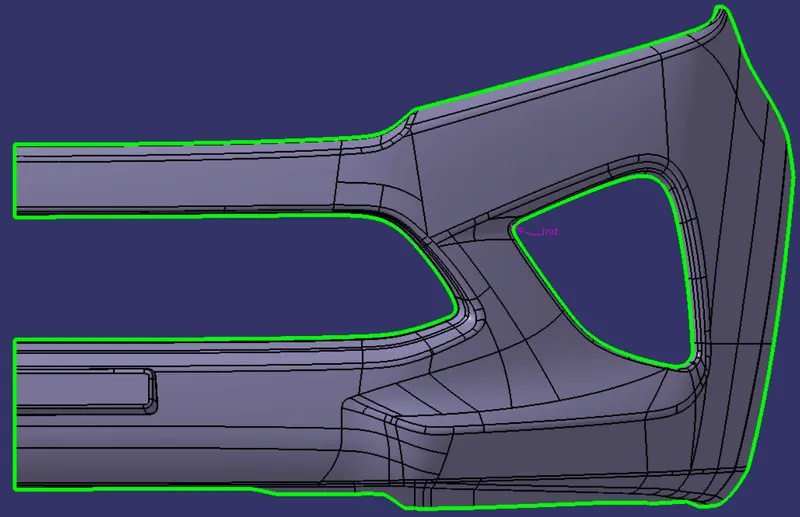
In our case, there are two boundaries present on the Class-A Surface one of which is the Outer-Edge Boundary & the other is Inner Hole-Boundary meant for the Fog-Light's section. Hence, we can conclude that all the surfaces are well connected.
PROCEDURE TO CREATE THE MAIN TOOLING AXIS:
There are two different methods that we can use to create the Main Tooling Axis for our Class A Surface.
1. Using a Vertex to create a line along the axis which allows us to view all the holes & exposes maximum surface area of the Class A Surface.
2. Using Inertia Method to find out the Center of Gravity and creating a line along it.
First, we'll view the Class A Surface from all three axes to determine the most suitable axis along which the Main Tooling Axis can be created.
A) VIEW ALONG THE Z-AXIS:
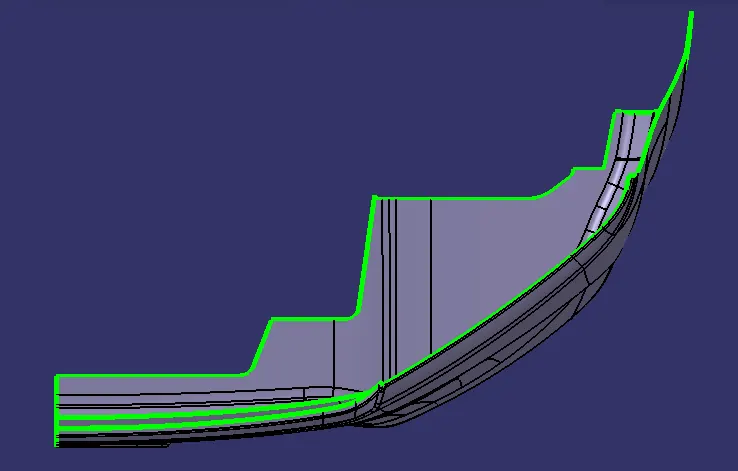
From the above image, we can observe that not much area of the bumper is exposed here and we cannot view either the hole section, not the cutout section from this viewpoint hence this will not be the appropriate direction for the Main Tooling Axis.
B) VIEW ALONG THE Y-AXIS:
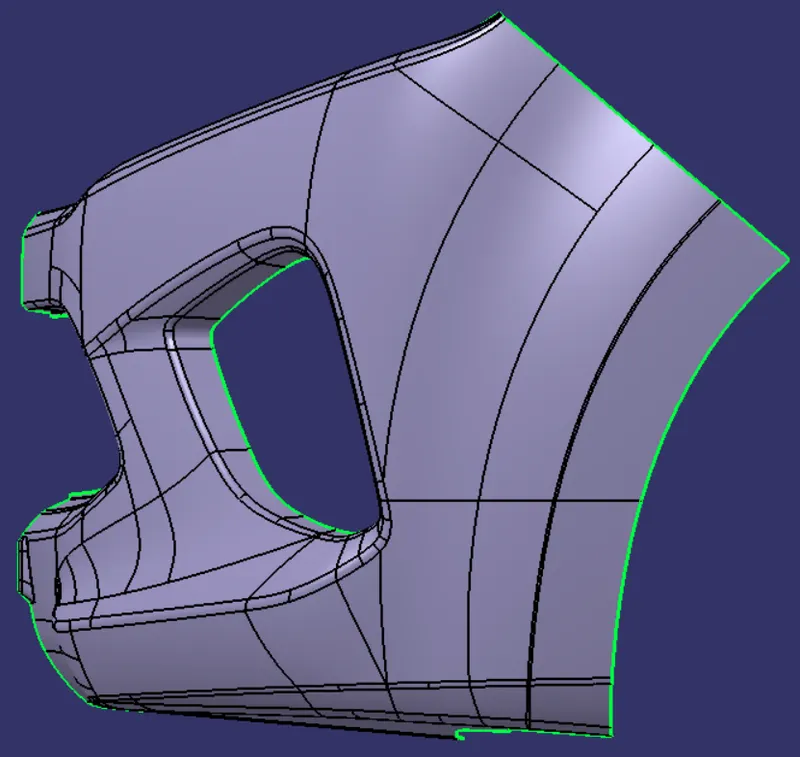
From the above image, we can observe that although more area is exposed along this axis compared to the previous axis but it is not sufficient as it'll be difficult to create the hole section and the cutout section from this direction.
C) VIEW ALONG THE X-AXIS:
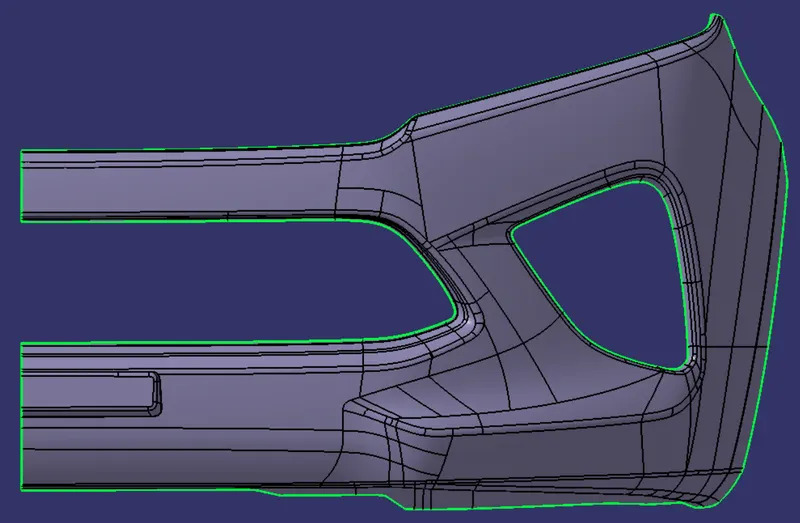
From the above image, we can observe that here the maximum amount of the bumper's surface area is exposed and we can view both the hole section & the cut-out section of the bumper concurrently hence making this direction the most suitable choice for the Main Tooling Axis.
METHOD TO CREATE THE MAIN TOOLING AXIS:
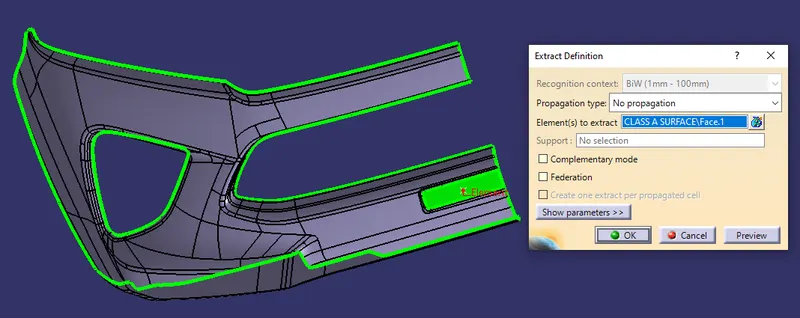
Now, to create our Main Tooling Axis, At first, we have to extract the surface shown below.
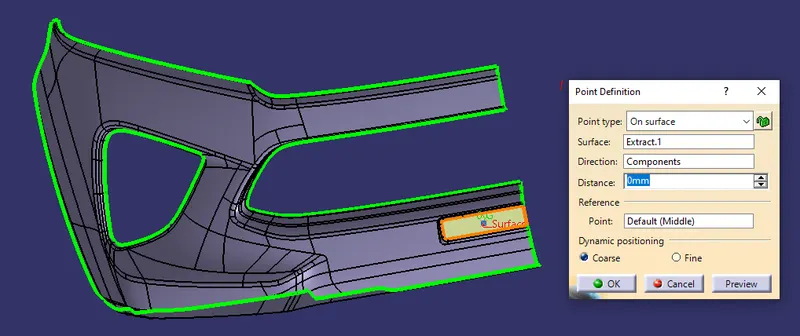
After that, we have to create a point as shown below for the tooling axis creation by using the 'Point-Direction' method.
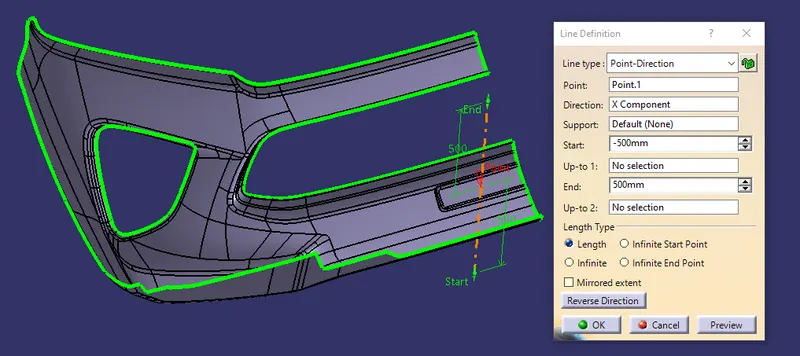
Now, we'll choose the extracted surface and the created point as shown in the image below to create a line using the 'Line-Definition' command while choosing our Line-Type as 'Point-Direction' where our direction will be towards the X-Axis.
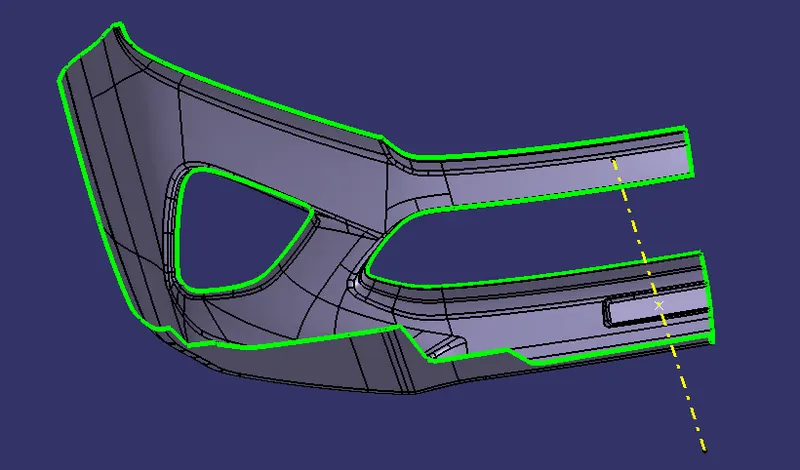
We're not 100% certain that this will be our Main Tooling Axis and to finalize it we have to perform Draft-Analysis and find out if this'll be the appropriate direction.
DRAFT-ANALYSIS FOR THE CLASS A SURFACE USING THE MAIN TOOLING AXIS:
Now, We will perform a Draft Analysis on the Class A Surface itself using the Main Tooling Axis:
Before starting with a Draft Analysis Operation, we will go to the 'Customize View Parameters' option under the 'View Toolbar'. Then we will enter the 'Customize View Mode' where we will go under the 'Mesh' option and select 'Material' and press 'OK'.
To start the Draft Analysis in the 'Generative Surface Design Workbench', we will go to 'Insert' and then look for the option called 'Analysis'. Once found, we will go under that and click on 'Feature Draft Analysis. This will open the 'Draft Analysis' Dialogue box. There, we will ensure that under 'Mode' we have selected 'Quick Analysis', under 'Display' we will select 'Show or Hide the Color Scale' and then select '3 Degrees' as the permissible draft angle. Then, under 'Direction' we will choose the icon with the symbol of the compass on it which stands for 'Use the Compass to define the new current draft direction'.
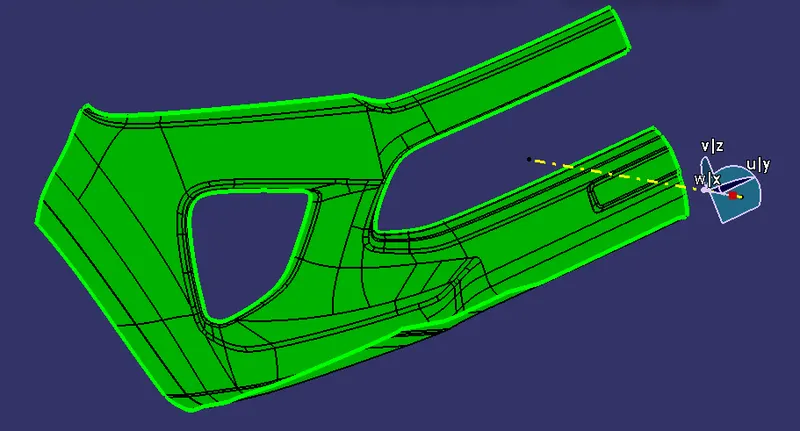
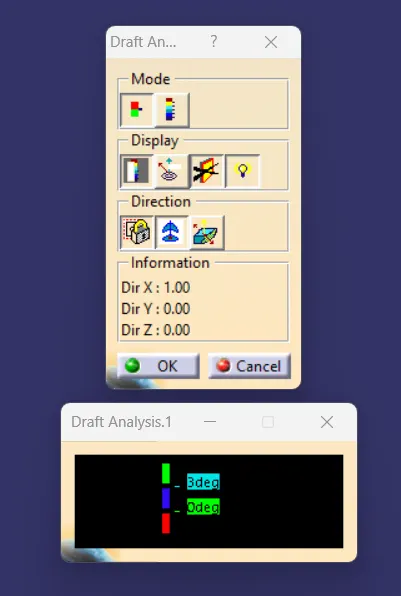
It is evident from the above image that the Draft-Analysis on our Class A Surface was successful and the component is feasible to manufacture.
PROCEDURE TO CREATE THE CLASS B SURFACE:
We'll start the procedure by creating an offset for the entire Class A Surface at a distance of 3mm as that is the desired thickness for our final plastic component.
As this is a complex surface hence the offset will fail to offset every element according to our necessity. It'll select some sub-elements that belongs to the filleted regions by itself that we have to remove to get the rest of the surface that is offsetted.
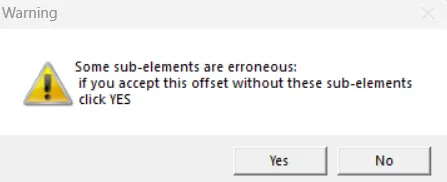
This warning will be shown when we'll try to offset the Class A Surface.
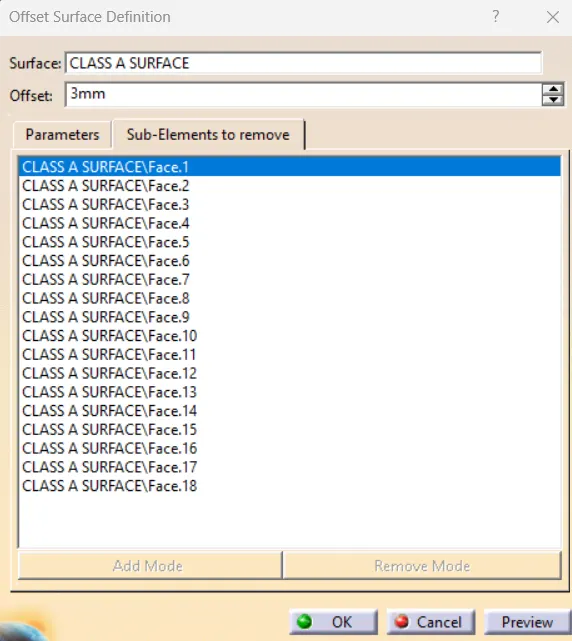
These 'Sub-Elements' will get selected by themselves to be removed if we want to obtain the rest of the offset surface.
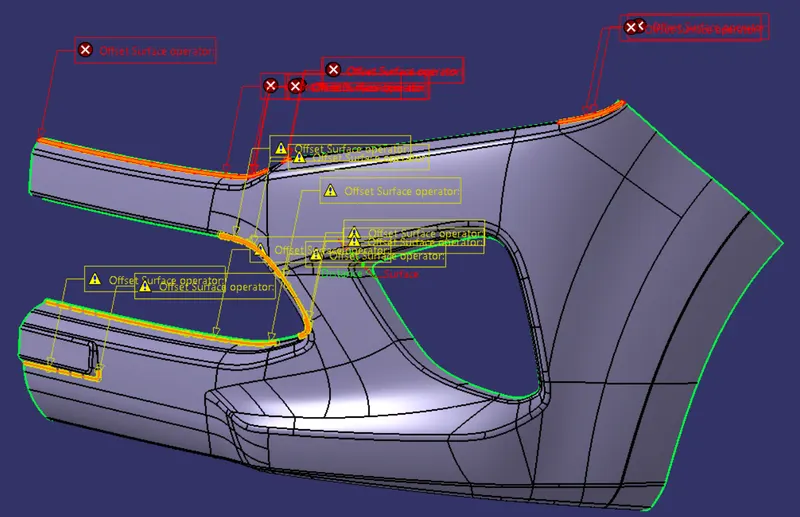
In the above image, CATIA is showing us the filleted regions where these sub-elements are located that are going to be removed after the offset operation.
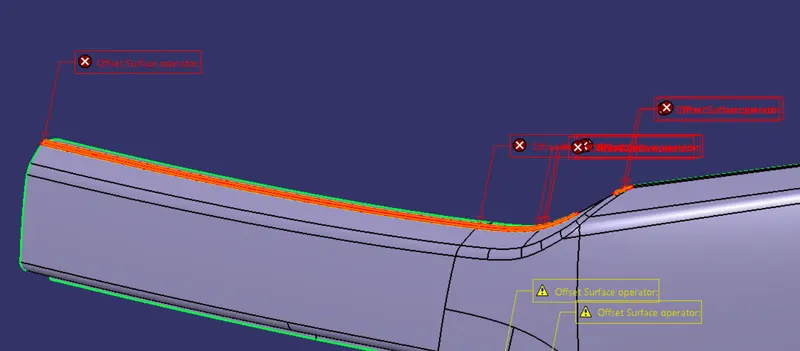
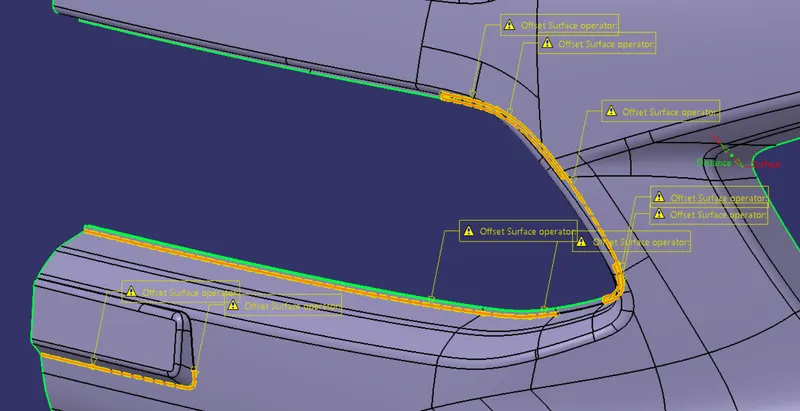
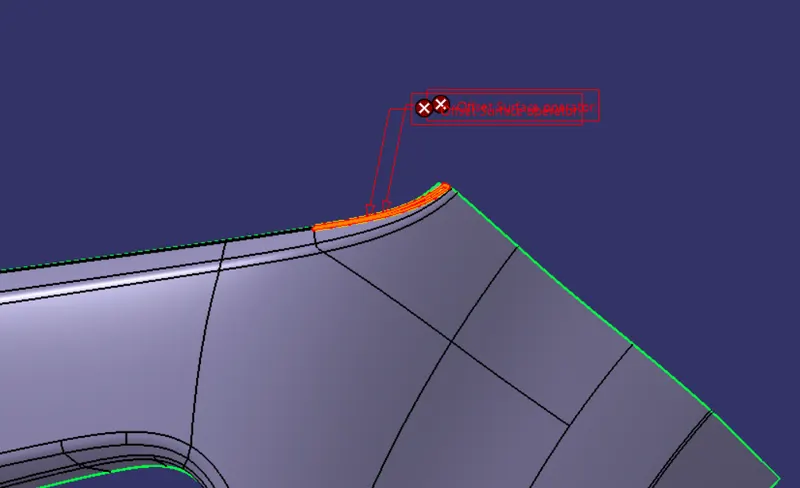
Now, we are going to remove the surface especially fillets which are creating problems by using the 'join' command.
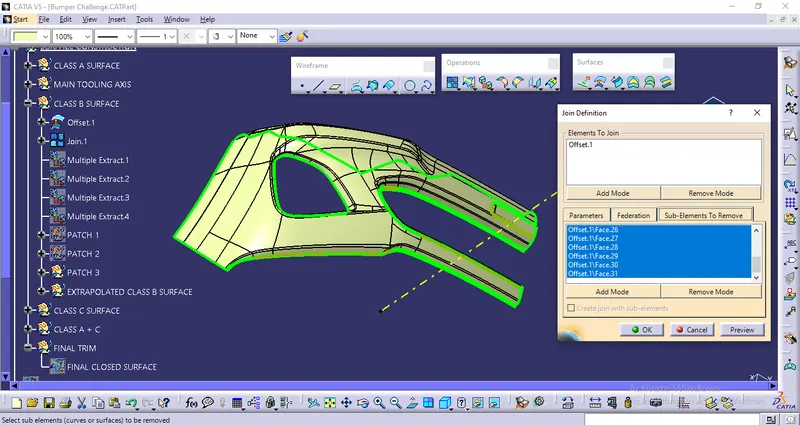
After removing all unnecessary surfaces we get four sub-elements and then we split the surface into 4.
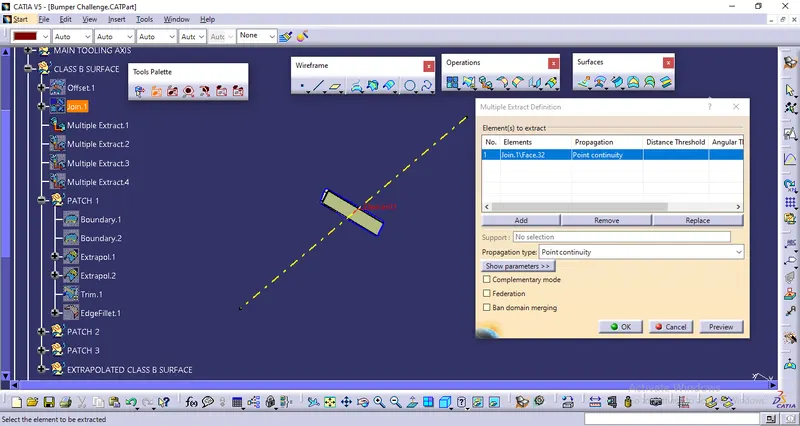
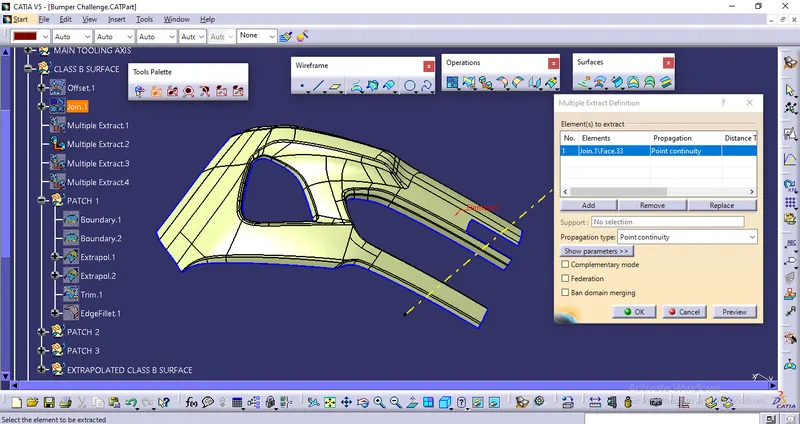
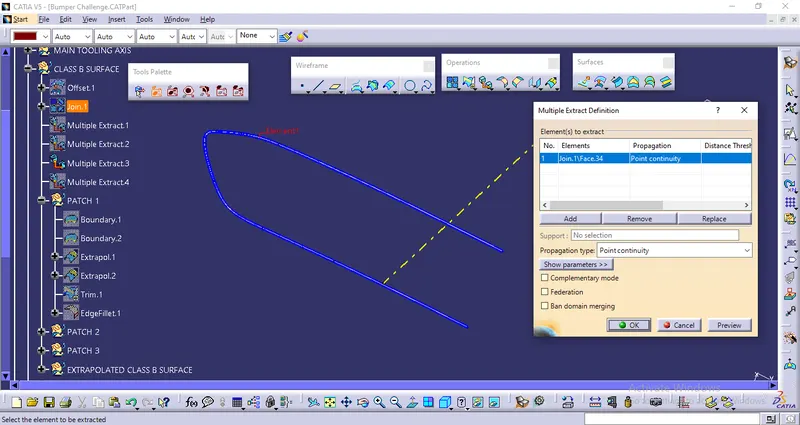
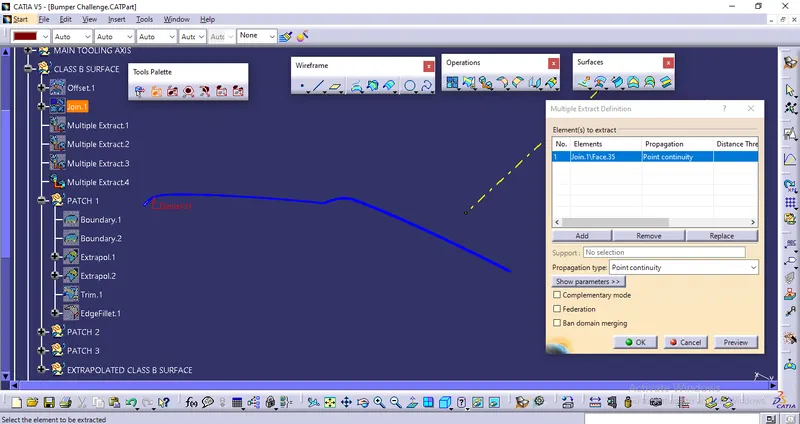
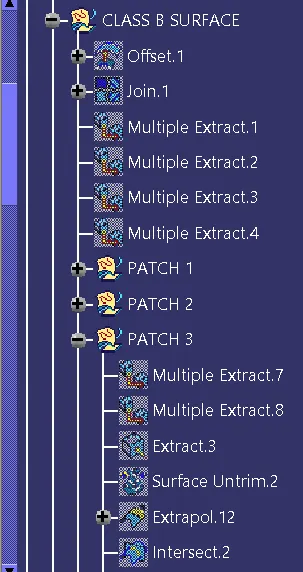
Now, we are going to fix all 3 Patches.
1. FIRST PATCH:
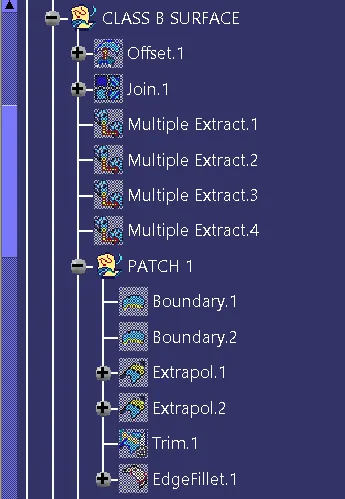
Here, At first, we have created boundaries for the required surfaces.
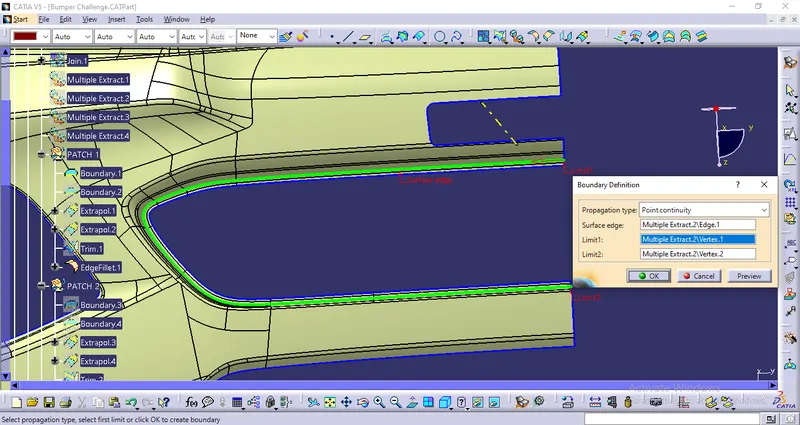
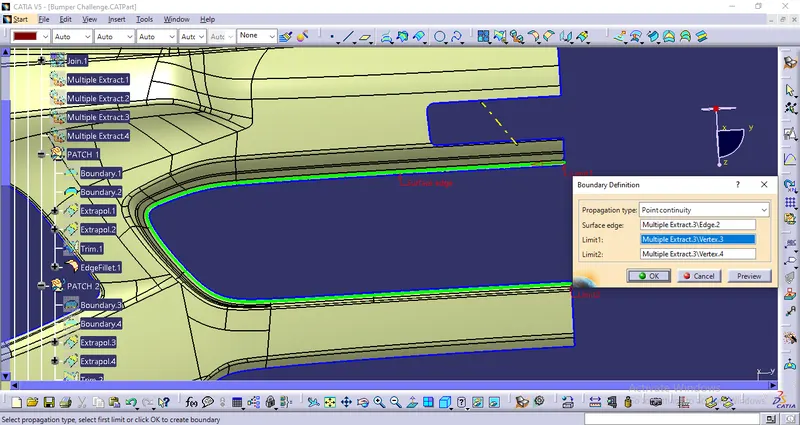
Then we have extrapolated the surfaces
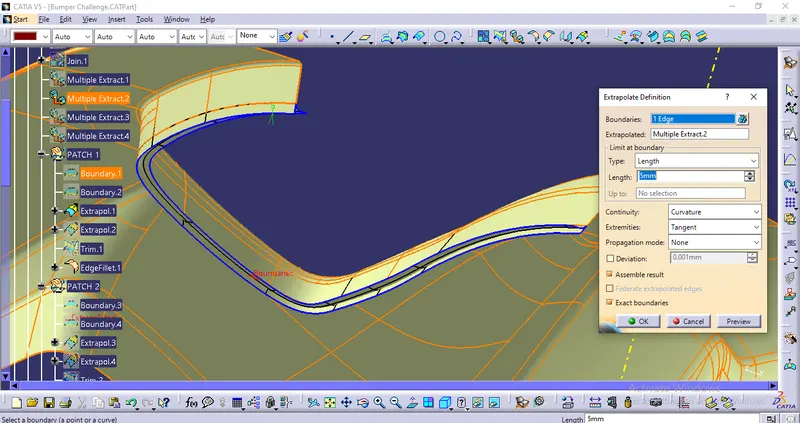
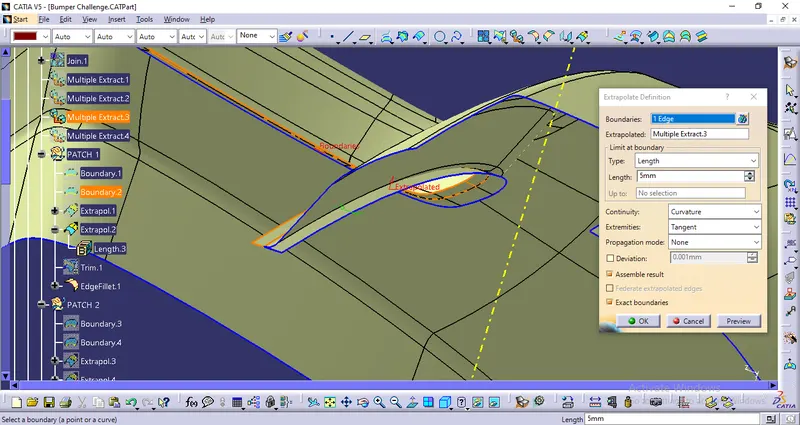
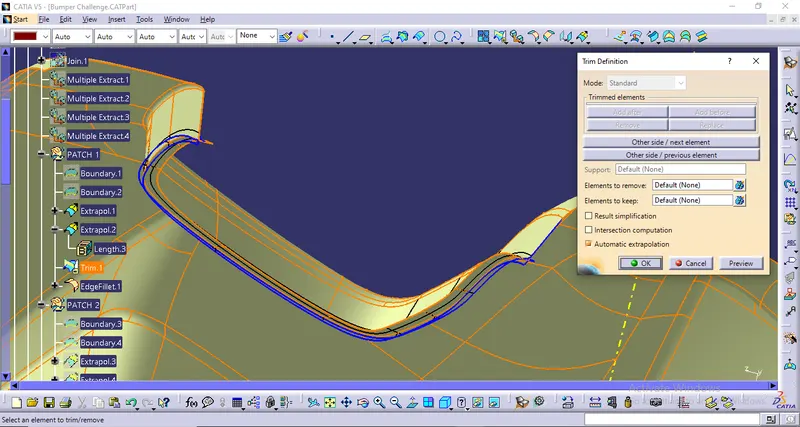
After that, we have trimmed the unnecessary surface to get the desired shape
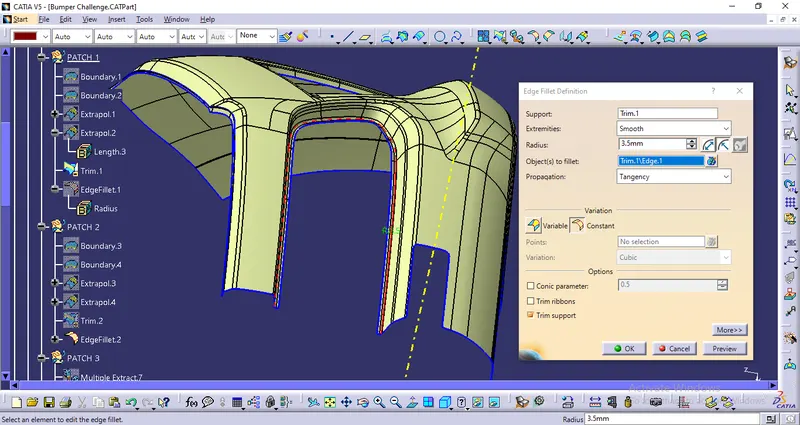
Finally, we have provided the 3.5 mm edge fillet
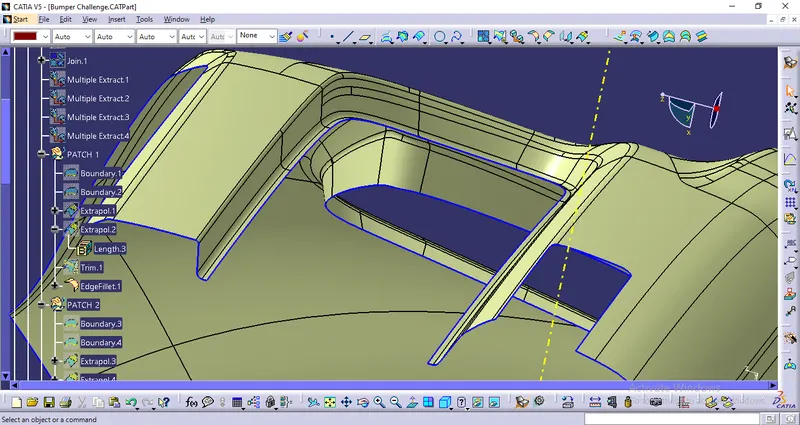
The final surface after providing fillet
2. SECOND PATCH:
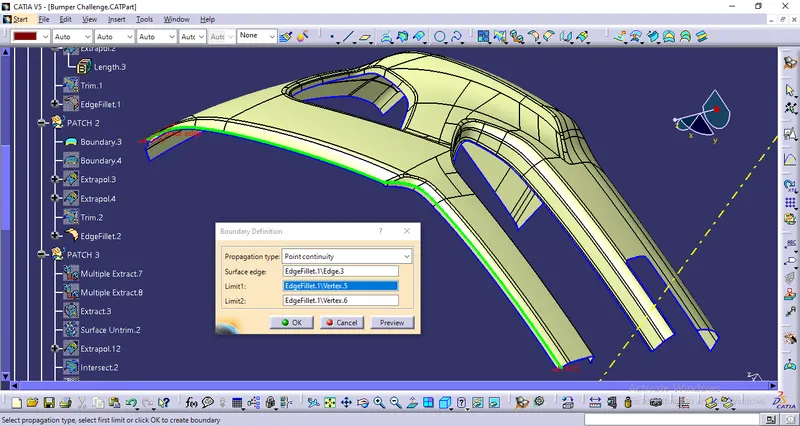
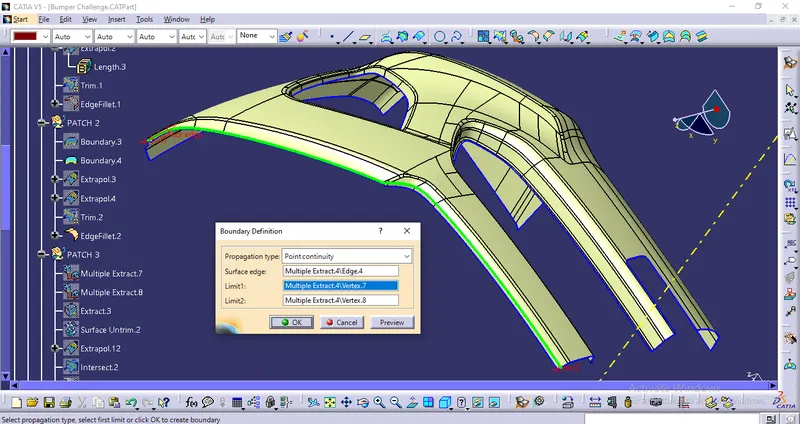
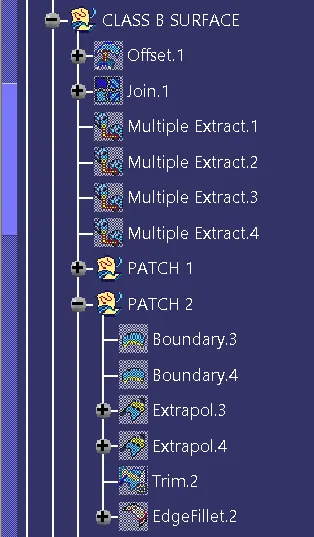
Here, At first, we have created boundaries for the required surfaces.
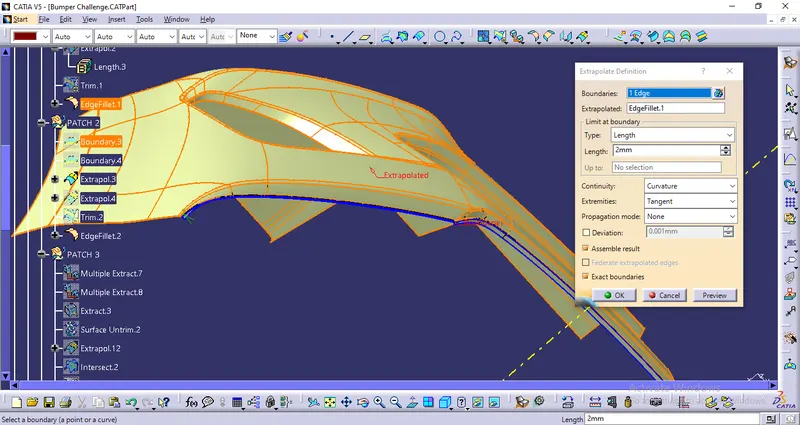
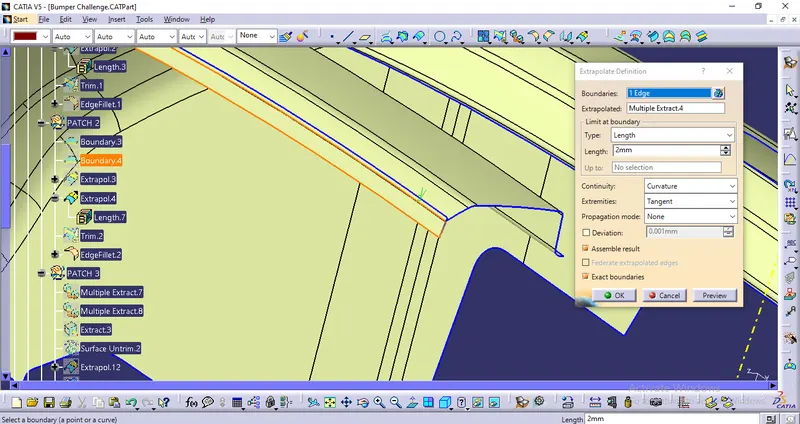
Then we have extrapolated the surfaces
After that, we have trimmed the unnecessary surface to get the desired shape
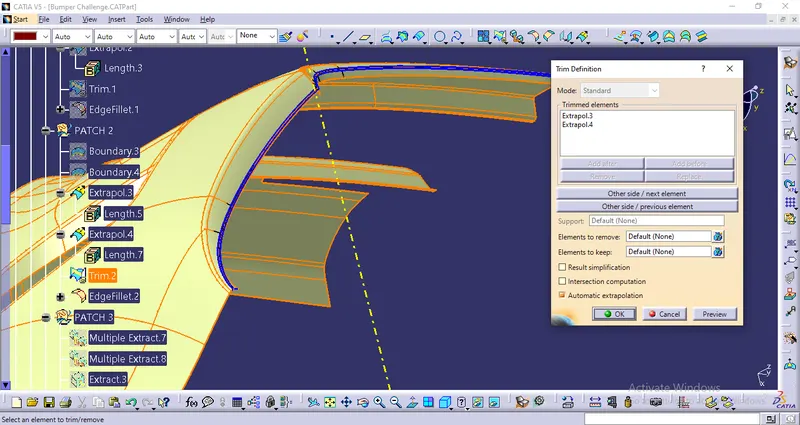
Finally, we have provided the 1.3 mm edge fillet
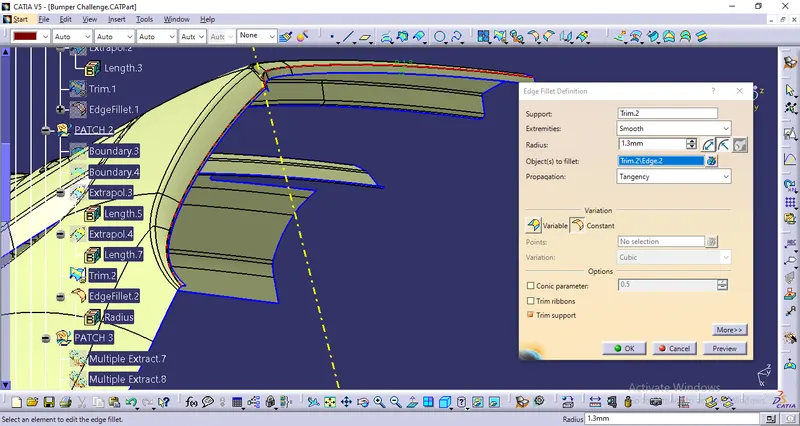
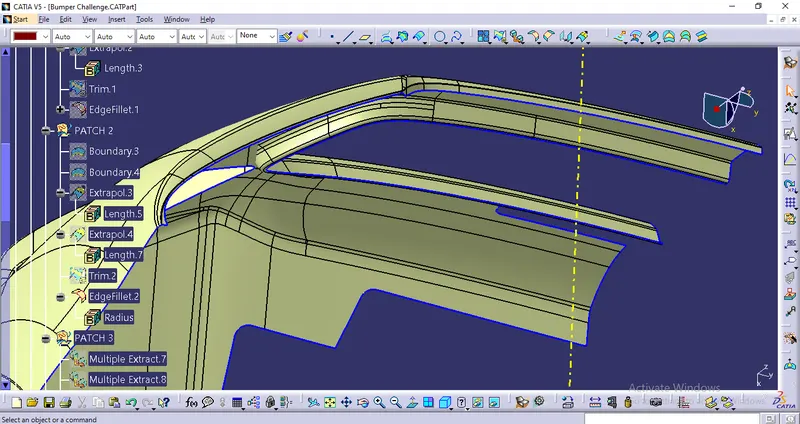
The final surface after providing fillet
3. THIRD PATCH:
Here, At first, we have extracted the required surfaces.
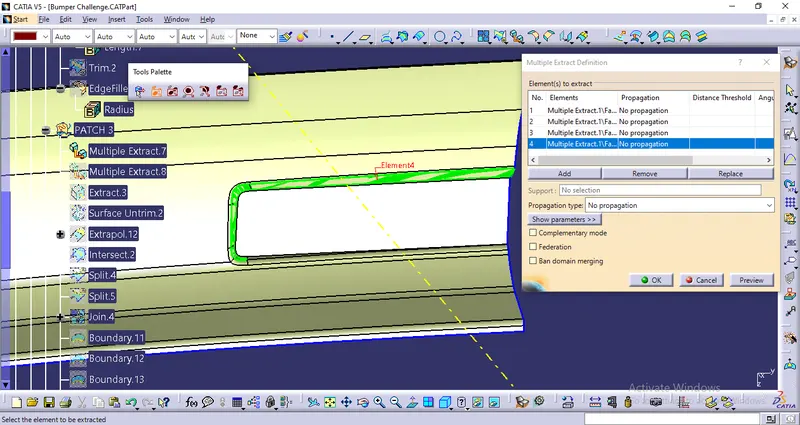
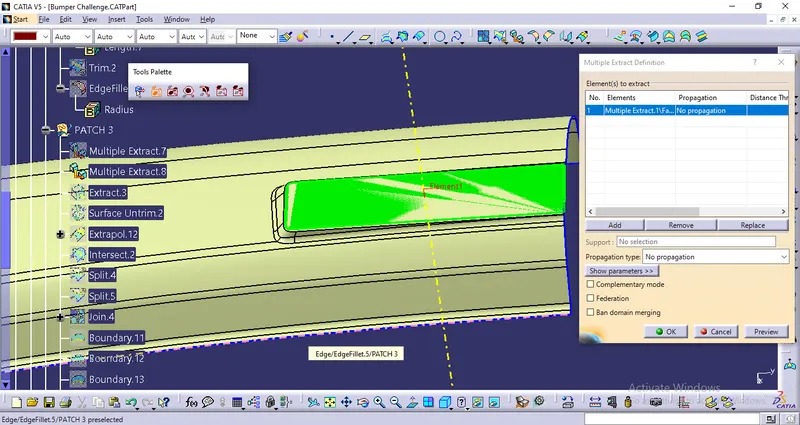
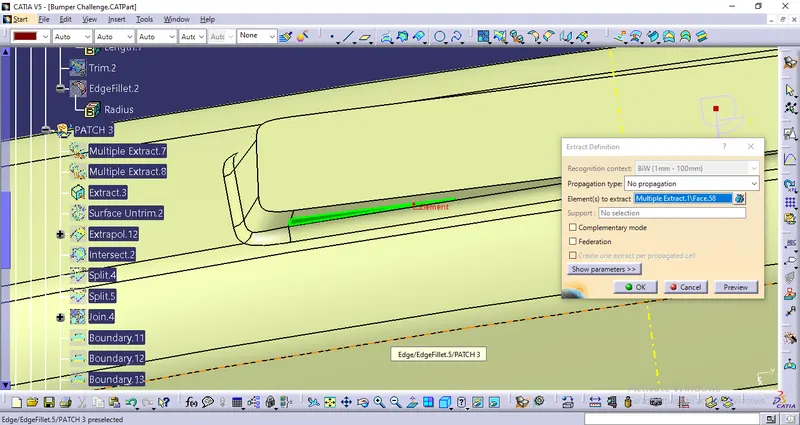
After that, we have untrimmed the required extracted surface.
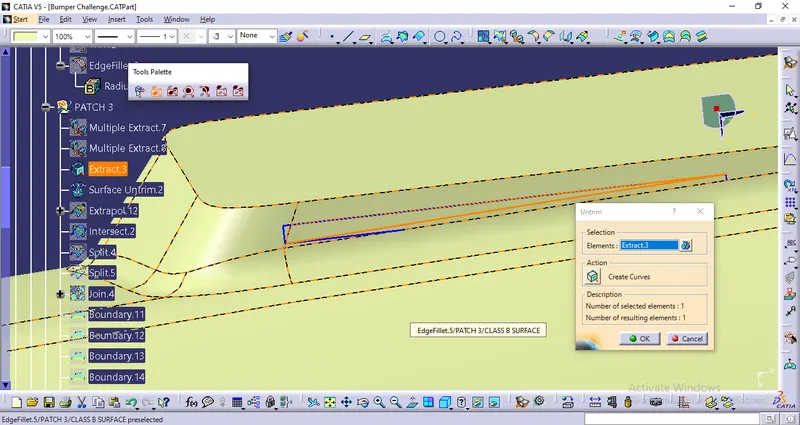
We have extrapolated the untrimmed surface.
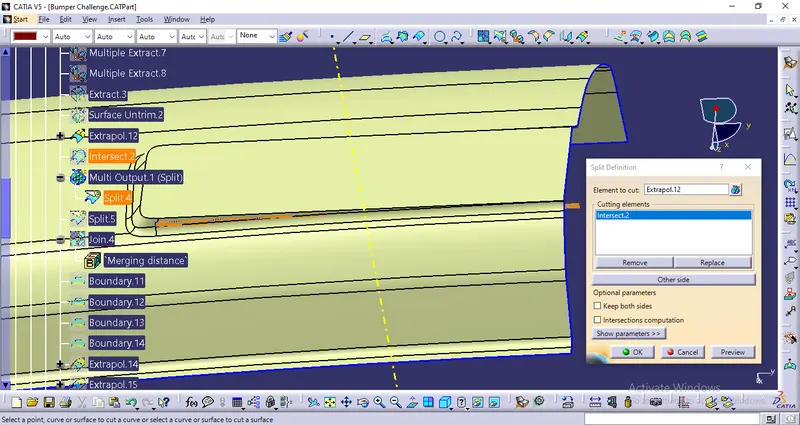
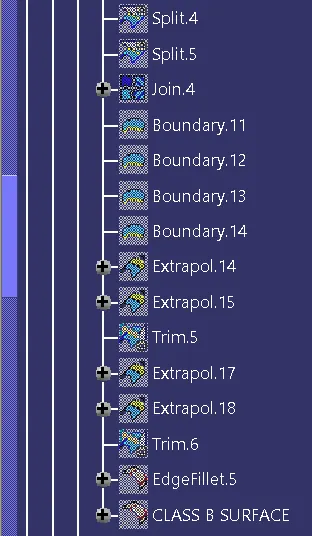
Next, we have split the surface with zx plane as the Bumper surface is already given to us by splitting with zx plane.
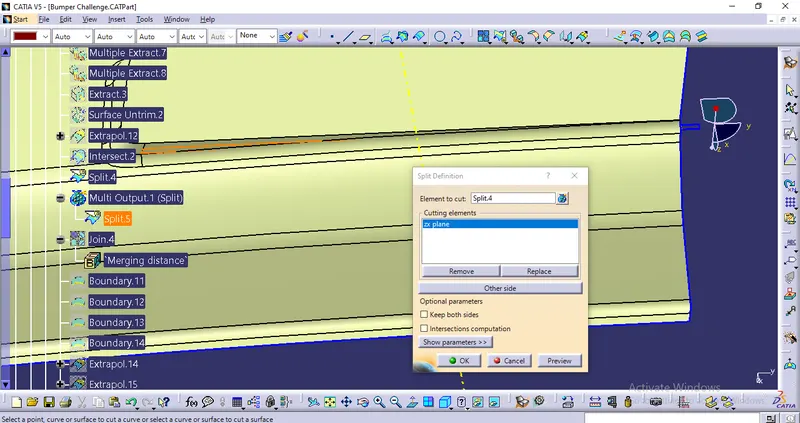
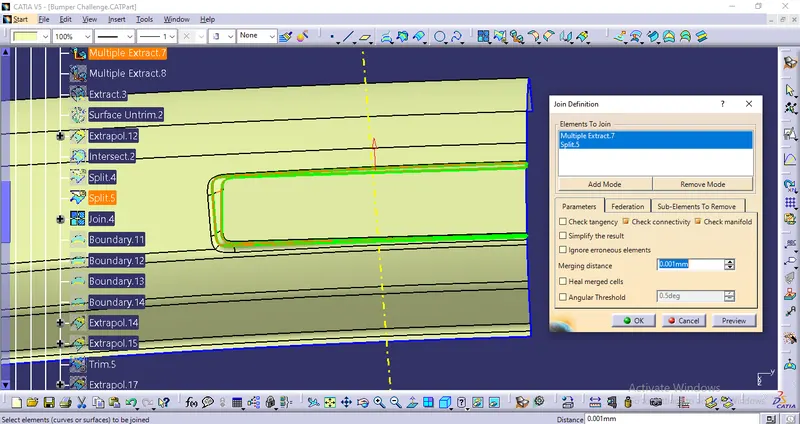
Joined all the extracted surfaces.
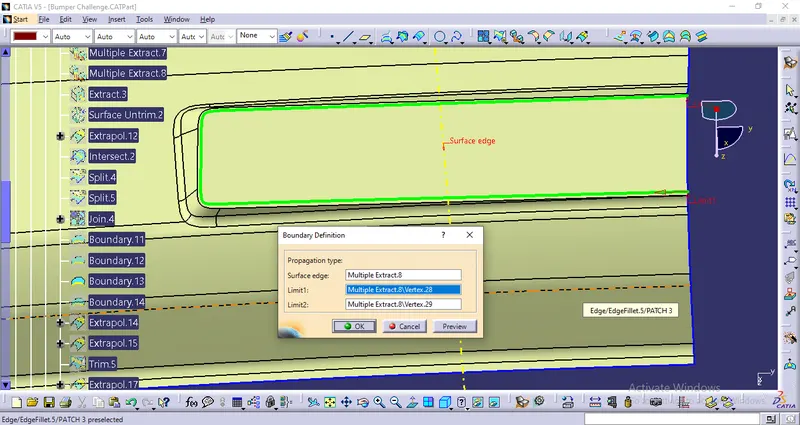
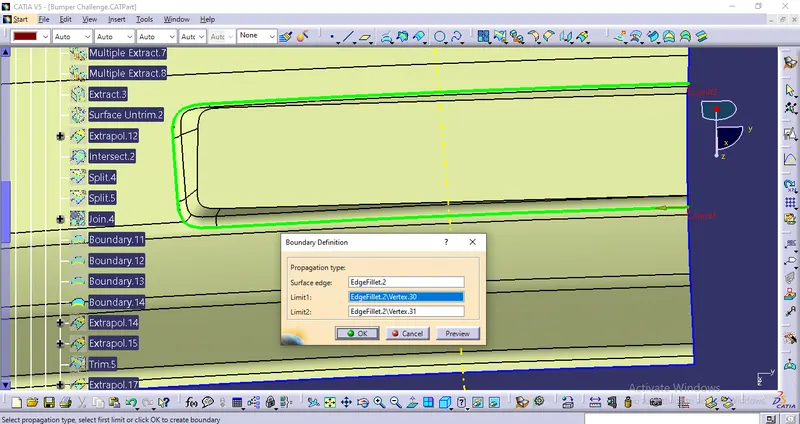
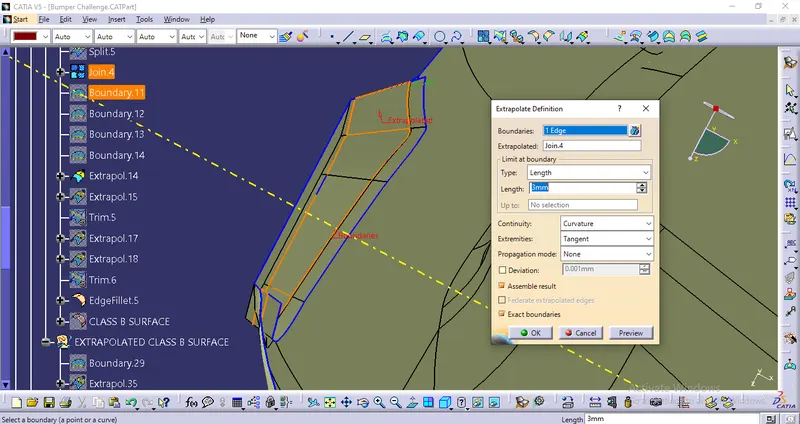
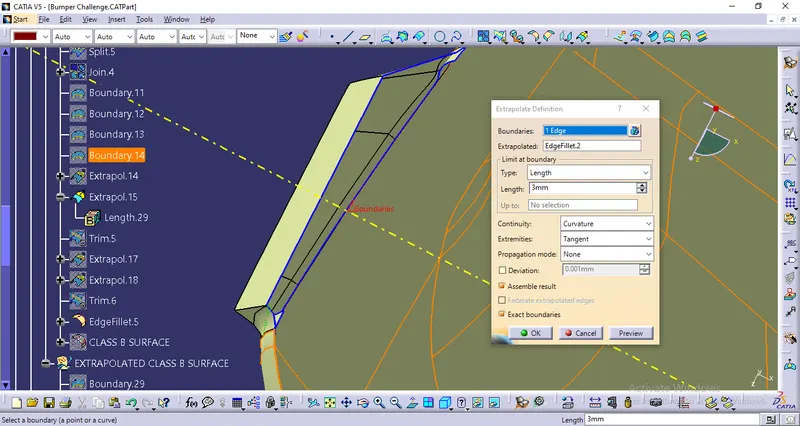
Created various boundaries wherever we have required for extrapolation.
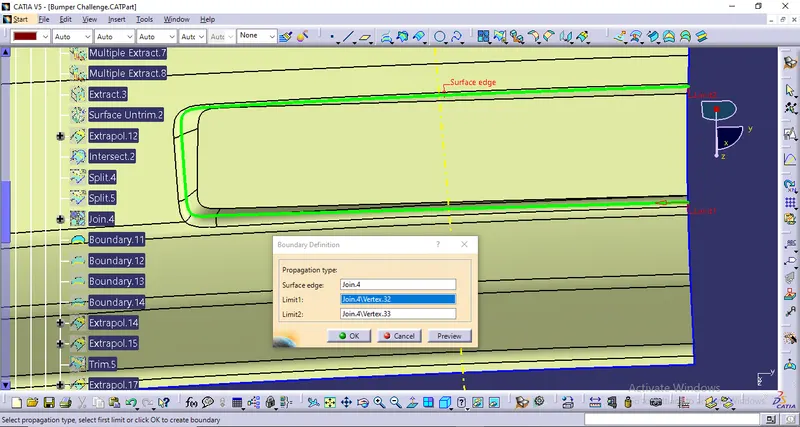
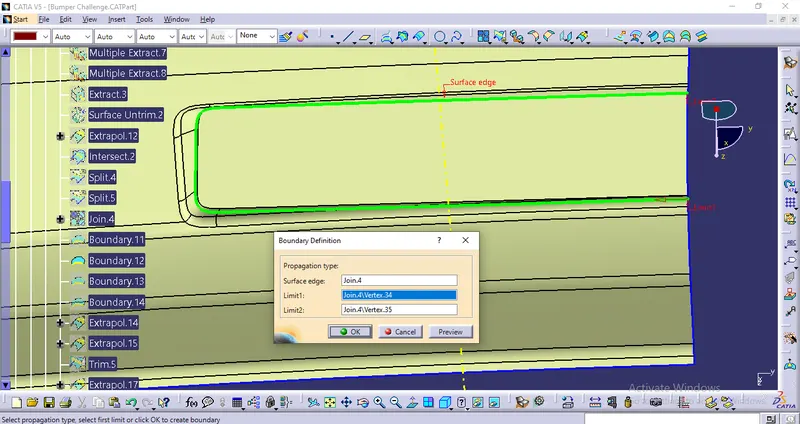
Extrapolated all the surfaces wherever we have created boundaries.
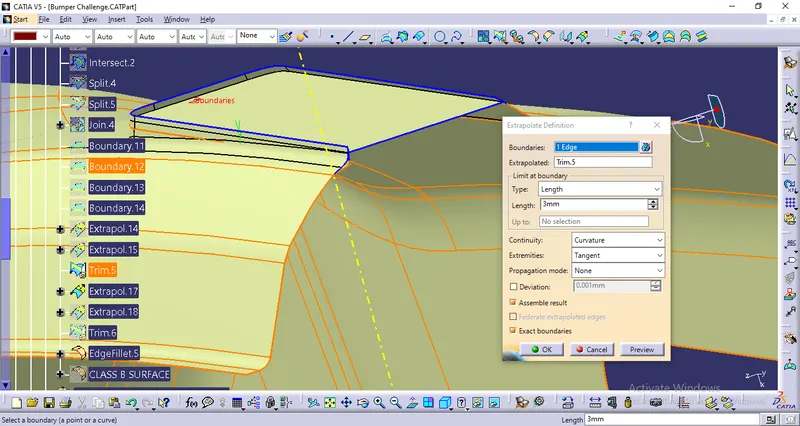
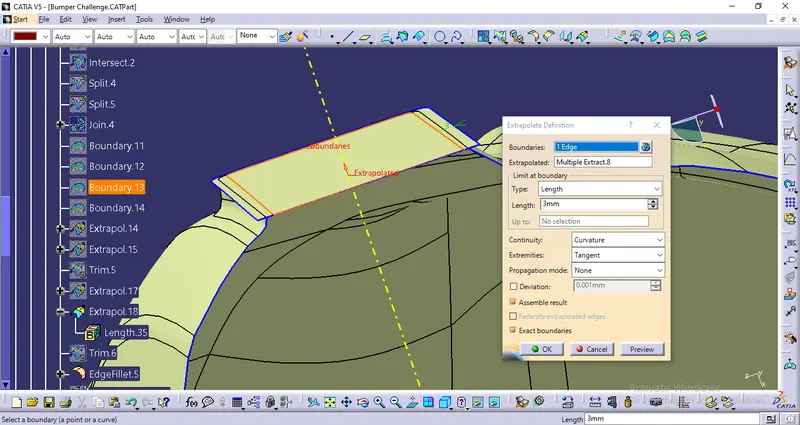
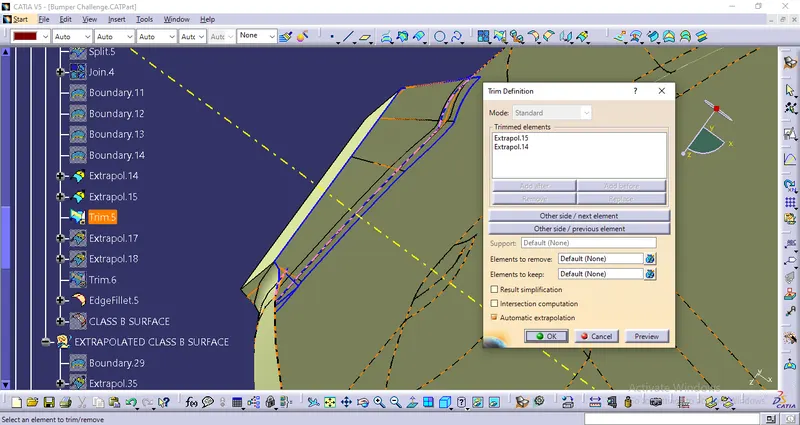
Trimmed the extrapolated surfaces.
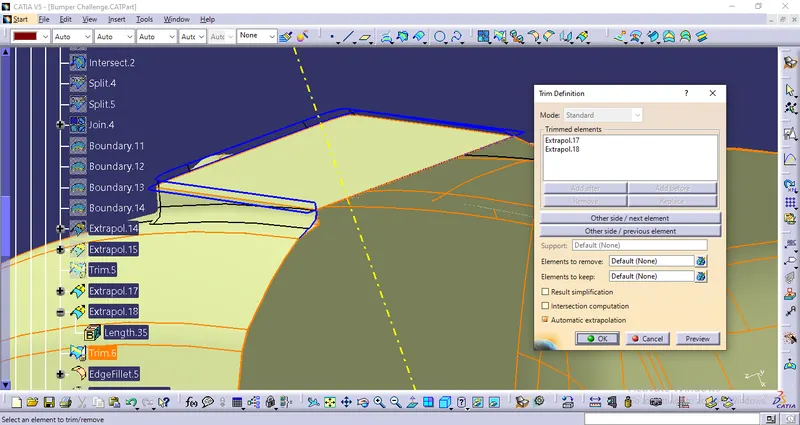
Provide fillets for getting the desired shape.
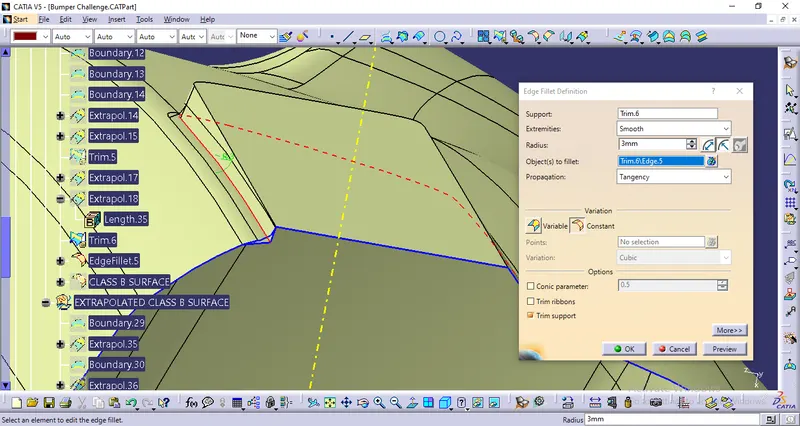
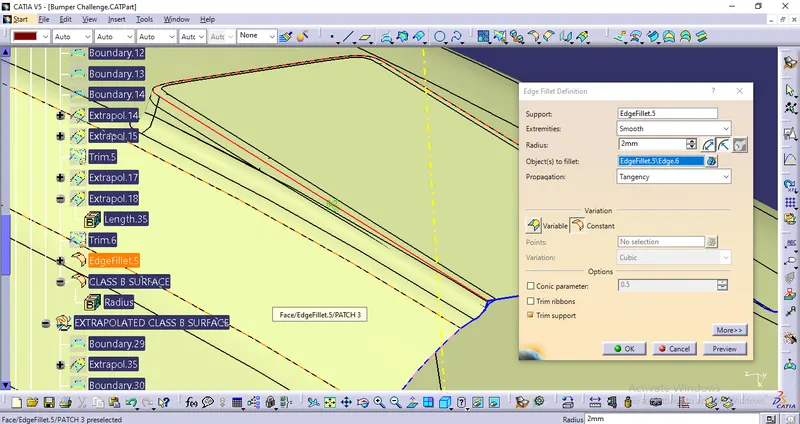
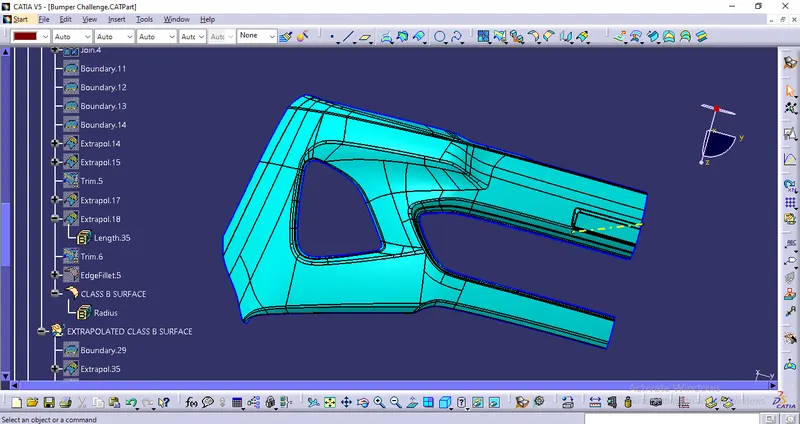
Final Class B Surface.
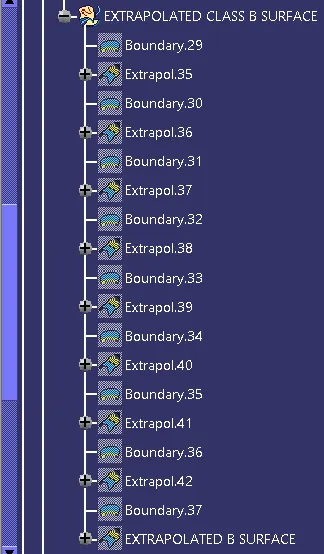
After that, we have extrapolated the whole B surface so that it can intersect with the C surface. After extrapolating the B surface we have got
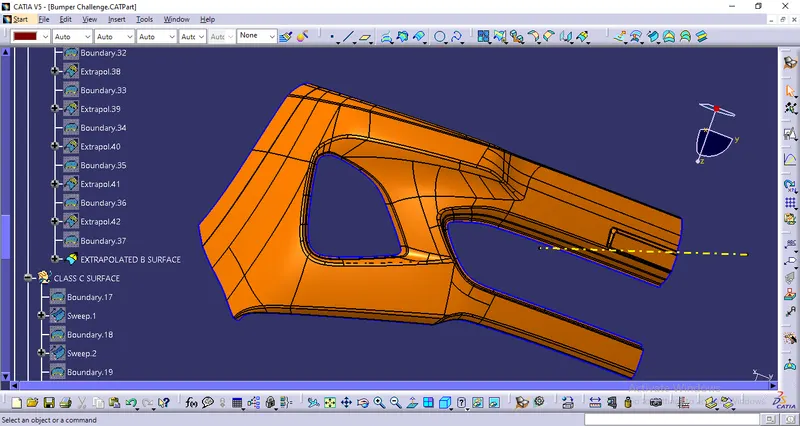
PROCEDURE TO CREATE THE CLASS C SURFACE:
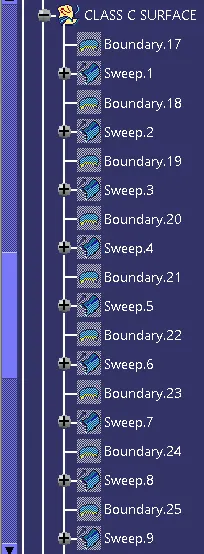
Now, we're going to create the 'Class C Surface' while using the 'Class A Suface' as the Reference Surface. We'll start that procedure by creating boundary segments all along the Class A Surface using the 'Boundary Command' with limits and then we'll use the 'Sweep Command' to create segments of Class C Surfaces using those boundaries as shown below:
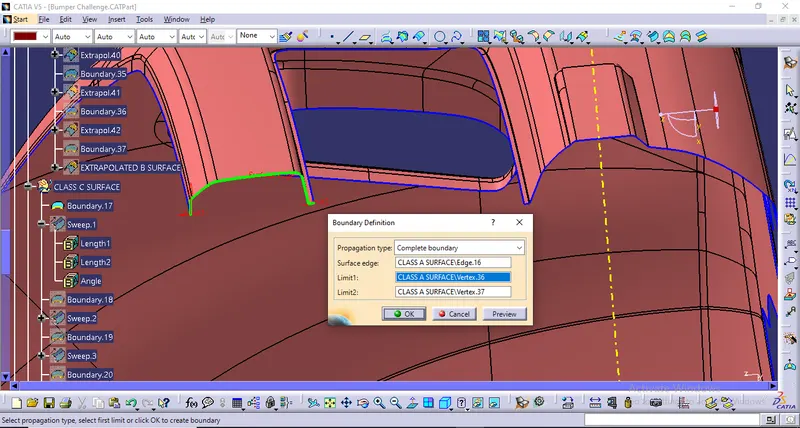
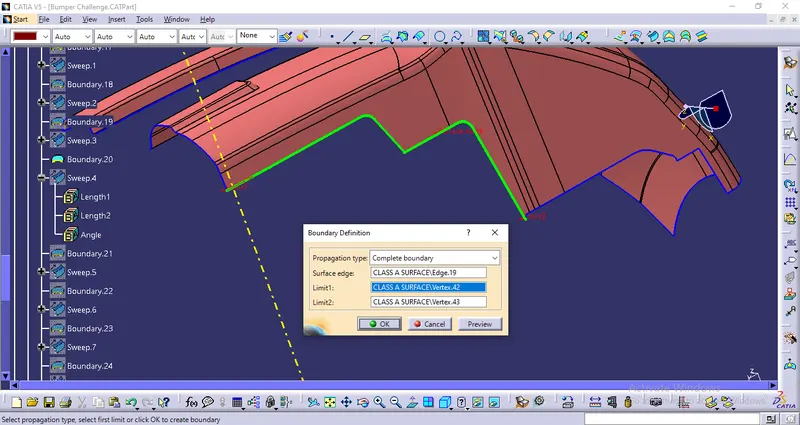
In the above images, the boundary is made using the boundary command by choosing the vertices of the Class A Surface as limits to create our desired boundary. We have to use limits so that we can create good-quality surfaces using those boundaries. If the boundary is created without considering the complex shape of the Class A Surface then in certain instances longer than usual boundaries will lead to poor-quality surfaces.
After creating the boundary we will use the 'Sweep Command' where we'll use its 'Subtype' as 'With Reference Surface' and 'With draft direction' depending on the surfaces.
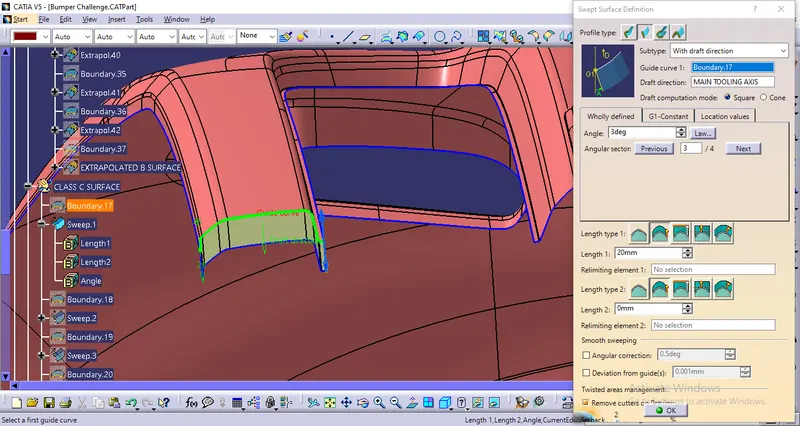
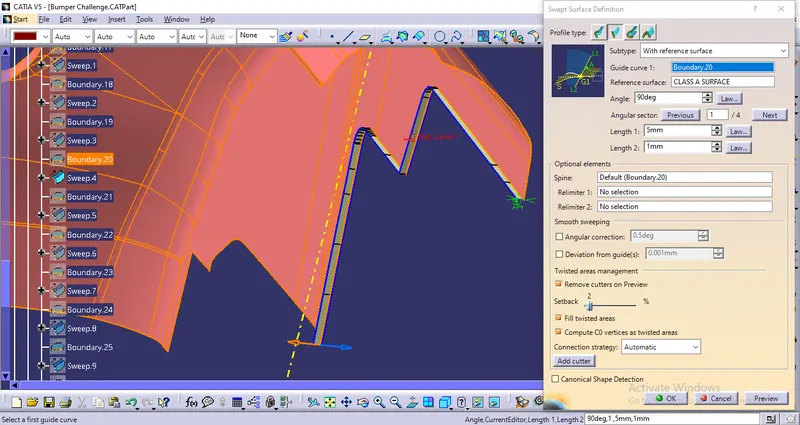
Finally, we have created C Surface by using the 'Sweep Command' couple of times.
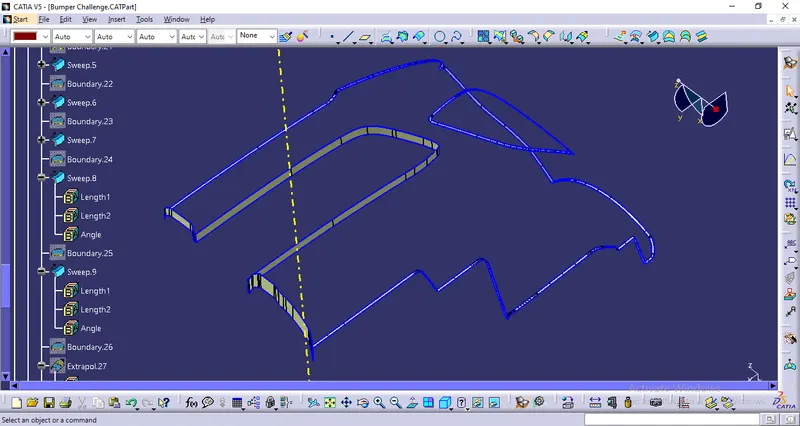
Now, we have all the required surfaces: Class A, Class B & Class C
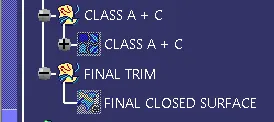
To proceed forward we have to add Class A & Class C together using the 'Join Command'.
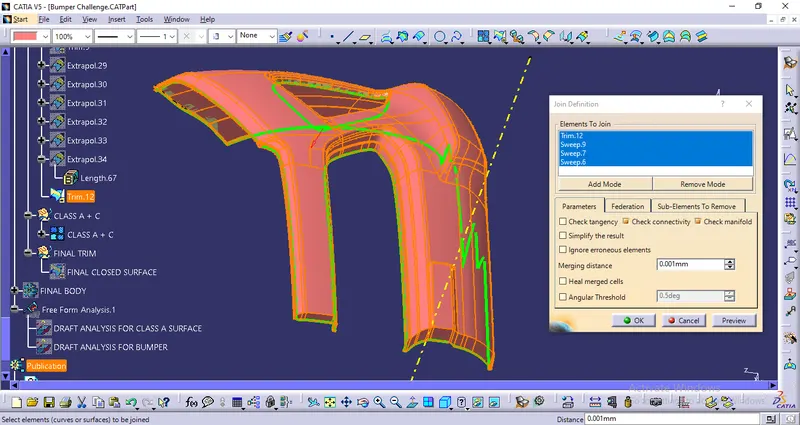
Finally, we have to use the Trim Command to trim the Combination of Class A & C surfaces with Class B Surface to obtain the final body that we can eventually use to create a solid body.
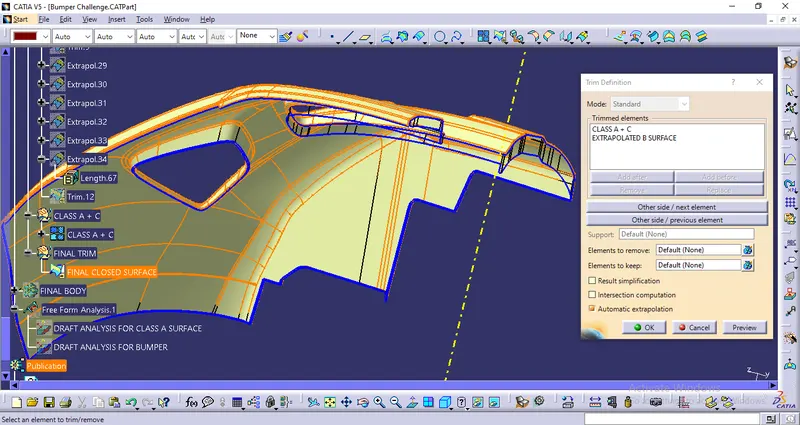
After doing the Trim command we have tried to create a boundary but it was showing boundary can't be created as it is a closed surface.
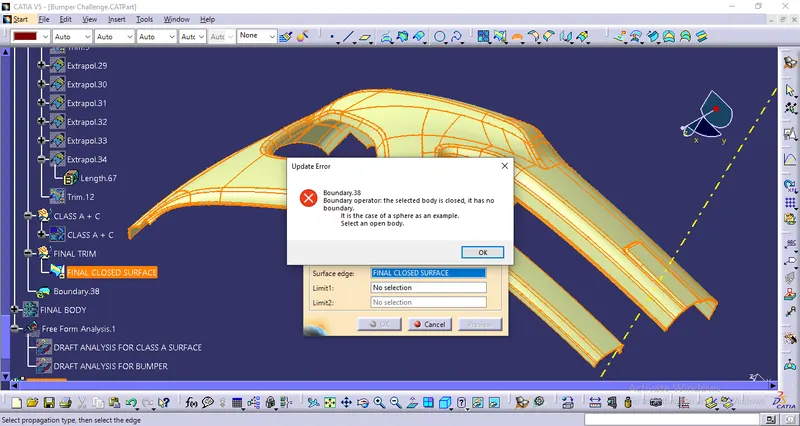
So finally, we have got our closed surface
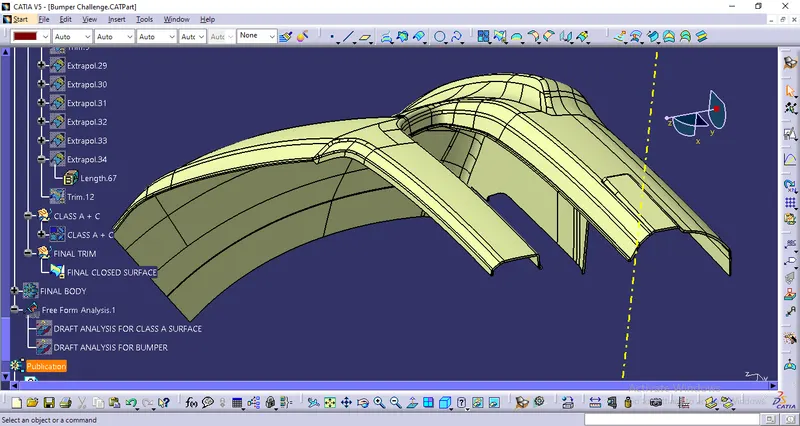
Then, we'll go to the Part Workbench and use the option 'Closed Surface' from the 'Surface-based Features' toolbar to convert the final trimmed body into a solid body as shown below:
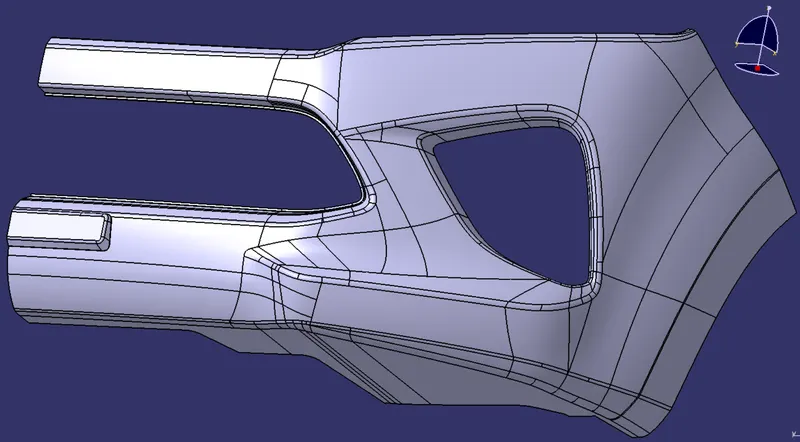
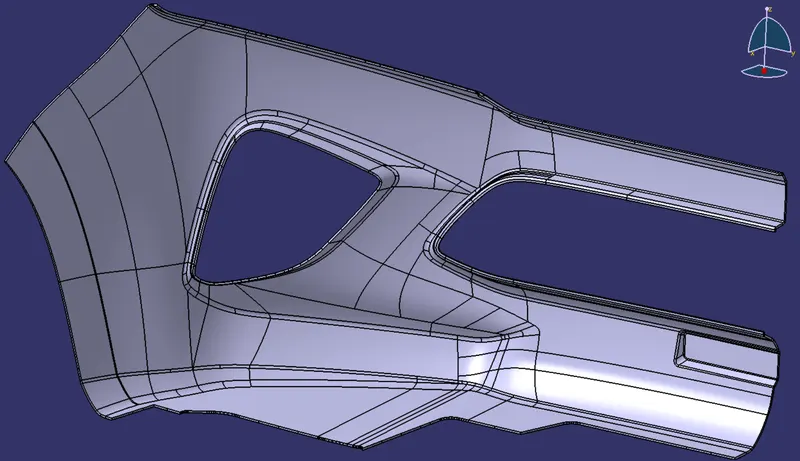
After that, we’ll perform Draft Analysis on the Final Part in Part Workbench:
DRAFT ANALYSIS FOR THE FINAL PART USING THE MAIN TOOLING AXIS:
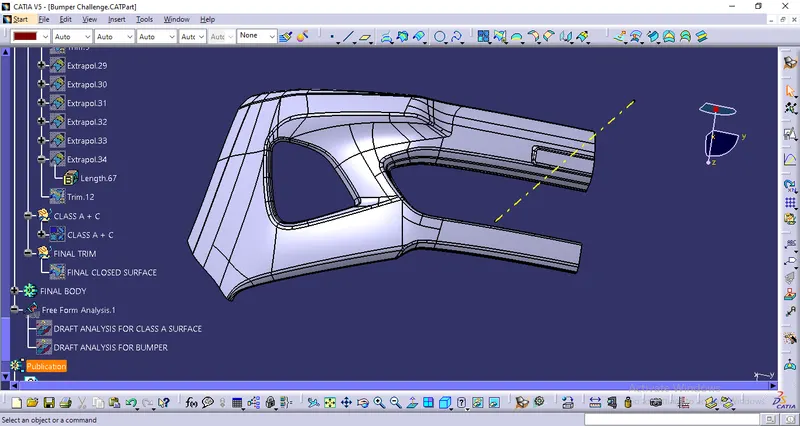
We'll click on the 'Draft Analysis' under the 'Analysis' Toolbar in the Part Workbench.
Then, we’ll click on the Compass Symbol under 'Direction' which stands for 'Use the Compass to define the new current draft direction'.
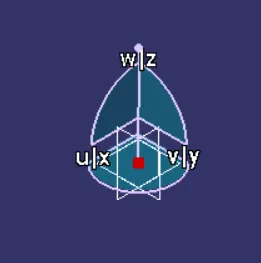
We'll drag the compass and place the compass on the Main Tooling-Axis.
Then, we'll select 'Show or Hide the Color Scale' under 'Display' and define our Draft-Angle as 3-Degrees.
After that, we'll click the surface of the Final Part the results of which are shown below:
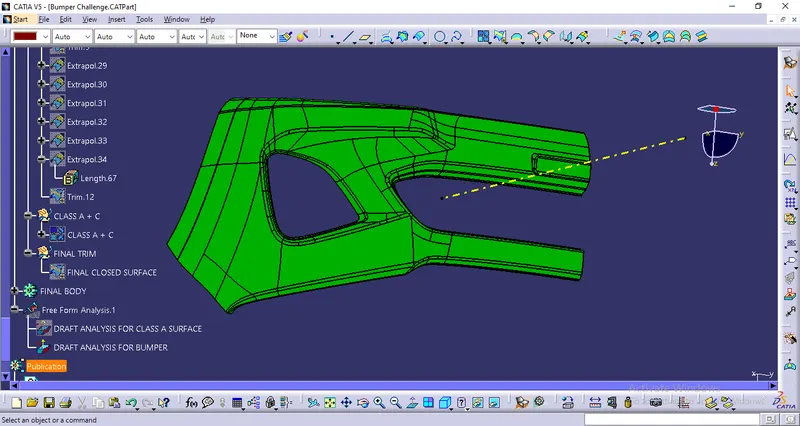
After changing the direction
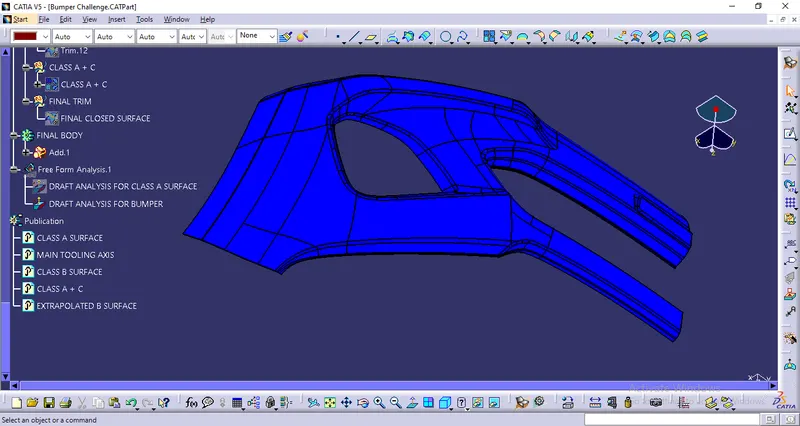
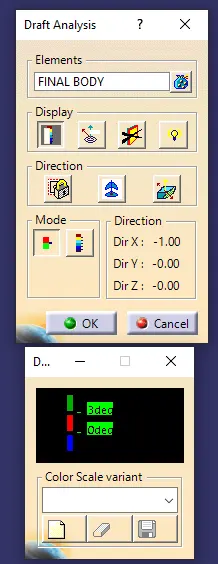
In the Draft-Analysis,
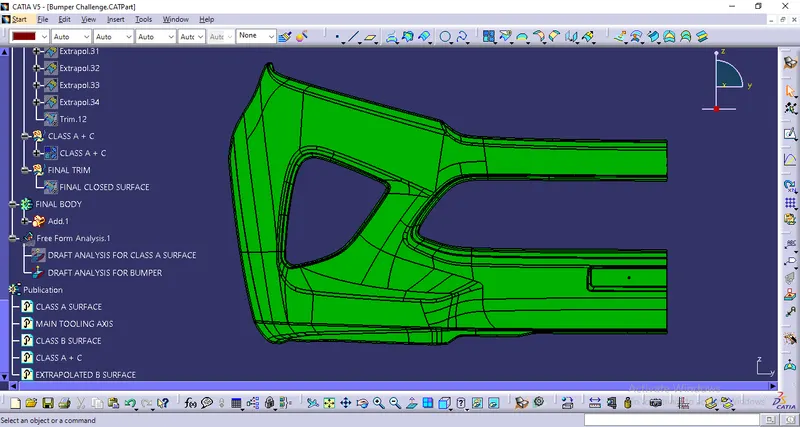
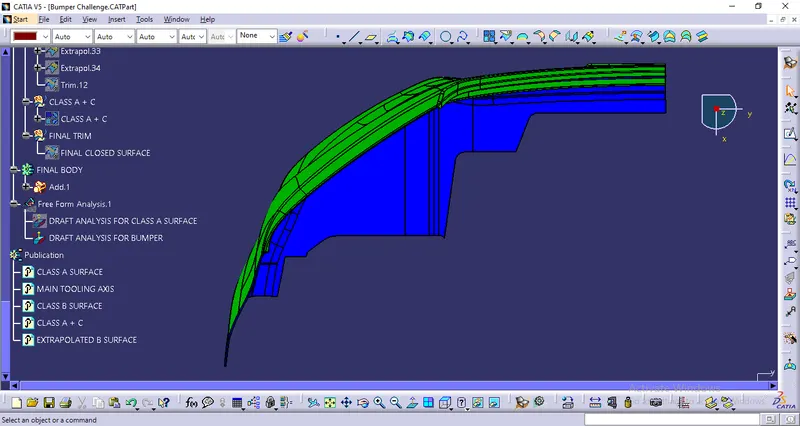
Green Colour stands for regions where the Draft-Angle is more than 3 degrees,
Red Colour stands for regions where the Draft-Angle is between 0-3 degrees , &
Blue Colour stands for regions where the Draft-Angle is lower than 0 degrees
It is evident from the above images that the Draft Analysis is successful and the Final Solid Part is feasible to manufacture
TREE STRUCTURES:
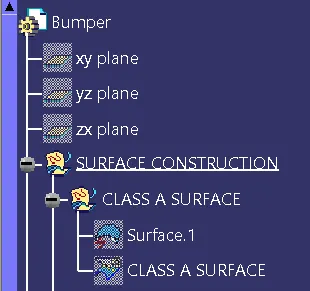
1. CLASS A SURFACE:
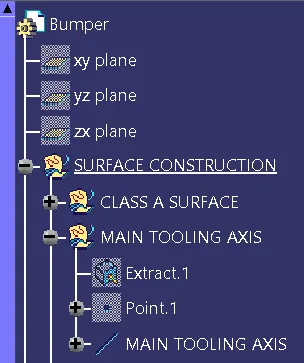
2. MAIN TOOLING AXIS USING VERTEX METHOD:
3. OFFSET SURFACE & FIRST PATCH OF CLASS B SURFACE:
4. SECOND PATCH OF CLASS B SURFACE:
5. THIRD PATCH OF CLASS B SURFACE:
6. EXTRAPOLATED CLASS B SURFACE:
7. CLASS C SURFACE ELEMENTS:
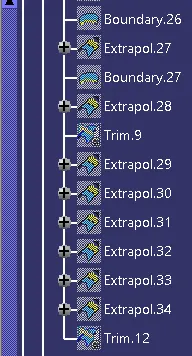
8. CLASS A + C JOIN OPERATIONS & FINAL TRIM:
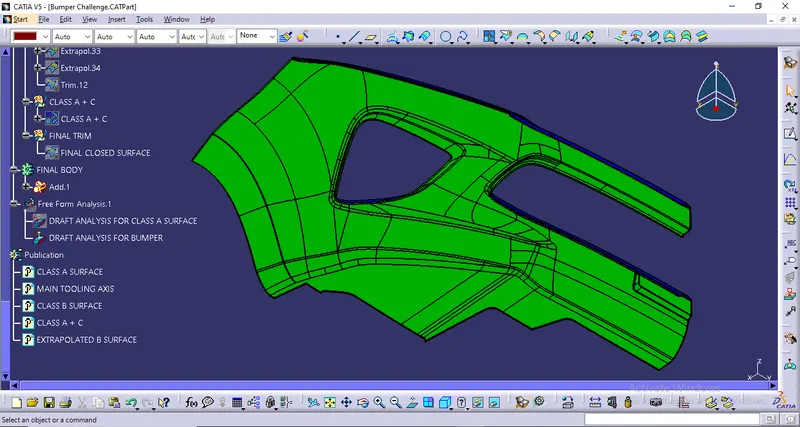
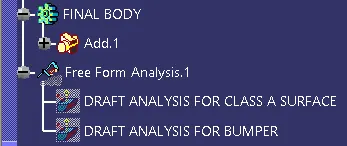
9. FINAL BODY & DRAFT ANALYSIS:
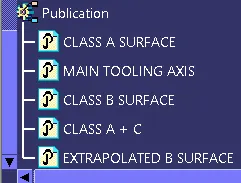
10. PUBLICATIONS:
3D VIEWS OF THE FINAL PART WITH PROPER COLOR CODE OF THE DRAFT ANGLE IN VARIOUS ORIENTATIONS:
1. FRONT VIEW:
2. TOP VIEW:
3. ISOMETRIC VIEW: