Geometry repair and mesh of a bracket and clamp
OBJECTIVE: To repair and clean the geometry, to extract the mid-surface, to mesh the components with given quality criteria.
I. For Practice Model
1. Import the .hm file (Part 1) in hypermesh in optistruct.
2. Change the configuration from Auto to By Topo.
3. Measure the thickness of each side. [Shortcut using F4 command]. The model has a constant thickness of 0.9unit through.
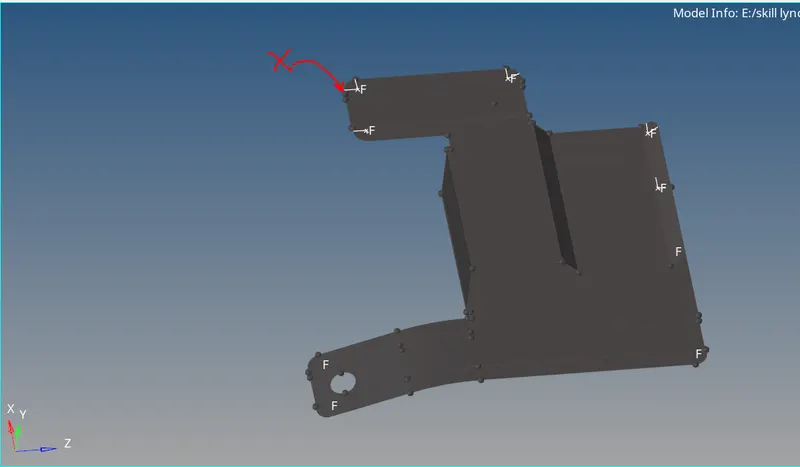
4. Check for duplicates and removing the duplicate surface using X sign > Delete surfaces. Also, fill the surfaces using the Filler surface command and improvise the topology errors of the model.
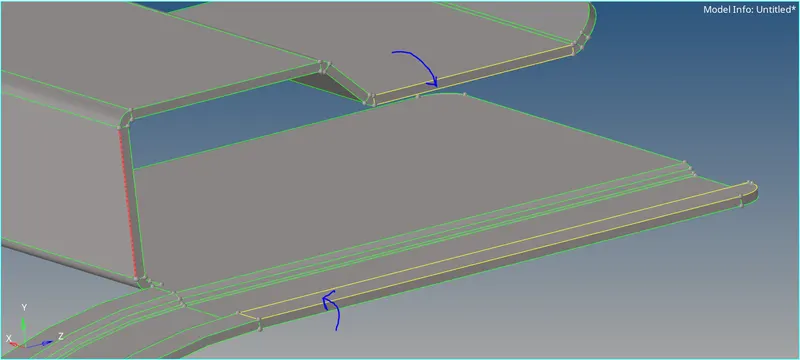
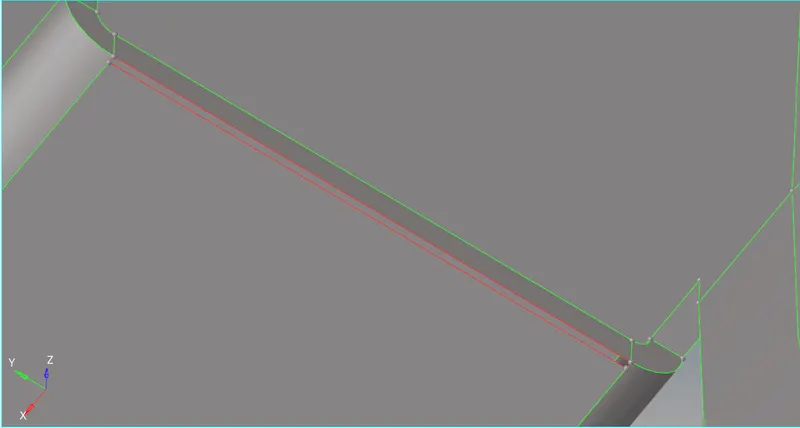
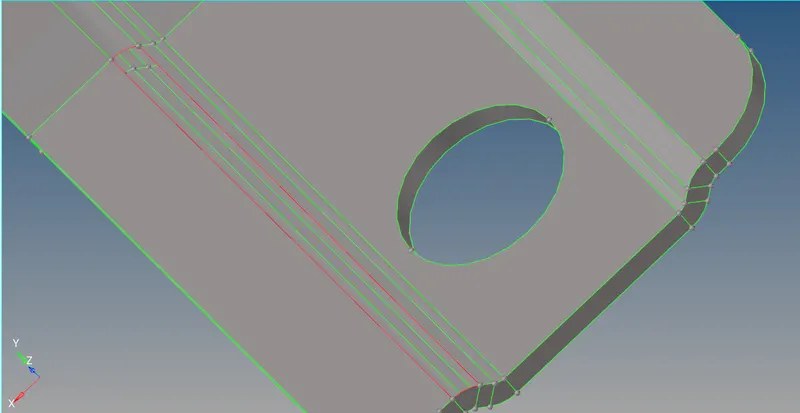
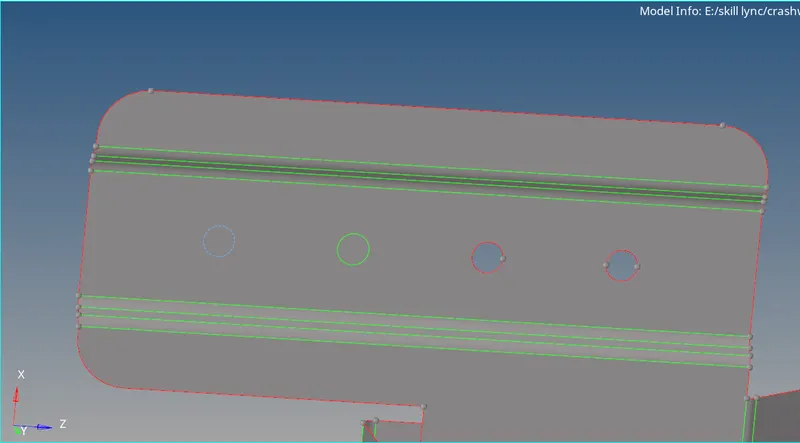
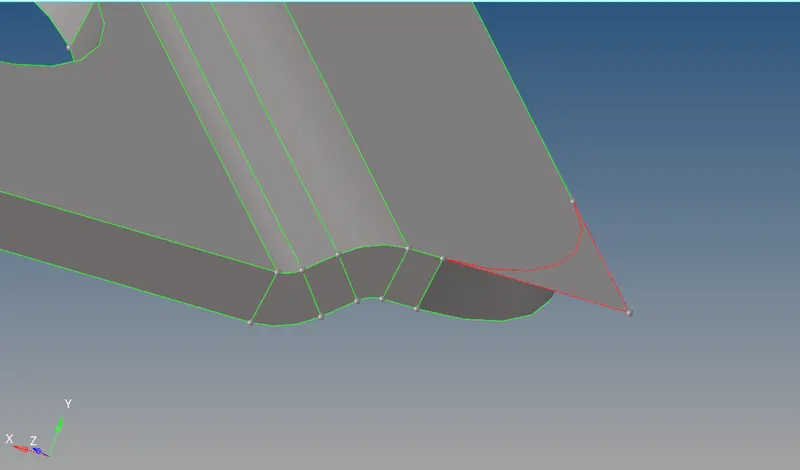
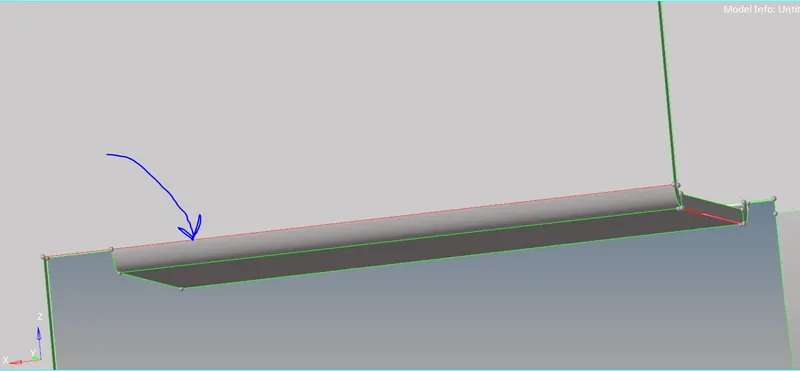
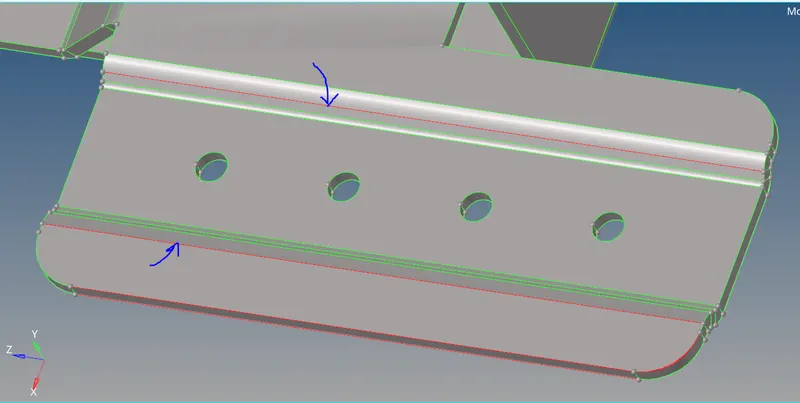
The model after topology cleanup looks as:
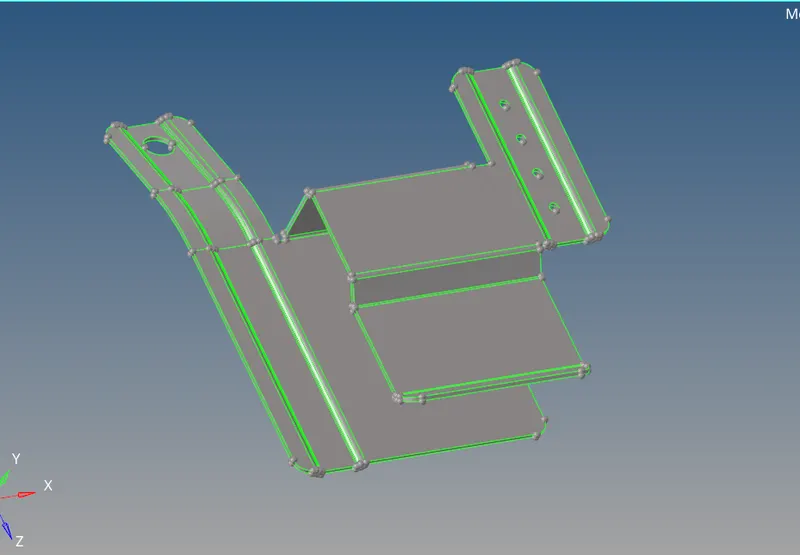
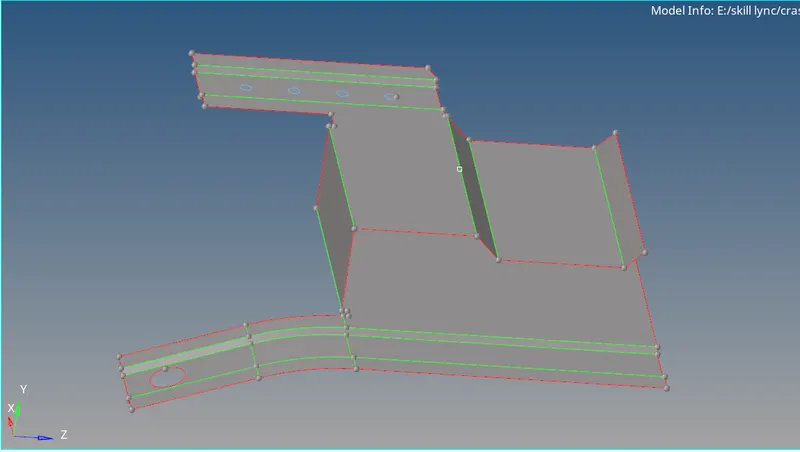
5. Extracting Mid surface using Geometry> Mid Surface > Offset and sweep> Incomplete Slid.
Mid surface extracted has been shown as follows.
6. Defeature the surfaces for minimum of 5 units, remove edge fillets and surface fillets below 5 units.
7. Toggle the edges for good mesh flow and systematic mesh.
8. Set the criteria in the preferences > Criteria File Settings.
9. Mesh the surfaces with target element size as 5 units.
2D > Automesh > select the surface(one or two at a time depending on the geometry) >Size and bias > element type > mixed > mesh.
10. Check for the quality
11. Check for free edges.
12.Check for dependency.
13. Create property and a material card by right-clicking on the left menu and also assign the properties.
14. Assign the material and property to the component.
15. Switch to 2D Detailed FE representation.
II. For clip repair model
1. Import the .hm file (Part 1) in hypermesh in optistruct.
2. Change the configuration from Auto to By Topo.
3. Measure the thickness from each side. [Shortcut using F4 command]. The model has a constant thickness of 0.9unit throughout.
4. Check for duplicates and removing the duplicate surface using X sign > Delete surfaces. Also fill the surfaces using Filler surface command and improvise the topology errors of the model.
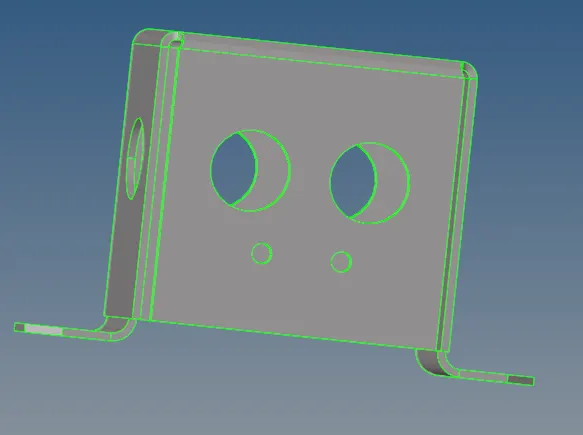
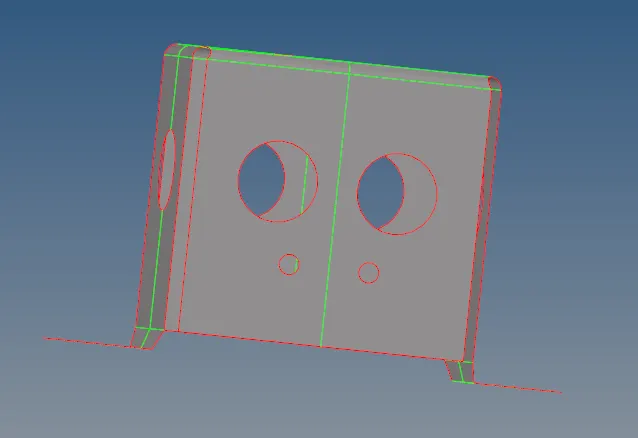
5. Extracting Mid surface using Geometry> Mid Surface > Offset and sweep> Incomplete Slid.
Mid surface extracted has been shown as follows.
6. Defeature the surfaces for minimum of 5 units , remove edge fillets and surface fillets below 5 uits.
7. Toggle the edges for good mesh flow and systematic mesh.
8. Set the criteras in the preferences > Criteria File Settings.
9. Mesh the surfaces with target element size as 5 units.
2D > Automesh > select the surface(one or two at a time depending on the geometry) >Size and bias > element type > mixed > mesh.
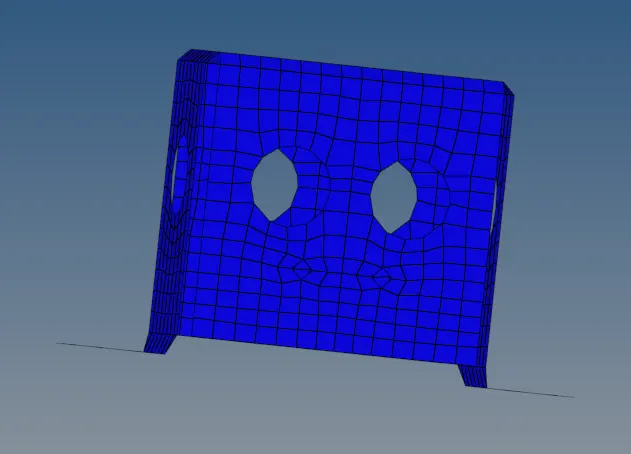
10. Check for quality
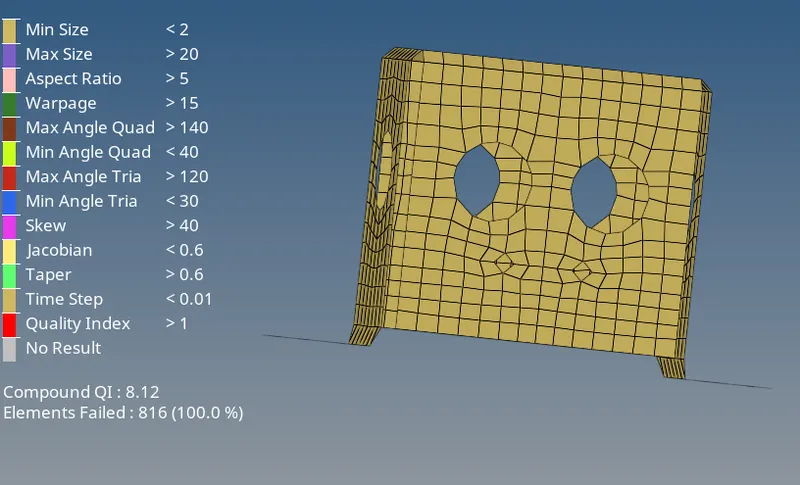
11. Check for free edges.
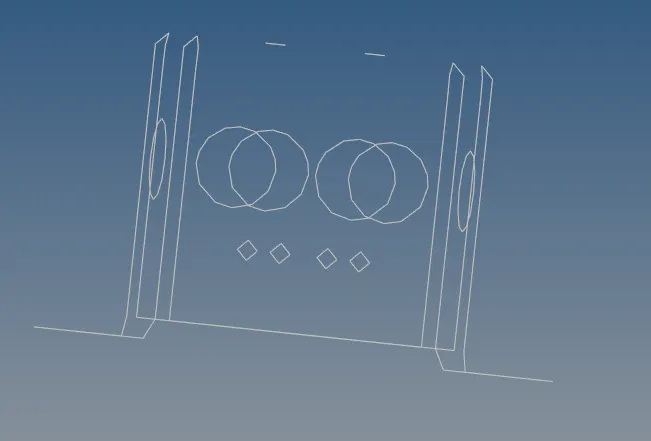
12.Check for dependency.
13. Create a property and a material card by right-clicking on the left menu and also assign the properties.
14. Assign the material and property to the component.
15. Switch to 2D Detailed FE representation.
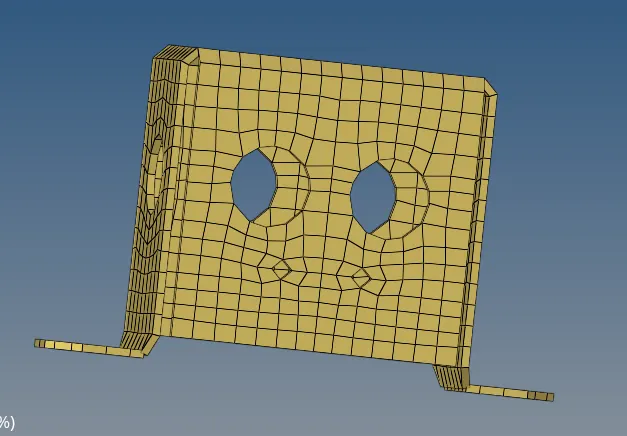
III. For Mounting Bracket
1. Import the .hm file (Part 1) in hypermesh in optistruct.
2. Change the configuration from Auto to By Topo.
3. Measure the thickness of each side. [Shortcut using F4 command]. The model has a constant thickness of 0.9unit throughout.
4. Check for duplicates and removing the duplicate surface using X sign > Delete surfaces. Also, fill the surfaces using the Filler surface command and improvise the topology errors of the model.
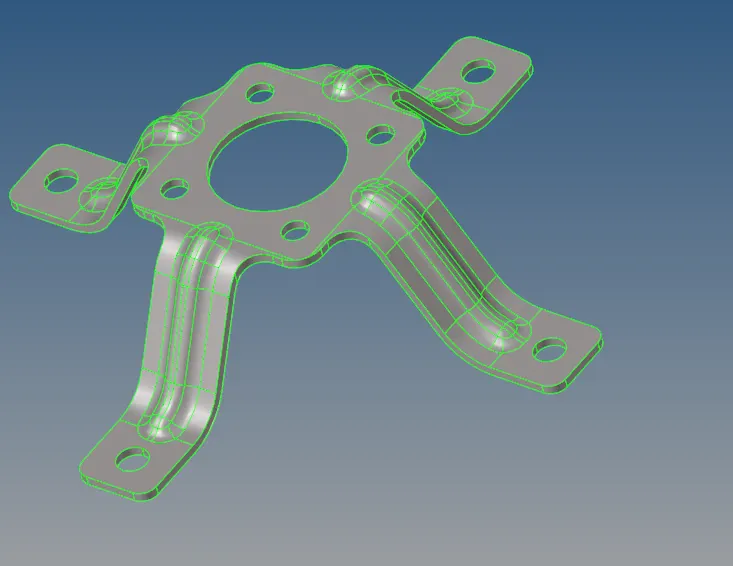
5. Extracting Mid surface using Geometry> Mid Surface > Offset and sweep> Incomplete Slid.
Mid surface extracted has been shown as follows.
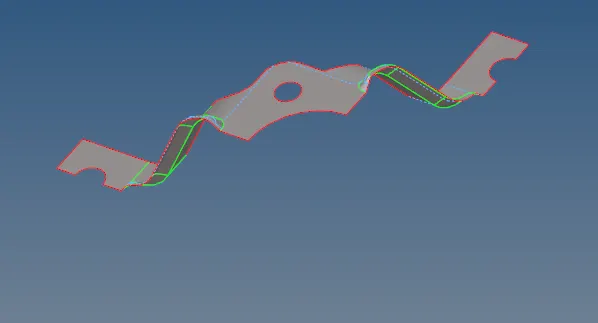
[Note: Since the geometry was symmetrical about the axis the mid surface was cut into 4 half for better mesh consistency.]
6. Defeature the surfaces for a minimum of 5 units, remove edge fillets and surface fillets below 5 units.
7. Toggle the edges for good mesh flow and systematic mesh.
8. Set the criteria in the preferences > Criteria File Settings.
9. Mesh the surfaces with target element size as 5 units.
2D > Automesh > select the surface(one or two at a time depending on the geometry) >Size and bias > element type > mixed > mesh.
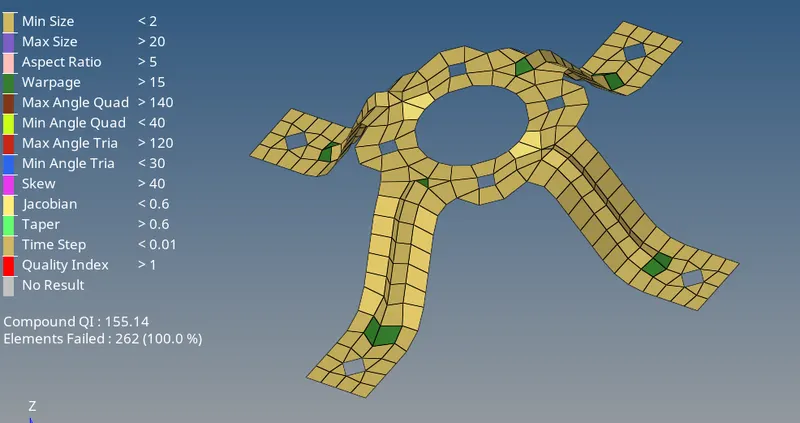
10. Check for the quality
11. Check for free edges.
12.Check for dependency.
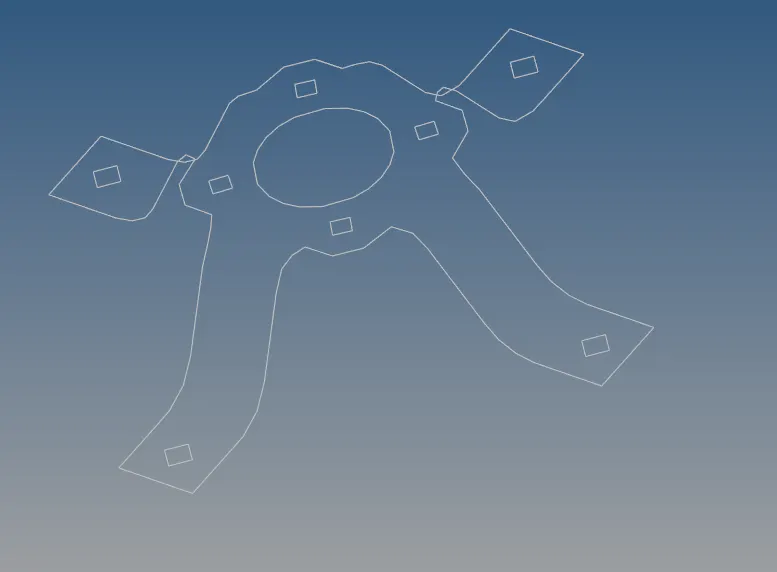
13. Create property and a material card by right-clicking on the left menu and also assign the properties.
14. Assign the material and property to the component.
15. Switch to 2D Detailed FE representation.
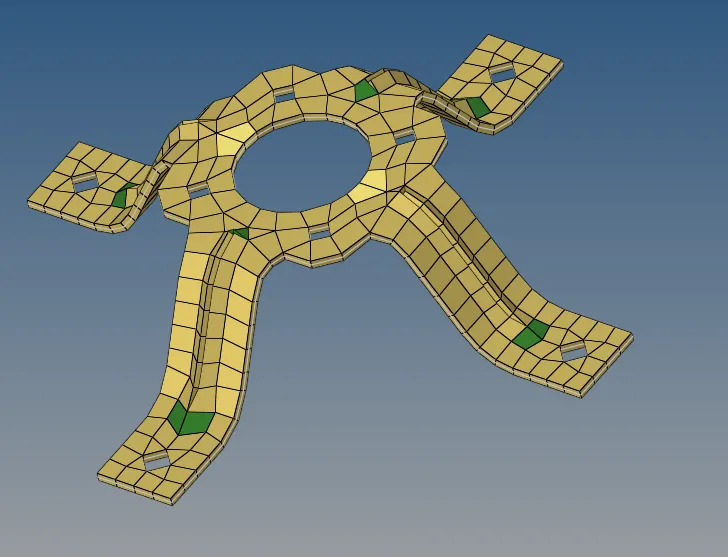
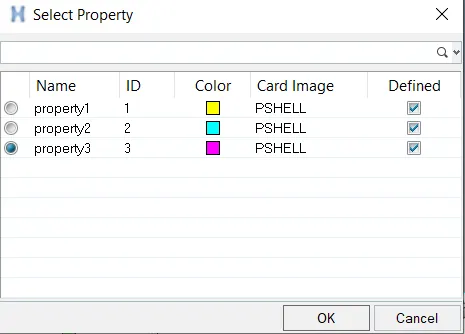
The property card of all three components altogether are shown below
Conclusion:
Learn various Topology cleanup operations, Mid Surfacing tools, and Creating 2D mesh that qualifies the quality criteria. Also learned to create a property card and assigning thickness to a model.