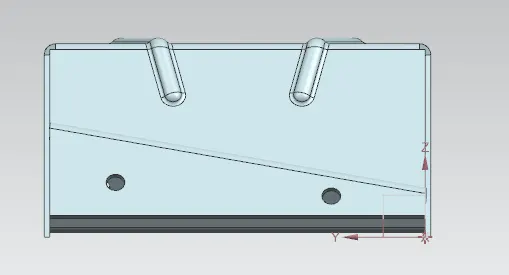
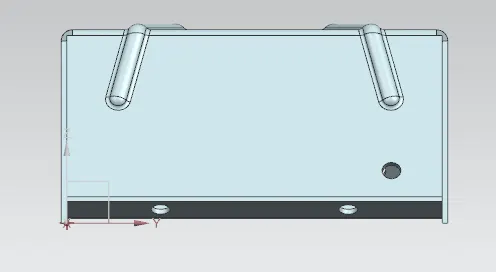
Advanced Sheet Metal Design Using NX Cad Challenge_5_Odd Shaped Enclosure
TITLE:
Design of sheet metal odd enclosure using NX-CAD
OBJECTIVE:
- To design the sheet metal odd enclosure using NX-CAD
- And draft the flattened sheet metal design.
INTRODUCTION:
The term “sheet metal” refers to any metal that can be formed into flat pieces of varying thicknesses. Thick metals are called plate. Metals used in the sheet metal industry include cold rolled steel, mild steel, stainless steel, tin, nickel, titanium, aluminum, brass, and copper.
Using specialized tools, sheet metal workers cut, roll, bend, and shape these pieces to make a wide variety of objects.
Flowchart:
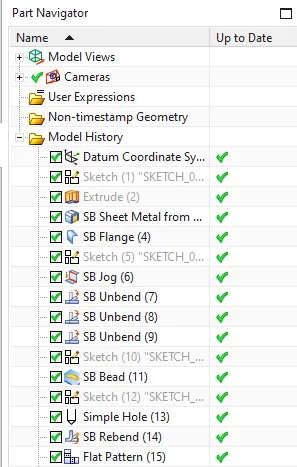
- Extrude the enclosure
- Convert the solid to sheet metal
- Flange and Jog
- Unbend
- Embose and holes
- Rebend
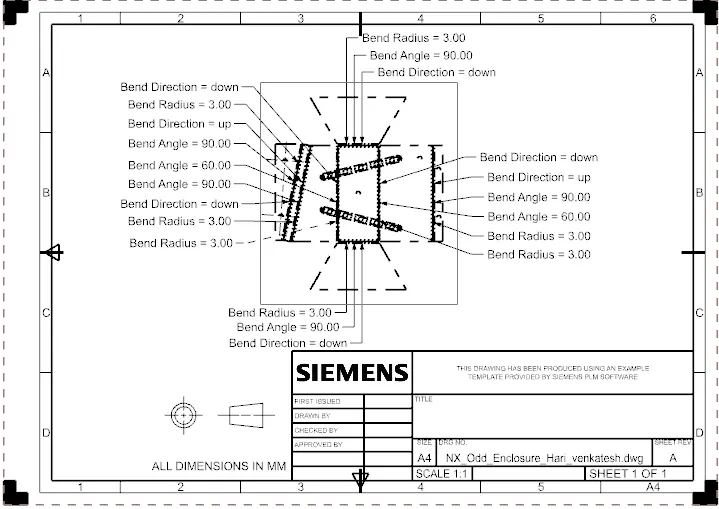
- Drafting
PROCEDURE:
1. Create extrude the enclosure
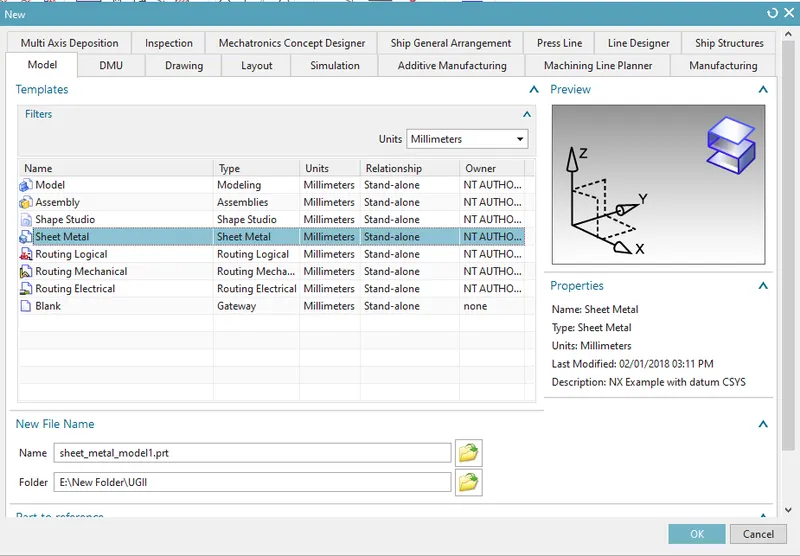
- First of all open the NX-CAD file and create new sheet metal file with proper naming.
- Next open the sketch option from direct sketch tab and select the XZ plane, specify the horizontal vector as X vector and specify the part origin.
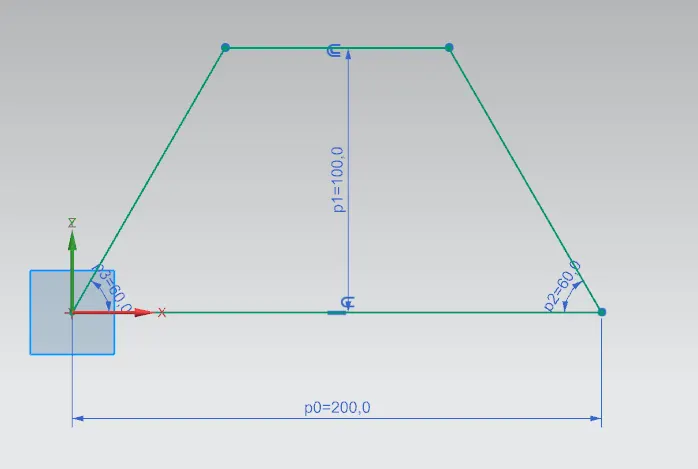
- Draw a trapezium with dimensions 200 mm in length, 100 mm in height and angle of 60 degree on XZ plane at origin (0,0).
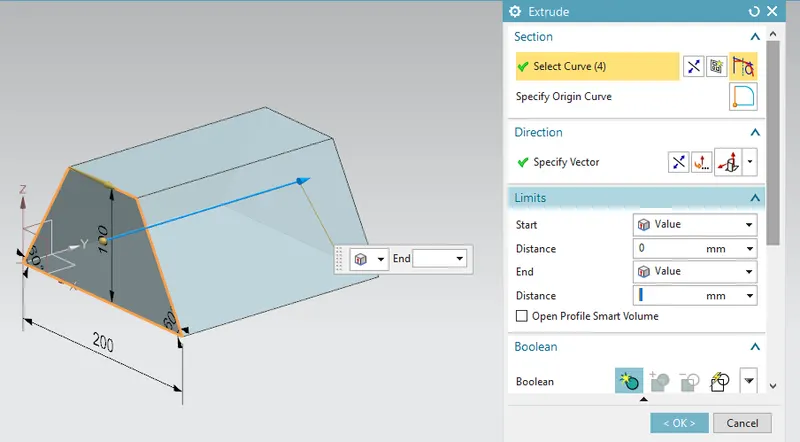
- Modulate the skecth into solid by selecting the extrude option from feature tab > more > extrude and choose the lines, enter the distance value as 200 mm.
2. Convert the solid to sheet metal
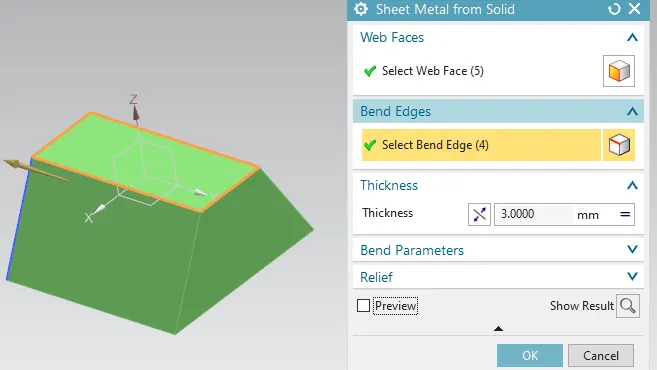
- Convert the solid trapezium into sheet metal by selecting the 5 faces as web face except bottom face, select the bend edge from corners of top face and enter the thickness as 3 mm.
3. Create flange and jog
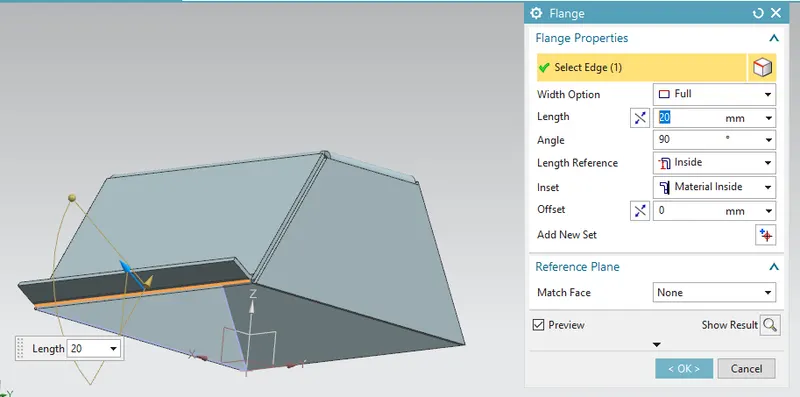
- Create flange from bend tab, select the edges and enter the input values as length 20 mm, angle 90 mm, inset as material inside.
- Open the sketch option from direct sketch tab and select the one side as plane and specify the part origin.
- The line should be drawn from midpoint of one edge and 3/4th of other edge.
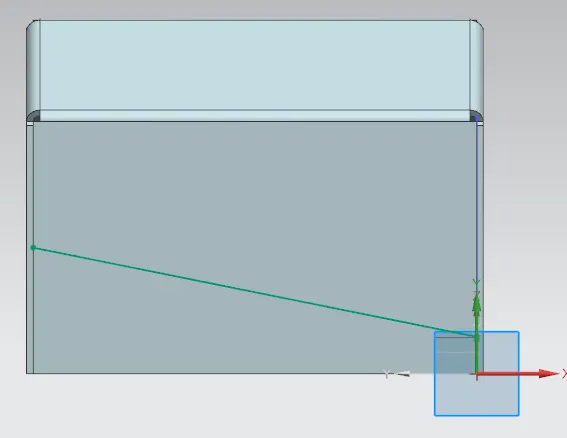
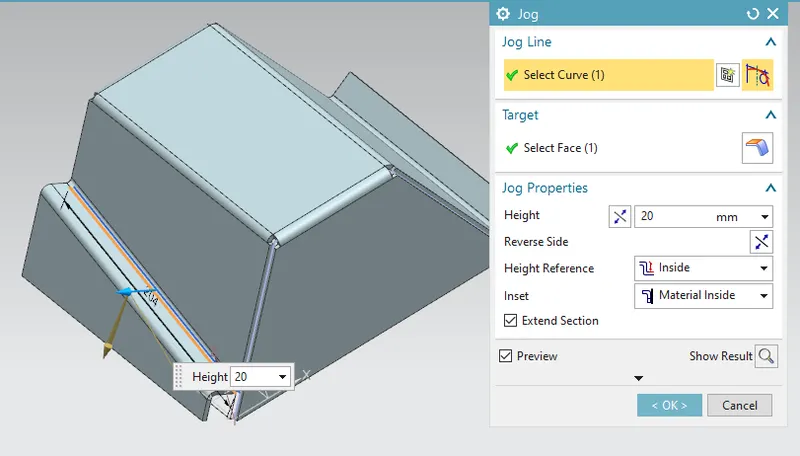
- Create jog from more > bend tab > jog, select the line and enter the input values as length 20 mm, height reference as inside, inset as material inside.
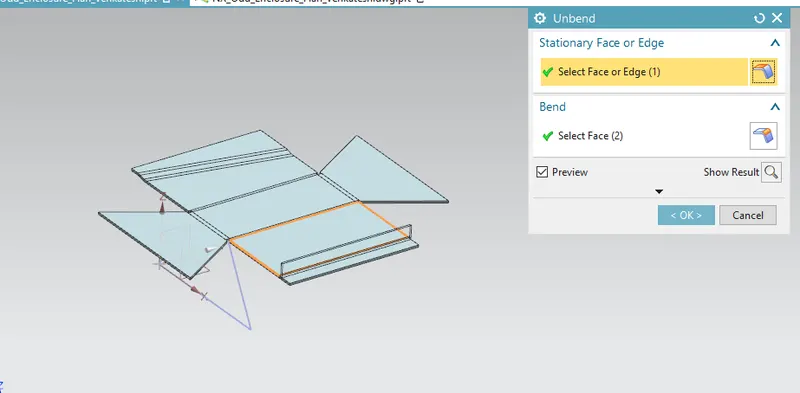
4. Unbend the 3D sheet to flat sheet
- Unbend the 3D sheet metal design to flattened sheet metal, by using unbend command from form tab and select the edges and adjacent faces.
5. Create embose and holes
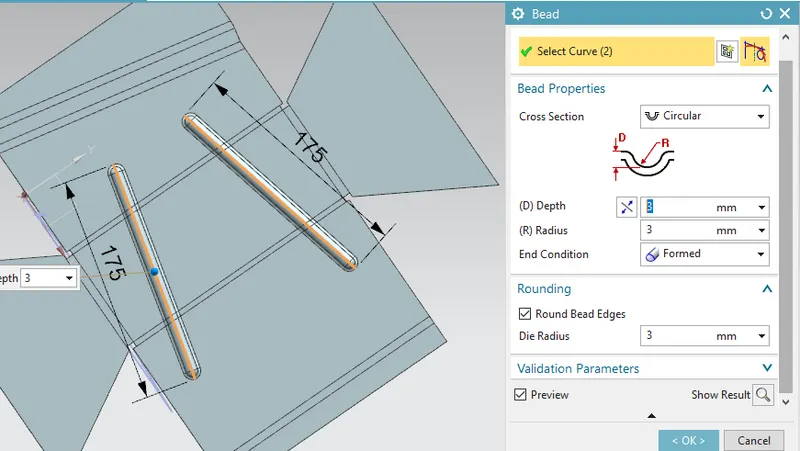
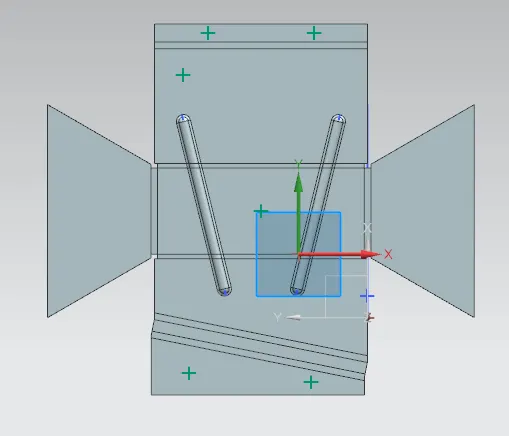
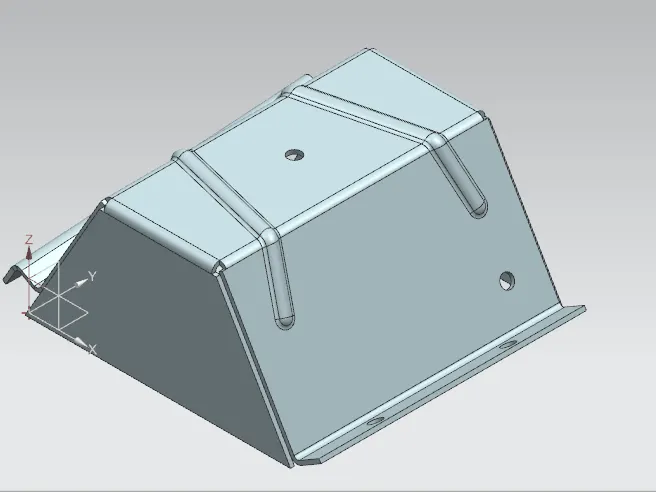
- Create bead as liens in center of design using sketch command from direct sketch tab with sides referencing the below image.
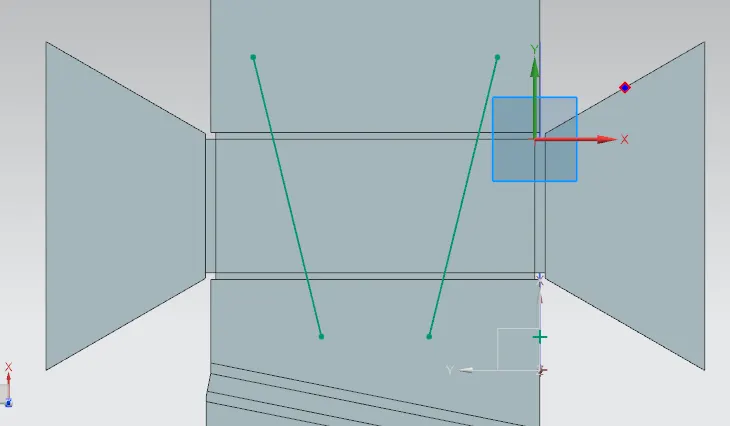
- Use bead option to create embosement in sheet for cross section as circular, depth as 1 mm, radius as 1 mm, end condition as formed and also select the black triangle to expand the options where rounding section set die radius as 3 mm.
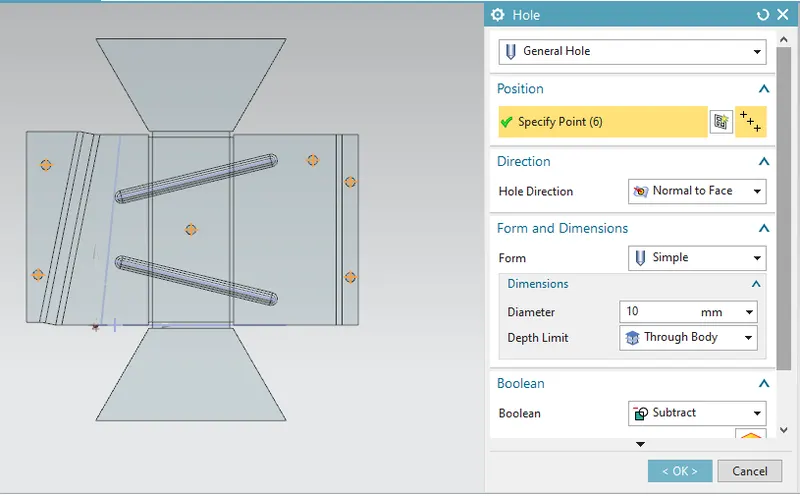
- Create holes around the sheet by using direct sketch tab>sketch>points positioning at one at center, one at side above flange, two holes on ends of flange and jog.
- Use the reference points to create holes by using inputs like hole type as general hole, form as simple, diameter size as 10 mm and depth limit as through body.
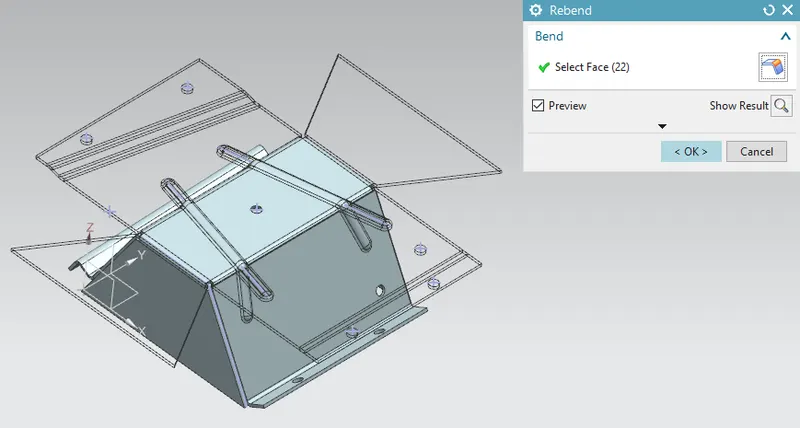
6. Rebend the flat sheet to 3D sheet
- Use rebend command to return the flattened sheet to 3D sheet design from rebend command in form tab by selecting the bend and flanges orderwise.
7. Draft the flattened sheet
- For drafting, select flat pattern command and click the base face.
- Flattened sheet is not visible, to view it untick the rebend part from part navigator and save the file.
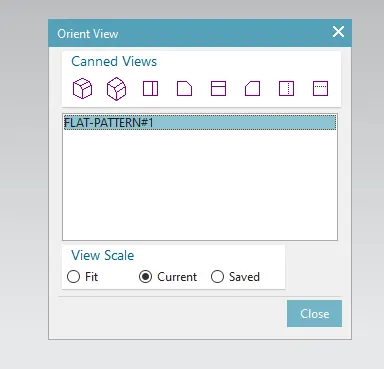
- Use mouse right click on the interface and select the orient view > customize > select the flat pattern #1.
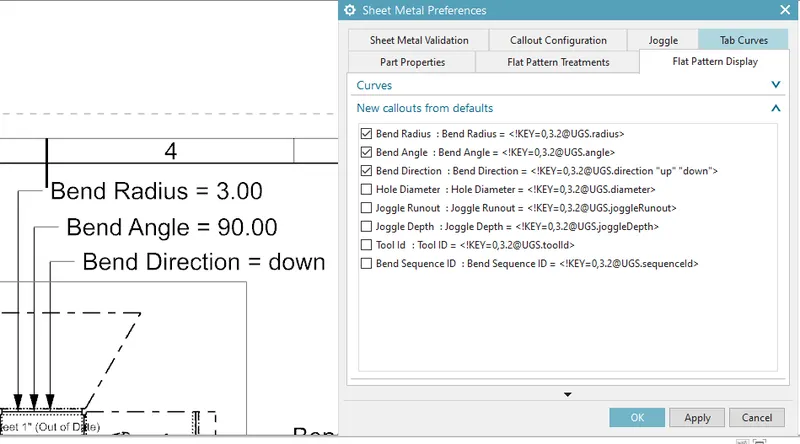
- Click the menu on top order bar > select preferences > go to sheet metlal > click on flat pattern display > on new callouts from default section tick the bend radius, bend angle, bend direction and untick other boxes.
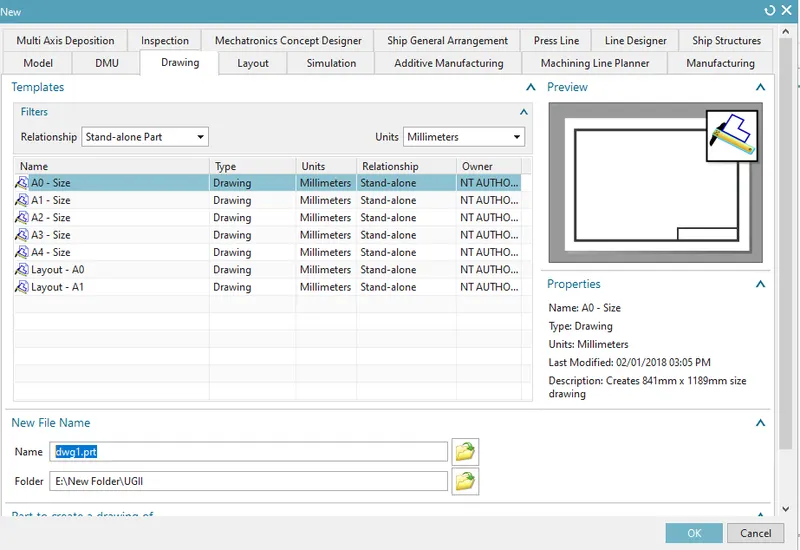
- The flattened sheet should be of an A4 size sheet so open the new file> drawing> A4-size> select ok.
- Use view creation wizard from view tab and place the flattened sheet in draft and save the file.
RESULT:
- Feature tree
- Draft of sheet metal odd enclosure
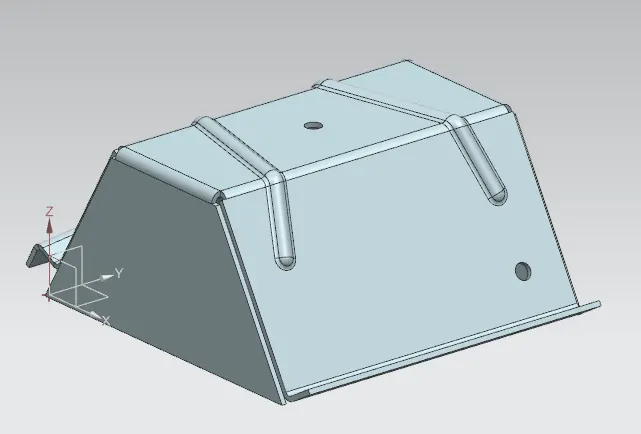
- Isometric view
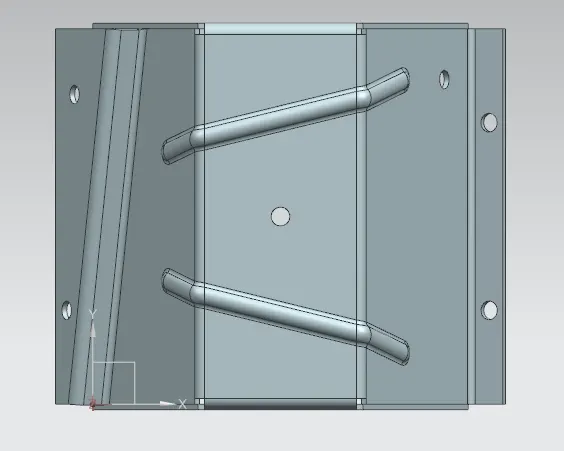
- Top view
- Front view
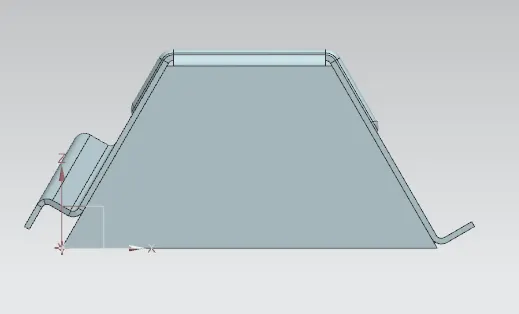
- Side views