Advanced Sheet Metal Design Using NX Cad Challenge_1_Casing Design
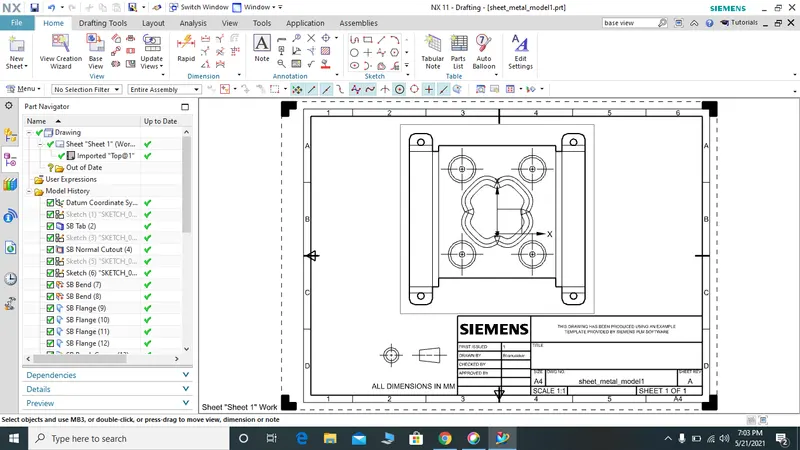
Drafted Image
Casing Design
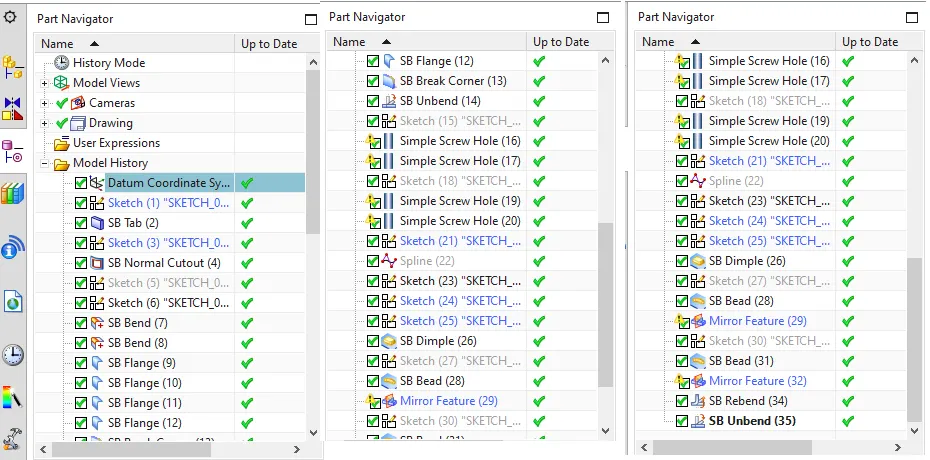
- A rectangle is sketched using sketch feature with the required dimesion.
- End the sketch by clicking finish sketch
- Now you have to make another sketch on the previous sketch using a rectangle and dimensioning away from the end of the previous rectangle
- End the sketch by clicking finish sketch
- Now using the command normal cut out select the second sketch
- You will obtain a sheet which has been cut like the second drawn sketch
- Now start a new sketch on the plane and draw a horizontal line on top as well as bottom with desired dimension
- Now using the command bend, bend the sheet in reference with previously drawn sketch
- Using the command flange, create a new flange at the ends of the bent surface
- You can fillet the corners using break corners feature
- Now unbend the sheet
- Sketch a circle at the corners for screw holes and set the hole to M2 type.
- Now draw a sketch at the center and use a feature studio spline to get a curved and smooth surface along the sketch
- To make a dimple, use the command dimple and select the sketch.
- Sketch a circle with desired dimension and using the feature bead obtain the result
- Now mirror the bead and parent file in reference with axis to get it on the other side
- Once the all are done Rebend it to get the output
- You can bring the result in drafting and set to A4 to get it printed
- Save the file once completed
Feature tree